Outdated data is always a problem for AI models. It results in LLM responses that miss current trends or factual accuracy. The best solution to this problem is automating web data collection to supply AI with fresh information, but this solution is also fraught with problems.
Transforming raw web data into a format that machines can use requires careful cleaning and structuring. You need to improve data quality by filtering out irrelevant or redundant information before it reaches your AI systems.
Apify offers two purpose-built Actors for this. Which one you reach for depends on what you're building.
RAG Web Browser or Website Content Crawler?
RAG Web Browser is built for quick, on-demand lookups when an agent or chatbot needs a small set of pages right now. It searches Google, fetches the top results, and returns clean Markdown in seconds, fast enough to fit inside an agent's query loop.
Website Content Crawler (WCC) is built for scheduled pipelines that feed AI systems at scale. It crawls entire websites, eliminates duplicate entries and irrelevant information, and stores the results in a Dataset ready to feed a vector database or knowledge base.
The rest of this article walks through WCC.
In this article
We'll show you step-by-step how to use Website Content Crawler for AI data collection with its simple and intuitive UI.
- Start URLs
- Crawler settings
- HTML processing
- Data cleaning
- Output settings
- Running the Actor
- Storing and exporting the data
- Integrations
- Schedule recurring crawls
Prefer video? Watch this instead
Step-by-step guide to AI data collection
To use Website Content Crawler and follow along with this tutorial, sign in or sign up for a forever-free plan (no credit card required).
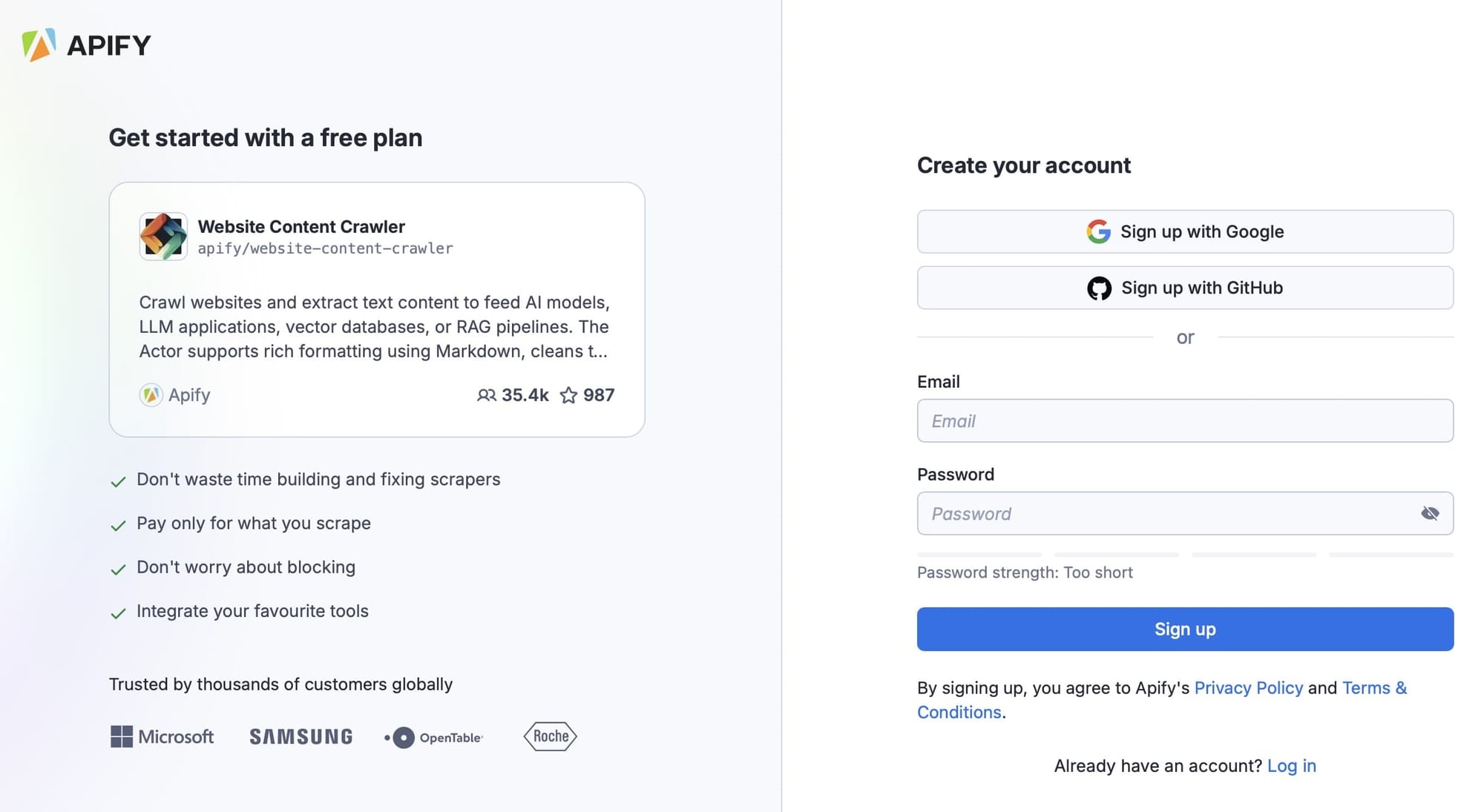
When logged in to your account, you'll be taken to your dashboard (Apify Console), where you'll see the User Interface we're about to go through.
1. Start URLs
For this example, we'll use the default input and scrape the Apify docs using the following start URL: https://docs.apify.com/academy/web-scraping-for-beginners.
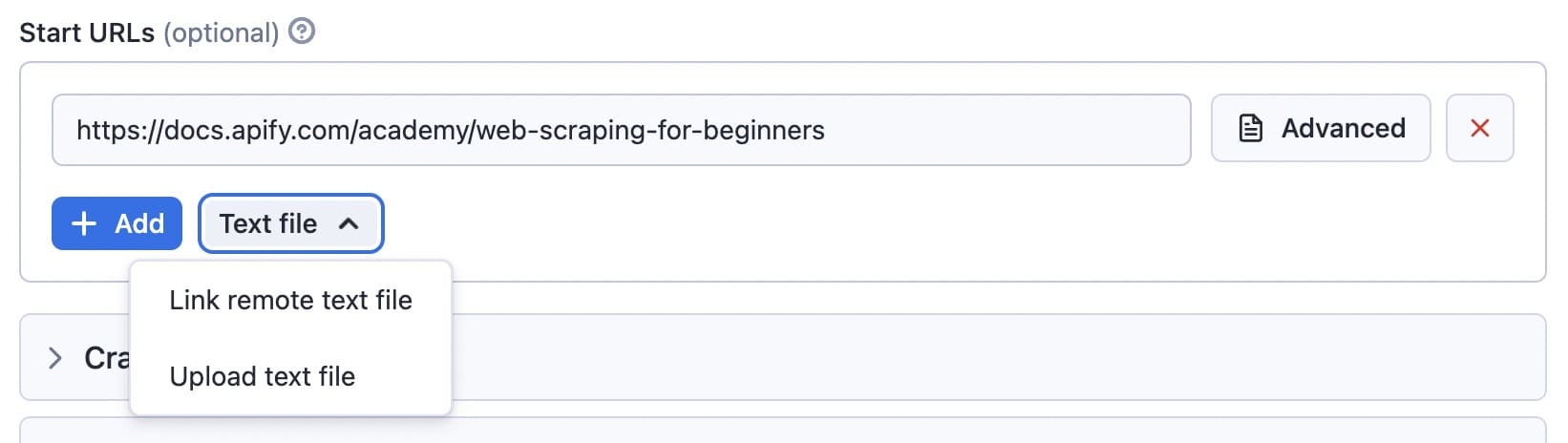
In this case, the crawler will only crawl the links beginning with https://docs.apify.com/academy/web-scraping-for-beginners. Other links, such as https://docs.apify.com, will be ignored.
You can add other URLs to the list, as well. These will be added to the crawler queue, and the Actor will process them one by one.
You can use the Text file option for batch processing if you have lots of URLs and want to crawl them all. You can either upload a file with a list that has each URL on a separate line, or you can provide a URL of the file.
2. Crawler settings
Crawler type
The default crawler type is Adaptive, which switches between a headless browser (Firefox + Playwright) and a raw HTTP client (Cheerio). This crawler dynamically adapts, combining the advantages of both crawlers.
The Raw HTTP client (Cheerio) is extremely fast (up to 20x faster than a headless browser) and uses less memory. However, it cannot handle pages with client-side JavaScript rendering. On the other hand, a headless browser can process dynamic pages and is effective at handling anti-bot blocking, but is generally slower, consumes more memory, and therefore costs more.
In most cases, the adaptive switching option saves you time by automatically determining which crawler to use based on the page type, eliminating the need for manual decision-making.
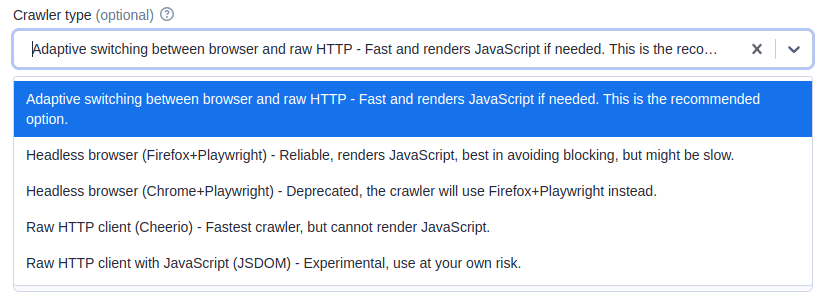
If you want full control and need to render client-side JavaScript, choose the headless browser option. If client-side JavaScript rendering isn’t required, opt for the Raw HTTP client (Cheerio).
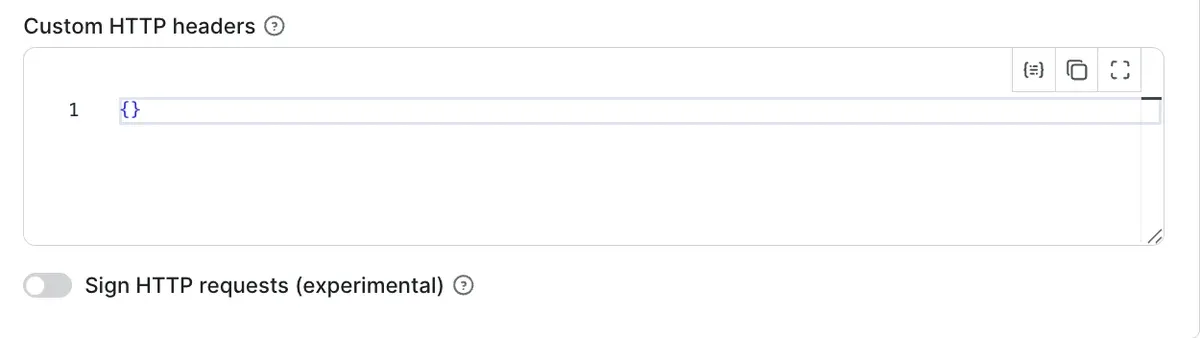
Sign HTTP requests for Cloudflare
If you’re crawling Cloudflare-protected sites, enable Sign HTTP requests. The crawler will sign every request with its Web Bot Auth private key and operate as a Cloudflare Signed Agent. Use it when the target site participates in Cloudflare’s verified bots program. Leave it off otherwise.
Exclude URLs (globs)
By default, the crawler will visit all the web pages in the Start URLs field (plus all the linked pages - but only if their path prefixes match). However, there might be some you don’t want to visit. If that's the case, you can use the exclude URLs (globs) option.
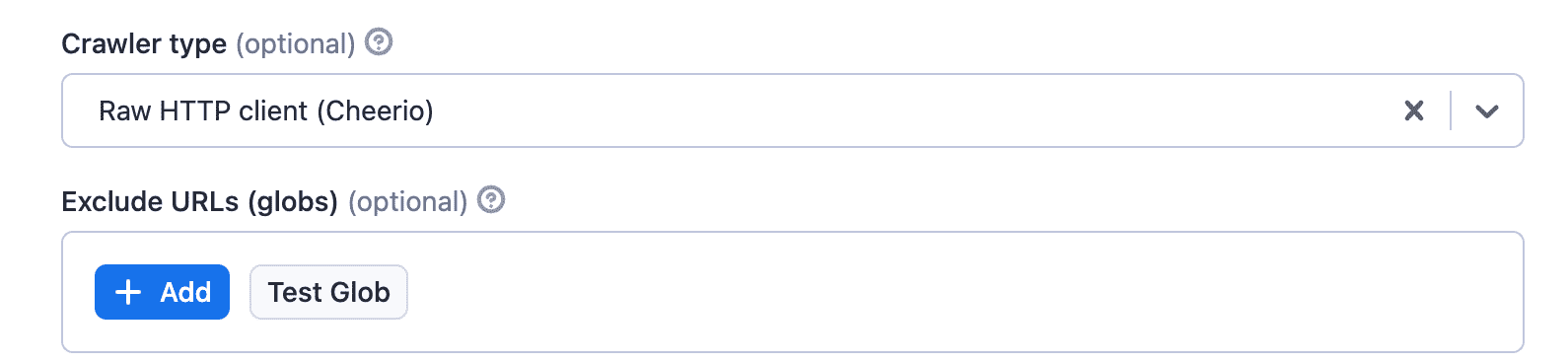
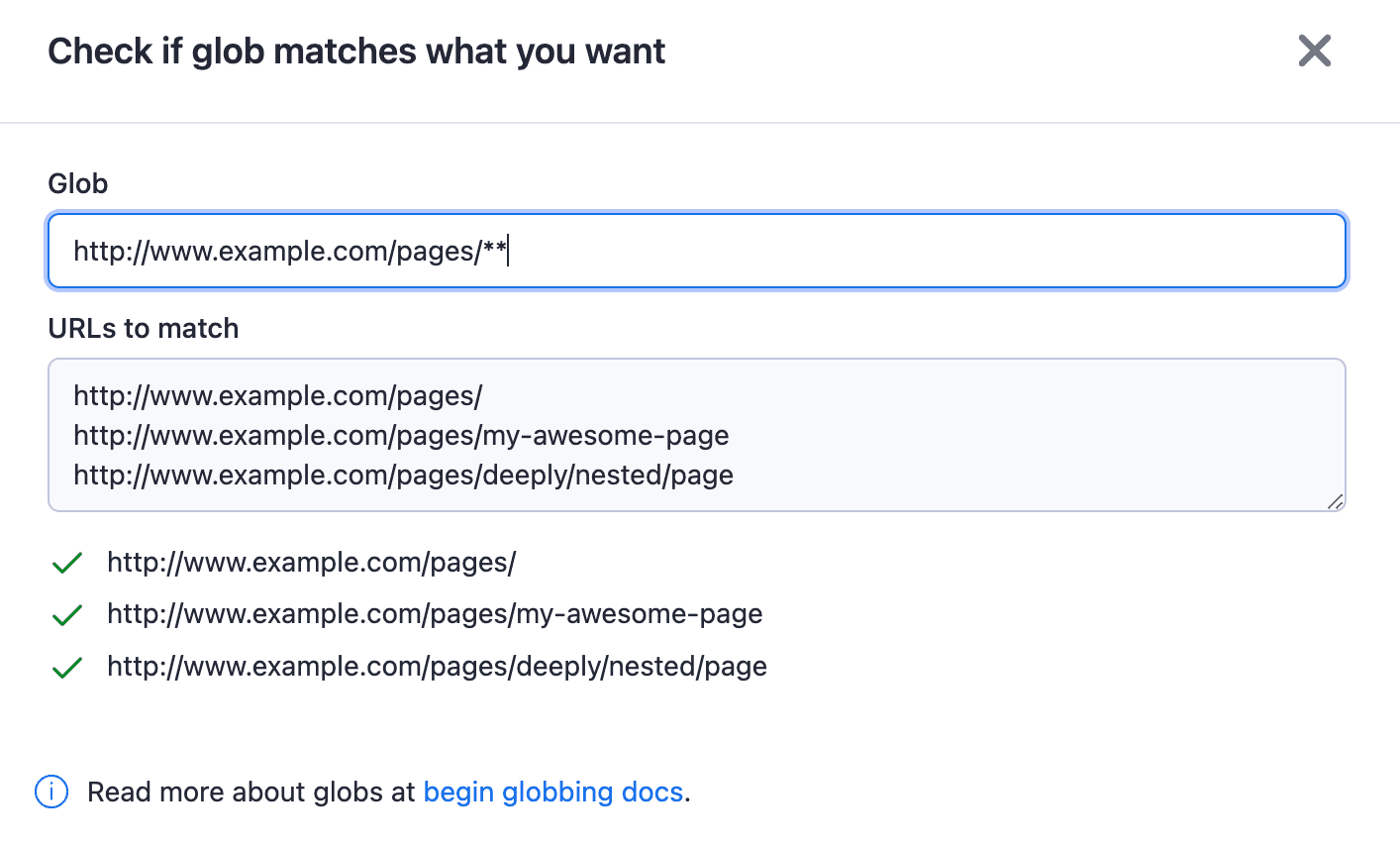
You can also check if the glob matches what you want with the Test Glob button.
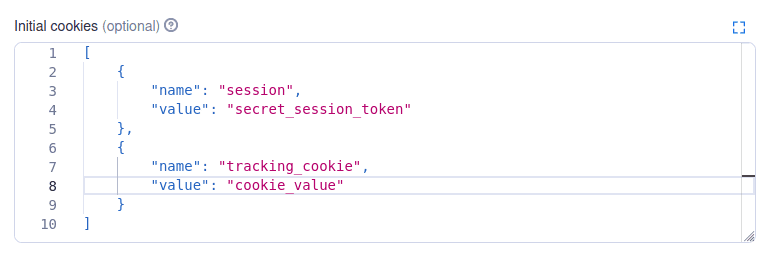
Initial cookies
Cookies are sometimes used to identify the user with the server it’s trying to access. You can use the initial cookies option if you want to access content behind a log-in or authenticate your crawler with the website you’re scraping. Here are a couple of examples.
3. HTML processing
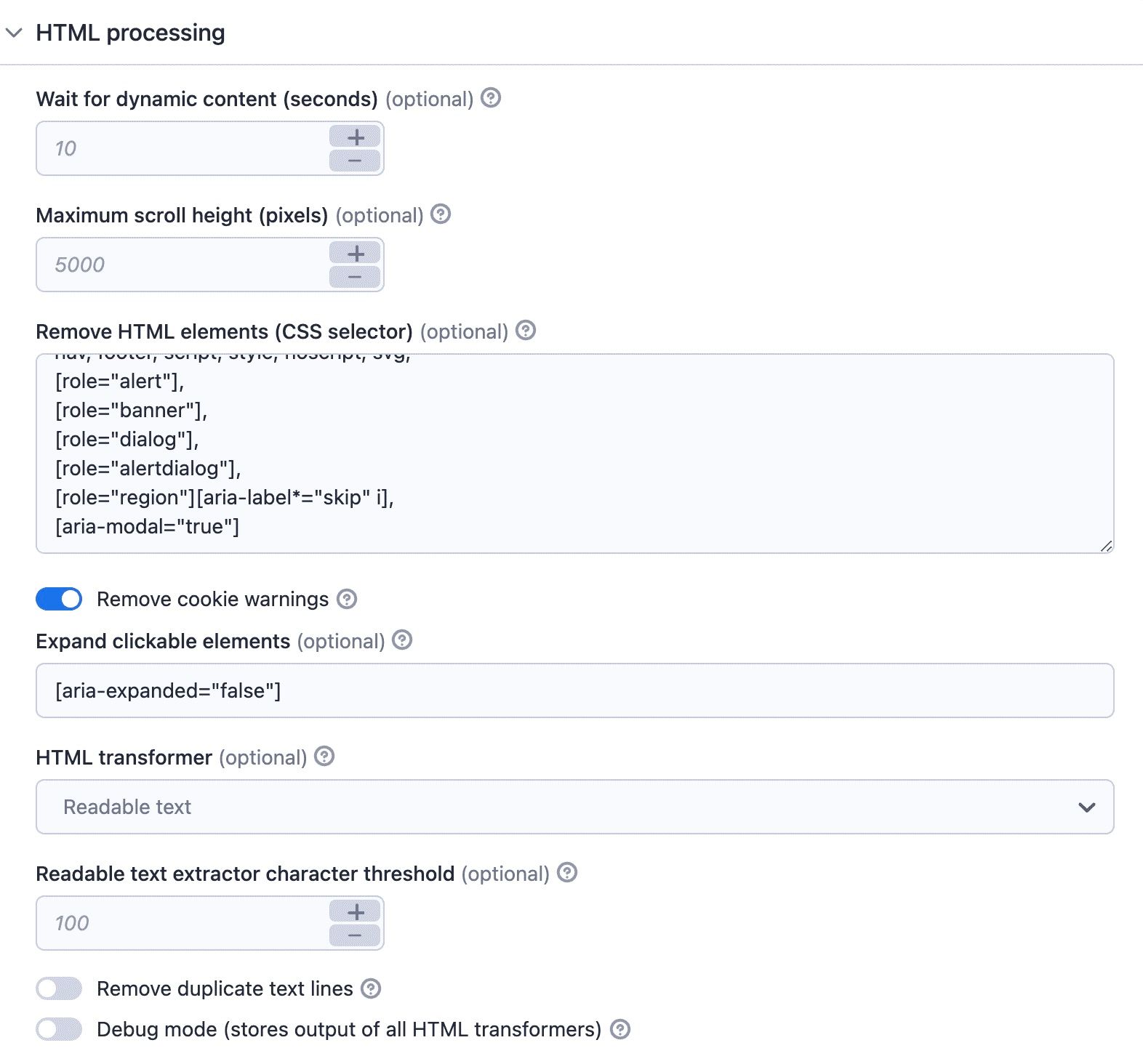
There are two steps to HTML processing: a) waiting for content to load and b) processing the HTML from the web page (data cleaning). Although the UI doesn't strictly follow this order, I've decided to break it up this way: 3. HTML processing and 4. Data cleaning.
Wait for dynamic content
Some web pages have lazy loading, which is when the web page is loading more content as you scroll down. In such cases, you can tell the crawler to wait for dynamic content to load. The crawler will wait for up to 10 seconds as long as the web page is changing.
Maximum scroll height
The maximum scroll height is the height at which you scroll down before starting to process the page. This is there just to prevent infinite scrolling. Imagine an online store loading more and more products as you scroll, for example.
Remove cookie warnings
Once the content is loaded, the crawler may try to click on the cookie modals. With the remove cookie warnings option, it will click and hide the modals. It's enabled by default.
Expand clickable elements
The expand clickable elements option lets you add a selector of things the crawler should click on. If you don't select this, the Actor won't crawl any links in collapsed content. So, use this option to scrape content from collapsed sections of the webpage.
4. Data cleaning
Why convert to Markdown?
Raw HTML burns tokens on tags, styles, and scripts that add no meaning. Markdown lowers your token cost while keeping the structural cues a model needs: headings, lists, tables, and code.
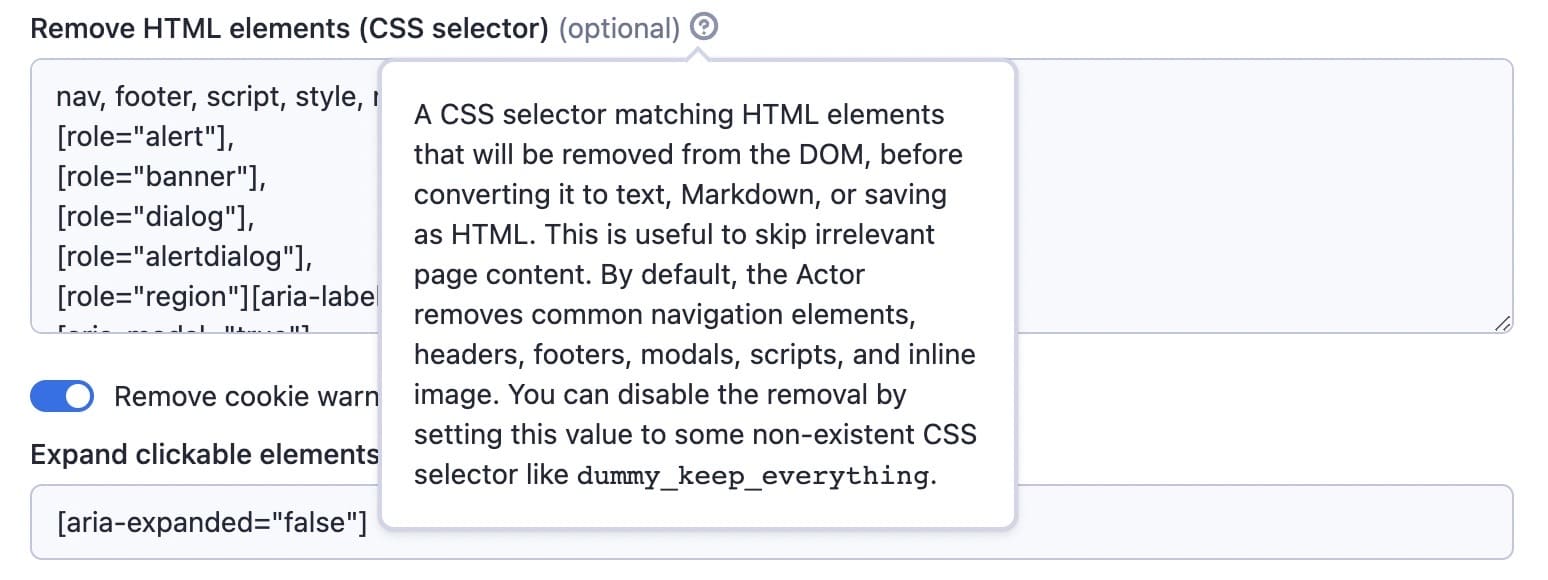
Remove HTML elements
You can clean the data by removing HTML elements. These are the selectors of things you don’t want to include in your results (banners, ads, menus, alerts, and so on). The default setting covers most things, but you can add more to the list if you need to. This way, you'll have only the content you need to feed your language model.
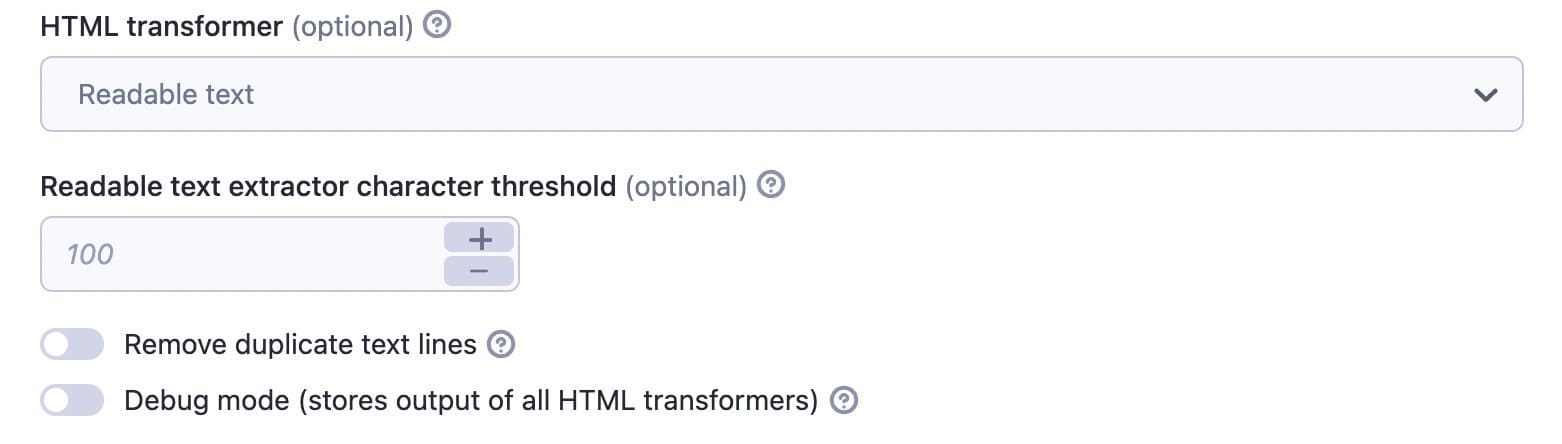
HTML transformer
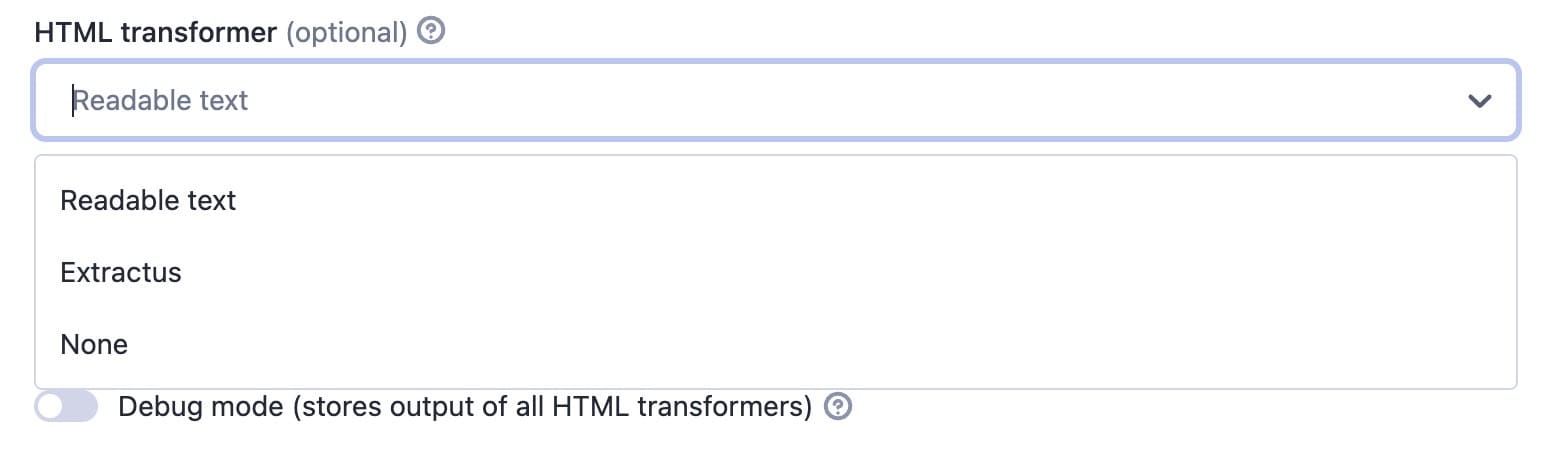
With this option, you can try to remove more elements, but it may strip useful parts of the content you want to extract. So, if you discover that this is the case after running the Actor, you can choose None.
Remove duplicate text lines
You can remove duplicate text lines if the crawler keeps seeing the same line again and again. You can enable this in case you keep seeing some parts of footers or menus in your output, but you don’t want to look for the correct CSS selectors. The Actor strips the repeated content after 4 or 5 occurrences. This will prevent saving the same information repeatedly and so keep the data clean.
5. Output settings
You can save the data as HTML or Markdown or save screenshots if you're using a headless browser. The Save files option deserves some special attention, though.
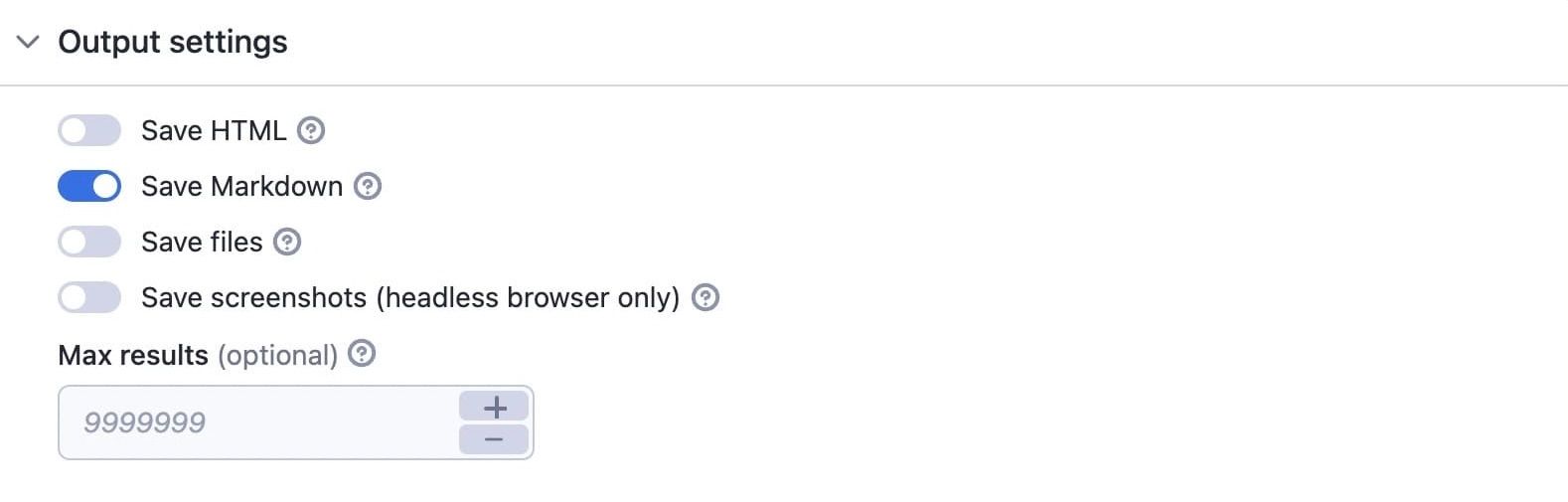
If you choose Save files, the crawler inspects the web page, and whenever it sees a link that goes to, say a PDF, Word doc, or Excel sheet, it will download it to the Apify key-value store.
6. Running the Actor
With the UI, you can execute code with the click of a button (the Start button at the bottom of the screen).
While running, you'll see what the crawler is up to in the log and can check if it's experiencing any issues. You can abort the run at any point.
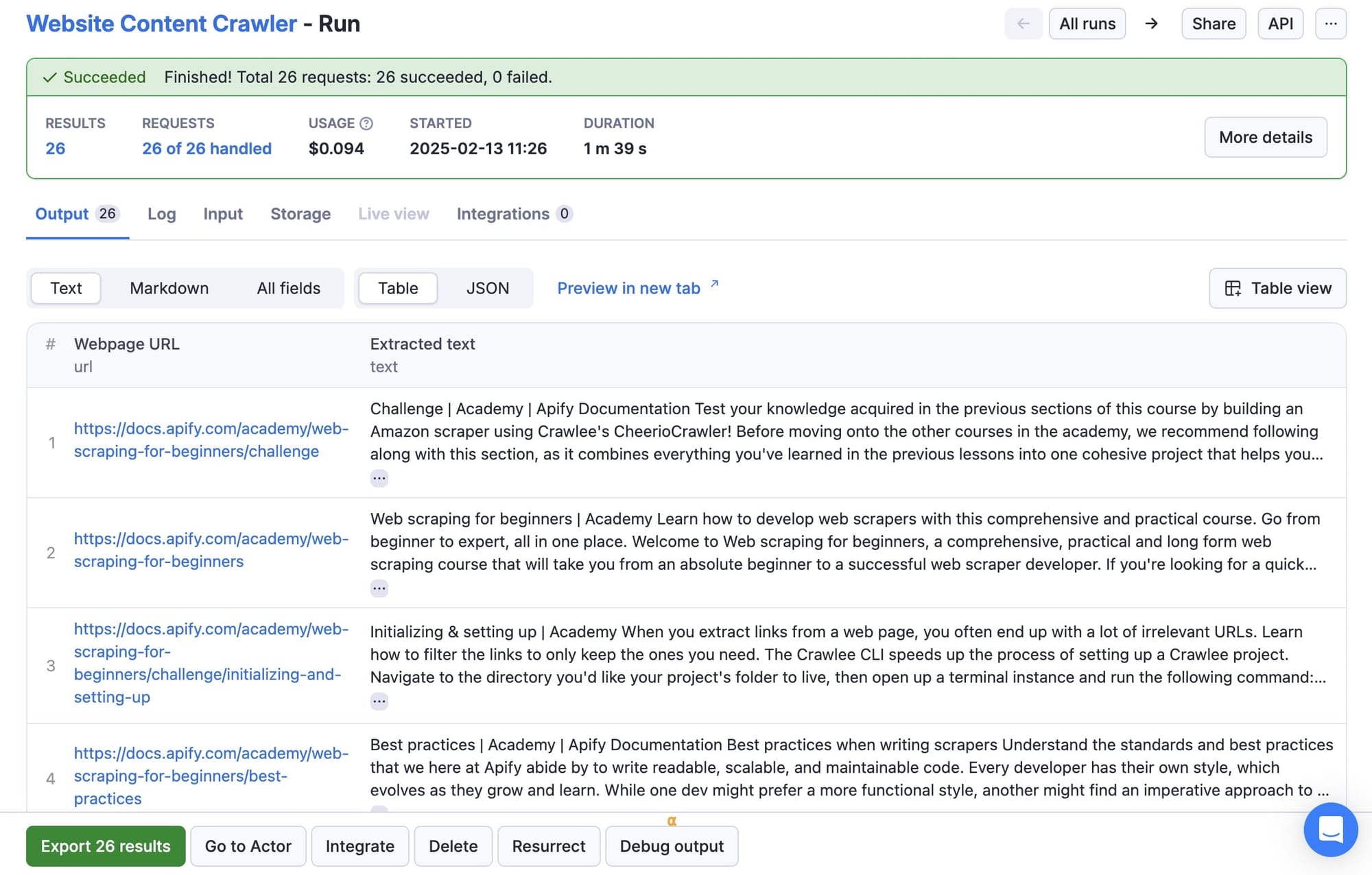
When the crawler has completed a successful run, you can retrieve the data from the output tab.
7. Storing and exporting the data
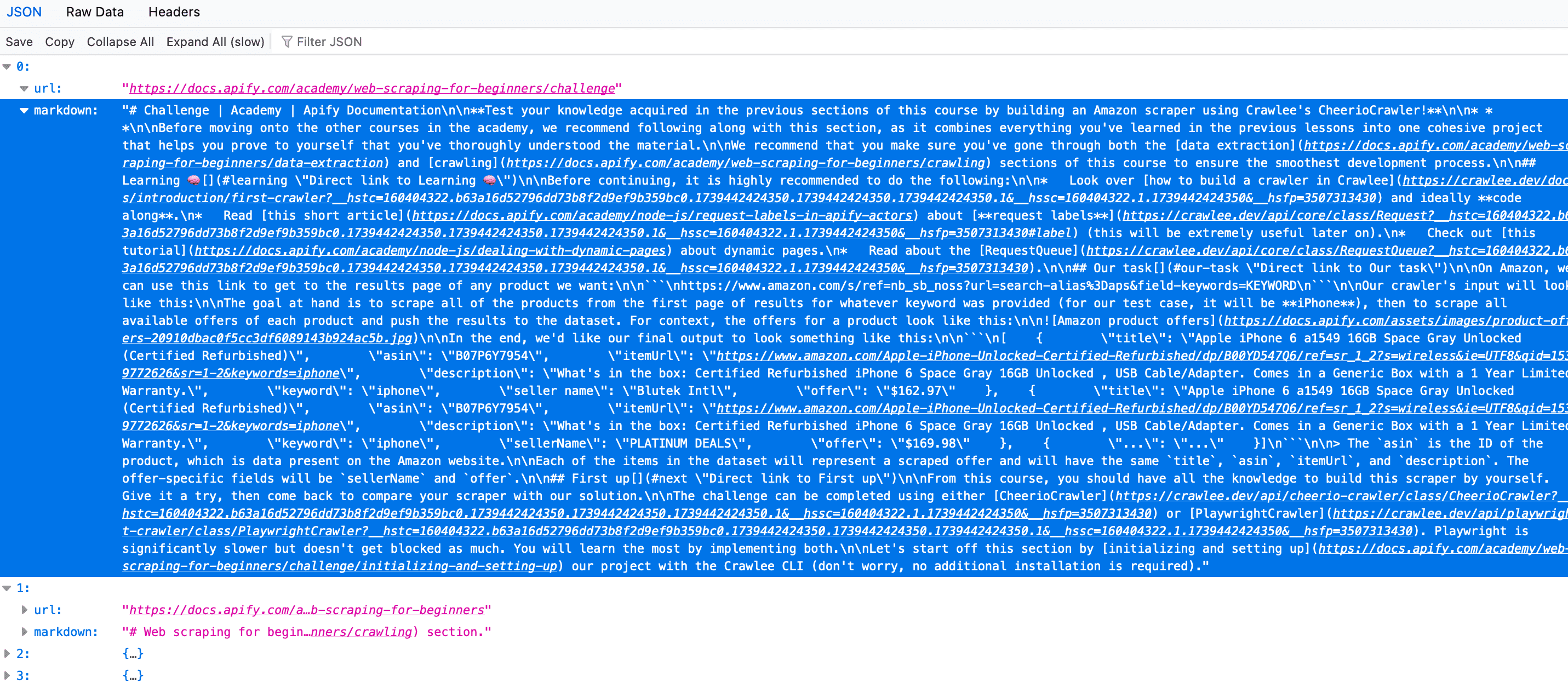
The results of the Actor are stored in the default Dataset associated with the Actor run, from where you can access it via API and export it to formats like JSON, XML, or CSV. You need only click the Export results button to view or download the data in your preferred format.
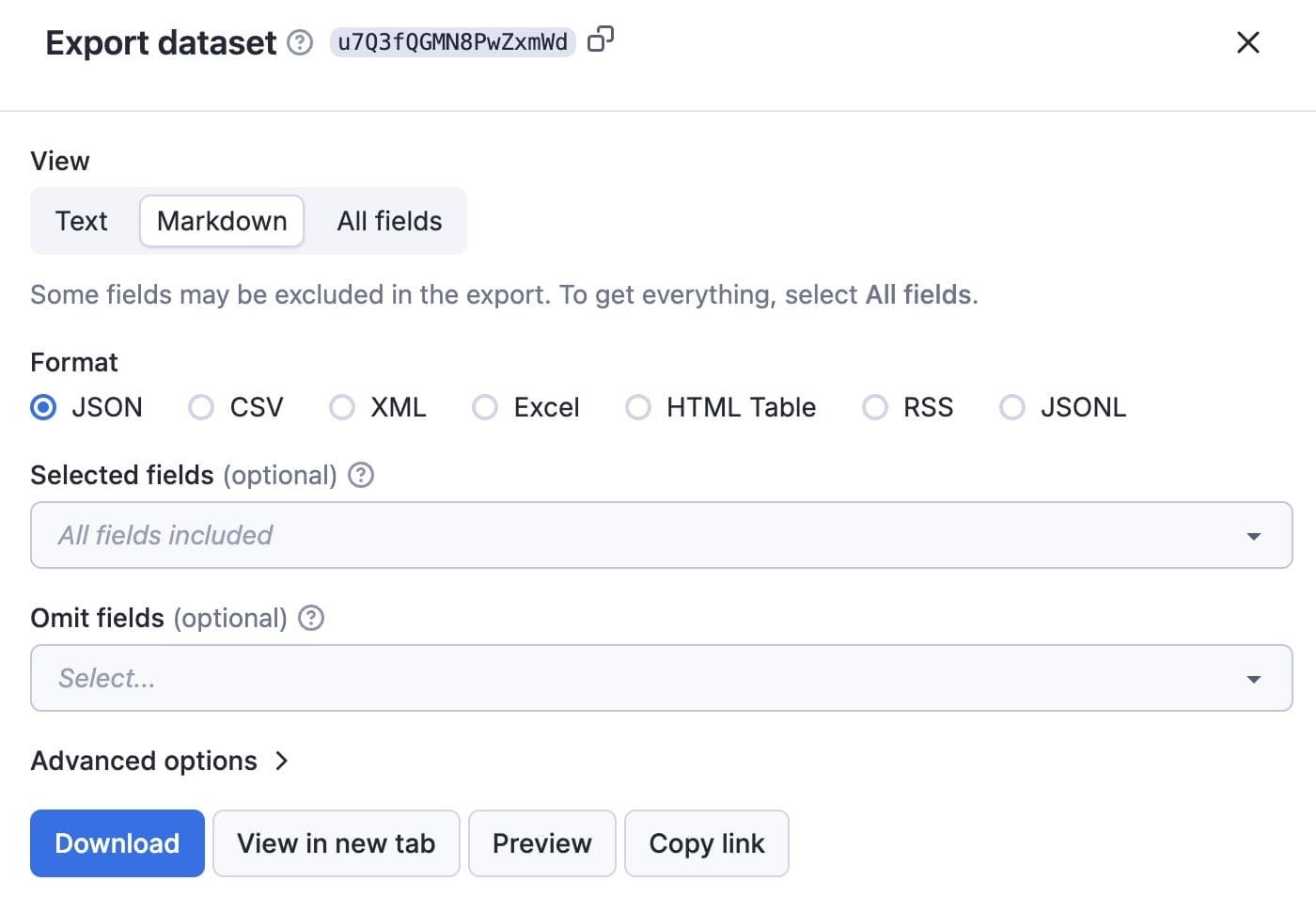
Here's the Markdown from the first of the 26 results from this demo run.
8. Integrate your data with LangChain, Pinecone, and other tools
You can now use the data you've collected to feed and fine-tune LLMs by integrating your data with LangChain or with a vector database such as Pinecone or any Pinecone alternatives. You can also apply the same data to track brand mentions in LLMs.
For a detailed example, check out this tutorial on how to use LangChain and Pinecone with Apify.
Alternatively, you can orchestrate everything using platforms like Make.com to automate crawling and data updates. Apify offers a rich ecosystem and integrates with major automation platforms and AI tools.
9. Schedule recurring crawls
A model grounded in last quarter's snapshot is already stale. Apify lets you set a schedule on any Actor run, so WCC re-crawls your sources automatically: weekly for docs, daily for news, or hourly for fast-moving forums.
Pair it with the Pinecone or Qdrant integration and the vector database only re-embeds the content that actually changed.
Get quality data for AI
A high-quality dataset is the foundation of any AI system, and making sure that your data is fresh, relevant, and well-structured is the key to better model performance. As we've demonstrated, Website Content Crawler simplifies the entire process, from collecting web data to refining it for AI applications, all without requiring deep technical expertise. Once your dataset is clean and structured, it's ready for the next step. Putting AI for data analysis to work on it turns that raw collection into patterns and insights.
If you're serious about improving your AI’s accuracy with real-time web data, try Website Content Crawler. Sign up for a free account and start building cleaner, more reliable datasets in just a few clicks.