If you've run a link-building campaign, you know how the prospecting actually works. You search for a target keyword, open the top results in separate tabs, and start reading. You're trying to find a blog post where a link to your domain would add real value - but first, you have to decide whether the content is even on topic. Then you need to find out who wrote it. Not the company - the person who could open the article tomorrow and edit it in.
Manual prospecting doesn't fail because it's hard - it fails because it's slow. Every hour spent reading pages that turn out to be irrelevant is an hour not spent on outreach that actually moves your domain rating.
There’s a better way to approach your link-building activities, though: with a specialized automation tool, you can collect ranked pages for your target keywords and extract the specific copywriter's name and contact details, ready for personalized outreach at scale. Here’s how.
How to automate link-building prospecting
In this tutorial, we’ll show you how to collect content data across Google Search, ChatGPT, and Perplexity, remove any sources that already mention your brand, and get contact details for each source. All this can be achieved with a single Actor available on Apify Store - Link Prospecting Tool.
Actors have access to platform features such as built-in proxy management, anti-bot evasion support, integrated storage with structured CSV/Excel/JSON exports, and standardized input parameters (URLs, keywords, limits, etc.). Actors integrate easily with tools like Make, n8n, or AI workflows, so you can send your data directly into analysis pipelines without manual handling.
Step 1: Configure the Actor and run it
Start by creating a free Apify account. Head to Link Prospecting Tool and click the Try for free button to access Apify Console - a workspace to run or build automation tools.
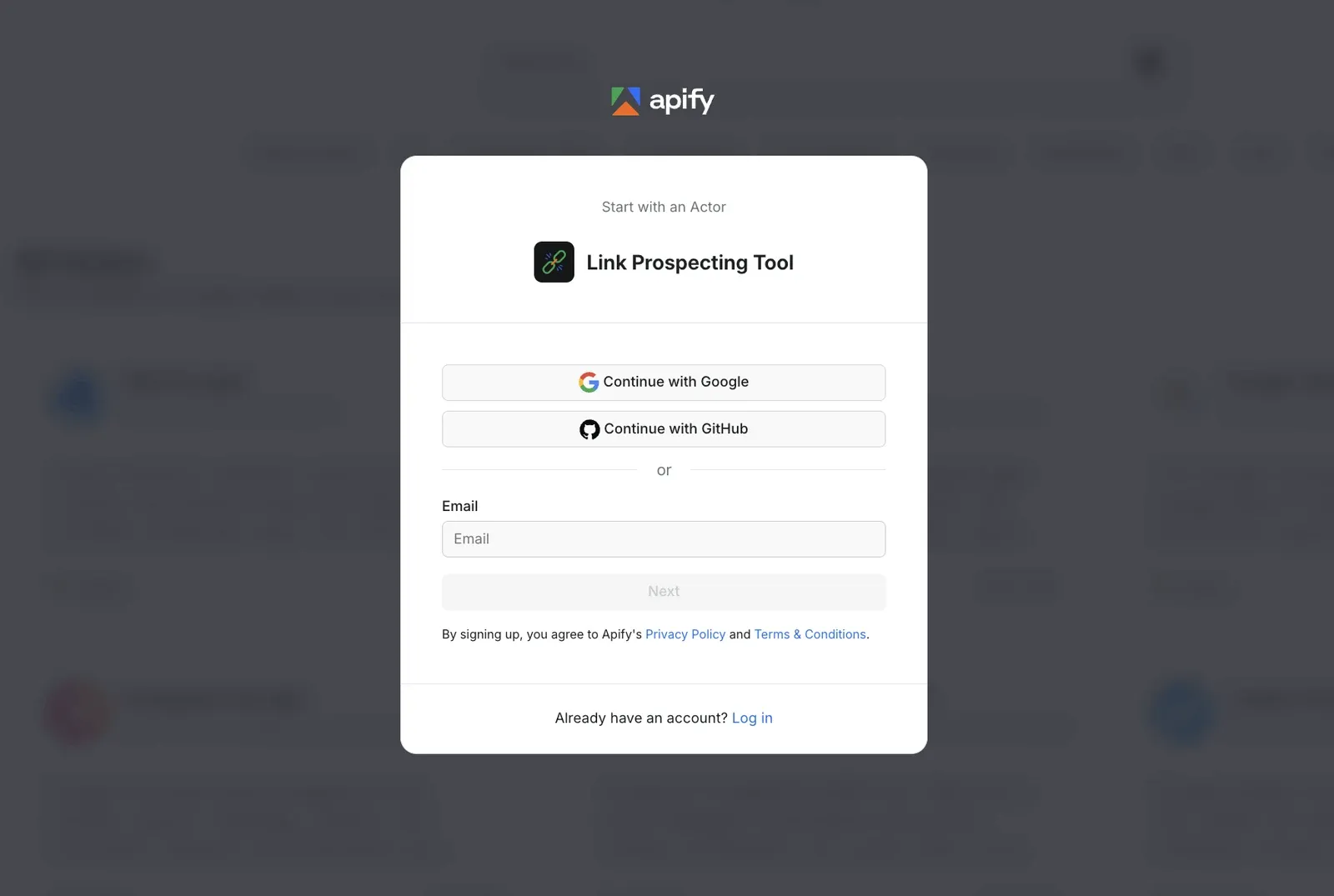
This Actor turns a list of search queries into a ready-to-use link-building outreach list. Add your search queries, and the Actor finds the websites that show up in Google, ChatGPT Search, Perplexity, and Google AI Mode. It then checks whether your brand is mentioned in the AI answer or on the source pages. It removes your own domains, competitors, and sites that usually aren’t useful for outreach, like Wikipedia or GitHub.
If you're already using Google Search Results Scraper for SERP data, you can get the same link-prospecting capability without switching tools. Enable the Link prospecting tool add-on and enter your brand name to have the Actor check every URL cited by Google Search, Google AI Overview, and any AI engines you turn on, such as ChatGPT and Perplexity, for brand mentions.
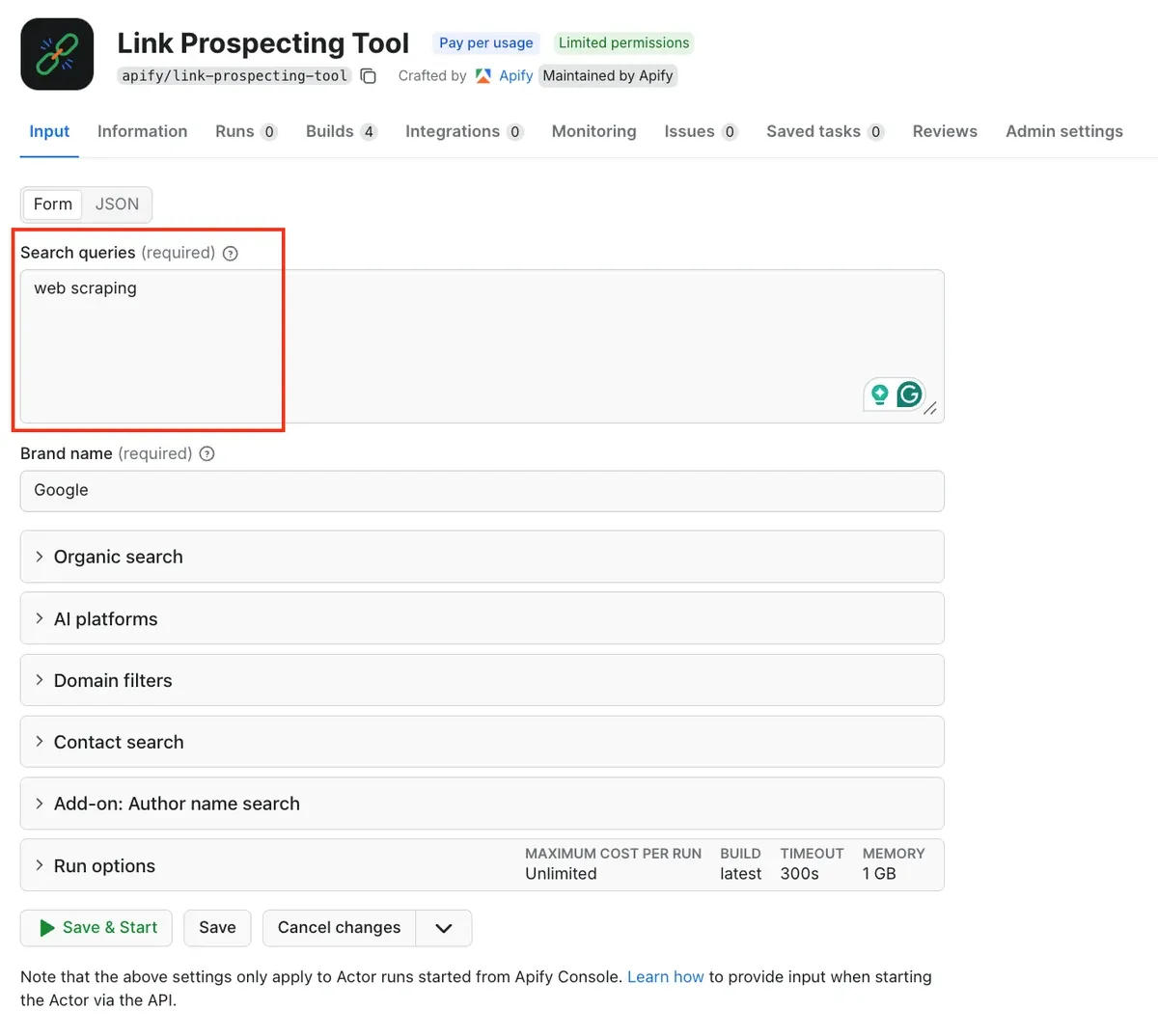
Start with a keyword. We’ll look for content about web scraping.
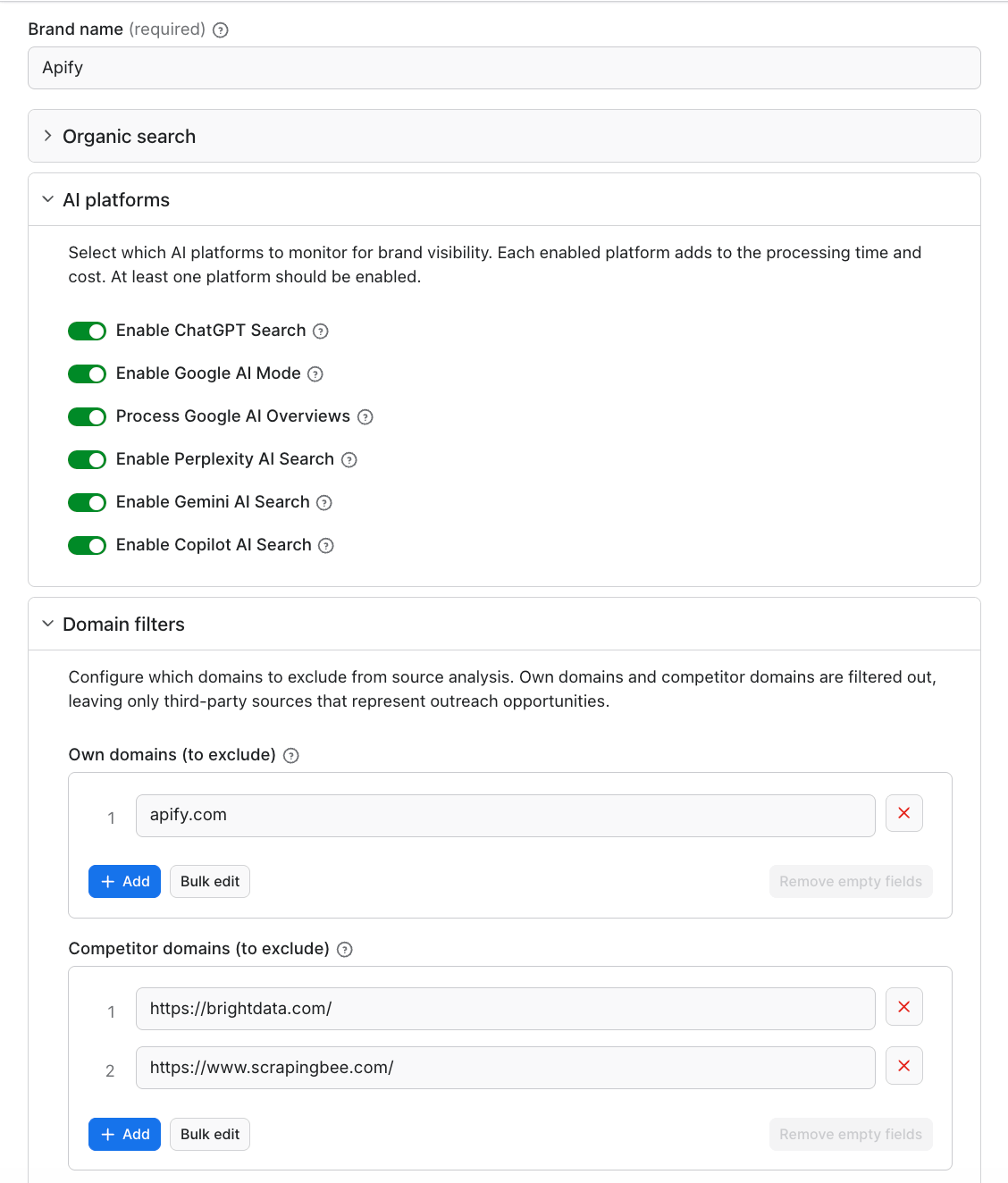
Add your brand name to search for in AI-generated responses and cited sources. Enable the AI platforms you want to monitor. You can also exclude your own domains from the search, as well as competitor domains.
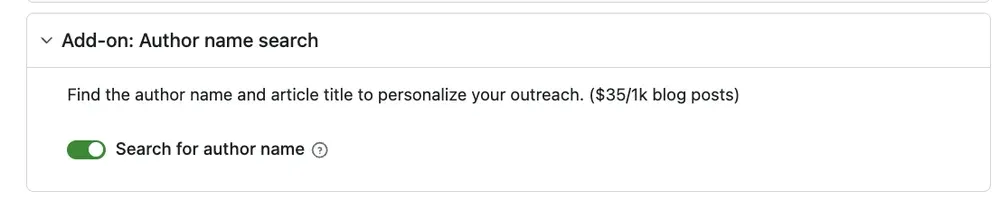
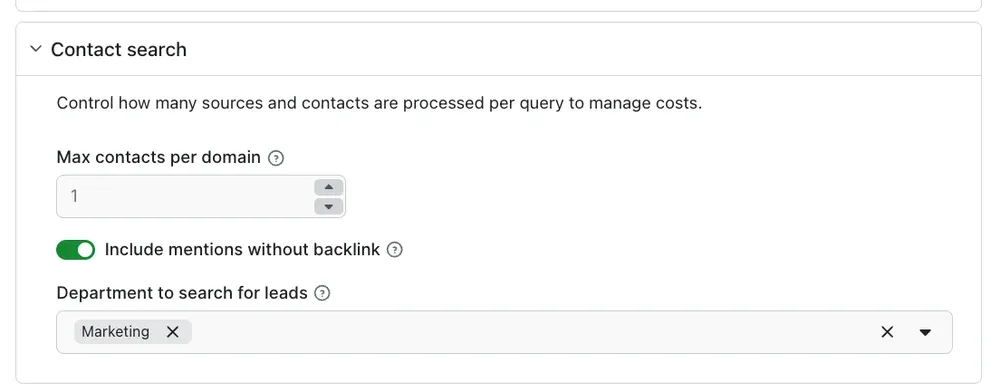
To automatically extract the names of authors, switch on the Search for author name toggle. To manage costs, you can limit the number of extracted contacts.
Click Start.
Step 2: Export your results
After a couple of minutes, you’ll see the run status change from Running to Succeeded. You can check the preview of all the extracted data in the Output table. The Actor has extracted mentions across LLM tools along with a domain and URL, as well as enriched data about the content authors.
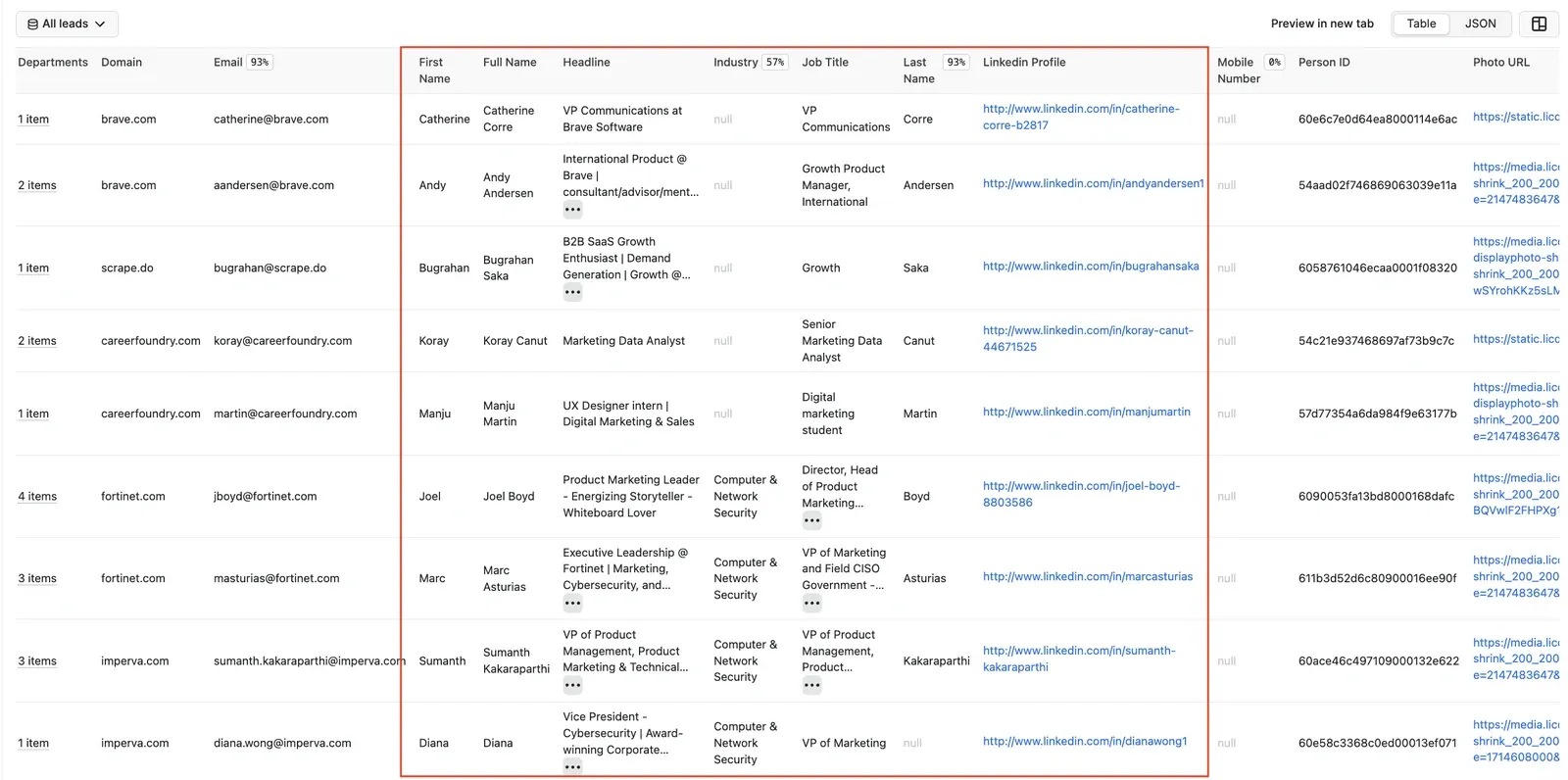
You get a Full Name, Email, Mobile Number, and LinkedIn Profile for each contact. Email and LinkedIn are your primary outreach channels for a link-building pitch. When preparing personalized outreach at scale, a content humanizer can help make AI-assisted messages sound more natural and tailored to each recipient.
The Actor can also tell you if the person is the right one to contact, with Job Title, Seniority, and Departments data. You even get rich company context without having to do a second lookup - the tool extracts company names, websites, and even a phone number.
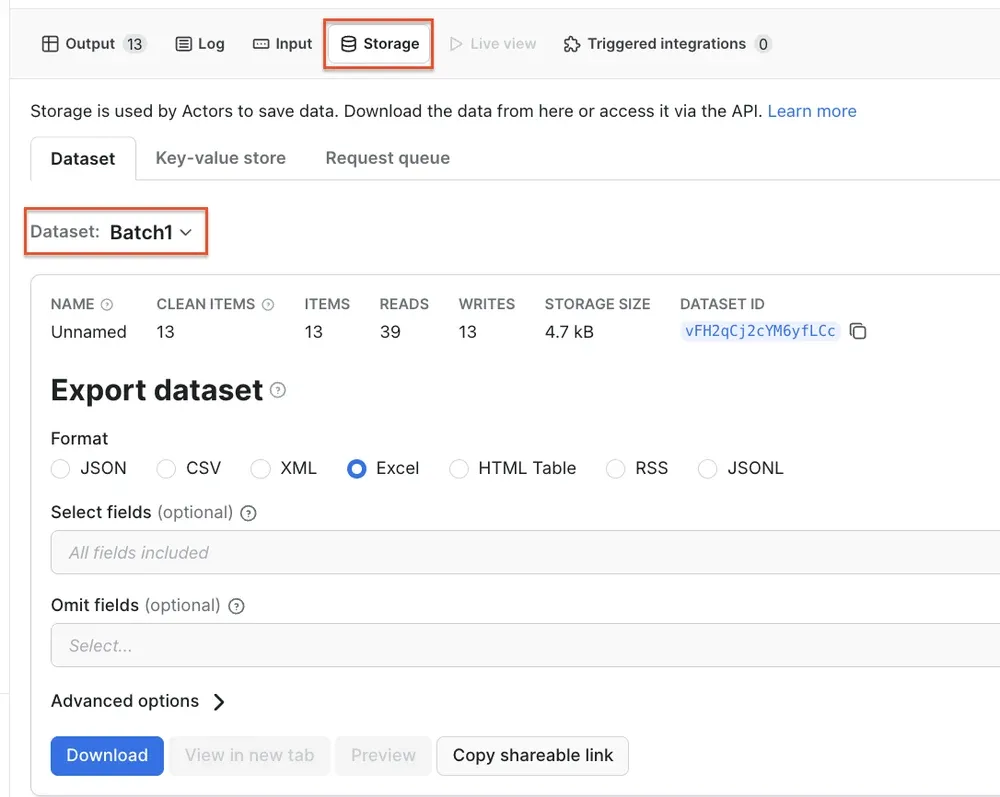
To download your dataset, select the Storage tab → Dataset and choose one of the multiple options available from the dropdown. To get the full list of leads with their contact details, select the Default option.
When running cold outreach, it is recommended to contact only one lead per company at a time. Sending 5 emails at once to the same company can trigger spam filters and kill your outreach. To get a list with only one lead per company, select the Batch1 option. If you don't get a response from your first batch of outreach, you can use the Batch2 and Batch3 datasets, each of which includes only one lead per company.
Step 3 (optional): Send your data directly to Google Sheets
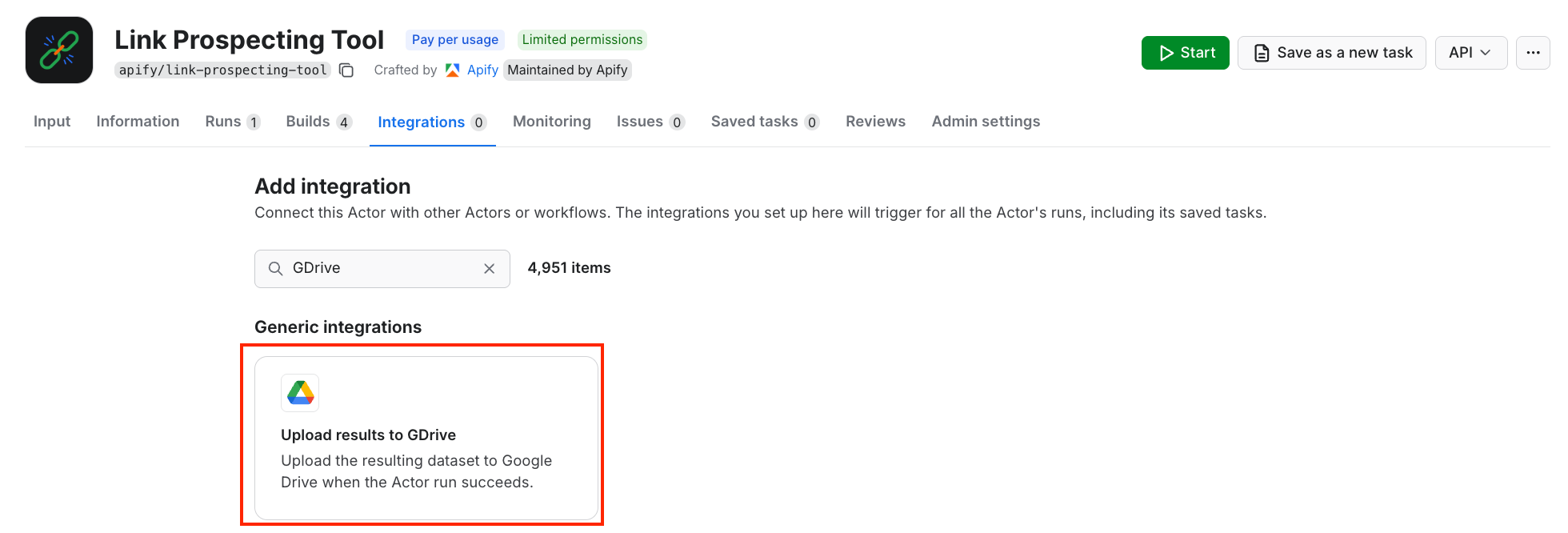
We’ll send our data directly to Google Drive. Go to the Actor page and select the Integrations tab. Start typing “GDrive” in the search bar, and select the Upload results to GDrive integration.
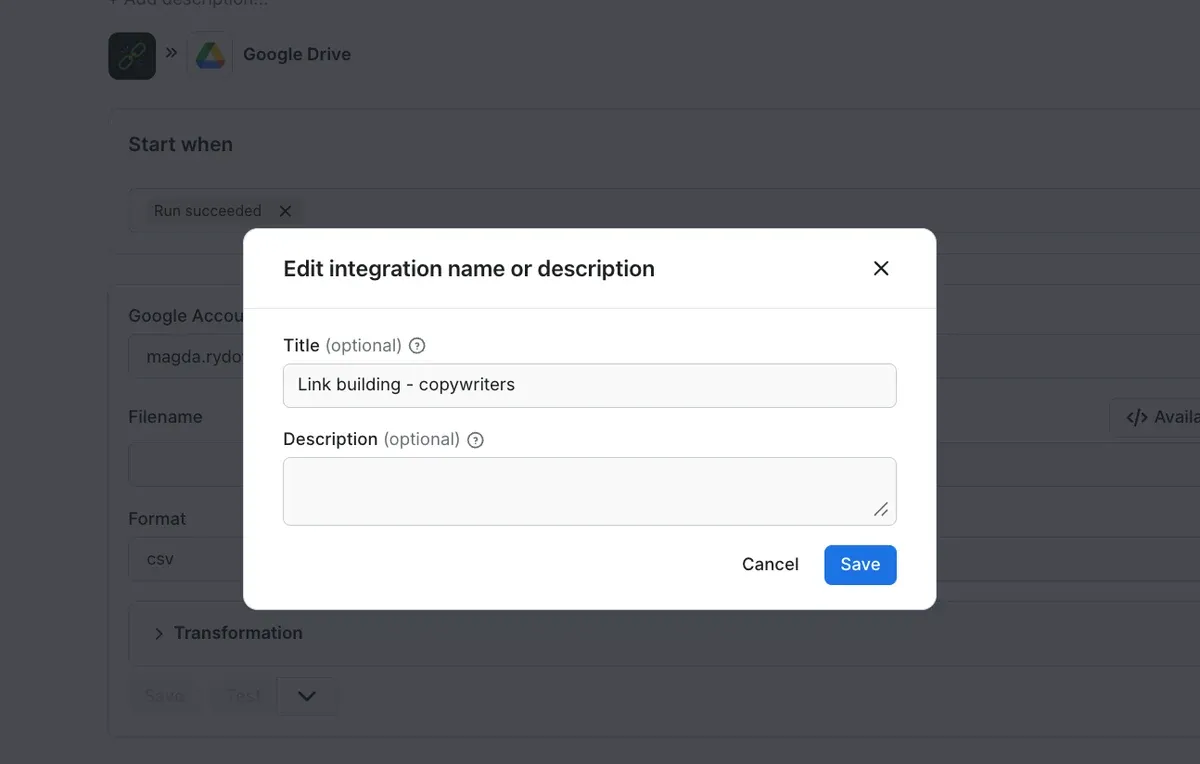
Give the integration a unique name. In our example, we’ll use Link building - copywriters. Click Save to continue and connect your Google account. If you’re using your Google account with Apify Console, your email address might already be on the list of accounts to select. Since we want the data to be sent to the spreadsheet once the Actor finishes running, we’ll select Run succeeded as our starting point.
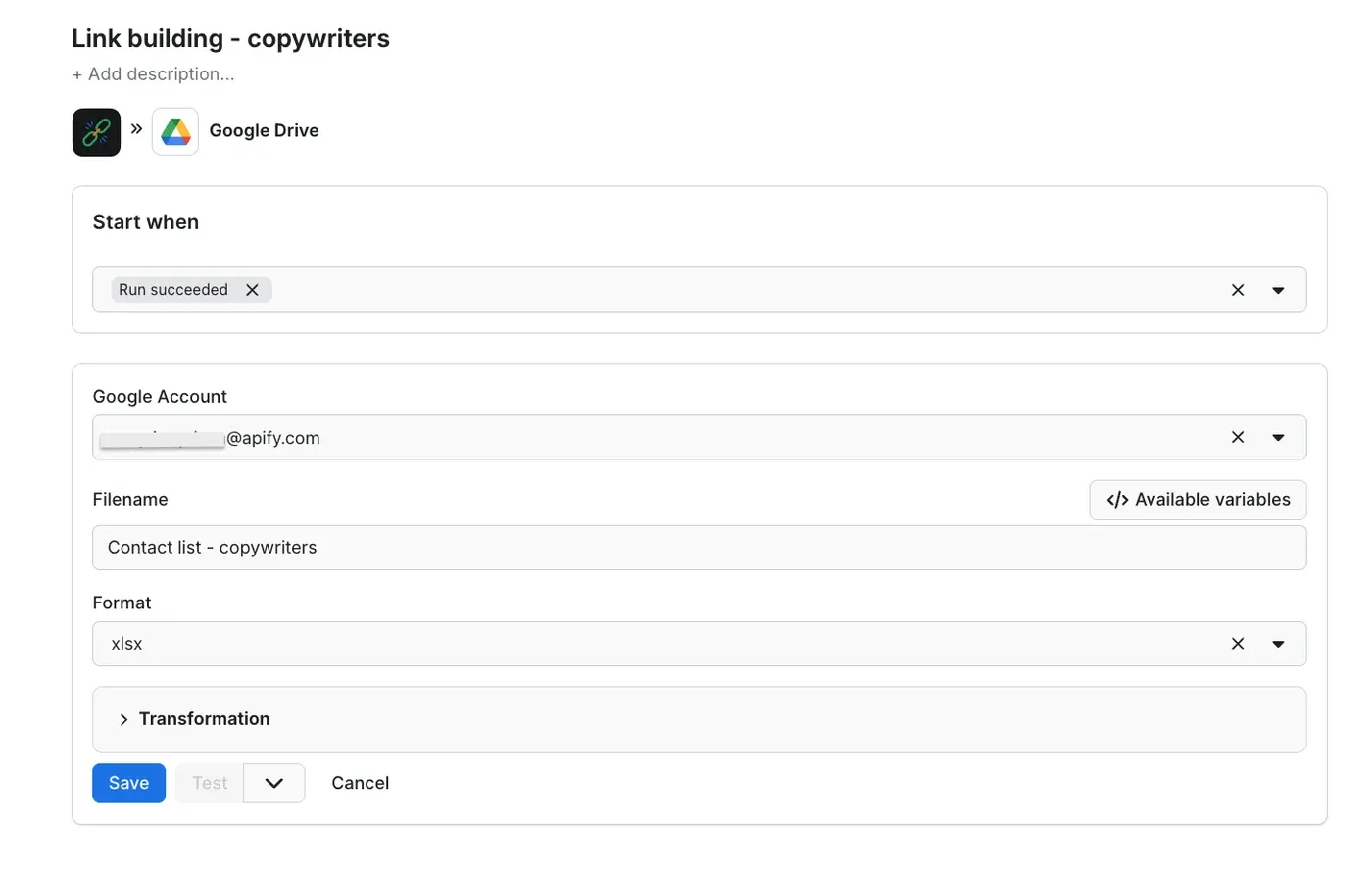
Select a format of the Google Drive file that the Apify integration will create (we’ll go with the XLSX) and click Save.
The workflow is ready - from now on, every time you run a scraping session, a new file with results will be created in your Google Drive automatically, ready to analyze and compare over time.
Step 4: Automate the process with n8n
If you'd rather not click Start every time you want fresh leads, you can wire the Link Prospecting Tool into an n8n workflow that runs it on a schedule and keeps your outreach list growing automatically.
The workflow has two independent parts:
- Launch. A manual or schedule trigger reads your queries and excluded domains from Google Sheets, formats them in a Code node, and fires the Actor.
- Post-processing. A webhook listens for the Actor's Run succeeded callback, fetches the run metadata, and branches into three paths:
- Append the full leads dataset to your leads sheet.
- Append the deduplicated Batch 1 dataset (one contact per domain) to a separate tab - your ready-to-use outreach queue.
- Append the domains that produced leads to the excluded-domains sheet, so the Actor skips them on the next run.
To set it up, use the Apify n8n template and:
- In n8n, add your Google Sheets and Apify credentials, then point the Sheets nodes at your copy of the template.
- In the
Execute Link Prospectingnode, set your brand name, owned domains, and the number of organic results per query. - In the Apify Actor's Integrations tab, add an HTTP webhook on the Run succeeded event, pointing at your n8n webhook URL (switch to the production URL once you're done testing).
- Set your cadence on the schedule trigger.
From here, the workflow runs itself.
Conclusion
Link Prospecting Tool turns the slowest part of link building - finding the right person to pitch - into a single Actor run. Feed it your target keywords, let it filter out your own domains, competitors, and noise, and get back a contact list with names, emails, LinkedIn profiles, and enough context to know who's worth reaching out to.
Run it across a batch of related keywords to surface the pages worth pitching first, filter by seniority and department, and chain it with n8n or Make when you're ready to skip the spreadsheet.