Recruiting accommodation partners in a new destination usually means stitching together data from several sources. Booking.com shows you every property in the area, but not a way to reach the host. B2B contact databases like ZoomInfo and Apollo cover the hotel chains, not the independent apartments, guest houses, and B&Bs. To build a list of potential partners, you end up pasting property names into Google and hunting for an email one listing at a time, which doesn’t scale when a destination has thousands of them.
In this tutorial, we'll build a single n8n workflow using two Apify Actors to:
- Discover every property in a destination on Booking.com
- Enrich each property with contact details: email, website, phone, and social profiles
- Export a clean, outreach-ready partner list straight to Google Sheets
By the end, you'll have a workflow that turns a destination into a spreadsheet of properties, addresses, websites, and contact emails, ready for outreach, CRM import, or scheduled refreshes.
How to build the partner discovery workflow with n8n
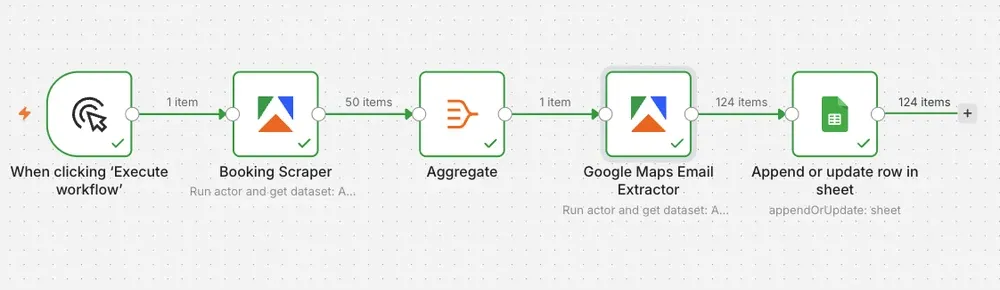
We'll use Booking Scraper to get a property list from Booking.com and enrich each property with contact details using Google Maps Email Extractor. We’ll then send everything to Google Sheets. Before you begin, make sure you have:
- an n8n account
- an Apify account with API access
- a Google account connected to Google Sheets
Actors come with built-in proxy management, anti-bot evasion, integrated storage with structured CSV, Excel, and JSON exports, and standardized input parameters (locations, keywords, limits, and so on). They also integrate with third-party apps and can be configured from tools such as n8n using the Apify nodes.
Step 1: Set up the Apify node to discover properties on Booking.com
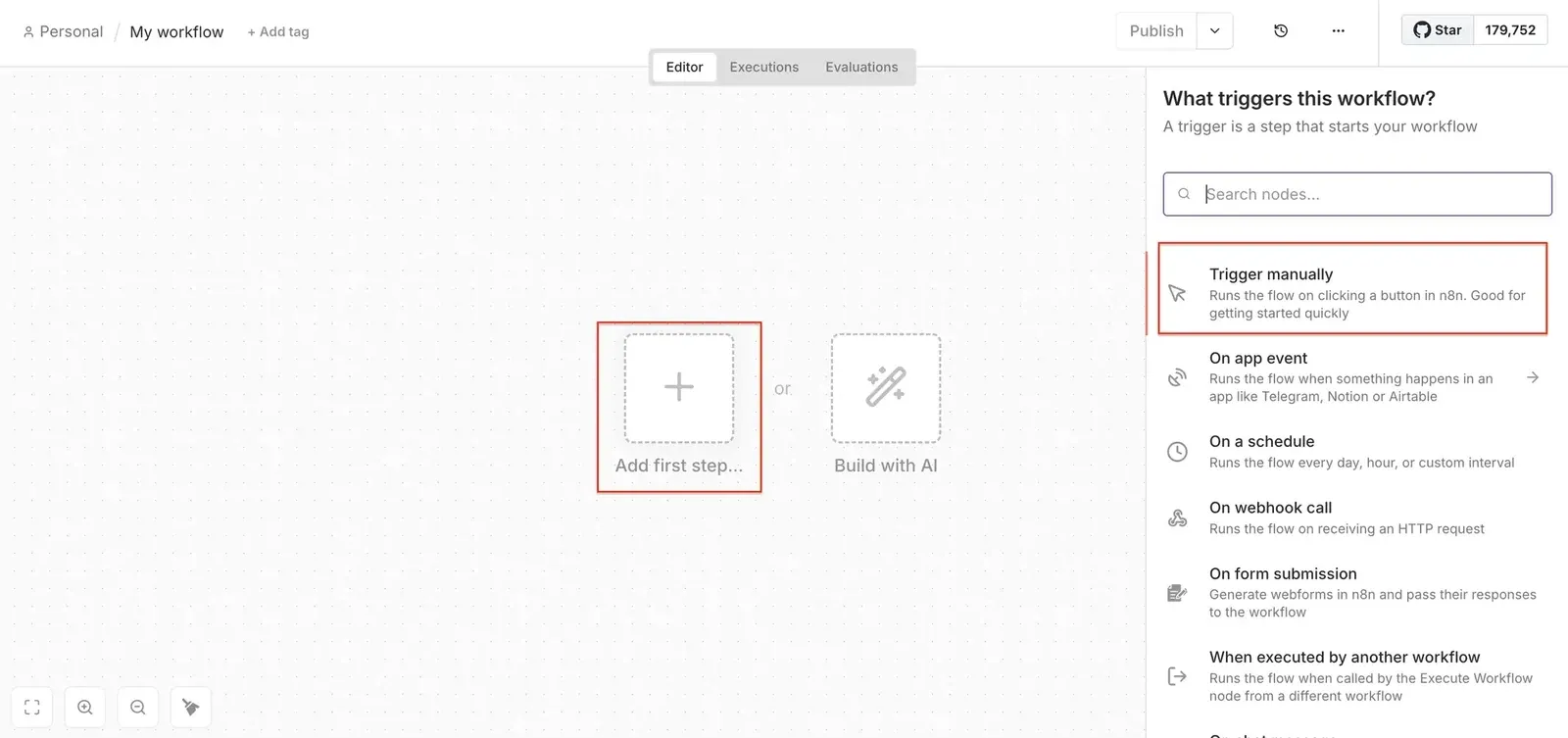
Open n8n to create a new workflow and choose a manual trigger as the first step. Next, search for the Apify node in your canvas, and install it if you haven't already.
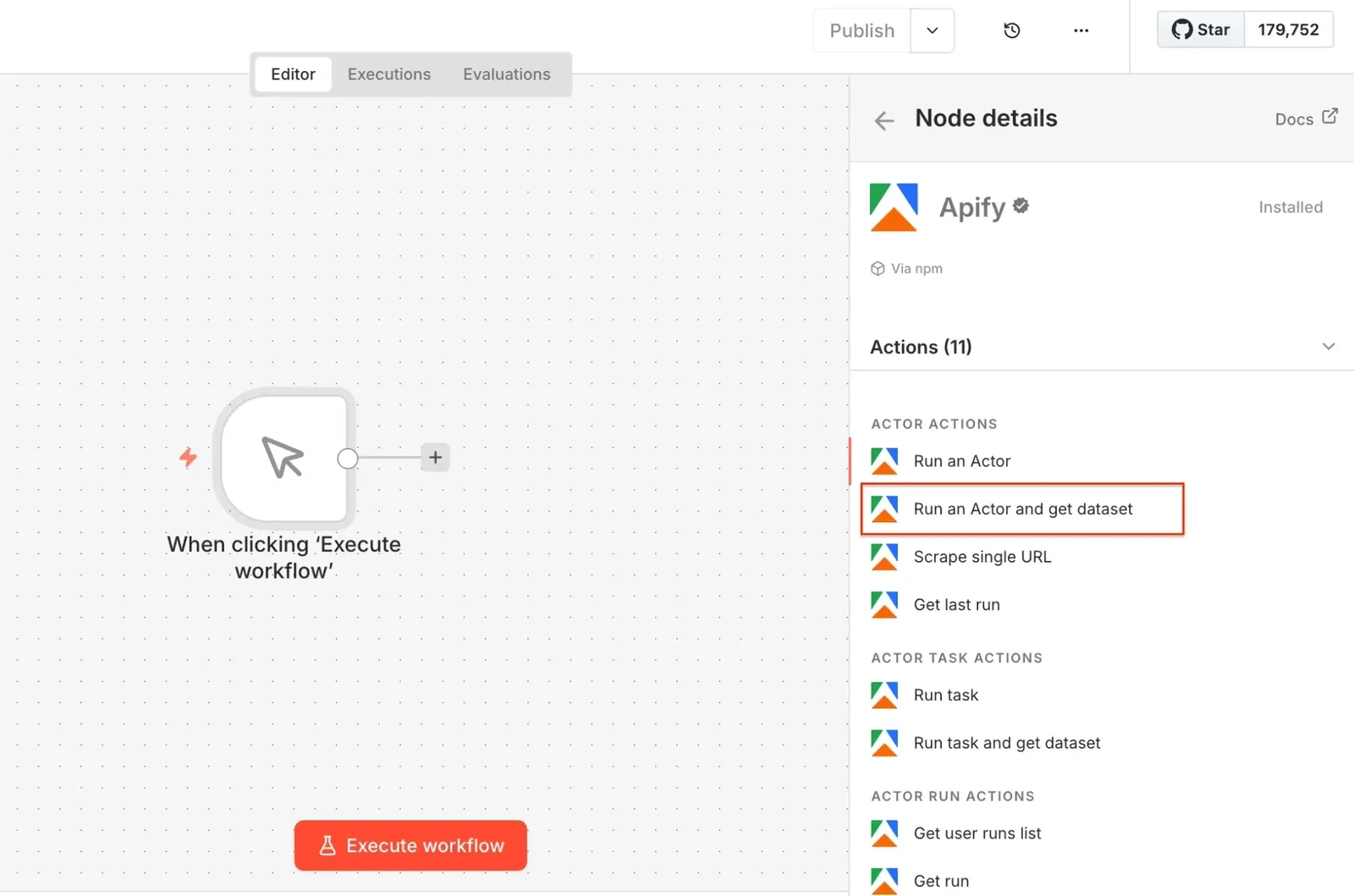
Select the Run an Actor and get dataset operation as the second step. Once the node opens, connect n8n to your Apify account. Click Create new credential to get started.
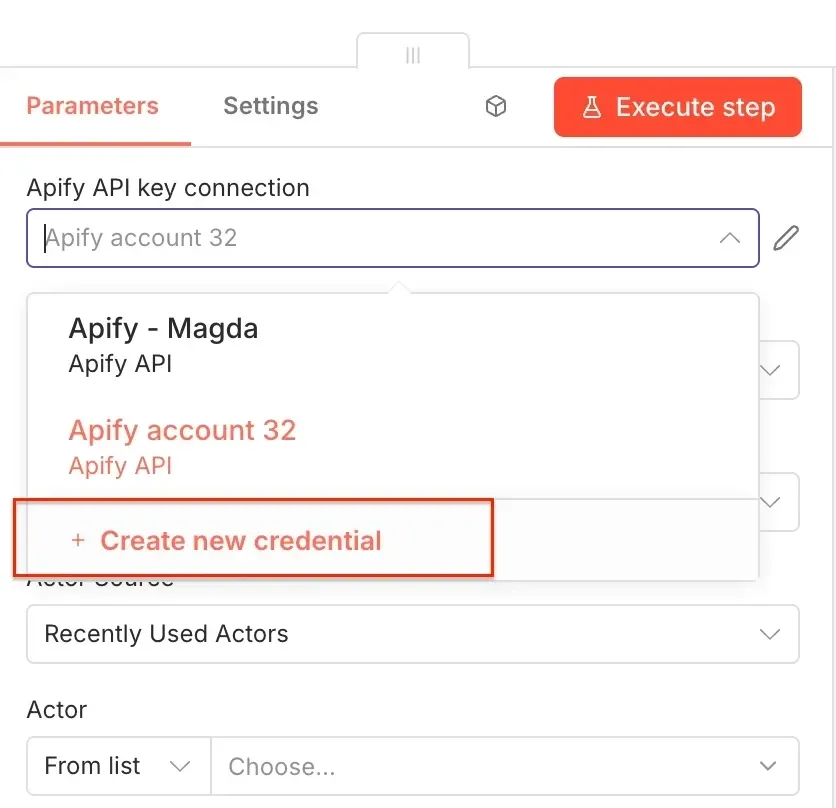
Next, you'll be asked for your Apify API token. Find it in Apify Console under Settings → API & Integrations, then copy the token.
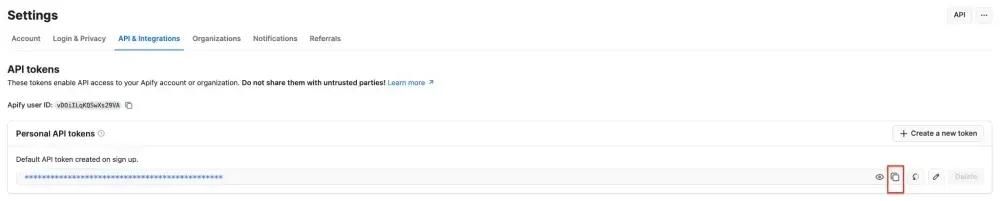
Paste the token into n8n and save the credential. Your Apify connection is ready to use.
Now pick the Actor and grab its JSON input so n8n can run it. Go to Booking Scraper and configure the run in the UI. The scraper takes a destination as its search input. We'll use Cusco, Peru to find short-term rentals and guest houses for a tour operator expanding there.
This is also where you target the right partners. Booking Scraper lets you filter by property type (apartments, guest houses, bed and breakfasts, holiday homes, and villas, not only hotel chains), star rating, and price range, and sort by distance from your search. For this run, we keep the filters broad and cap results at 50 items.
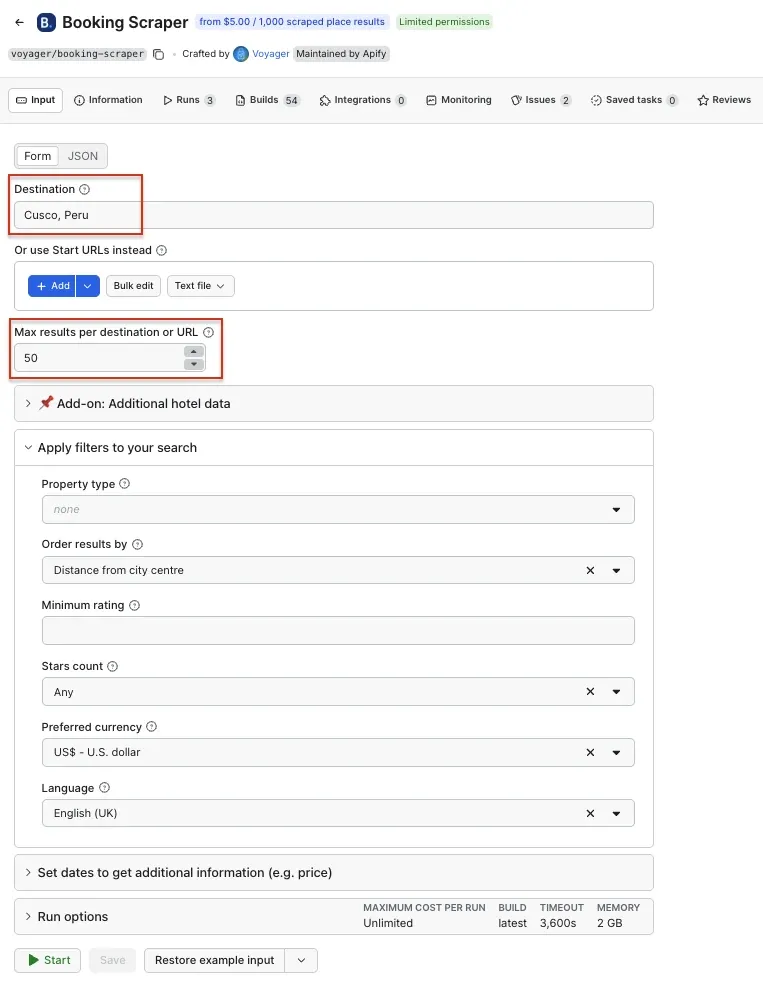
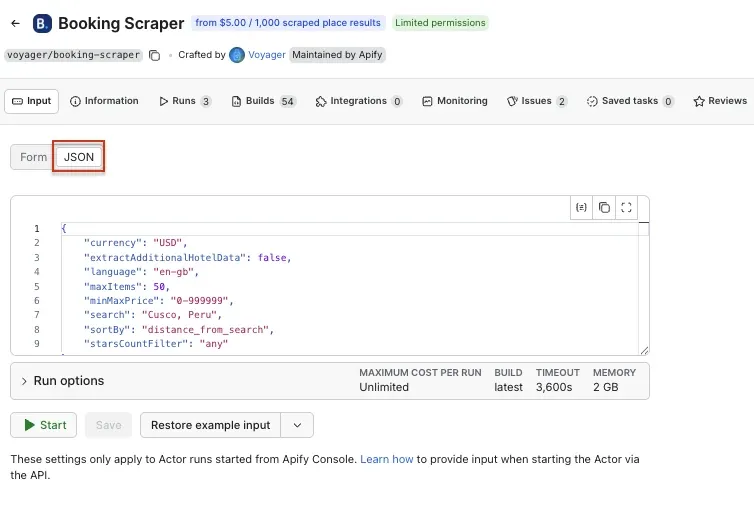
Booking Scraper input in Apify Console
Once you're happy with the configuration, switch to the JSON view and copy the input. Back in the n8n node, set the Actor source to Apify Store Actors, choose Booking Scraper from the list, and paste the JSON:
{
  "currency": "USD",
  "extractAdditionalHotelData": false,
  "language": "en-gb",
  "maxItems": 50,
  "minMaxPrice": "0-999999",
  "search": "Cusco, Peru",
  "sortBy": "distance_from_search",
  "starsCountFilter": "any"
}
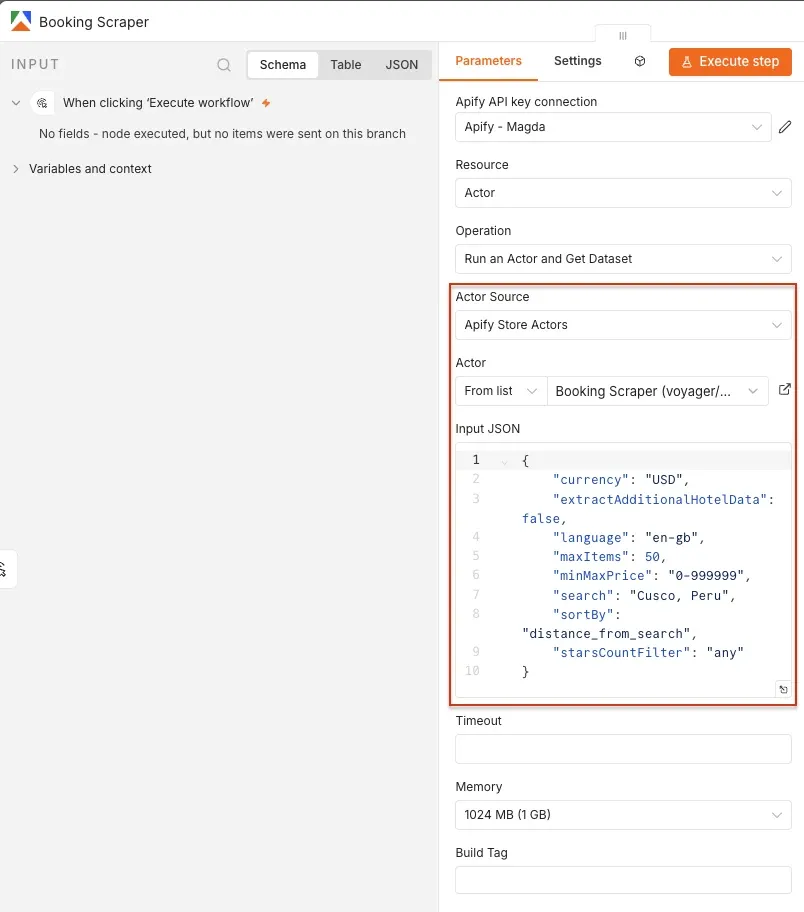
Test it by clicking Execute step at the top. You can also open Runs in Apify Console to watch the Actor scrape. When it finishes, the output appears next to the node as JSON: a list of properties, each with a name, an address (including city), a rating, review counts, and more.
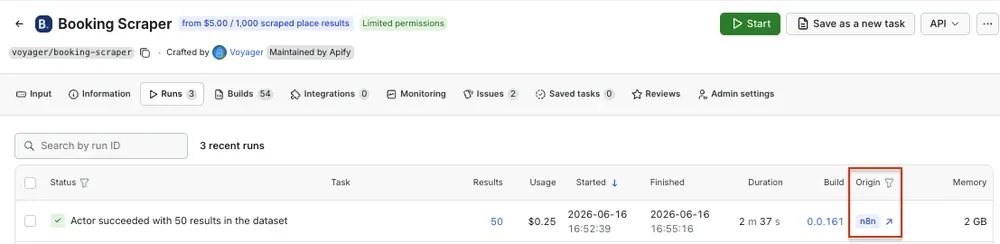
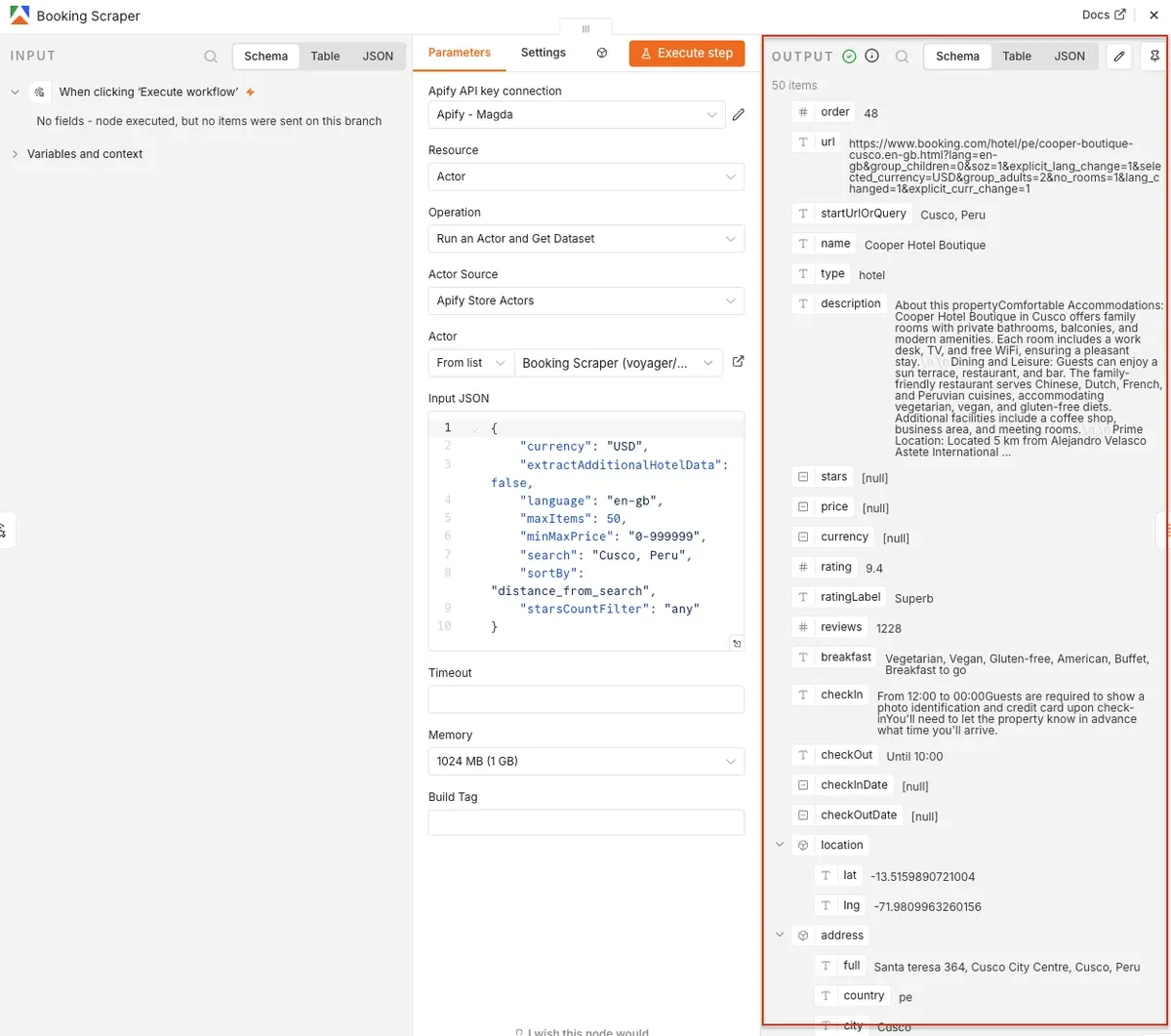
For many properties in the EU and US, Booking Scraper returns a phone number and email directly. Outside those regions, contact details are often missing, which is exactly the case for Cusco. That gap is what the next two steps close.
Step 2: Aggregate property names and location for enrichment
The next Actor, Google Maps Email Extractor, looks up each property on Google Maps and pulls its contact details. To feed it, we need two inputs: the list of property names to search for, and the destination to search in. The Aggregate node builds both. Add it to the workflow.
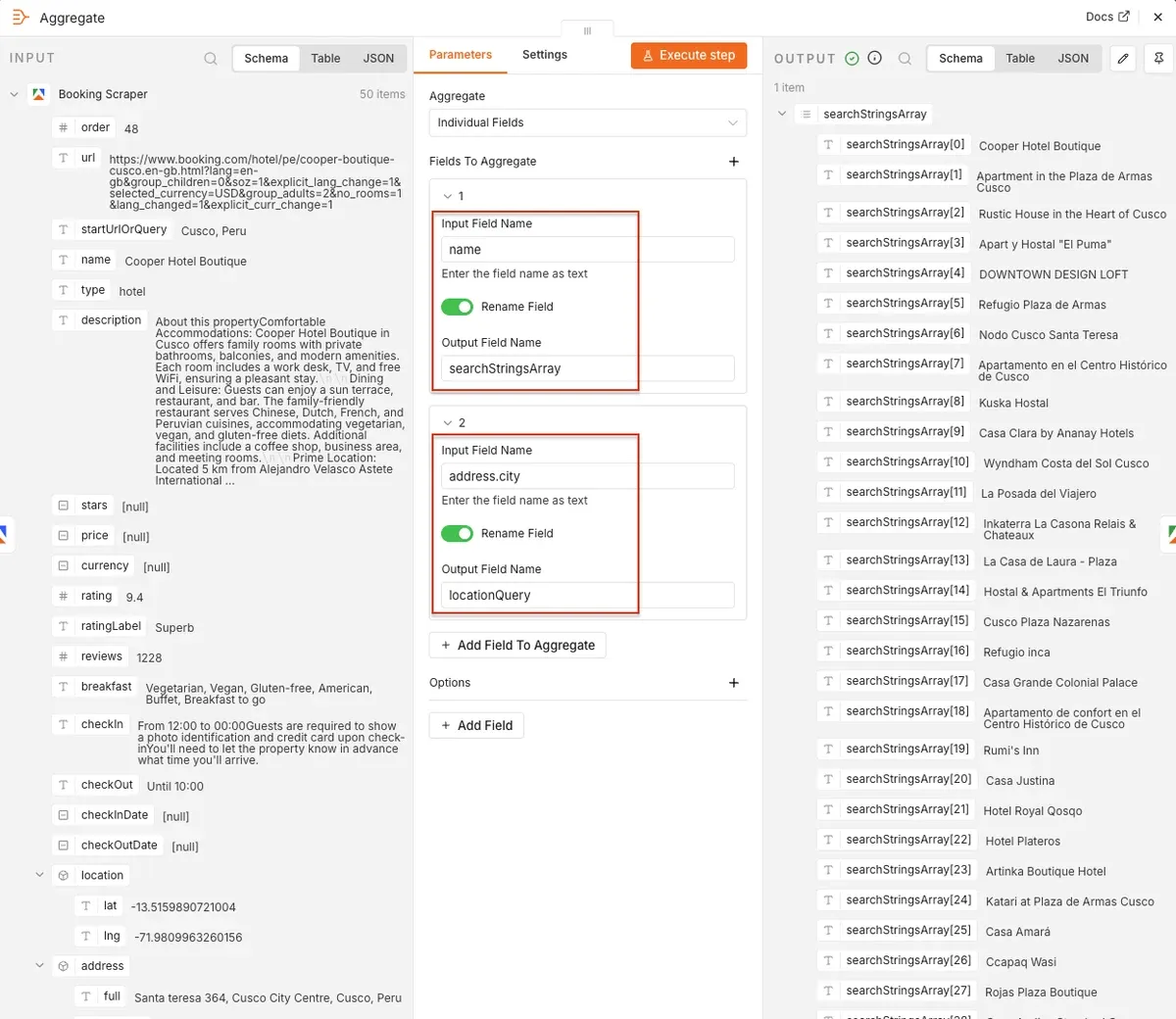
Aggregate two fields from the Booking Scraper output:
- Drag the
namefield to Input Field Name, switch on the Rename Field toggle, and set Output Field Name tosearchStringsArray. - Add a second field, drag
address.cityto Input Field Name, switch on Rename Field, and set Output Field Name tolocationQuery.
When you execute the step, the output holds one searchStringsArray (every property name) and one locationQuery (the city), ready for the enrichment Actor.
Step 3: Enrich each property with contact details
Add another Apify node, select Run an Actor and get dataset, and choose Google Maps Email Extractor. This Actor searches Google Maps for each property name in the destination, then scrapes the property's website and Google profile for an email, phone number, website, and social profiles.
Set the input to Expression and use the following:
{{ JSON.stringify({
  searchStringsArray: $json.searchStringsArray,
  locationQuery: $json.locationQuery[0],
  maxCrawledPlacesPerSearch: 10,
  website: "withWebsite",
  maximumLeadsEnrichmentRecords: 5,
  verifyLeadsEnrichmentEmails: true,
  scrapeSocialMediaProfiles: {
    facebooks: true,
    instagrams: true,
    youtubes: false,
    tiktoks: false,
    twitters: false
  }
}) }}
A quick read of the input:
searchStringsArrayandlocationQuerycome straight from the Aggregate step. We takelocationQuery[0]because Aggregate returns it as an array.maxCrawledPlacesPerSearchcaps how many Google Maps matches to check per property.website: "withWebsite"keeps only places that have a website, which is where most emails live.verifyLeadsEnrichmentEmailsvalidates the emails it finds.scrapeSocialMediaProfilespulls Facebook and Instagram profiles, with the other networks switched off.
Execute the step. The output is structured contact data per property: title, website, address, emails, phone, and socials.
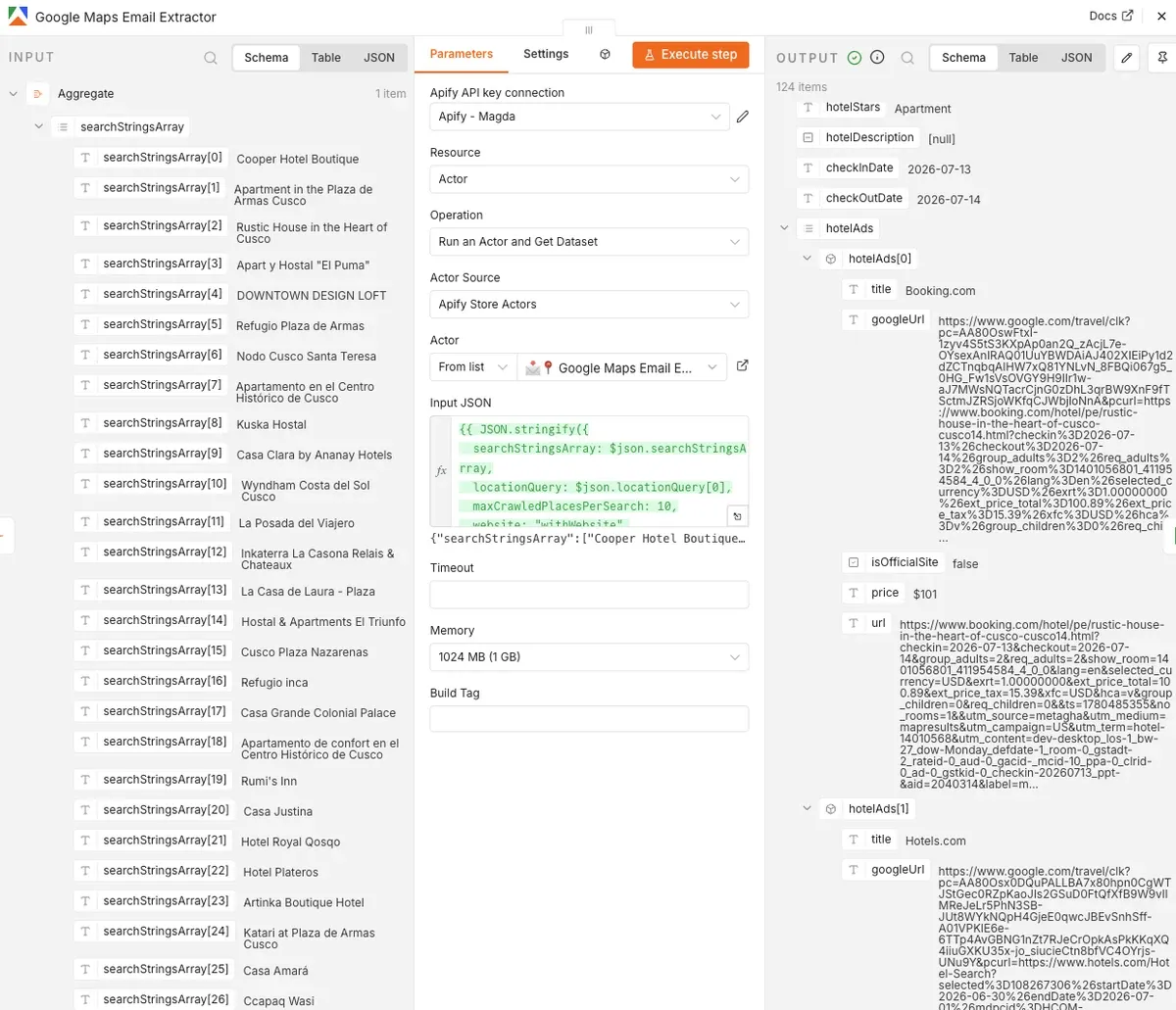
One note on coverage: properties without a public website or email, often platform-managed rentals, come back blank. The contactable list is smaller than the full scrape. In practice, that's still the difference between a handful of contacts copied by hand and hundreds pulled in one run.
Step 4: Send the partner list to Google Sheets
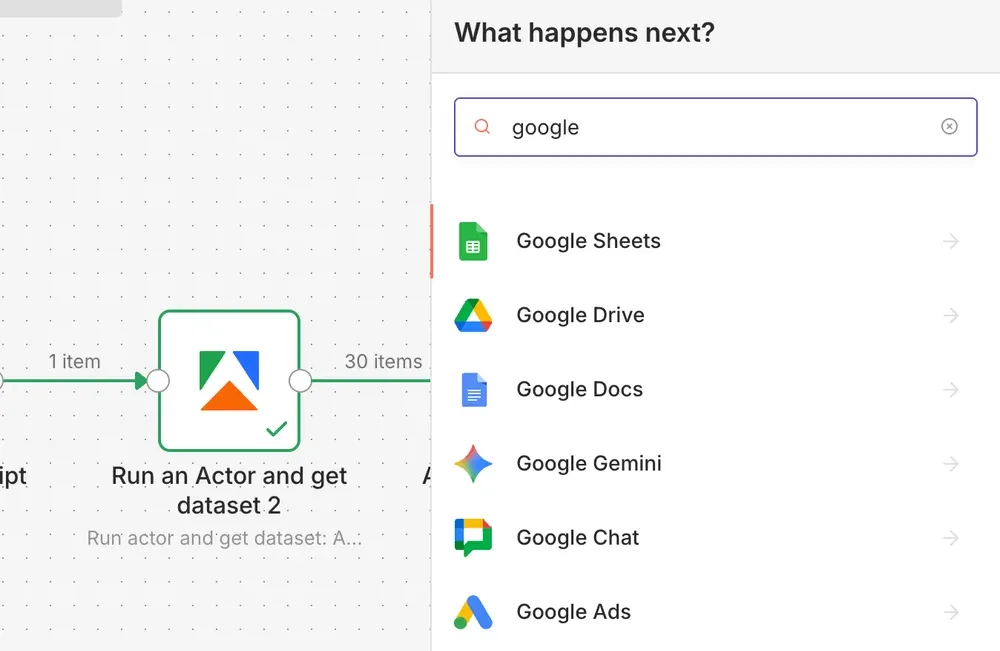
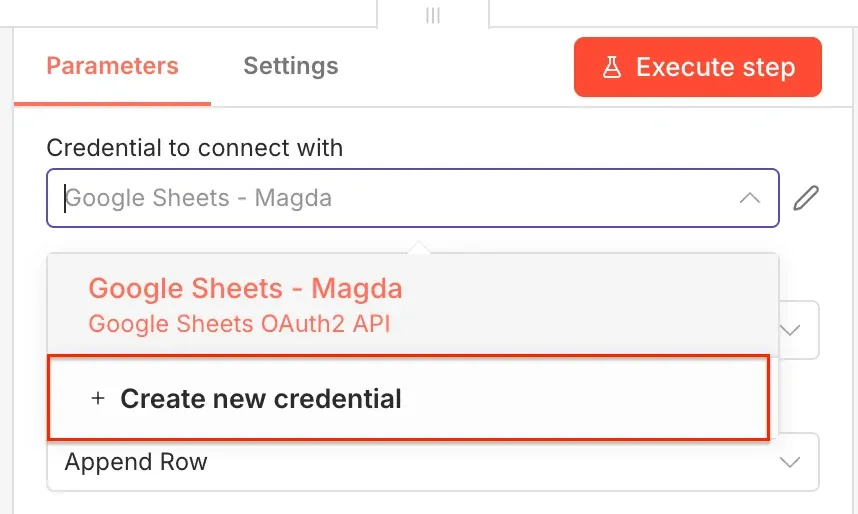
Add one final node. Find the Google Sheets node, select it, and create a credential to connect your Google account.
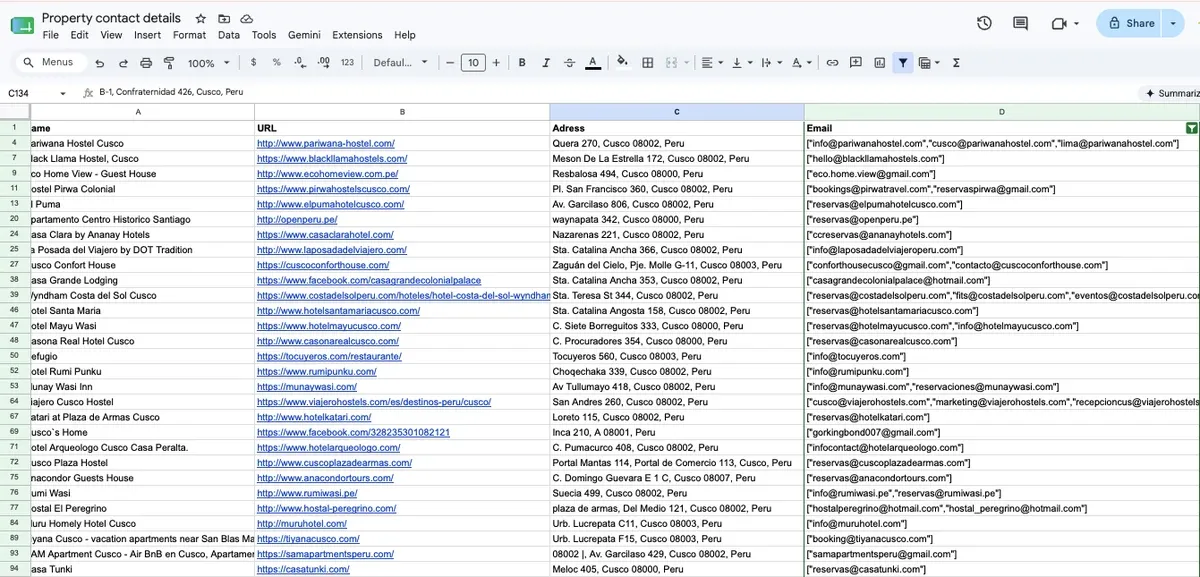
Create a spreadsheet in Google Drive and prepare the columns for your data. We use four: Name, URL, Address, and Email.
Now configure the data flow. Set the operation to Append or update row in sheet, select your spreadsheet from Google Drive, pick the sheet, and set the mapping mode to Map Each Column Manually.
Map each column to a field from the enriched output:
title→ Namewebsite→ URLaddress→ Addressemails→ Email
Set Name as the matching column. On re-runs, n8n then updates existing rows instead of creating duplicates, which keeps the list clean when you refresh it.
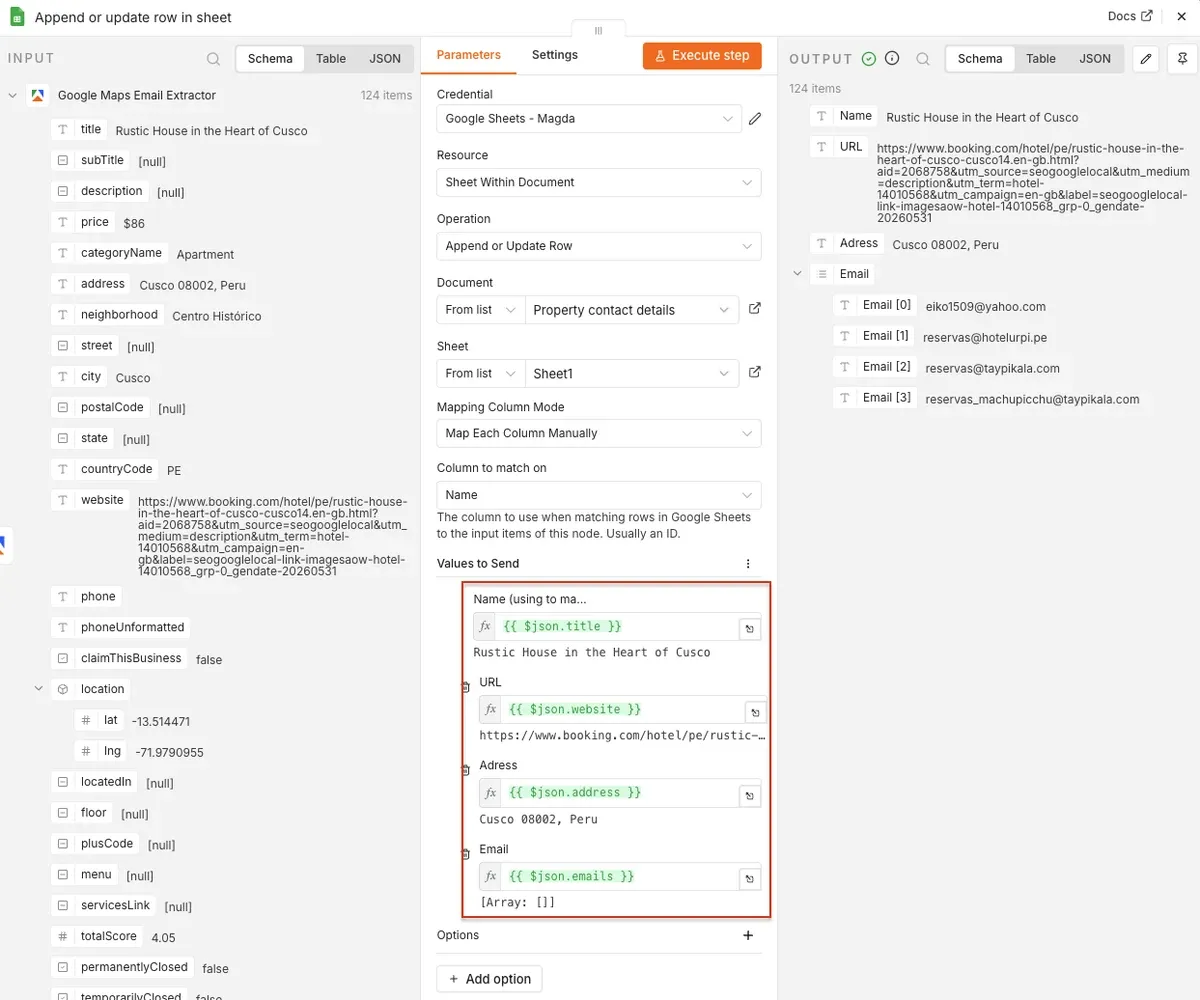
Once your columns are mapped, execute the whole workflow and watch the output flow into Google Sheets. Filter out properties with available email addresses.
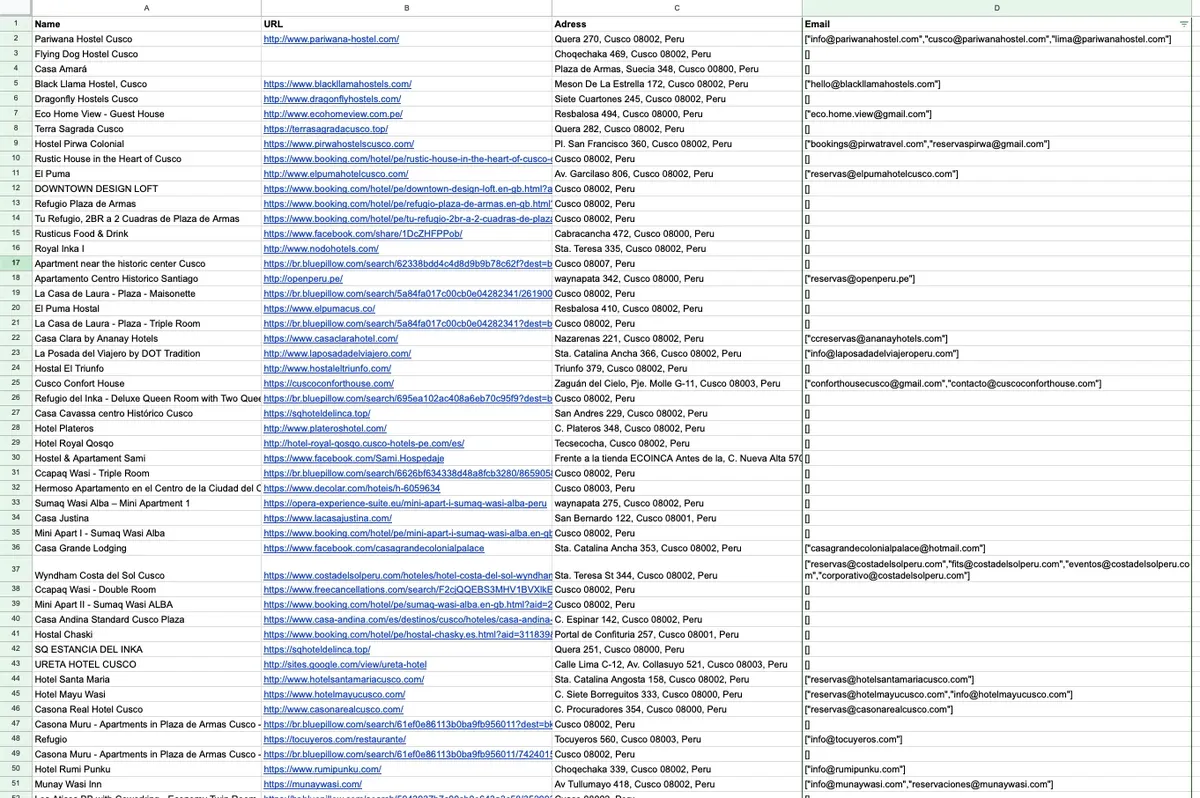
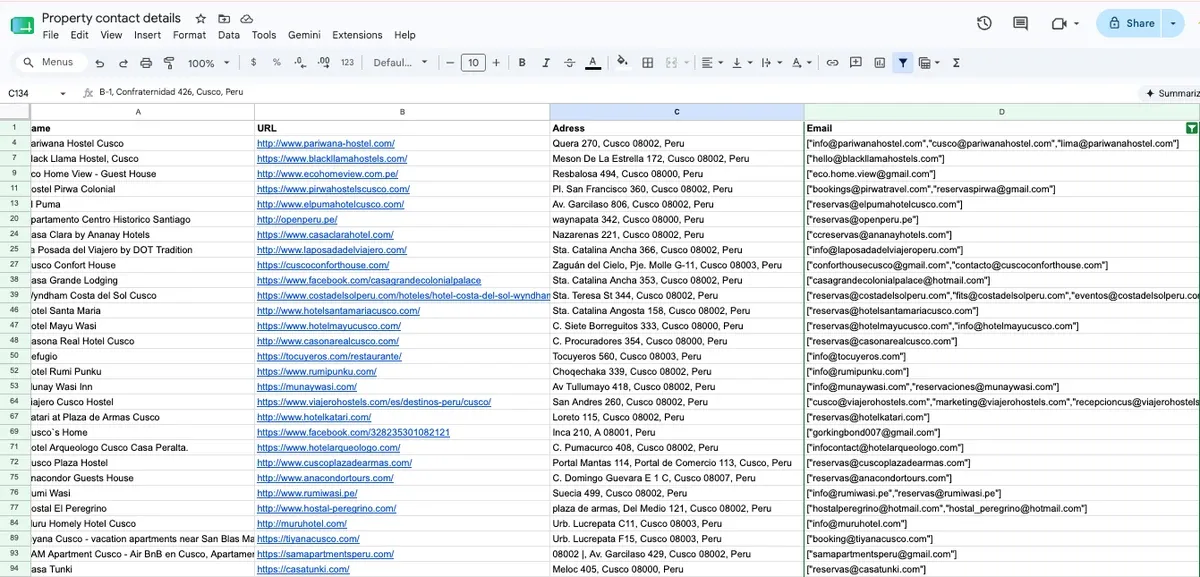
Raw output and filtered out contacts
That's it. You've built a workflow that scrapes Booking.com for properties in any destination, enriches each one with host contact details, and writes a clean partner list to a spreadsheet. It runs with a single click, can run as often as you need with the Schedule Trigger in n8n, and adapts to every market you expand into. You can also grab the same flow as a ready-made template and import it straight into n8n.
Prefer plain English? Run it with Claude and an Apify skill
If you'd rather skip building the workflow, there's a faster route: an Apify skill that does the same job through Claude. You describe what you want in plain language, and Claude runs the Actors for you in the right order, then hands back an enriched lead list as a CSV, JSON, or any other format.
Instead of two Actors and a Google Maps lookup, the skill runs a four-tier waterfall that always tries the cheapest, already-scraped data first and only pays for enrichment when a lead is still missing contact details:
- Booking Scraper pulls the properties matching your search and reads the host's email, phone, and company.
- Google Maps Email Extractor runs only for leads still missing an email, looking them up by property name and location to find contact details and a website.
- Google Search Results Scraper runs only for leads still without a website, searching for the official site.
- Contact Details Scraper runs only for leads that now have a website but no email, scraping the site for contact info.
Each row comes back with the property's rating, review count, and Booking URL, so you can rank and prioritize leads without reopening Booking.com.
Set up the skill
You need two things: the Apify connector (for Claude Desktop) or the Apify CLI, plus the skill itself.
Claude Desktop (connector):
- Make sure you have an Apify account.
- Add the Apify connector in Claude. Search "Apify" in the connector directory and install it, or add a custom connector pointing to
https://mcp.apify.com.
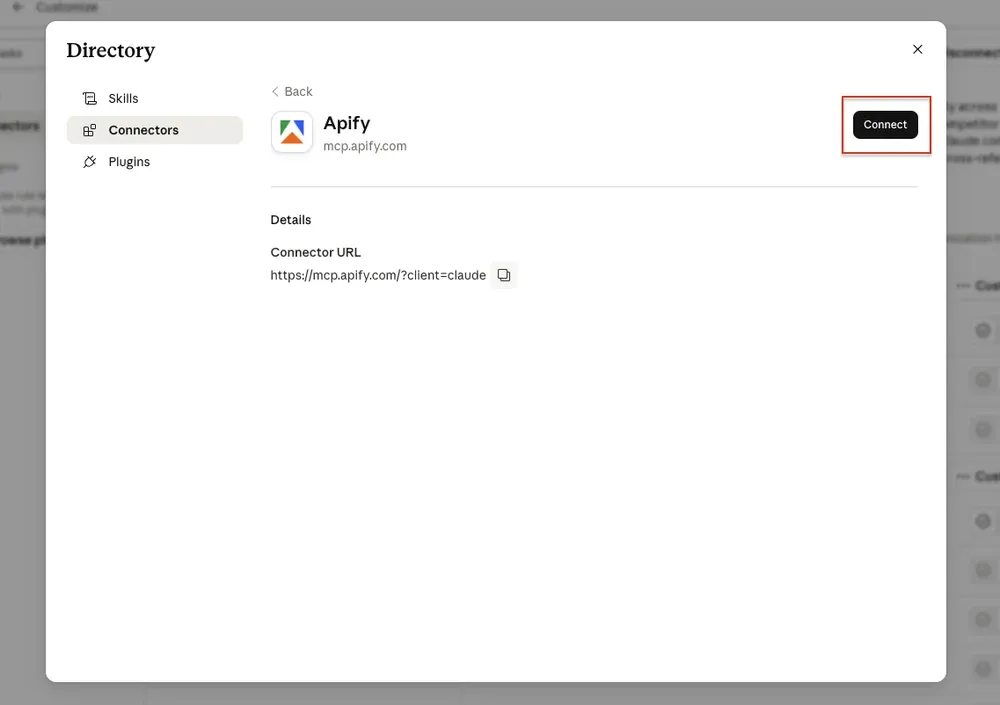
3. Sign in once. The first time Claude connects, it opens your browser to log in to Apify and authorize the connection. No tokens to copy or paste.
4. Install the skill by asking Claude to run:npx skills add apify/awesome-skills -s apify-booking-host-leads
The connector lets Claude run Apify Actors as tools, and the skill tells it which ones to use and in what order.
Claude Code (CLI):
If you're working in Claude Code or another coding agent, skip the connector and use the Apify CLI instead. Authenticate with apify login (or set the APIFY_TOKEN environment variable in your project settings), then install the same skill.
Run it
Once setup is done, just ask in plain English what you need. Example:
Claude runs Booking Scraper, reads host emails and company details from the results, fills the gaps with Google Maps and website enrichment, and hands you back a ready-to-use lead list.
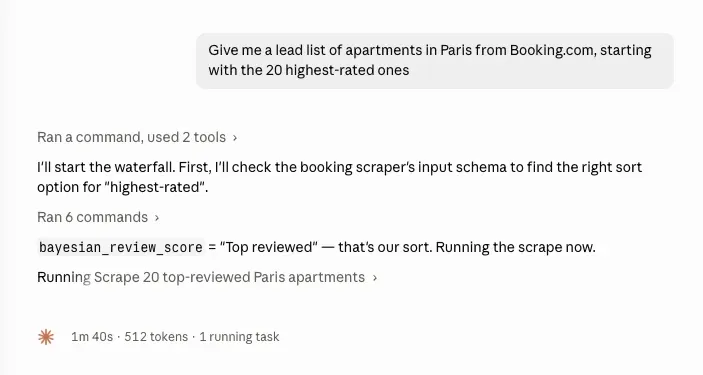
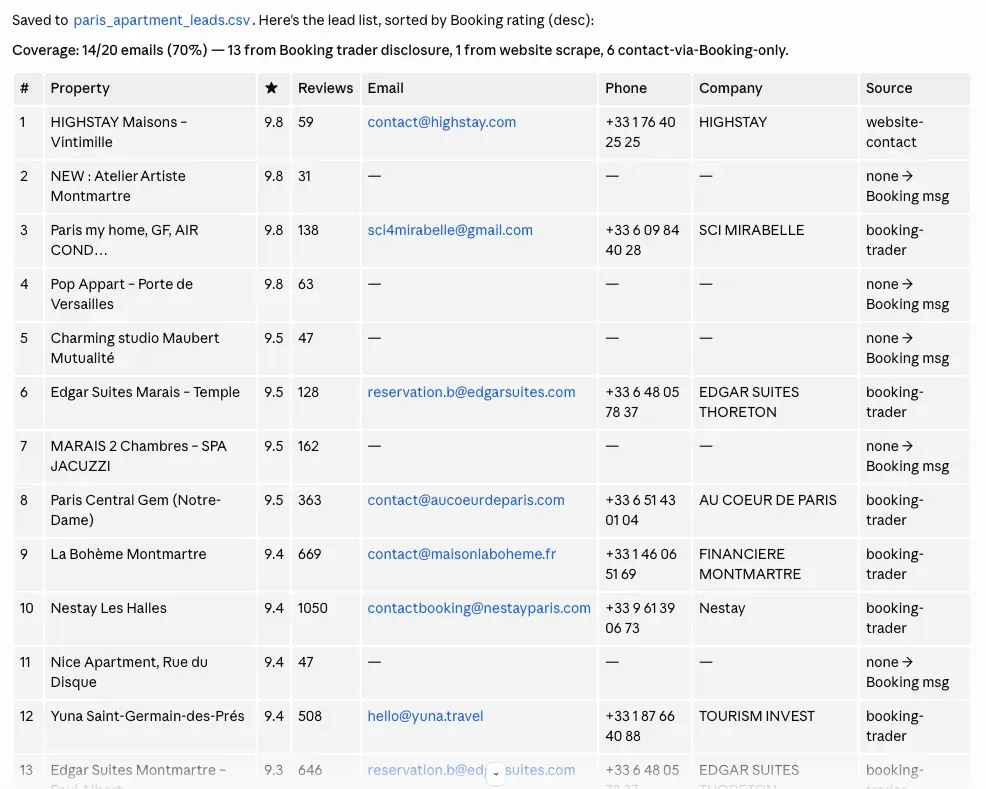
Prompt and the results pulled directly by Claude, exported to a CSV file.
Turn a destination into a partner pipeline
A property on Booking.com tells you the supply exists. A contact tells you how to recruit it. This workflow turns any destination into a contactable list, inclusive of independent hosts: the apartments, guest houses, and B&Bs that B2B databases miss.
With it in place, host outreach stops being slow manual research and becomes a repeatable system you can point at any market.