When a page slips in organic traffic, the fix is rarely a mystery for long. You open Google Search Console, filter to the page, and find the query where you lost the most ground. Then you take that query back to Google, open the pages now outranking you, and read them side by side with your own, looking for the same thing every time: what they cover that you don't.
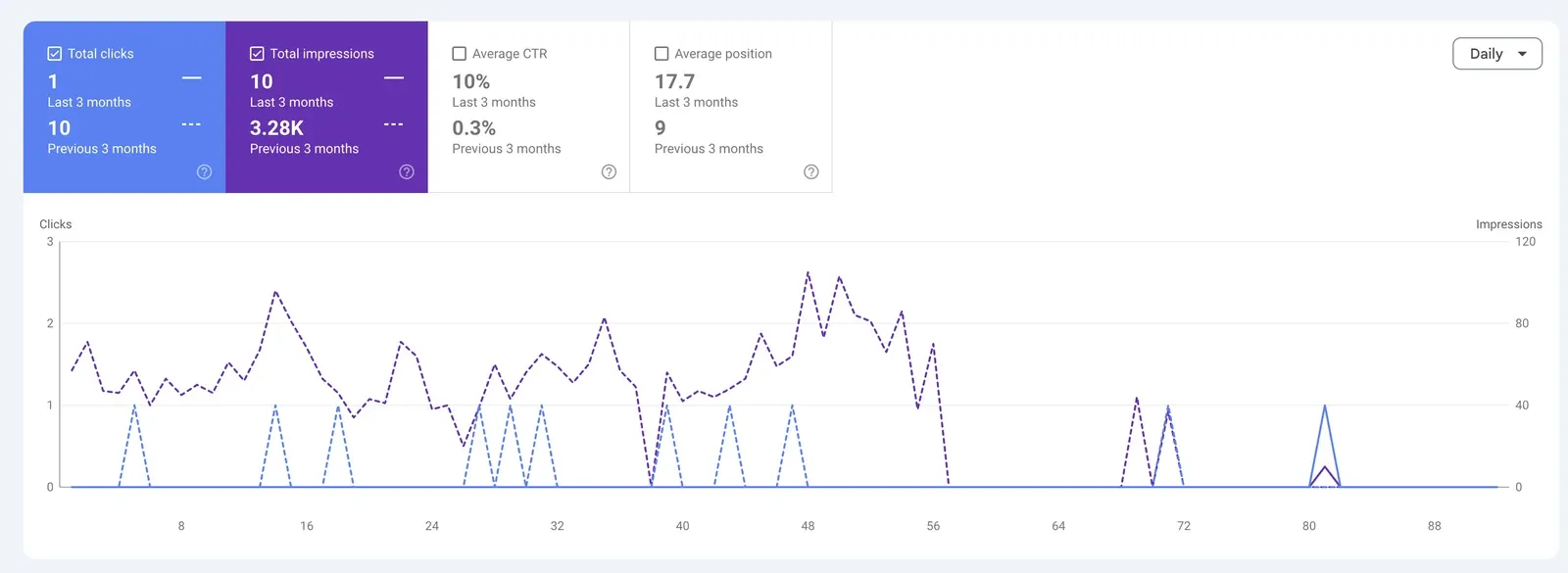
The method works, but doesn't scale. Most content gap analysis ends up either shallow (manually analyzing a couple of keywords) or skipped entirely, which is how old posts quietly keep losing traffic.
There's a faster way. With the right Apify Actor, you can scrape the live search results for your keyword, crawl the pages that rank, and get an AI-assisted breakdown of what those pages cover that yours don't, all in a single run.
What is missing from most content gap tools
The tools content teams reach for first all fall short in the same way: they tell you which keywords to chase, but not what to actually write.
- Tools such as Semrush and Ahrefs are strong at surfacing keyword lists, but a subscription runs from roughly $100 to $400 a month, and the gap report stops at the keyword. It won't show you how the ranking pages are structured or what they cover.
- Manual Google searching gives you the real pages, but one query at a time. It doesn't scale past 10 or 20 keywords.
- Spreadsheets of compiled keywords get outdated. They’re just snapshots, not a live picture of the SERP.
- AI tools will immediately suggest topics for your brand, but with no real SERP data behind it, the claims are guesses.
A content gap analysis is only as good as the data under it. You need the actual ranking pages: their topics, their structure, and the questions they answer.
Actors have access to platform features such as built-in proxy management, anti-bot evasion support, integrated storage with structured CSV/Excel/JSON exports, and standardized input parameters (URLs, keywords, limits, etc.). Actors integrate easily with tools like Make, n8n, or into AI workflows, so you can send your data directly into analysis pipelines without manual handling.
How to automate content gap analysis
This tutorial uses a single Apify Actor that runs the whole process for you. Give Content Gap Analyzer one of your articles and target keywords, and it pulls the top-ranking pages from Google with Google Search Results Scraper, reads each one with Website Content Crawler, and uses an LLM to classify every page and extract its key insights. It then reports back the insights your article is missing.
If you'd rather assemble the pieces yourself, you can run those two Actors separately. The orchestrator Actor does it in one run, though, and links you back to both raw datasets.
Step 1: Find the keyword in Google Search Console
Search Console is where you find the query worth analyzing. One thing to keep in mind as you go: it only ever shows your own data. It tells you which queries your page ranks for and where you sit, but it has no idea who's above you. The competitors come from the live SERP, which is the part the Actor handles.
To pull the keyword:
- Open Performance, then Search results.
- Click the date filter and open the Compare tab. Compare the last three months to the previous period (or year over year if the post is seasonal) so a drop is easy to spot.
- Add a Page filter and paste the URL of the post you want to fix. Now every number on screen is just that page.
Open the Queries tab below the chart. With comparison on, you get a difference column for clicks, impressions, CTR, and position. Sort by it to see where this page lost ground.
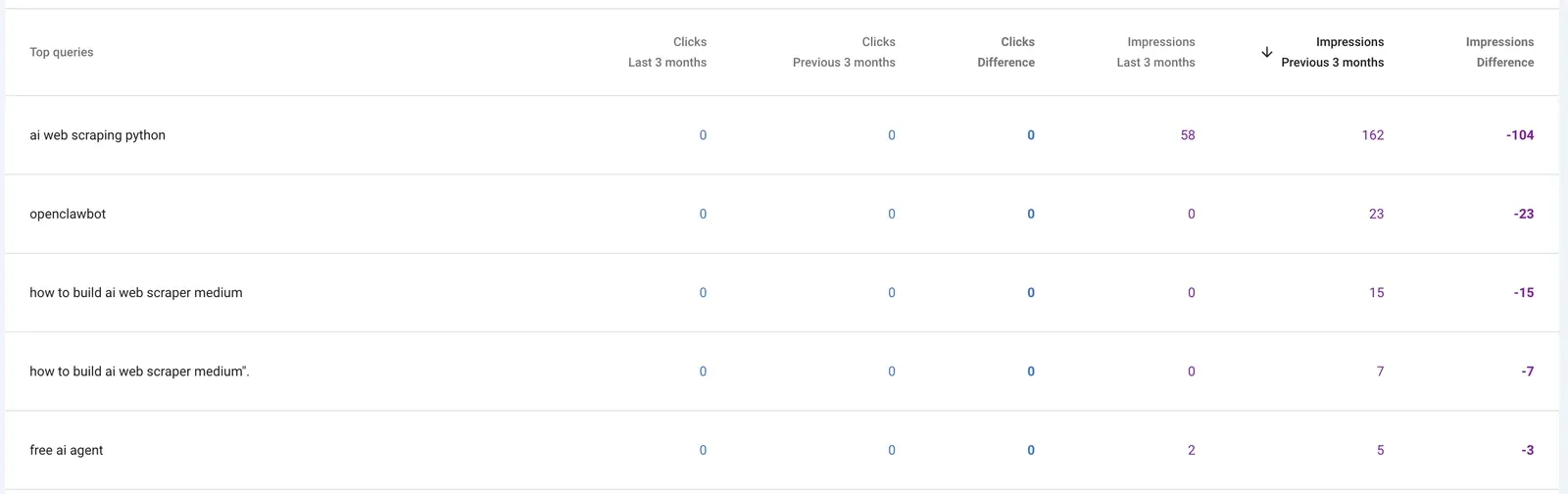
Pick 1 to 5 keywords to act on: the queries where you slipped most, or where you sit in positions 4 to 10 with real impressions, since those are the fastest to move back up.
Step 2: Configure the Actor and run it
Start by creating a free Apify account. Head to Content Gap Analyzer and click Try for free to open Apify Console, the workspace where you run and build automation tools.
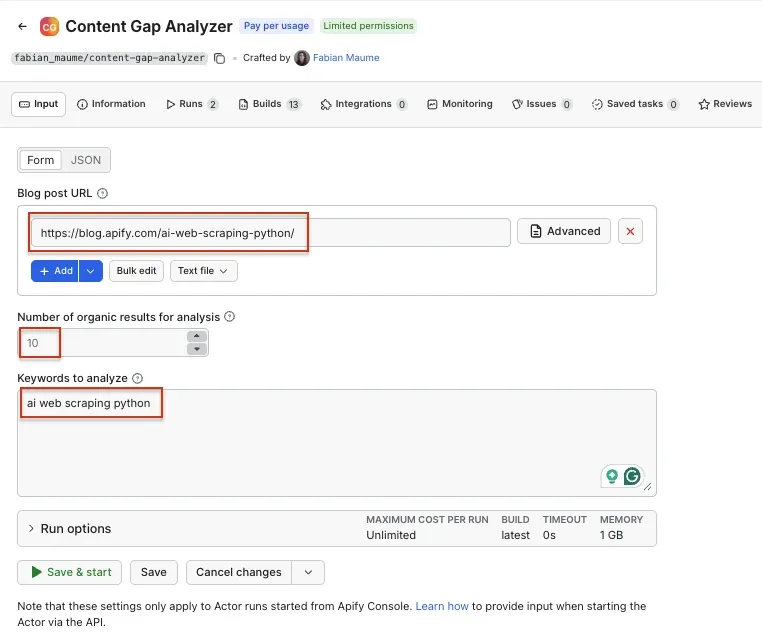
The run needs the following inputs:
- Paste the post you want to fix into Blog post URL.
- Enter your target query in the Keywords to analyze field. That’s the one you pulled from Google Search Console.
- Set Number of organic results for analysis. It defaults to 10, which captures the dominant topics for most queries. Lower it for faster, cheaper runs.
Click Save & Start.
Step 3: Get your results
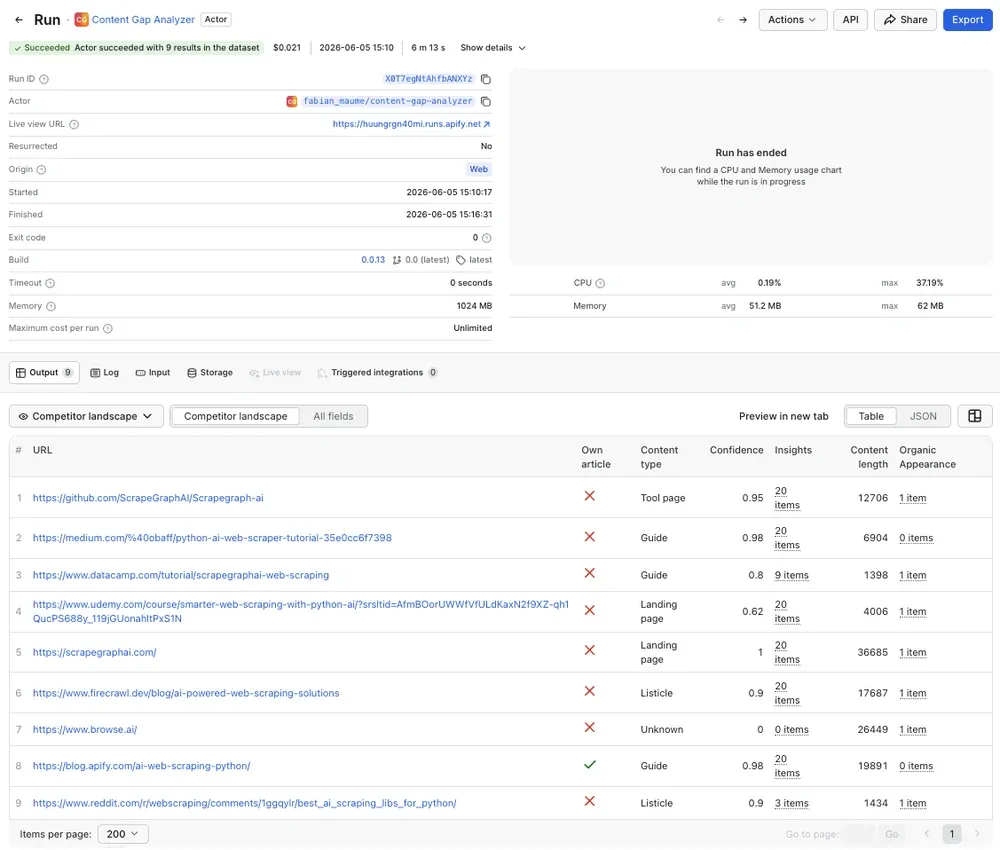
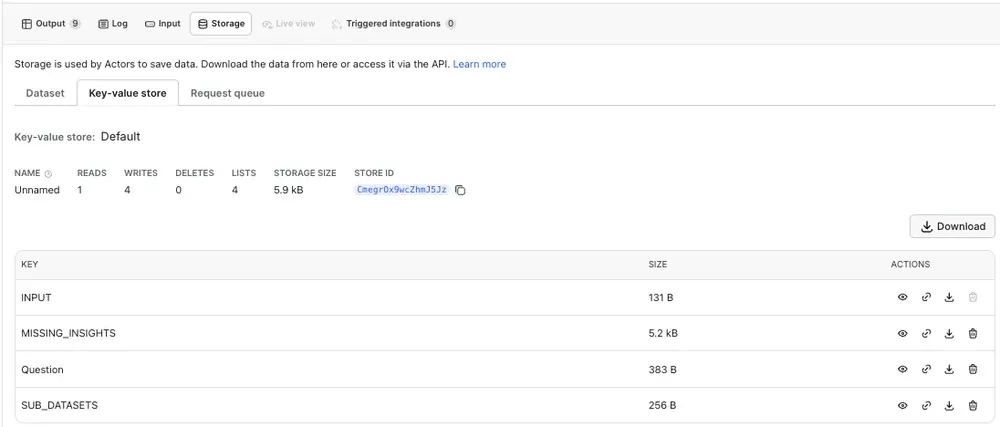
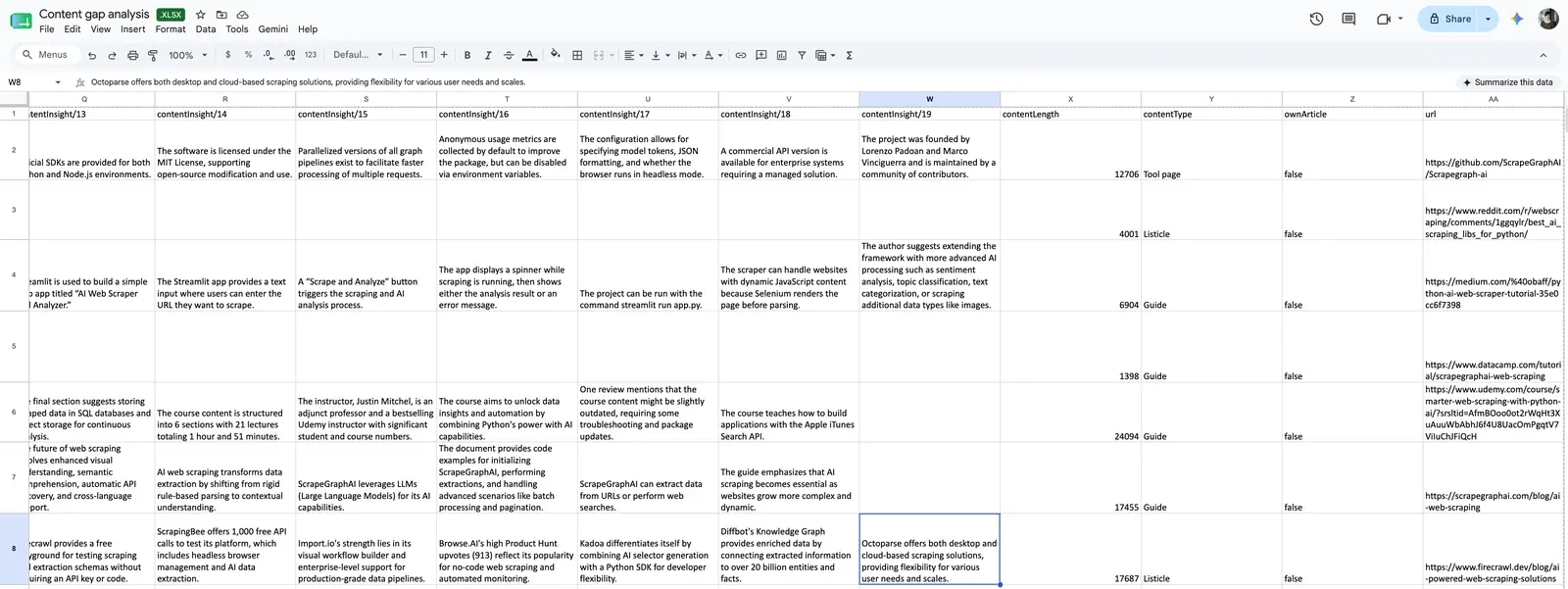
When the run finishes, open the Output tab. The main table gives you one row per ranking page: its content type, the key insights pulled from it (up to 20 each), its length, and which of your keywords it ranks for and where. Your own article sits in the same table, flagged ownArticle, so the LLM compares it against the competition. You also get 3 datasets in the key-value store - you can download these from the Storage tab.
How to read the content gap data
In the Output table, find your own row first. Look at where your page ranks for the keyword. If it isn't ranking at all, the OrganicAppearance field will be empty.
- Scan the content types of the pages that do rank. If they're listicles, landing pages, and pricing pages while your article is a guide, Google wants a different format for this keyword, and adding insights to your guide won't move it. Either target a keyword that matches your format, or accept that ranking here means a different page. The competitor worth reading closely is the one whose content type matches yours.
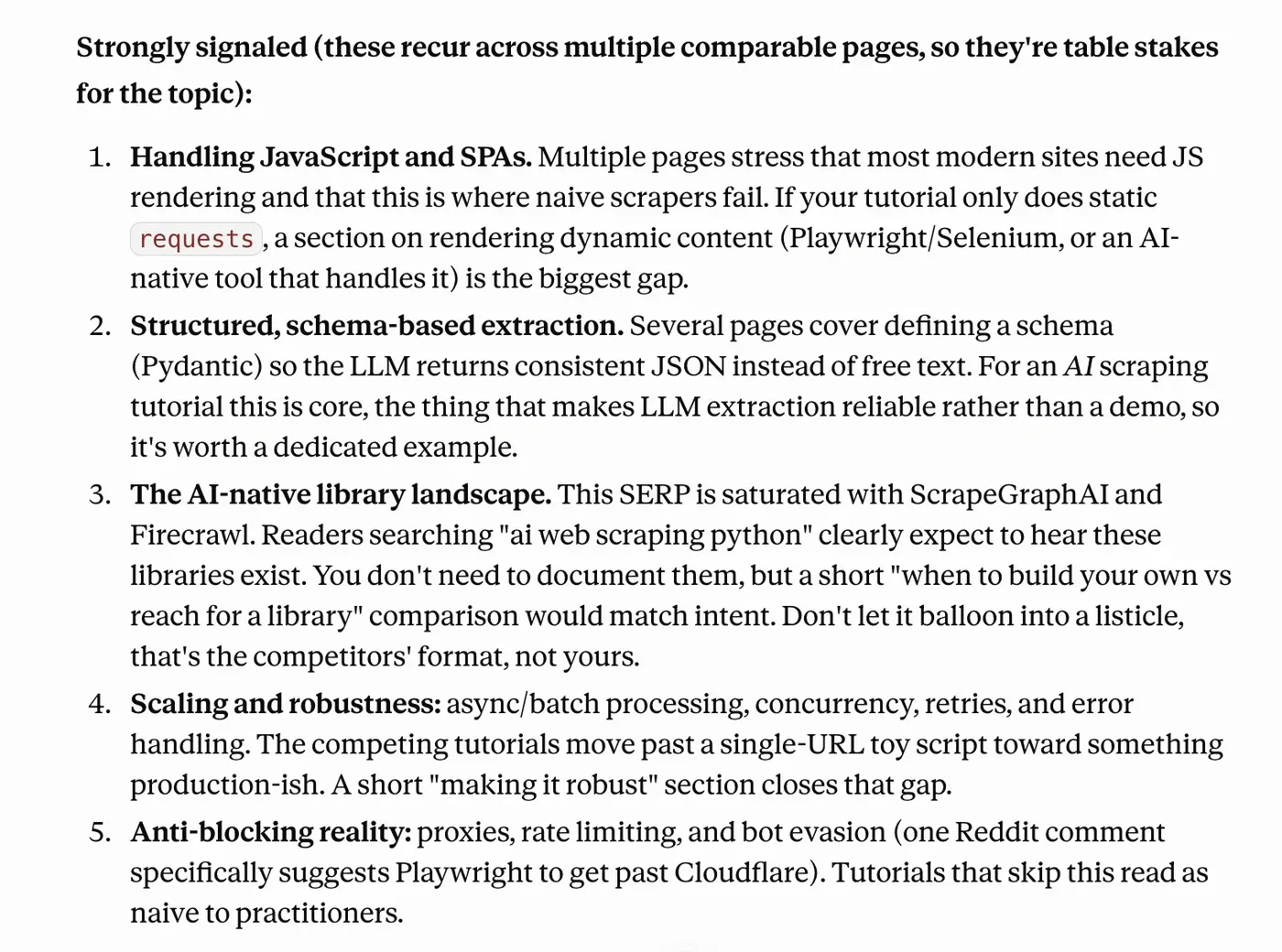
- Work the gap list. Three datasets that land in the key-value store are:
MISSING_INSIGHTS: the insights competitors cover and your article doesn't. This is your gap list, but treat it as raw material, not a to-do list. Keep what fits your page's angle.Question: question-style headings lifted from competitor pages, usually the most directly usable output. Drop the relevant ones straight into an FAQ.
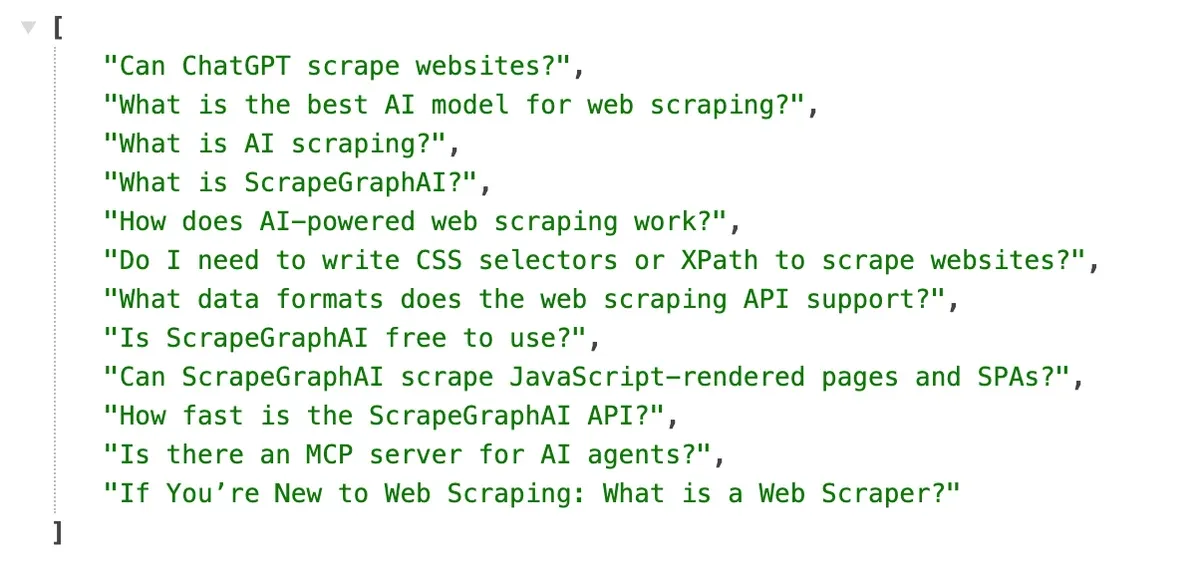
Question dataset example in JSON
SUB_DATASETS: links to the raw Google Search Scraper and Website Content Crawler datasets. If an insight looks off-topic or thin, or a result shows a tiny content length, the crawler might have failed and the LLM summarized whatever results it got. Open the source here to make sure.
The insights you keep tell you what to add, the questions tell you what to answer, and the content types tell you which format the SERP is rewarding.
Step 4 (optional): Send results to Google Drive
If you want the analysis somewhere your team can sort and annotate it, send it to Google Drive automatically. On the Actor page, open the Integrations tab, search for "GDrive", and select the Upload results to GDrive integration.
Give it a name, connect your Google account, and set the trigger to Run succeeded so the file lands as soon as the run finishes. Pick a format (XLSX works well for this) and click Save.
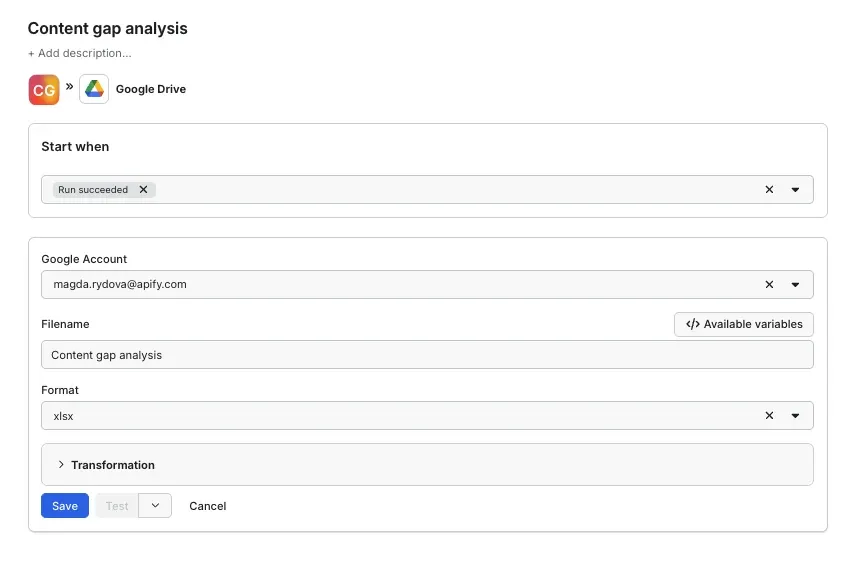
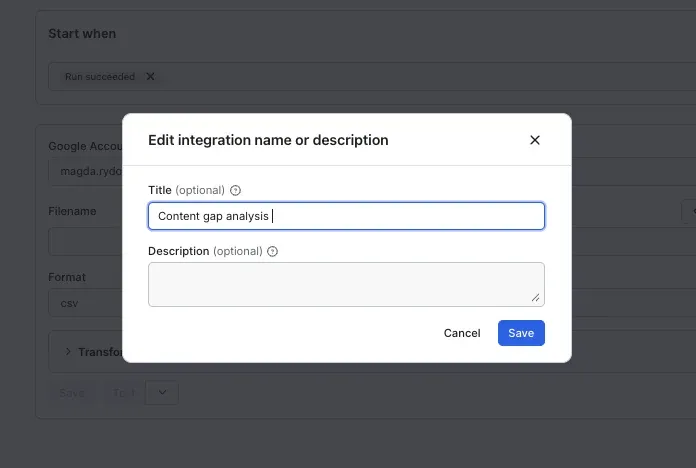
From now on, every run drops a fresh file in your Drive, ready to turn into briefs or compare against last month's gaps.
Step 5 (optional): Schedule future Actor runs
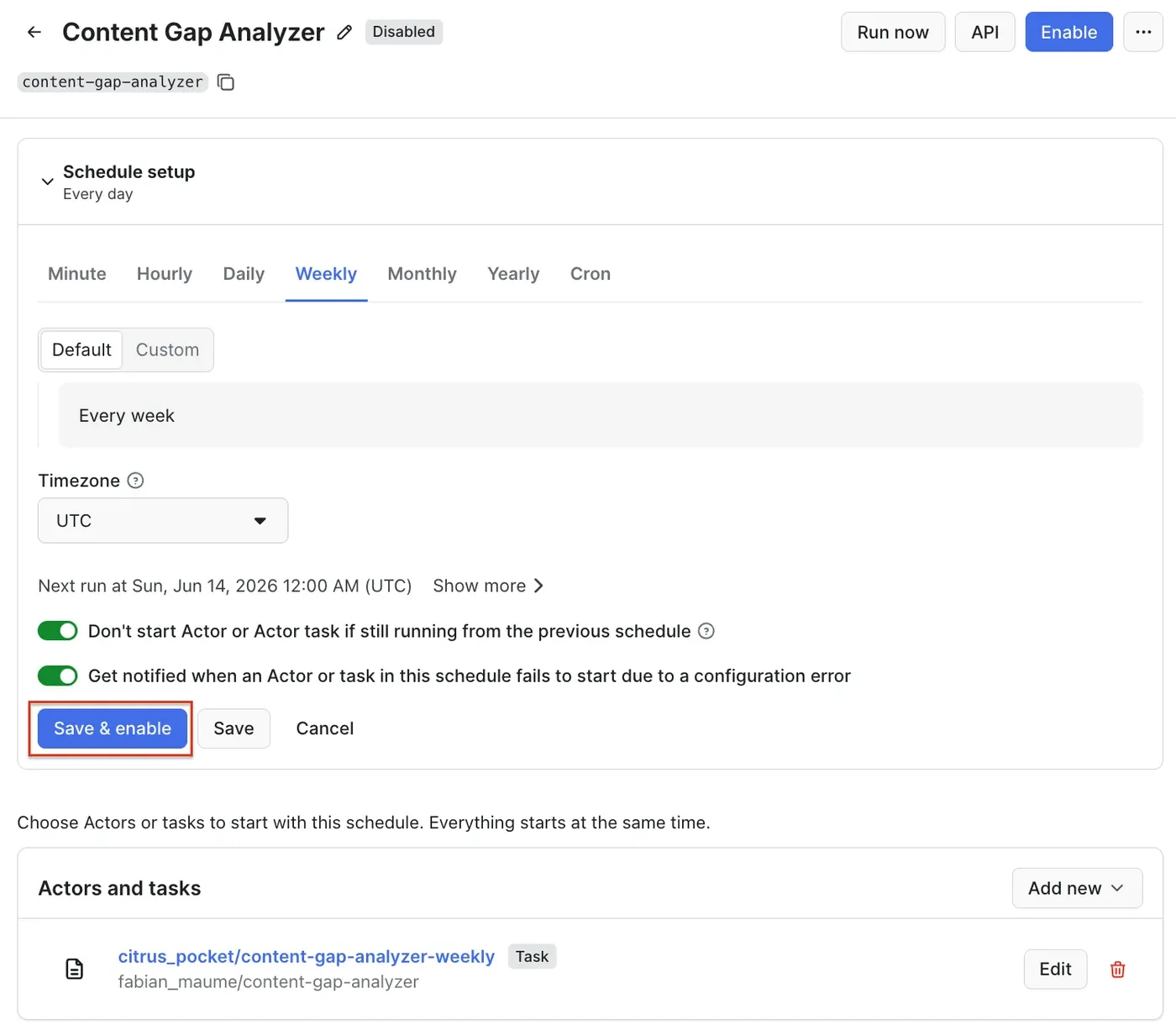
A content gap analysis isn't a one-time job. Competitors update their pages, the SERP shifts, and the gaps you closed last quarter reopen. Instead of clicking Save & Start by hand, you can set up automated runs in Apify Console.
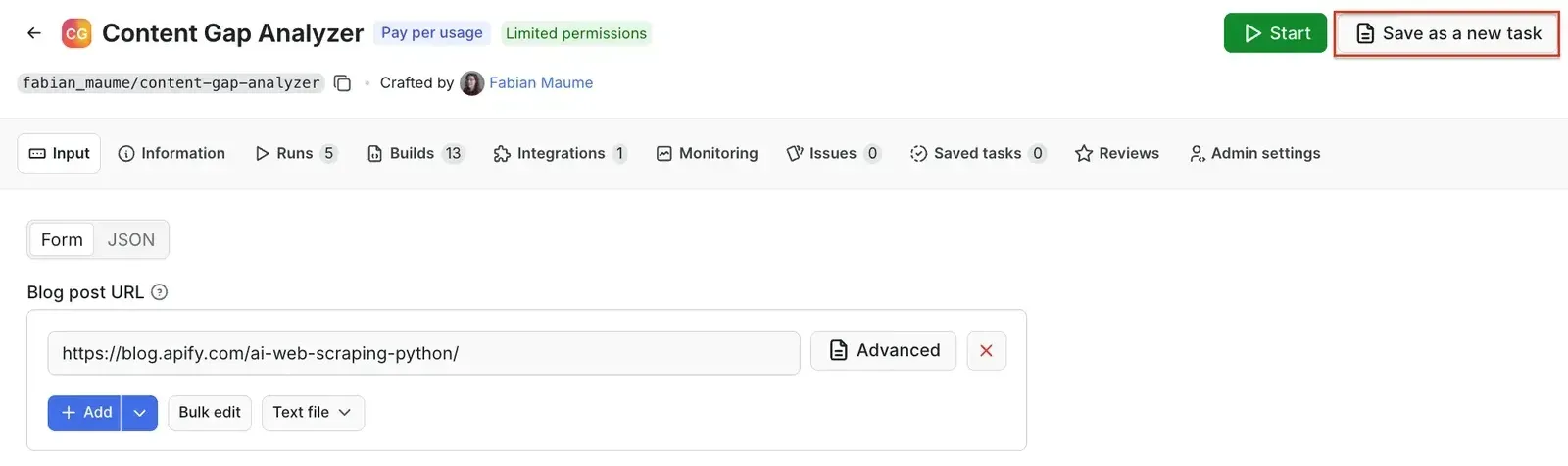
To do this, make sure the Actor is properly configured, then click the Save as a new task button in the top-right corner.
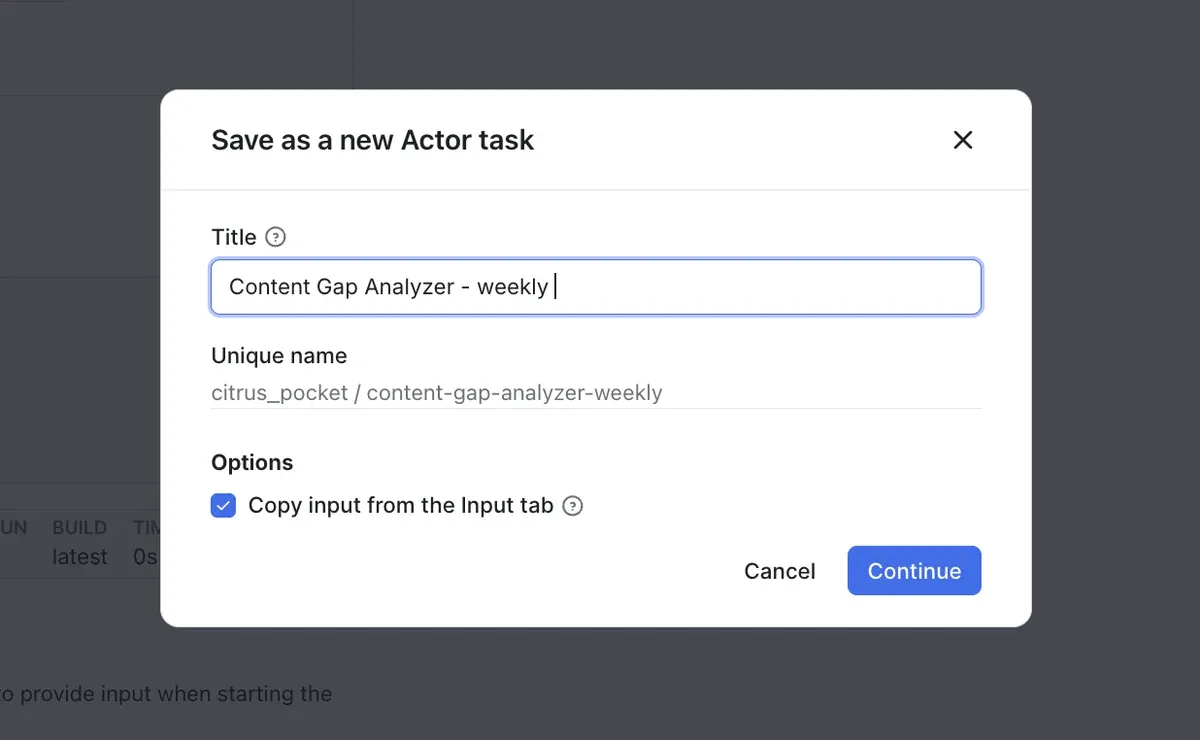
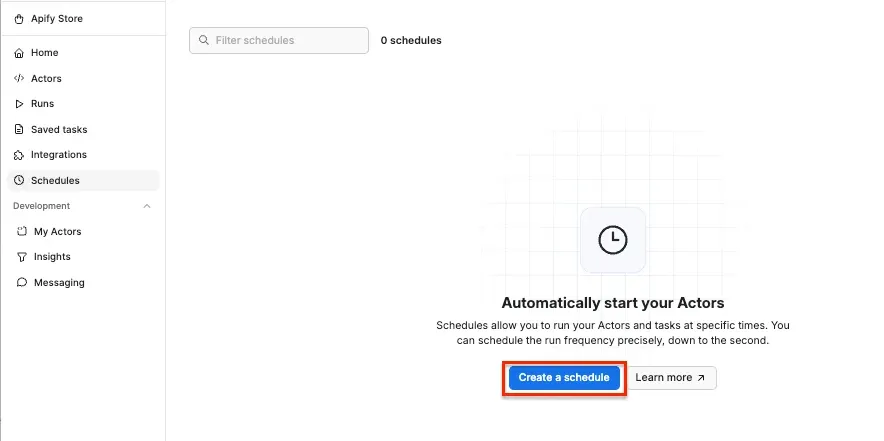
Give your task a name and save it. Now, you can easily schedule the task by accessing Schedules in the left-hand navigation and clicking the Create a schedule button:
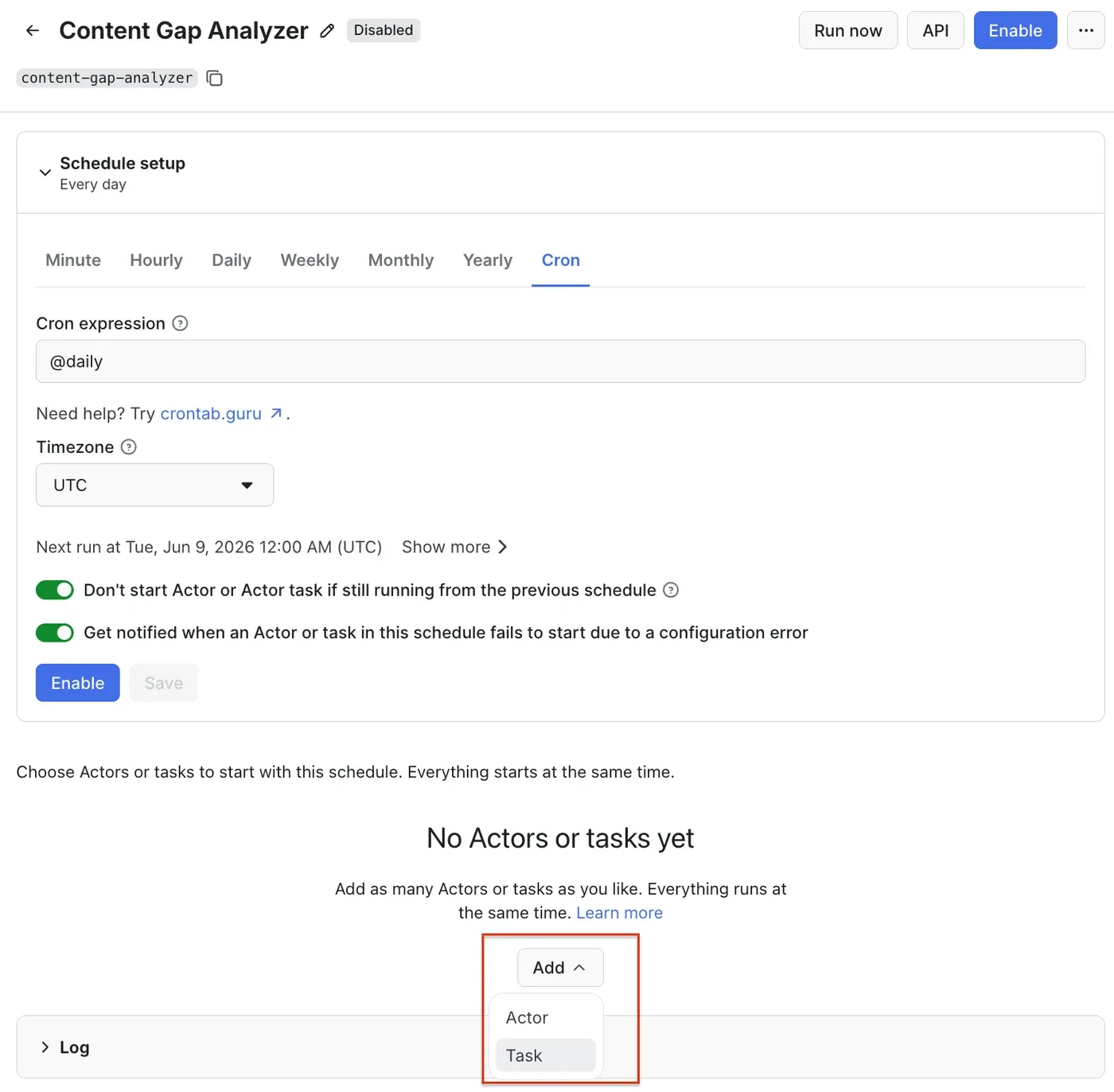
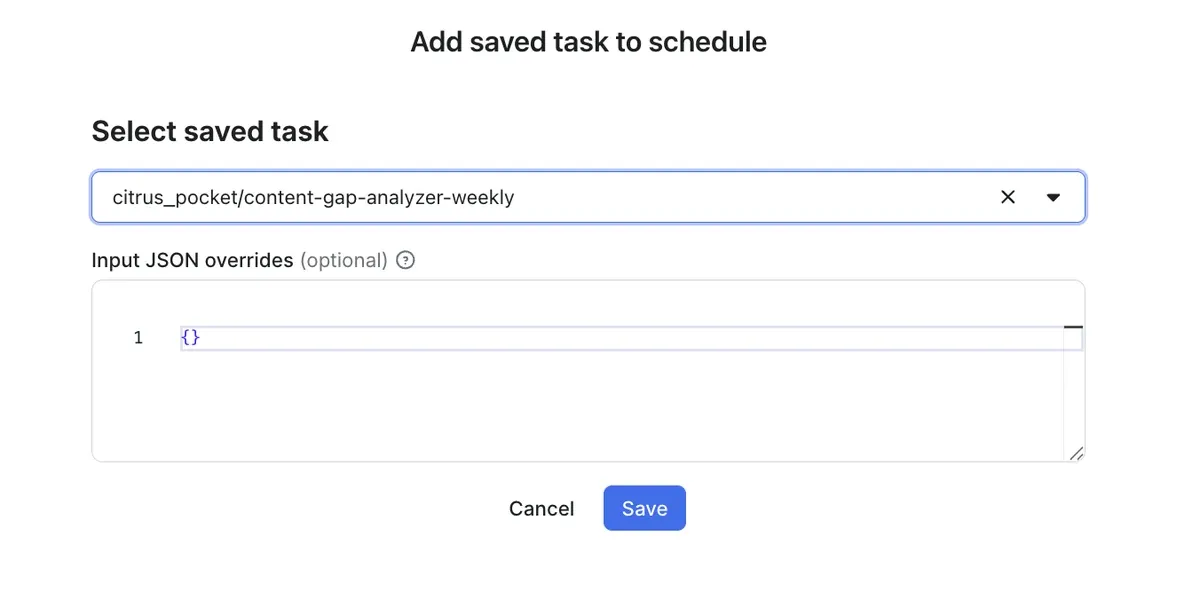
We’ve already saved our task, so now it’s time to add it to the schedule. Click Add task at the bottom to customize your schedule, select a task, and choose how often you want the scraper to run - daily, weekly, monthly, or on any day that works best for you. Click Save & enable to complete your setup.
How to adapt this for your team
The same run works at a few different scopes. You can point it at a single underperforming post when you're planning a refresh, or run it across a batch of related keywords when you're scoping a new cluster to decide which posts to write first.
Because the output is structured data, you can also feed it straight into the rest of your pipeline: hand the missing insights and questions to a writer as a brief, or pass them into an AI workflow that drafts the outline for you.
MISSING_INSIGHTS datasetConclusion
Content Gap Analyzer turns the slowest part of content work, reading competitor pages one by one, into a single Actor run. Feed it a post and a keyword, and you get back the topics, questions, and intent signals you need to rebuild a brief on real SERP data instead of gut feel.
Run it on the posts that have slipped, prioritize by the keywords with proven demand, and use automated runs to get content gap data without manual effort. And sometimes the most valuable thing the analysis tells you isn't what to add, it's that the keyword you're chasing wants a different kind of page than the one you have.