
AliExpress publishes no public price API. If you sell in a category AliExpress competes in, you have no way to see what it costs this week versus last, short of opening listings one tab at a time.
This tutorial builds the thing that looks for you. Three pieces do the work: E-commerce Scraping Tool reads the current prices off an AliExpress category, Google Sheets Import & Export writes every run into a spreadsheet, and an Apify schedule runs the pair whenever you need fresh data. The sheet gains a row per product per run, and a second tab collapses each run into one line: how many products came back, what the median price was, and how far it moved since last time.
Everything below happens in Apify Console and Google Sheets.
Actors run on Apify's infrastructure, so proxies, anti-bot handling, storage, and scheduling are already taken care of.
What you get in the sheet
Here’s a real output example from E-commerce Scraping Tool’s run, trimmed to the columns that matter for pricing:
| name | offers/price | offers/priceCurrency | rating | reviewCount |
|---|---|---|---|---|
| SK26 Bluetooth 5.4 Wireless Earphones Small Earbuds Sleeping Sport Invisible Headphones | 3.91 | USD | 4.9 | 86 |
| UEESFIT A5 TWS Bluetooth Earphones HiFi Sound Headphones True Wireless ANC Noise Canceling Earbuds | 3.01 | USD | 5 | 221 |
| XIAOMI Redmi Airdots 2 Wireless Bluetooth Headset with Mic Earbuds TWS Wireless Headphones | 9.18 | USD | 4.9 | 324 |
Prices across a single run tell you what the category costs today. Across multiple runs, they tell you which way the category is drifting. With rating and review count, you can judge whether a cheap listing is cheap because it's new or cheap because it’s a low-quality product. Review count is a maturity signal.
Each run also returns url, image, description, and inputUrl.
Step 1: Pick the category to track
Open the AliExpress category or search page whose pricing you want to follow, and copy its URL. Strip everything after the .html: AliExpress appends a long tail of session parameters (spm, guide_trace, scene_id, and friends) that change every time you open the page. In this example:
https://www.aliexpress.com/w/wholesale-Headphones-%26-Earphones.htmlStep 2: Run the Actor
Open E-commerce Scraping Tool on Apify Store and click Try for free. You'll need an Apify account, which is free to create.
This scraper supports three input methods: Category listing URLs, Product detail URLs, and Keywords search. You can only use one input type per run.
| Input type | What it is | When to use it |
|---|---|---|
| Category listing URLs | Search results or category pages with multiple products | Discover many products, monitor whole categories, find new arrivals |
| Product detail URLs | URLs pointing directly to a single product page | Monitor known SKUs, track specific items for price/stock changes |
| Keyword search | Search marketplaces (e.g. amazon.de, ikea.com, kaufland.at) by keywords | Fast search - no need to gather URLs. Great for market research |
In the Actor input:
- Paste the URL into the Category listing URLs field.
- Leave Scrape mode on
AUTOunless runs start coming back empty, in which case tryBROWSER. - Set Total maximum products to a fixed number, say 20, and don't change it between runs. This caps what you can be charged, and it keeps your sample size constant.
- Keep the Include additional properties toggle off.
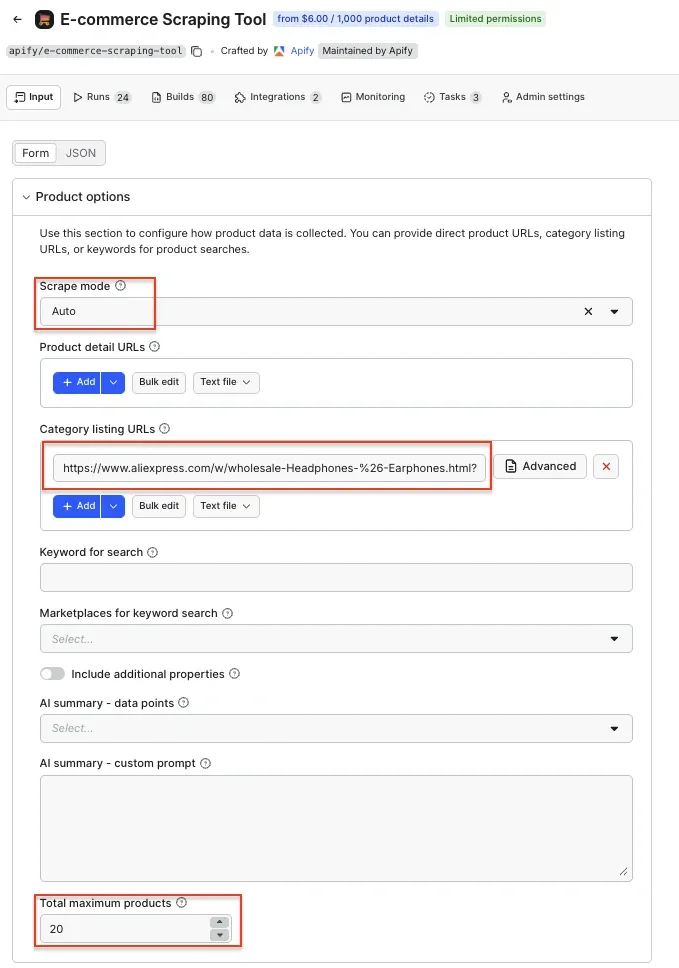
Click Save & Start. A run takes a few minutes. When it finishes, open the Output tab and check that prices are there.
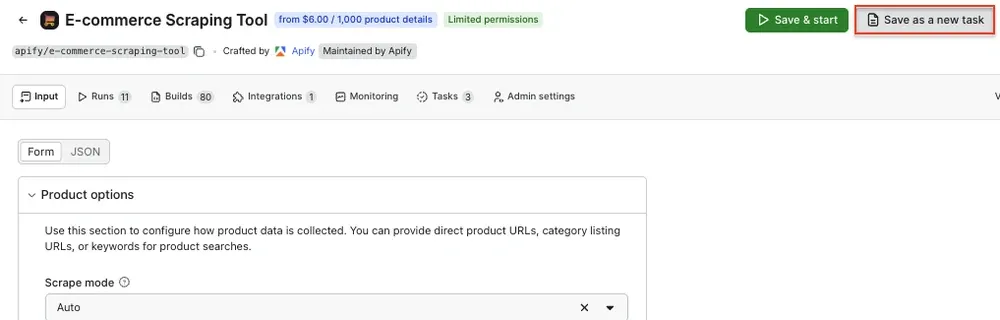
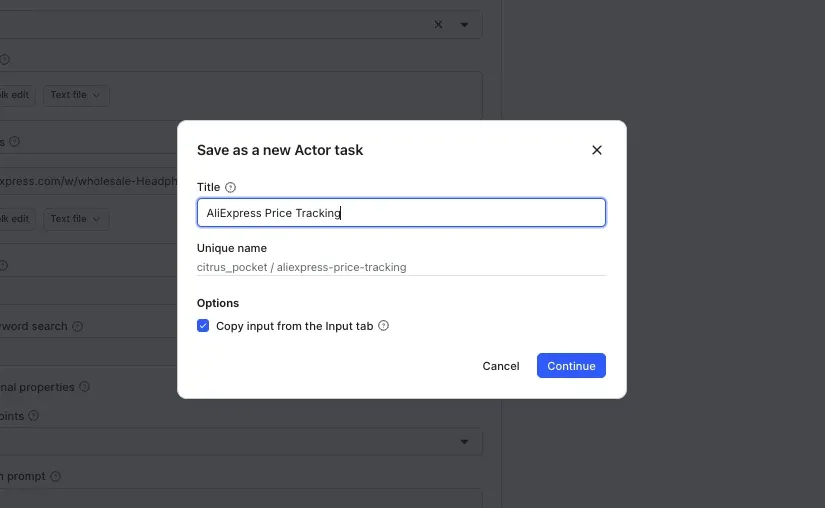
Now save the configuration as a task: click Save as a new task on the run. A task is a saved input you can schedule, which is what the next two steps need.
Step 3: Send every run into Google Sheets
Create a blank Google Sheet and give it two tabs: price_log for the raw rows, and tracker for the formulas you'll add in step 5. Keep them separate. The integration rewrites the layout of the tab it writes to on every run, so any formulas sharing that tab will be absorbed into the data and lost.
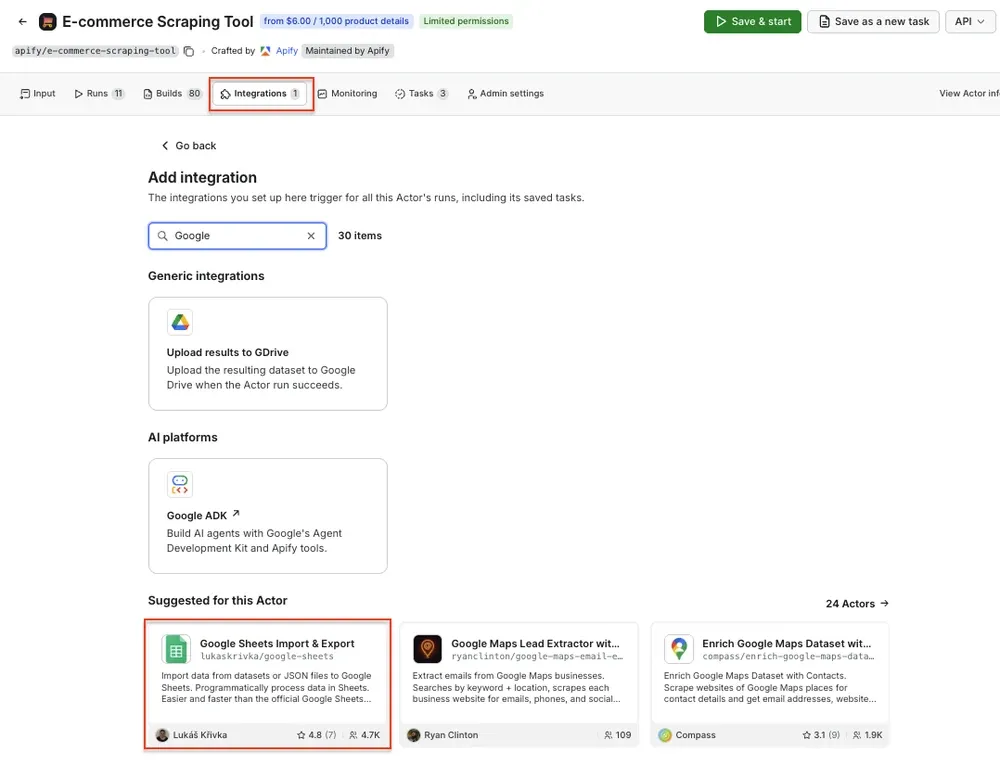
Back in Apify Console, open your task and go to the Integrations tab. Click Add integration, search for Google Sheets, and pick Google Sheets Import & Export.
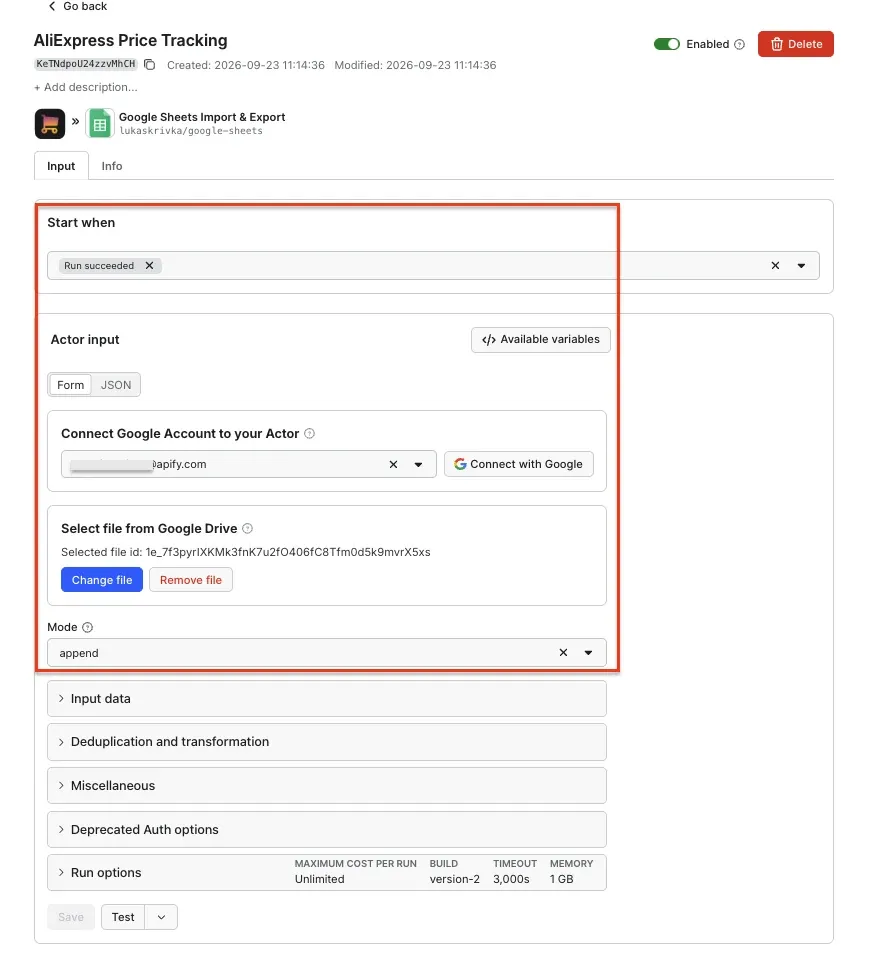
Configure it like this:
- Start when:
Run succeeded. Failed runs then leave the sheet alone instead of writing a half-empty snapshot into your history. - Google Account: click to authorize. The Actor asks for access to the spreadsheets in that account.
- Select file from Google Drive: pick the spreadsheet you created.
- Mode:
append. This is the setting that turns the sheet into a price history instead of a snapshot.replacewipes the sheet on every run and throws away everything you're trying to measure. - Range:
price_log!A:G. Don't skip this one. Left empty, the Actor writes to whichever tab happens to be first, and it rewrites that tab's entire column layout on every run. - Columns order:
["url","name","offers/price","offers/priceCurrency","rating","reviewCount","scrapedAt"]. This pins the price to column C on every run. - Keep column order from sheet: on. Once the header row exists, this stops the Actor reshuffling it.
Leave Deduplicate by field and Deduplicate by equality empty. Neither can be used alongside a transform function.
The raw output needs four fixes before it reaches the sheet, and one transform function does all of them. It stamps the date, which the Actor doesn't return. It strips the tracking parameters AliExpress appends to every URL. It converts prices like $41.70 from text into numbers you can do arithmetic on. And it drops every field you didn't ask for. It also reads the price from either shape the Actor might hand it, nested under offers or already flattened to offers/price. Paste it into Transform function:
({ spreadsheetData, datasetData }) => {
    var scrapedAt = new Date().toISOString().slice(0, 10);
    var pick = function (item, nested, flat) {
        if (item[flat] !== undefined && item[flat] !== null) return item[flat];
        var o = item.offers;
        if (o && o[nested] !== undefined && o[nested] !== null) return o[nested];
        return '';
    };
    var toNumber = function (v) {
        var n = parseFloat(String(v).replace(/[^0-9.]/g, ''));
        return isNaN(n) ? '' : n;
    };
    var rows = datasetData.map(function (item) {
        return {
            url: String(item.url || '').split('?')[0],
            name: item.name || '',
            'offers/price': toNumber(pick(item, 'price', 'offers/price')),
            'offers/priceCurrency': pick(item, 'priceCurrency', 'offers/priceCurrency'),
            rating: item.rating === undefined ? '' : item.rating,
            reviewCount: item.reviewCount === undefined ? '' : item.reviewCount,
            scrapedAt: scrapedAt,
        };
    });
    return spreadsheetData.concat(rows);
}
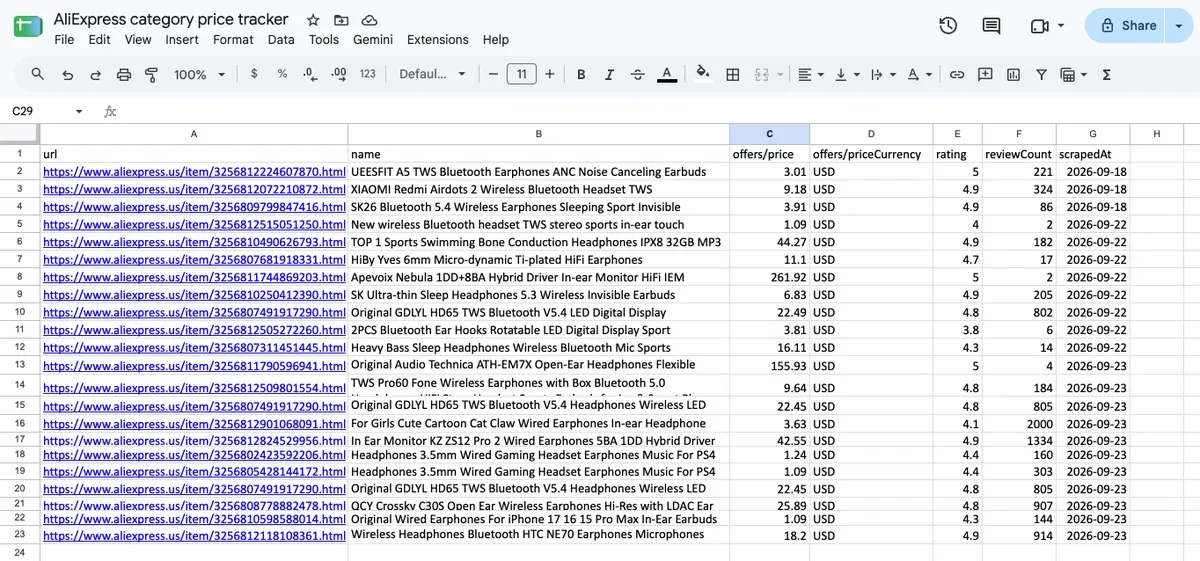
Save the integration. Now every time the Actor finishes running, you’ll get a new set of data. After three runs on three separate days, the spreadsheet looks like this:
Step 4: Schedule it
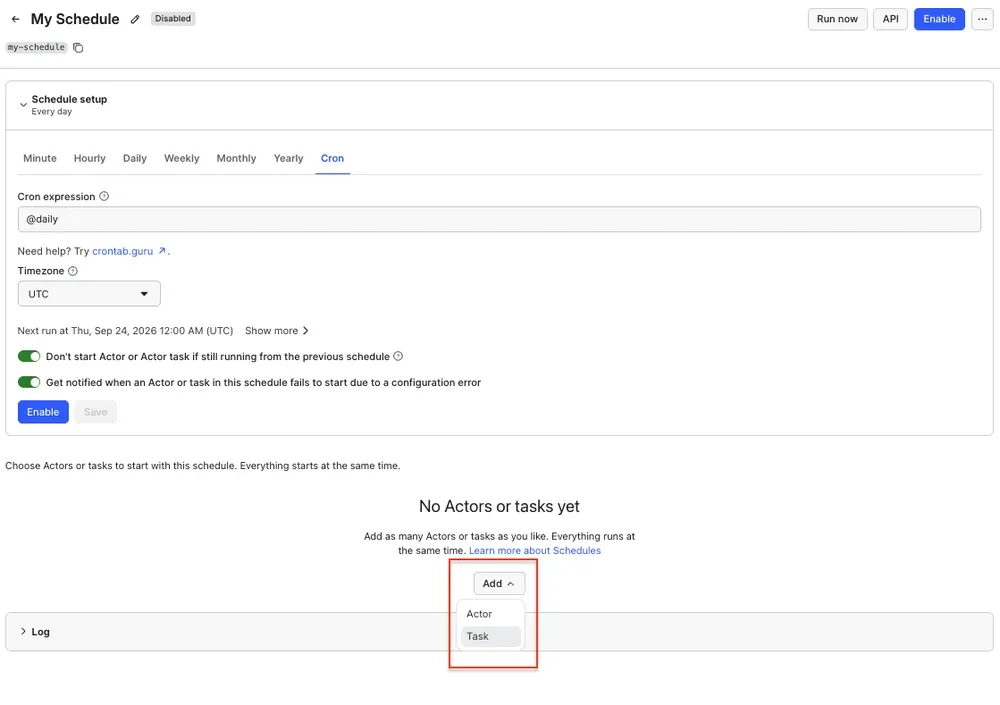
Now, you can easily schedule the task by accessing Schedules in the left-hand navigation and clicking the Create a schedule button:
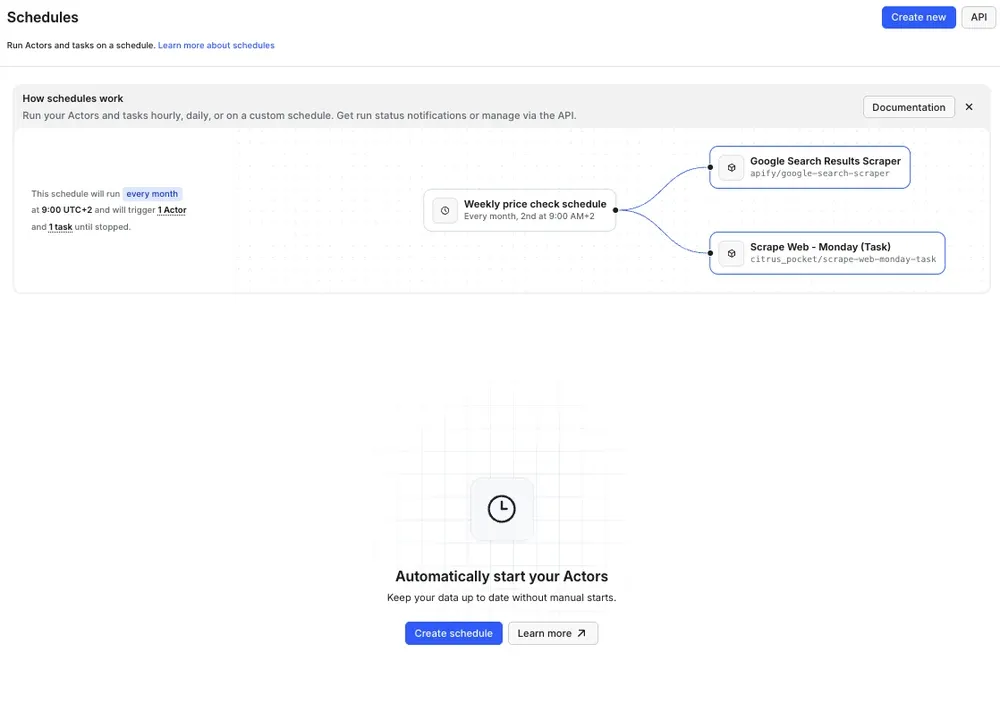
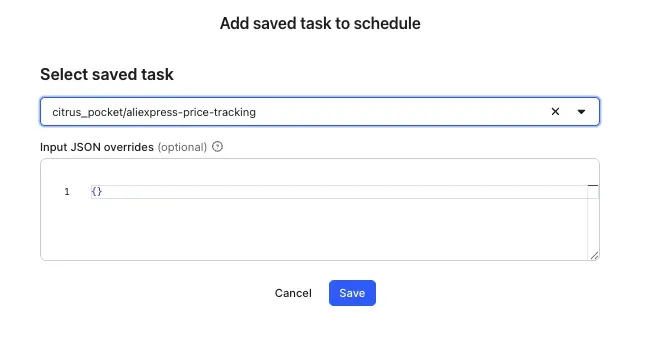
You’ve already saved the task in step 2, so now it’s time to add it to the schedule. Click Add task at the bottom to customize your schedule, select a task, and choose how often you want the scraper to run - daily, weekly, monthly, or on any day that works best for you. Click Enable to complete your setup.
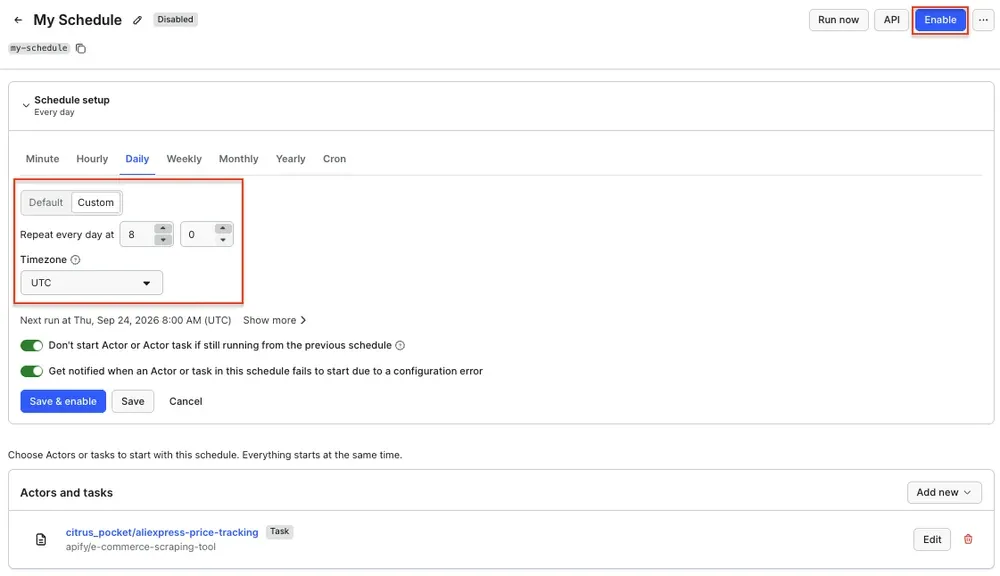
From here on, the sheet fills itself.
Step 5: Turn the log into a tracker
The price_log tab is now an append-only record: one row per product, per run. The tracker tab turns that into one row per run, which is the unit that means something when the products themselves change between runs.
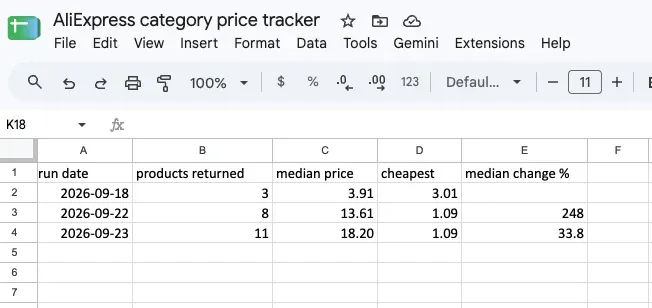
Give tracker five columns: run date, products priced, median price, cheapest, and median change %. The formulas below assume offers/price is column C and scrapedAt is column G in price_log, which is what the Columns order setting in step 3 guarantees.
A2, the list of run dates. This one spills down on its own as runs accumulate:
=UNIQUE(FILTER(price_log!$G$2:$G$5000, price_log!$G$2:$G$5000<>""))
B2, how many products came back with a usable price. Not how many rows landed: a product with a blank price isn't in the sample the median is built from.
=IF($A2="","",COUNTIFS(price_log!$G$2:$G$5000,$A2,price_log!$C$2:$C$5000,"<>"))
C2, the median price for that run:
=IF($A2="","",IFERROR(MEDIAN(FILTER(price_log!$C$2:$C$5000,price_log!$G$2:$G$5000=$A2,price_log!$C$2:$C$5000<>"")),""))
D2, the cheapest listing in that run:
=IF($A2="","",IFERROR(MIN(FILTER(price_log!$C$2:$C$5000,price_log!$G$2:$G$5000=$A2,price_log!$C$2:$C$5000<>"")),""))
E2, the change in median since the previous run, as a percentage you can read without formatting the cell:
=IF($A2="","",IFERROR(ROUND(($C2-$C1)/$C1*100,1),""))
Fill B to E down twenty or thirty rows. They stay blank until column A spills a date beside them, so an empty tracker after your first run is the expected state, not a broken formula. You need two runs before anything appears in the change column.
Here are the results after three runs done on three separate dates:
Taking it further
The same pattern works anywhere the pieces fit together. Swap the Actor and you're tracking competitor prices in real time on the retail sites you sell against rather than the marketplace you source from. Swap Google Sheets for a database integration and the history becomes something you can query properly.
If you want to pull the same data into an AI agent instead of a spreadsheet, the Apify MCP server exposes every Actor on Apify Store as a tool, so you can ask a model how a category's pricing has shifted this week and get an answer from live data rather than a stale export.

FAQ
Does AliExpress have an API for product prices?
Not a public one. The AliExpress affiliate and dropshipping APIs cover a limited product set and require program approval. For arbitrary listings, scraping the public page is the available route.
Is scraping AliExpress prices legal?
Prices on public product pages are public data, and collecting public data is generally lawful in the US and EU. What you do with it afterwards is where the obligations sit: don't republish copyrighted product descriptions or images as your own, and check AliExpress's terms for your specific use case.
How often should the scraper run?
Daily covers most category monitoring. Move to hourly only around major sale events, when prices change inside the day and the cost of catching one late is higher than the cost of the extra runs.
What happens when the products change between runs?
They will, on almost every run. That's why the tracker measures each run as a whole rather than following individual listings. A product dropping out of the results doesn't break anything, it simply isn't in that run's sample. What does matter is keeping the sample size constant, so leave Total maximum products alone once you've set it.
Why are some prices blank?
AliExpress doesn't return a price for every listing on every run, and the scraper doesn't always get through. The tracker counts only products that came back with a usable price, so a run with gaps produces a smaller sample rather than a wrong number.