If you sell on TikTok Shop, source products for it, or research it for a client, you already know the problem: the data you need to make decisions is locked inside dashboards you can't export from.
Analytics tools like Kalodata, FastMoss, and Shoplus charge $60 to $200 a month for a fixed interface built on scraped TikTok Shop data. You pay for their dashboard, not the raw numbers, and you can't drop those numbers into your own spreadsheet, database, or reporting setup. TikTok's official API won't help either: it only serves sellers managing their own stores, so it gives you nothing on competitors or on the wider market. That leaves manually checking product pages one at a time.
There’s a different approach, though. TikTok Shop Scraper is one of the ready-made Apify tools you can use to pull units sold, pricing by variant, stock levels, seller details, and ratings for any product keyword, export it as a spreadsheet or JSON, and run your own analysis on top of it. No subscription, no dashboard lock-in, and you pay only for the data you get.
How does TikTok Shop Scraper work
TikTok Shop Scraper takes the product keywords you give it, searches TikTok Shop in the US, and collects every matching product into a structured dataset. For each product, it pulls the data points that paid analytics tools charge a subscription for: units sold, current and original price per variant, stock levels, seller name and ID, star rating, and review count.
You don't need to write code or configure proxies. When the run finishes, you export the results as CSV or JSON and load them straight into Google Sheets, a database, or any BI tool.
Actors have access to platform features such as built-in proxy management, anti-bot evasion support, integrated storage with structured CSV/Excel/JSON exports, and standardized input parameters (URLs, keywords, limits, etc.). Actors integrate easily with tools like Make, n8n, or into AI workflows, so you can send your data directly into analysis pipelines without manual handling.
How to scrape TikTok Shop data, step by step
Running TikTok Shop Scraper takes just a few steps, from setup to exporting data you can analyze. You don't need to write any code or configure proxies to follow along.
Step 1: Set up the Actor
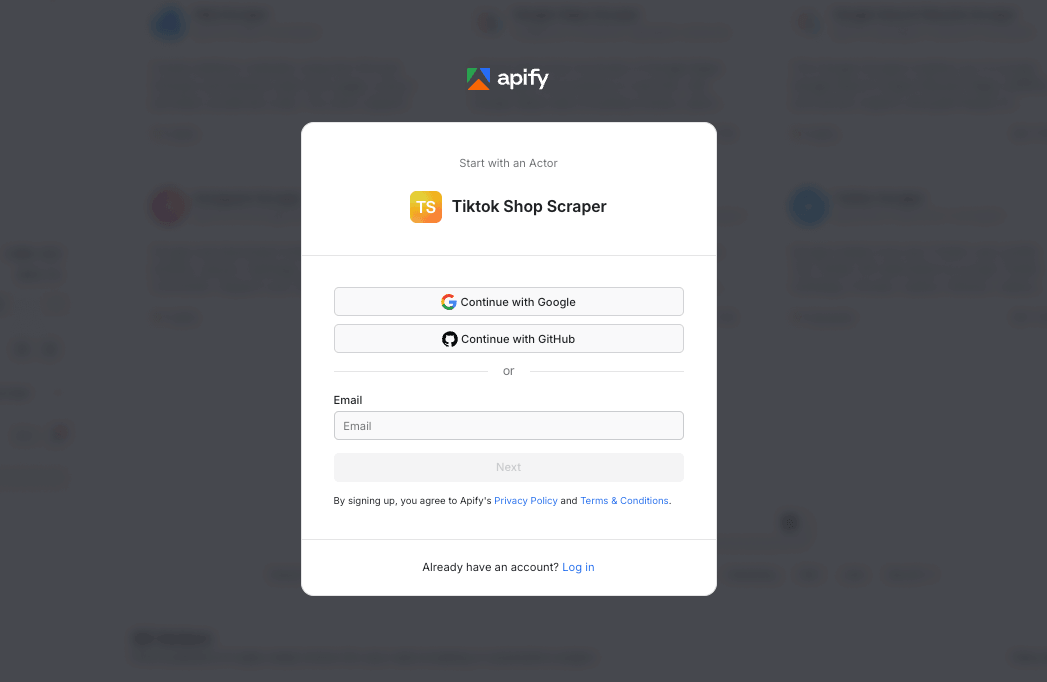
Open TikTok Shop Scraper in Apify Store and click Try for free. If you don't have an account yet, you can easily create one using your email, Google, or GitHub account.
In the input field, add the product keywords you want to research. We’ll choose search terms from the beauty and cosmetics categories as an example:
mascaramakeuplip oil
You can also add a maximum number of unique products to collect per keyword.
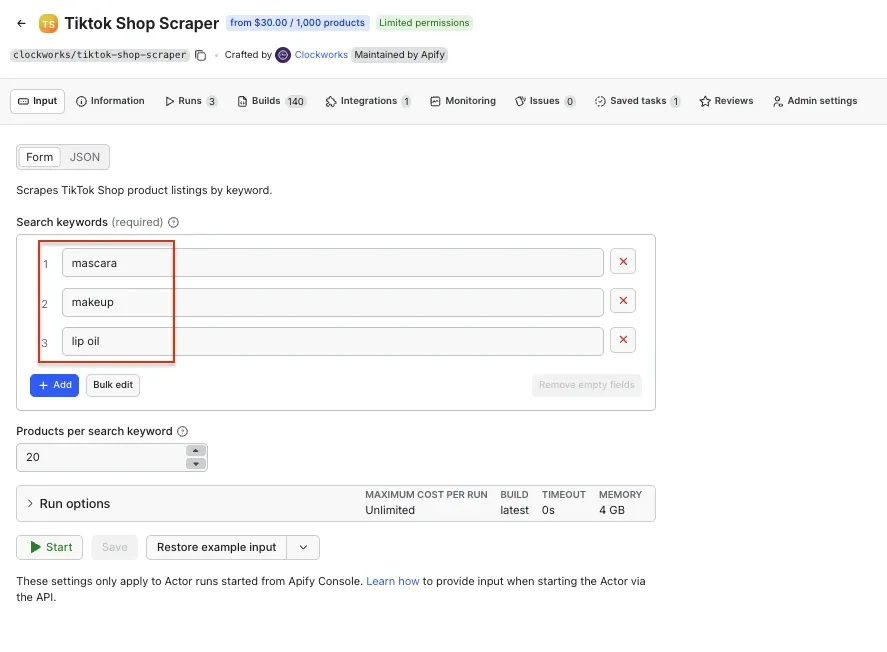
Add several keywords to a single run to cover a whole niche at once. Right now, the Actor searches by product keyword and covers TikTok Shop in the US. Search by video URL and by product category are planned for a later release.
When your keywords are in, click Save & Start.
Step 2: Run the Actor and export the data
The Actor works through your keywords and collects every matching product it finds, then pushes the results to a dataset. When the run finishes, open the Output tab and export as CSV (to open straight in Google Sheets or Excel) or JSON (to feed an application or pipeline).
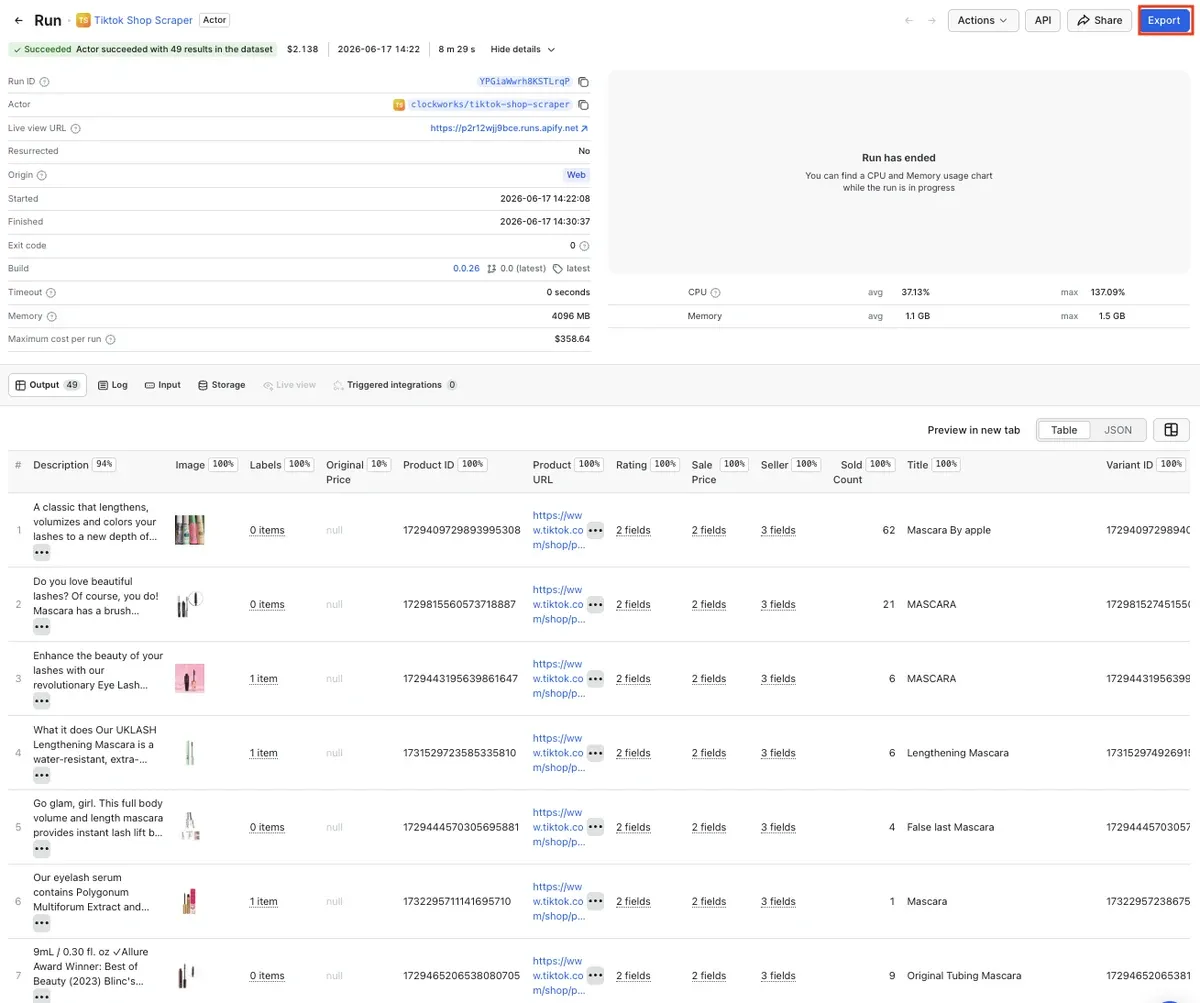
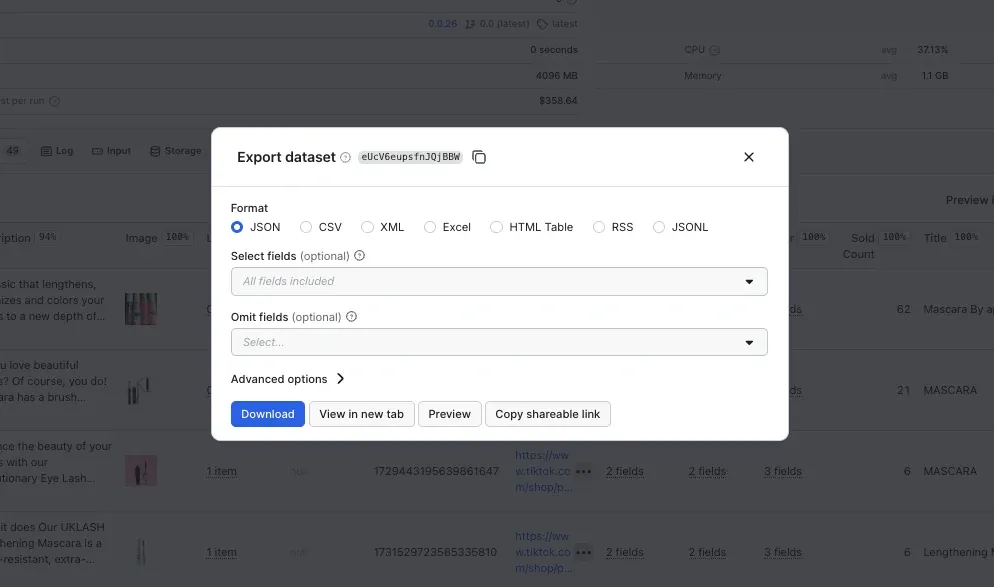
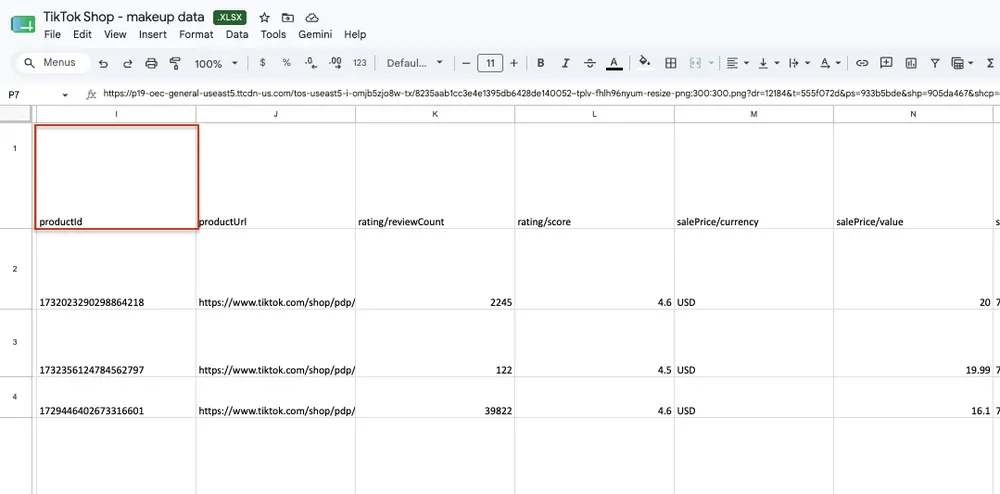
Each row is one product, with columns for units sold, current and original price, stock, seller, rating, and review count. From here, the analysis is yours to run however you want.
Step 3 (optional): Send data directly to Google Sheets
You can also send data directly to your Google Drive. Go back to the Actor's page and select the Integrations tab. Start typing “GDrive” in the search bar, and select the Upload results to GDrive integration.
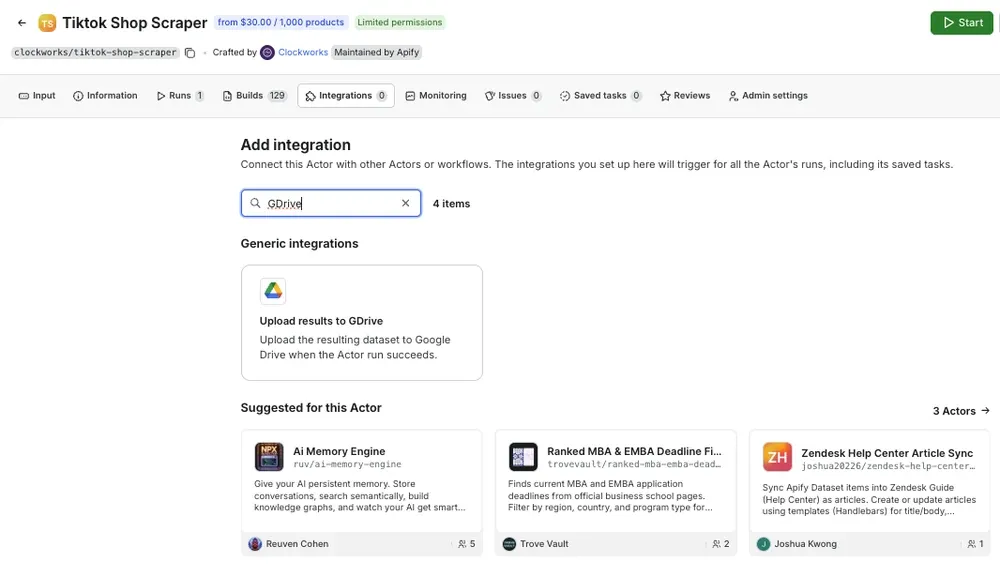
Give the integration a unique name. In our example, we’ll use TikTok Shop - makeup data. Click Save to continue and connect your Google account. If you’re using your Google account with Apify Console, your email address might already be on the list of accounts to select.
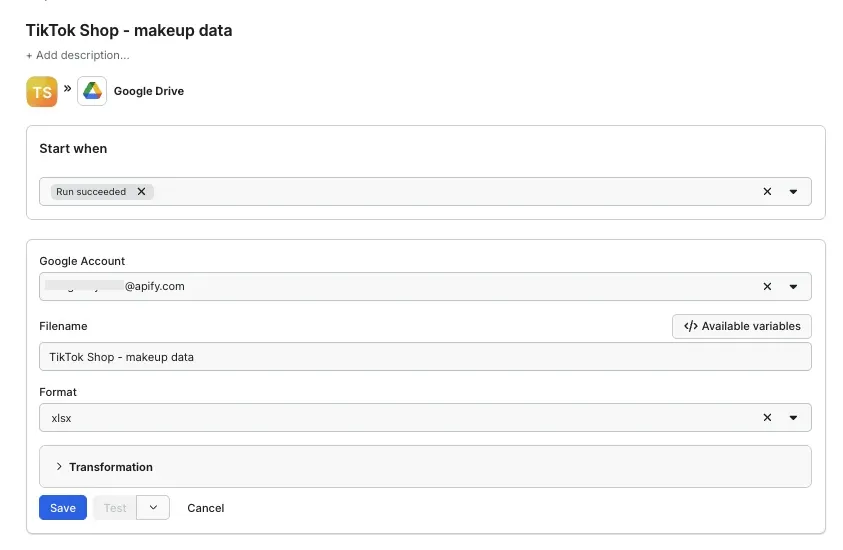
Since we want the data to be sent to the spreadsheet once the scraper finishes running, we’ll select Run succeeded as our starting point. Select a format of the Google Drive file that the Apify integration will create (we’ll go with the XLSX) and click Save.
The workflow is ready - from now on, every time you run a scraping session, a new file with scraped results will be created in your Google Drive automatically, ready to analyze and compare over time.
You can check if the integration is set up correctly by refreshing the Integrations tab.
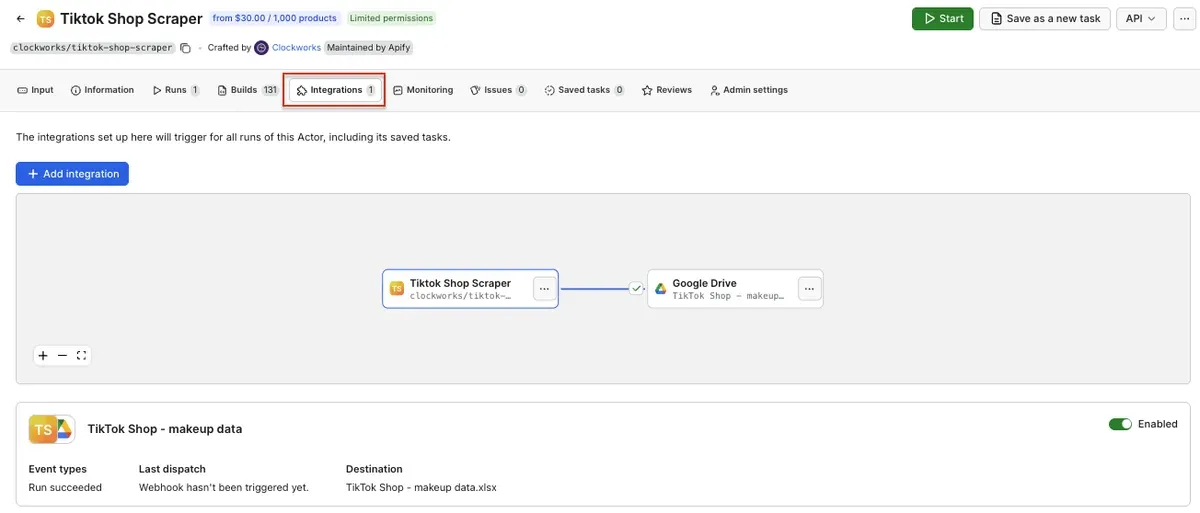
Step 4 (optional): Schedule automated runs
Instead of clicking Start by hand, you can set up automated runs in Apify Console.
To do this, make sure the Actor is properly configured, then click the Save as a new task button in the top-right corner.
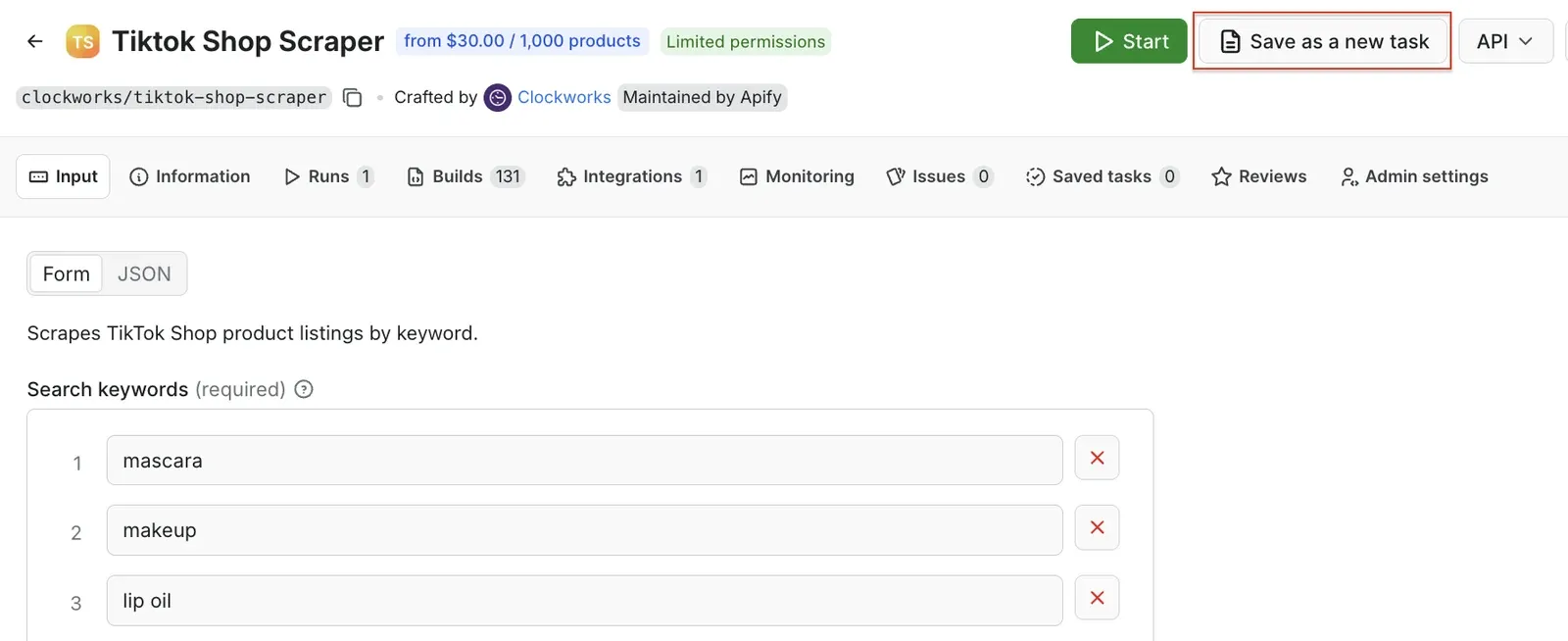
Give your task a name and save it. Now, you can easily schedule the task by accessing Schedules in the left-hand navigation and clicking the Create a schedule button:
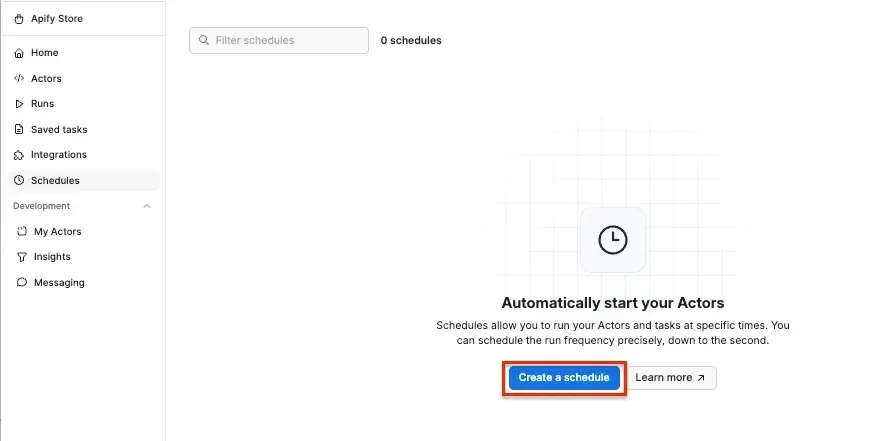
We’ve already saved our task, so now it’s time to add it to the schedule. Click Add task at the bottom to customize your schedule, select a task, and choose how often you want the scraper to run - daily, weekly, monthly, or on any day that works best for you. Click Save & enable to complete your setup.
Analyze your findings
A single run tells you what a category looks like right now. The real insight comes from comparing datasets over time. Line the exports up in a spreadsheet, match products on productId, and the changes tell you what's moving.
Or, feed your AI tools with scraped data and run the analysis:
- Track changes. Run the same keywords today and again in two weeks. Comparing units sold across the two runs shows you which products are accelerating and which are stalling.
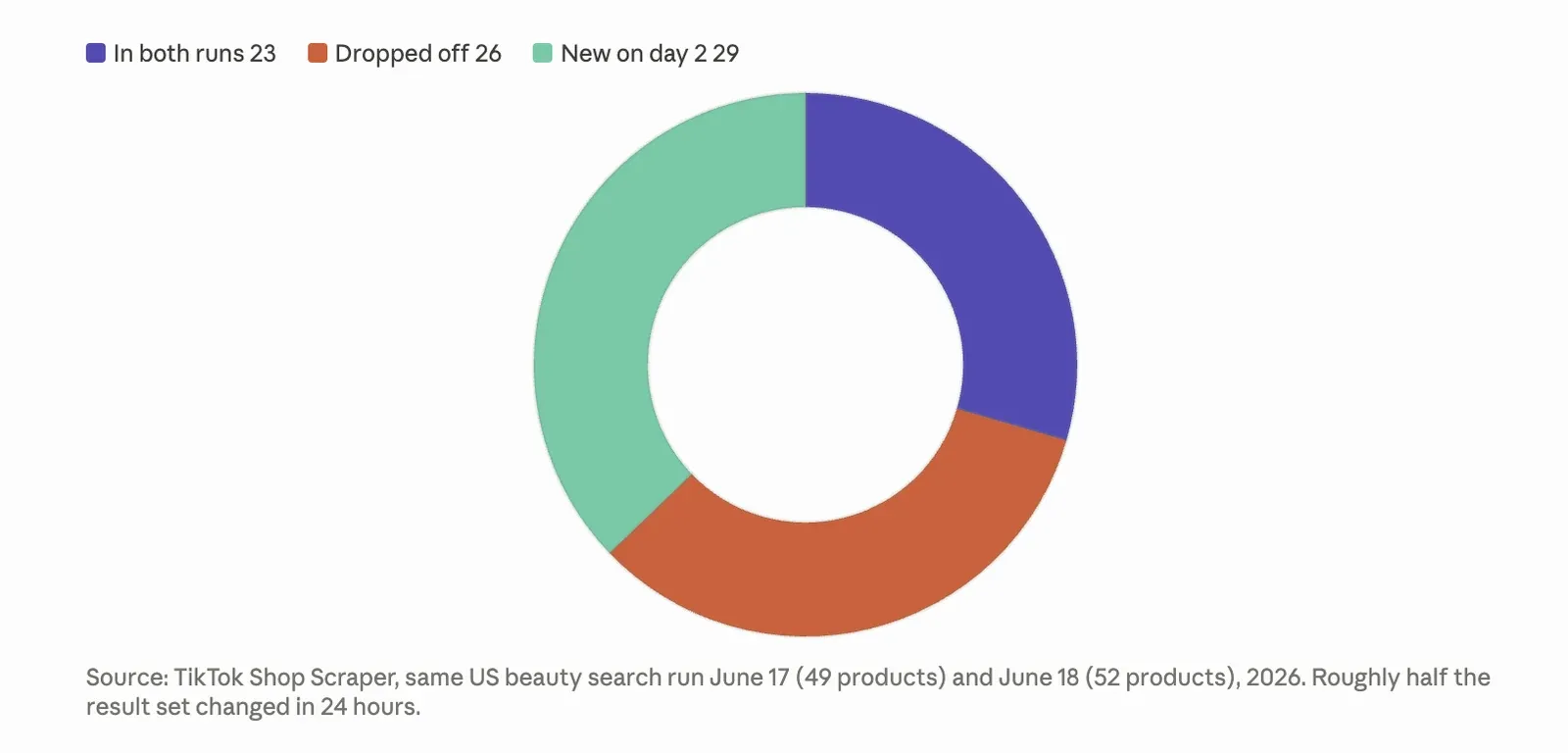
- See units sold within the time frame. Run the scraper twice, and the units-sold column turns into a velocity signal.
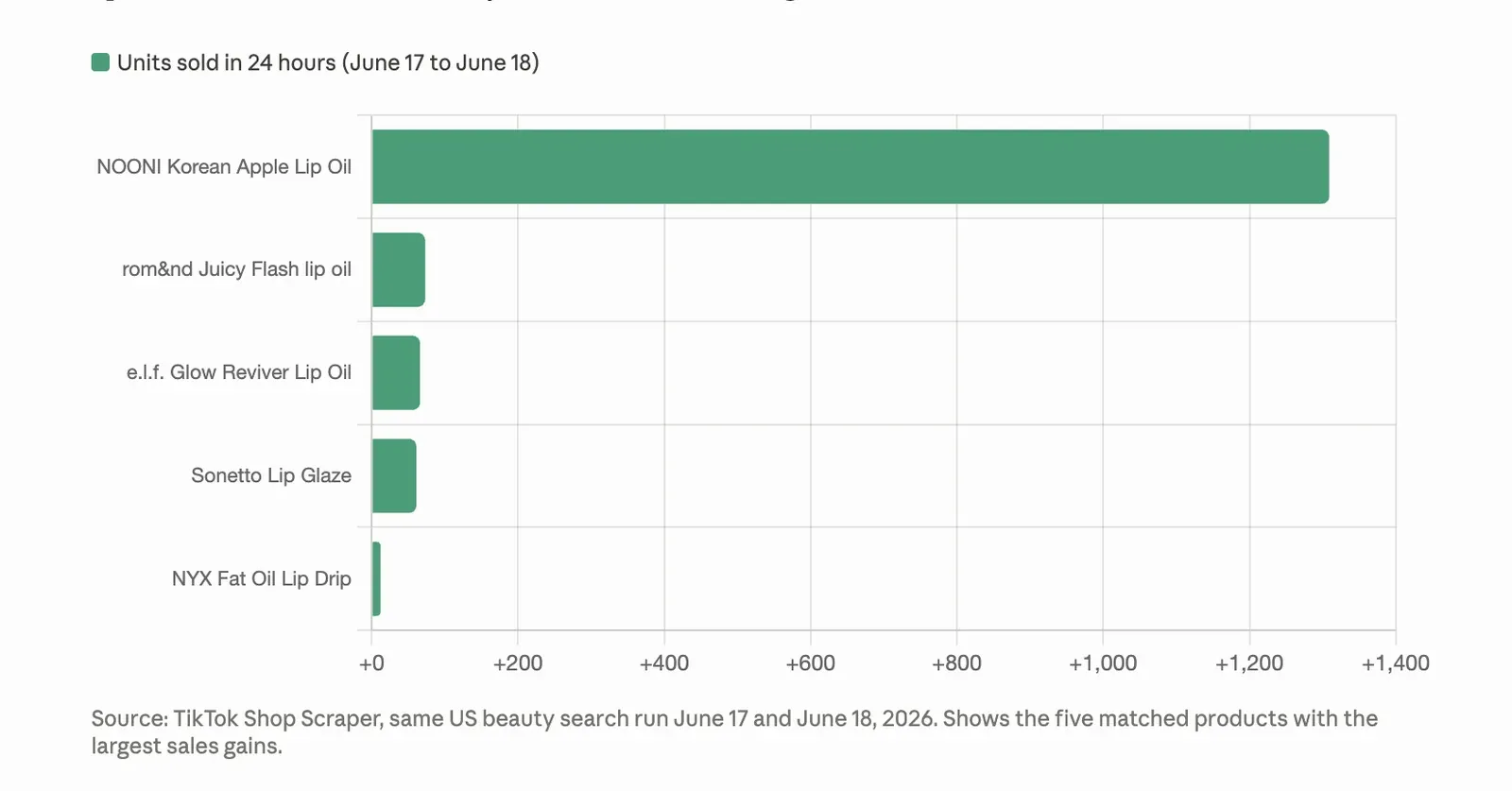
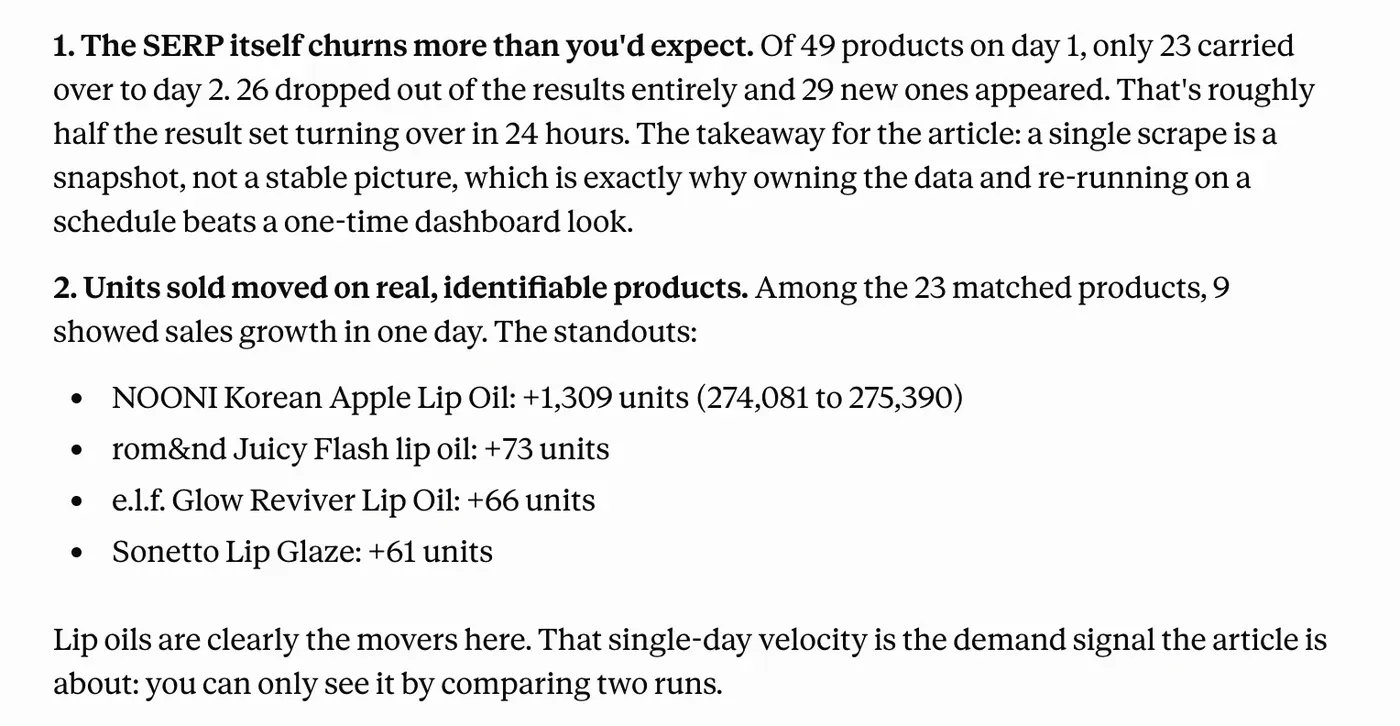
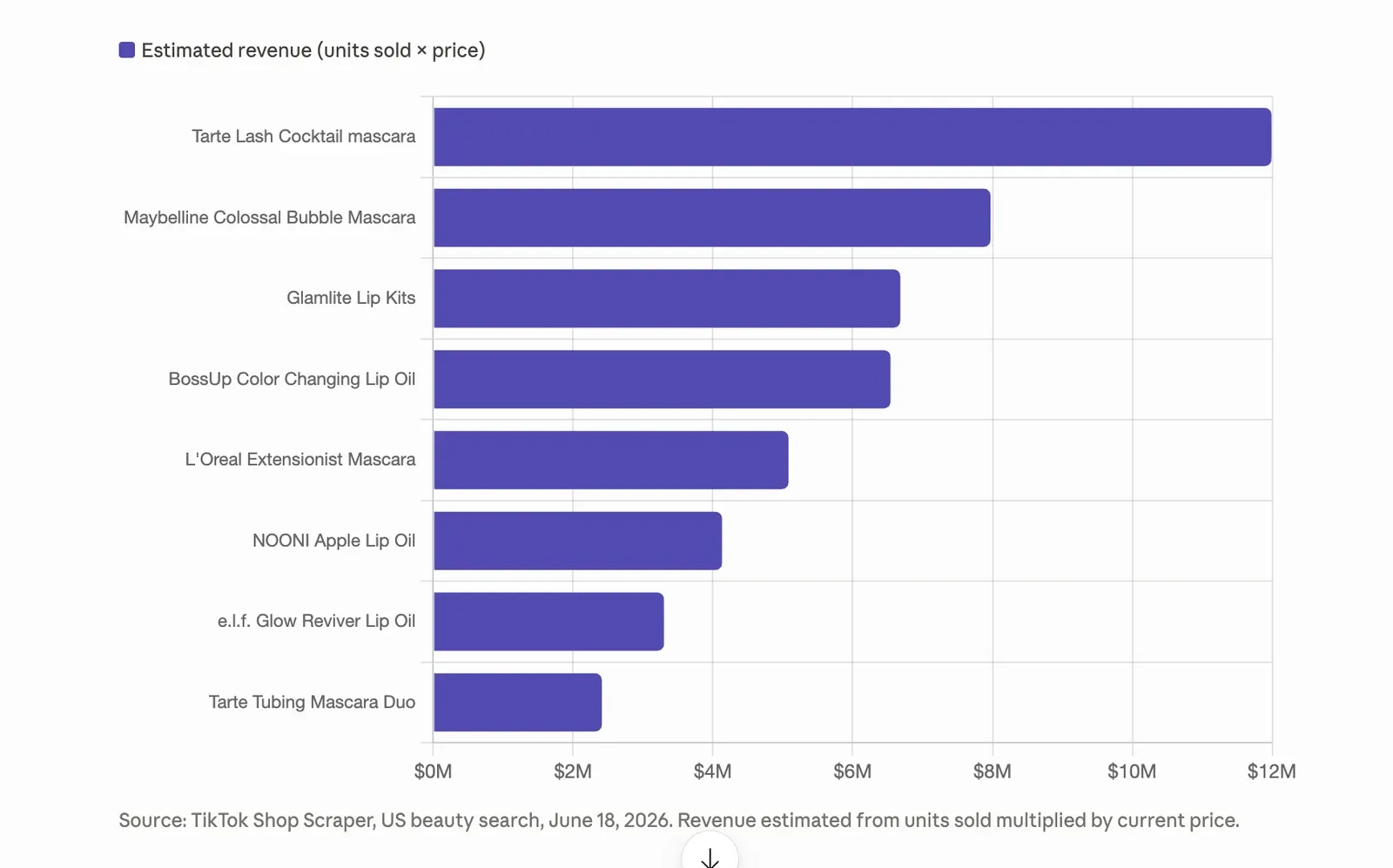
The same US beauty search was run a day apart, on June 17 and June 18, 2026.
- Compare prices and spot aggressive discounting. Comparing the current price reveals who started or ended a discount campaign. Comparing remaining stock shows which products are depleting fast, an early demand signal before a sold-out badge appears on the page.
- Validate products before you promote them. If you're an affiliate or creator, units sold tells you whether a product already converts. A product with thousands of sales is proven, which makes it worth approaching the seller about a partnership.
Start collecting TikTok data
Start with a single keyword from a category you care about. Pull the data, drop it into a spreadsheet, and run the revenue calculation. Within a few minutes, you'll have an analysis that would otherwise sit behind a monthly subscription.