Online review monitoring usually means stitching together data from scattered sources. You might know when a customer leaves a one-star review, but not if the same complaint has appeared across five locations or if your average rating is dropping.
Reviews affect discovery, booking decisions, and customer trust. A slow response to a negative review can make the business look inattentive, but the bigger risk is missing patterns: repeated complaints about food quality, rude staff, long wait times, cleanliness, or pricing.
That information is public - buried in profiles, timestamps, ratings, and review text. Checking it manually is hard to centralize and almost impossible to turn into a repeatable reporting workflow. Enterprise reputation tools can help, but they can also be expensive or restrictive if you want raw review data for your own dashboards, alerts, or analysis.
In this tutorial, we’ll use Apify automation tools to build a review monitoring workflow that can:
- Collect online reviews regularly
- Send data to Google Sheets
- Analyze results with AI
- Send email notifications
By the end, you’ll have an automated pipeline enabling you to make faster operational decisions.
How to monitor online reviews with Apify and n8n
In this tutorial, you’ll track customer reviews for two restaurant locations across Google, Yelp, and Tripadvisor. We’ll use all three platforms because they capture different parts of the customer journey, giving you a broader view of how customers find, evaluate, and talk about each location:
| Platform | Main use | Why track it |
|---|---|---|
| Google Maps | Local search visibility | Helps customers find you in Google Search and Maps |
| Yelp | Local comparison and detailed feedback | Helps reveal experience issues and recurring complaints |
| Tripadvisor | Travel and destination discovery | Shows how tourists and visitors evaluate your business |
Before you begin, make sure you have:
- An n8n account
- An Apify account with API access
- A Google account
Actors have access to platform features such as built-in proxy management, anti-bot evasion support, integrated storage with structured CSV/Excel/JSON exports, and standardized input parameters (URLs, keywords, limits, etc.). Actors also integrate easily with third-party apps and can be configured via tools such as n8n using Apify nodes.
Step 1: Create a trigger node in n8n
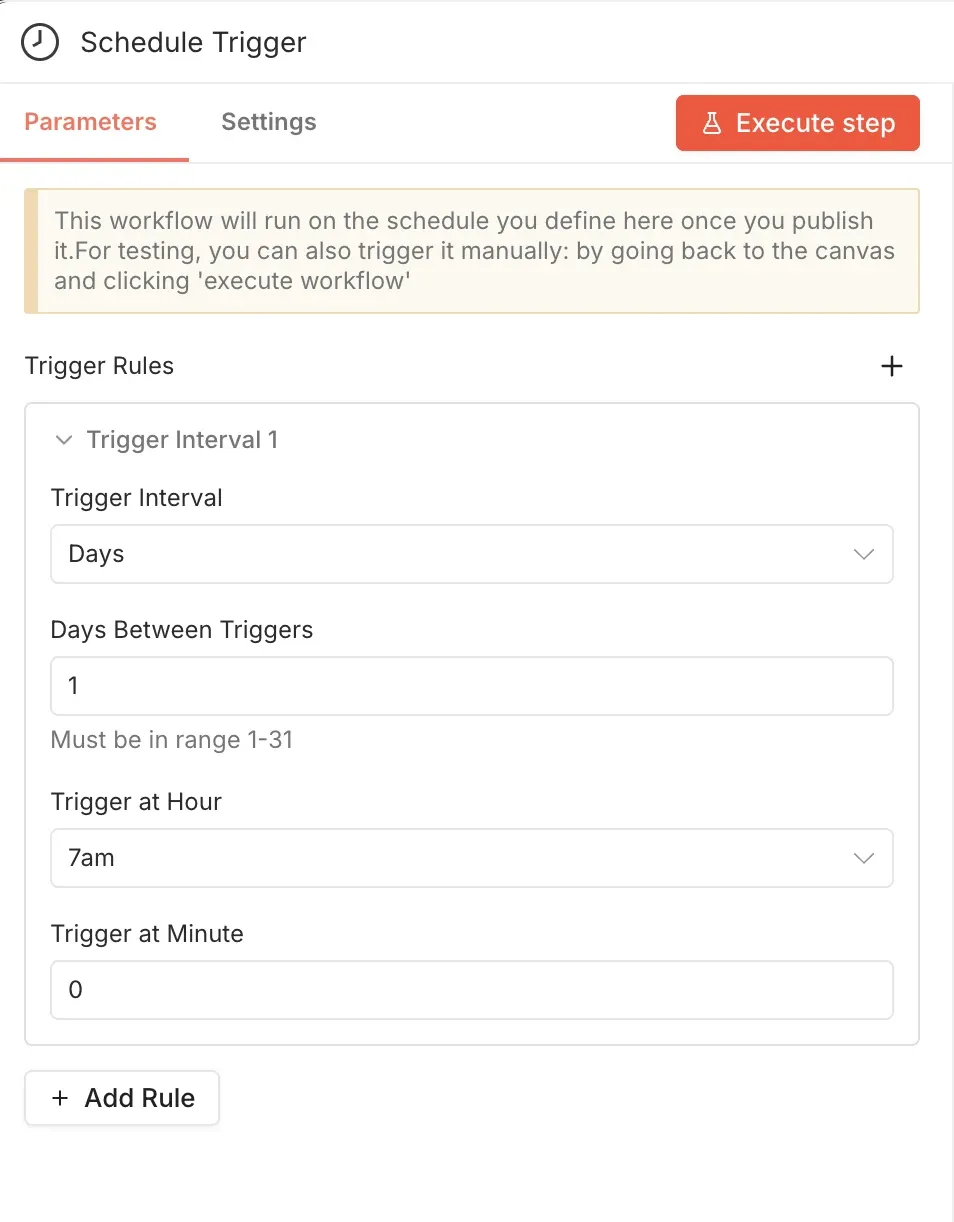
Open n8n to create a new workflow and choose a Schedule Trigger as the first step. In this example, the workflow runs once per day at 7 AM, but you can adjust it to your needs.
Step 2: Set up the Apify node to get Google reviews
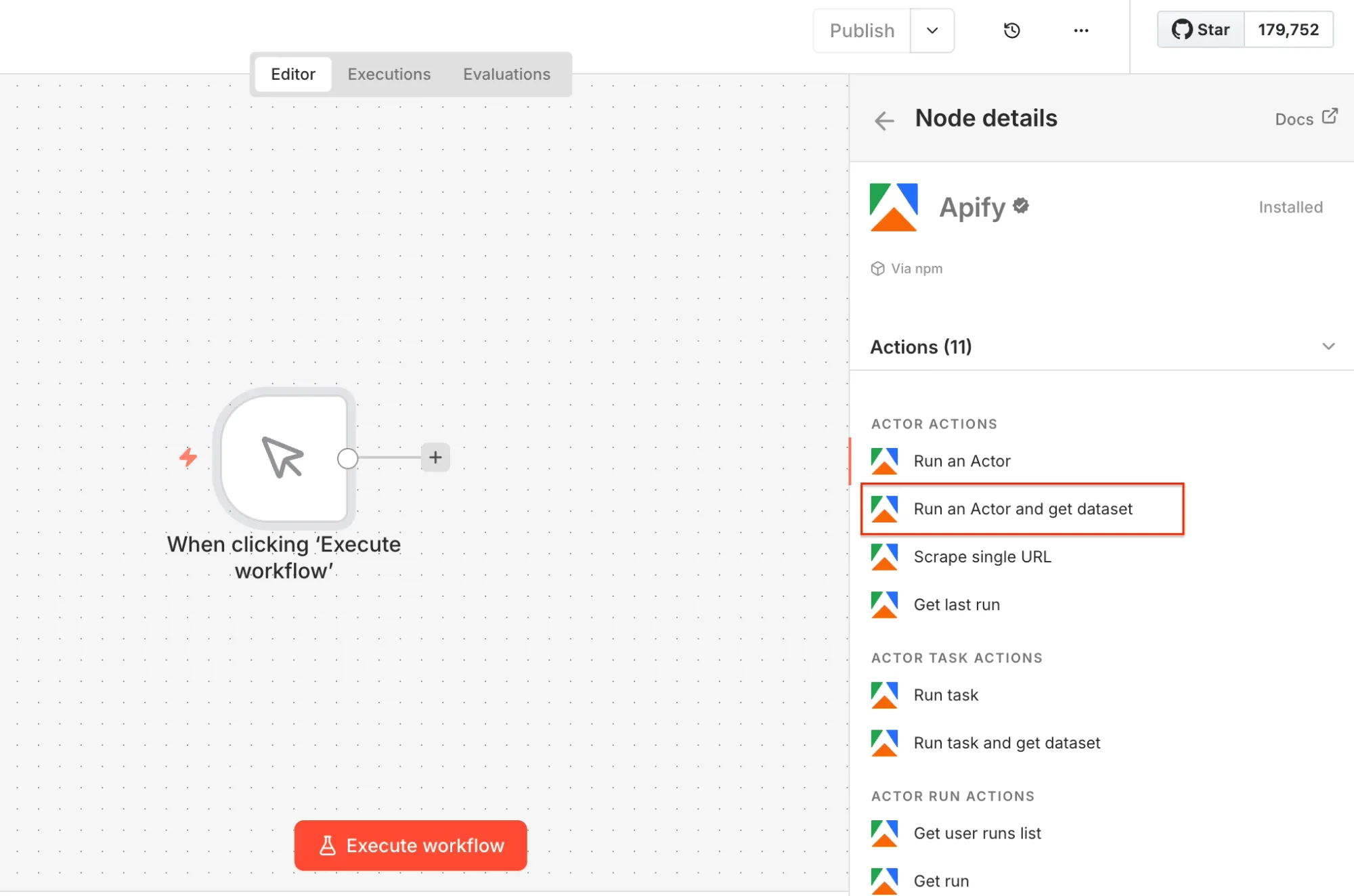
Search for the Apify node in your canvas (and install it if you haven’t already). Select the Run an Actor and get dataset operation as the second workflow step. Once you open the node, you can connect n8n to your Apify account. Click on Create new credential to get started.
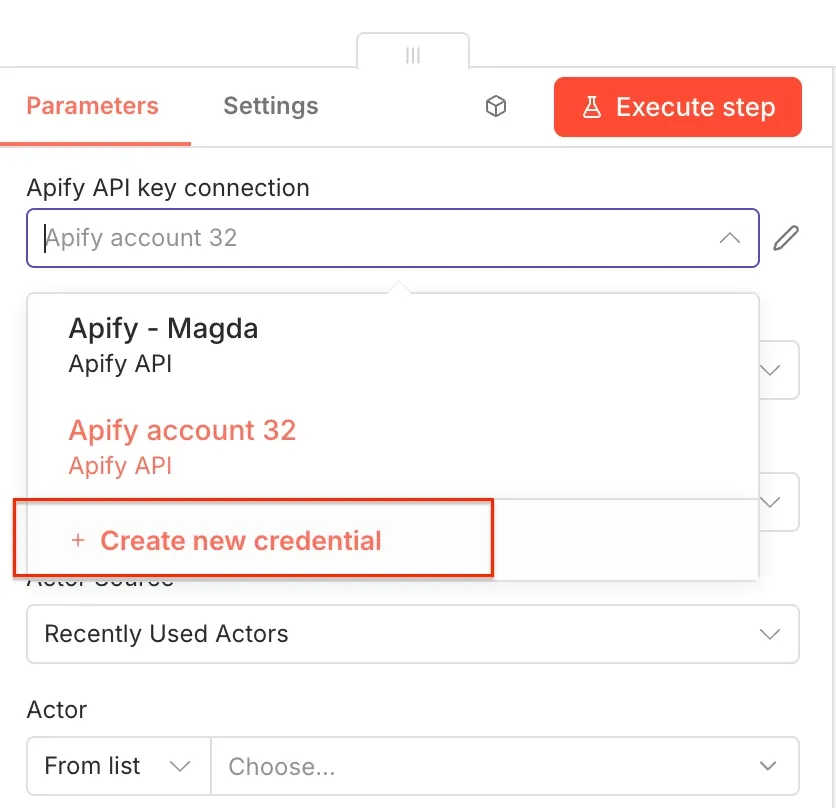
Next, you’ll be asked for your Apify API key. You can find it in Apify Console under Settings → API & Integrations, where you can copy your API token.
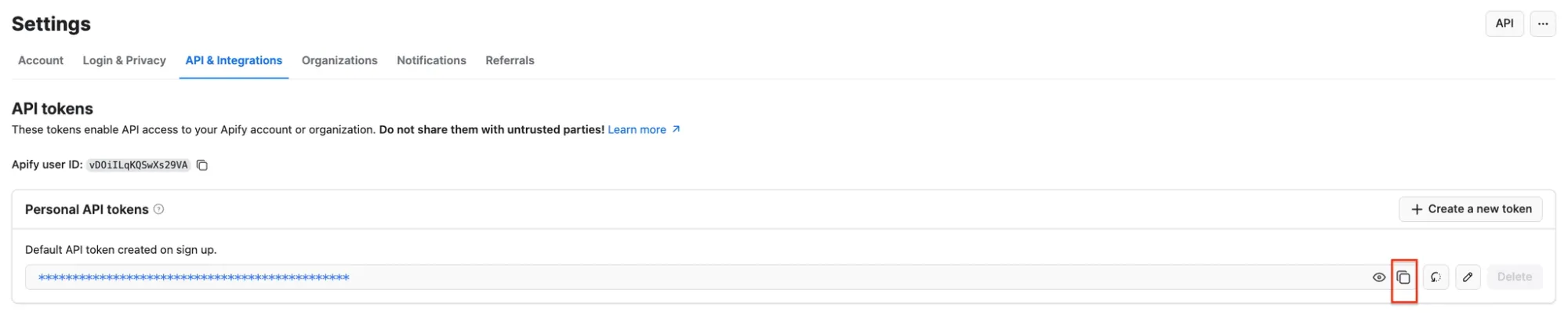
Paste the token into n8n and save the credential. Your Apify connection is ready to use.
Next, you’ll select the Actor you want to run from Apify Store and grab its JSON input so n8n can run it.
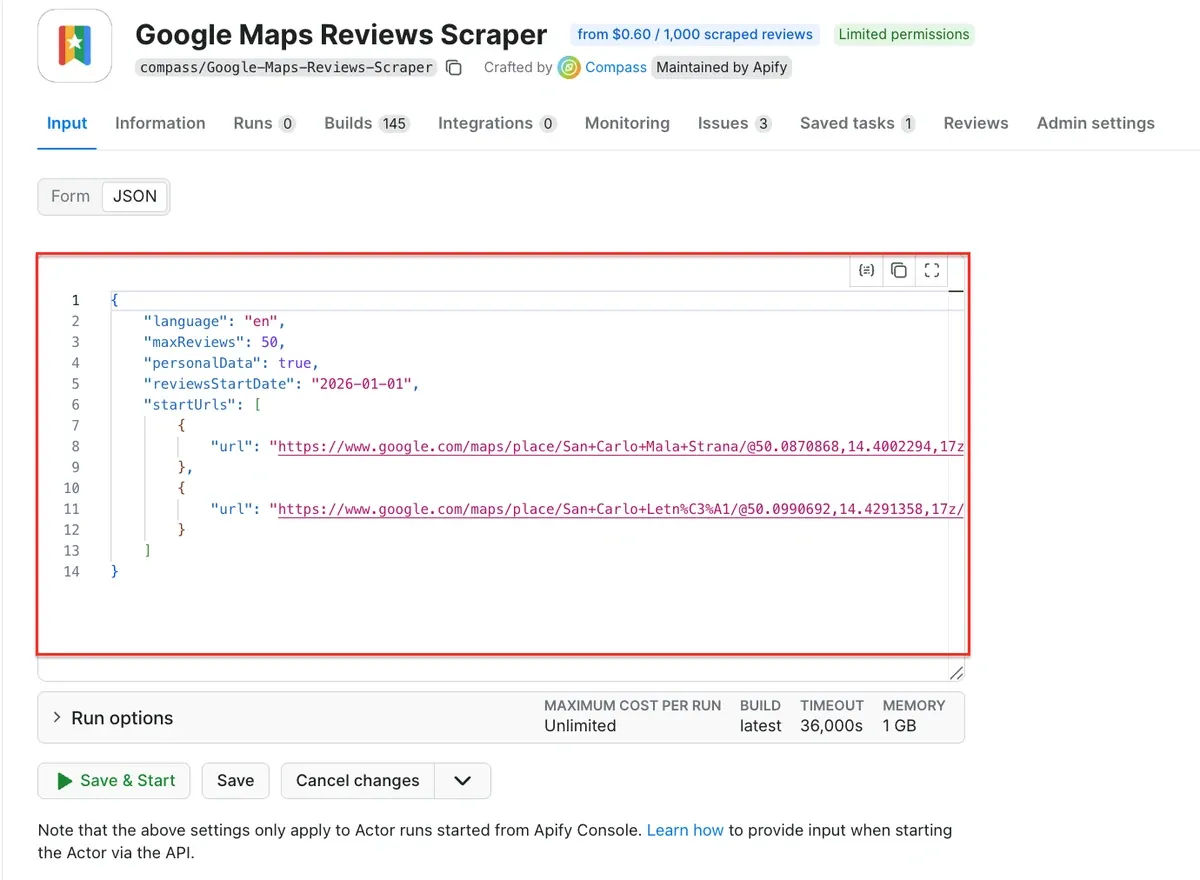
Go to Google Maps Reviews Scraper and adjust the scraping session to your needs using the UI. This Actor can extract review text, ratings, URLs, authors, and even responses from the place’s owner. We’ll use Google Maps URLs of the San Carlo restaurants, located in two different Prague districts. To do that, find the places on Google Maps, copy the URLs, and paste them in the Google Maps place URLs field.
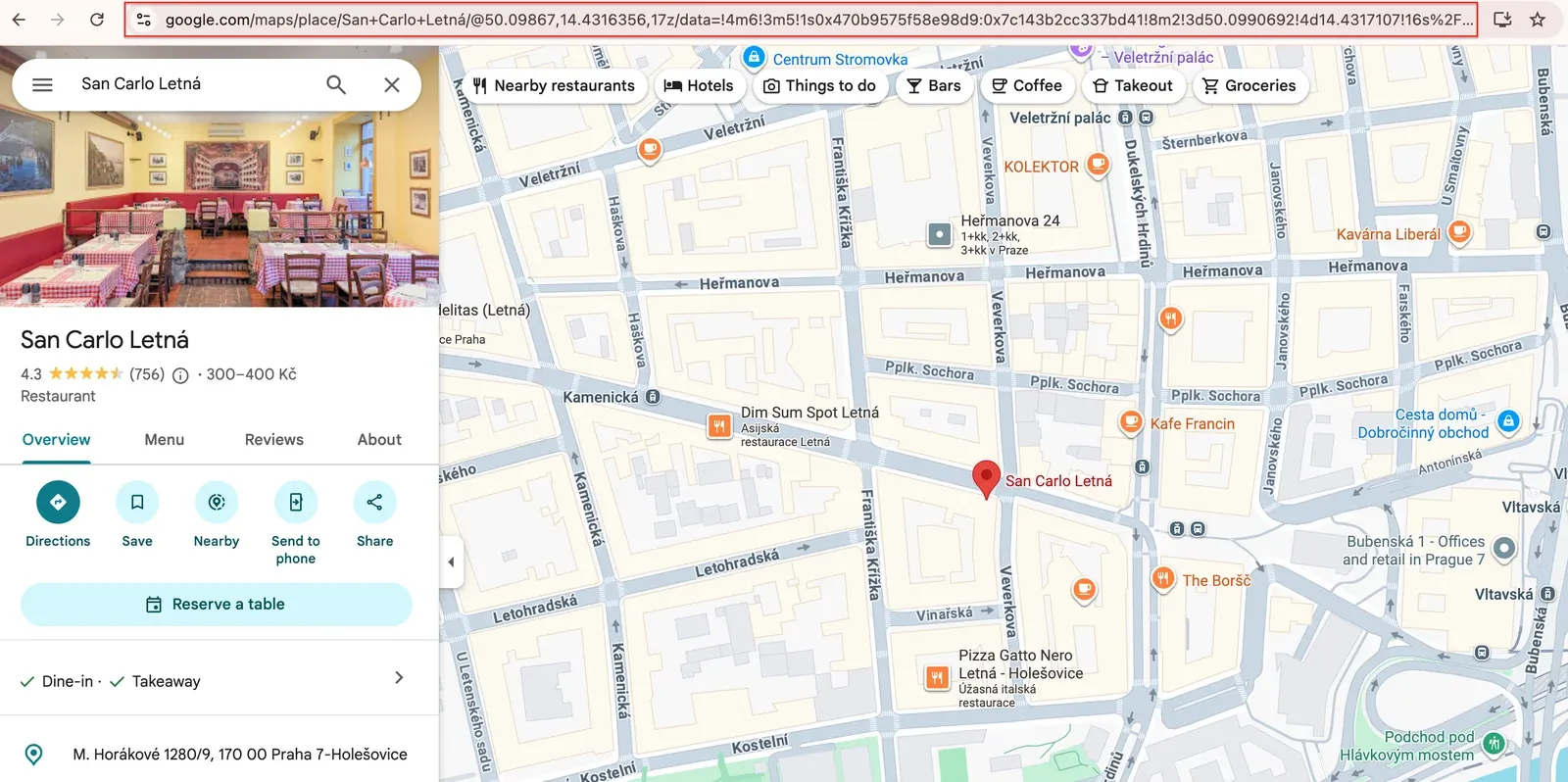
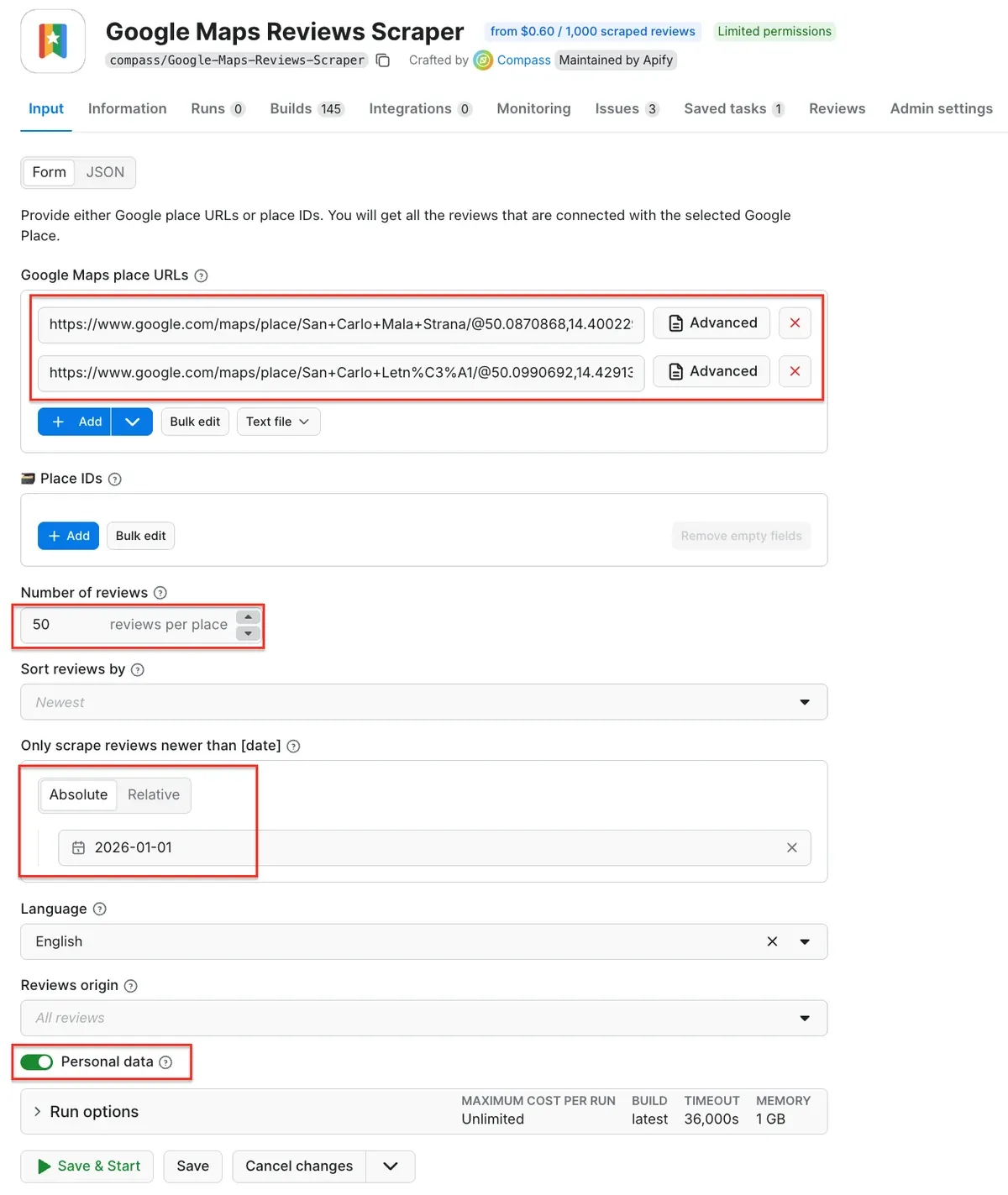
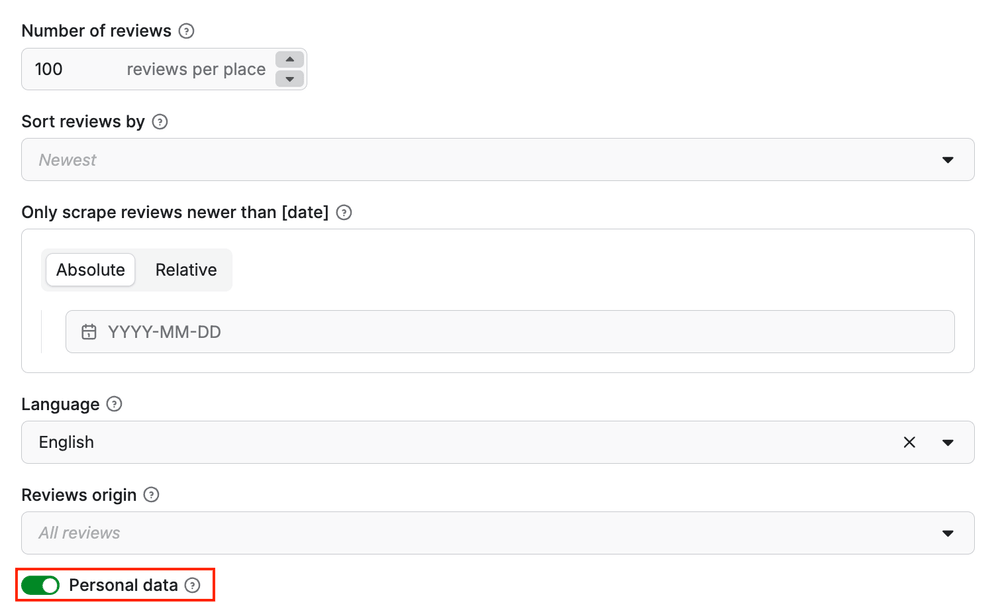
You can also limit the number of reviews per place, choose the language of the result details, and decide whether to include personal data about reviewers.
Once you’re done, grab the JSON input and go back to n8n. Paste the input into the input field.
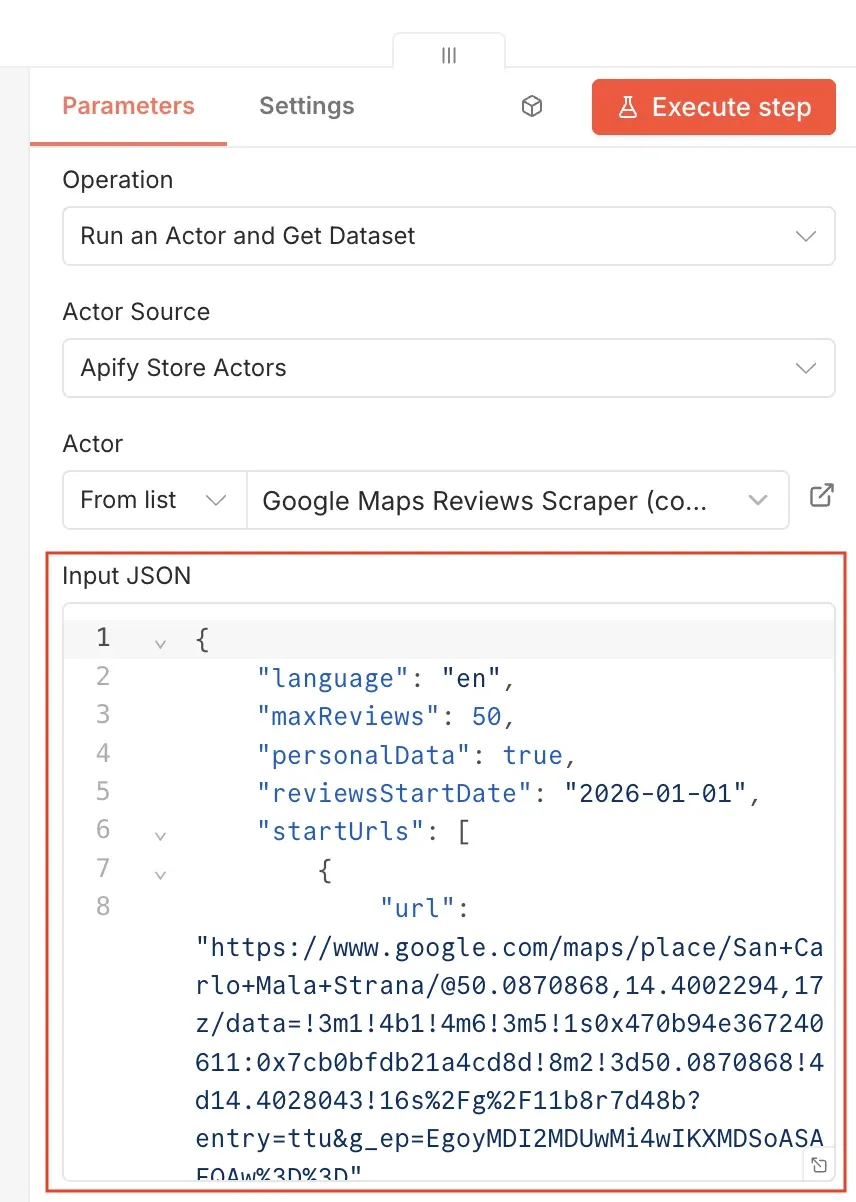
Once the node runs, you’ll get structured review data back from Apify. Now you can test it by clicking Execute step at the top. When the Actor finishes running, you’ll see its output displayed as JSON next to the node:
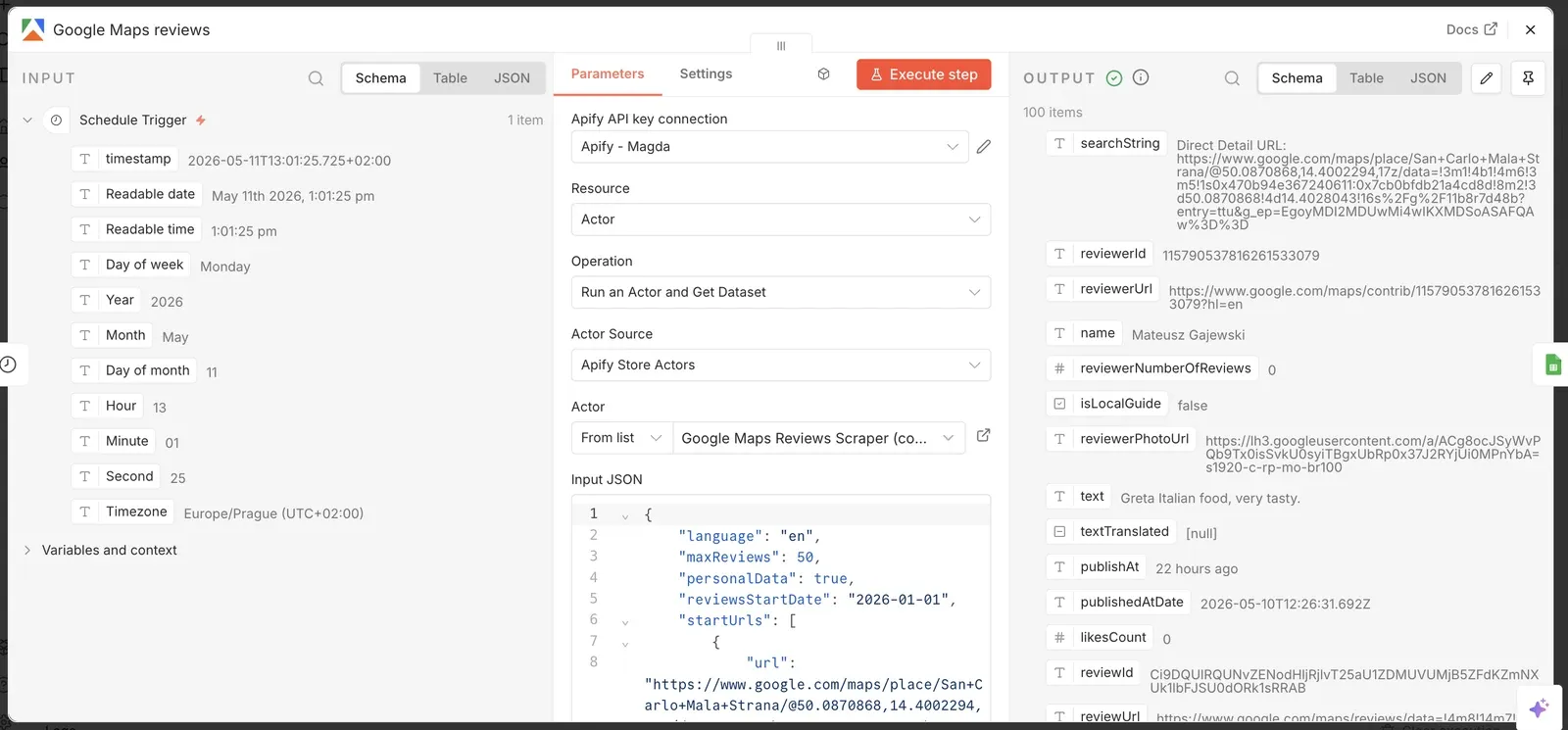
Step 3: Set up the Apify node to get Yelp reviews
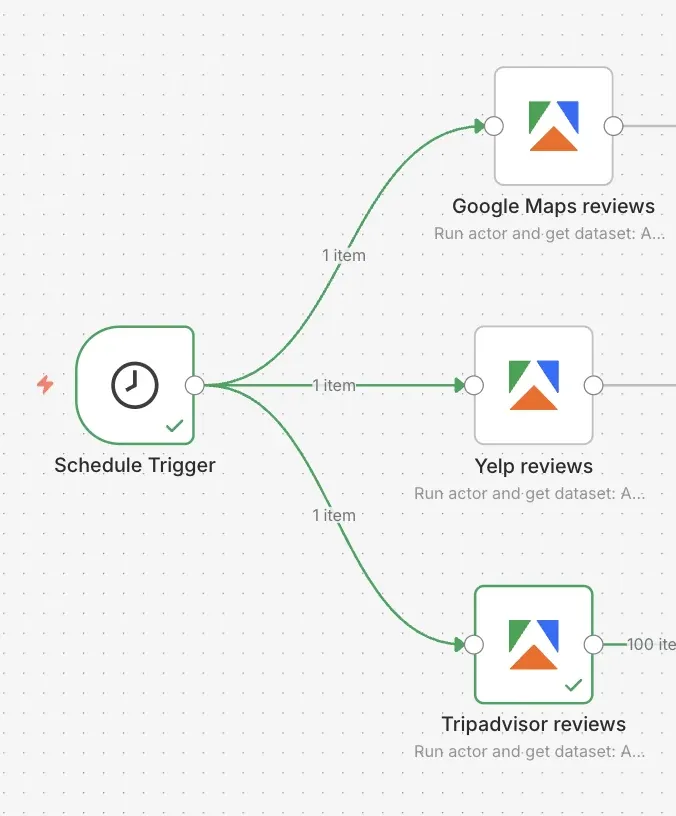
While Google Maps reviews are usually more important for local visibility, Yelp helps reveal patterns and experience issues. Add a second Apify node to the workflow and choose the same operation: Run an Actor and get dataset . Connect it to the same trigger. This way, both Actors run every time the workflow starts.
Select Fast Yelp Reviews Scraper API | Extract Review Text & Ratings from the list of Actors and configure the run in Apify Console, as before, but this time use the Yelp URLs as input. You can also customize your scraping session further - limit the number of extracted reviews and sort them. Copy and paste the JSON input into the n8n node when ready.
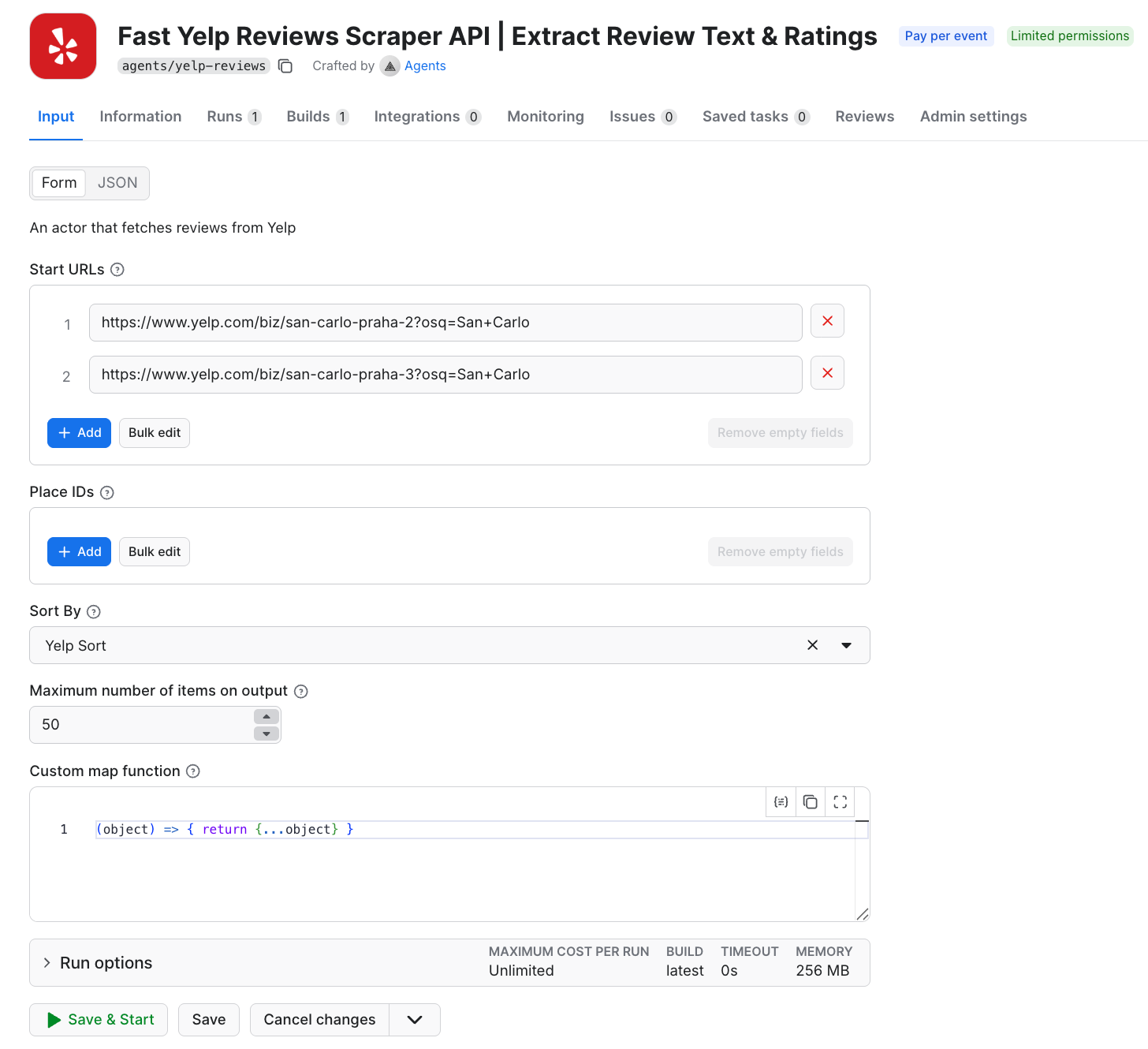
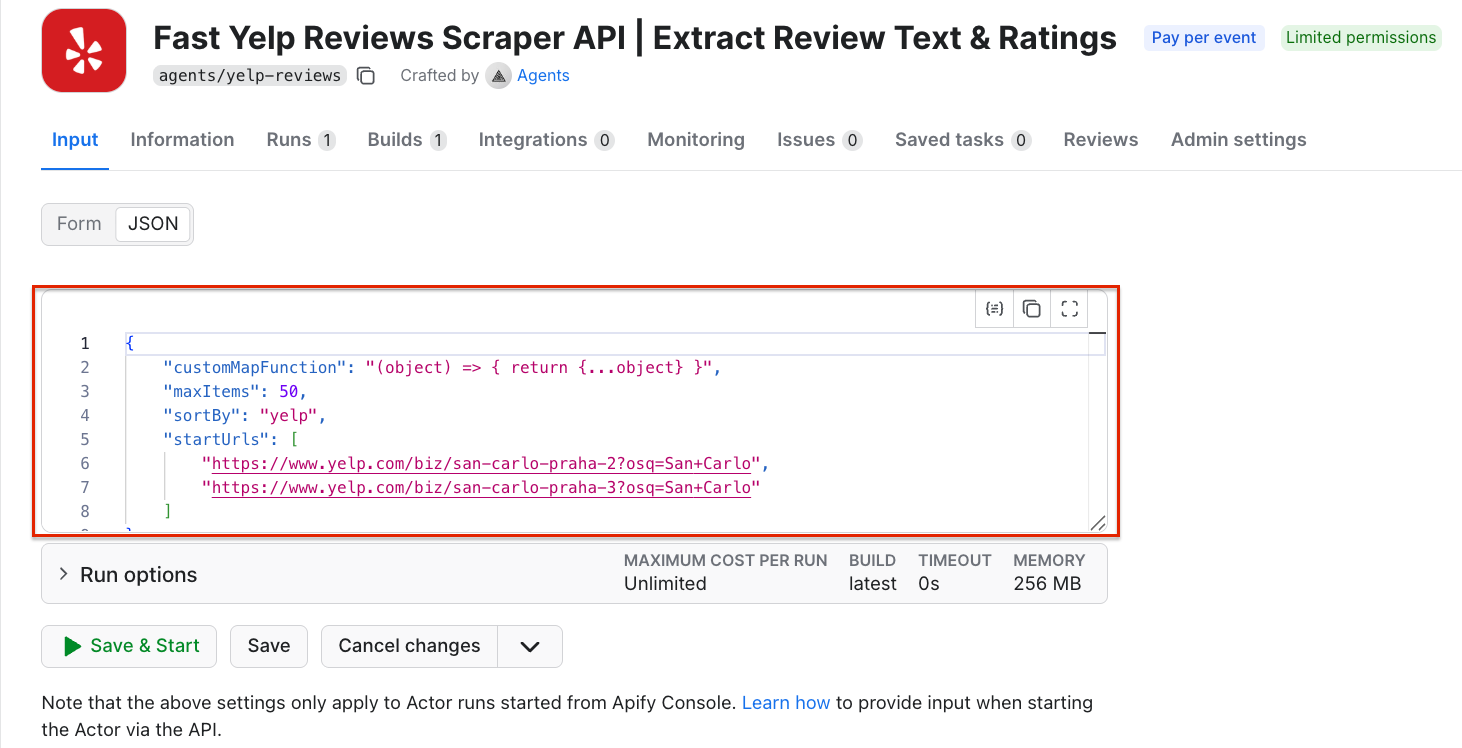
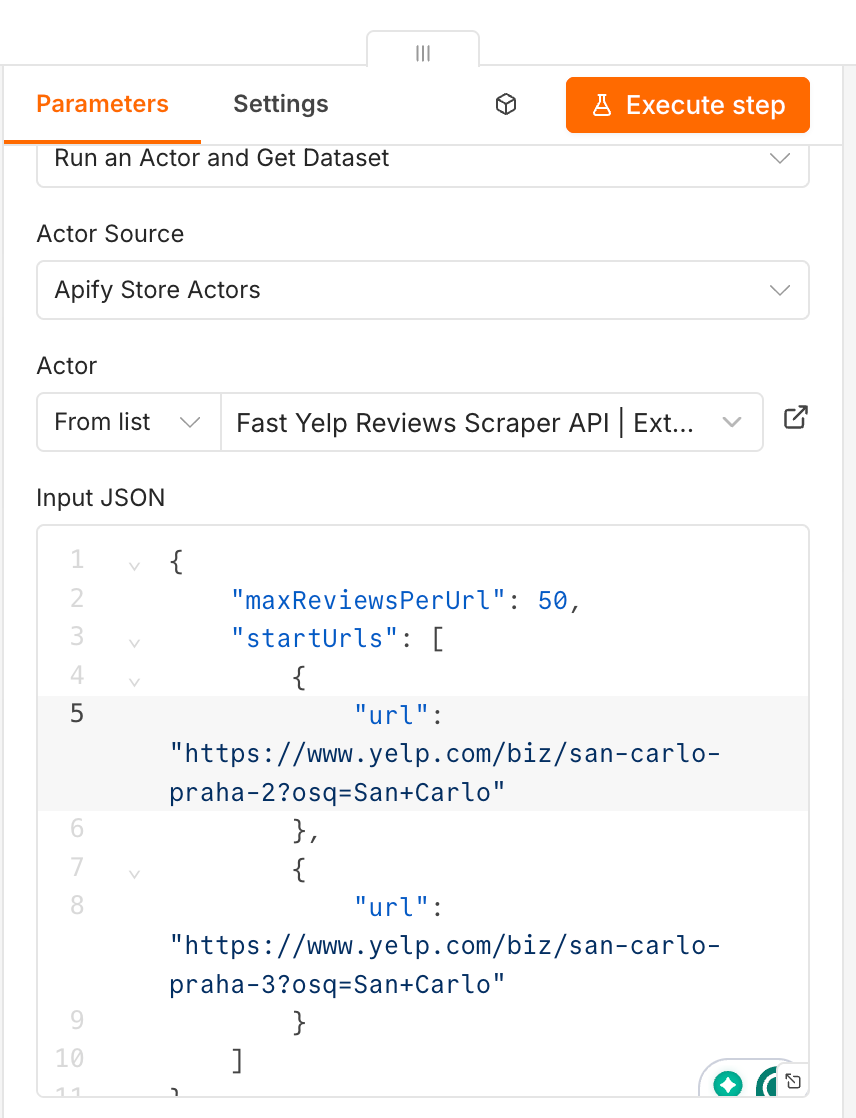
Again, you can test it by clicking the Execute step at the top.
Step 4: Set up the Apify node to get Tripadvisor reviews
Compared with Google Maps and Yelp, Tripadvisor is less about everyday "near me" searches and more about travelers, tourists, and destination-based discovery.
Add a third Apify node to the workflow and choose the same operation: Run an Actor and get dataset . Connect it to the same trigger.
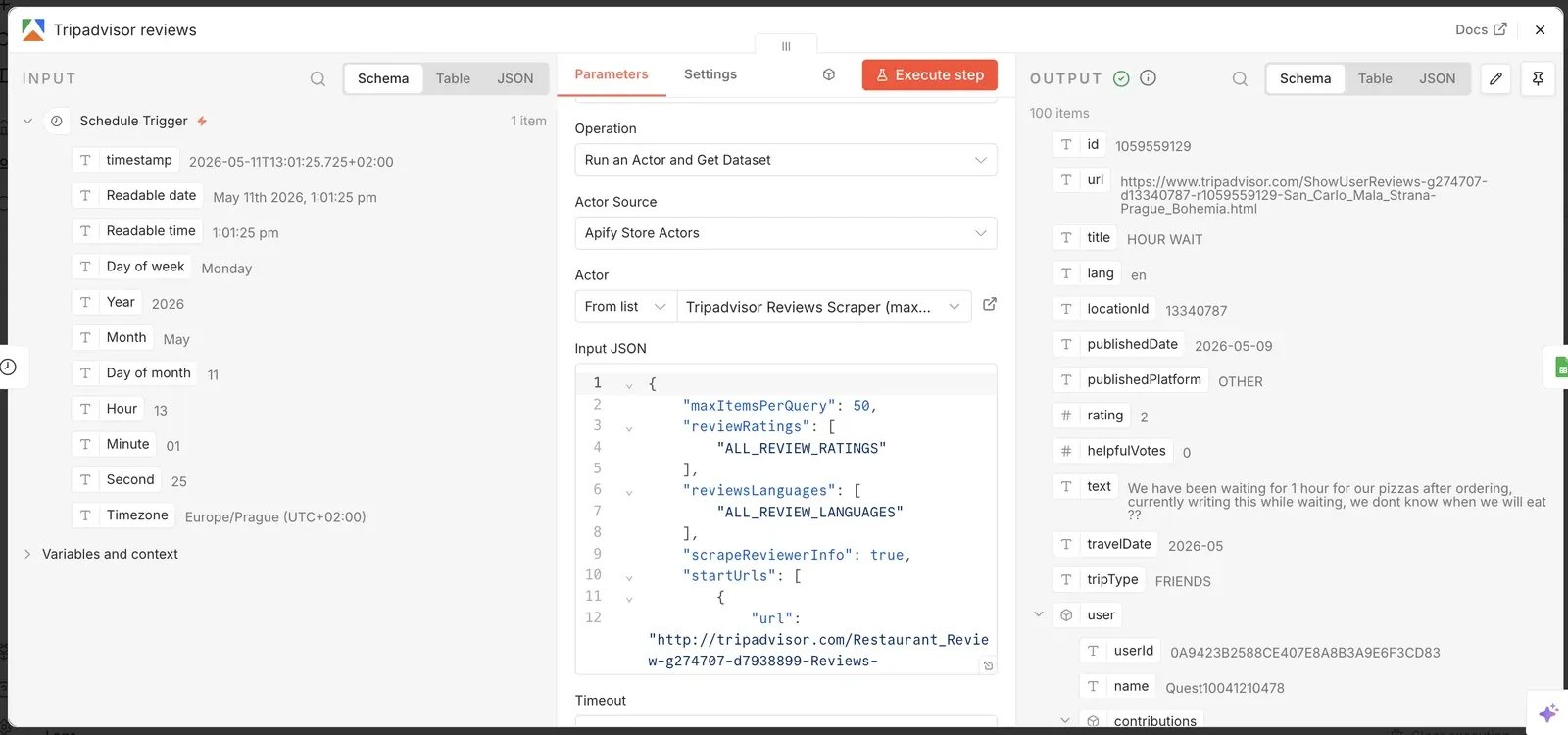
Select Tripadvisor Reviews Scraper from the list of Actors and configure the run in Apify Console, as before, but this time use the Tripadvisor page URLs as input. You can also limit the number of extracted reviews. Same drill: paste the JSON into n8n.
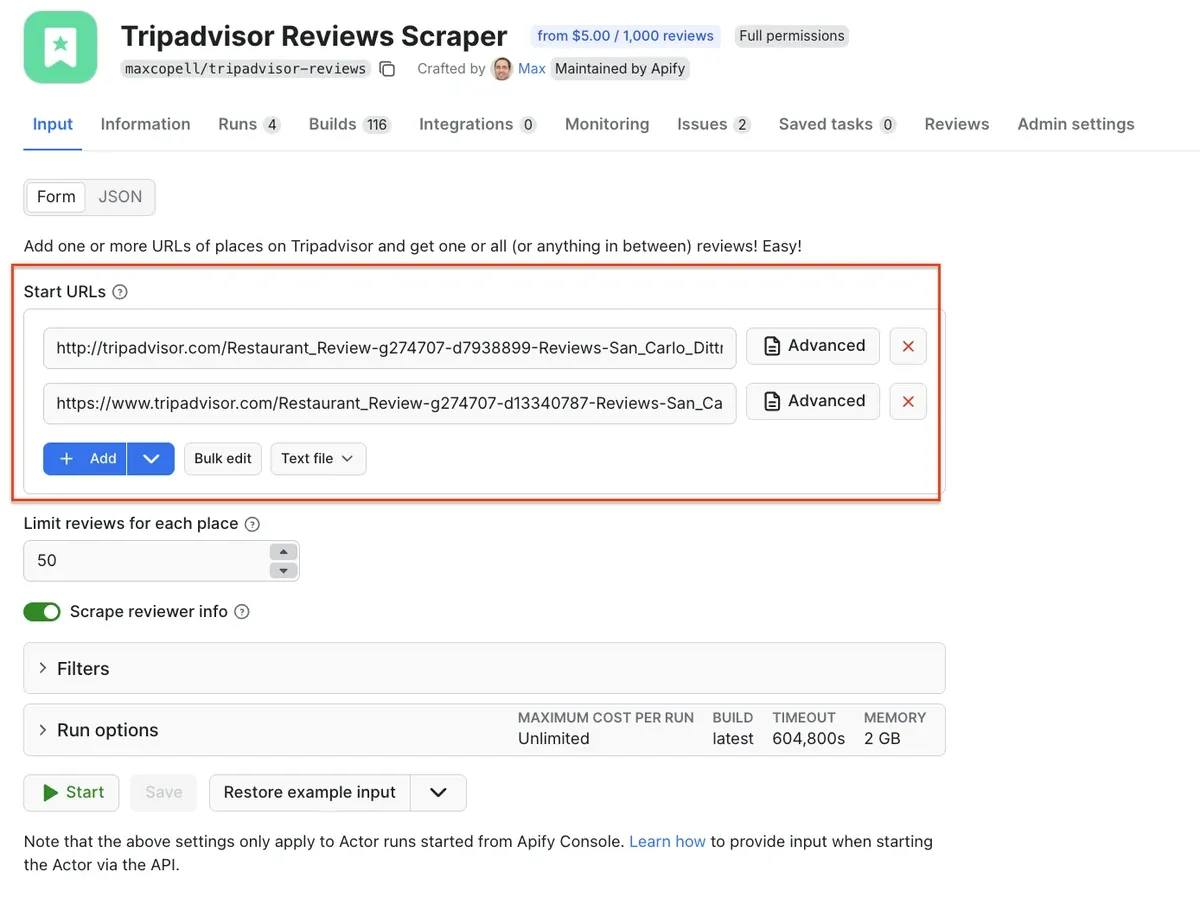
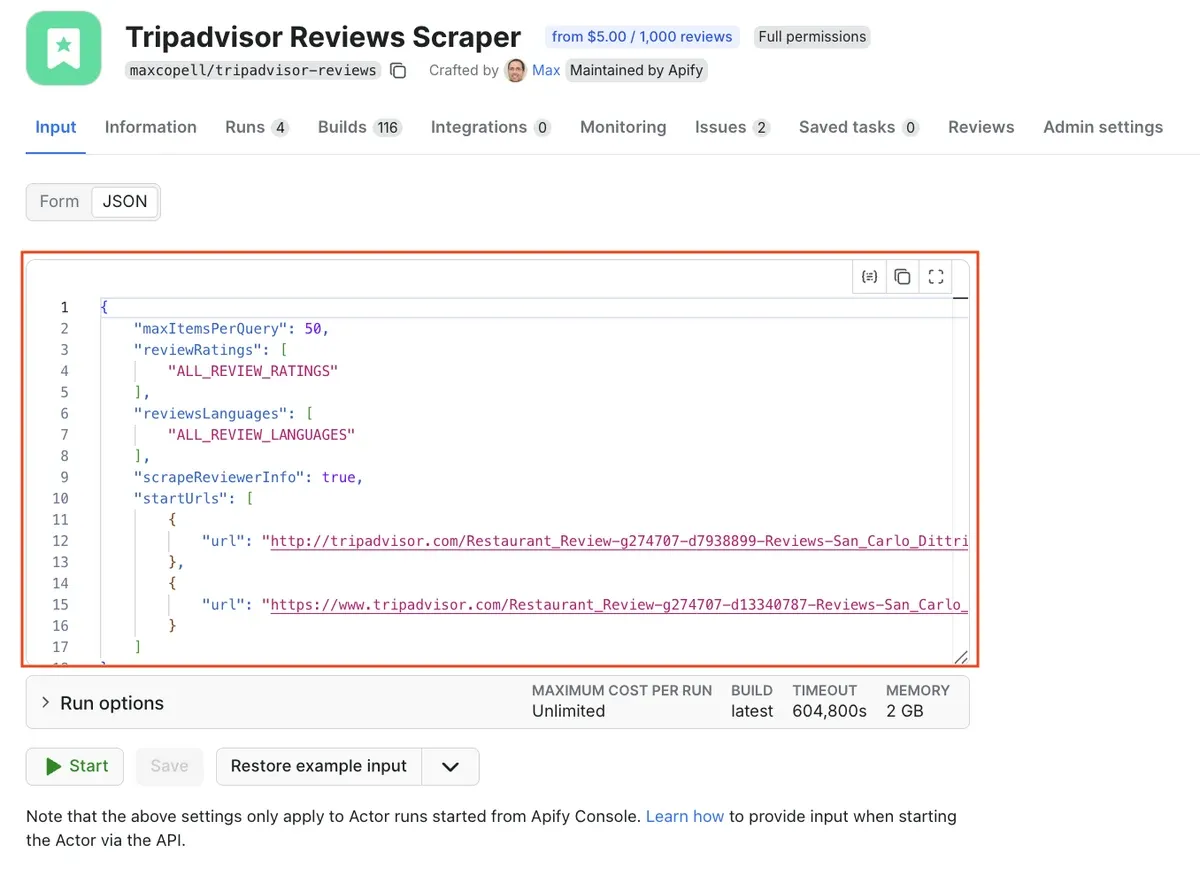
You can test the node as before, using the Execute step option.
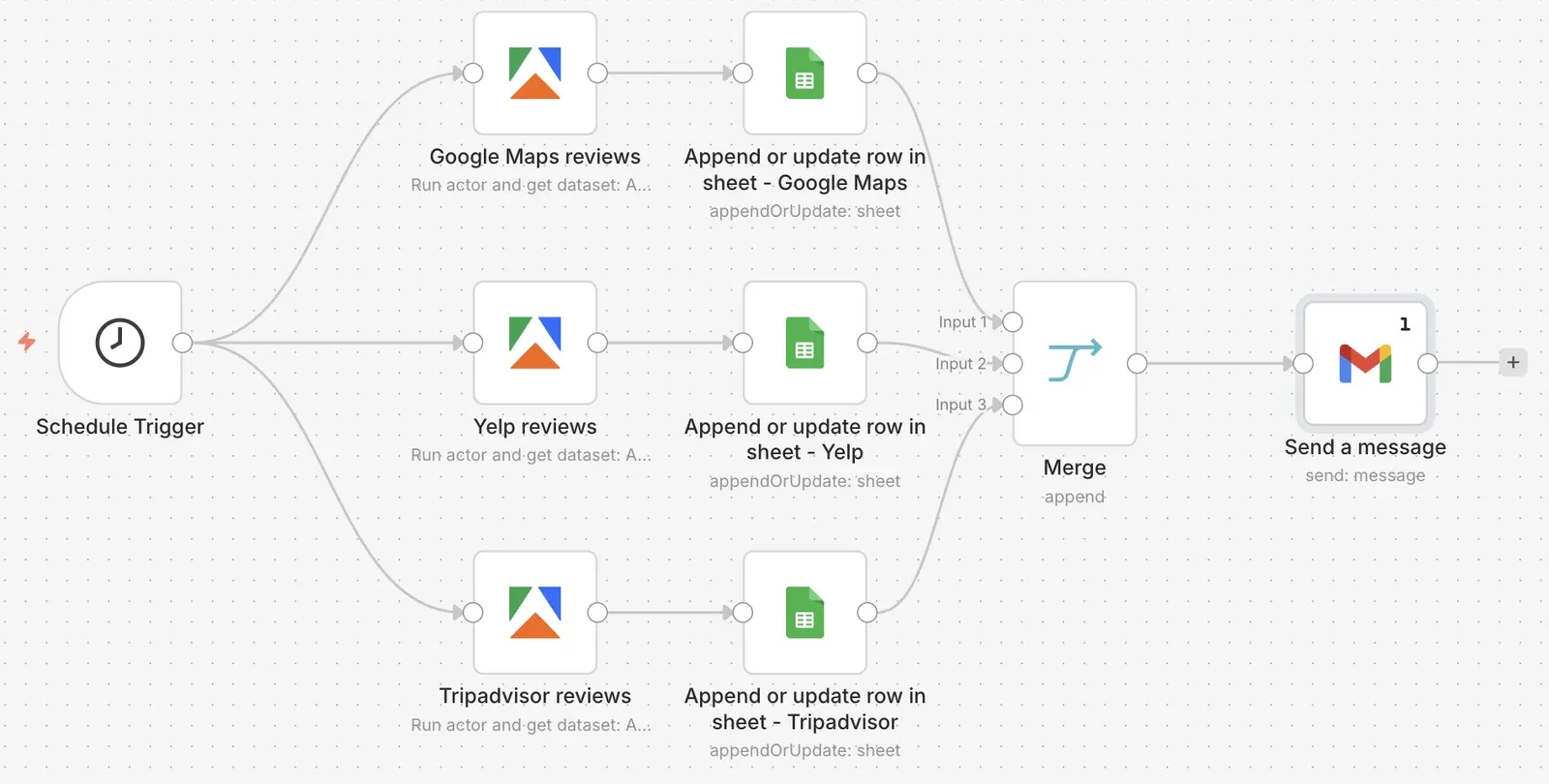
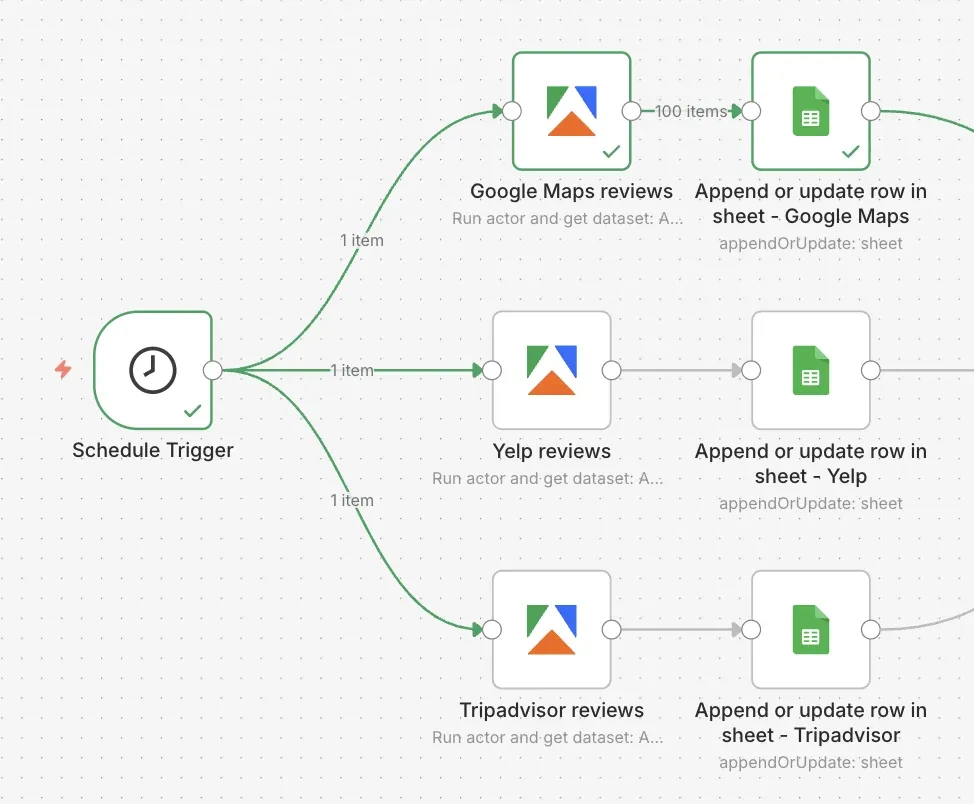
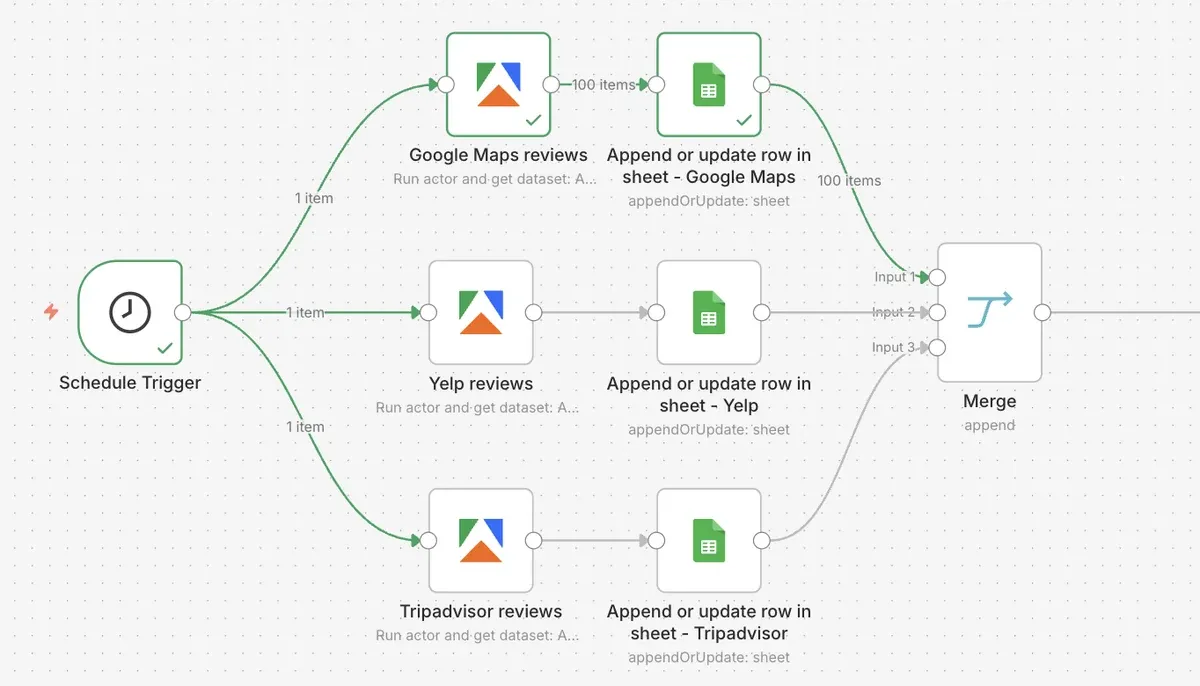
By now, your n8n workflow should look like this:
Step 5: Send results to Google Sheets and analyze reviews with AI
Before setting up n8n nodes, create a Google Sheets file in your GDrive and name it. This will be the destination n8n will use to save the datasets to. In this tutorial, we want to keep all data in one file, but split into three sheets: Google Maps, Yelp, and Tripadvisor.
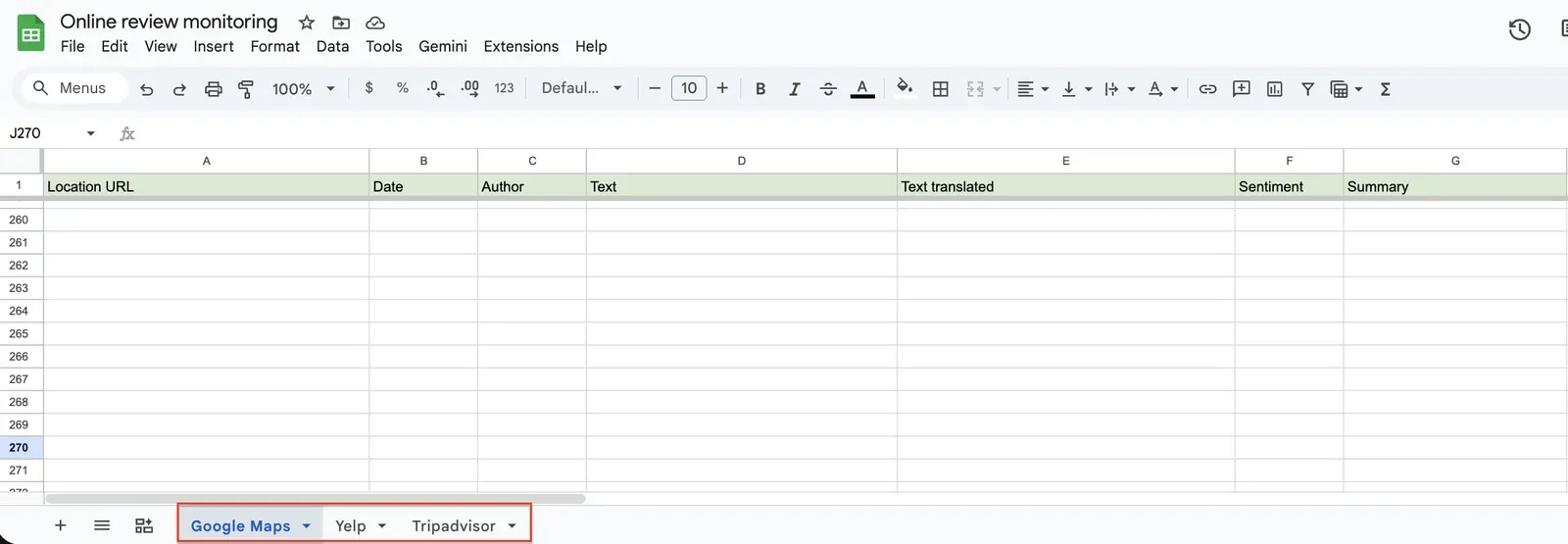
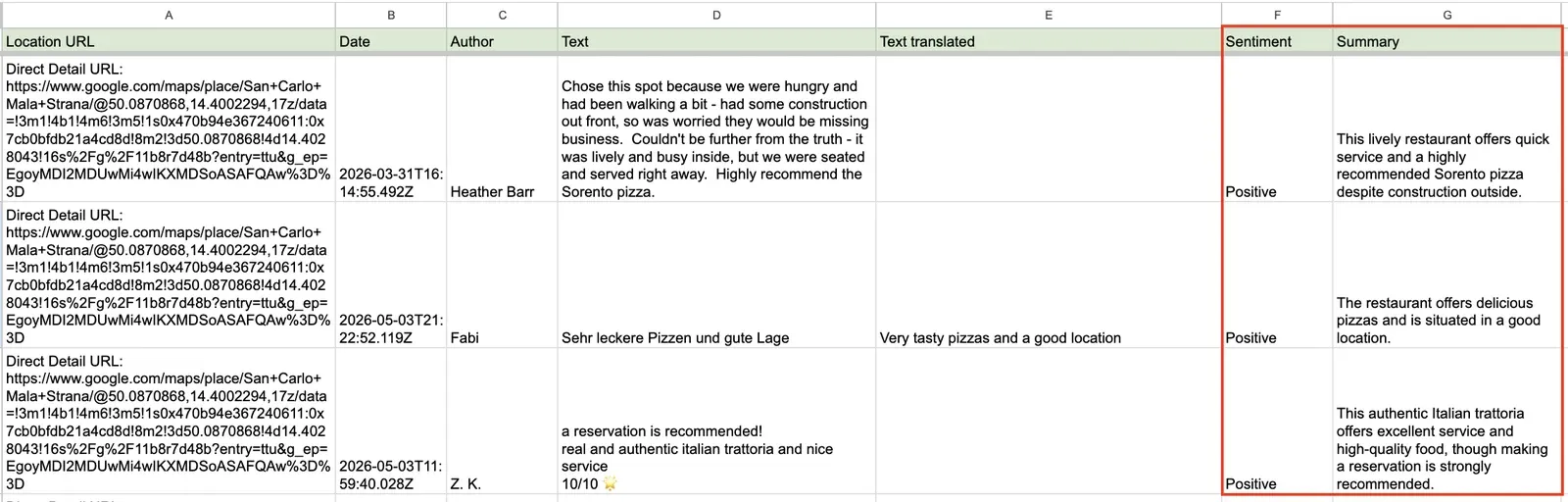
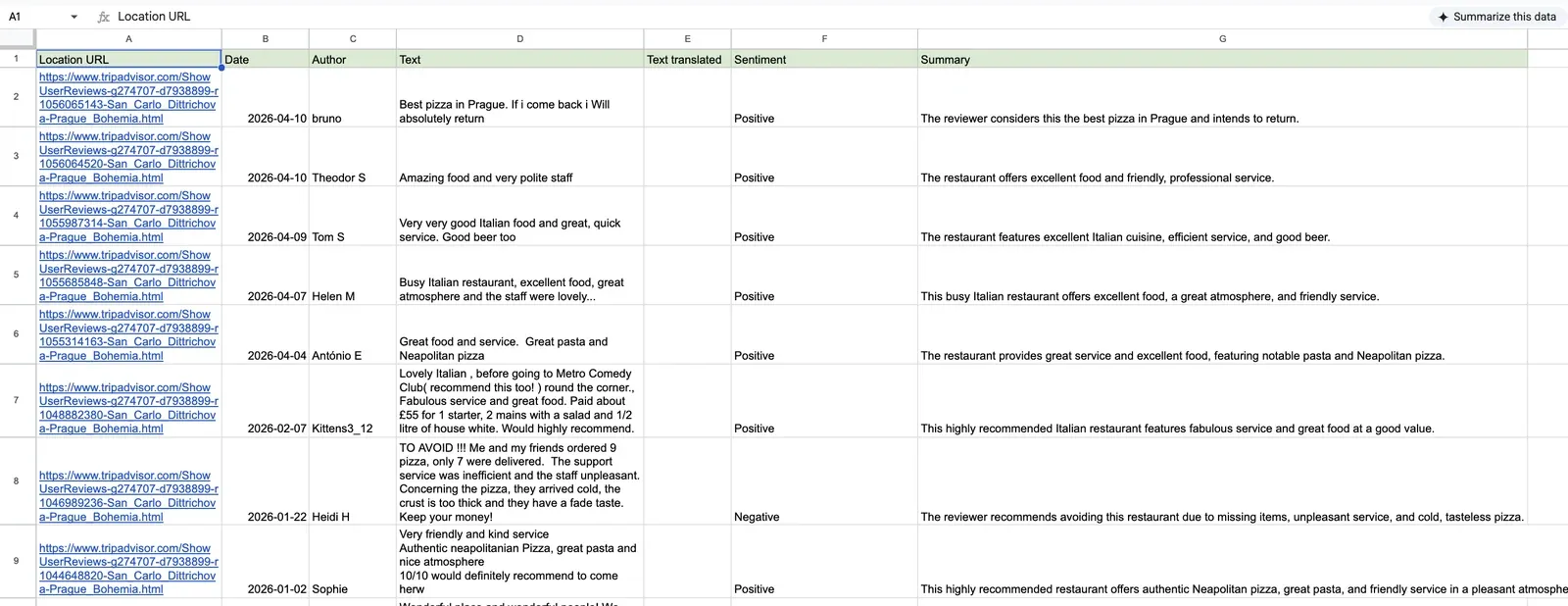
To clean up the vast amount of data the Apify scrapers can provide, each sheet will contain the following columns: Location URL, Date, Author, Text, Text translated (optional), Sentiment, and Summary.
We’ll map the first 5 columns to data points in n8n. Sentiment and Summary columns are for our AI analysis. Using Gemini, add the following AI functions to your columns:
- =AI("Classify the sentiment of this restaurant review as positive, neutral, or negative. Return only one word.", D2) for Sentiment

- =AI("Summarize this restaurant review in one short sentence under 25 words.", D2) for Summary

Once ready, add three Google Sheets nodes to your n8n workflow and configure each one as follows:
- Select the node type:
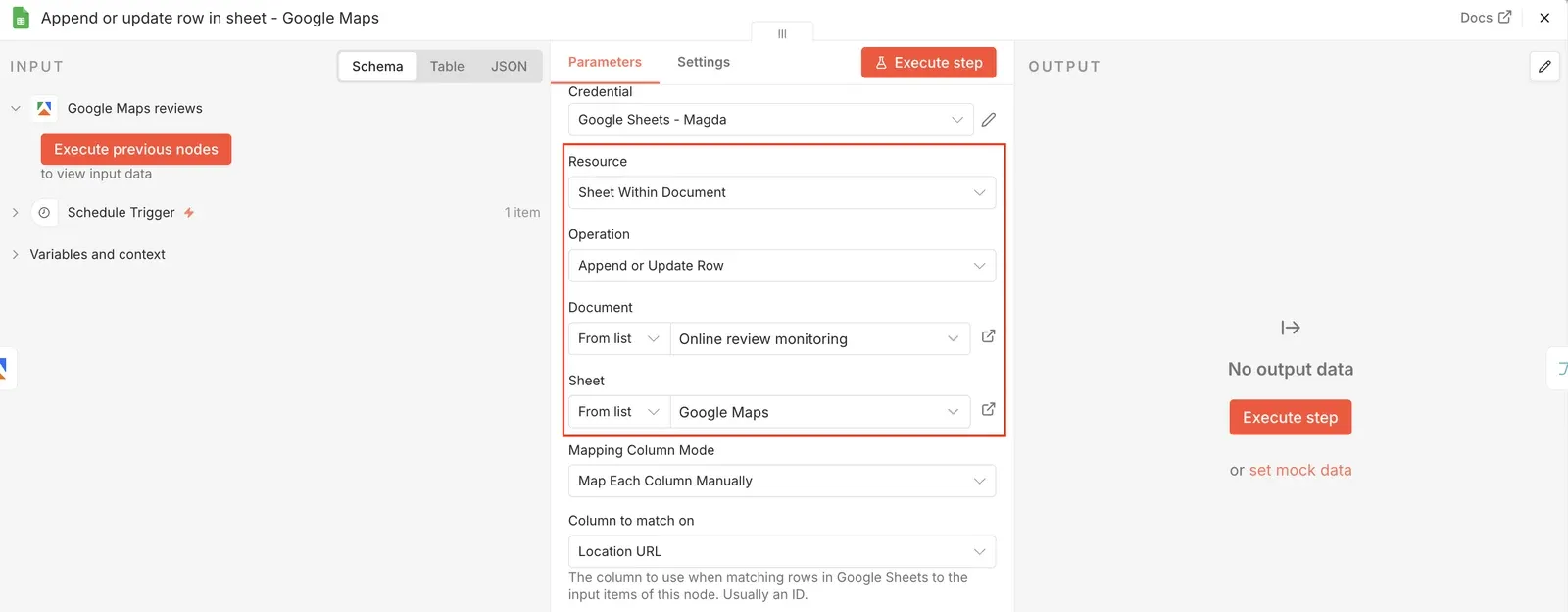
Append or update row in sheet - Connect your Google account by selecting Create a new credential.
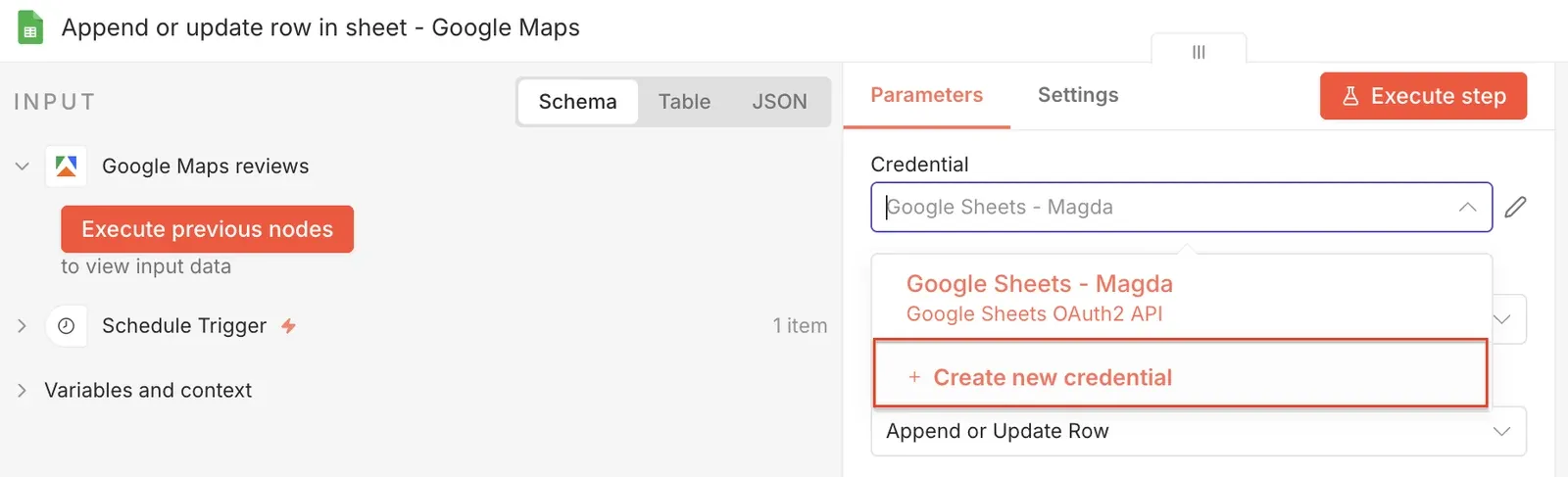
Select operation as Append or Update Row and pick the Google Sheet file you created from the drop-down. Each node you’ll add will direct the data flow to a different sheet within the same file. The first one connects to the Google Maps Actor, so we’ll pick the Google Maps sheet, the second one to Yelp etc.
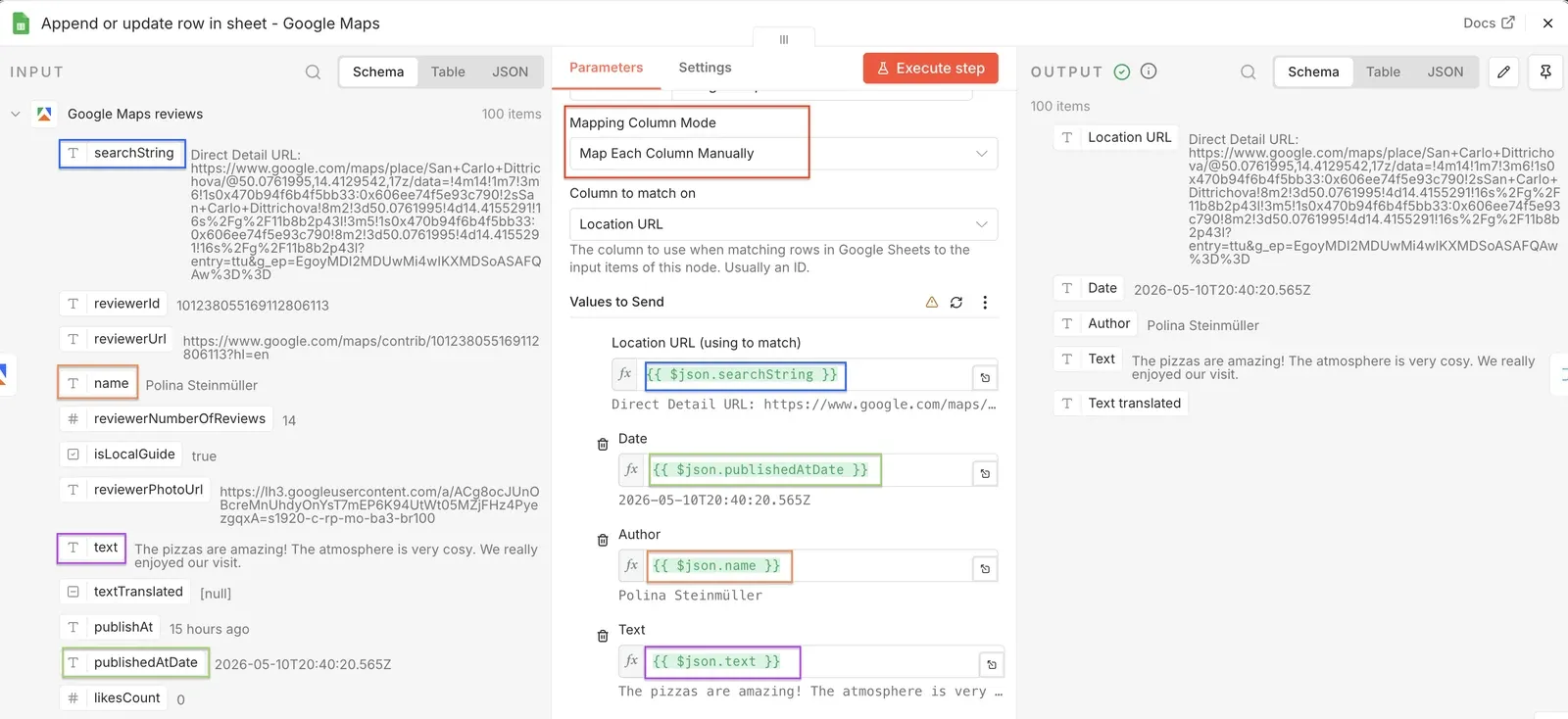
- Mapping tells the Google Sheets node which field from the incoming data should go into which column of your sheet. Drag the data fields from the results on the left (you might have to run your Apify node again) and drop them into the Values to Send fields. In this case
searchStringbecomes the Location URL,namebecomes the Author, and so on.
Here’s what the workflow looks like after adding the Google nodes:
Once you execute it, all three sheets will be filled with data, and the AI summary will be added automatically:
Step 6: Add email notifications
Now that you have the data collection steps completed, you might also want to get notified when the scrapers finish running. First, add the Merge node to the workflow - that way, the notification will be sent only when all three Apify Actors finish their scraping sessions. Connect all three Google nodes to it. Select the Append mode and set the number of inputs to 3.
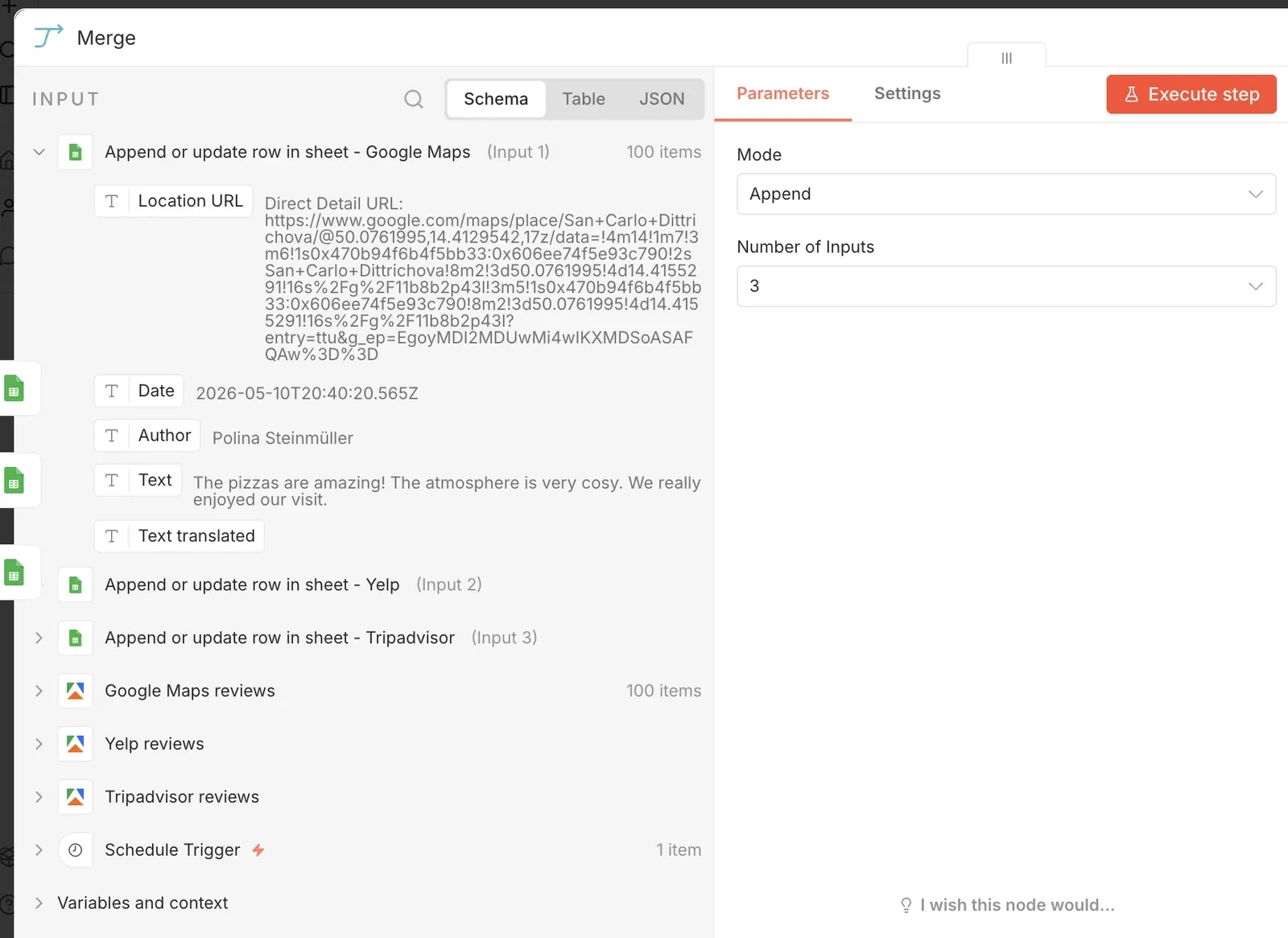
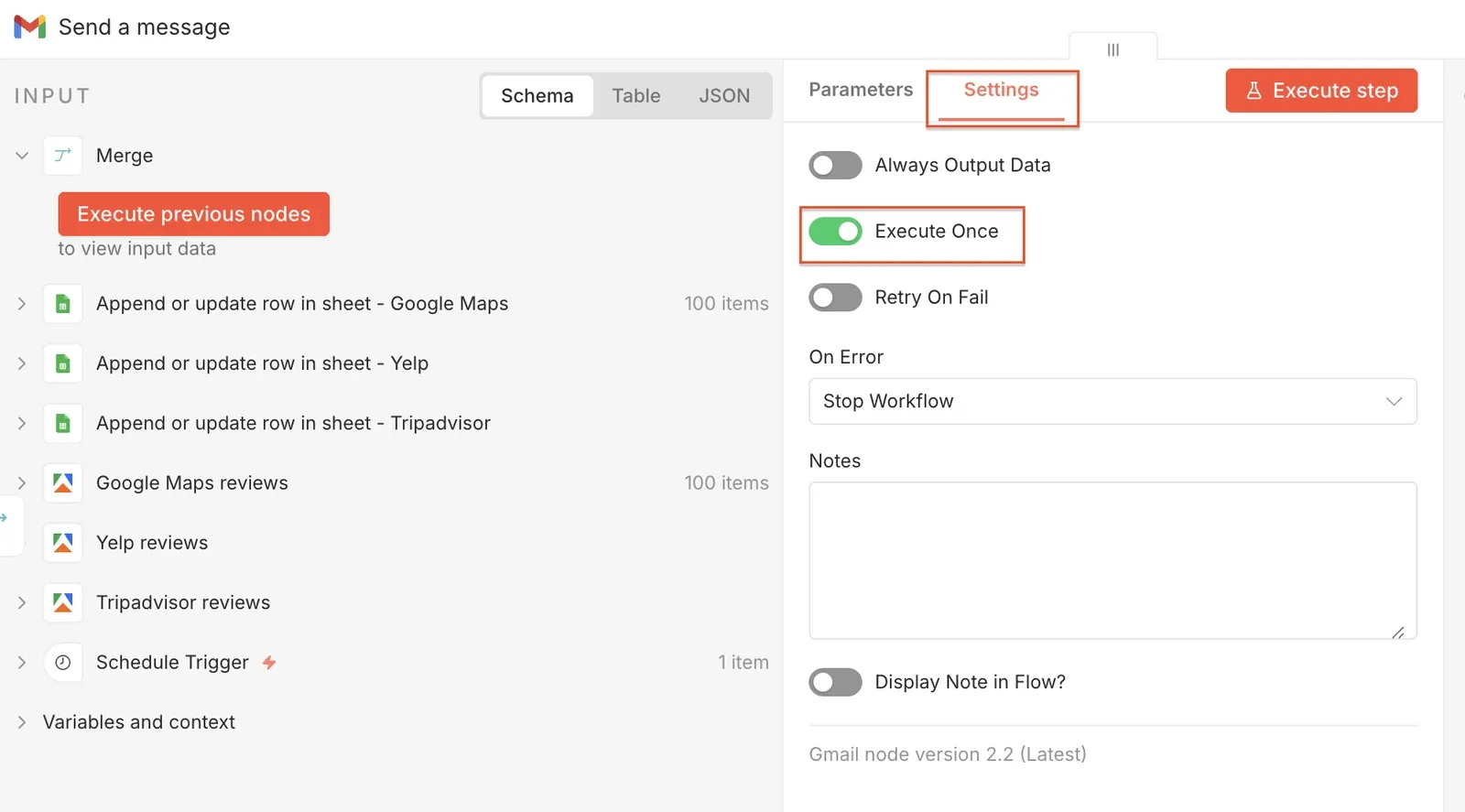
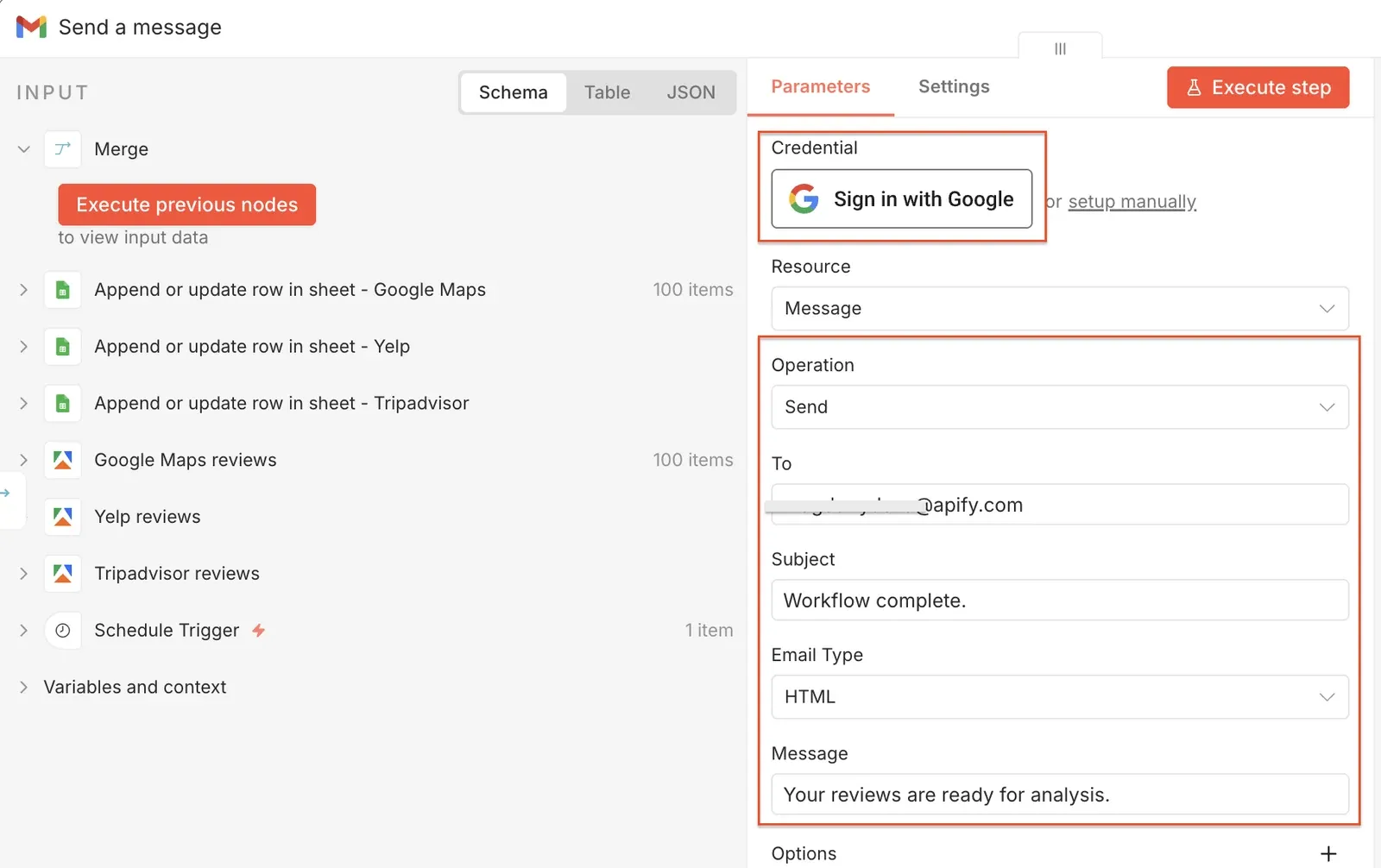
Now add the Send a message Gmail node connected to the Merge node. This will be the final workflow step. Sign in with your Google account if needed. Set the Operation to Send, add your recipient, and write your message directly inside the node. Next, go to the Settings tab and turn on the Execute once toggle to avoid receiving multiple messages.
That's it! You now have an automated review monitoring pipeline running on schedule.
How to adapt this workflow
The setup you just built focuses on restaurant reviews, but the same pattern works for almost any review-driven business - hotels, salons, dental clinics, retail stores, even SaaS products listed on G2 or Capterra. To adapt it, swap the three Apify Actors for ones that match your use case, update the URLs in each input, and adjust the Google Sheets columns to reflect the fields each platform returns.
The AI formulas are just as flexible - instead of sentiment and summary, you could classify reviews by topic (service, pricing, product quality), flag urgent complaints, detect language, or extract competitor mentions.
If you manage multiple locations or brands, duplicate the sheet tabs and feed each Apify Actor a different set of URLs. You can also swap the Gmail node for Slack, Discord, Microsoft Teams, or a webhook to your internal dashboard - n8n has native integrations for all of them.
Conclusion
You've now got an automated review monitoring pipeline that pulls data from Google, Yelp, and Tripadvisor, drops it into a single Sheet, scores sentiment, and pings you when it's done.
From here, extend it however you need: add more platforms, filter for one-star reviews only, push the data into a BI tool, or sharpen the AI prompts to extract exactly what matters to your business.