AI chatbots are only as good as the data they learn from. Large language models like ChatGPT or Claude were trained on massive amounts of web content, allowing them to recognize patterns in text and generate human-like responses. But the same principle applies to any AI system: if the input data is poor or outdated, the results will be too.
There are several ways to collect data for AI chatbots, but most have limitations. Public datasets often become outdated, crowdsourcing is expensive and slow, and APIs usually expose only a fraction of the available content.
Web scraping is the most practical solution. Tools like Website Content Crawler can automatically crawl entire websites, extract clean text from pages, handle dynamic content, and keep data updated - making them ideal for building chatbot knowledge bases.
We’ll show how to automate the process using:
- Website Content Crawler to collect and structure content from a specific website
- RAG Web Browser to retrieve fresh information from the web in real time using a Google search
How to power an AI chatbot with web data (step-by-step guide)
Once you’ve identified the sources your chatbot should learn from, the next step is turning those pages into structured data your AI can use. Apify can automate the entire process.
Actors have access to platform features such as built-in proxy management, anti-bot evasion support, integrated storage with structured CSV/Excel/JSON exports, and standardized input parameters (URLs, keywords, limits, etc.).
With tools like Website Content Crawler, you can run a crawl, collect all relevant pages from a site, and export the results as a dataset ready for embeddings, vector databases, or other AI pipelines. This capability is particularly valuable for an AI and ML development company building chatbots, recommendation engines, knowledge assistants, and other intelligent applications that rely on accurate, up-to-date web data.
Prefer video? Watch a tutorial on how to get data for generative AI.
Step 1: Go to Website Content Crawler
We’ll demo how to use an Apify scraper to crawl entire websites starting from a single URL and automatically discover relevant pages.
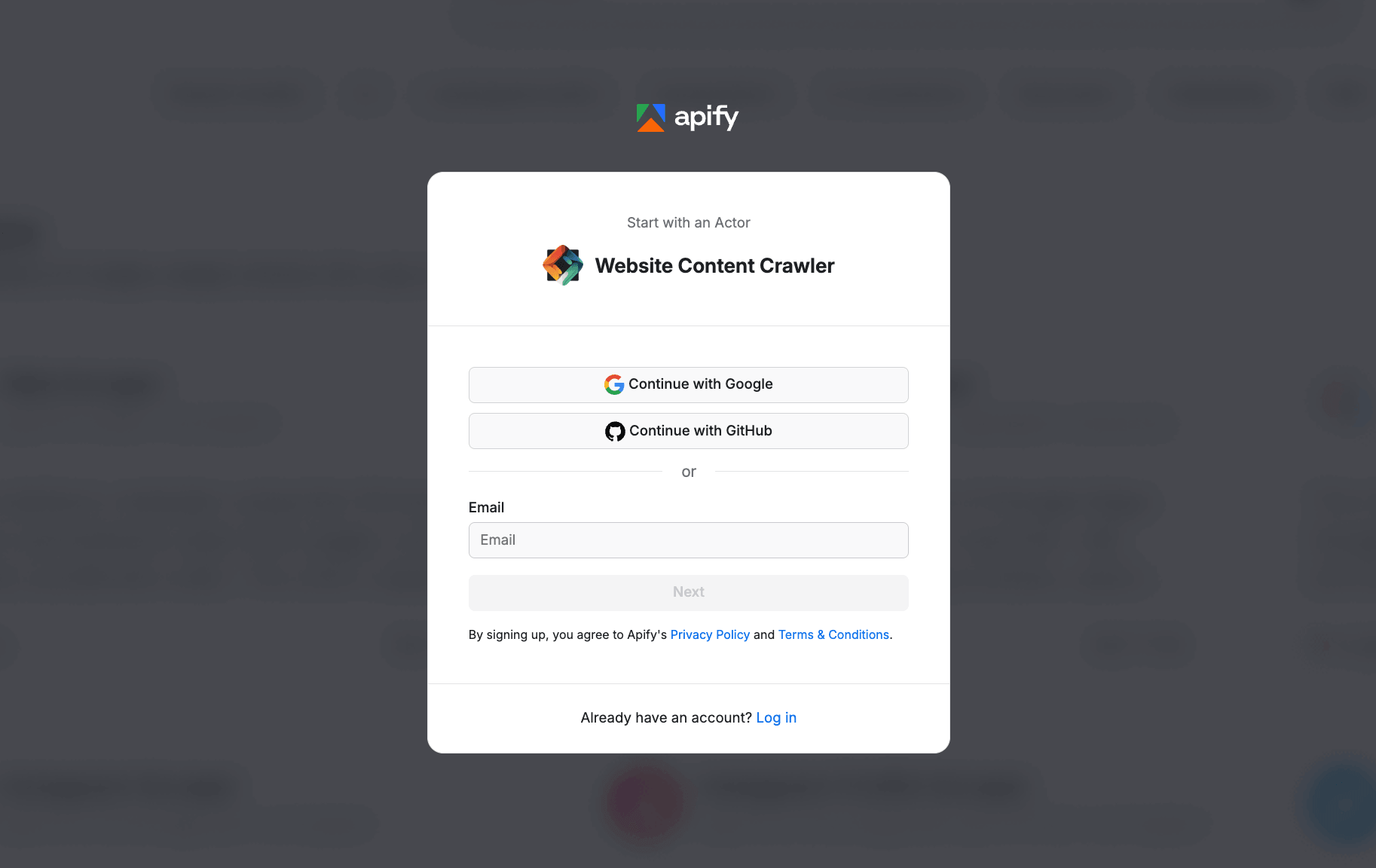
Head to Website Content Crawler. If you don’t have an Apify account yet, you’ll be prompted to create one for free. You’ll access Apify Console, a workspace for running and building web automation tools.
Website Content Crawler can render dynamic content and extract the meaningful text while removing navigation elements, ads, and other noise.
Step 2: Configure the scraper and run it
In this tutorial, we’ll extract data that a travel company needs to launch a chatbot that helps users with questions about their flights - baggage rules, refund policies, or visa requirements. To answer these questions accurately, the chatbot needs access to reliable travel information from websites such as airline help centers. We’ll use https://help.ryanair.com as our Start URL.
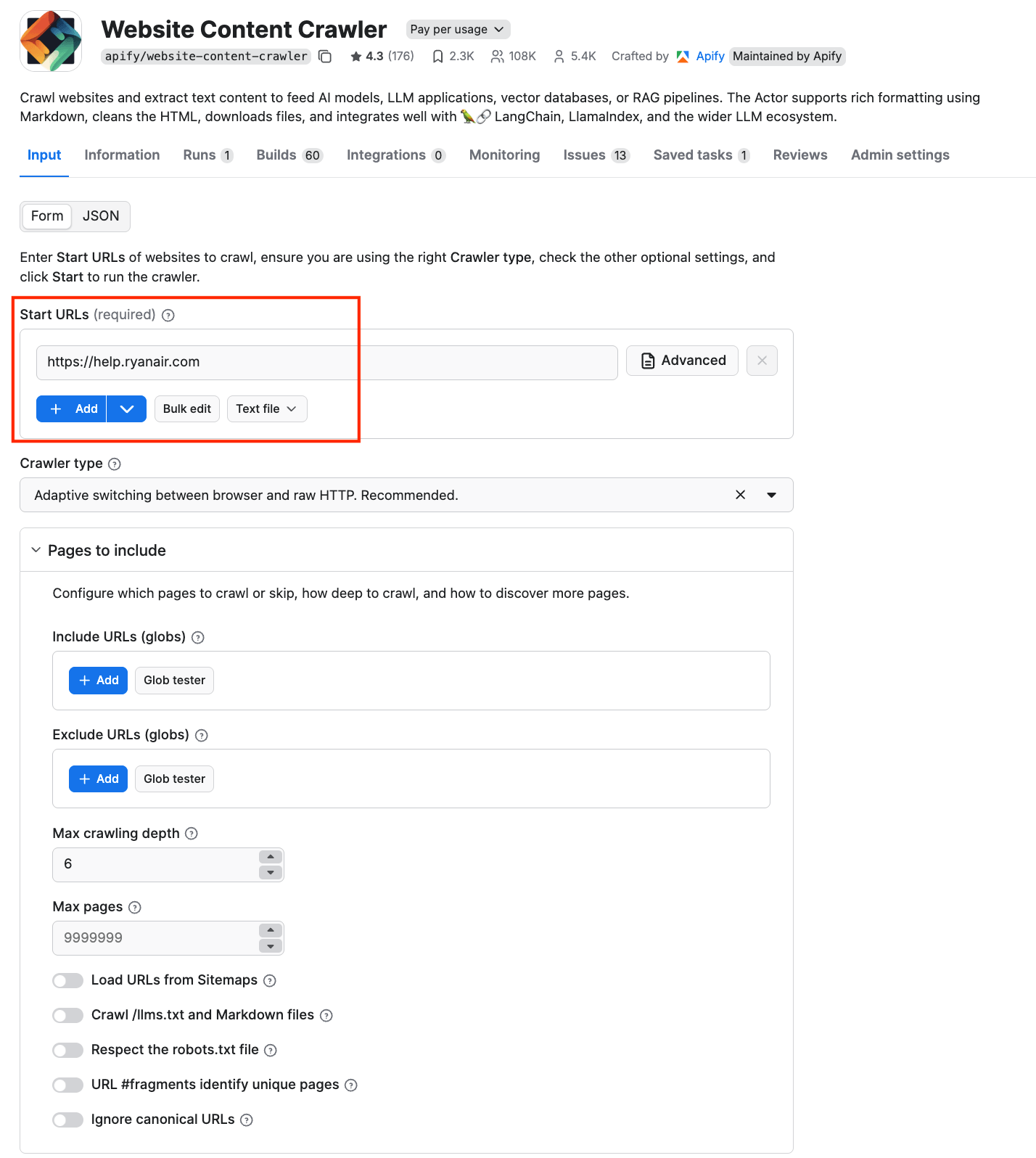
You can also force the crawler to skip certain URLs using the Exclude URLs (globs) input setting, which specifies an array of glob patterns matching URLs of pages to be skipped. Note that this setting affects only links found on pages, but not Start URLs, which are always crawled.
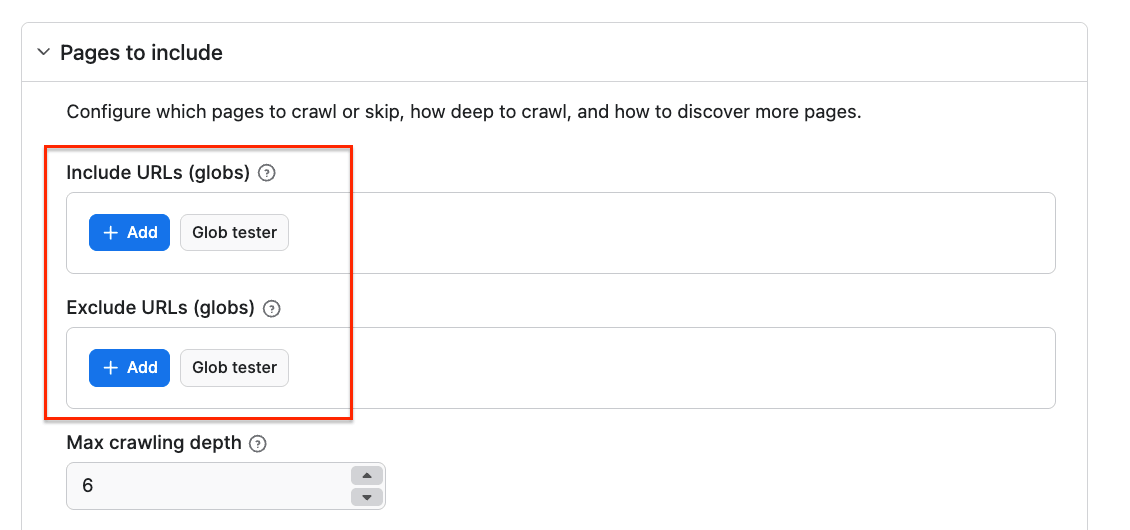
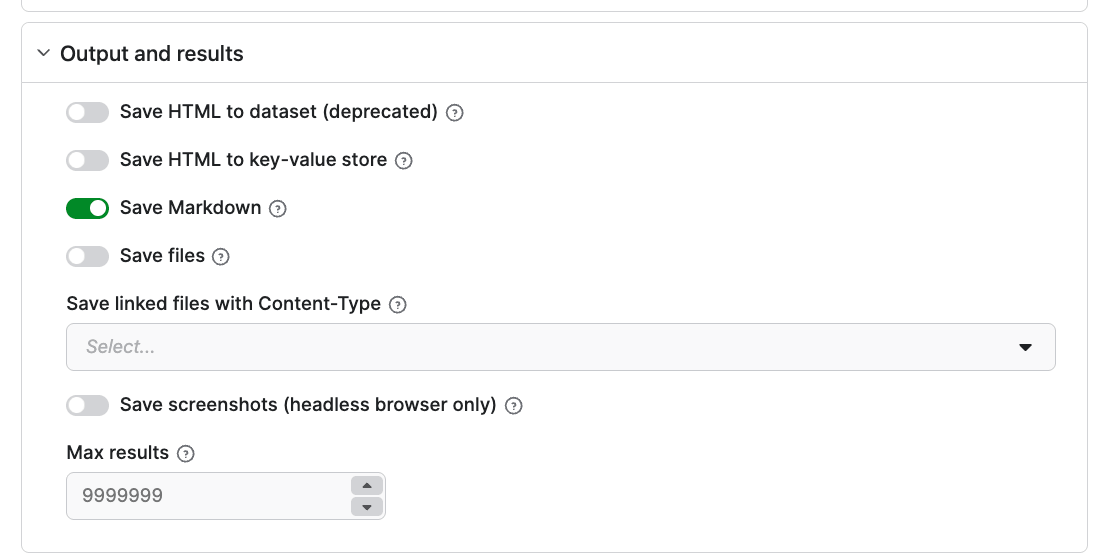
You can also customize your crawl further and select your output type. We’ll select the Markdown toggle as it will keep the content clean, structured, and easy for AI models to interpret.
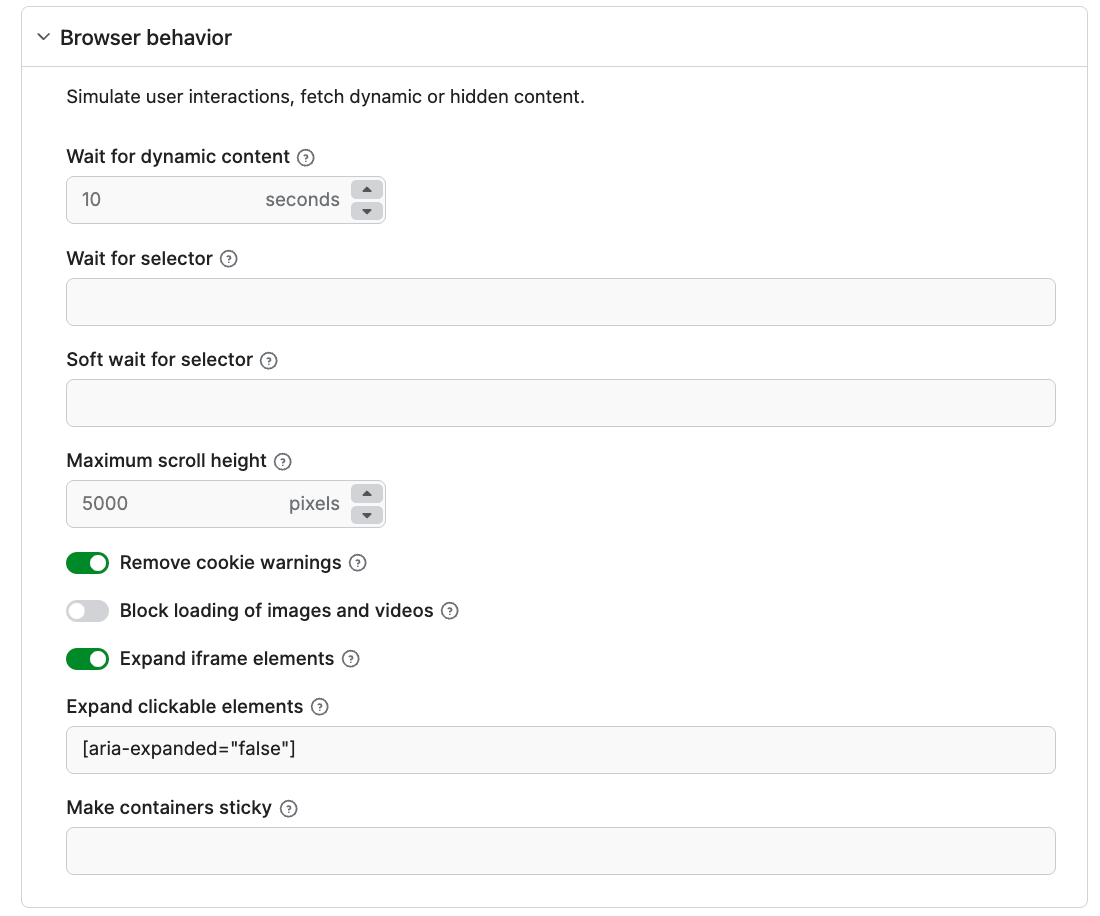
Under the Browser behavior setting, you can select elements to exclude from the final results, such as cookie banners and navigation menus.
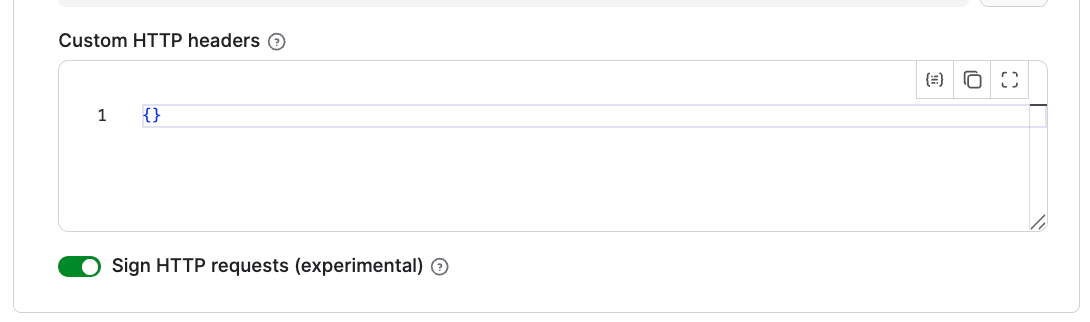
Using the Crawler identification option, you can set up a proxy to access any website. If your website is Cloudflare-protected, you can set up Signed HTTP requests. To do this, go to the Cloudflare bot directory to create credentials, then paste them into the Custom HTTP headers setting. Keep the Sign HTTP requests toggle on.
To keep your scraping costs predictable, you can set up a maximum cost per run under the Run options.
Once you’re happy with your choices, click Save & Start. After a couple of minutes, the run will finish, and you’ll be able to check the results in the preview table, in clean Markdown:
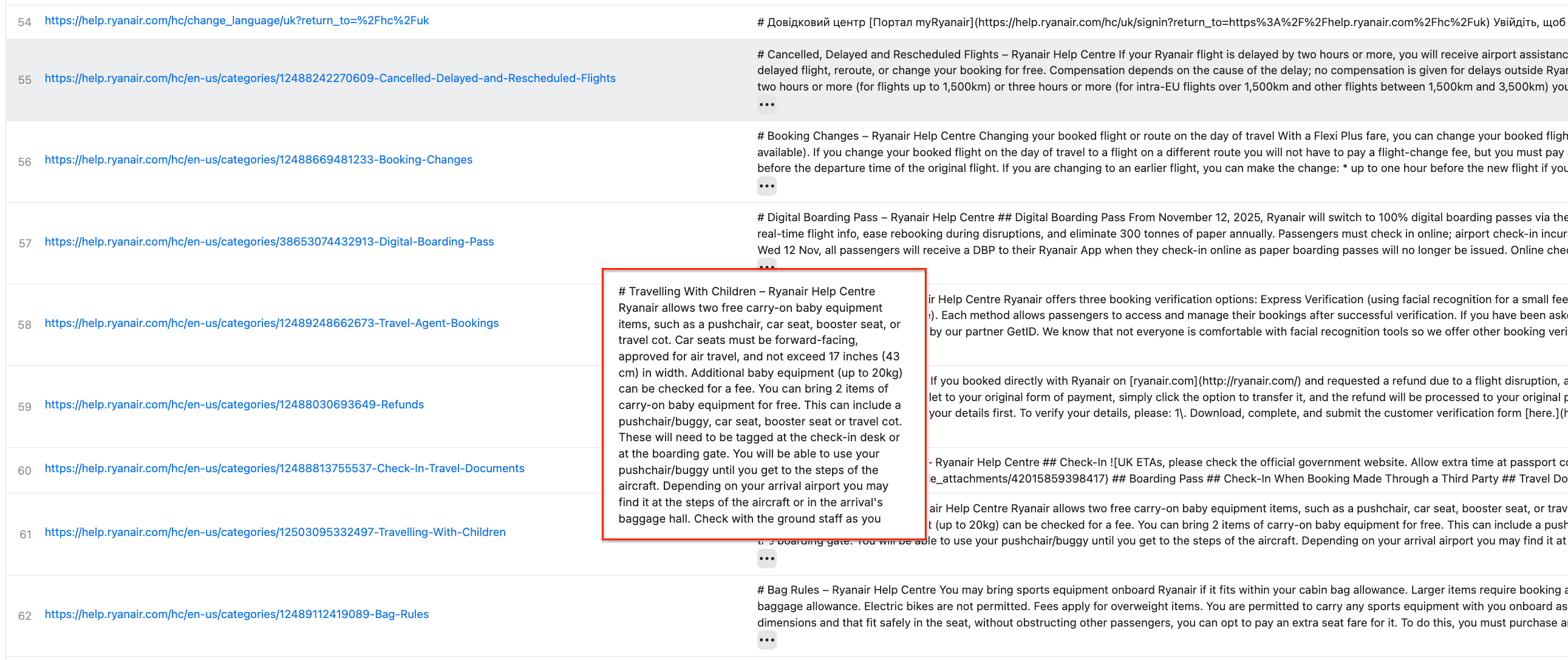
You can also download the results as JSON, Excel, CSV, and more by clicking the Export button.
Step 3: Schedule automated runs
If you want to scrape data for your AI chatbot regularly, you can schedule Apify scrapers to run automatically and collect data without manual input.
First, make sure your scraper is properly configured, then click the Save as a new task button in the top-right corner.
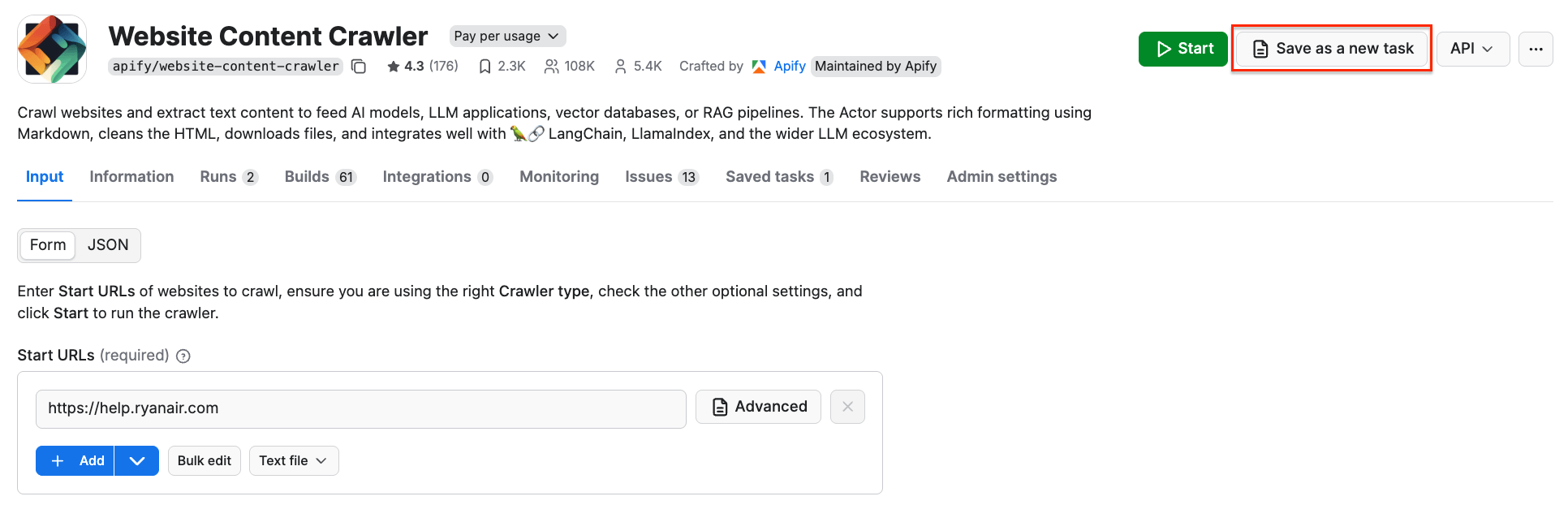
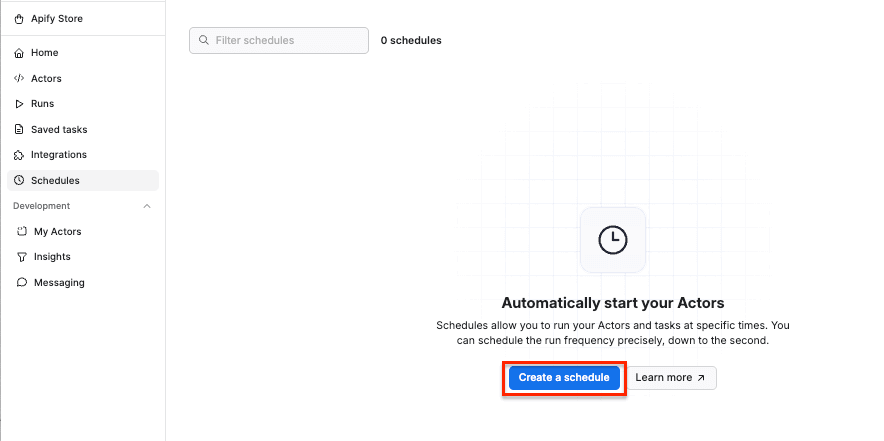
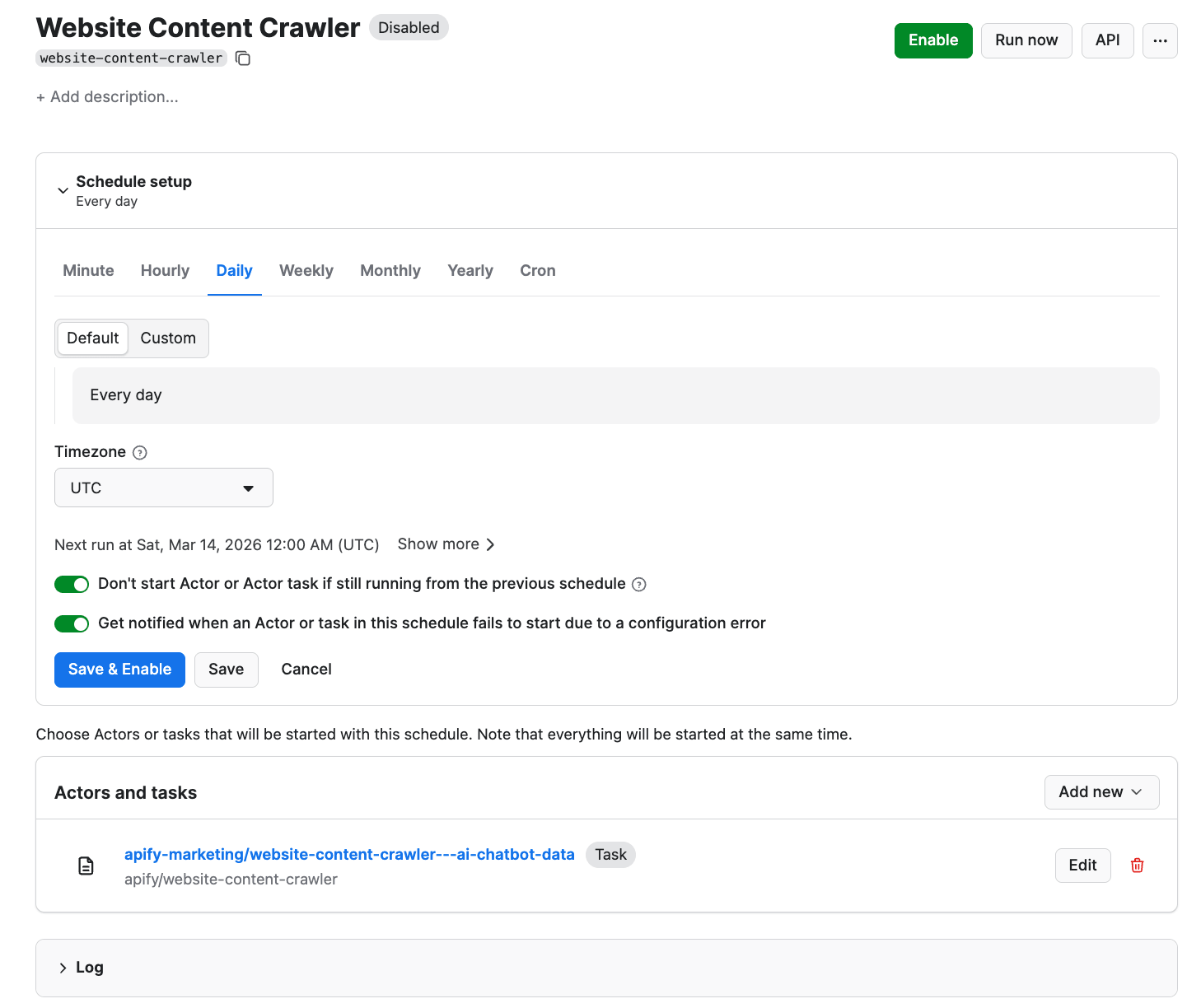
Give your task a name and save it. Next, you can easily schedule the task by accessing Schedules in the left-hand navigation and clicking the Create a schedule button:
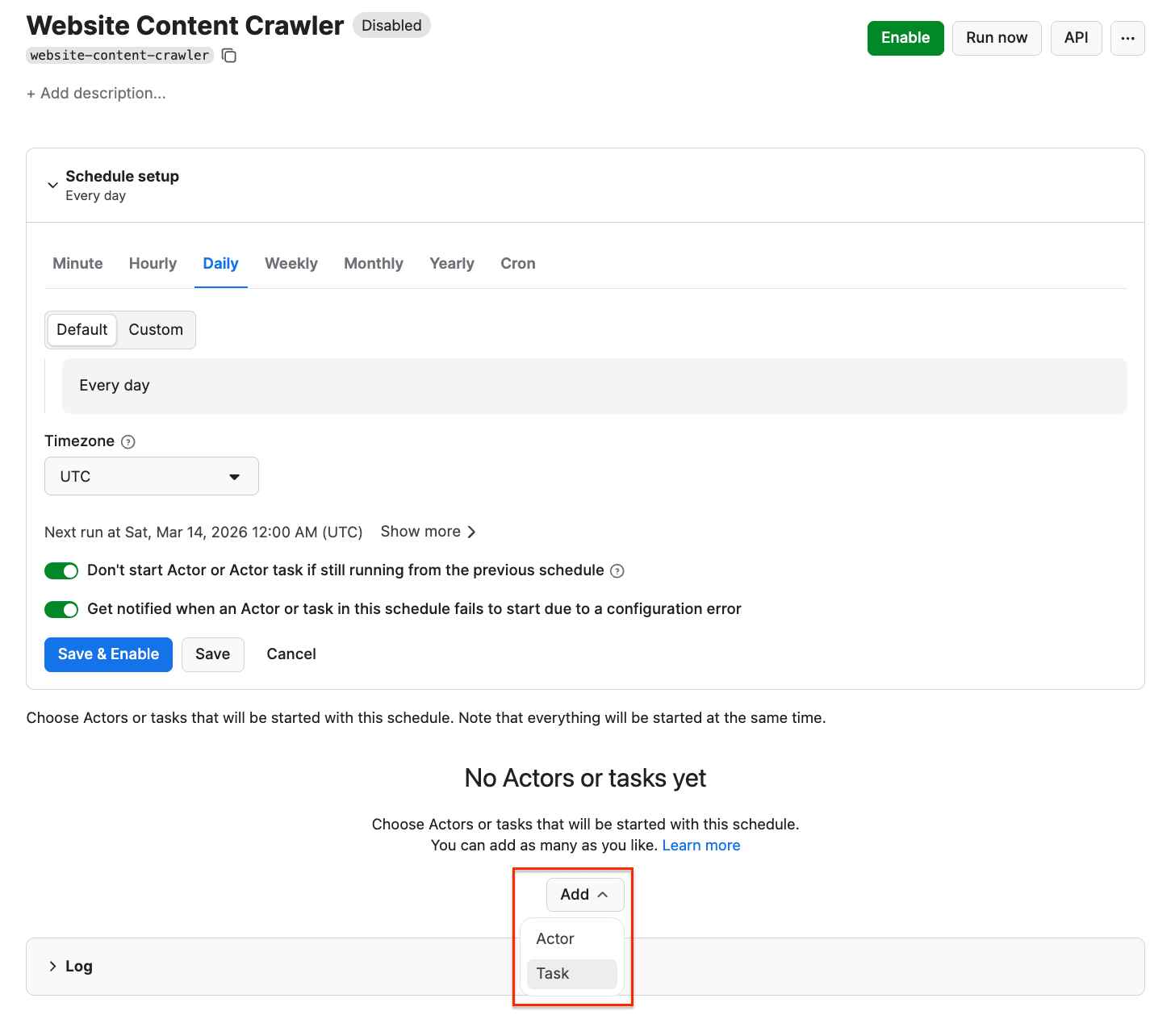
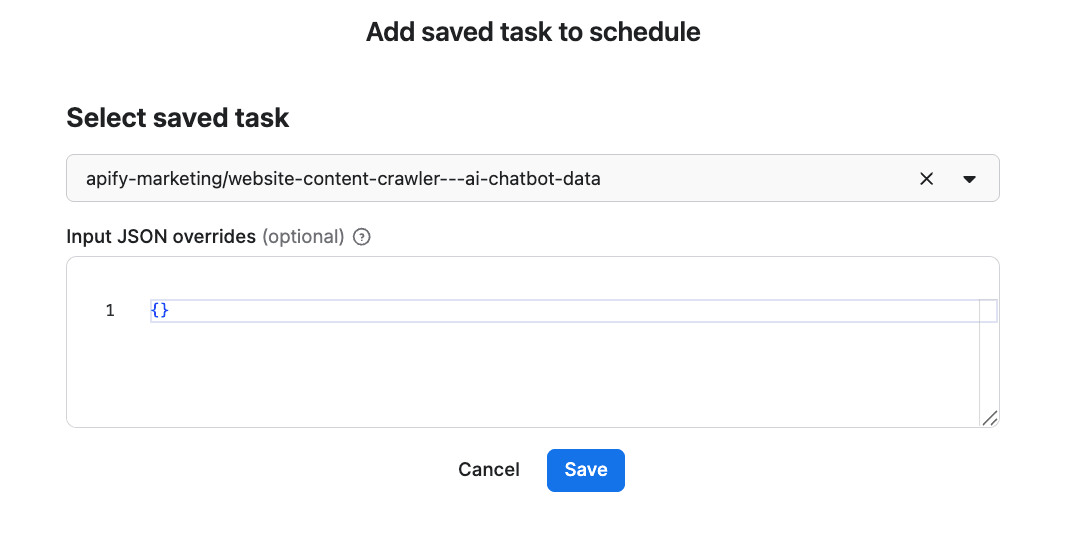
We’ve already saved our task, so now it’s time to add it to the schedule. Click Add task at the bottom to customize your schedule, select a task, and choose how often you want the scraper to run - weekly, monthly, or on any day that works best for you.
Step 4: Connect your data to an AI chatbot
Training an AI chatbot today usually doesn’t mean retraining a model from scratch - instead, you build a system around an existing LLM using a technique called RAG (Retrieval-Augmented Generation):
- Choose an LLM you’ll work with. Pick the foundation model your chatbot runs on - OpenAI, Anthropic, Gemini, or any other model.
- Choose a vector database (such as Pinecone). Vector databases store your content as embeddings - numerical representations of text that let the system find semantically similar information fast. Website Content Crawler outputs clean Markdown that's ready for embedding.
- Connect everything together. This is where you wire crawled content into your vector database and LLM, so the chatbot can actually retrieve and use it. There are several ways to do this, depending on your stack and the level of control you need. Examples include:
- LangChain orchestration
- Apify API to fetch the results and push them into your own pipeline
- visual workflow automations such as n8n or Make
Step 5: Retrieving real-time travel information
Now that you already have a knowledge base and a workflow set up, it’s time to prepare your chatbot for cases where users ask questions outside of the indexed dataset. In those cases, the chatbot will retrieve information directly from the web.
RAG Web Browser enables this capability. It is optimized for speed. When used in standby mode, you can get responses within 16 seconds.
It provides web browsing functionality for AI agents and LLM applications, similar to the web browsing feature in ChatGPT, and has been designed for easy integration with LLM applications, GPTs, OpenAI Assistants, and RAG pipelines using function calling.
This Actor accepts a search phrase or a URL as input, queries Google Search, then crawls web pages from the top search results, cleans the HTML, converts it to text or Markdown, and returns it for processing by the LLM application. We’ll demo how it retrieves information using the following search term: visa requirements for Japan EU citizens
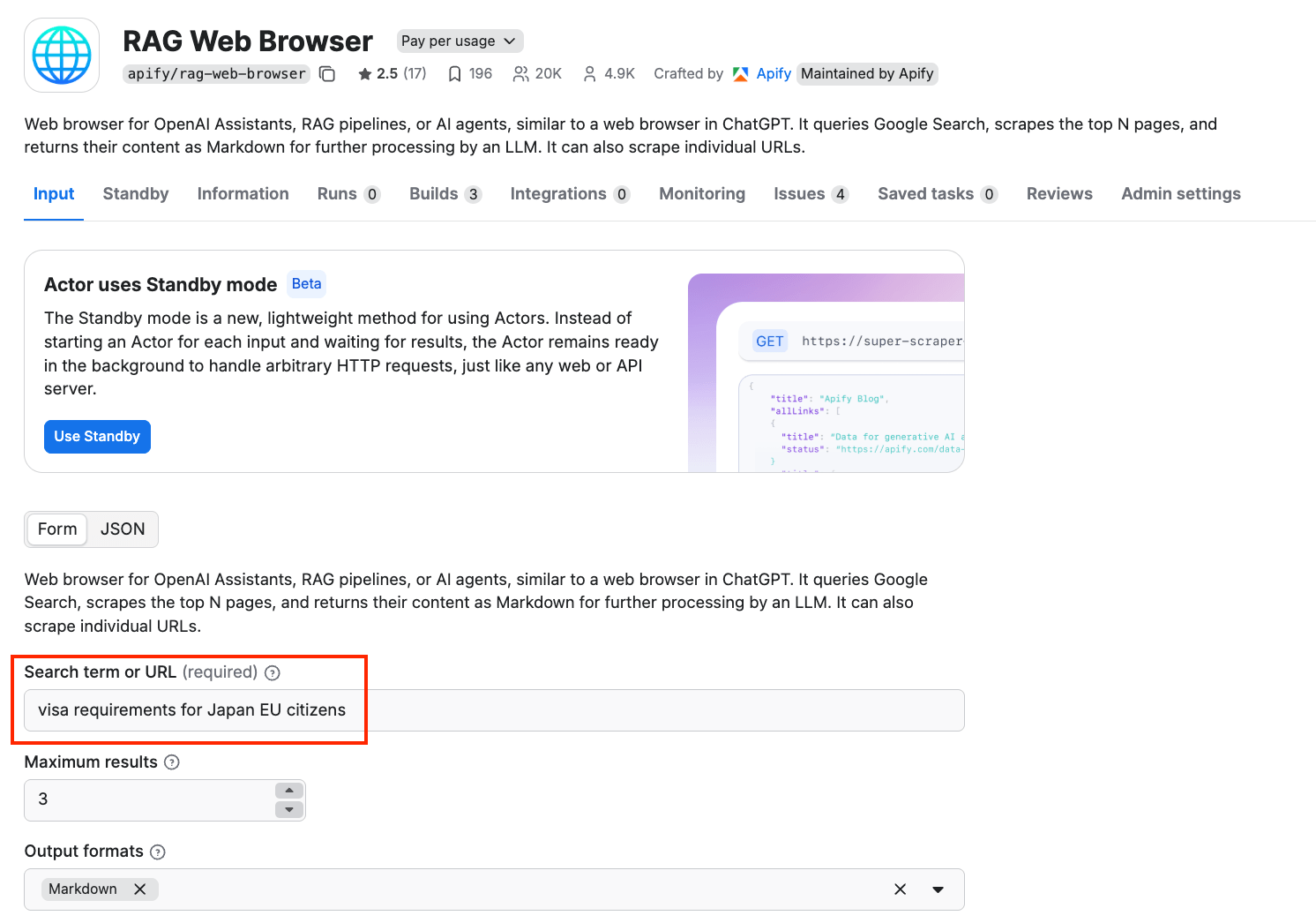
We also set the maximum number of top organic Google Search results whose web pages will be extracted to 3.
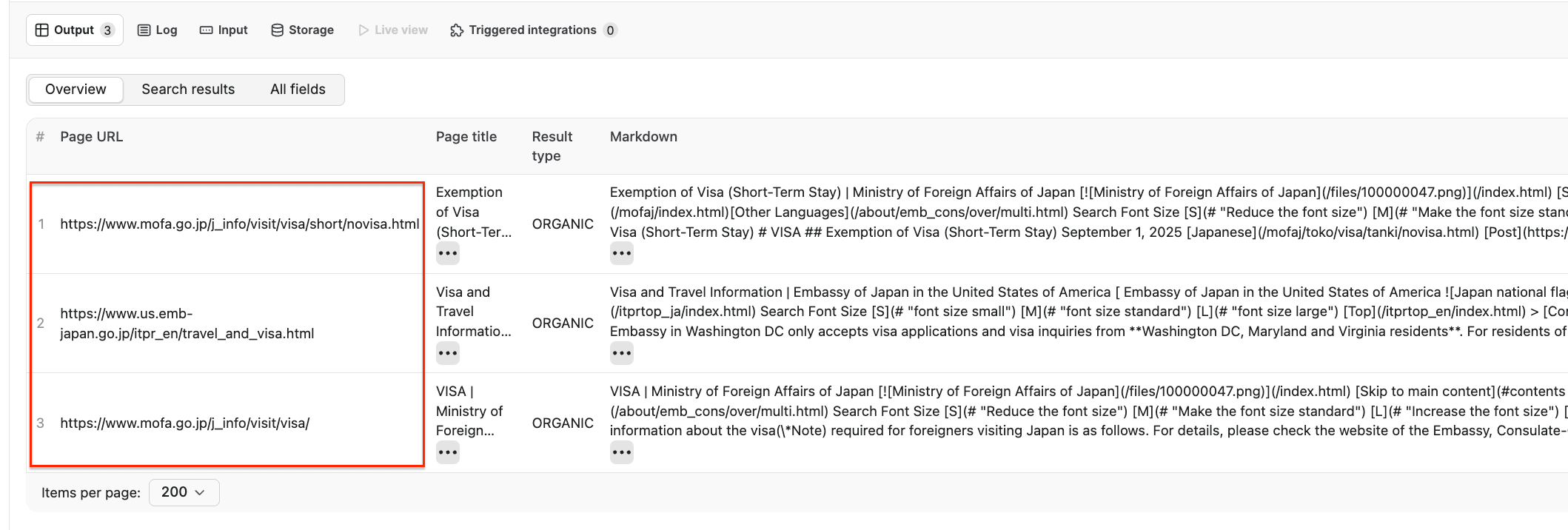
After the Actor finishes running, we can see that it retrieved relevant sources such as the Ministry of Foreign Affairs of Japan and the Embassy of Japan in the US, providing reliable information that an AI chatbot could use to generate an answer.
-site:apify.com RAG will give you results about RAG from websites that aren't Apify. This is especially useful if you’ve already used RAG to embed Apify website data in your chatbot.Conclusion
A chatbot is only useful if it can actually answer questions correctly. With automated scraping handling the heavy lifting, you can focus on building the chatbot itself rather than wrangling data.
Once the scraping pipeline is running on a schedule and RAG Web Browser is handling the gaps, your chatbot has what it needs to stay accurate without any manual intervention.