Instagram has no download button. The Save bookmark looks like it should do the job, but it only files the post away inside the app. Nothing in the interface will download Instagram photos to your machine, yours or anyone else's.
For a single image, that's a minor annoyance, and a browser trick gets you the file. The problem changes shape at volume. Auditing a competitor's creative output, archiving a hashtag campaign, or building an image set for research all mean hundreds of files, and right-clicking doesn't survive contact with that job. To download Instagram images in bulk, a scraper earns its place: Instagram Scraper collects the posts, and Dataset Image Downloader & Uploader turns the URLs it returns into files on your disk.
Below are six ways to download Instagram images, covering both ends of that range, including a shortcut if you already use Claude.
| Method | Best for | Cost | Bulk? |
|---|---|---|---|
| Screenshot or share sheet on mobile | 1 image, on your phone | Free | No |
| Browser inspector | 1 image, best available quality, no install | Free | No |
| Web downloader (paste a URL) | 1 post or carousel | Free | No |
| Instagram's data export | Your own account's archive | Free | Your account only |
| Instagram Scraper + image downloader | Any public profile or hashtag, at scale | From $2.70 per 1,000 results | Yes |
| The same two Actors, driven from Claude | Choosing which images to download first | Same Actor costs | Yes |
How to download images from Instagram on desktop (no software needed)
You can download any public Instagram image straight from your browser, with nothing installed. It works the same on a Windows PC or a Mac, in Chrome, Edge, or Firefox.
Downloader sites do the same job with more risk attached. Going through the browser means the file comes from Instagram's own CDN, no third party sees your account, and you end up with the largest version Instagram will serve instead of the one scaled to fit your screen. The trade-off is that it's manual, one image at a time.
Open the post on its own page. Click the post so the address bar reads instagram.com/p/ followed by the post's code. Every post has a permalink, and working from that page instead of the feed keeps the next step readable.
Inspect the image. Right-click the image and choose Inspect.
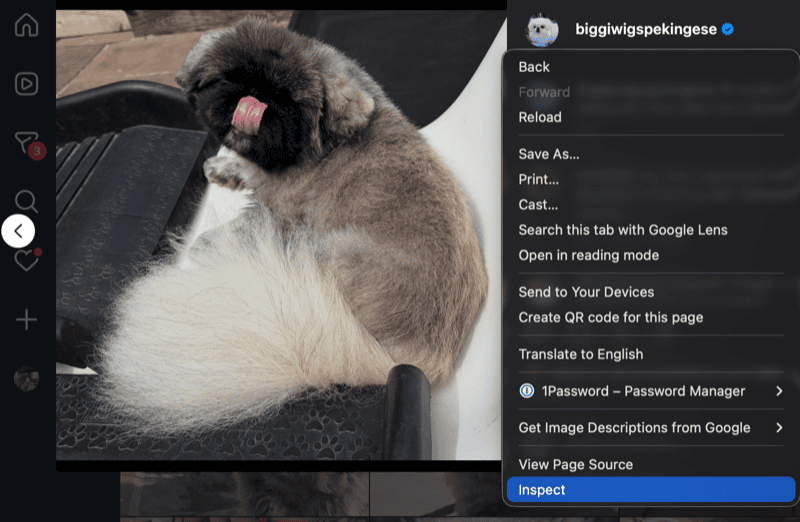
Find the image. Identify the div holding the image and search for scontent. That's the subdomain Instagram's image CDN serves from, so the first matches are image URLs.
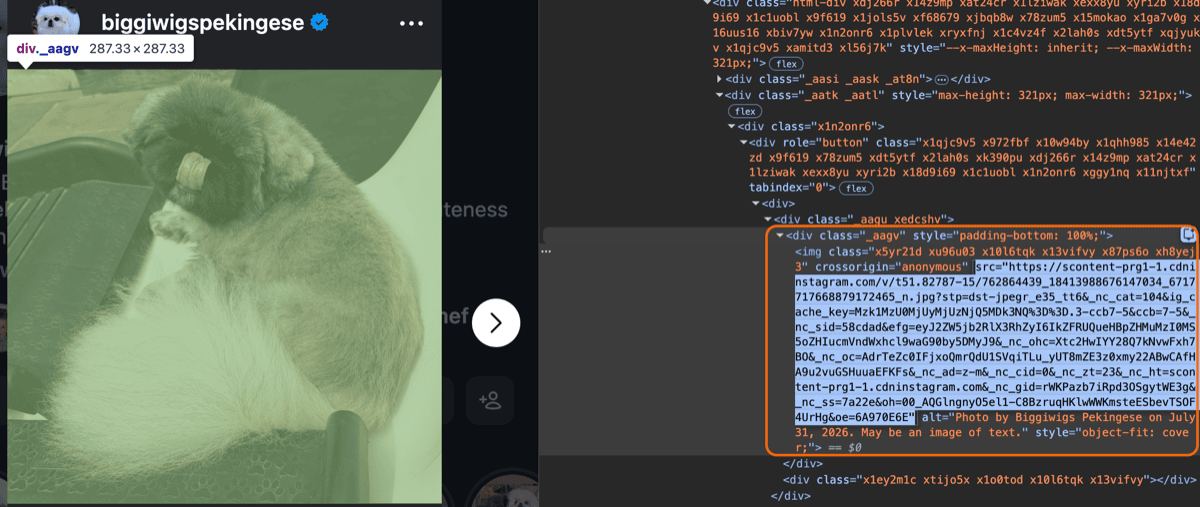
Copy the whole URL. It's long and ends in a string of query parameters. You need all of it.
Paste it into a new tab. The image loads on its own, with no page wrapped around it.
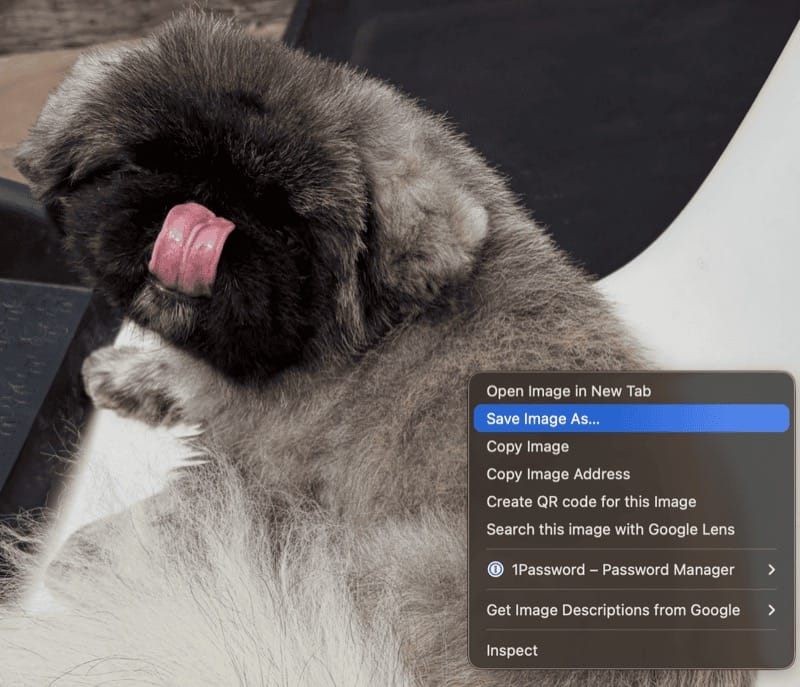
To save the image, right-click and select Save Image As.
Bad URL Hash instead of an image? Then the URL came from View page source rather than the inspector. Page source escapes every ampersand as &, which breaks the URL's signature. Replace each & with & and it will load.Two things to watch:
- Instagram sometimes serves WebP rather than JPEG. The file saves fine, but some older design tools won't open it. Any image converter will handle it, and if you're downloading in bulk, there's a setting for it further down.
- A screenshot is always worse. It's capped at your screen's resolution, and it re-compresses the image on the way out. Use it only when nothing else works.
How to download Instagram photos on mobile (iPhone and Android)
There's no native way to save someone else's post to your camera roll. Instagram doesn't offer it on either platform, and hasn't for years.
What actually works:
- Screenshot and crop. Fastest, and the lowest quality. Fine for reference, not for anything you'll reuse.
- Android share sheet. Tap the post's Share icon and check what your installed apps offer. Some file managers and gallery apps can save the image directly.
- iOS Shortcuts. You can build a shortcut that takes a post URL and saves the image to Photos.
How to download an Instagram carousel (all the images from one post)
Carousels break most downloader tools. Each slide is a separate media object with its own URL. A tool pointed at the post's link finds the first slide and stops, which is how people end up with one image out of ten and no error message.
To get every slide manually, repeat the desktop method once per slide. Swipe to the next slide before opening the inspector, so the slide you want is the one the page has loaded.
That's tolerable for one carousel and miserable for twenty. At any real volume, use a scraper instead: Instagram Scraper returns carousel slides in a childPosts array, each with its own image URL, so a ten-slide post comes back as ten downloadable files in one pass.
How to download all your own Instagram photos
If the account is yours, Instagram will hand you the whole archive. You don't need a tool for this.
Open Accounts Center from your profile settings.
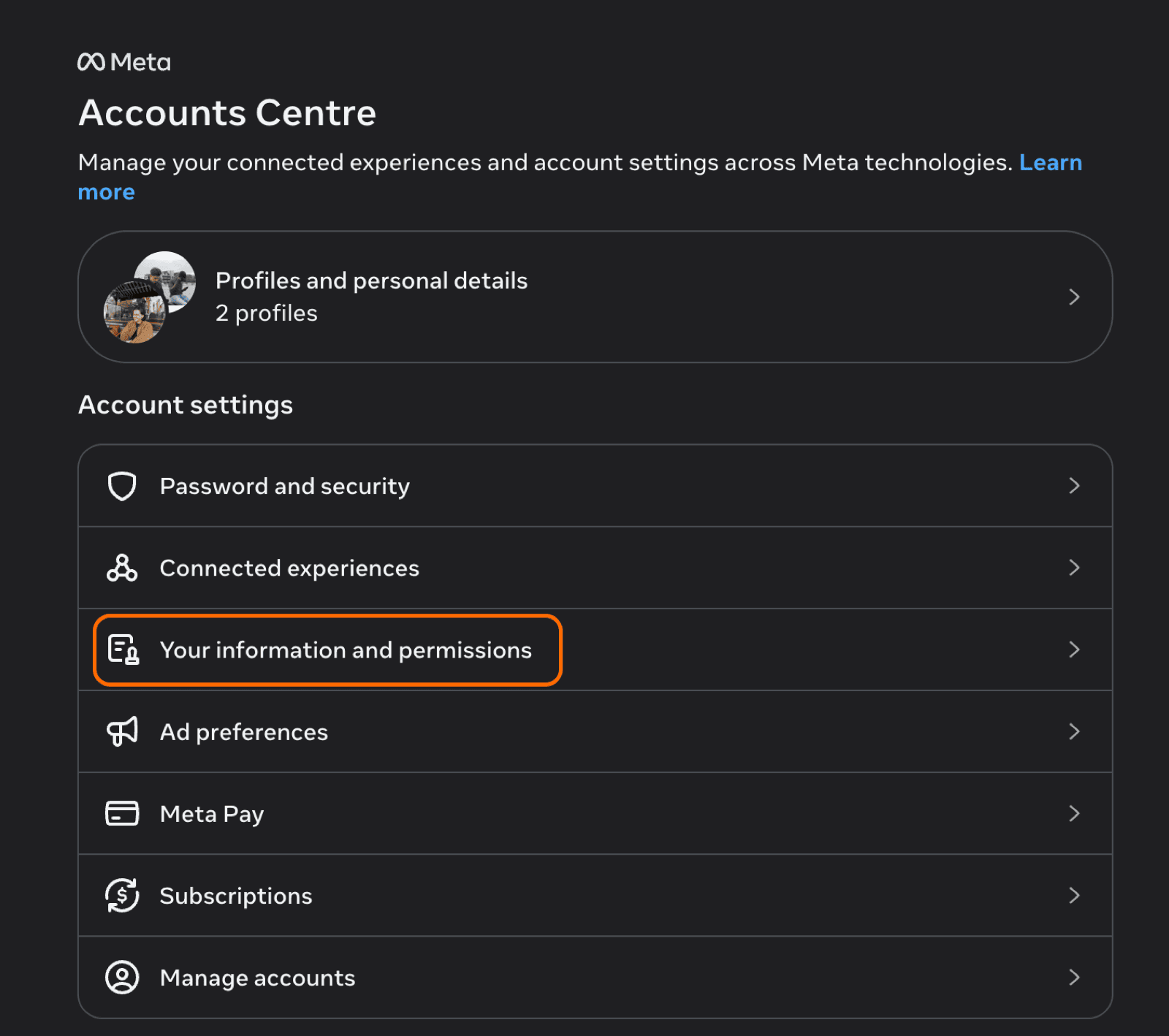
Go to Your information and permissions, then Export your information.
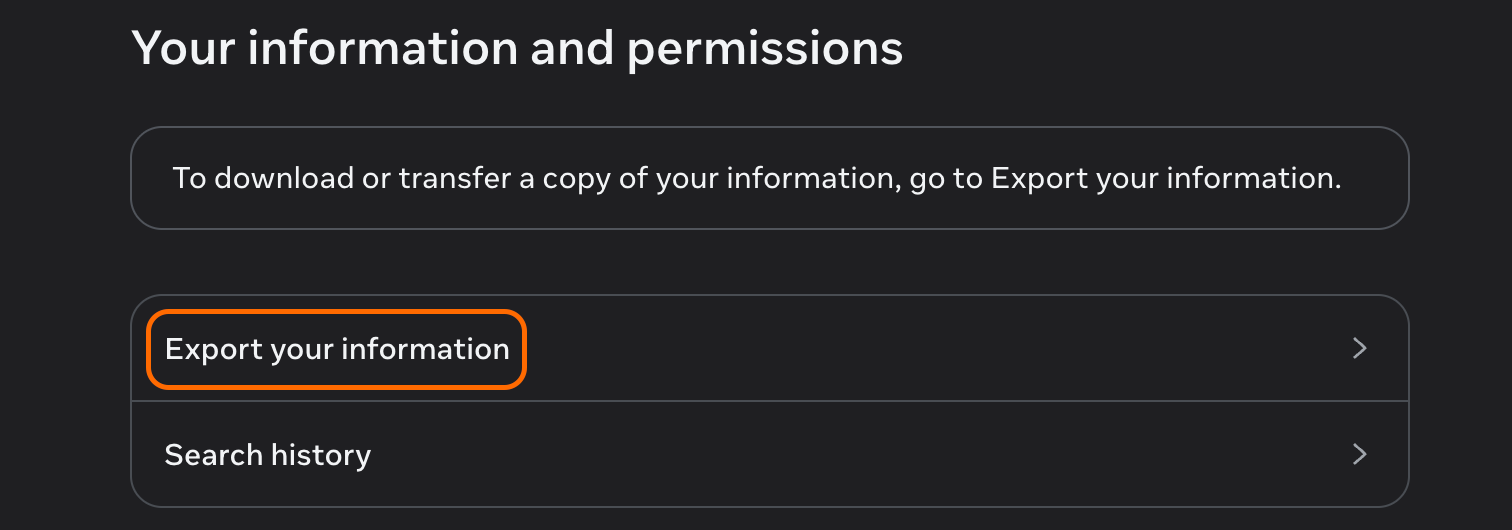
Choose the account, then select Export to device.
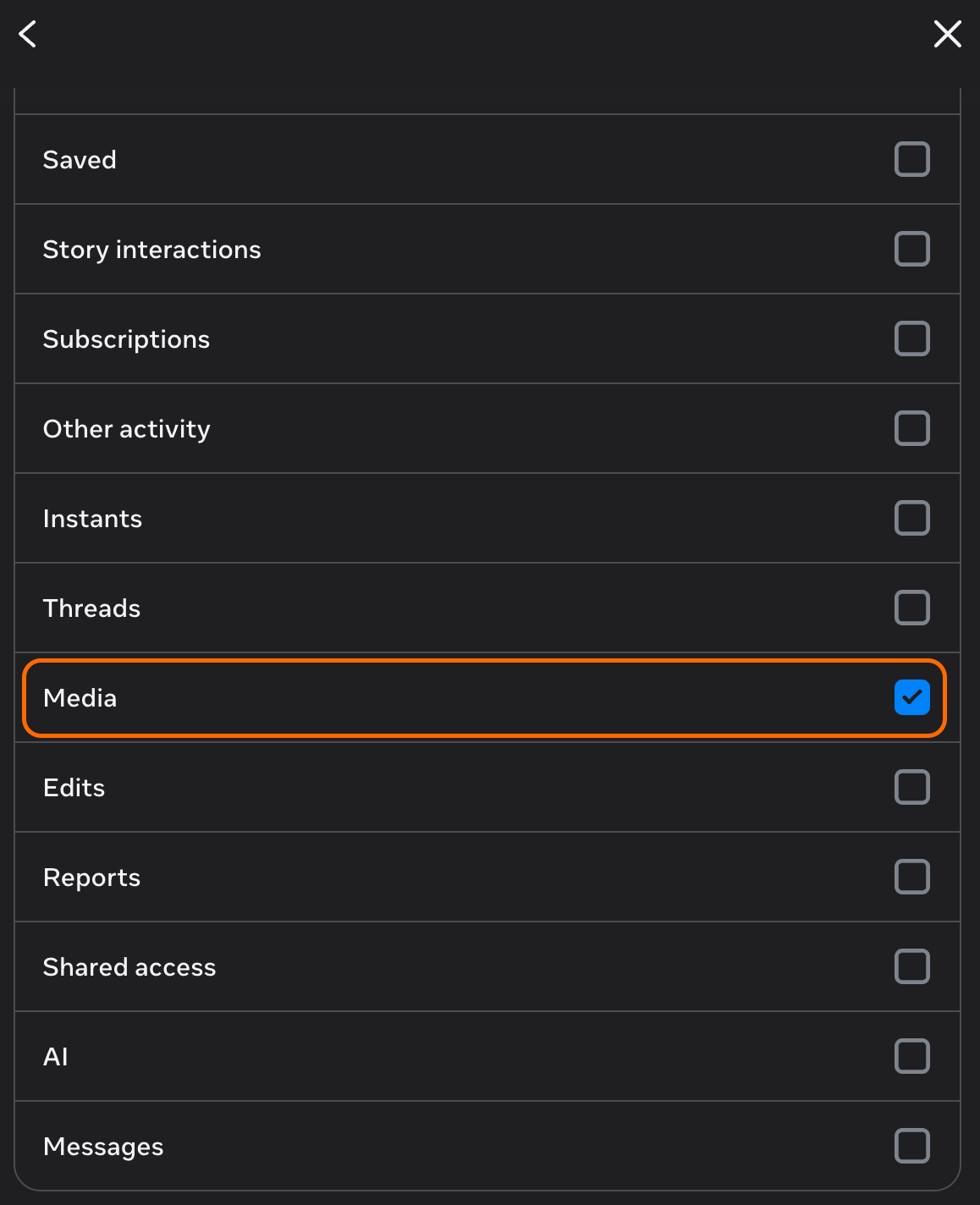
Select what to include. For images alone, pick the media category and drop the rest.
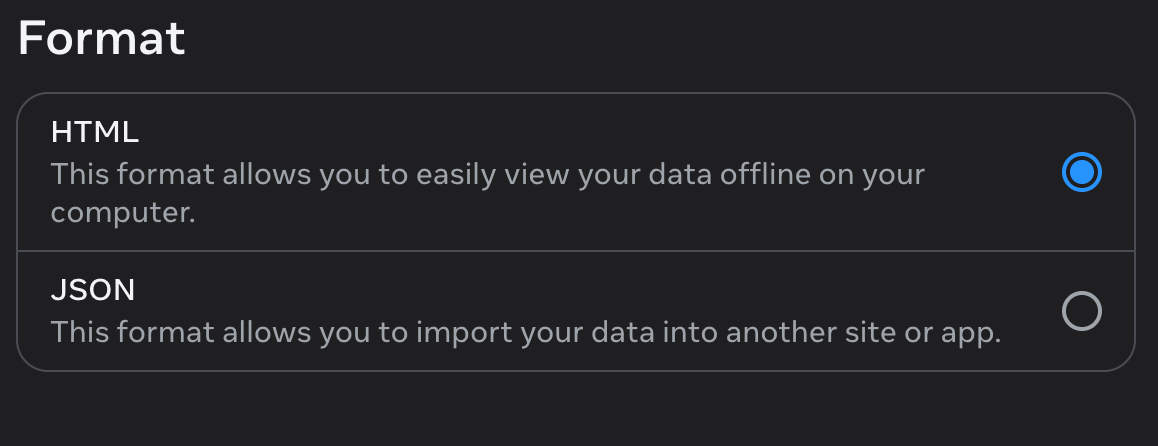
Choose a format. HTML is readable in a browser; JSON is what you want if anything will process the data later.
Submit the request and wait. Instagram builds the archive and emails a download link.
The export has limits. It covers your account only, so it's no help for competitor research or anything you didn't post. And the images come back as Instagram stored them, which isn't always the resolution you originally uploaded.
How to bulk download Instagram images from any public profile or hashtag
Every method so far handles one image at a time. That's fine until the job changes shape: every image from a competitor's profile, the full set of tagged posts from a hashtag campaign, or the last 500 posts from four accounts you're auditing. At that point you won't finish.
Downloading at volume is really two jobs. First, you collect the image URLs, then you fetch the files. No free single-URL downloader does both, which is why this requires two Actors on the Apify platform.
Step 1: collect the post data
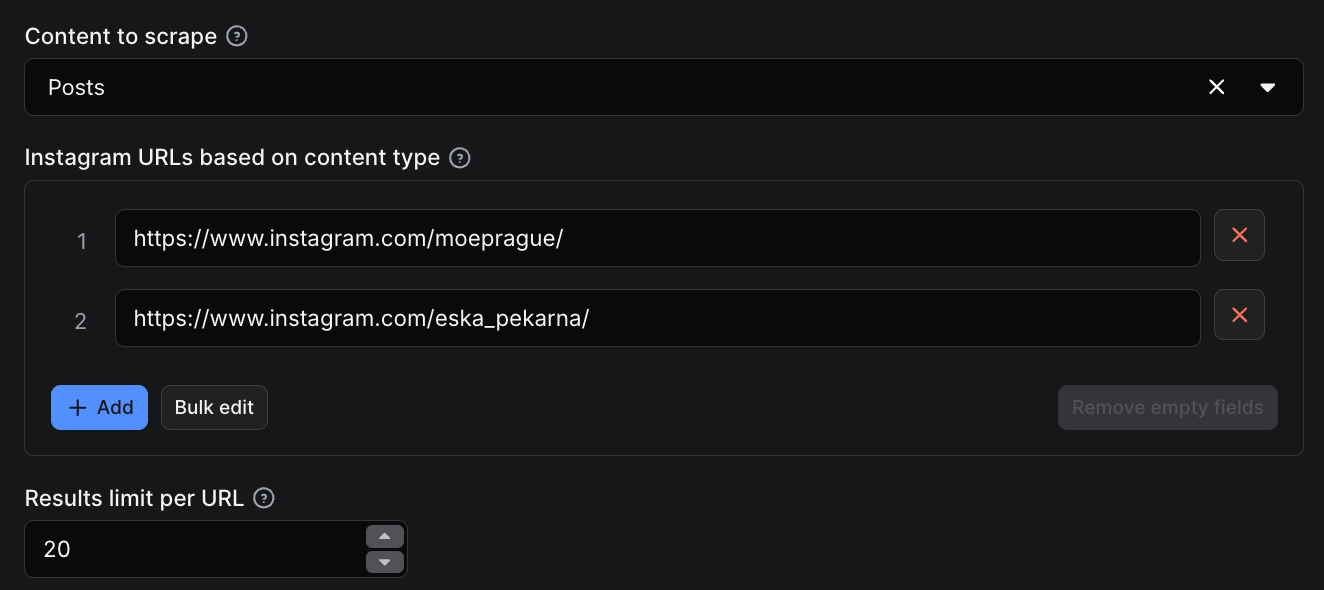
Instagram Scraper gathers the posts and, with them, the image URLs. Pick Content to scrape first. The dropdown offers posts, profile/hashtag/place details, comments, reels, mentions, and stories. Leave it on posts. The field describes what comes back, not what you point at, so choosing details for a profile URL returns bios and follower counts and leaves the downloader with no images to fetch. When profile metadata is what you actually want, Instagram Profile Scraper is the more direct route.
Then add your targets under Instagram URLs based on content type (directUrls). The URL shape has to match what you picked: /username/ for a profile, /p/ for a single post, /reel/ for a reel. Add as many as you like to cover several accounts in one run.
Results limit per URL (resultsLimit) arrives prefilled at 100. Raise it for deeper history, and note that it counts per URL rather than across the whole run.
One more field matters here. Filter by date (onlyPostsNewerThan) takes a date or a relative value like 3 weeks, which is what you want for a campaign window rather than a fixed post count. Watch the Search query fields too: they're an alternative to URLs rather than an addition, so if you fill in both, the URLs win.
Click Save & start to run the Actor.
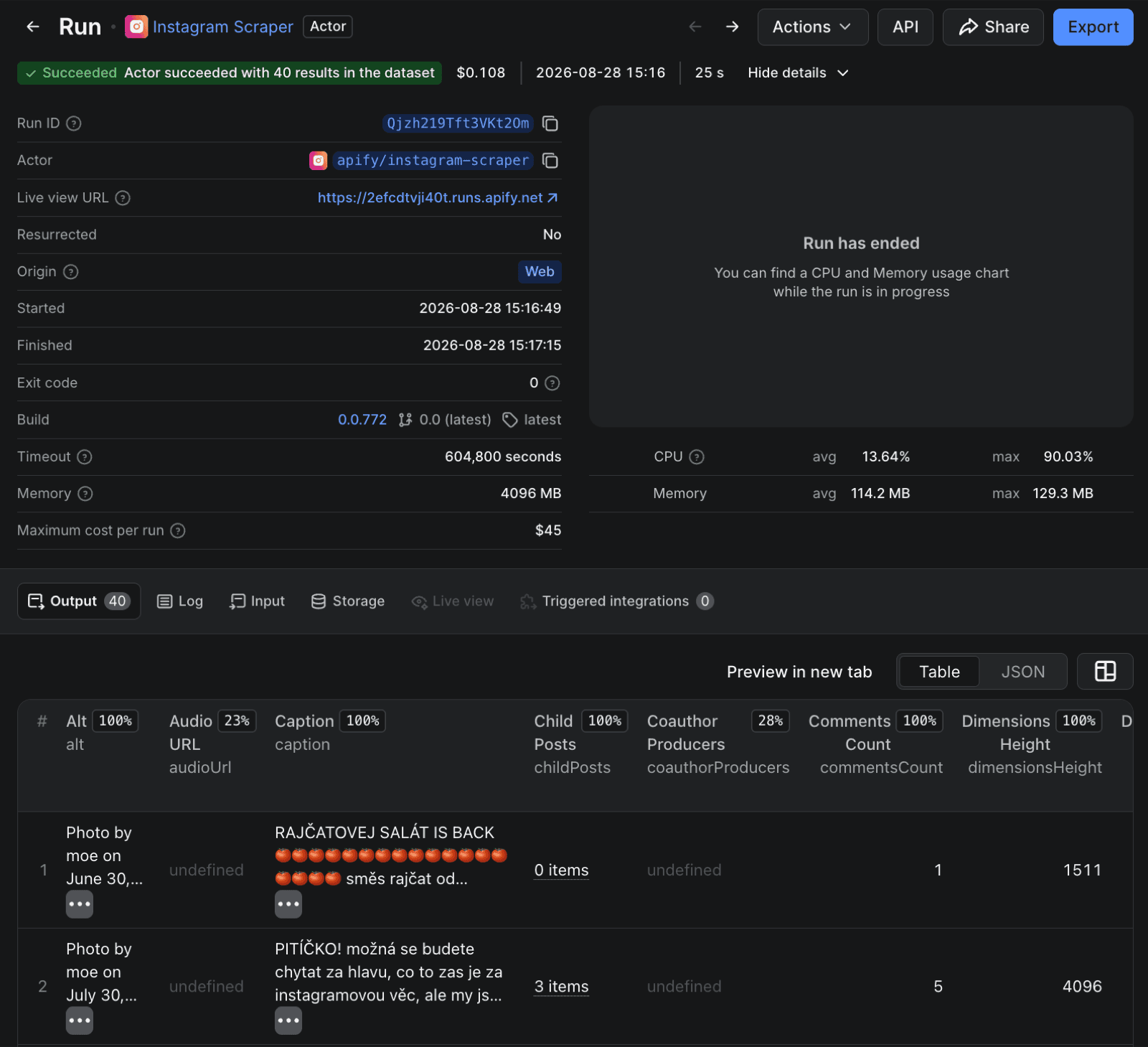
The run produces a dataset: one item per post, each carrying the post's image URLs alongside its caption, timestamp, and engagement counts.
A run this size costs very little. Instagram Scraper charges per result, so 20 posts from each of two profiles is 40 results, and that run came to around $0.11.
Step 2: fetch the actual files
Instagram Scraper has given you the image URLs. It has not given you the images. Those URLs point to Instagram's CDN, and something still has to visit each one and save the file.
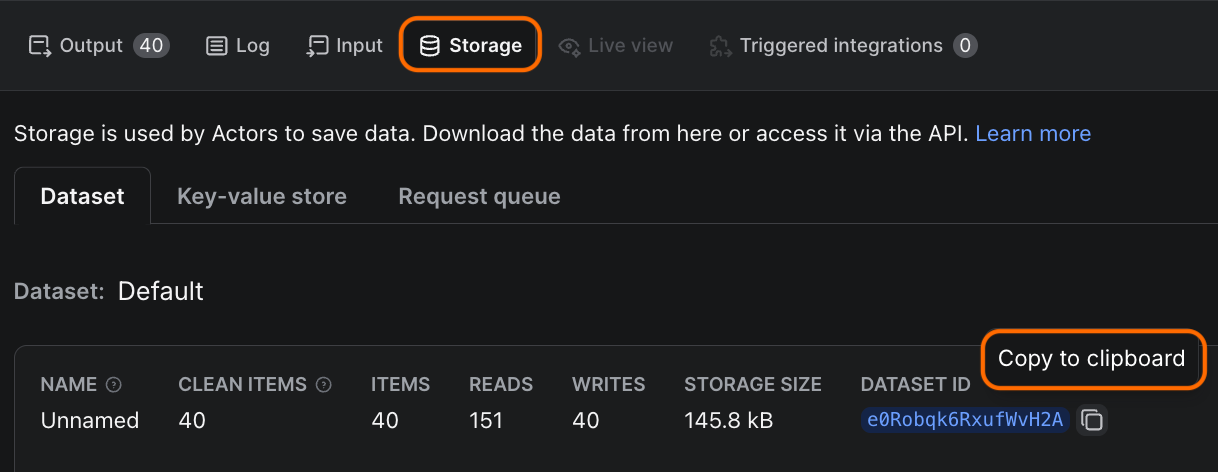
Start by grabbing the run's dataset ID. On the run page, open Storage, then the Dataset view, and copy the dataset ID to the clipboard.
Dataset Image Downloader & Uploader is the second half of the pipeline. Point it at a dataset, tell it which field holds the image URLs, and it visits each one, checks the file is a real image at the size you asked for, converts the format if you want, and writes the results to storage. It scrapes nothing itself. It takes a list of URLs and returns files.
Three fields in the scraper's output can hold those URLs:
displayUrlis the post's main image.imagesis an array, used when a post holds more than one.childPostsholds carousel slides, each with its owndisplayUrl.
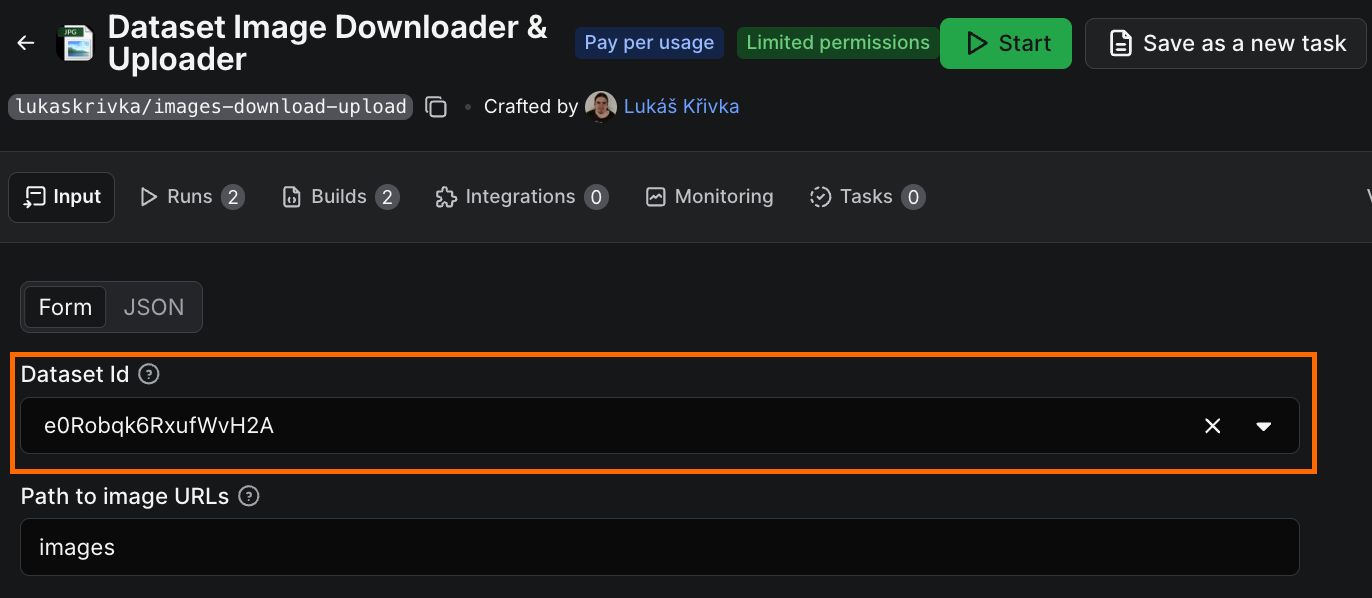
Open Dataset Image Downloader & Uploader and paste the dataset ID into Dataset Id. Then set five fields:
| Field | Set it to | What it does |
|---|---|---|
Path to image URLs (pathToImageUrls) |
images |
Tells the Actor where the URLs sit in the dataset. images covers every slide in a carousel. Use displayUrl for the main image only. |
Upload to (uploadTo) |
zip-file |
Gives you one archive to download. Switch to s3 when the volume outgrows a zip. |
Image check type (imageCheckType) |
image-size |
Turns on the size test, so the next field takes effect. |
Min width (imageCheckMinWidth) |
640 |
A quality floor. Thumbnails and broken files get dropped rather than cluttering the archive. |
Convert webp to png (convertWebpToPng) |
on | Handles Instagram's WebP delivery across the whole set. |
Everything else can stay on its defaults for a first run. Three groups become useful once you're doing this regularly:
- Tighter filtering. Image check type also offers
content-type, which only confirms that the server returned an image rather than an error page, andnoneto skip the check entirely. Alongside Min width sit Min size in KB, for filtering by file weight instead of pixels, and Min height for portrait sets. - Naming. Filename function decides what the files are called. Left alone, it names them after a hash of the URL, which is no help if you plan to browse the folder by eye.
- Throughput. Max concurrency (40) and Download timeout control how hard the Actor pushes. Proxy configuration is on by default, and it's the setting to reach for if Instagram's CDN starts throttling a burst of direct requests.
One field to leave alone. Output to (outputTo) decides where the run's metadata goes, which is a different question from where the files go. Upload to is the one that governs images.
Then run it. The files land in the run's key-value store, not its dataset. Open Storage, then Key-value store, and download the archive.
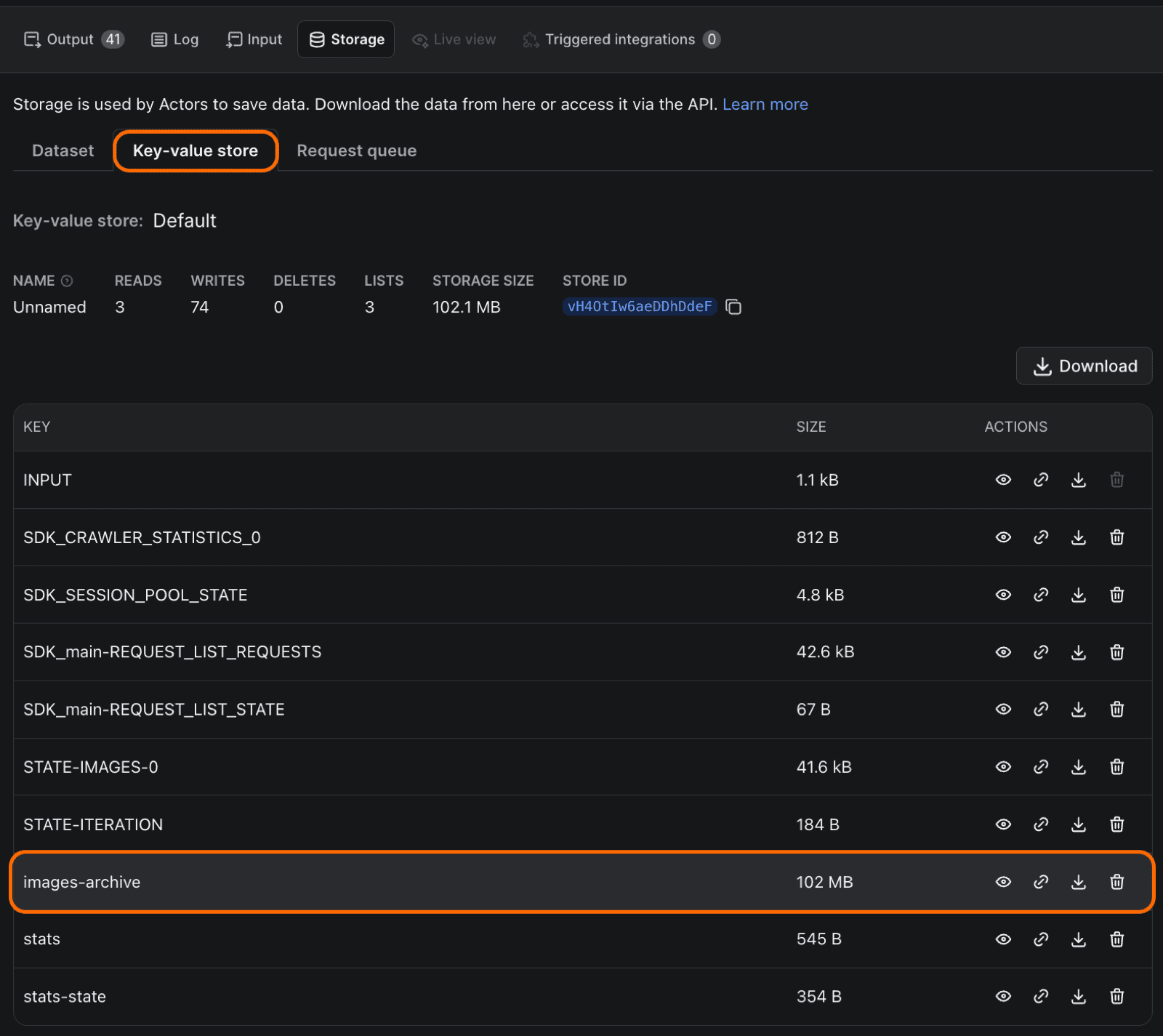
Unzip the archive, and the images are ready to use.

The dataset for this run will appear empty, and that's expected: Upload to is set to zip-file, which can't be combined with writing results to the dataset. The archive is the output.
What this costs
Instagram Scraper charges per result, at $2.70 per 1,000 on the free plan and less as your plan tier rises. Dataset Image Downloader & Uploader has no Actor fee of its own, so you pay for the platform usage it consumes. The two bill differently: a carousel is one result for the scrape, but one download per slide.
The run behind this walkthrough scraped two profiles at 20 posts each. That came to $0.11 to scrape and $0.10 to download, so about $0.21 for the images from 40 posts. The download step costs roughly what the scrape does, so budget from the pair rather than from the scraper's per-result rate alone.
Once it's working
- Chain the two Actors. An Actor-to-Actor integration passes the dataset across automatically, so you stop copying dataset IDs by hand.
- Put it on a schedule. For brand monitoring or a running competitor archive, a scheduled run keeps the set up to date without you having to touch it.
- Export the metadata. The scraper's dataset holds captions, engagement counts, and timestamps alongside the image URLs, and it exports to CSV, JSON, or Excel for whatever you report in.
This is the setup behind competitor creative audits, UGC and influencer campaign archives, hashtag campaign reporting, brand-monitoring image sets, and image datasets built for training, all from public content. If it's the post data you want rather than the images, how to scrape data from Instagram goes further into what the scraper returns.
The same two runs, via the API
If you'd rather drive this from code than from the forms, here are the two inputs. In the first, directUrls and resultsLimit are the only fields most people change. In the second, datasetId changes on every run.
{
  "directUrls": ["https://www.instagram.com/humansofny/"],
  "resultsType": "posts",
  "resultsLimit": 200
}
{
  "datasetId": "YOUR_DATASET_ID",
  "pathToImageUrls": "images",
  "uploadTo": "zip-file",
  "imageCheckType": "image-size",
  "imageCheckMinWidth": 640,
  "convertWebpToPng": true
}
How to choose which images to download, before you download them
Take the first of those use cases, the competitor creative audit. The setup above downloads everything you point it at, so four rival profiles at 200 posts each is 800 images, and you probably need 40 of them. The other 760 cost you credits and then sit in a folder.
Choosing first means reading captions and engagement numbers and making a judgment, which is exactly the kind of work a Console form can't do. An LLM can. Connect Apify to Claude, and the judgment happens before you spend anything.
Step 1: connect Apify to Claude
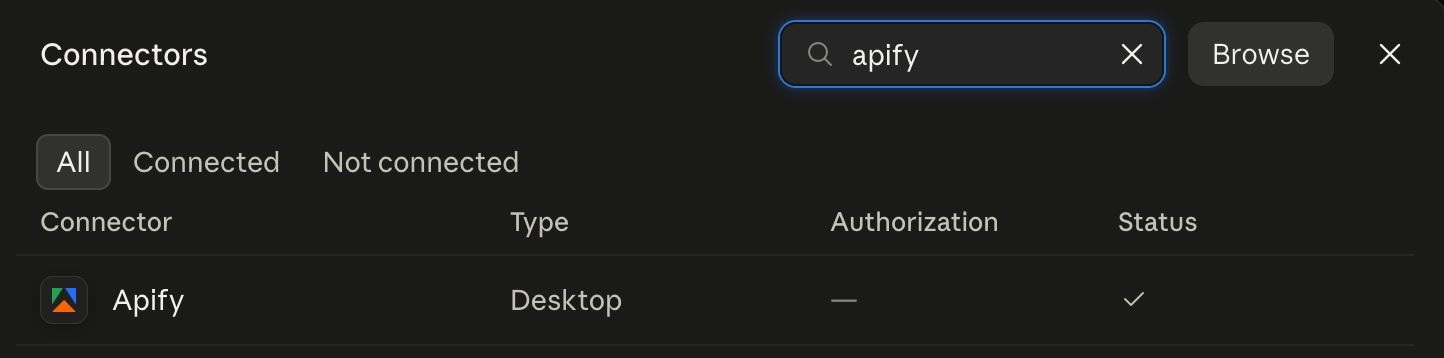
Search for Apify in Claude Desktop's Connectors directory and install it. Sign-in happens in your browser on first use; there's no API token to paste and no configuration file to edit.
Step 2: ask for the shortlist
Then describe the job:
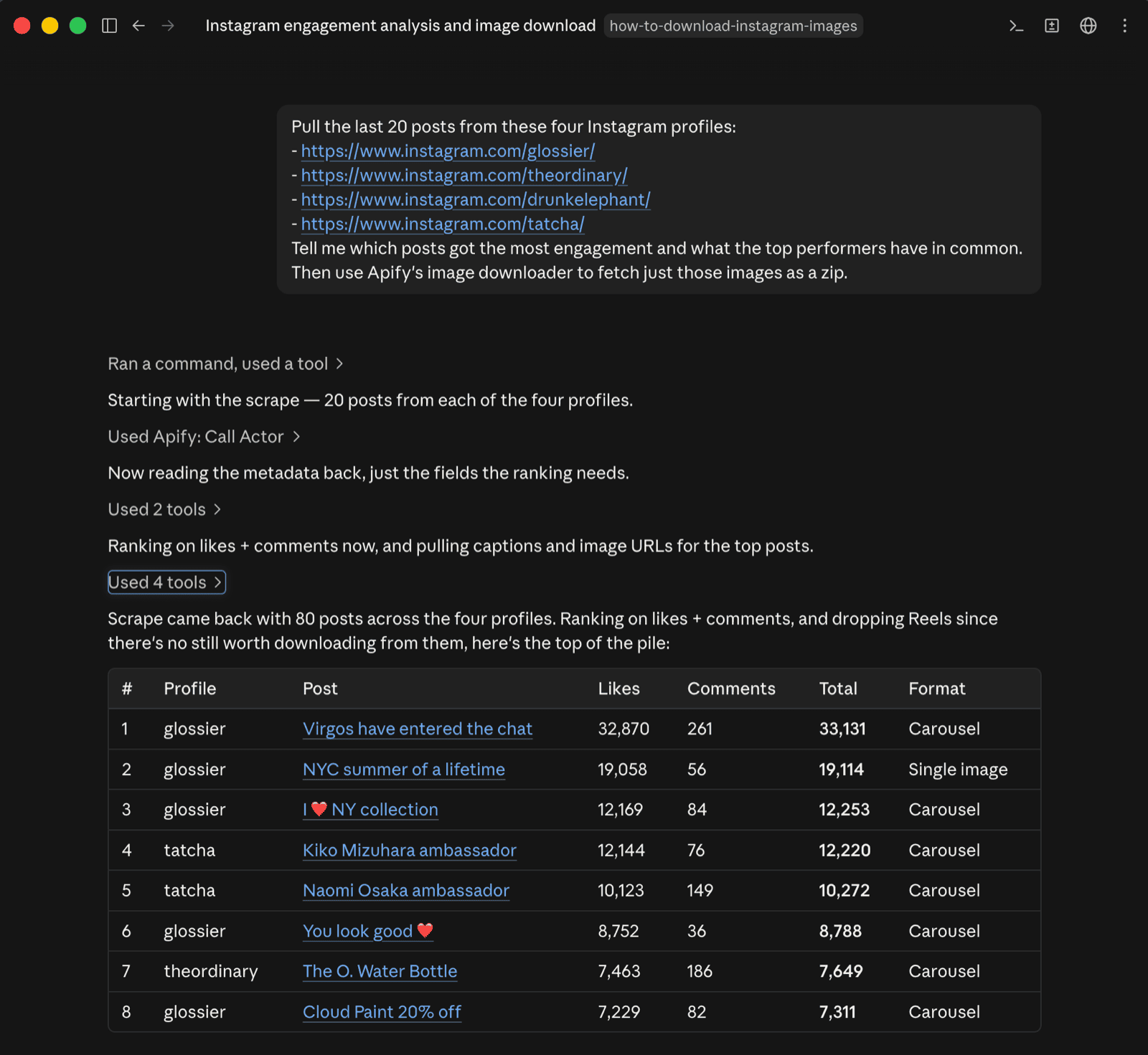
Pull the last 20 posts from these four Instagram profiles:
- <https://www.instagram.com/glossier/>
- <https://www.instagram.com/theordinary/>
- <https://www.instagram.com/drunkelephant/>
- <https://www.instagram.com/tatcha/>
Tell me which posts got the most engagement and what the top performers have in common. Then use Apify's image downloader to fetch just those images as a zip.
Claude calls Instagram Scraper with those four URLs and reads the dataset back. It works from the metadata the scraper already returns: likesCount, commentsCount, caption, hashtags, and timestamp, each sitting alongside a displayUrl.
This example pulls 20 posts per profile rather than 200, to keep the output readable.
Step 3: read what comes back
The scrape finishes, and before a single file is downloaded, Claude reports on what it found:
What the top eight share:

Carousels, not single posts. Seven of the eight are multi-image carousels. That's the strongest signal in the set — the one single image in the top eight is Glossier's NYC shot at number two.

No hashtags at all. Every one of these eight has an empty hashtag list. In the whole 80-post pull, the only hashtagged post is a creator's paid repost. These brands have stopped using them entirely.

Short captions at the very top, long ones only when there's news. The number one post is five words. Number six is three. The two long captions that perform — Tatcha's Kiko and Naomi Osaka posts — are ambassador announcements, where the news is doing the work, not the copy. Glossier's 20%-off post is the only discount in the top eight, and it sits last.

A named person in the frame. Half of them either feature or credit someone by name. Product appears worn, held or in a city, not shot flat on a backdrop. The Ordinary's water bottle is the exception, and it wins on deadpan tone rather than styling.

All posted to a US clock, between 14:00 and 23:00 UTC — late morning to early evening Eastern. Not one of the 80 posts is timed for a European or Asian audience.
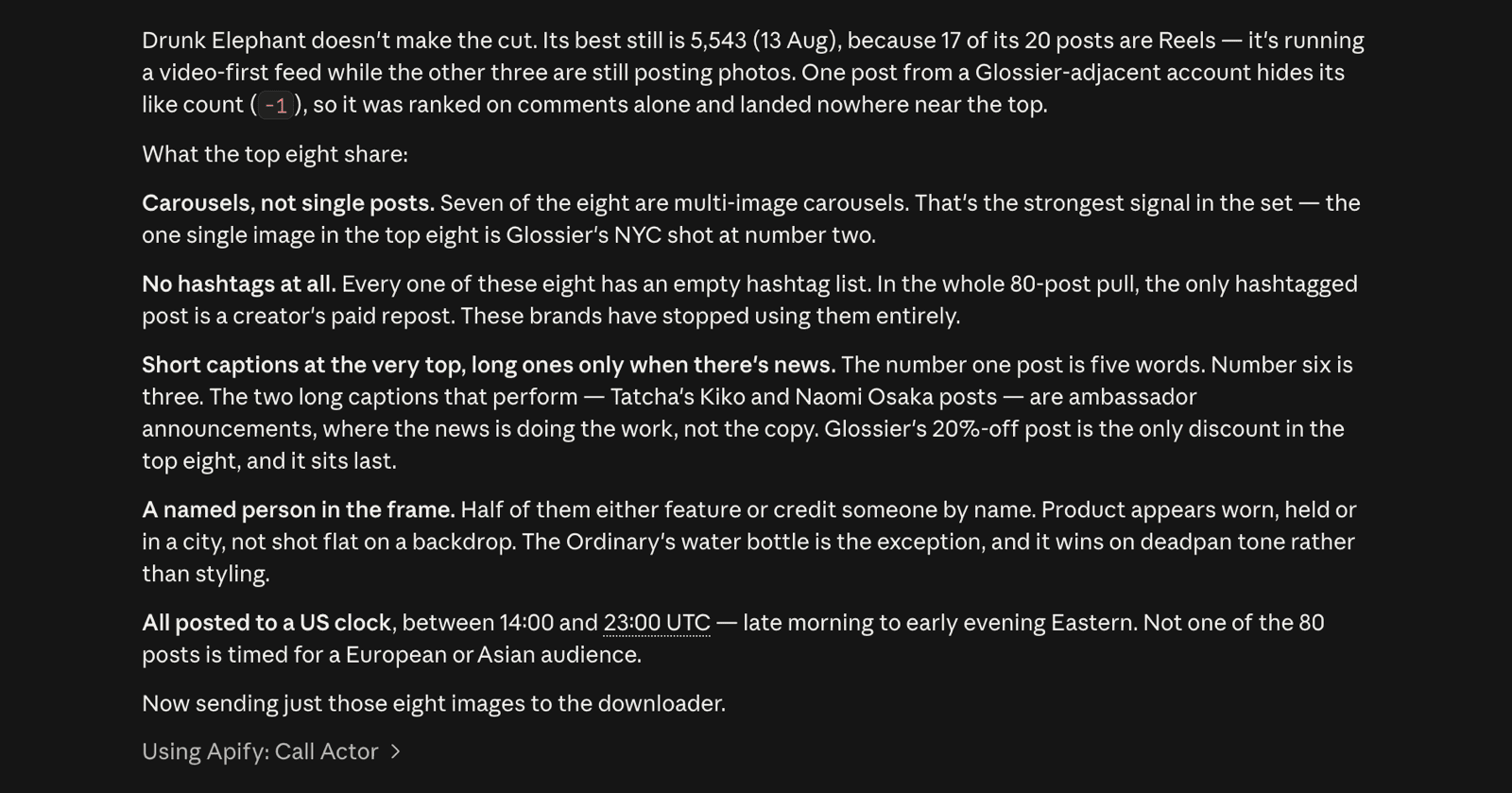
One clarification, since the analysis comments on how the product appears in the frame: that's read from the captions, not from the images. Claude never sees the photographs.
Step 4: download only the shortlist
This is the step that spends money, and it happens last. Claude calls Dataset Image Downloader & Uploader, the same Actor you configured by hand above, but hands it the shortlisted posts directly instead of a dataset ID. Only the images that made the cut are downloaded.
You pay for 40 images instead of 800, and you get the rationale for the shortlist along with the files.
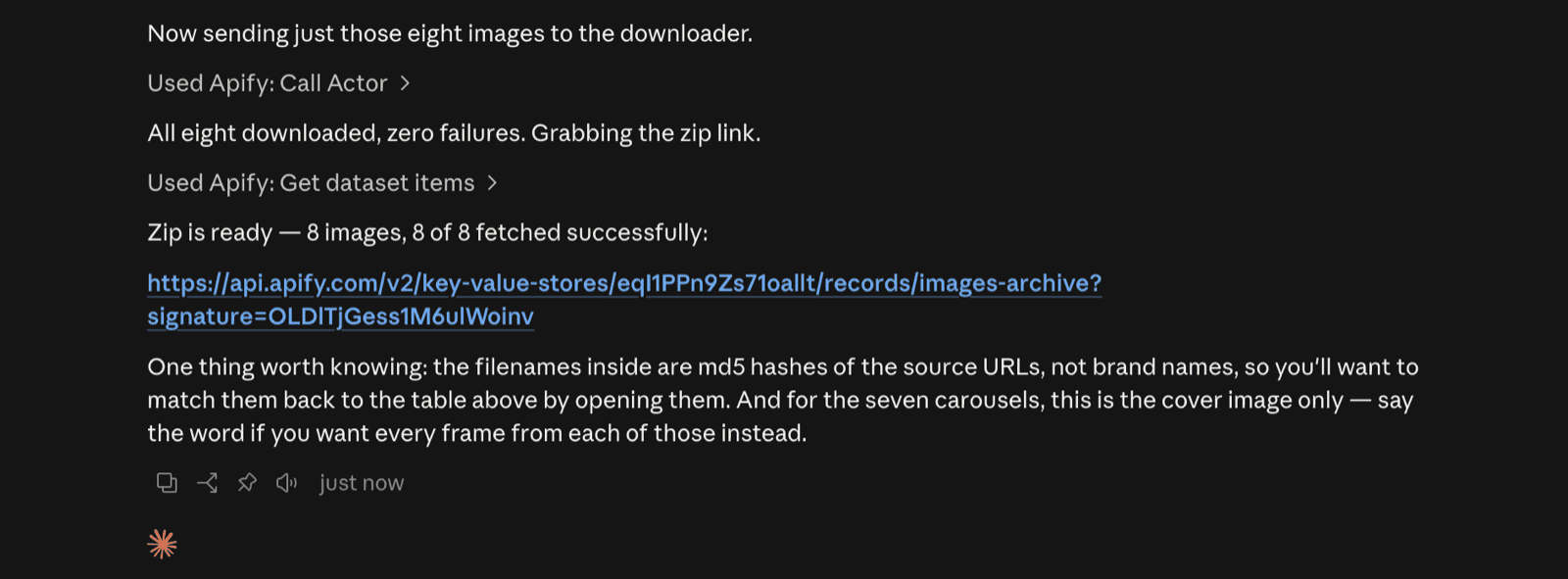
If you use an MCP client, this can replace the previously covered Console walkthrough. Without one, the Console route still gets the files, but you pay for the whole set and sort it afterward rather than choosing first.
How to get the highest-quality version of an Instagram image
Instagram stores a larger original than it serves. The crop instruction inside a delivery URL routinely points at a source image over 2,000px wide, while the URL itself is set to hand you 640px. That gap is closed deliberately: the URL is signed, so you can't ask for the bigger version by editing it. Change the size, trim the crop, or delete the parameter altogether, and the CDN answers with a 403.
So the "HD Instagram downloader" category can't deliver on its advertising. No third-party tool holds a signed URL that you don't. Anything promising a higher-resolution file than Instagram serves is either handing you the file you'd have gotten anyway or upscaling it.
Within that limit, the method decides what you keep:
- The inspector gets you the largest size Instagram is willing to serve. This is the best available.
- Right-clicking the post gets the version scaled for your screen, which is usually smaller.
- A screenshot gets your screen's resolution, re-compressed. Worst of the three.
In bulk, you set a floor instead of checking each file. imageCheckMinWidth refuses anything below a width you choose, so a 5,000-image archive doesn't fill up with thumbnails. And because the scraper returns originalWidth and originalHeight for every post, you can check what you actually got rather than assuming.
Is it legal to download Instagram images?
Downloading a public image is rarely the problem. What you then do with it is where the risk sits.
Having a file isn't the same as having a license to publish it. Saving images for reference, research, or analysis sits differently from putting someone's photograph in your own campaign. Reuse requires permission or a license from the image's owner, and the fact that it was downloadable has no bearing on that. Instagram's Terms of Service apply too, and automated collection sits in a gray area you should assess against your own use case rather than assume is settled either way.
Also in scope:
- Privacy law applies to images of people. If you're building a dataset that contains identifiable faces, GDPR and similar regimes are in scope regardless of whether the images were public.
- Private accounts are off limits. Both Actors in this post work on public content only.
Treat third-party downloader sites carefully. Heavy ad loads and malware are common, and any site asking you to log in with your Instagram credentials should be closed immediately. No downloader needs your password to fetch a public image.
Which method should you use?
For one image, use your browser's inspector and skip the downloader sites entirely. For your own back catalog, use Instagram's data export. For anything at volume, from a competitor's profile to a hashtag campaign, collect the posts with a scraper and fetch the files with an image downloader.

FAQ
Can you download Instagram photos?
Yes, though not with a button inside Instagram. You can pull the image file out of the page's HTML with your browser's inspector, use Instagram's data export for your own account, or use a scraper for anything at volume.
Can you download images from Instagram without an app?
Yes. The inspector method works in any desktop browser with no extension or software installed, and it gets you a better-quality file than most downloader sites return.
How do I download all the images from an Instagram profile?
Use Instagram Scraper to collect the posts, then Dataset Image Downloader & Uploader to fetch the files. It works on any public profile and returns a zip archive. Instagram's own export only covers accounts you control.
How do I download an entire Instagram carousel?
Each slide is a separate image, so a downloader pointed at the post URL usually returns only the first one. Manually, repeat the inspector method for each slide. At scale, Instagram Scraper returns every slide in a childPosts array.
Does Instagram notify someone when you save their photo?
No. Saving a post to a collection, screenshotting a feed post, or downloading an image sends no notification to the author.
Can you download photos from a private Instagram account?
No. Private posts are visible only to approved followers, and the Actors in this post work on public content only. Any tool claiming otherwise isn't one to hand your credentials to.
What's the best way to download Instagram images in bulk?
Two steps: collect the image URLs with a scraper, then fetch the files with an image downloader. Trying to do it with a single-URL downloader means one post at a time, which stops being practical somewhere around the twentieth image.