Instagram is packed with location signals, such as place tags, profile metadata, and advertiser transparency. Still, extracting them at scale reliably, without putting a complex scraping system in place, isn’t simple at all. This guide cuts straight to the solution.
You’ll explore all Apify‑maintained options for Instagram location scraping and learn how to turn them into an automated, scheduled workflow with Google Drive data delivery.
Automating Instagram location data retrieval
Apify supports Instagram location scraping thanks to several dedicated Actors for it. If you’re not familiar with the terminology, an Apify “Actor” is a serverless cloud program designed to run automated tasks, such as web scraping, browser automation, or AI integrations.
In particular, the four most popular Actors for scraping Instagram location data are:
| Actor | Best starting point | How you target locations | Typical use cases |
|---|---|---|---|
| Instagram Search Scraper | Keywords | Search terms (place, user, hashtag) |
Market research, local lead gen, competitor discovery, venue analysis |
| Instagram Profile Scraper | Known profiles | Instagram usernames / IDs | Influencer vetting, creator discovery, city‑based profile databases |
| Facebook (Meta) Ads Library Scraper | Advertisers & brands | Meta Ads Library or Facebook Page URLs | Ad intelligence, geo‑based campaign analysis, brand verification |
| Instagram Scraper | Known URLs | Direct Instagram URLs (places, posts, profiles) or search | Location enrichment, tourism analysis, trend tracking, activity monitoring |
Once you have Instagram location data, you can use it to turn public places and geo‑tag signals into information you can act on. Such data exposes coordinates, place IDs, names, addresses, and even associated posts.
Instagram location data allows you to track foot traffic trends, local popularity, and content density. Specific use cases include market research, competitor benchmarking, store expansion planning, identifying high‑engagement areas, and many others.
Here’s how this tutorial is structured:
- First, you’ll go through the prerequisite setup steps to create an Apify account and get started. These instructions are the same no matter which Instagram location scraping Actor you end up choosing.
- Next, you’ll see how to perform Instagram location data scraping using one of the four selected Apify Actors.
- Finally, you’ll learn how to complete the full workflow by taking one Actor as an example (but the same logic applies to the others) and build an automated, scheduled pipeline that delivers scraped Instagram location data in XLSX format to Google Drive.
Let’s begin.
Common initial steps
In this section, you’ll be guided through setting up an Apify account and accessing Apify Store. There, you can find 10,000+ Actors, including the ones we mentioned earlier for Instagram location scraping.
Prerequisites
To follow this tutorial, make sure you have:
- An Apify account.
- A basic understanding of how Apify integrations work.
- A Google account to send Instagram location data to Google Drive.
Select the Actor from Apify Store
To build your workflow to scrape Instagram location data, you first need to log in to your Apify account. From Apify Console, select the “Apify Store” option from the left-hand navigation menu:
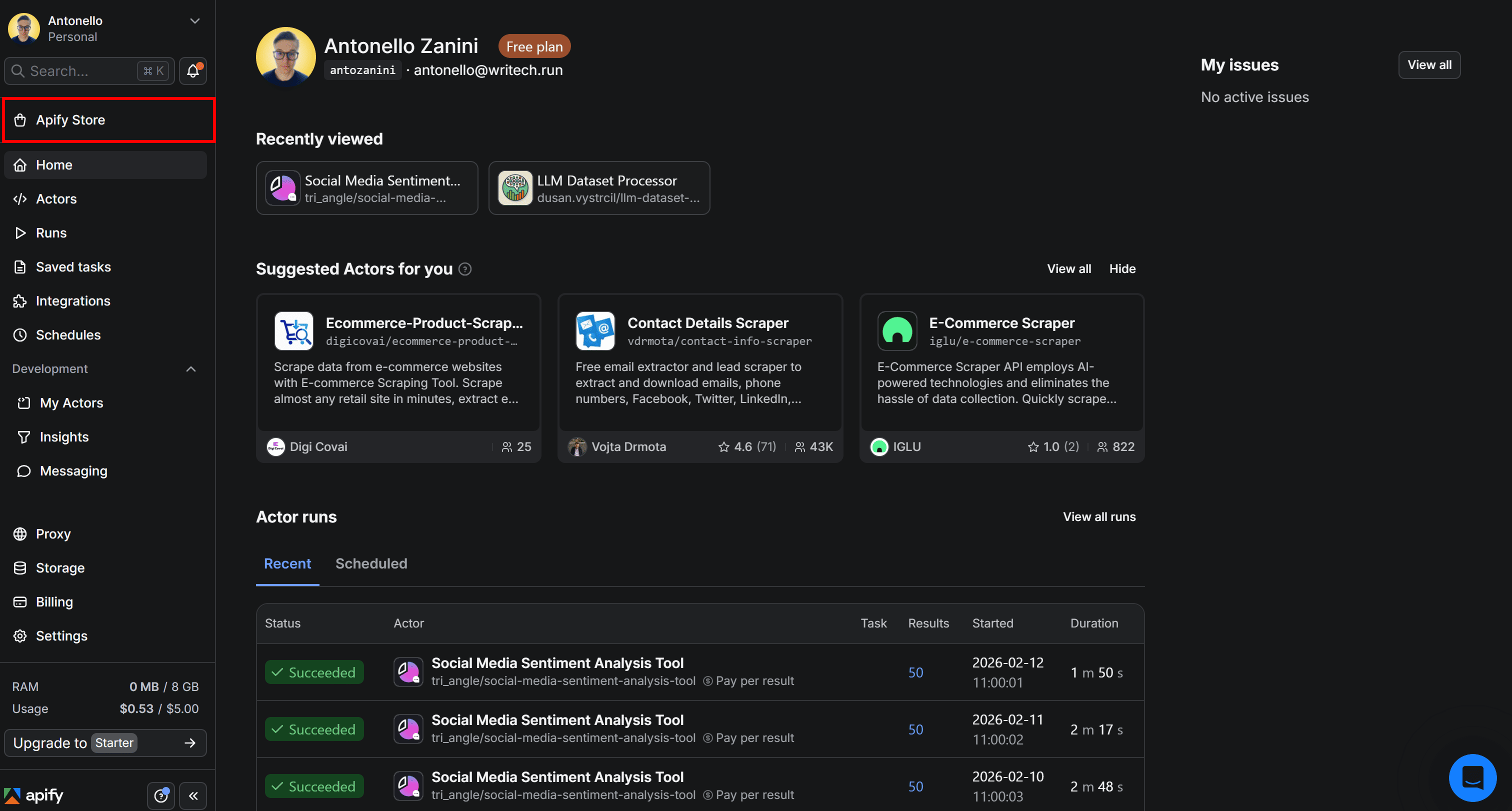
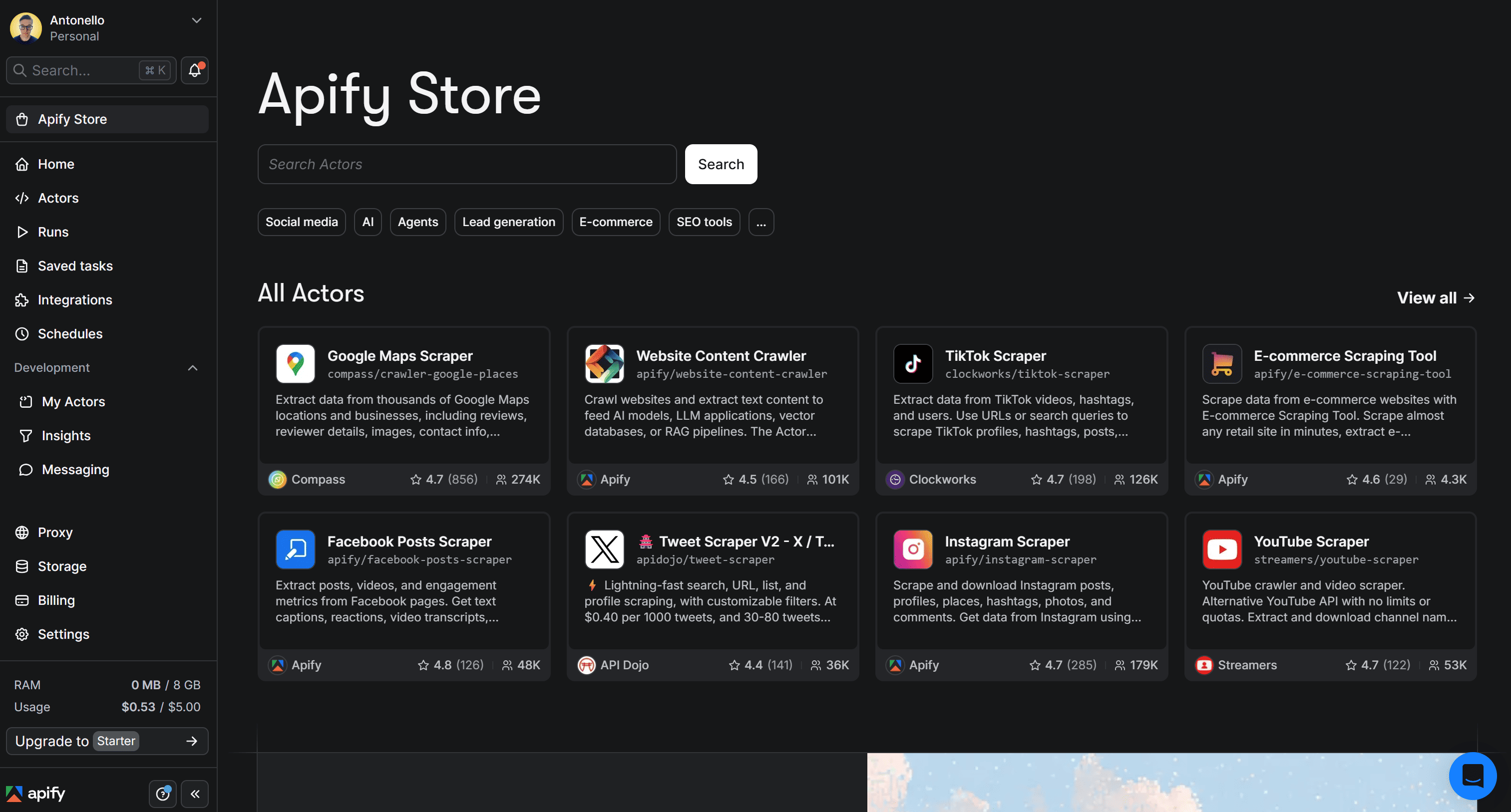
This will redirect you to Apify Store, where all available Actors are listed:
Here, search for the Actor you want to use and select it:
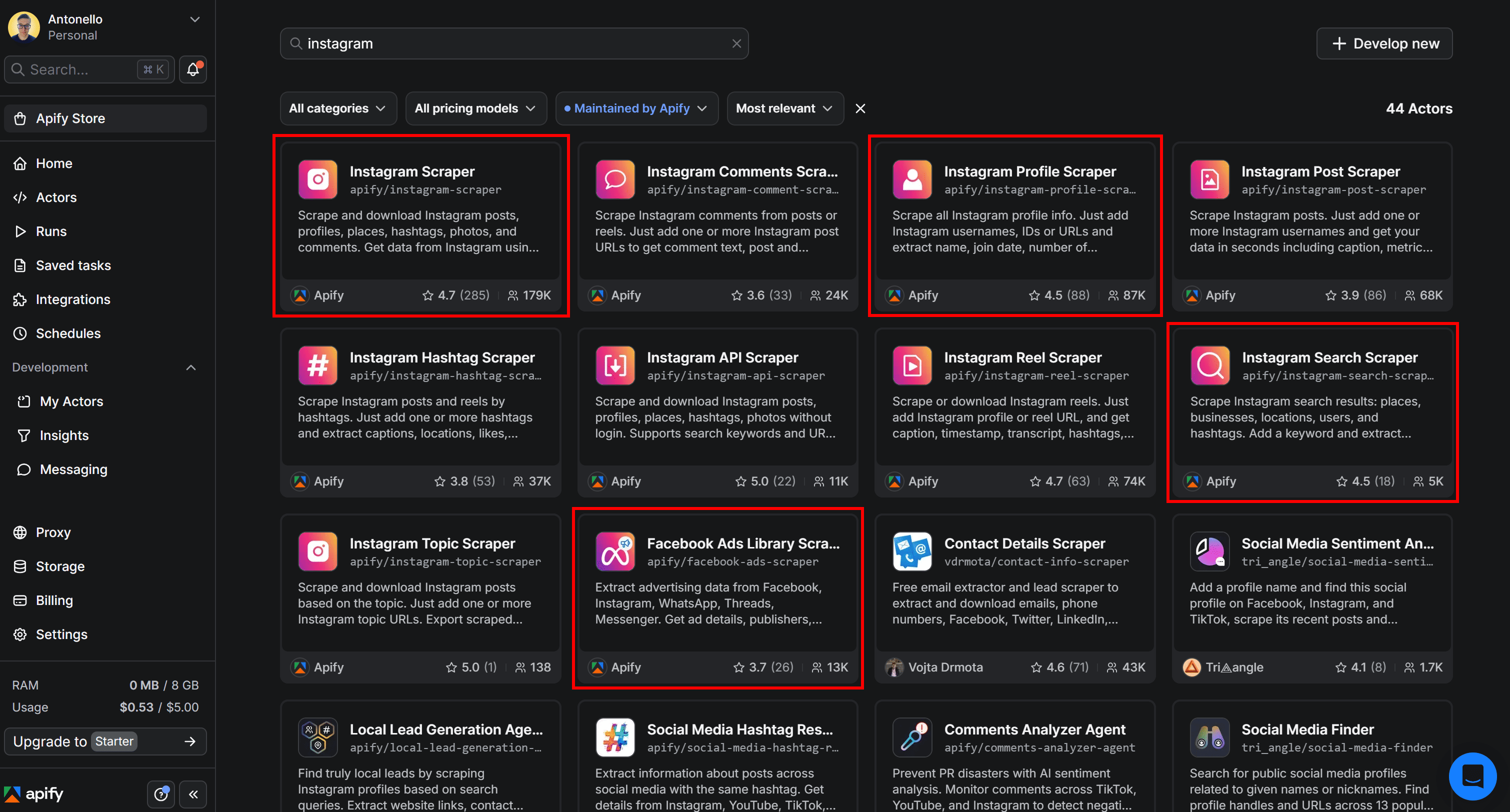
After clicking on the card for the selected Actor, you’ll reach the Actor page. In the next steps, we’ll assume you’re already on the Actor’s page in Apify Console.
❗️Important: Keep in mind that all the selected Actors rely on one of the following pricing models:
- Pay per result: You’re charged a fixed fee based on the number of dataset items the Actor outputs.
- Pay per event: You pay for specific events defined by the Actor’s creator, such as generating a single result, uploading a file, or starting an Actor.
Regardless of the pricing model, the cost per result/event is deducted from your Apify account balance. Since Apify’s free plan includes $5 in monthly credits, you can test all four Actors completely free — as long as you stay within that limit.
Now, for each Instagram location retrieval Actor, you’ll see:
- A brief introduction describing what the Actor does and its supported use cases.
- Supported inputs, with examples.
- The generated output, along with a clear description.
Instagram Search Scraper
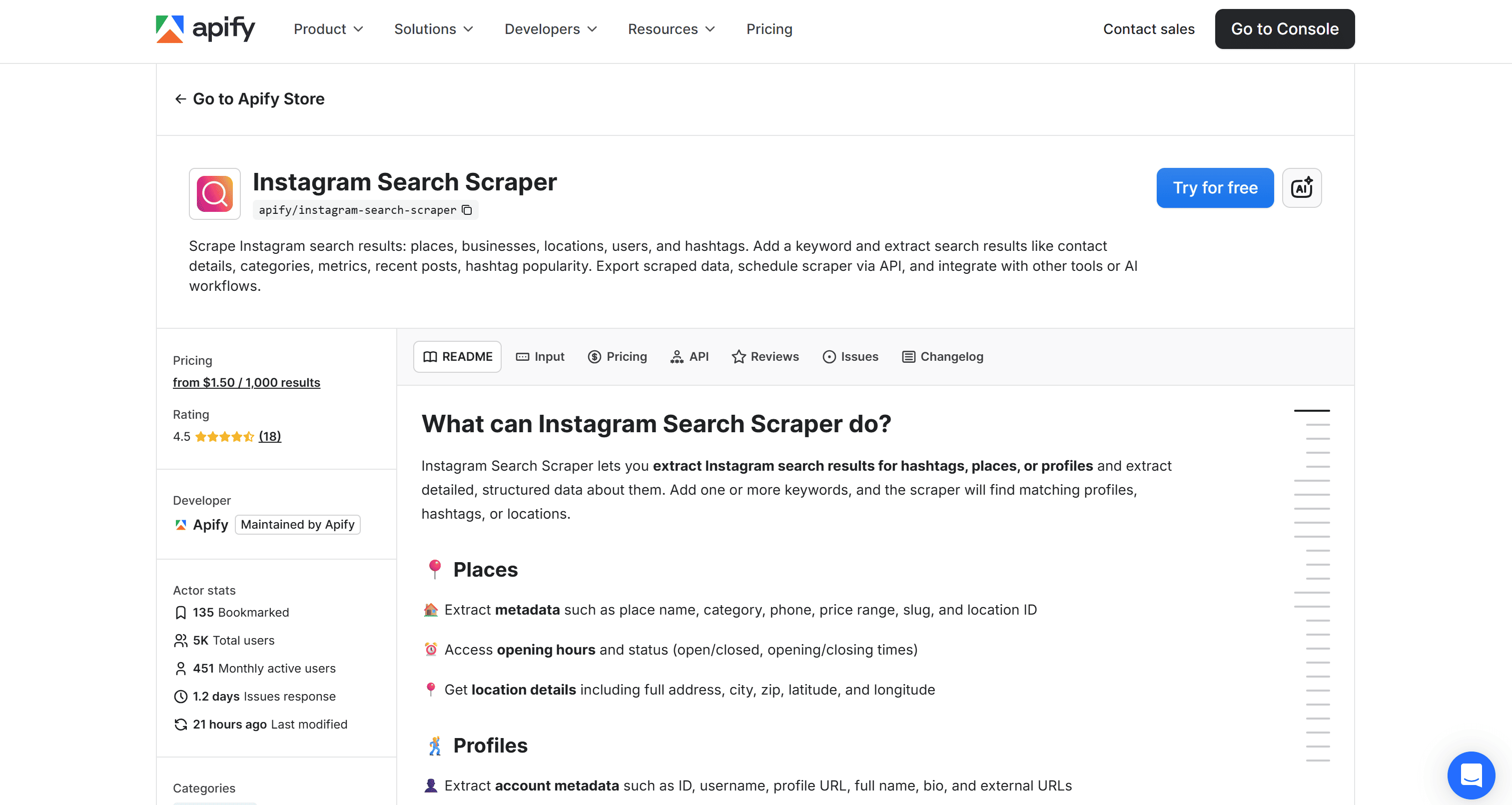
Instagram Search Scraper extracts Instagram search results for places, businesses, and hashtags based on one or more target keywords.
In particular, the supported use cases for Instagram location scraping include:
- Market research: Find tagged places or small businesses with an active Instagram presence in specific cities or neighborhoods.
- Local lead generation: Identify businesses by category, address, and contact details from location-based search results.
- Venue engagement analysis: Analyze recent posts and activity around venues or specific spots.
- Competitive analysis: Discover nearby competitors using the same location tags.
- Geo-based monitoring: Track opening hours, availability status, and changes for locations over time.
Input
The inputs accepted by the Actor are:
| Input name | Description | Type | Required | Notes |
|---|---|---|---|---|
| Search term | Keyword(s) to extract Instagram search results. | string |
Yes | To scrape multiple keywords at once, provide them as a comma-separated list. |
| Search type | Type of Instagram pages to search for. | string |
No | Possible values: place, user, hashtag. |
| Maximum results per search term | Max number of results to scrape per search term. | integer |
No | Min: 1, max: 250. |
| Enhance user search with Facebook & email info | For top 10 users, extract their Facebook page (may contain business email). | boolean |
No | Default value: false. |
For example, you can configure this directly on the Actor page in Apify Console to search for the top 10 places matching the “pizzeria new york” keyword:
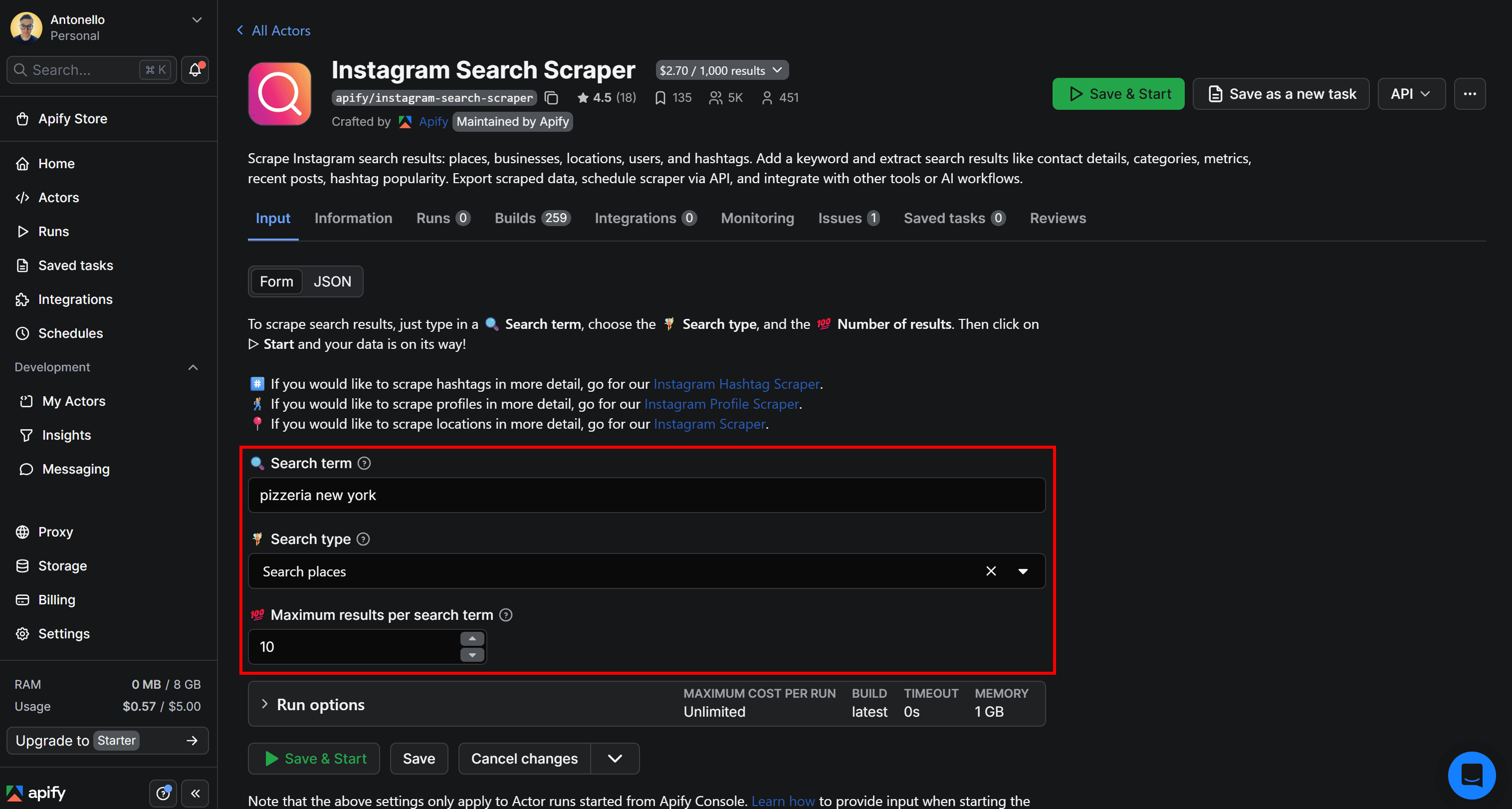
Pressing the “Save & Start” button in the top-right corner to launch the Actor. This is what you’ll see next:
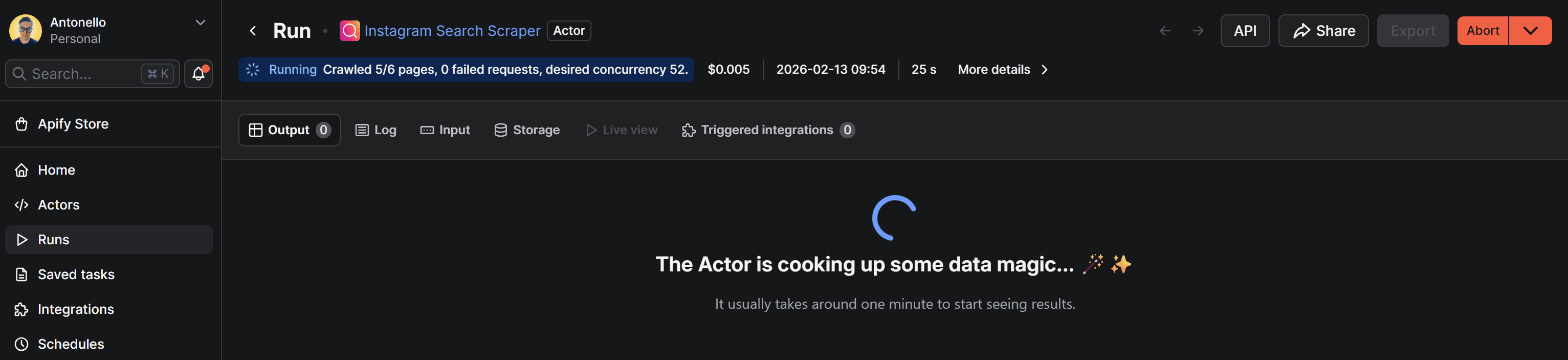
The scraping process may take a few seconds, so please be patient.
Output
The output will be displayed directly in Apify Console in a tabular format, as shown below:
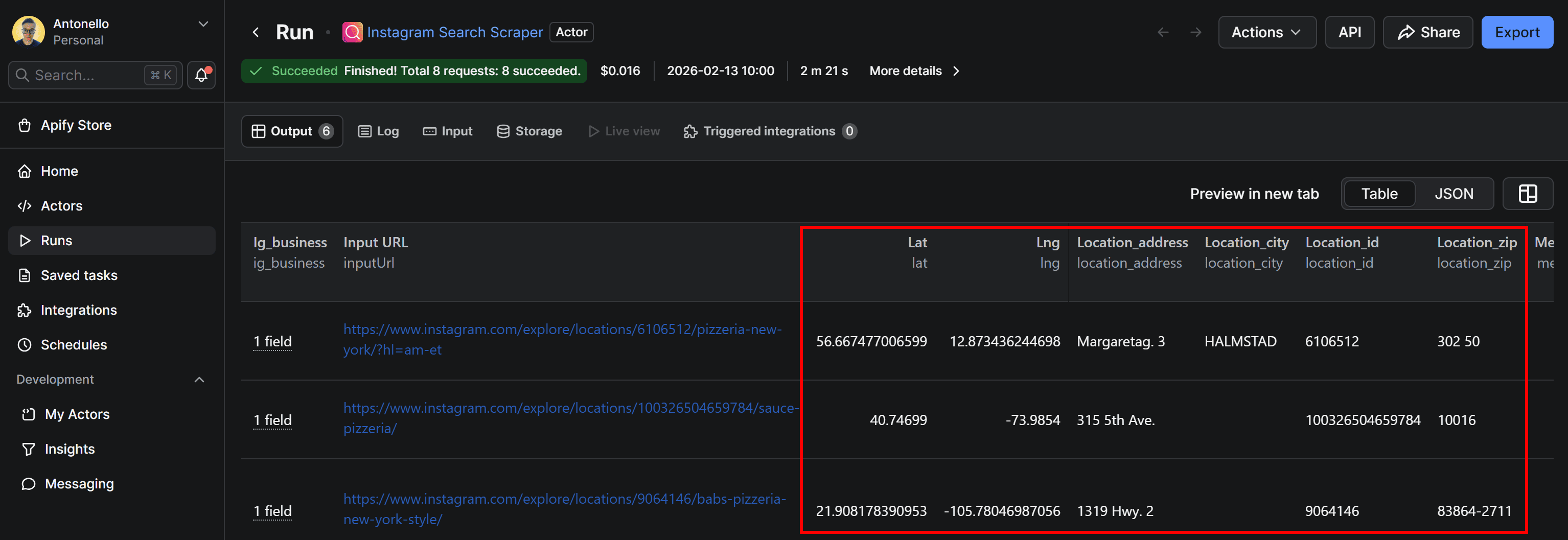
The results include useful details such as opening hours, Instagram URLs, and rich location metadata. But, more importantly, they list location information like latitude (lat), longitude (lng), Instagram location ID (location_id), address (location_address), city (location_city), and ZIP code (location_zip).
In short, you get a complete list of places tagged on Instagram that match your search keyword.
Instagram Profile Scraper
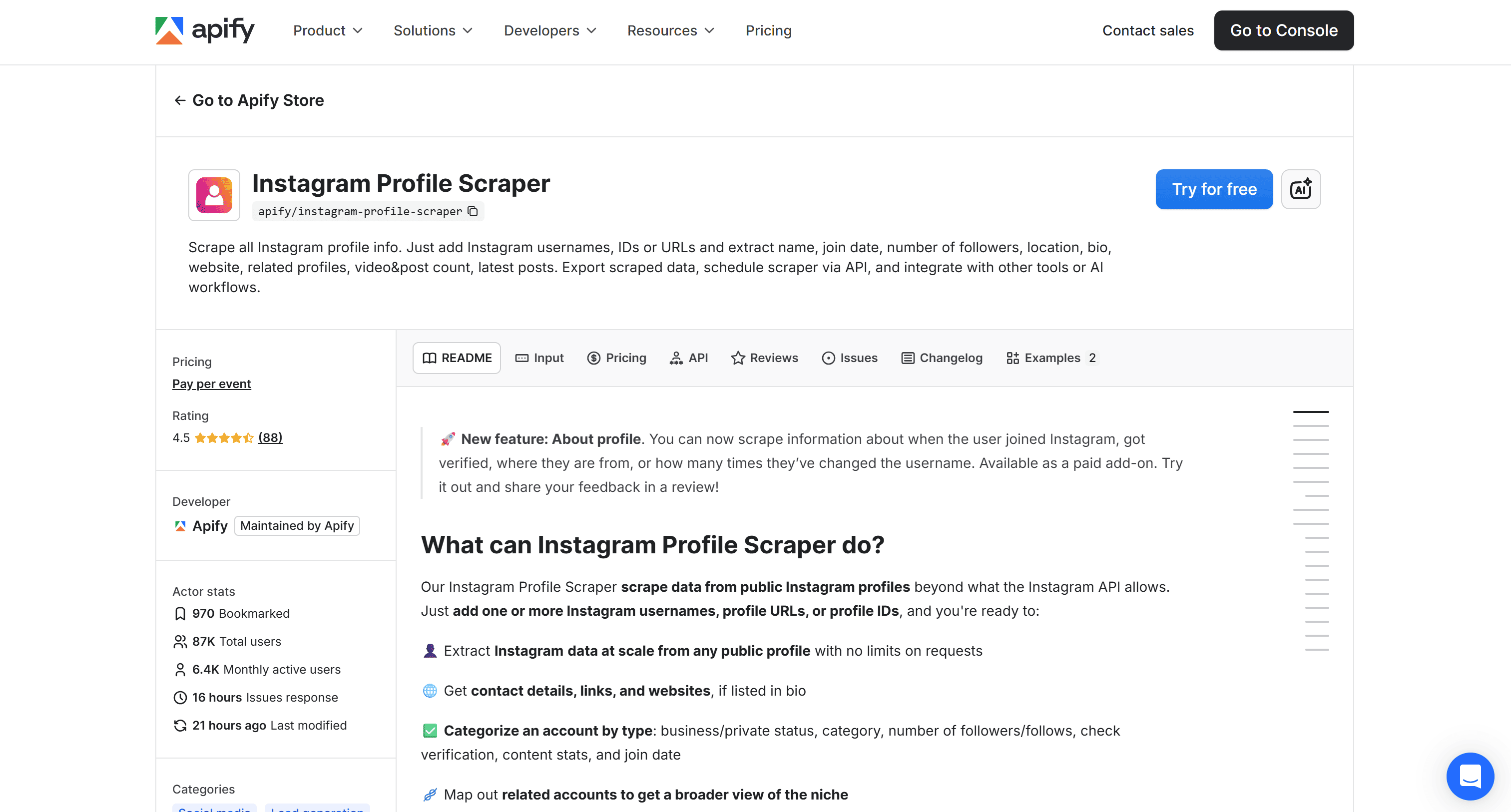
Instagram Profile Scraper retrieves detailed data from public Instagram profiles at scale, including location (when available), bio details, follower metrics, business info, and recent posts.
The covered scenarios for Instagram profile location scraping include:
- Influencer vetting: Validate known influencers by checking their stated locations to assess relevance.
- Local market research: Analyze known Instagram profiles linked to a specific city or area to understand activity, positioning, and trends.
- Creator discovery: After scraping a large number of profiles, filter them by target cities or regions to build a high‑quality, location‑specific database.
Input
The inputs you can configure on the Actor are:
| Input name | Description | Type | Required | Notes |
|---|---|---|---|---|
| Instagram username(s) | Instagram usernames or profile IDs to scrape profile data from. | array |
Yes | Multiple usernames and user ID can be provided at once. |
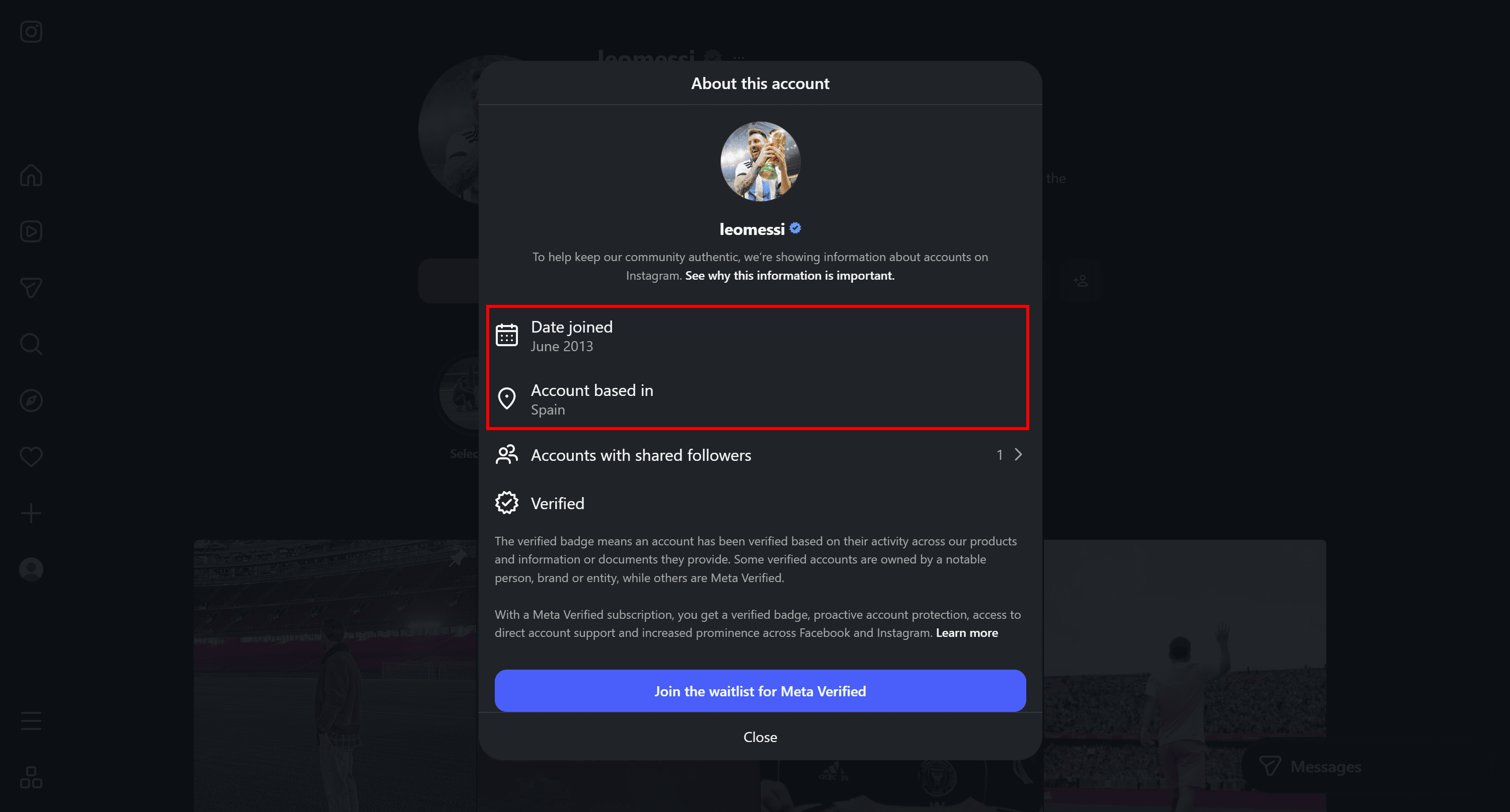
| Extract "About" account information | Extract additional account metadata such as join date and country of origin (if available). | boolean |
No | This feature is for paying users only. Default value: false. |
Now, assume you’re interested in discovering the location information for these Instagram profiles:
- nasa: NASA’s official Instagram account.
- natgeo: National Geographic’s official Instagram account.
- leomessi: Lionel Messi’s official Instagram account.
❗️Important: To retrieve location information, you must enable the “Extract about account information” option. This feature requires a paid Apify account. While you can still try the Actor for free, retrieving location data from Instagram profiles requires a premium plan.
Configure the Actor on its page in Apify Console as follows:
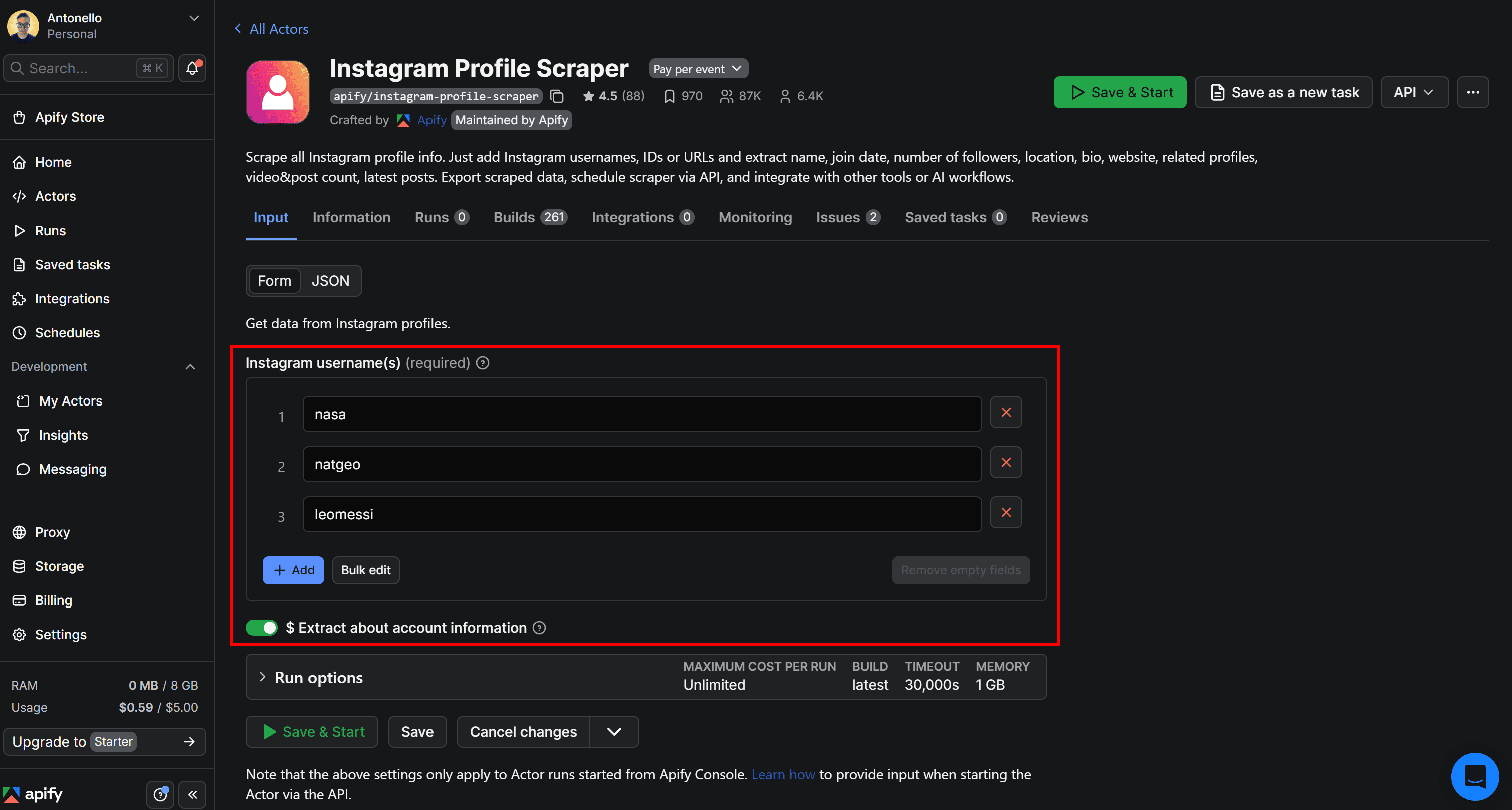
Launch the Actor and wait for it to scrape the three specified Instagram profiles, including their location information (if specified).
Output
The output should be:
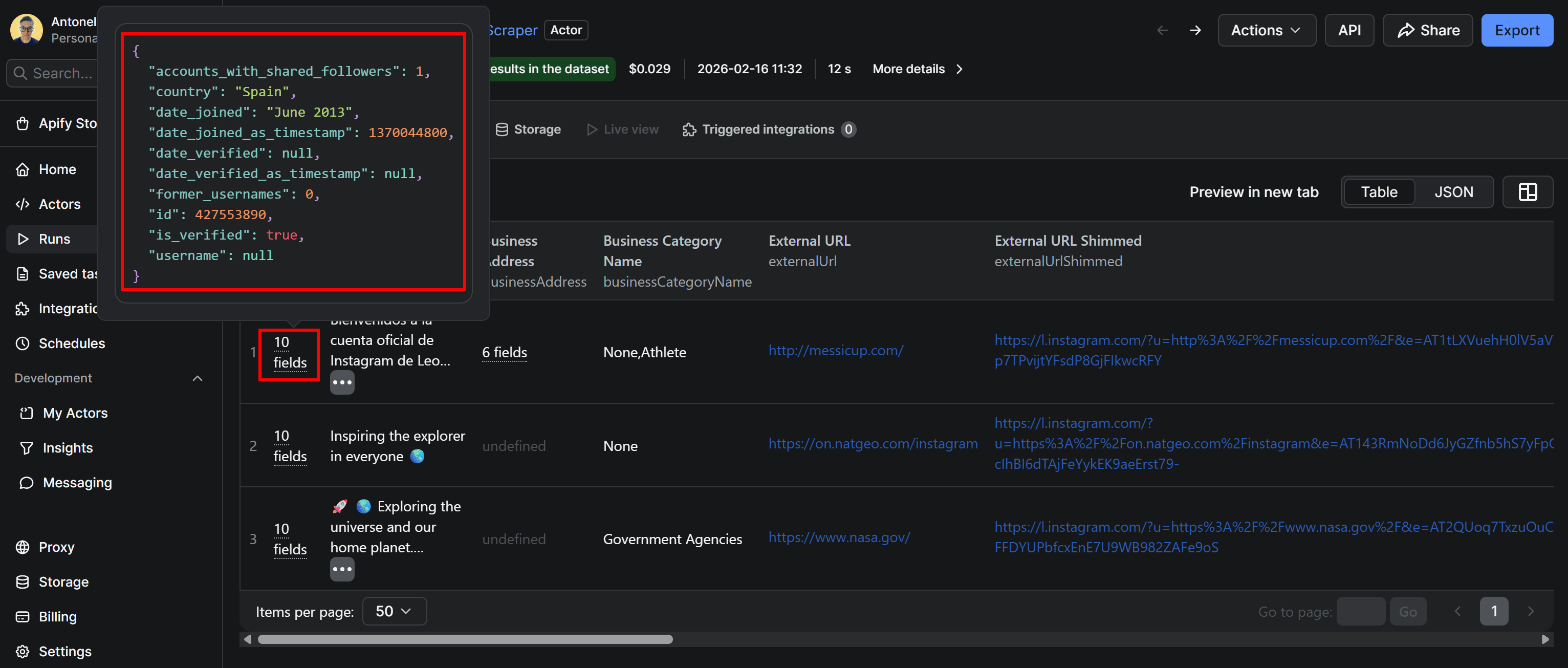
The “About” field in the output contains information extracted from the “About this account” section of Instagram profiles:
Facebook (Meta) Ads Library Scraper
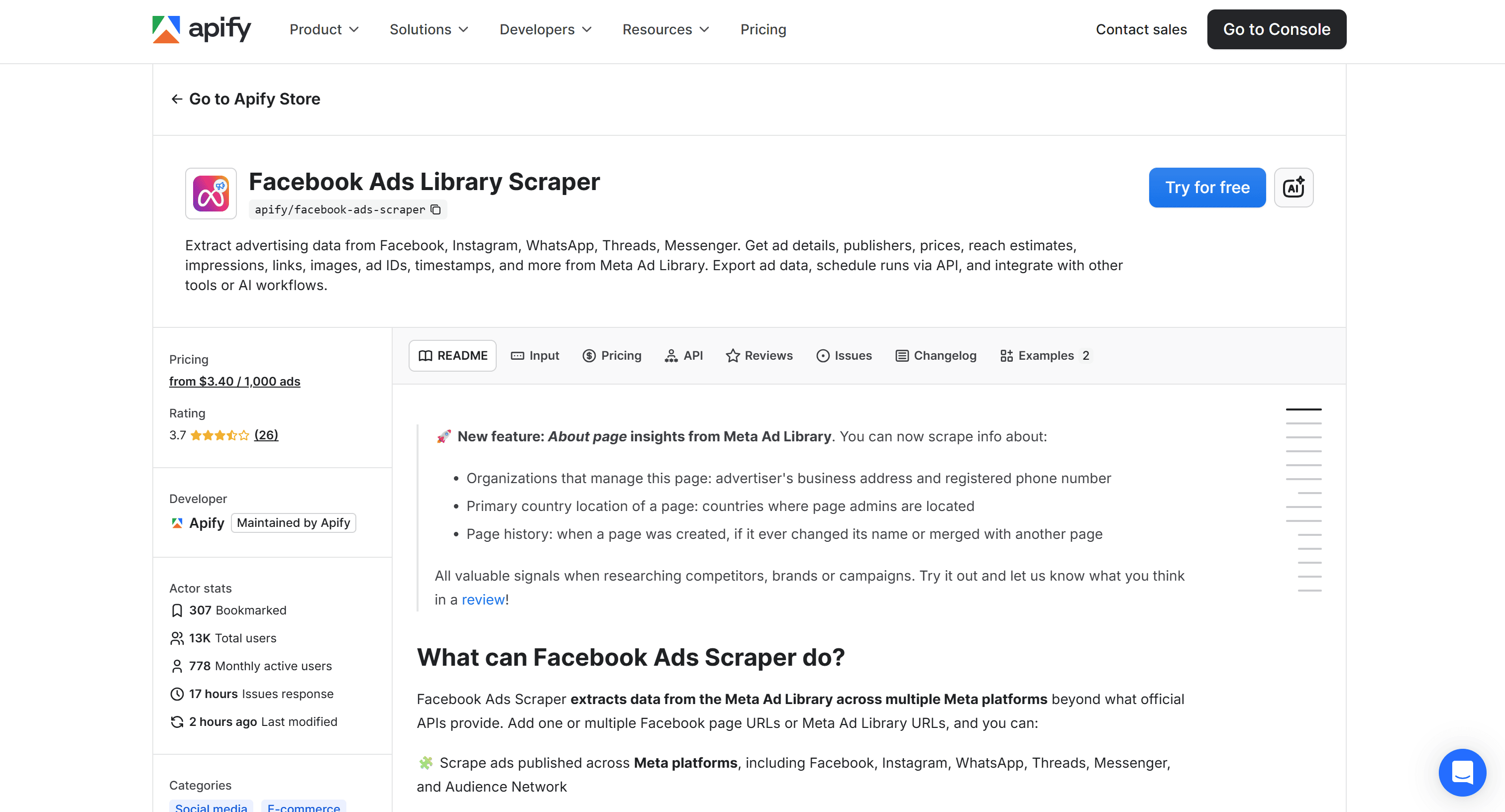
Facebook Ads Library Scraper retrieves advertising and advertiser data from the Meta Ad Library across Facebook, Instagram, WhatsApp, Threads, and Messenger. The scraped data covers ads, creatives, and page transparency signals, such as business address and admin locations.
Some of the most significant Instagram location scraping use cases for this Actor are:
- Ad intelligence: Analyze brands tied to specific locations by combining ad data with page location and transparency details.
- Geo-based campaign analysis: Compare how the same brand runs ads across different countries or regions.
- Market entry validation: Check ad activity and advertiser presence in a specific city, country, or region.
- Brand verification: Confirm advertiser legitimacy using business address, admin countries, and page history
- Localized creative analysis: Study how ad creatives and messaging vary by location.
Input
The input options made available by the Actor are:
| Input name | Description | Type | Required | Notes |
|---|---|---|---|---|
| Meta Ad Library URL or Facebook Page URL | URL(s) of Facebook Pages or Meta Ad Library entries to scrape ads from. | array |
Yes | Multiple URLs can be added at once. |
| Maximum ads | Maximum number of ads to scrape per page. If left empty, all available ads are returned. | integer |
No | — |
| Only total ad count | Scrape only the total number of ads per page, without ad-level details. | boolean |
No | Output is saved as a single dataset item per page. |
| Include about page information | Extract About Page data for each unique page or URL. | boolean |
No | Includes business address, admin locations, and page metadata. |
| Include ad details | Scrape additional audience and ad-level details for each ad. | boolean |
No | Higher data volume and credit usage. |
| Active status | Filter ads by active or inactive status when not specified in the Meta Ad Library URL. | string |
No | Possible values: active, inactive. |
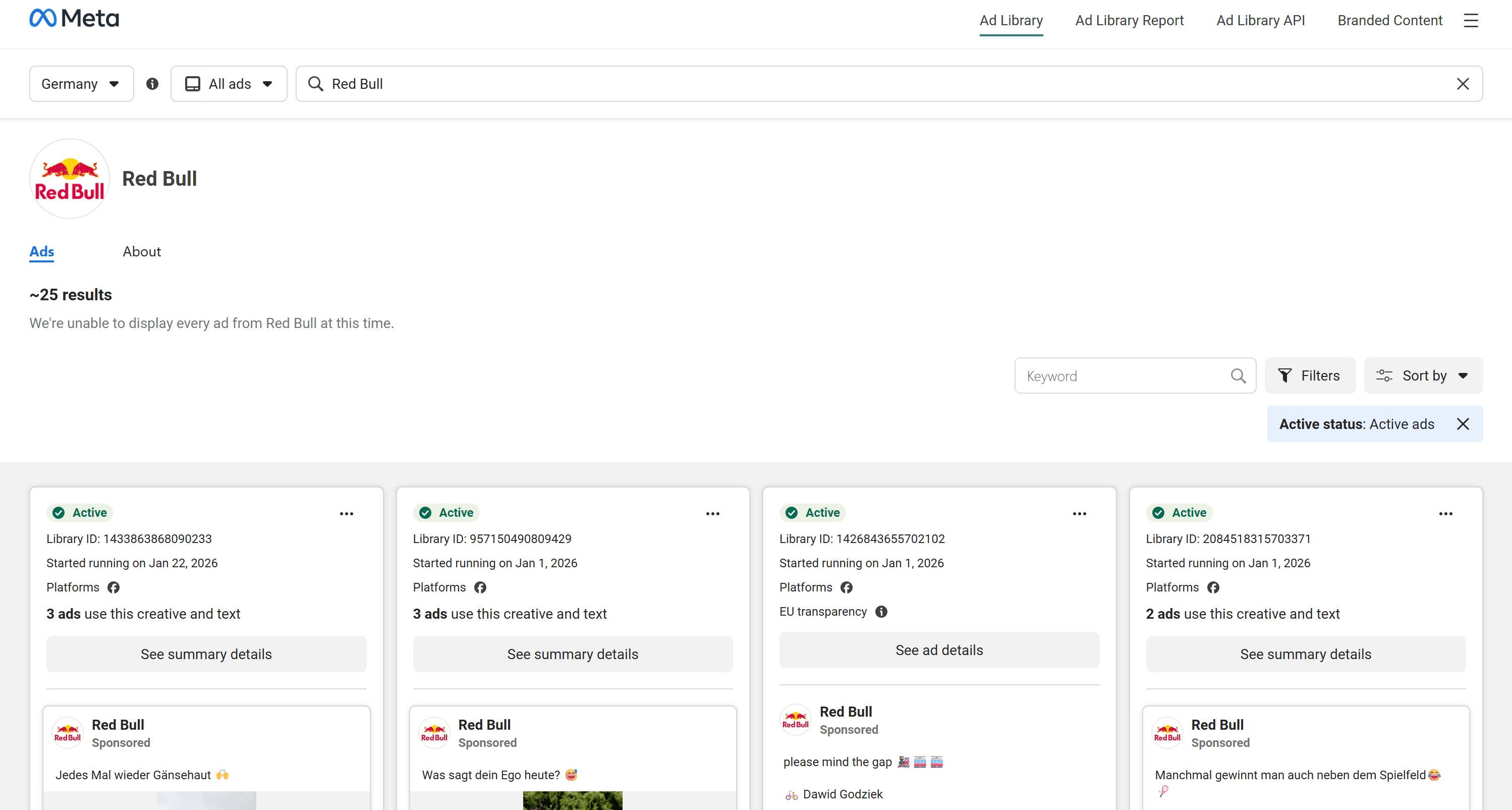
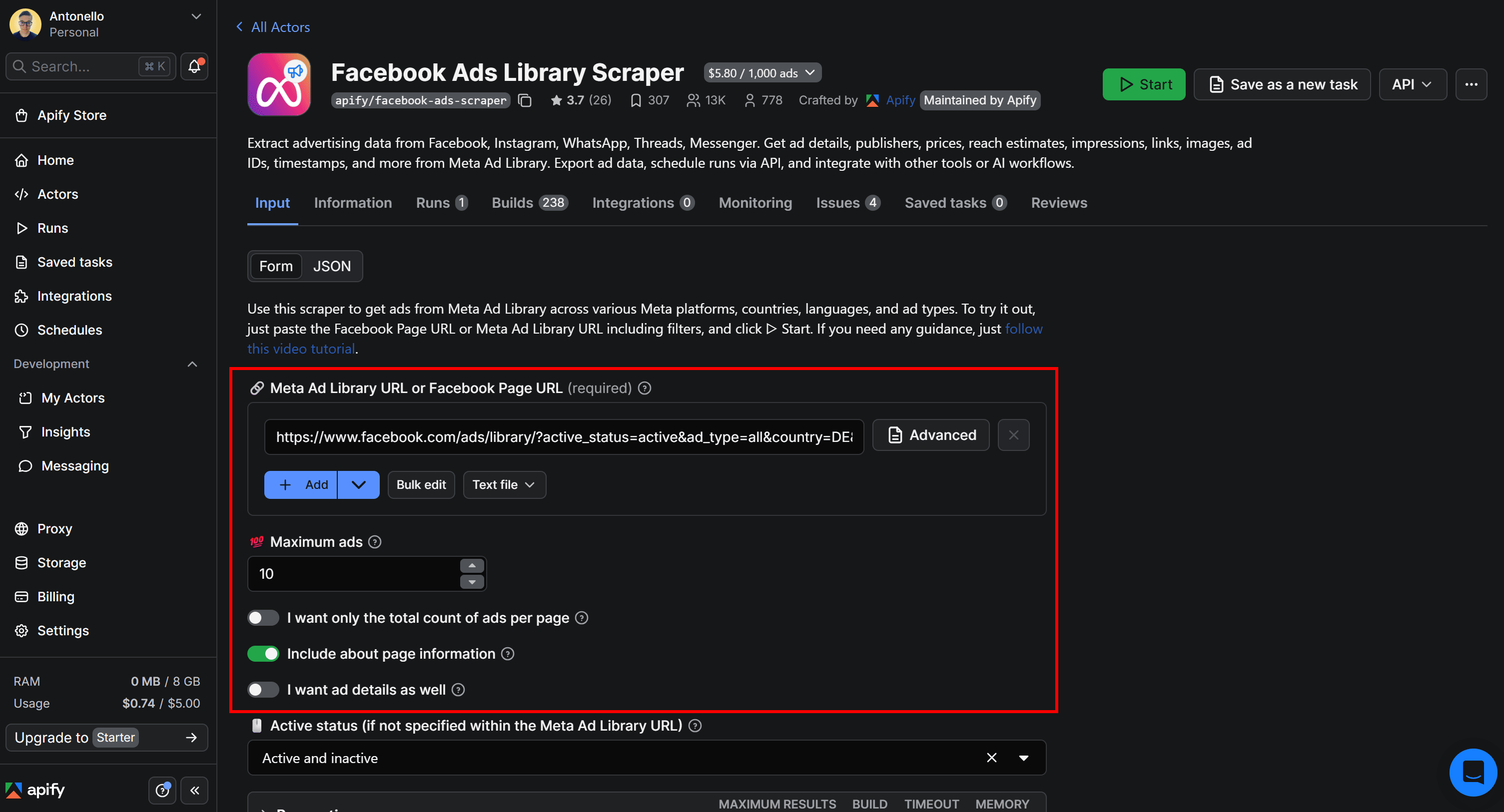
For instance, assume you want to scrape information for 10 Meta ads from Red Bull’s Ads Library page:
On the Actor page, enable location scraping by making sure the “Include about page information” option is checked:
Output
The output contains many fields. To view them all, switch to the “All fields” tab and focus on the “Page Info” column:
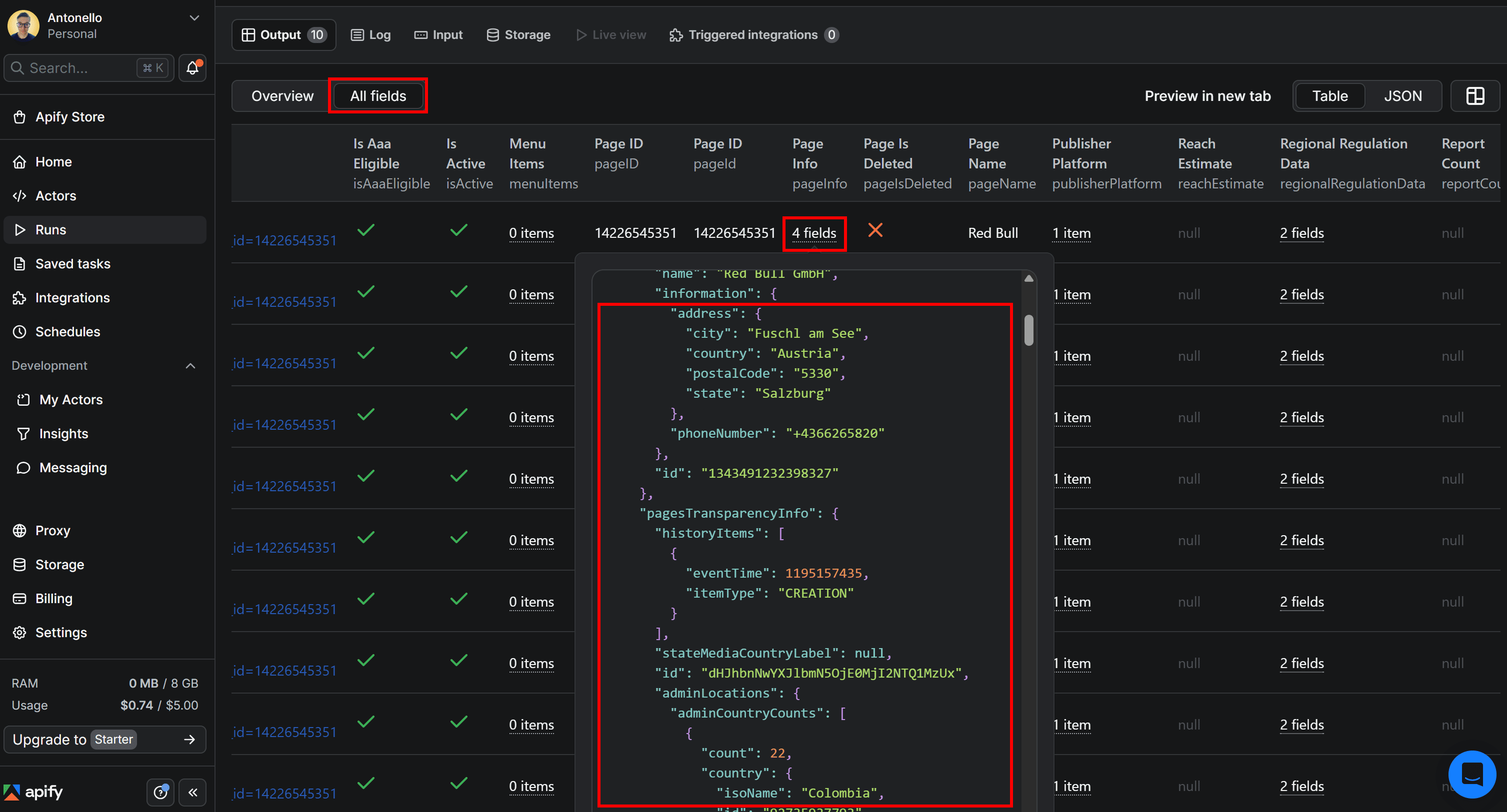
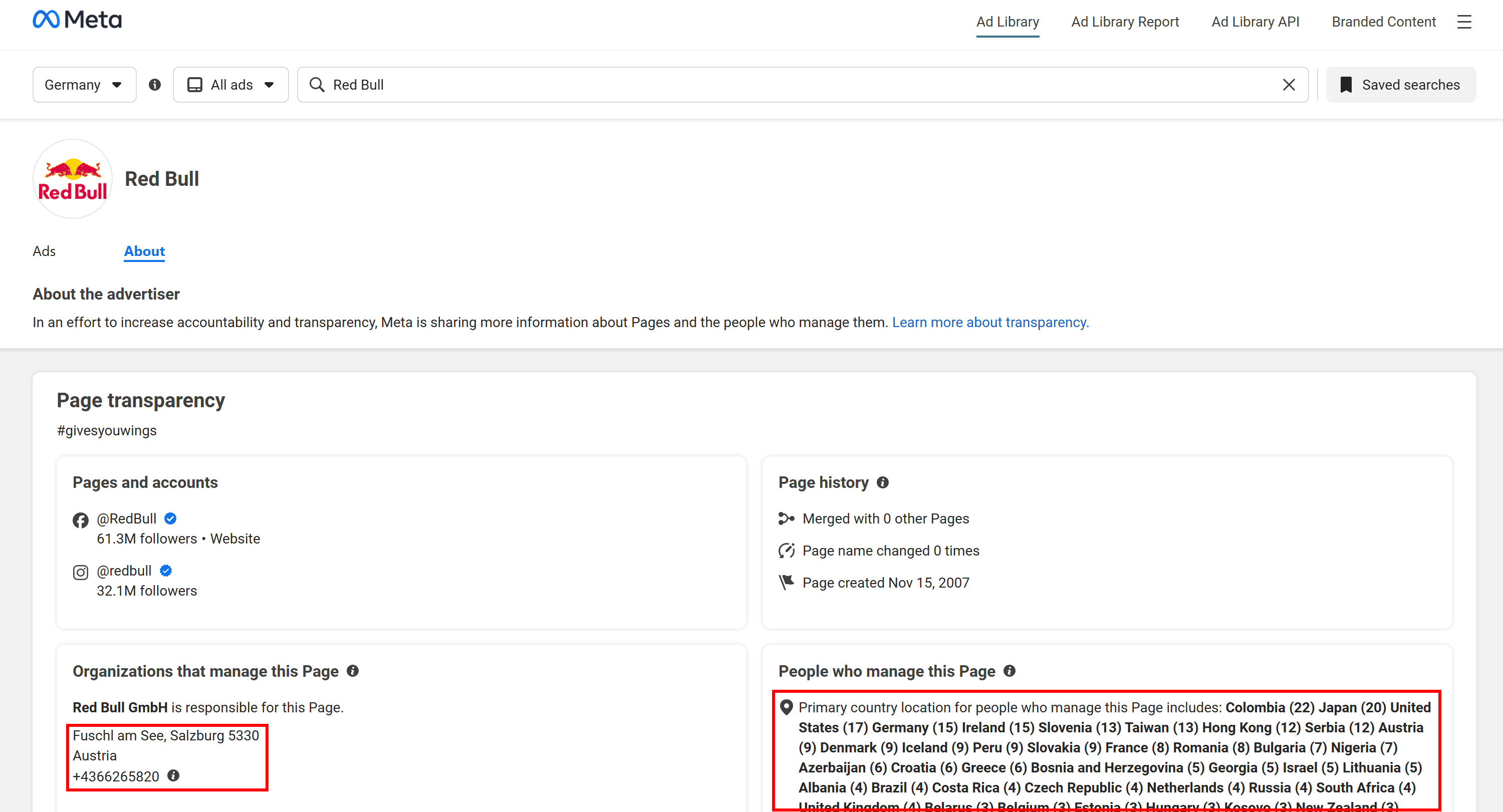
That's a JSON object storing valuable location-related data, such as the company’s business address and page admin locations (along with additional details like when the page was created and how many times it has changed its name).
If you’re wondering where this data comes from, it’s sourced directly from the Meta Ad Library “About” page for the selected advertiser:
Instagram Scraper
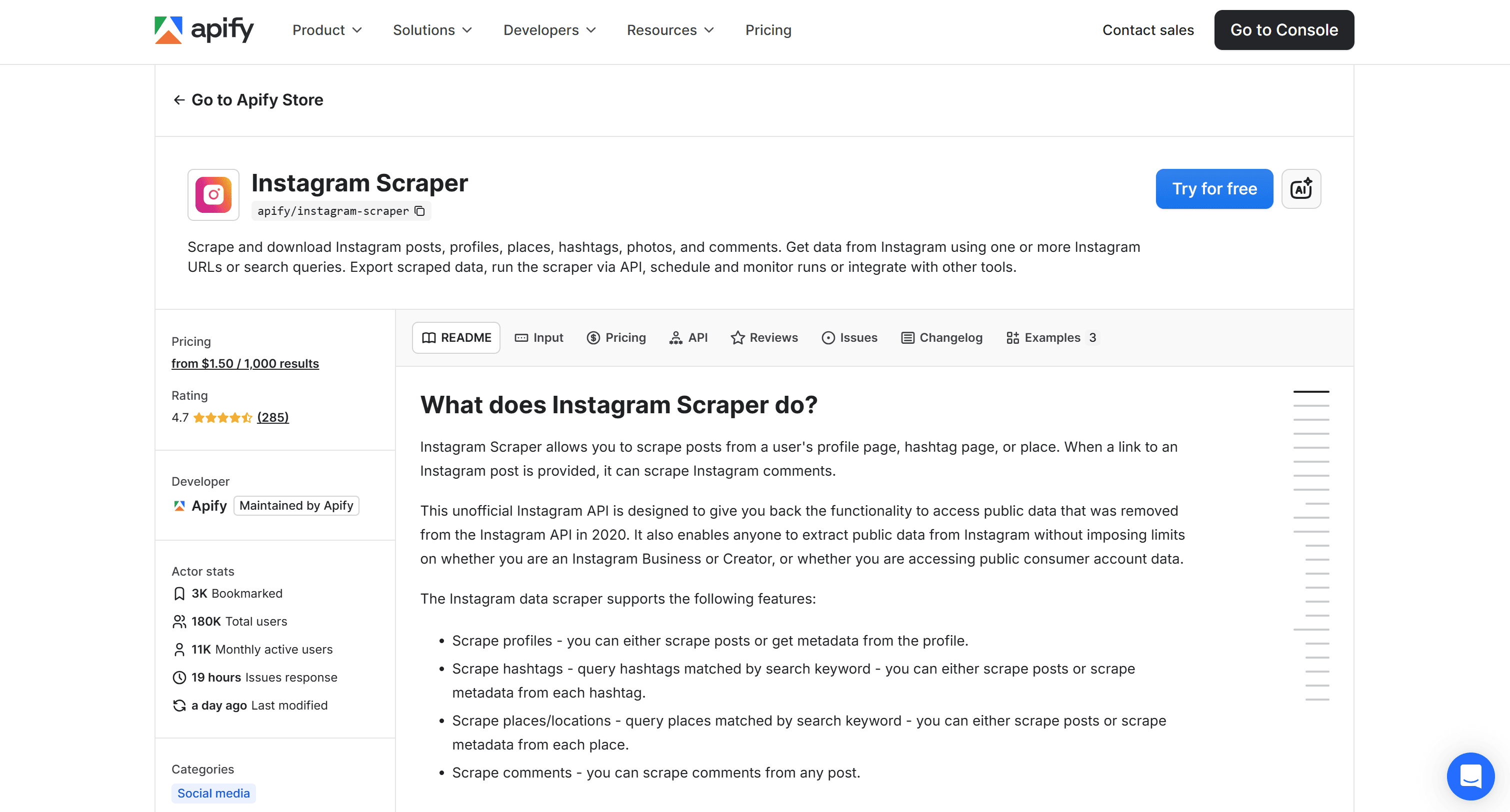
Instagram Scraper is an Apify Actor that scrapes public Instagram data from posts, profiles, hashtags, and places using URLs or search queries.
Some of the covered scenarios for scraping Instagram location data include:
- Market research: Start from known location URLs or IDs and scrape detailed place metadata and activity.
- Location enrichment: Expand existing location datasets with posts, engagement metrics, and identifiers.
- Tourism and venue analysis: Track activity and popularity around attractions, venues, or cities.
- Local trend discovery: Identify emerging trends tied to specific Instagram locations.
Input
The Instagram Actor supports the following input options:
| Input name | Description | Type | Required | Notes |
|---|---|---|---|---|
| Search term | Keyword(s) to extract Instagram search results. | string |
Yes | To scrape multiple keywords at once, provide them as a comma-separated list. |
| Search type | Type of Instagram pages to search for. | string |
No | Possible values: place, user, hashtag. |
| Maximum results per search term | Max number of results to scrape per search term. | integer |
No | Min: 1, max: 250. |
| Enhance user search with Facebook & email info | For top 10 users, extract their Facebook page (may contain business email). | boolean |
No | Default value: false. |
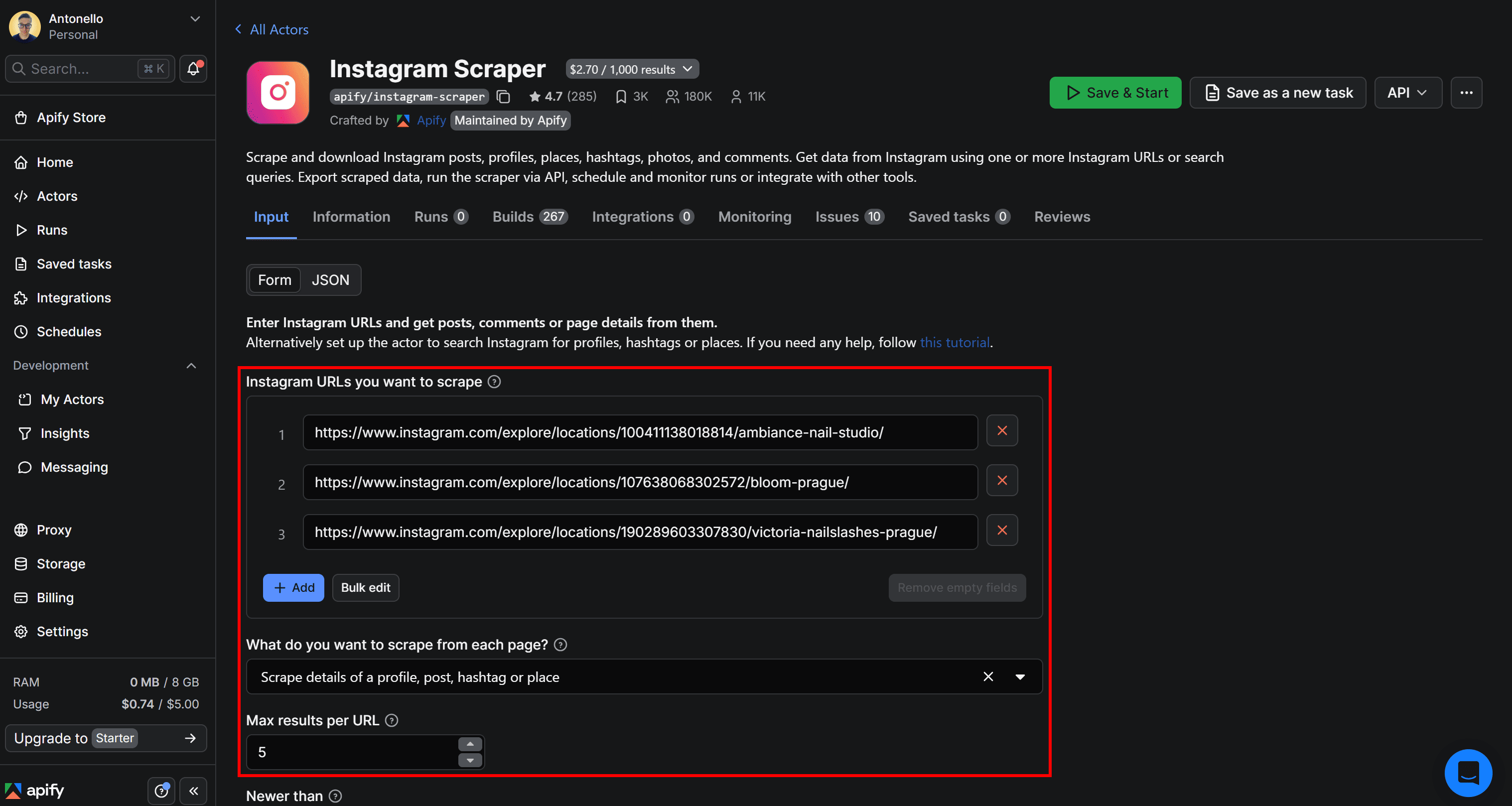
Now, consider that you want to scrape the following nail studio Instagram location pages (which include location tags):
https://www.instagram.com/explore/locations/100411138018814/ambiance-nail-studio/https://www.instagram.com/explore/locations/107638068302572/bloom-prague/https://www.instagram.com/explore/locations/190289603307830/victoria-nailslashes-prague/
In Apify Console, open the Actor’s page and add these URLs to the “Instagram URLs you want to scrape” field. Then, select the “Scrape details of a profile, post, hashtag, or place” option:
Output
The resulting data will look like this:
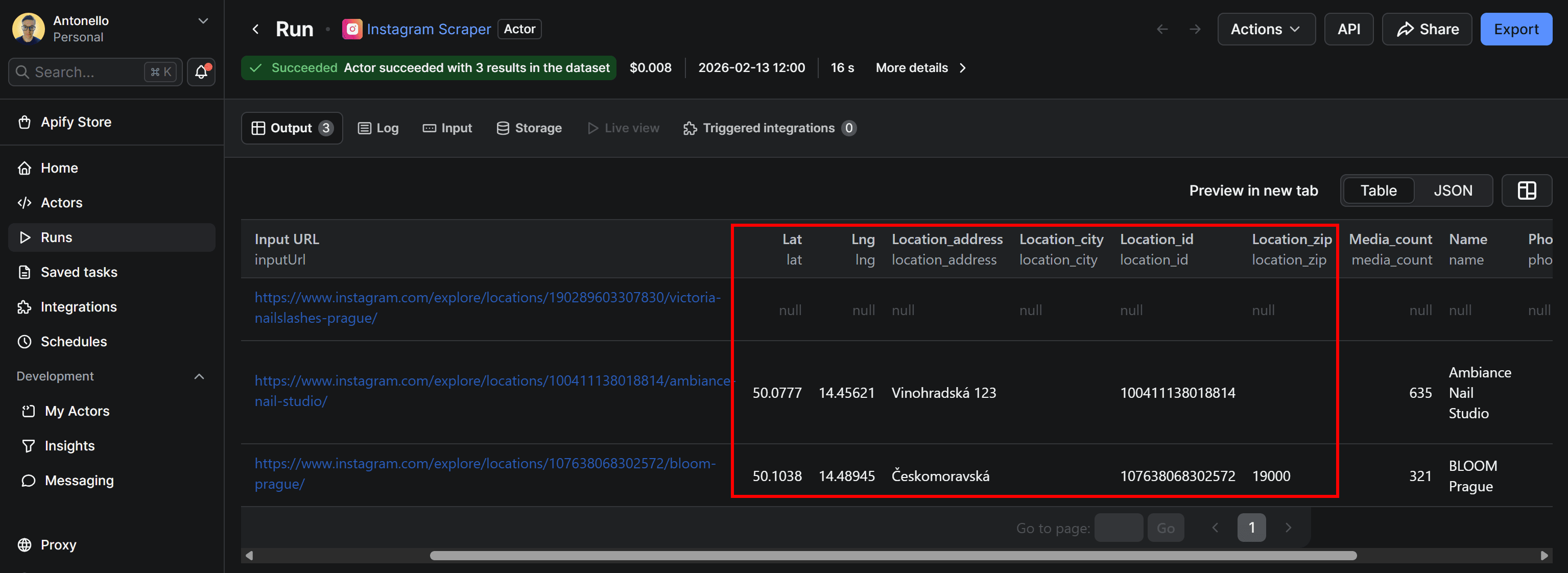
The output columns include the same location information (latitude, longitude, Instagram location ID, address, etc.) as the Instagram Search Scraper shown earlier. The main difference is that, in this case, the input consists of known Instagram URLs, not search terms.
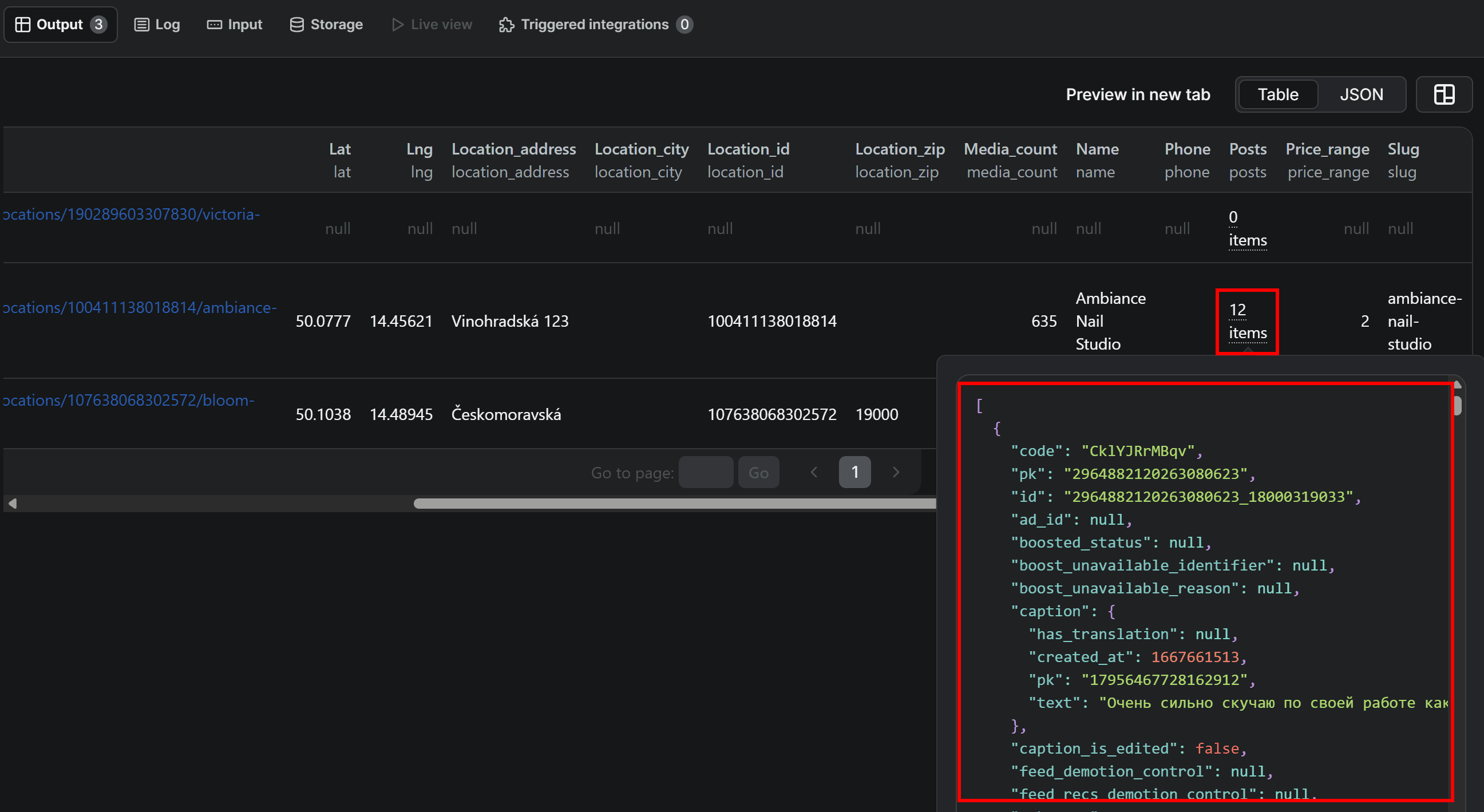
In addition to location data, the scraper also returns the top 12 posts associated with each location:
Use the Google Drive integration and scheduling
Right now, you already have one of the Instagram location scraping Actors set up. It’s time to finalize the workflow by adding a Google Drive integration.
This way, the extracted topics will be automatically added to your Google Drive disk as an XLSX file. This makes data exploration, filtering, and sharing much easier. You’ll also see how to add scheduling to run the workflow periodically and achieve consistent, up-to-date data feeds.
Note: The instructions below apply equally to any available Apify Actor. Here, we’ll demonstrate them using Instagram Scraper for the sake of continuity (since it was the last one presented).
Add the Google Drive integration
Currently, the Actor’s output is only available in Apify Console. Sure, you can export the dataset to JSON, XLS, CSV, and other data formats. Yet, it’s generally more convenient to send the results directly to Google Drive as a Google Sheets document.
To do so, visit the Instagram Scraper Actor page and select the “Integrations” tab:
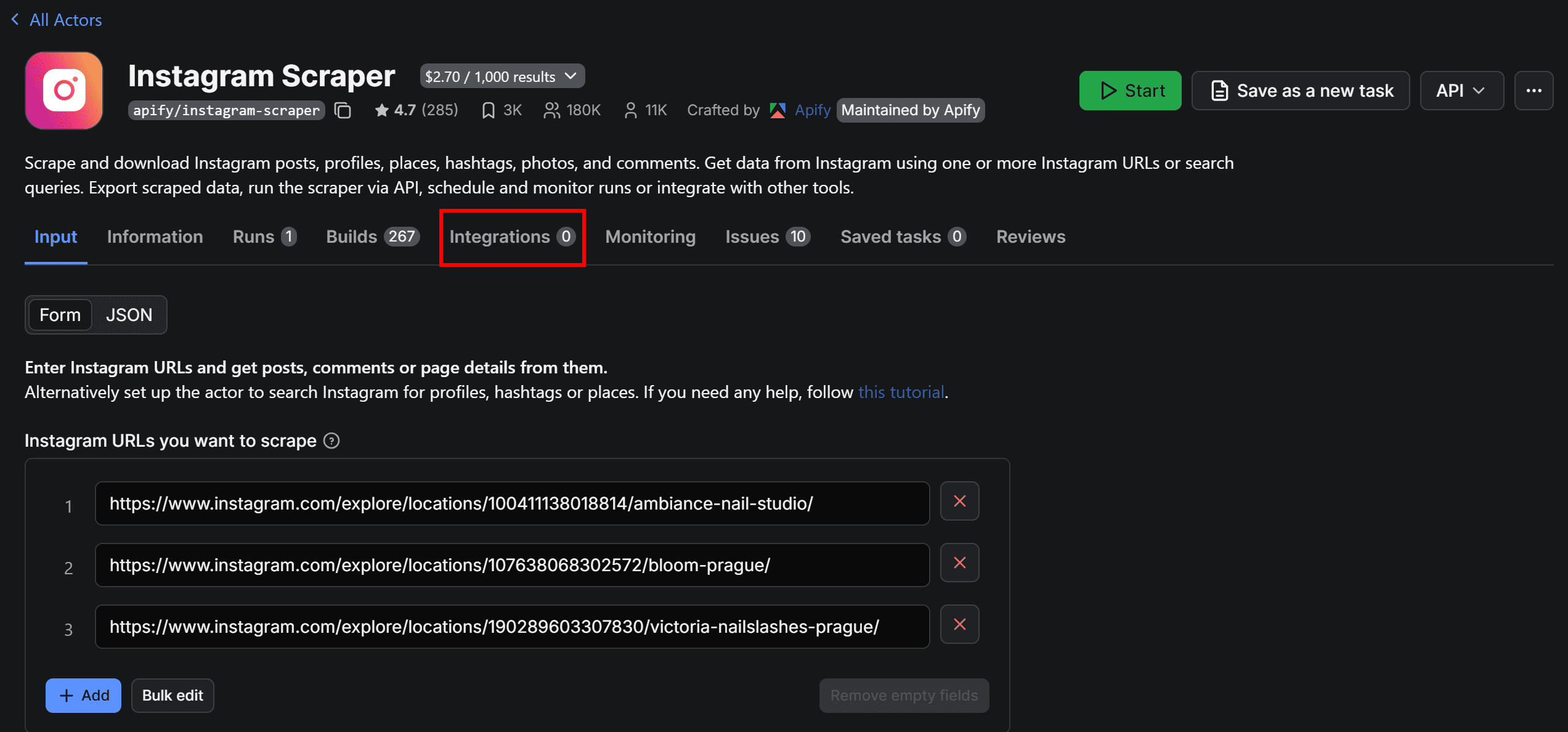
Here, you’ll find all integrations supported by Apify (over 16,300 in total!). Alternatively, you can achieve the same results using Apify integration nodes in Make, Zapier, or n8n.
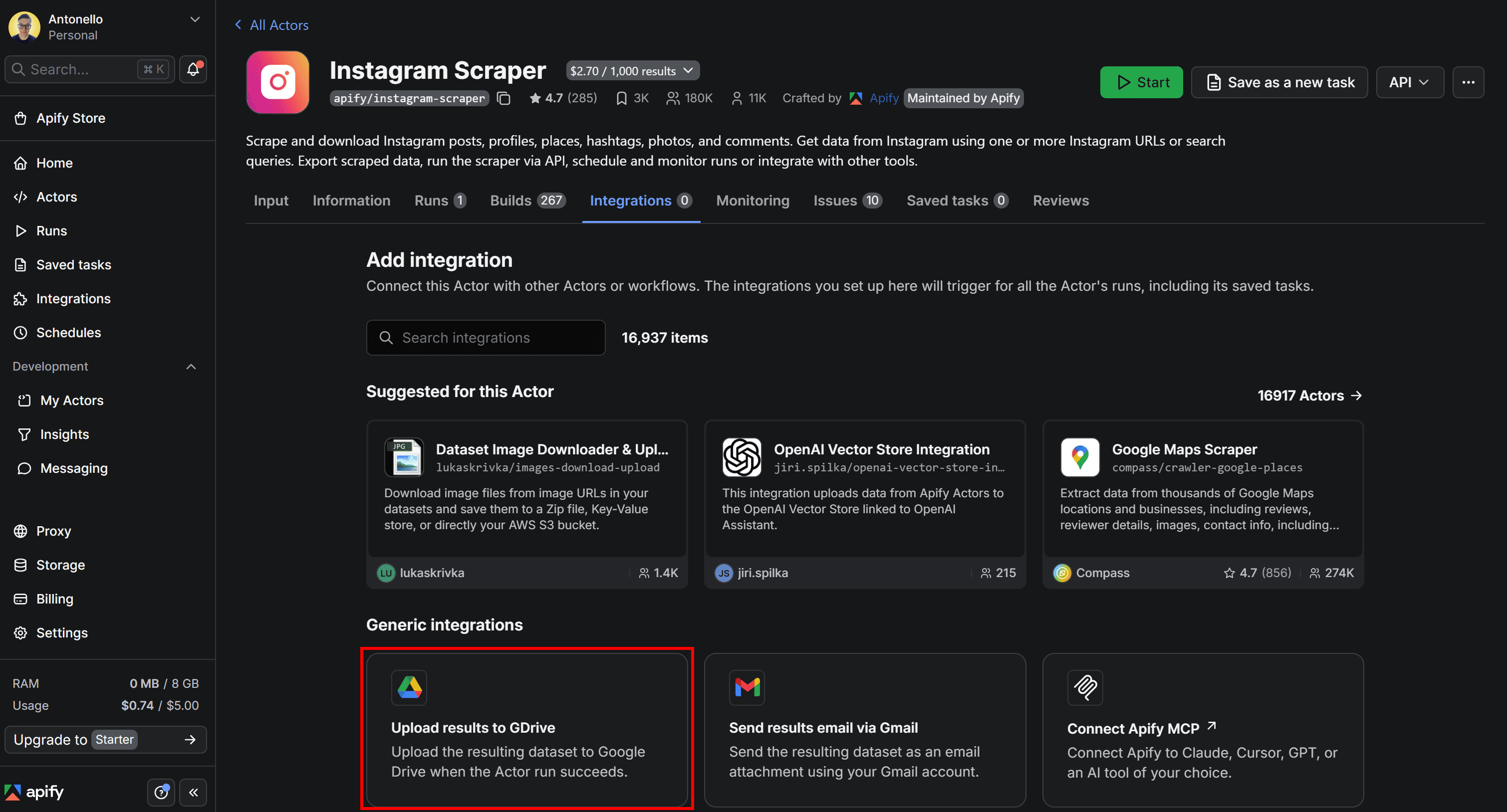
For this workflow, choose the “Upload results to GDrive” integration:
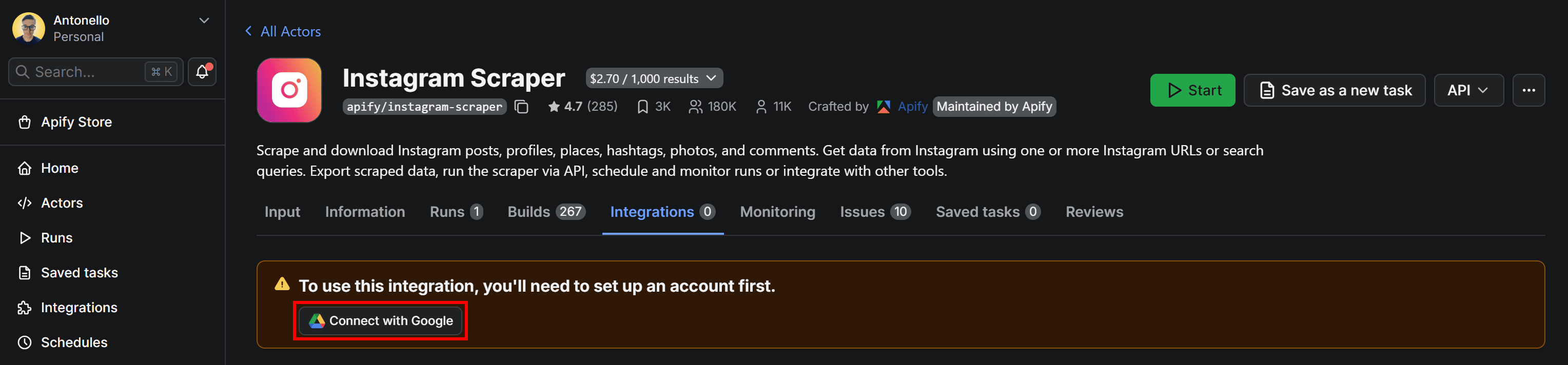
When adding the integration, you’ll be asked to connect your Google account. Press the “Connect with Google” button and follow the instructions:
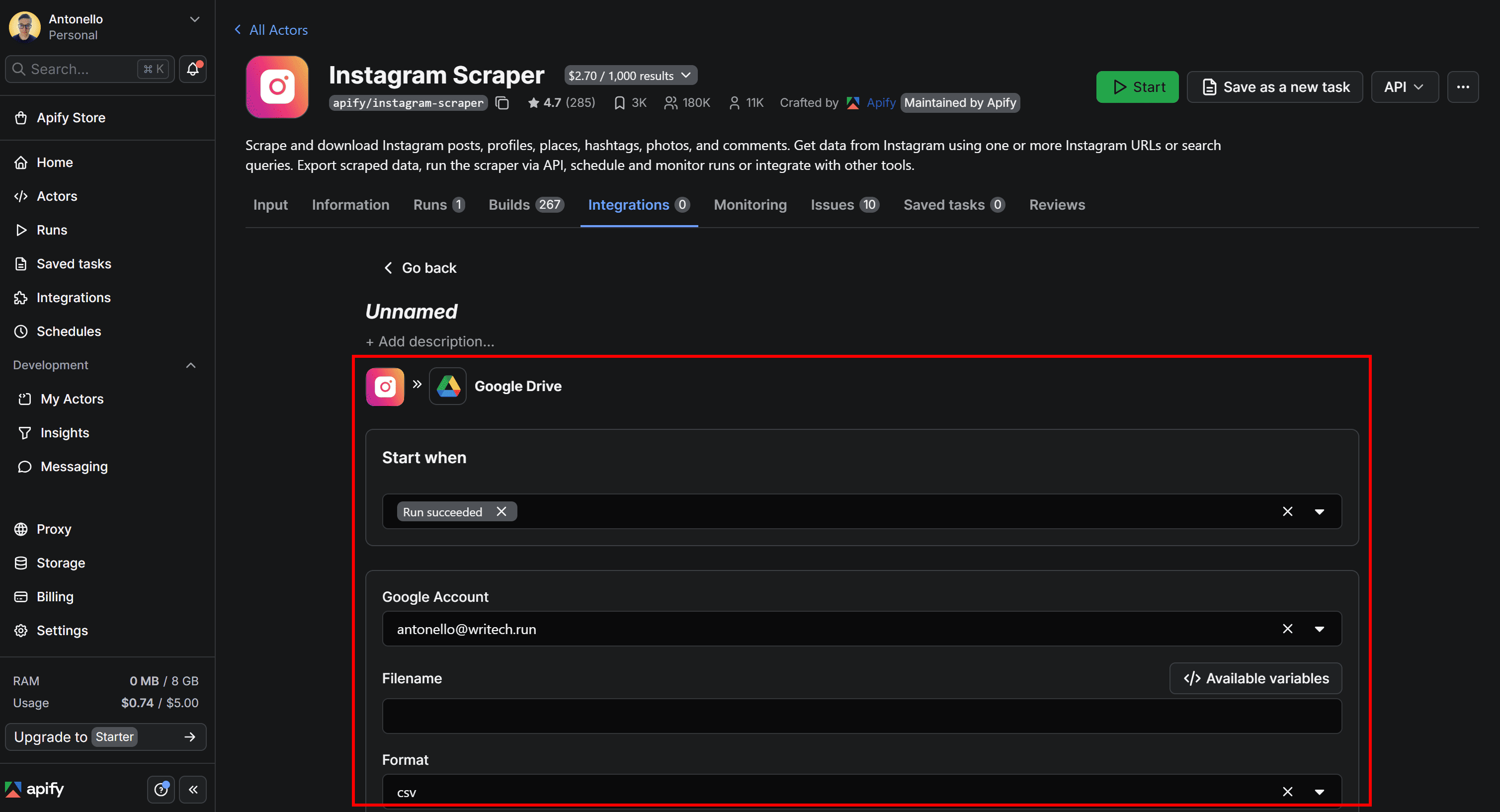
Make sure to grant Apify the required Google permissions. Once the setup is complete, you’ll be redirected to the configuration form where you can customize how the results are uploaded to Google Drive:
Complete the GDrive integration
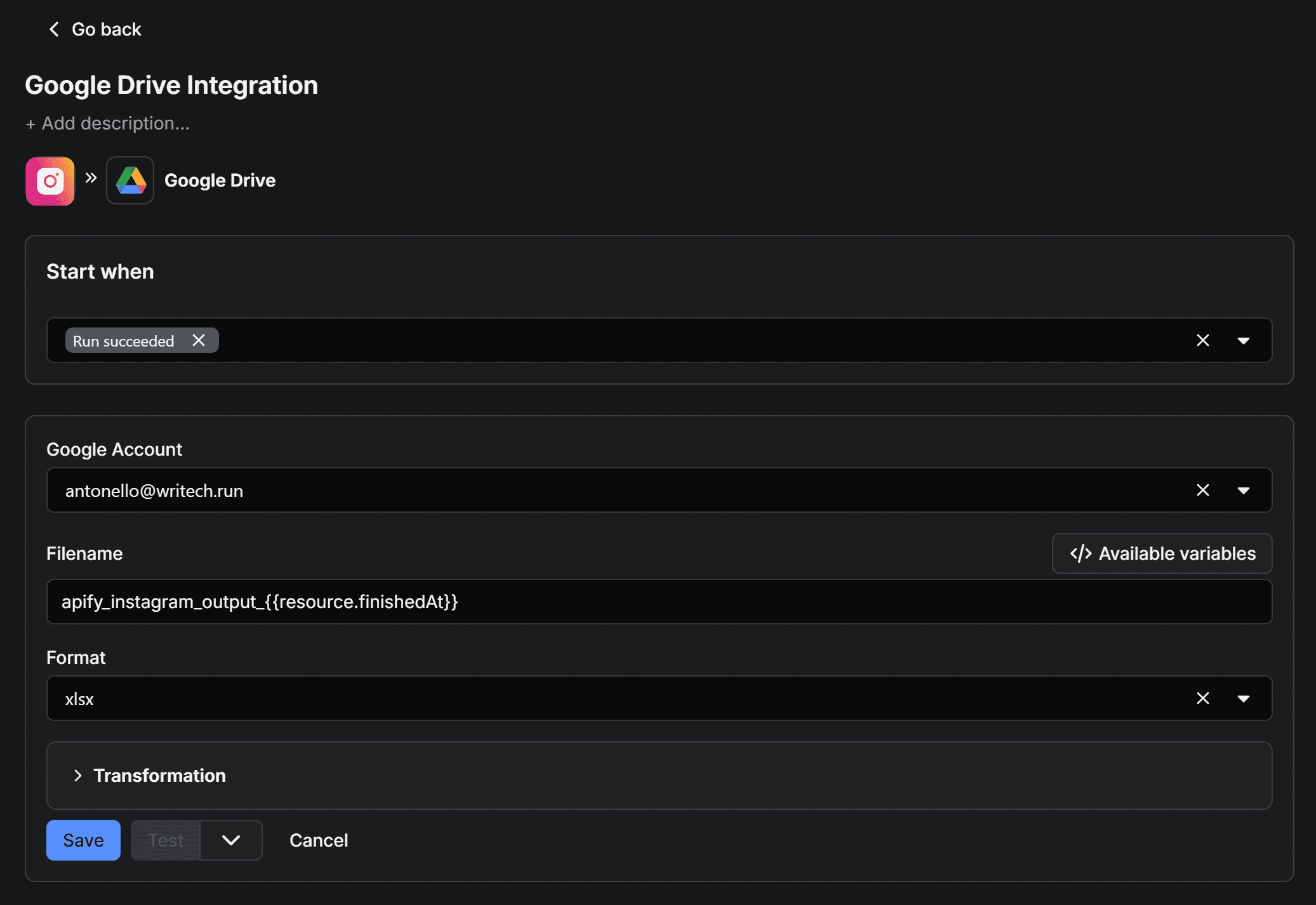
To finalize the integration and make sure your Instagram location scraping workflow sends results directly to Google Drive, give the integration a name (for example, “Google Drive Integration”) and fill out the form as follows:
- Start when:
"Run succeeds"(This ensures the upload runs only if the Actor completes successfully). - Google account: Select the connected Google account email.
- Filename:
apify_instagram_output_{{createdAt}}. - Format:
xlsx(This makes the output easy to open and analyze in Google Sheets).
Note: {{resource.finishedAt}} is an Apify variable that represents the end time of the Actor run. Adding it to the filename helps you track individual runs and prevents the XLSX file from being overwritten.
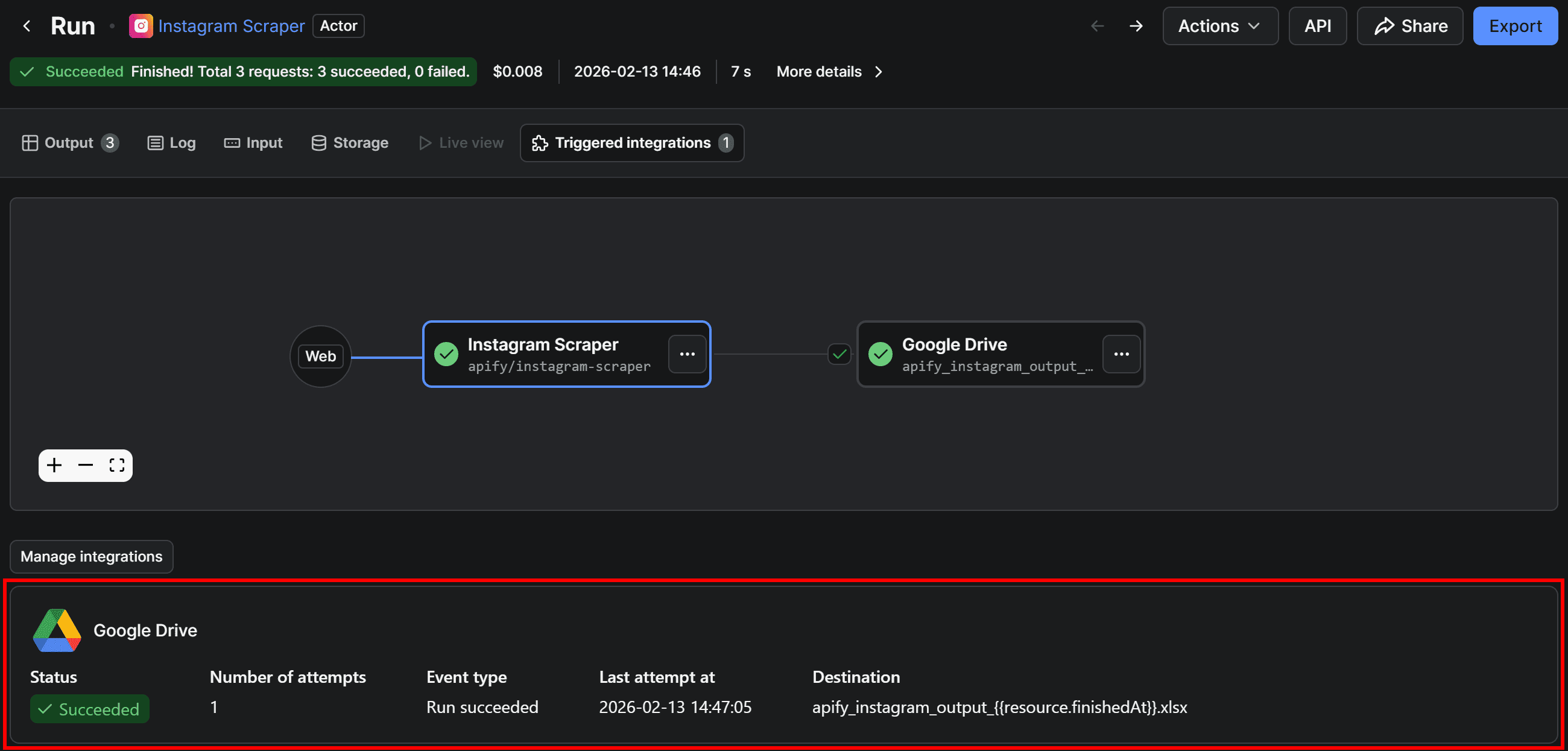
Once everything is set, save the integration by clicking the “Save” button at the bottom. If you run the Actor again and switch to the “Triggered integrations” tab, you’ll see the Google Drive integration triggered automatically whenever the Actor produces output:
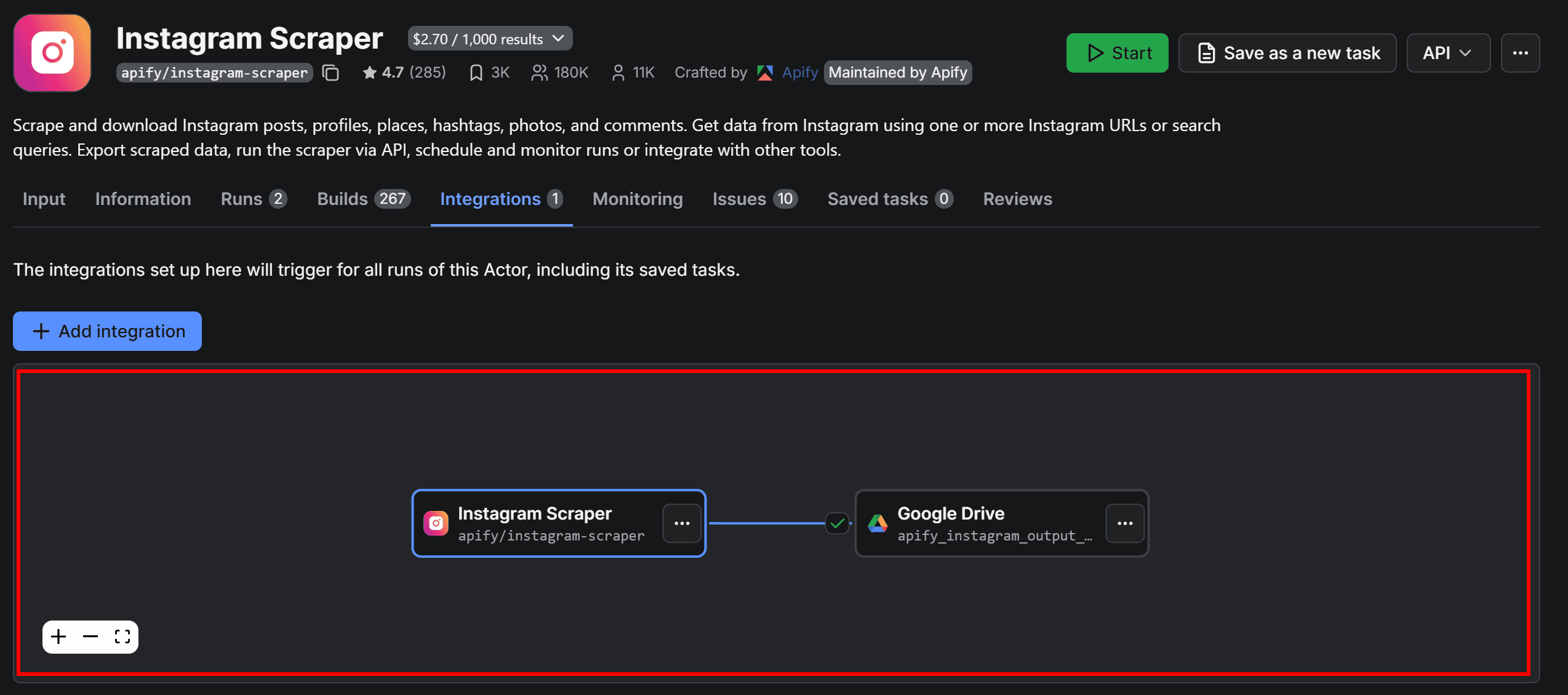
Now, back on the Actor page, the integration will also be visually represented in the “Integrations” tab:
Before running the Actor again to verify everything works end-to-end, there’s one final (optional) step.
Schedule the workflow
Location-related data changes all the time as new profiles and businesses enter or leave a local market. To enable continuous monitoring, you need to run scraping jobs on a recurring basis.
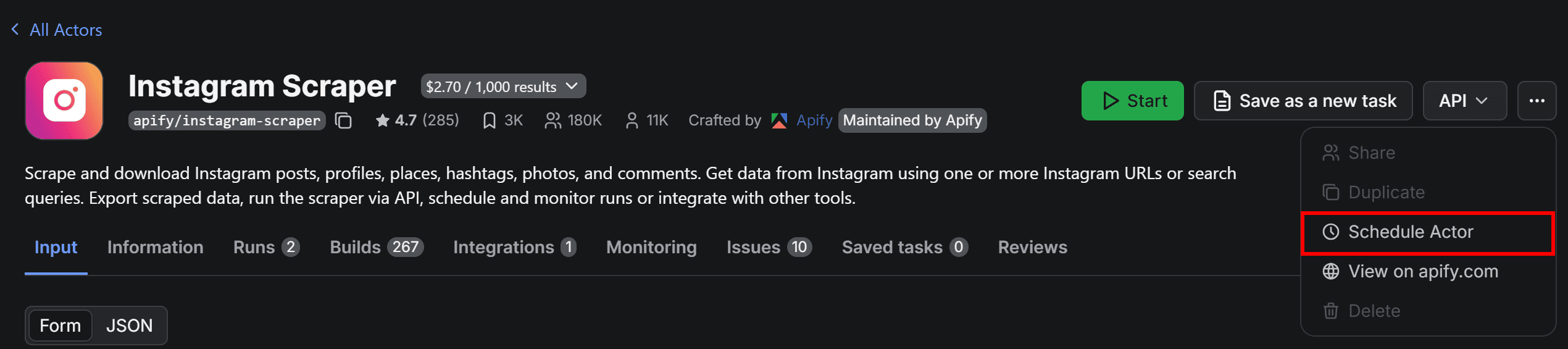
To do that, configure the Actor to run on a schedule. Start by clicking the “…” menu in the top-right corner and selecting the “Schedule Actor” option:
In the “Schedule Actor” modal, set the workflow to run periodically (for example, every Monday and Thursday at 10:00 AM):
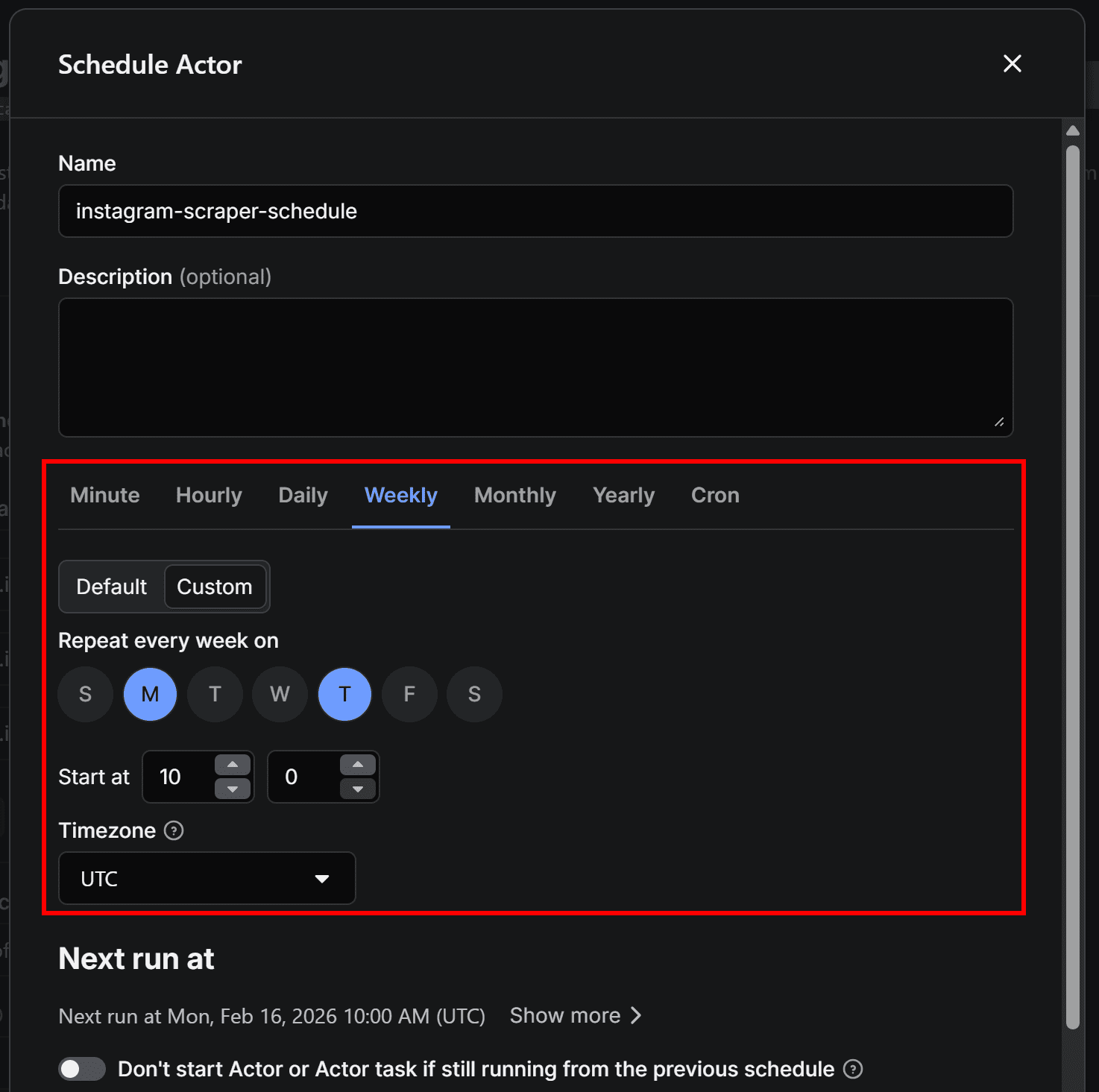
Click “Create” to confirm. Your workflow will now run automatically at 10:00 AM on Mondays and Thursdays. The selected Instagram Scraper Actor can take a few minutes to complete, so you should receive the Google Drive file with Instagram location data shortly after each run.
You’ll now be able to view and manage the scheduled run in the “Schedules” section of Apify Console:
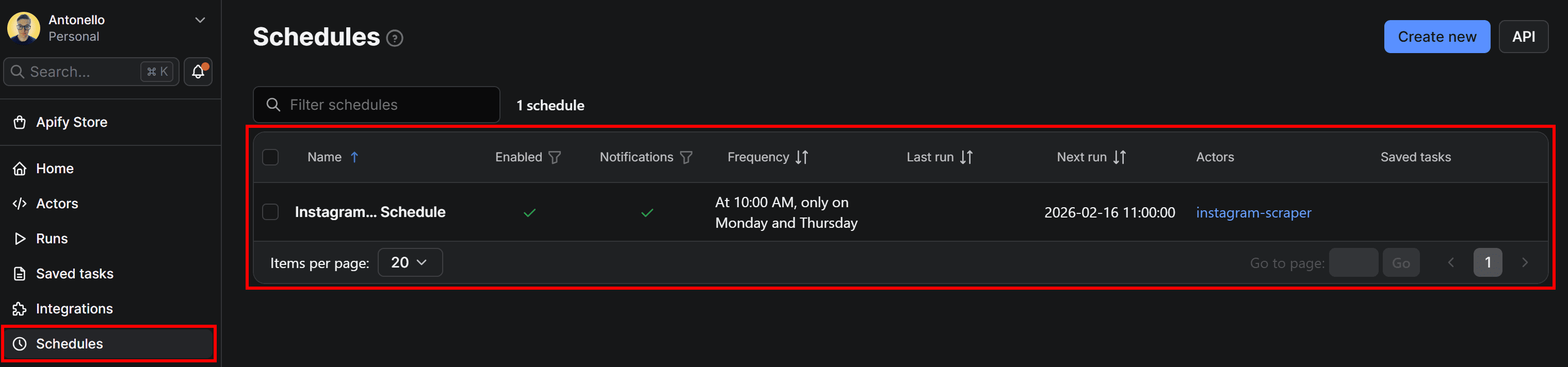
Remember to configure the Actor’s input to make sure you’re tracking the Instagram data you actually care about.
Explore the Actor's output
Run the workflow by pressing the “Start” button, or wait for the scheduling trigger to hit. Once the Actor's run completes, open your Google Drive and locate the “Apify Uploads” folder. Inside, you’ll find the file generated by the Actor:
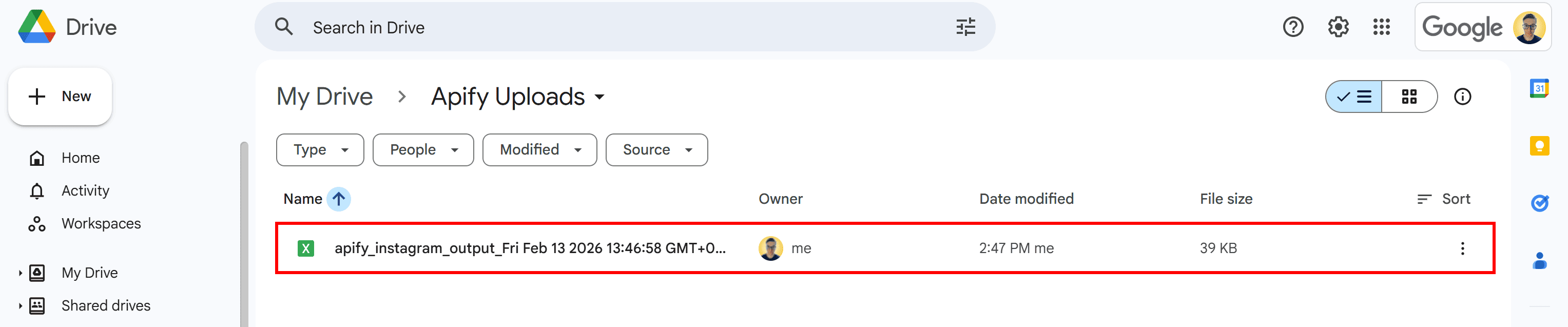
Notice the timestamp appended to the file name.
Open the XLSX document with Google Sheets, and you’ll see something like this:
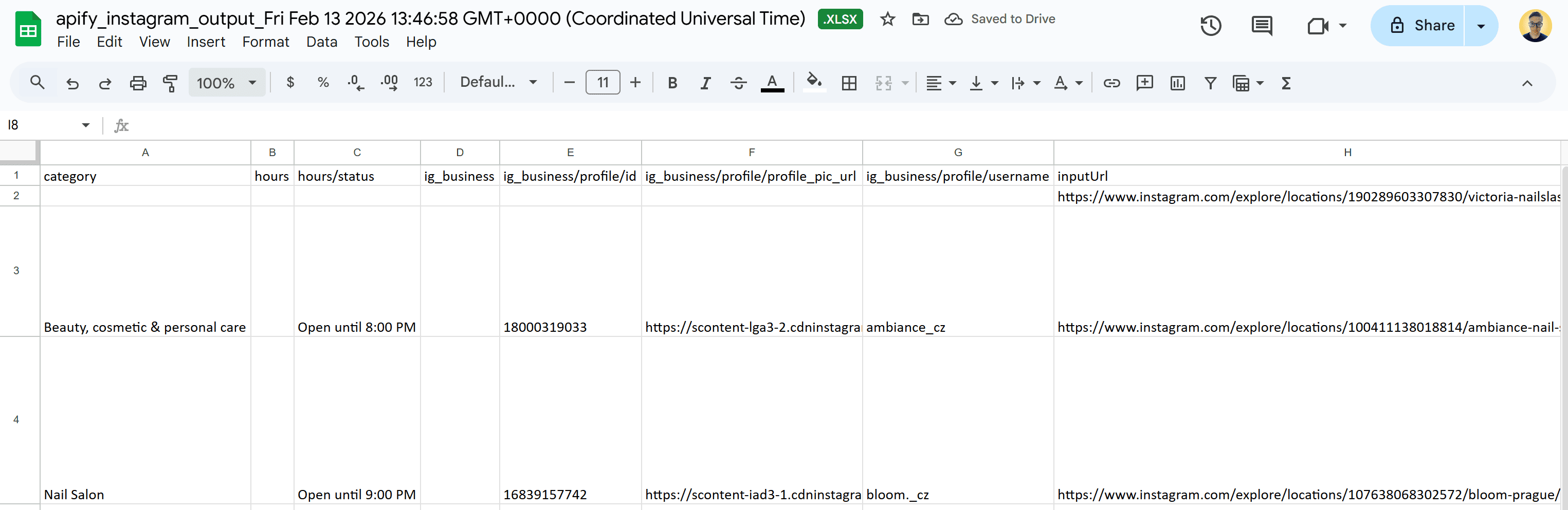
This matches exactly the tabular output explored in the “Outputs” sub-chapter for Instagram Scraper.
And there you have it! Your automated Instagram location scraping workflow is now fully set up and ready to run.
Conclusion
In this blog post, you discovered some of the best Instagram location scraping Actors available on Apify to build an automated workflow. This setup automatically collects Instagram profiles, places, and posts based on profile information, location tags, and related signals. Then, it delivers the results as an XLSX file to your Google Drive, ready for analysis in Google Sheets.
This project shows how Apify simplifies the creation and management of automated workflows, allowing you to get meaningful results in just a few minutes, without programming knowledge or complex setup.
Feel free to explore other Actors, Apify SDKs, and integrations to further expand your automation toolkit.
Frequently asked questions
Can location be traced from Instagram?
Yes, Instagram locations can be traced, but not completely. Some public profile pages may expose location tags, coordinates, or addresses added by users or businesses, especially in the “About” information. On the other hand, untagged content doesn’t reveal precise location data.
Can I scrape places and locations on Google Maps and enrich them with Instagram data?
Yes, you can scrape places and locations from Google Maps and enrich them with Instagram data. Start by extracting business details using Apify’s Google Maps Scraper, then matching names, websites, or locations with Instagram profiles for richer datasets.
Can I scrape Instagram maps from the app's messages tab?
No, Instagram maps shown in the app’s messages tab show private, user-shared data that isn’t publicly accessible. To avoid legal issues, scraping should be limited to public information. Private messages, live locations, and inbox-based maps can’t be accessed via scraping tools.