Effective brand monitoring starts with knowing where your customers actually form opinions. With over 20 billion uploaded videos, YouTube remains one of the richest qualitative data sources - brand mentions appear in routines, comparison videos, Shorts, and multilingual content published by thousands of channels every minute.
Media monitoring tools can surface some of this data, but they limit how you classify, rank, and analyze it. If you want to classify videos using your own logic, combine YouTube data with CRM signals, or run LLM-powered analysis, you need access to raw structured datasets.
Manual tracking doesn't scale either - mentions are inconsistently tagged, searches stay incomplete, and you end up chasing conversations that have already moved on.
A dedicated YouTube scraper fixes this. Pair it with a simple automated workflow that sends datasets to Google Sheets on a schedule, and you get a live, always-updated view of brand or product mentions along with key data such as likes, views, and subscribers - without manual effort. From there, you can track and analyze your data on a regular basis.
How to monitor brand mentions with YouTube Scraper
We’ll show you how to build your own automated data collection workflow - scrape YouTube, send data to Google Sheets, and analyze your findings further. You can follow along with this guide on the free Apify plan, meaning you can test the entire setup and get your first dataset at no cost.
YouTube Scraper is an Apify Actor that can extract video metadata, track engagement metrics such as view counts, likes, and comment counts, as well as monitor upload dates to identify emerging mentions and trending content.
- Built-in proxy management
- Anti-bot evasion support
- Integrated storage with structured exports in CSV/Excel/JSON
- Standardized input parameters (URLs, keywords, limits, etc.)
- Easy integration with third-party apps or other Actors
Every Apify Actor can also be triggered programmatically via the Apify API, opening up lots of ways to integrate it into your workflows.
Step-by-step guide to scraping YouTube
The entire workflow setup takes just a couple of minutes and consists of four steps:
- Set up the integration between YouTube Scraper and Google Drive
- Scrape YouTube
- Create a schedule for the scraper to run automatically
- Analyze your data
Let’s start.
Step 1: Integration with GDrive
First, let’s make sure our data flow is configured. Go to YouTube Scraper. If you don’t have an Apify account yet, you’ll be prompted to create one for free. You’ll access Apify Console, a workspace for running and building web automation tools.
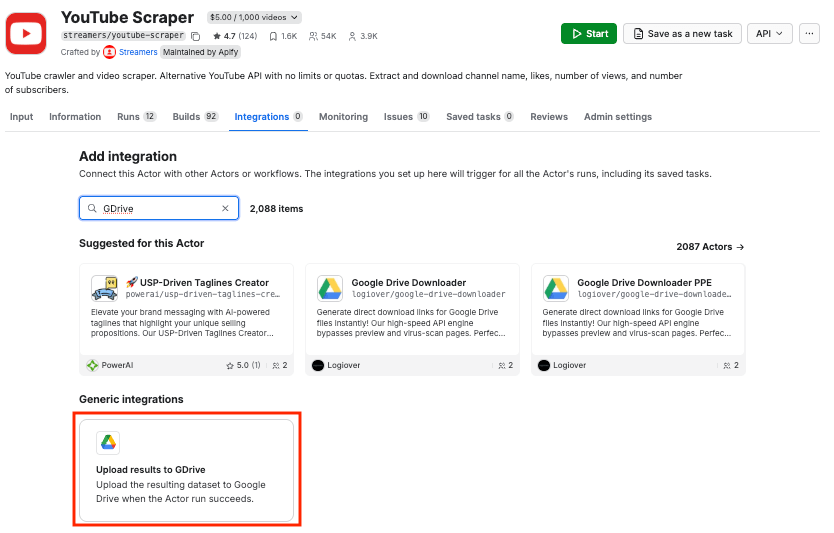
Once you open the Actor page, select the Integrations tab. Start typing “GDrive” in the search bar, and select the Upload results to GDrive integration.
Give the integration a unique name. We’ll use Brand monitoring data collection. Click Save to continue and connect your Google account. If you’re using your Google account with Apify Console, your email address might already be on the list of accounts to select.
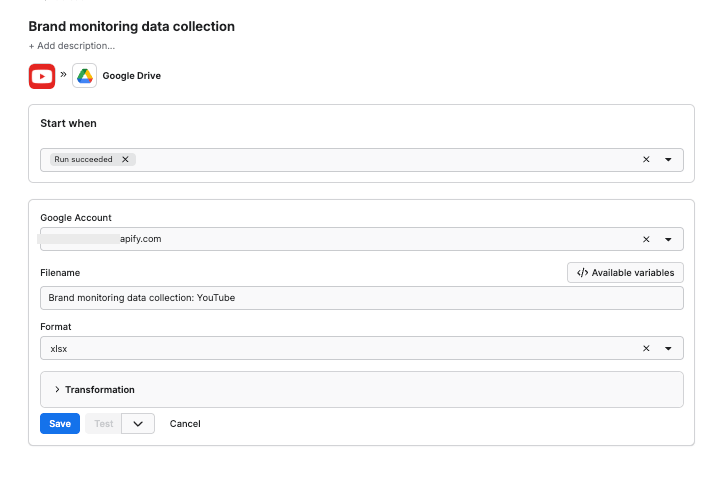
Since we want the data to be sent to the spreadsheet once the scraper finishes running, we’ll select Run succeeded as our starting point. Select a format of the Google Drive file that the Apify integration will create (we’ll go with the XLSX). Remember to name your file. Click Save.
Step 2: Scraping YouTube data
Time to set up the scraper. Head to the Actor page and make sure the Input tab is selected. YouTube Scraper can scrape data by search terms or URLs. Note that you can use only one extraction method.
In this tutorial, we’ll monitor brand sentiment after a product launch by collecting YouTube videos mentioning The Ordinary’s Rice Lipids + Ectoin Microemulsion. We’ll use the product name as our search term and set a limit on how many videos the scraper collects in each run.
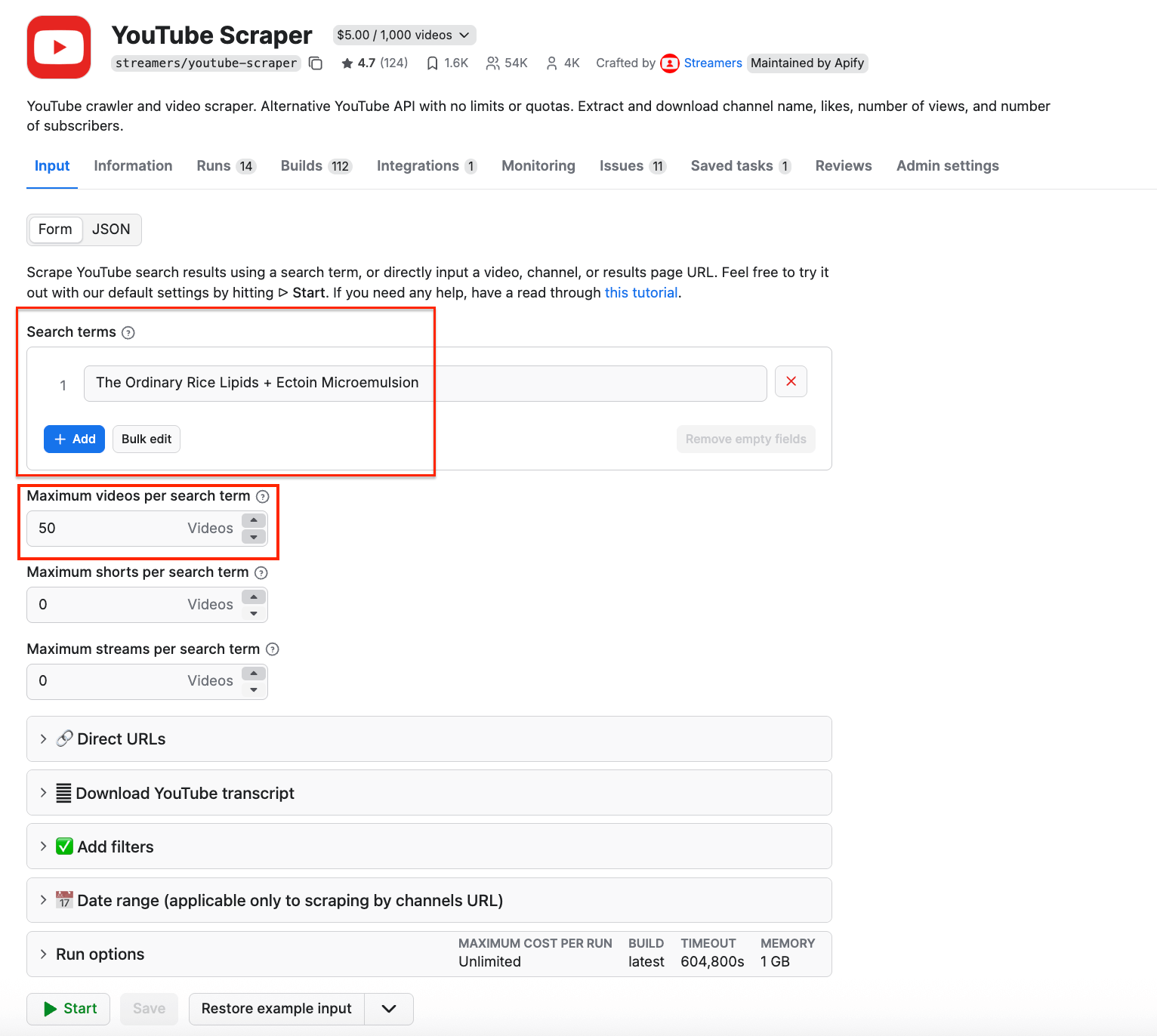
You can customize your search further with the filtering options, such as time range, sorting order, video type or features. The scraper can also fetch video subtitles and convert them to a format of your choosing - particularly useful for AI workflows, since LLMs process text much more efficiently than video.
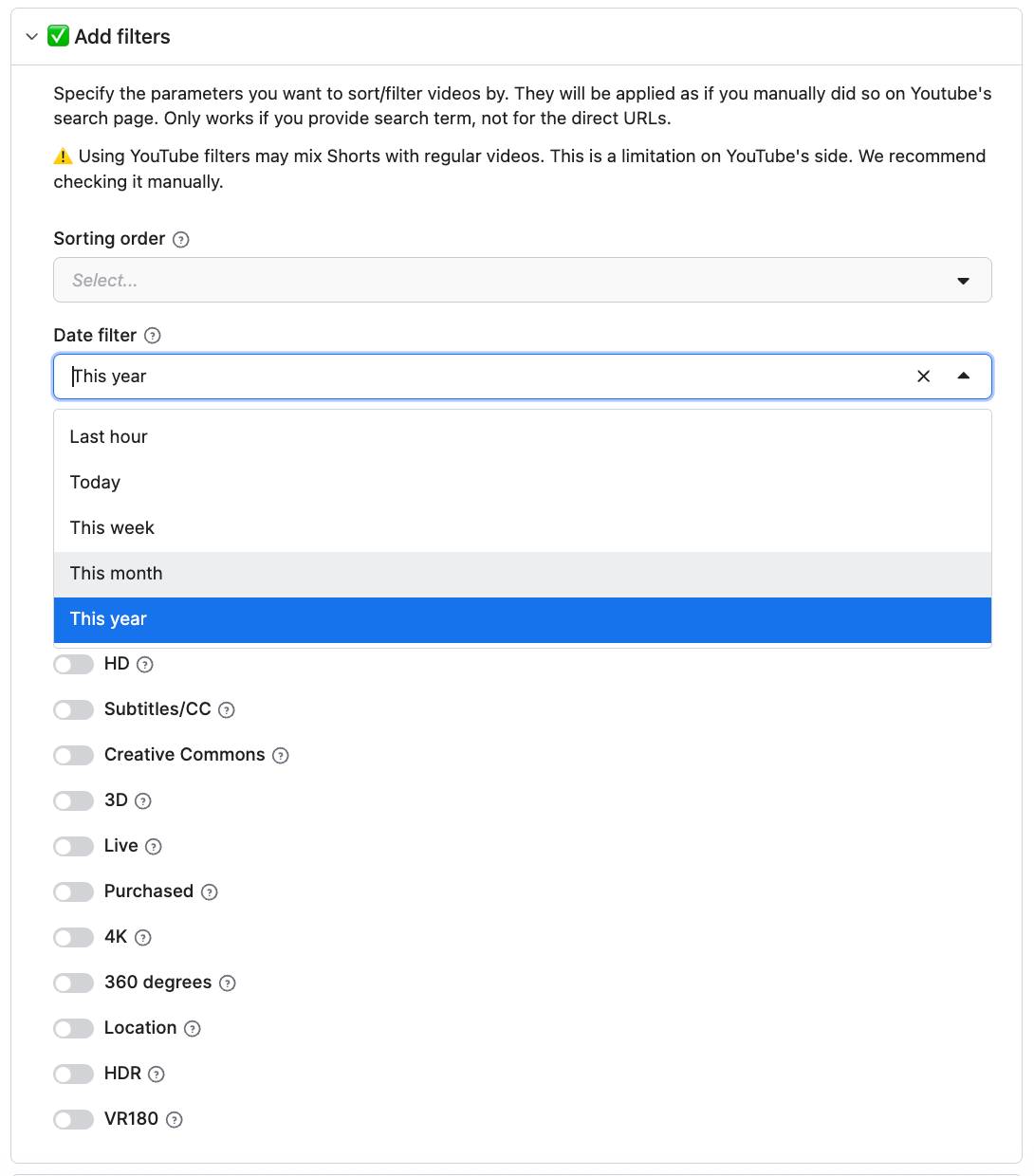
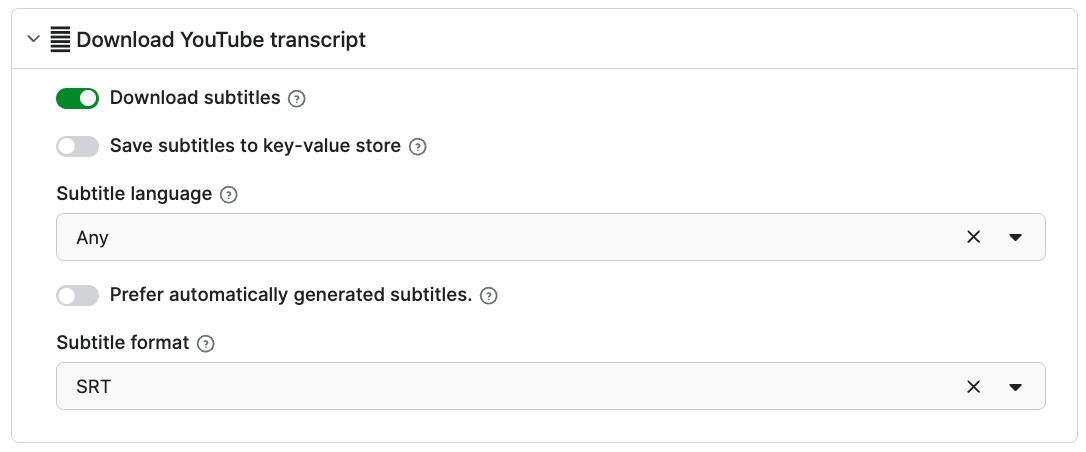
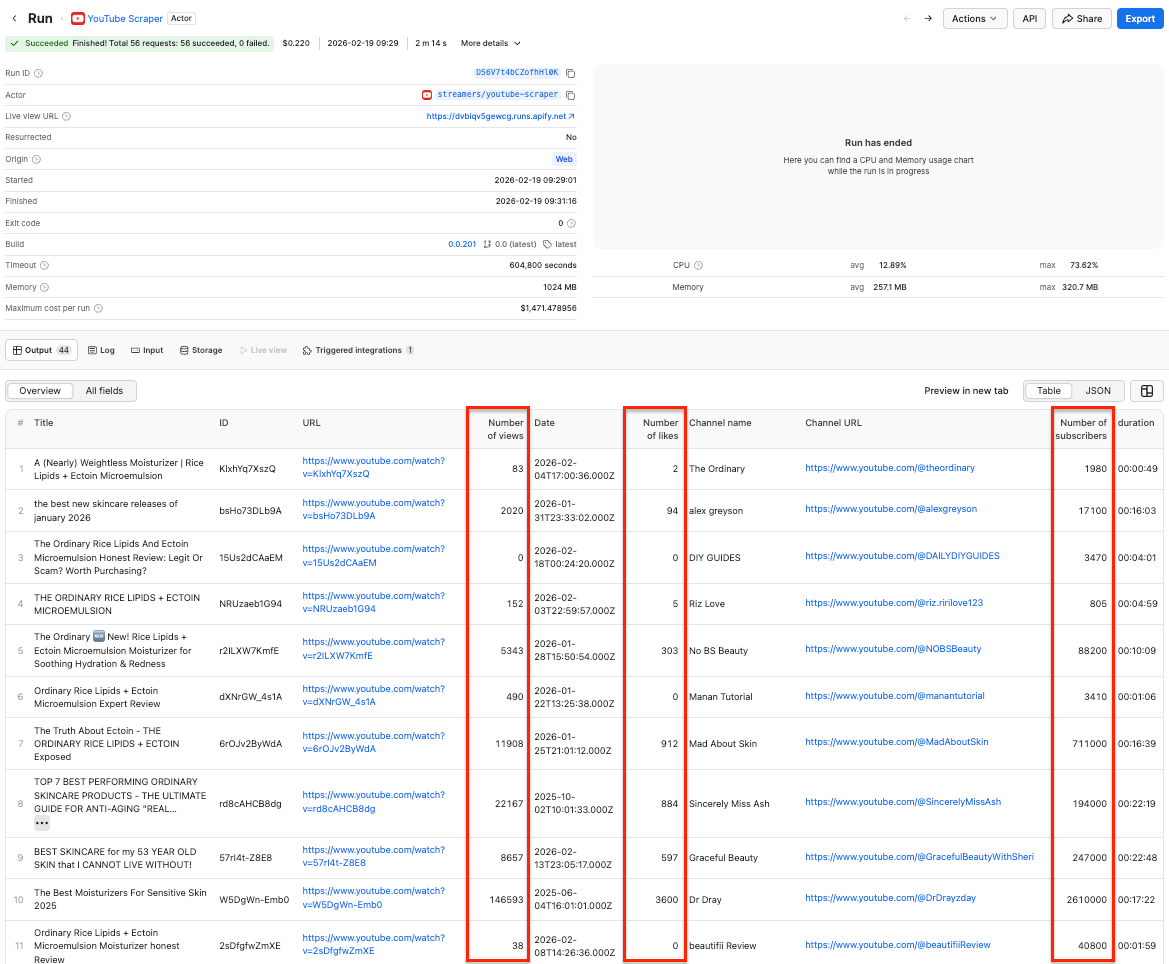
Once you’re happy with your choices, click Save & Start. After a couple of minutes, the run will finish, and you’ll be able to check the results in the preview table, along with the engagement metrics such as number of views, likes, and subscribers.
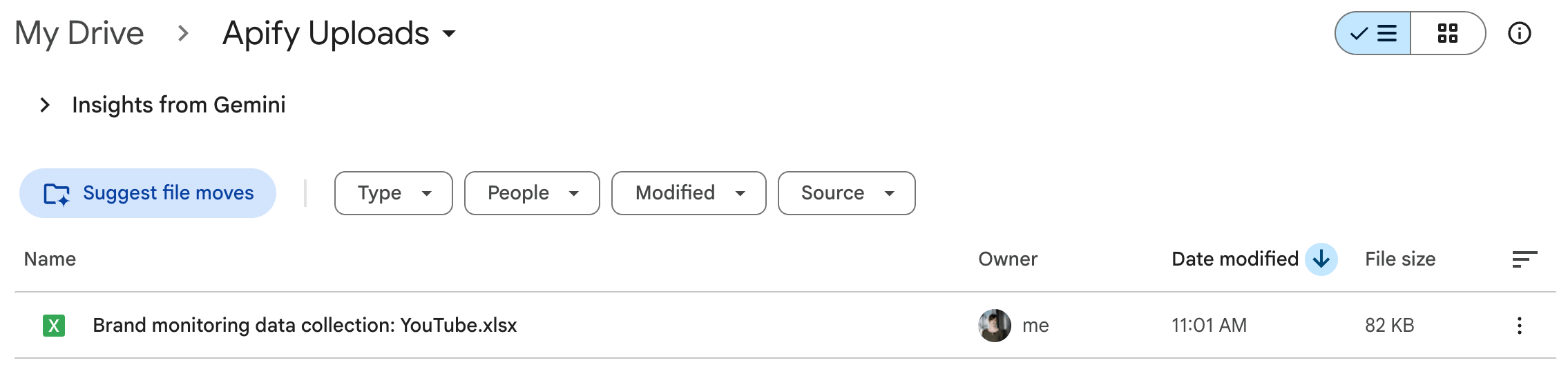
Now you can also check your Google Drive for a newly created spreadsheet. Each time you execute the scraper, it will automatically generate a new file with fresh data, ready for analysis.
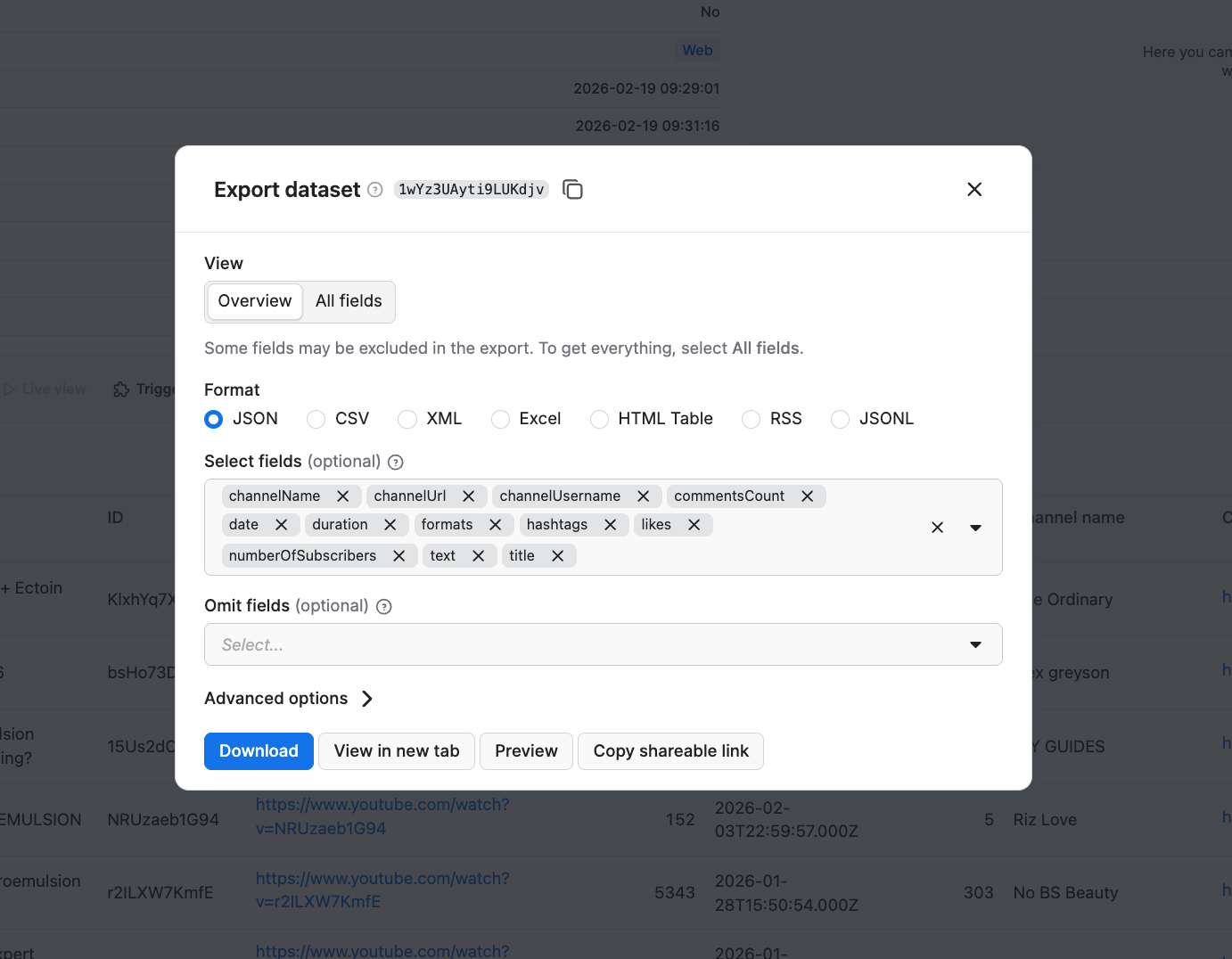
If you want to download your results in another format, simply click the Export button. You can download the results as JSON, Excel, CSV, and more. If you’re going to proceed with your analysis using LLMs, JSON files are one of the most reliable output formats for AI workflows as the predictable syntax helps models make fewer structural mistakes compared to CSV or free text.
You can also select or omit fields to reduce the information noise.
Step 3: Scheduling automated runs
If you want to monitor YouTube mentions regularly, you can schedule the scraper to run automatically and collect data without manual input.
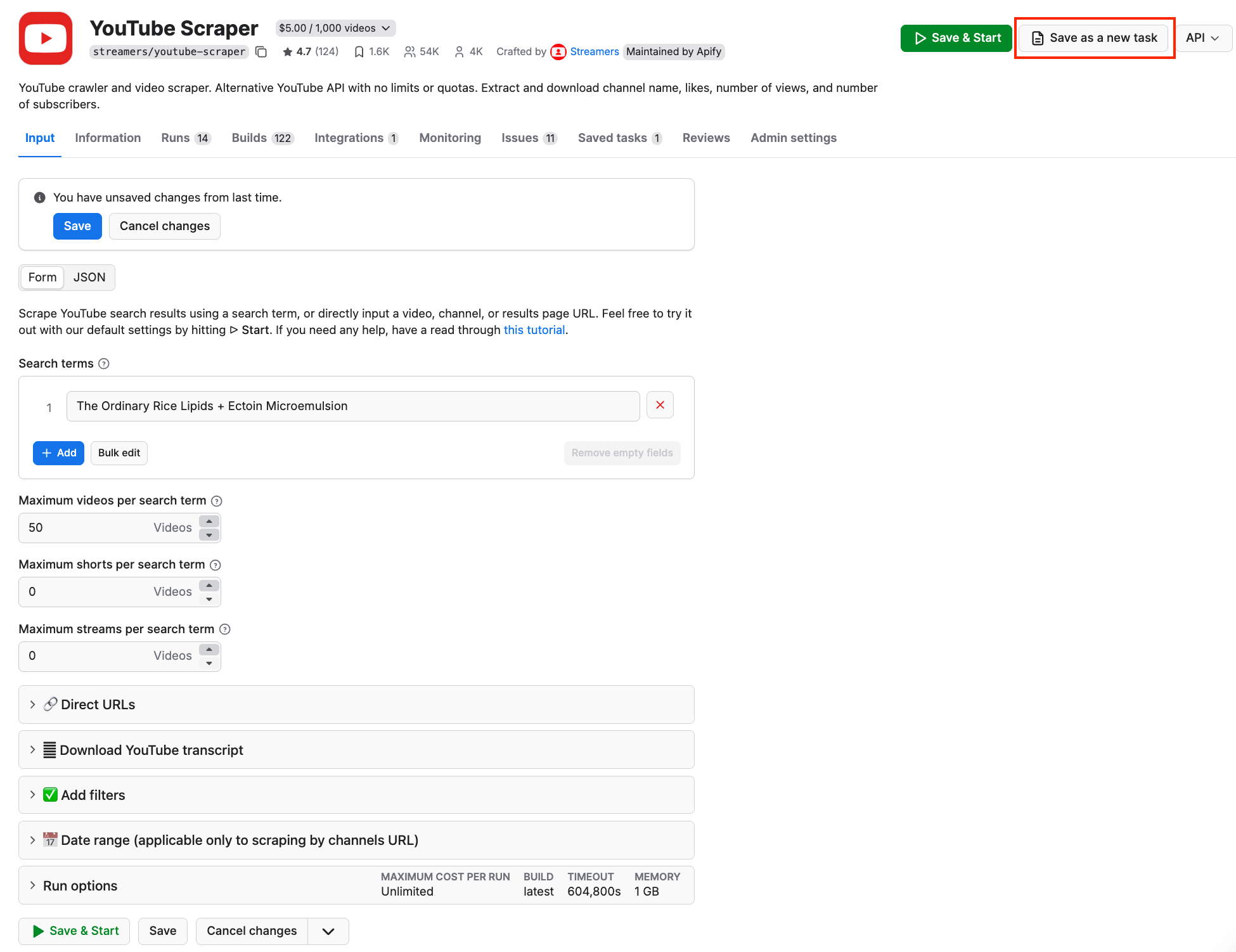
First, make sure your scraper is properly configured, then click the Save as a new task button in the top-right corner.
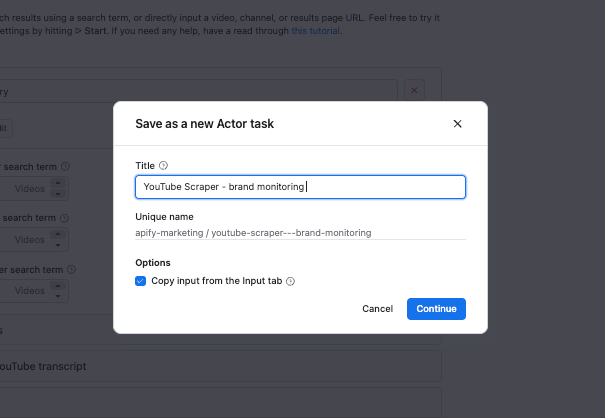
Give your task a name and save it.
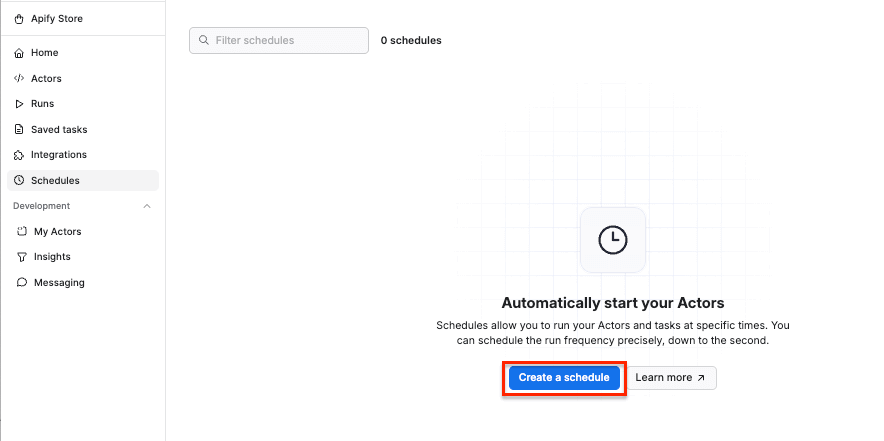
Now, you can easily schedule the task by accessing Schedules in the left-hand navigation and clicking the Create a schedule button:
We’ve already saved our task, so now it’s time to add it to the schedule. Click Add task at the bottom to customize your schedule, select a task, and choose how often you want the scraper to run - weekly, monthly, or on any day that works best for you.
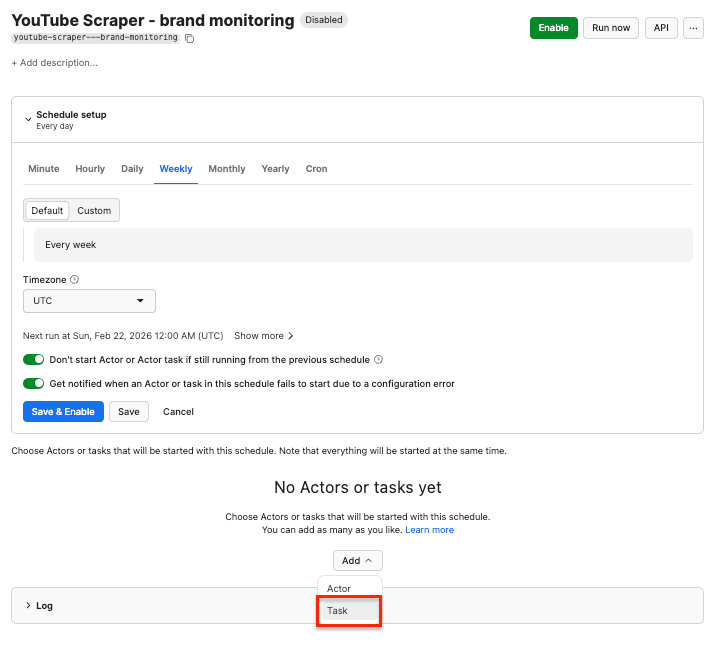
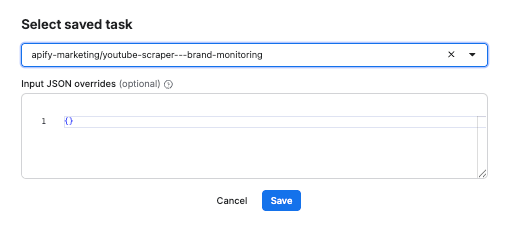
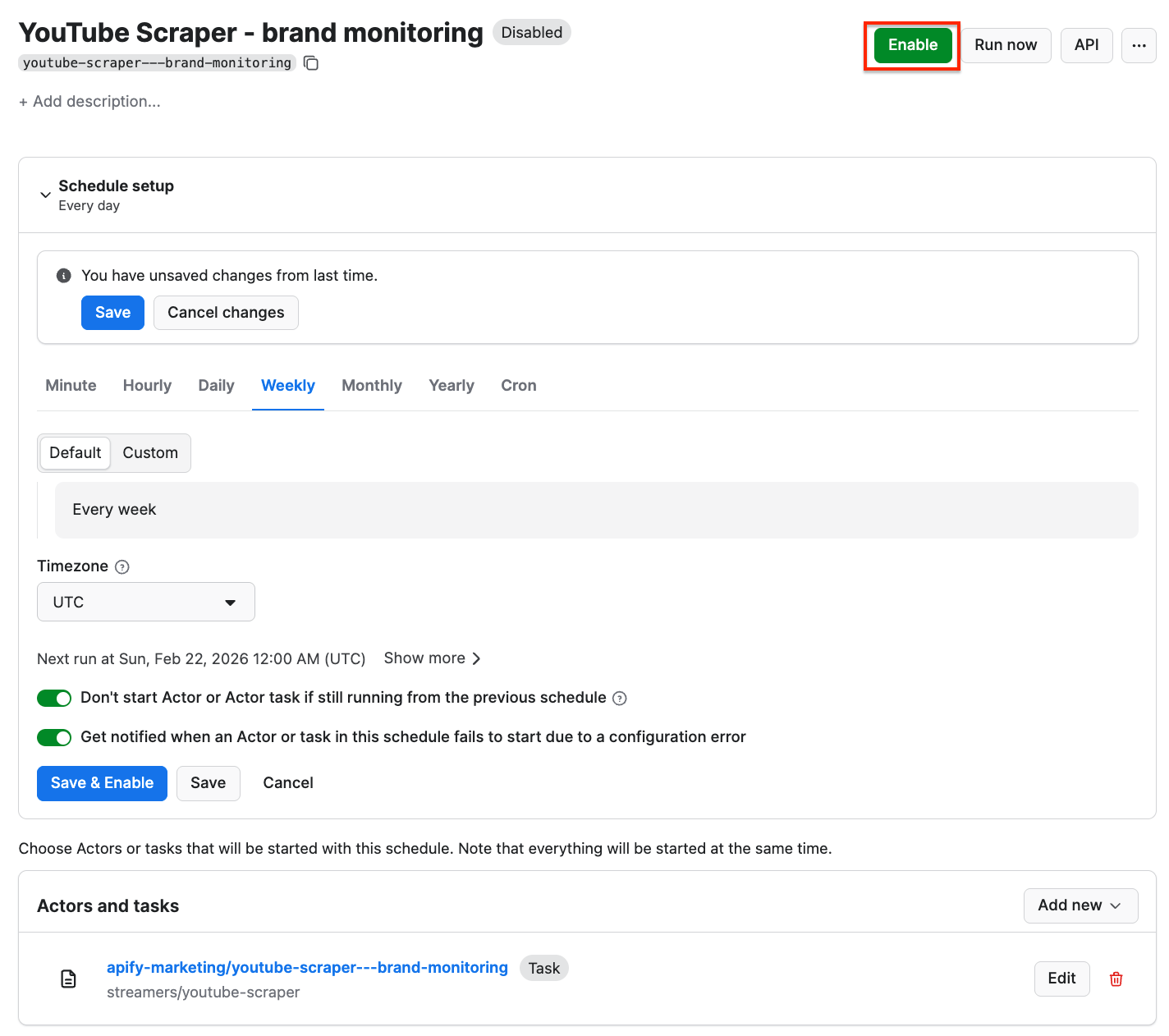
Customizing the schedule
Click Enable, and your schedule will be up and running. It will automatically start the scraper at your chosen time and send the results to Google Drive, thanks to the integration we set up earlier.
That’s it - you’ve built a workflow for extracting YouTube data that runs without manual effort.
Step 4: Analyzing your results
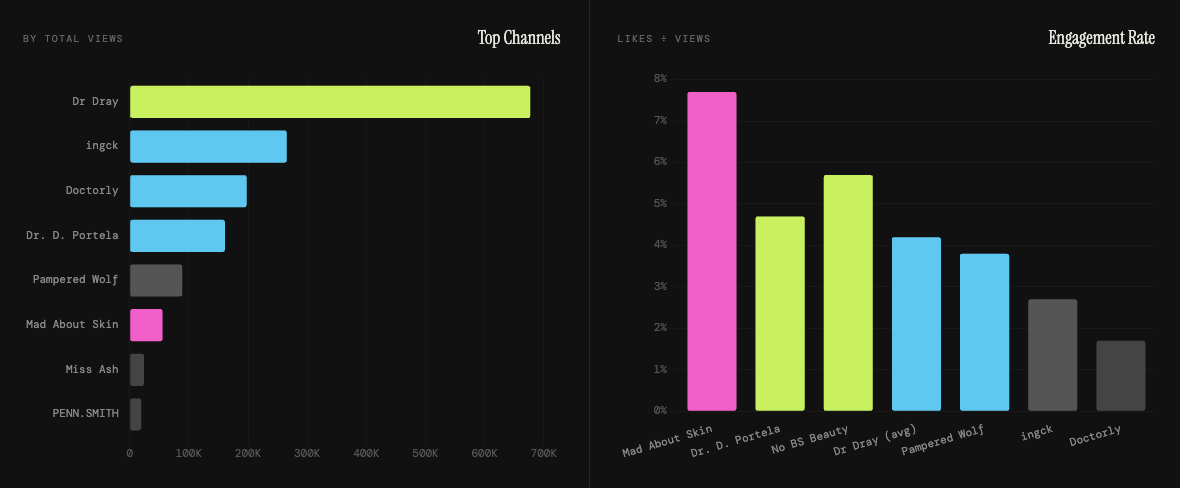
Now that your results are generated automatically, you can discover new creators, compare the sentiment over time, and track engagement.
With AI models such as Claude, ChatGPT, or Gemini, you can generate influencer tier charts, analyze video content, and interpret extracted transcripts.
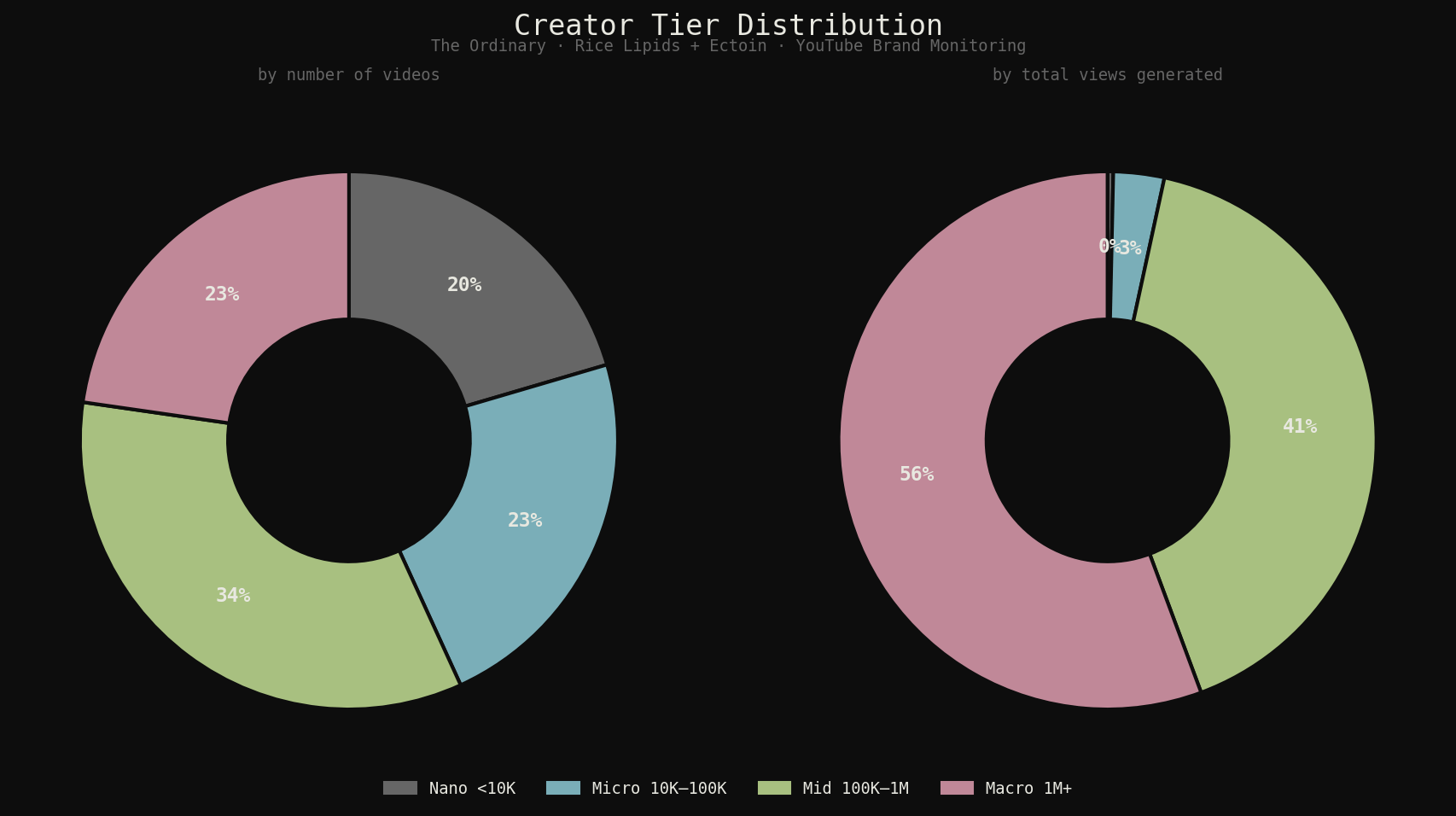
Here are some questions you can ask your AI tool to get the most out of your datasets:
- Which channels mentioned the brand more than once?
- What words and phrases appear most in high-performing video titles vs. low-performing ones?
- Are negative videos growing as a share of mentions over time, or is it a one-off spike?
- Which creators have high engagement but relatively low subscriber counts?
- Which creators mention the brand repeatedly without any apparent sponsorship signal?
- Do longer videos outperform shorter ones in engagement?
- Which video formats (reviews, routines, roundups, comparisons) generate the most engagement per view?
- Which channels generate the most views per video vs. most total views?
- Which non-English markets are covering the brand organically?
- Which upload dates correlate with spikes in attention?
Conclusion
Monitoring brand mentions on YouTube doesn’t have to be manual or fragmented. By combining a YouTube scraper with simple automation and AI analysis, you can turn scattered creator conversations into structured data that’s easy to track, measure, and act on.
Instead of reacting to trends after they happen, you gain a continuous view of how your brand is discussed - helping you identify creators, understand sentiment, and make smarter marketing decisions over time.

FAQ
Is it legal to scrape data from YouTube?
Scraping YouTube is legal as long as you adhere to regulations concerning copyright and personal data.
Personal data is protected by GDPR (EU Regulation 2016/679), and by other regulations around the world. You should not scrape personal data unless you have a legitimate reason to do so. If you're unsure whether your reason is legitimate, please consult your lawyers. You can also read our blog post on the legality of web scraping.
Can I scrape subtitles from YouTube videos?
Yes, you can scrape all publicly available data from YouTube, including subtitles. With YouTube Scraper, you can extract both autogenerated and added subtitles in SRT, WEBVTT, XML, or plain text format.
How to scrape YouTube comments?
To scrape comments from YouTube, use the YouTube Comments Scraper. This tool will extract comment text, author name, date posted, vote count, reply count, and more.