Sentiment analysis only works when it’s grounded in real, representative data. If you ask an LLM to analyze customer sentiment without pulling in data from all the places customers actually leave feedback, you’re optimizing for confident answers, not accurate ones.
Customer feedback is fragmented, and each data source tells a different story:
- Product reviews on e-commerce sites reflect how customers feel about what they bought
- Google Maps reviews capture the real-world experience: visiting a store, interacting with staff, or using a service on location
- Review sites focus on the brand relationship itself - trust, support quality, refunds, and how issues are handled over time
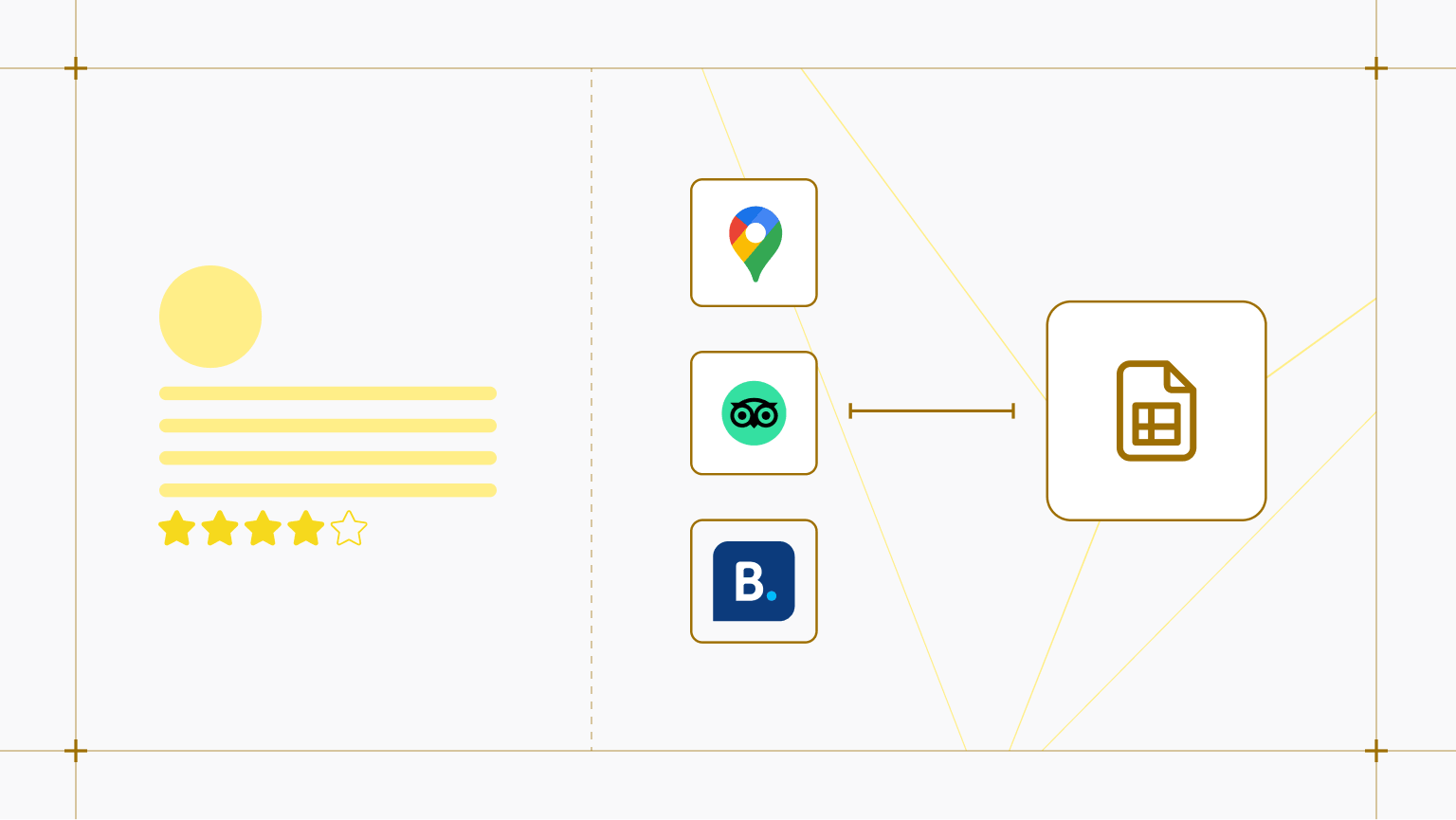
Combining all three sources gives you a full view of sentiment across the customer journey, so that you can understand customer feedback at scale, detect frustration and dissatisfaction earlier, monitor how campaigns affect sentiment, or identify emerging reputation or PR risks before they escalate.
In this tutorial, we’ll show you how to scrape reviews from three different sources, send data to Google Drive, and feed the outputs into an LLM for sentiment analysis, using automated no-code solutions from Apify Store. Plus, with $5 of usage every month, you can get a significant amount of data for free.
Sentiment analysis pipeline for customer feedback
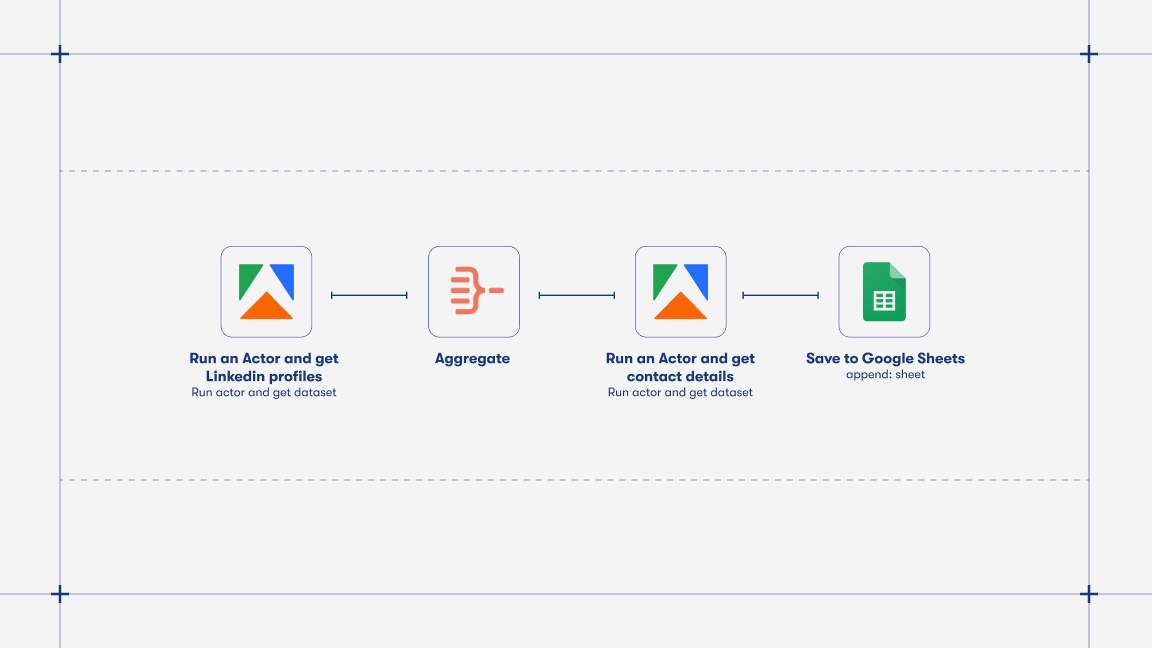
We’re going to build a repeatable pipeline that will help you understand your customers using data, not guesswork. We’ll use three Apify scrapers (called Actors) to extract customer reviews without a single line of code:
- E-commerce Scraping Tool to scrape Amazon reviews
- Google Maps Scraper to get reviews from Google Maps
- Trustpilot reviews scraper to extract reviews from Trustpilot
- Built-in proxy management
- Anti-bot evasion support
- Integrated storage with structured exports in CSV/Excel/JSON
- Standardized input parameters (URLs, keywords, limits, etc.)
- Easy integration with third-party apps or other Actors
Every Apify Actor can also be triggered programmatically via the Apify API, opening up lots of ways to integrate it into your workflows.
Once scraped, your data will flow directly to Google Drive, ready for analysis.
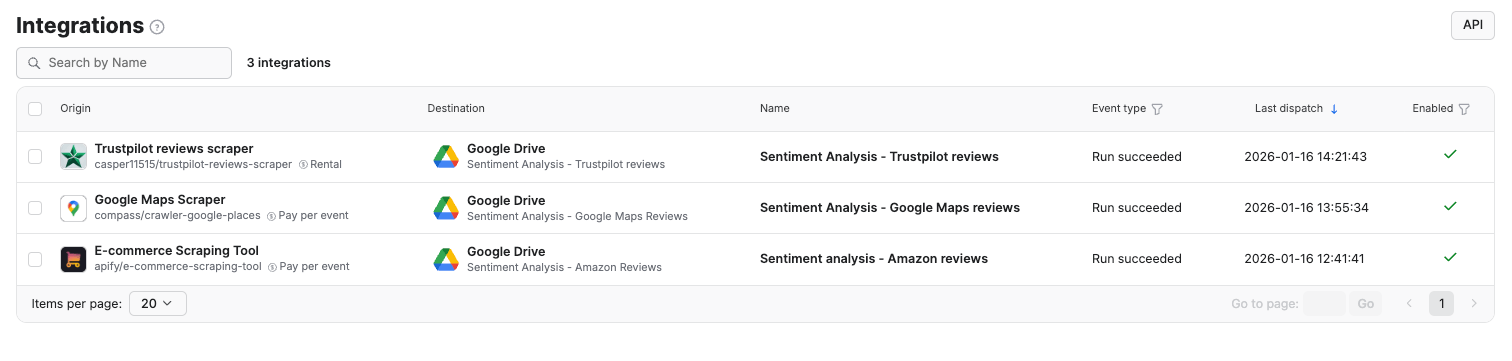
You can also set up a schedule to get fresh data regularly, without any manual input.
Let’s start.
Scrape product reviews with E-commerce Scraping Tool
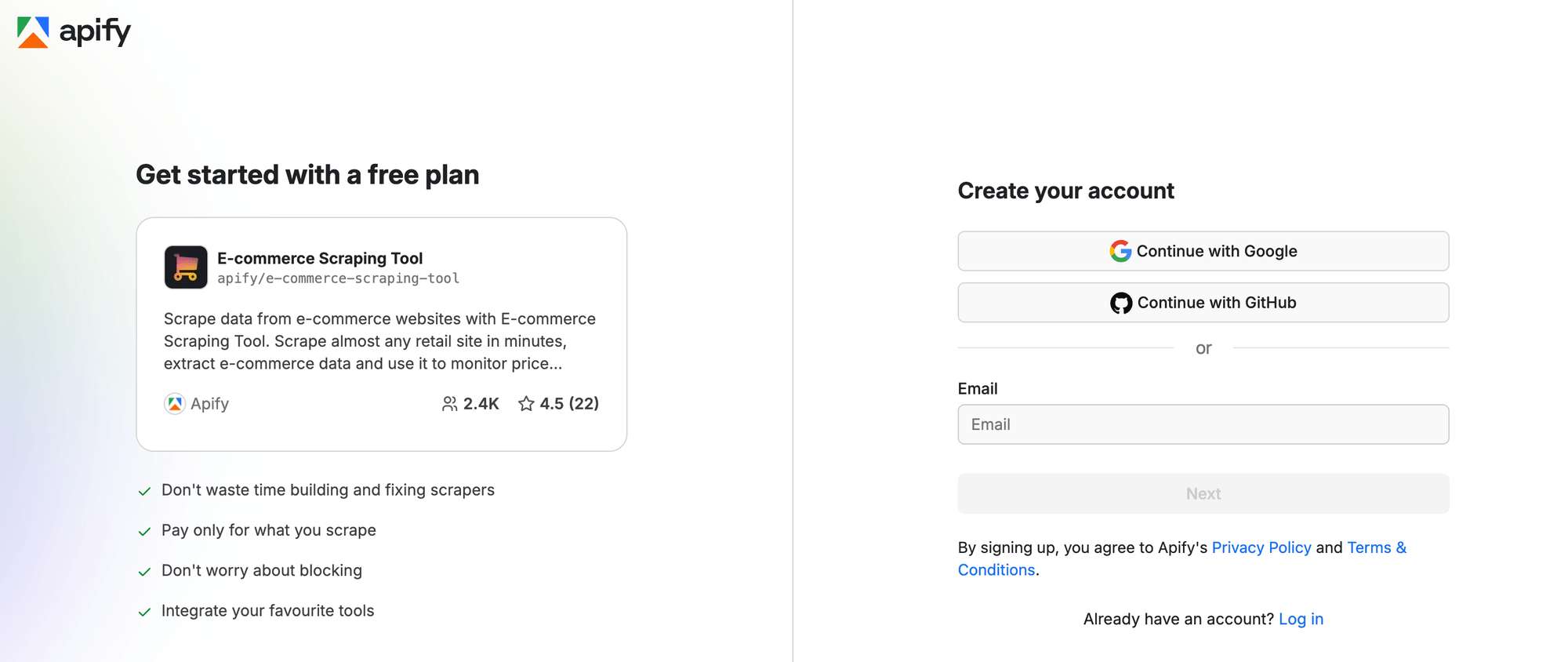
Before we jump to data extraction, sign up for a free Apify account. You’ll enter Apify Console, a workspace to run or build scrapers and automation tools.
E-commerce Scraping Tool can extract reviews from any e-commerce site - major platforms, such as Amazon, Walmart, IKEA, and eBay, as well as regional and niche retailers.
Step 1: Integration with GDrive
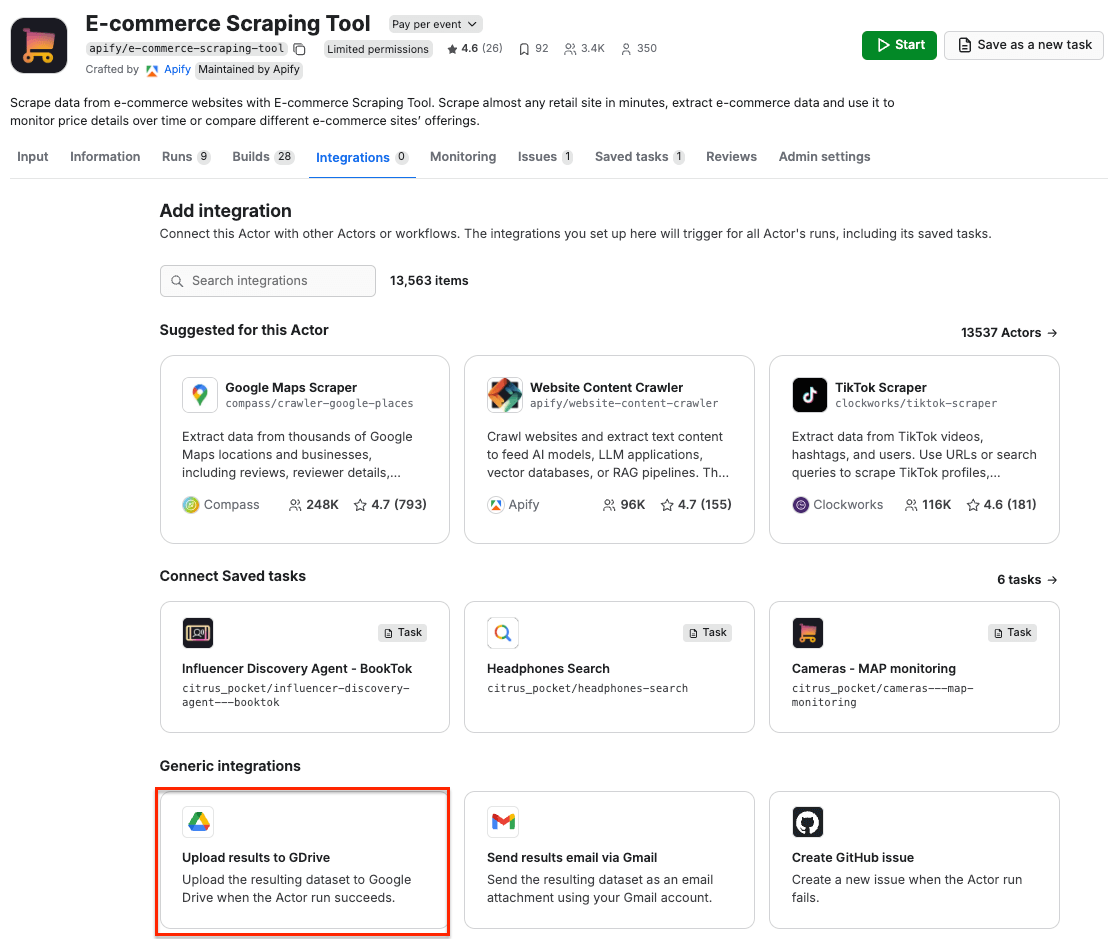
First, let’s make sure our data flow is configured. Go to E-commerce Scraping Tool and select the Integrations tab. Start typing “GDrive” in the search bar, and select the Upload results to GDrive integration.
Give the integration a unique name. In our example, we want to extract reviews from Amazon, so we’ll use Sentiment analysis - Amazon reviews. Click Save to continue and connect your Google account. If you’re using your Google account with Apify Console, your email address might already be on the list of accounts to select.
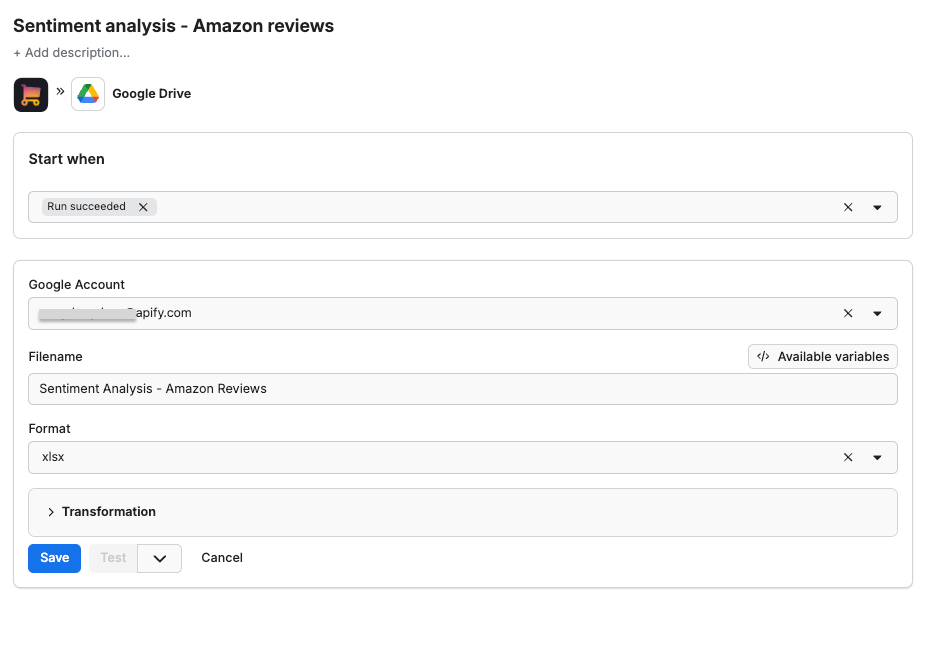
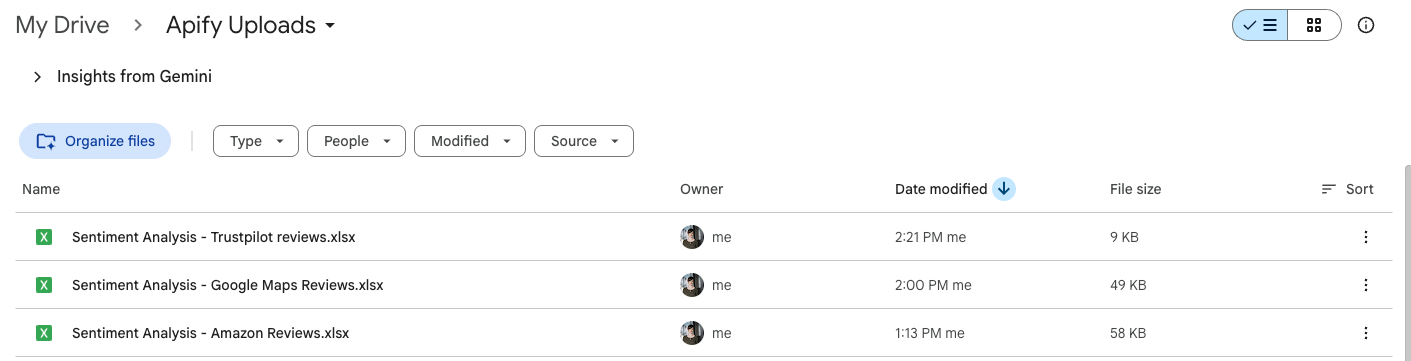
Since we want the data to be sent to the spreadsheet once the scraper finishes running, we’ll select Run succeeded as our starting point. Select a format of the Google Drive file that the Apify integration will create (we’ll go with the XLSX) and click Save. The workflow is ready - from now on, every time you run a scraping session, a new file with scraped results will be created in your Google Drive automatically, ready to analyze and compare over time.
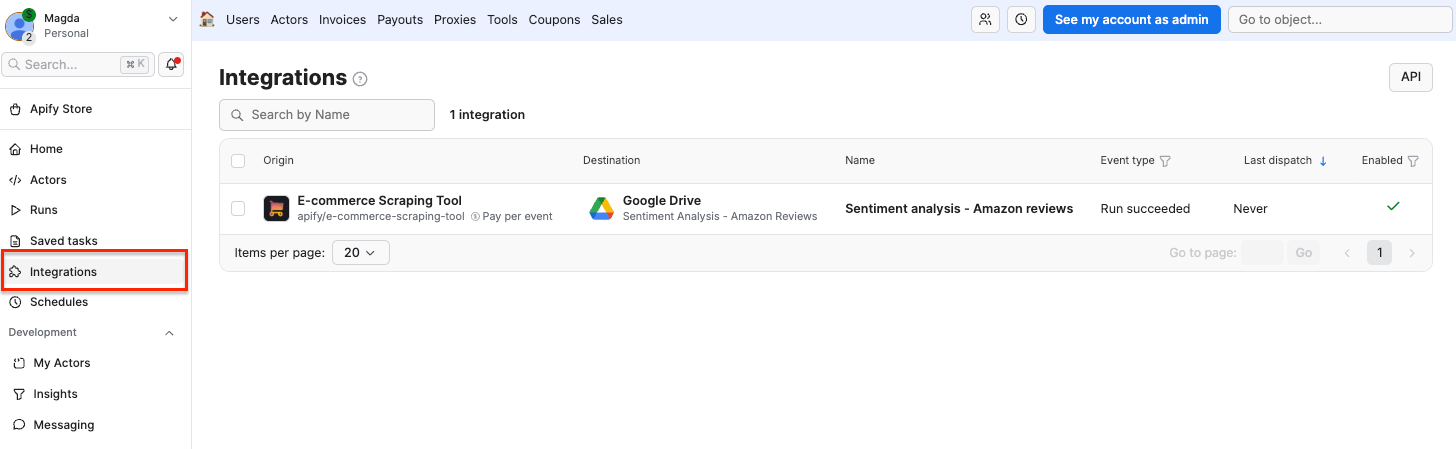
You can always check if the integration is set up correctly by selecting the Integrations section from the left side navigation panel.
Step 2: Configure the scraper and run it
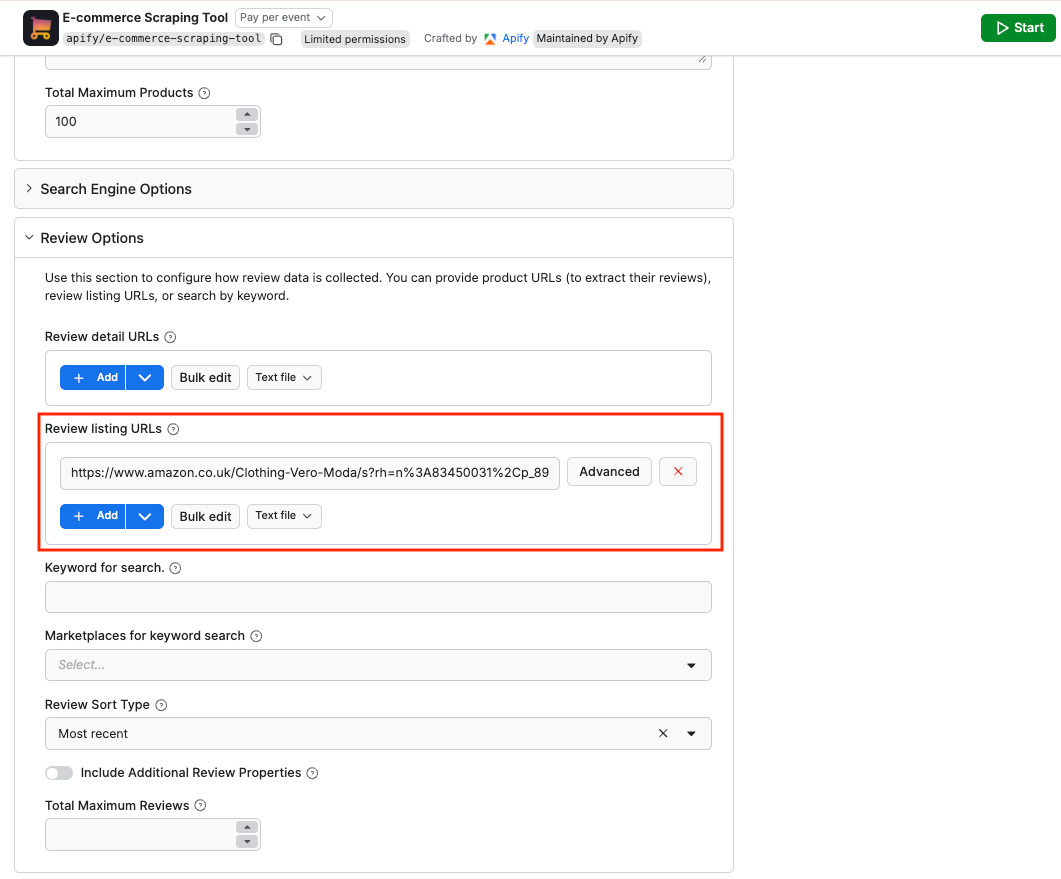
Time to set up the scraper. Collect the URLs of all the products you want to monitor reviews for, across all e-shops and marketplaces. You can use the bulk edit option to paste multiple URLs as input. For the purpose of this tutorial, we’ll use a brand category URL for a retail company:
https://www.amazon.co.uk/Clothing-Vero-Moda/s?rh=n%3A83450031%2Cp_89%3AVero%2BModaPaste the URL in the Review listing URLs field and click Start to run the scraper.
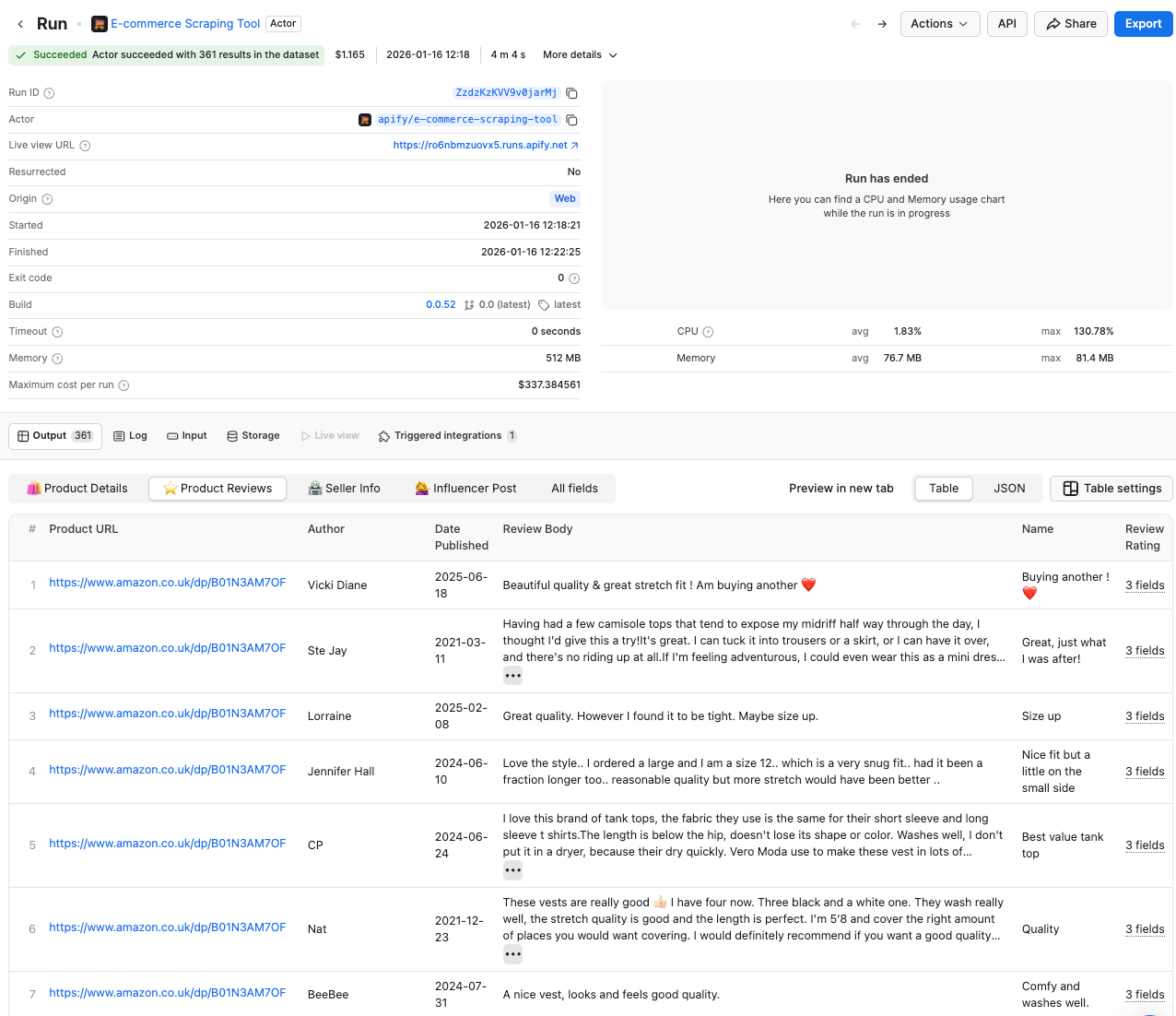
After a couple of minutes, the run will finish, and you’ll be able to check the results in the preview table.
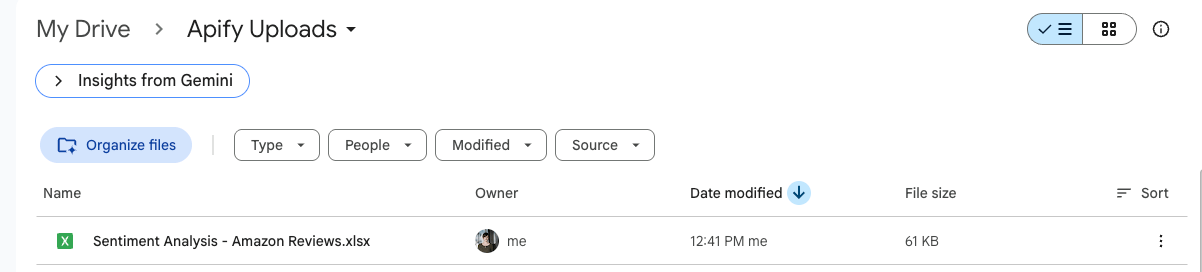
Now you can also check your Google Drive for a newly created spreadsheet with reviews. Each time you execute the scraper, it will automatically generate a new file with fresh data, ready for analysis.
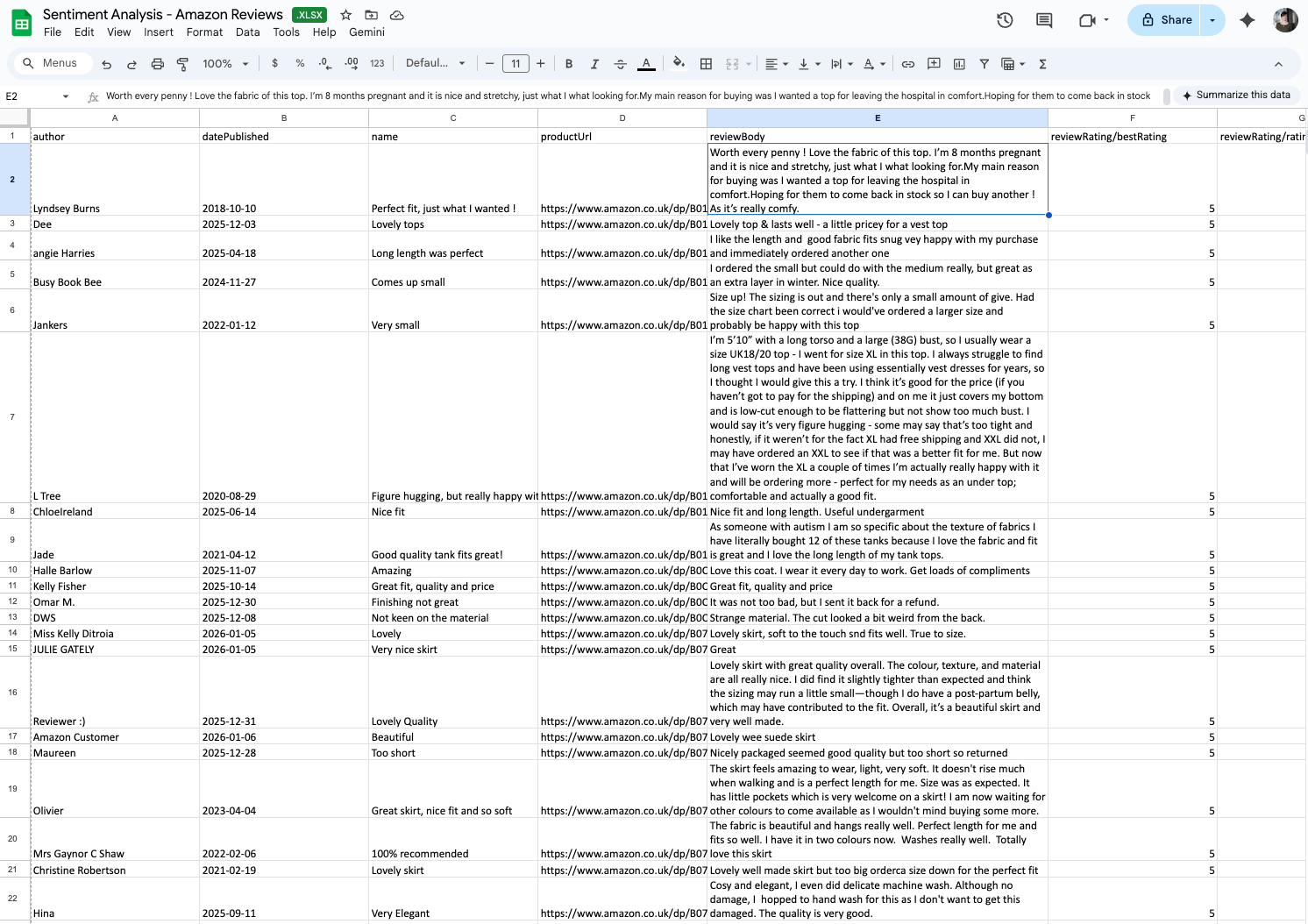
Dataset in the Excel format, with review text, authors, publish dates, and ratings.
Get data from Google Maps Reviews Scraper
To extract reviews from Google Maps, we’ll use a similar workflow to the one used with E-commerce Scraping Tool, using another scraper from Apify Store.
Step 1: Integration with GDrive
As before, head to the Integrations tab and set up the Upload results to GDrive integration. Give it a unique name - Sentiment Analysis - Google Maps reviews - add your Google account, name your future file, set the starting point, and format.
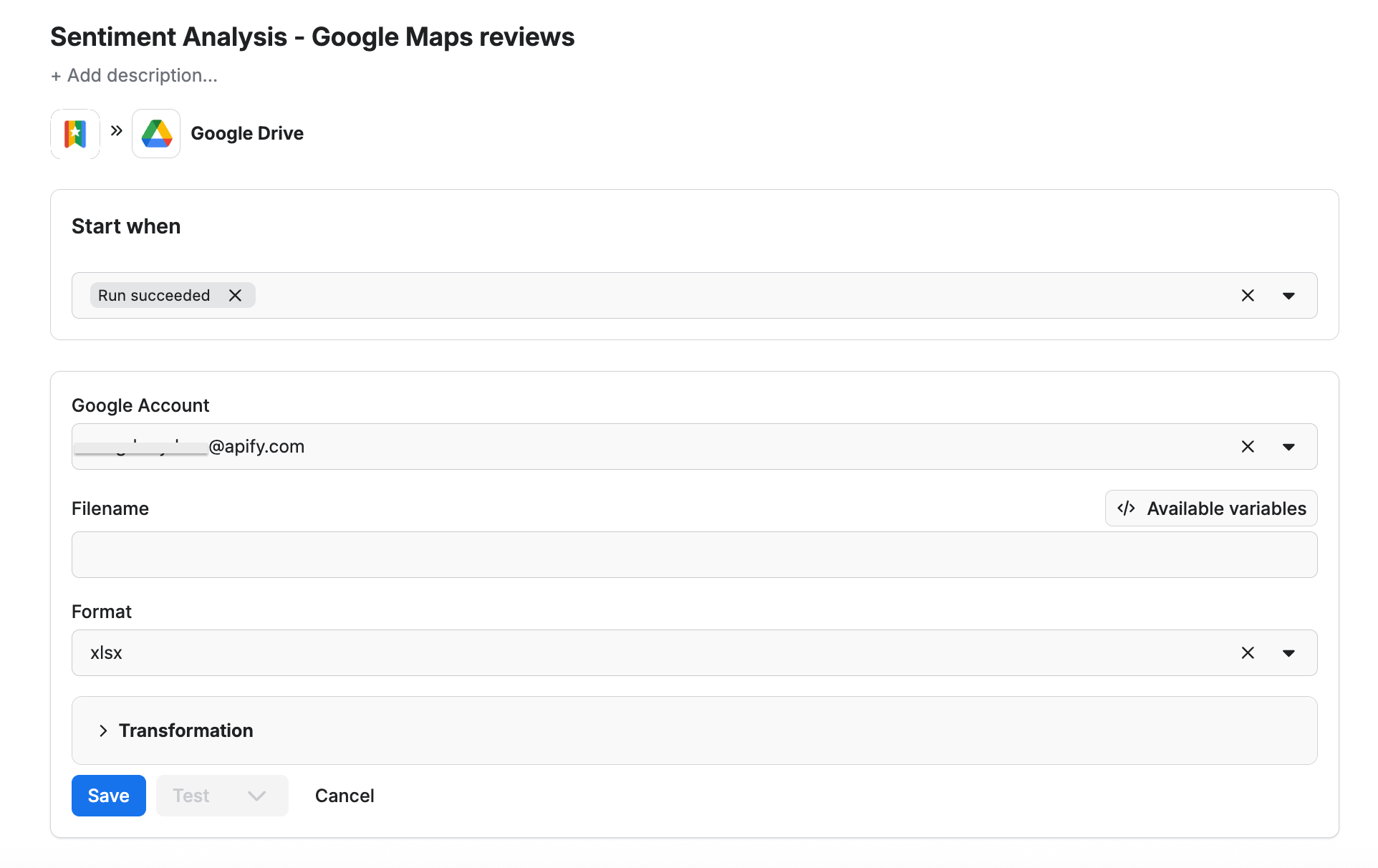
Step 2: Configure the scraper and run it
Google Maps Reviews Scraper can extract review text, ratings, URLs, authors, and even responses from the place’s owner. All you need as input is a place URL or place ID for the location you want reviews from. You can use specific URLs for individual locations or, if you want more general insights, target an entire area.
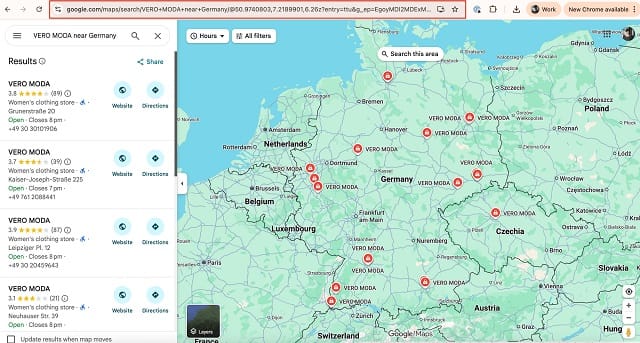
Let’s say we’re interested in reviews from the brand’s retail stores located in Germany - we’ll search for the Vero Moda stores on Google Maps directly, and then copy the URL to use as input for Google Maps Reviews Scraper:
Head to the Input tab and paste the URL in the Google Maps place URLs field.
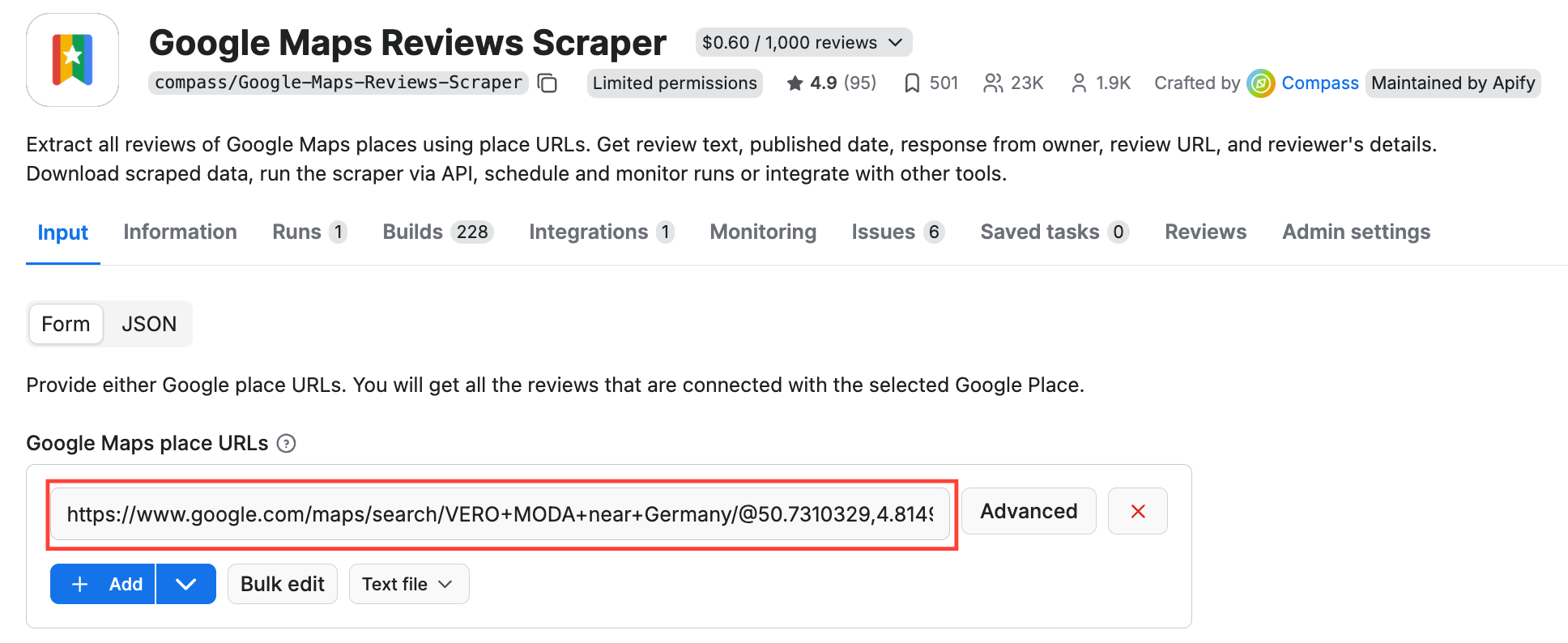
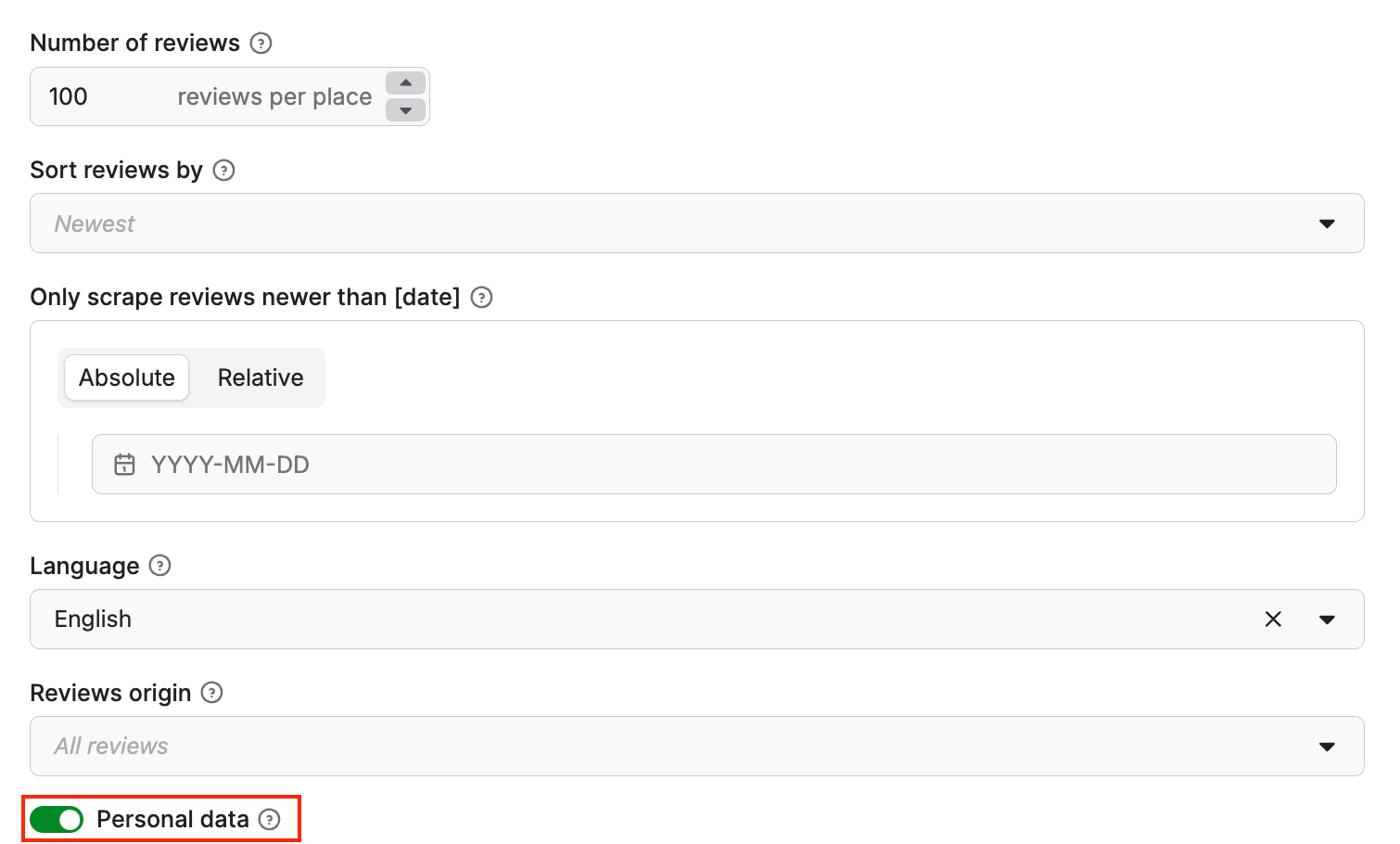
You can also limit the number of reviews per place, choose the language of the result details, and decide whether to include personal data about reviewers.
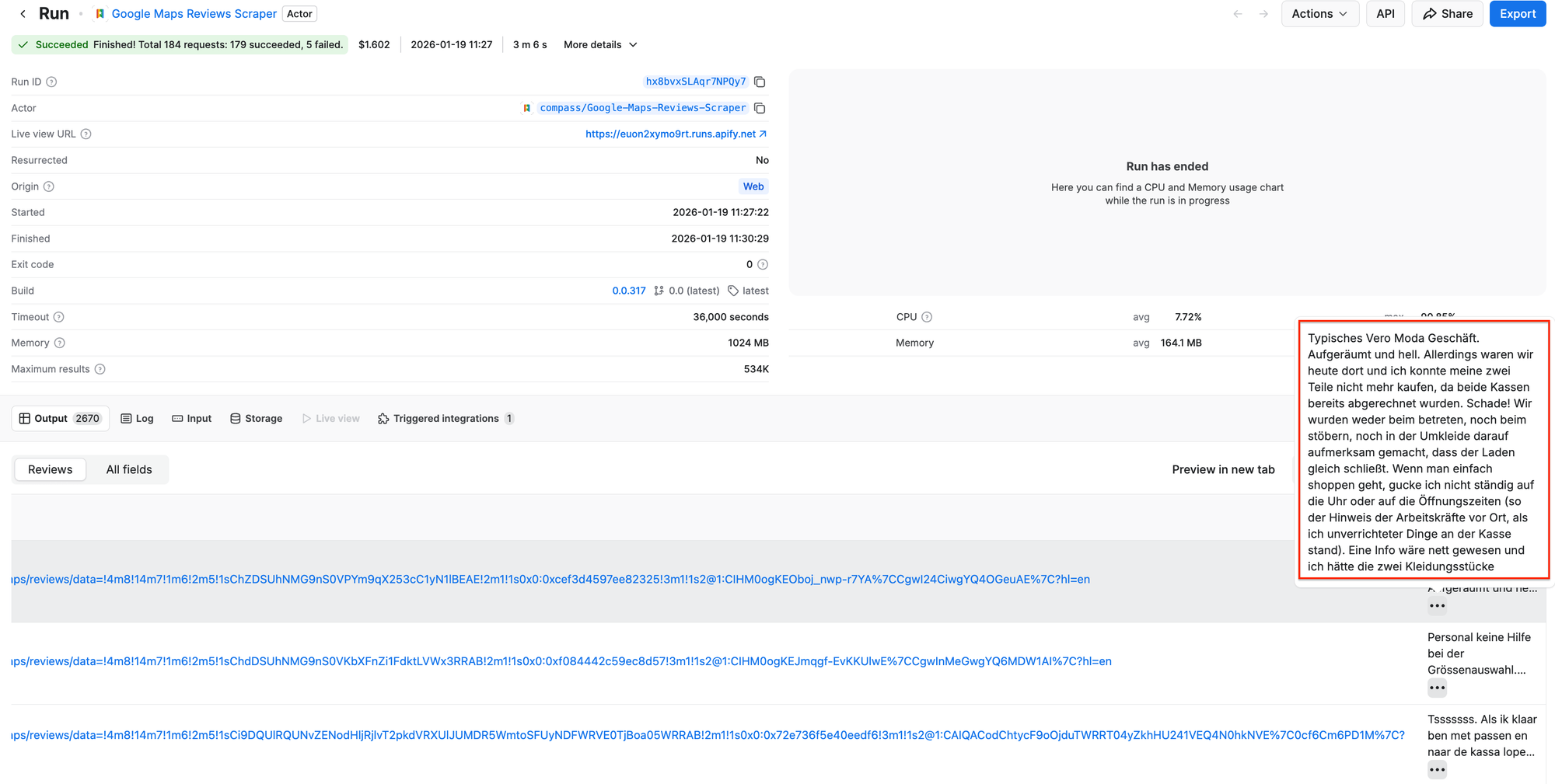
Now click Start and wait for the scraper to finish running. It took 3 minutes to extract over 2,500 reviews from the stores in Germany, and it cost only $1.6 of your monthly usage.
Just like before, you can preview your results in a table:
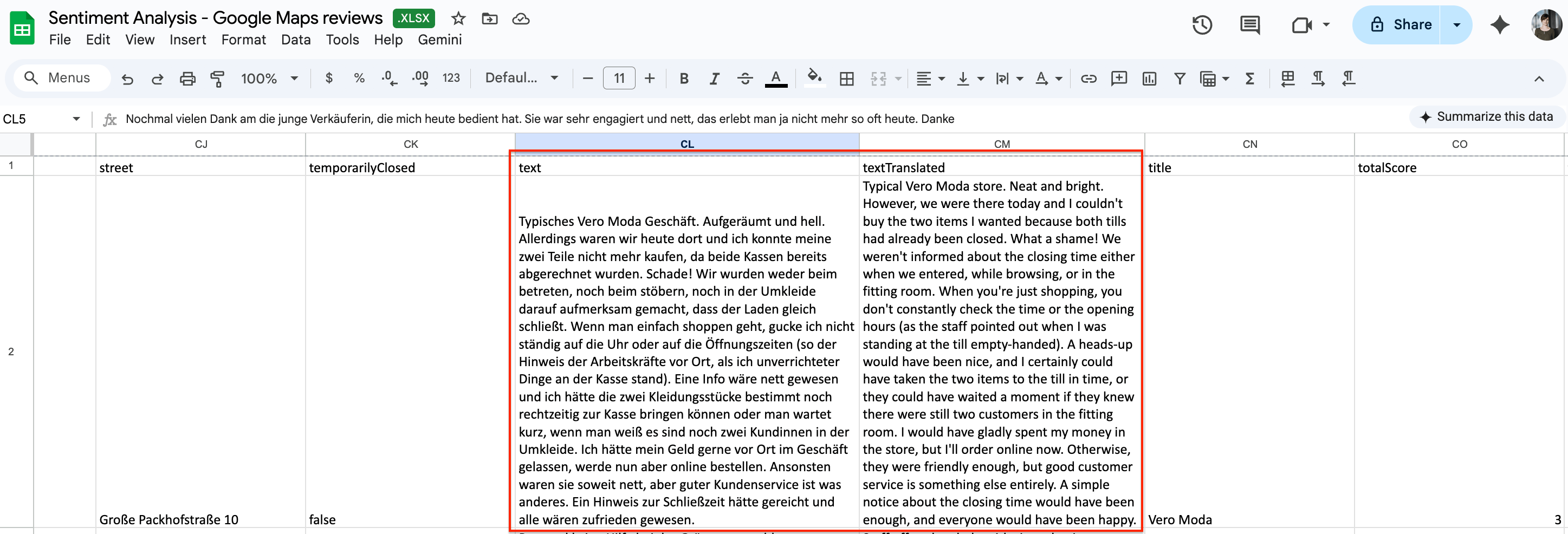
When you open your Google spreadsheet, you’ll find that the scraped reviews are available in both the original language and the English translation:
Scrape Trustpilot reviews
Unlike e-commerce or Google Maps reviews, Trustpilot captures feedback from customers who are motivated enough to evaluate the entire relationship with a company: ordering, delivery, customer support, refunds, and issue resolution. Let’s set up our workflow again.
Step 1: Integration with GDrive
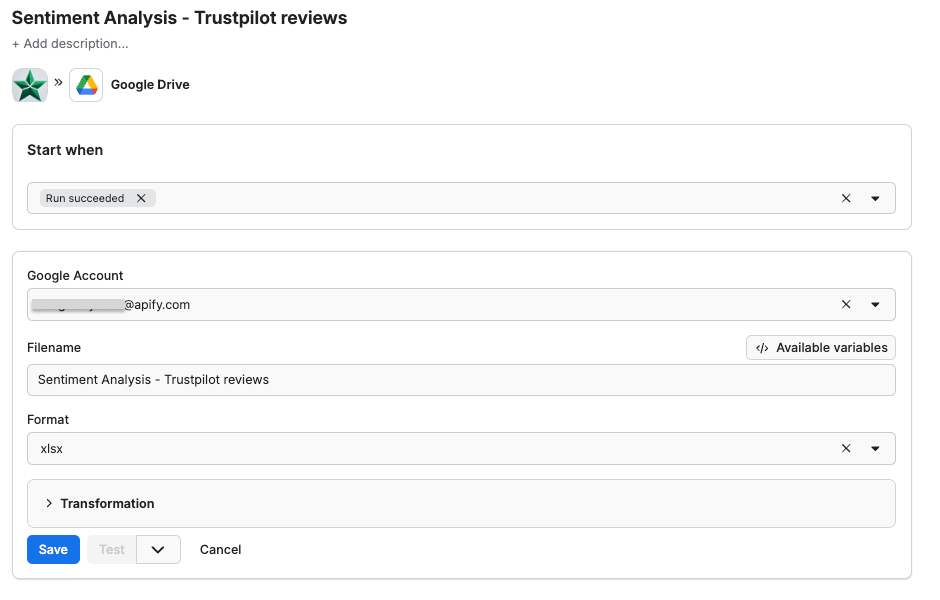
Go to Trustpilot reviews scraper and set up the integration, exactly as before - don’t forget to add the file name.
Step 2: Configure the scraper and run it
To scrape reviews of your brand with Trustpilot review scraper, add a company website or a Trustpilot URL as input. You can also customize your scrape - limit the reviews to one language, sort the reviews, or filter them by star rating.
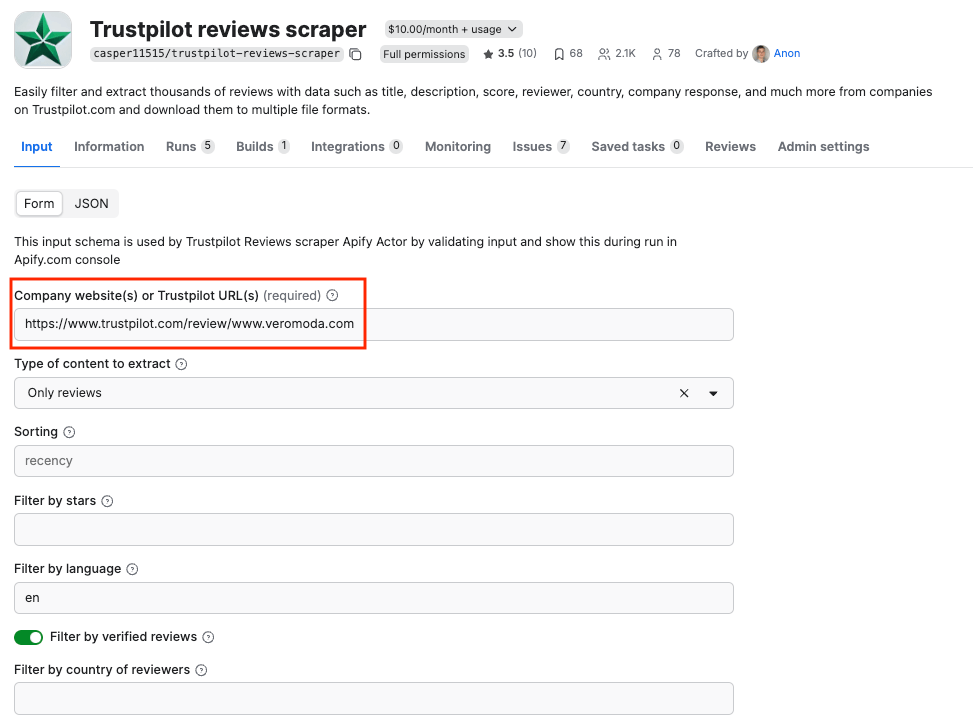
Click Start to run the scraper. As usual, you can preview your results in the Output table.
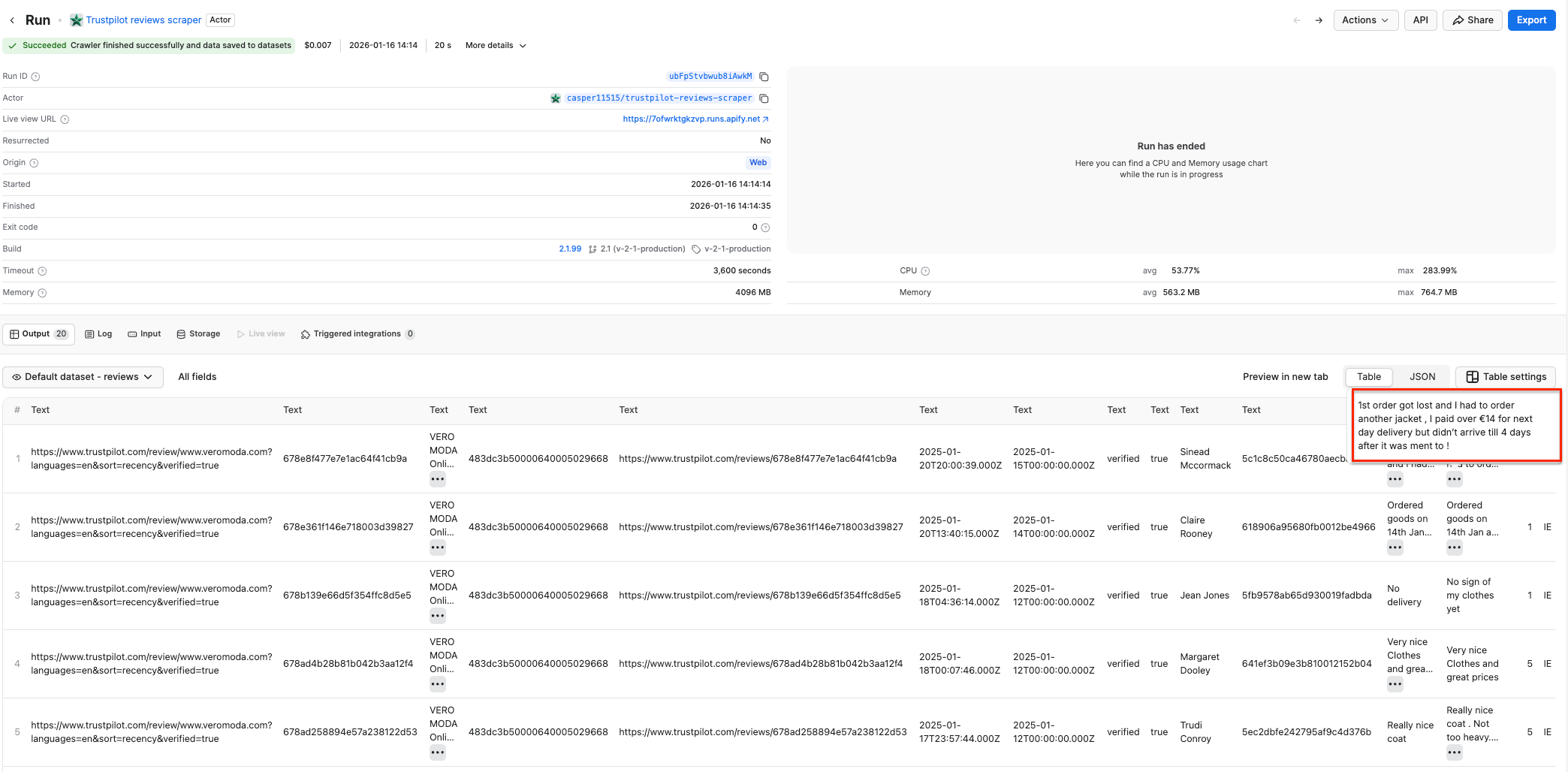
Your Excel spreadsheet includes all the details, including the review text, URL, whether the review was verified or not, and even the response from the customer operations team.
Schedule automated runs (optional step)
If you want to scrape reviews regularly, you can schedule each scraper to run automatically and collect data without manual input.
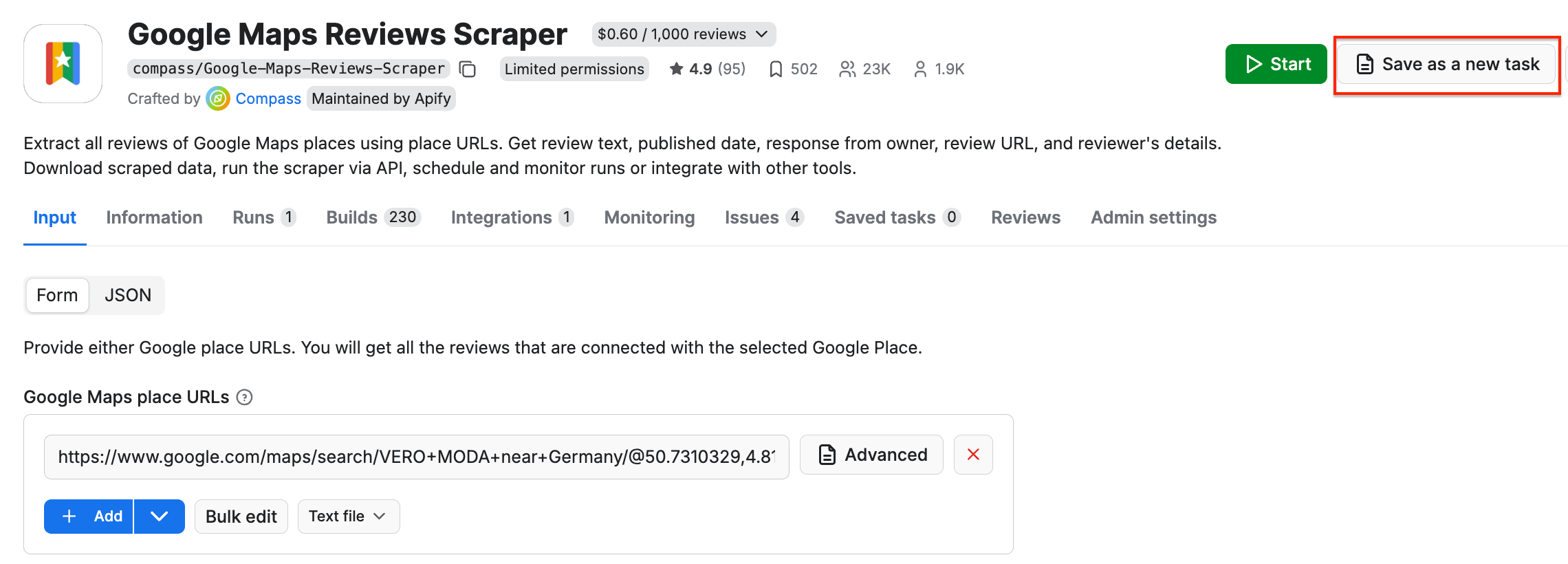
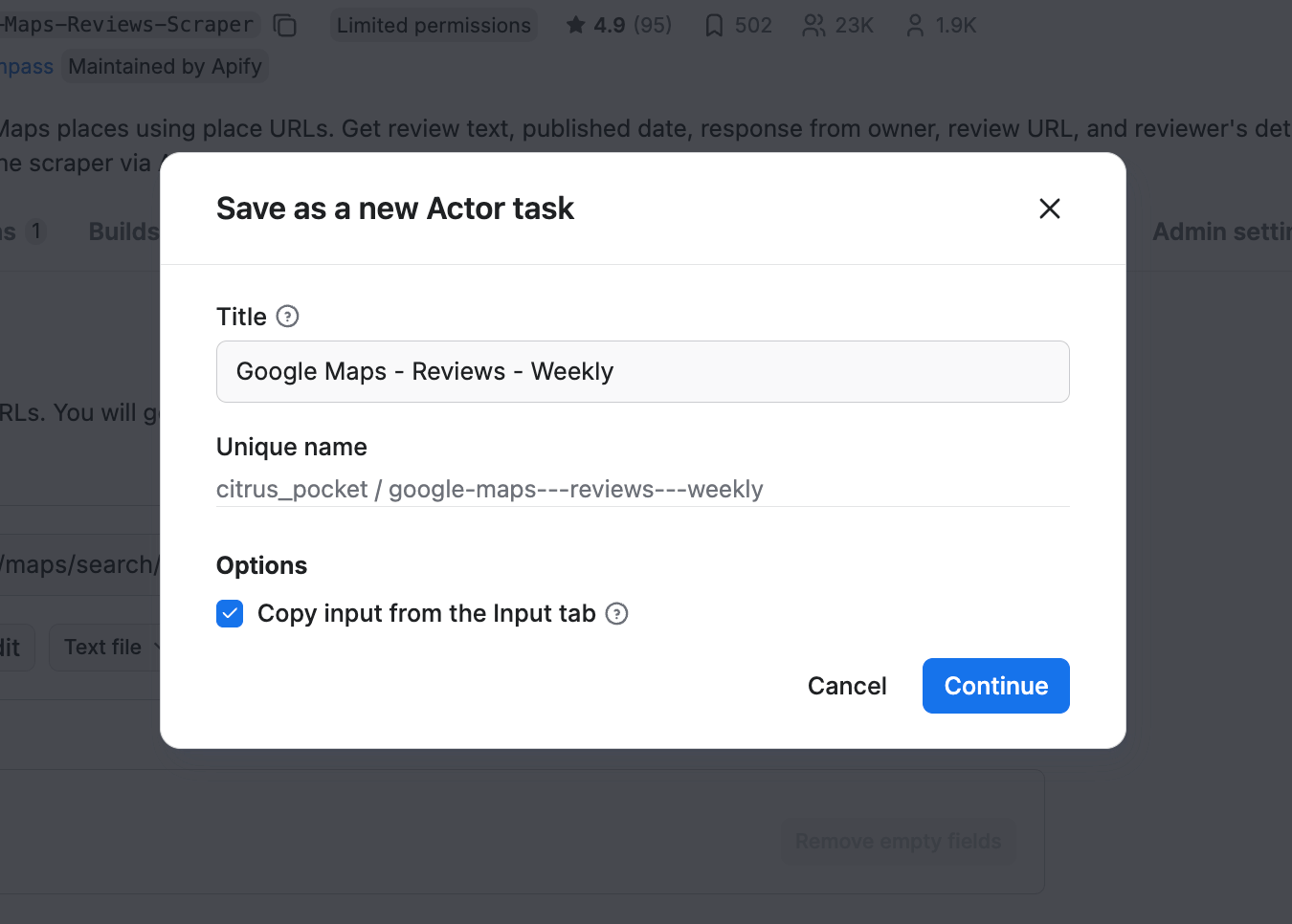
First, make sure your scraper is properly configured, then click the Save as a new task button in the top-right corner.
Give your task a name and save it.
Now, you can easily schedule the task by accessing Schedules in the left-hand navigation and clicking the Create a schedule button:
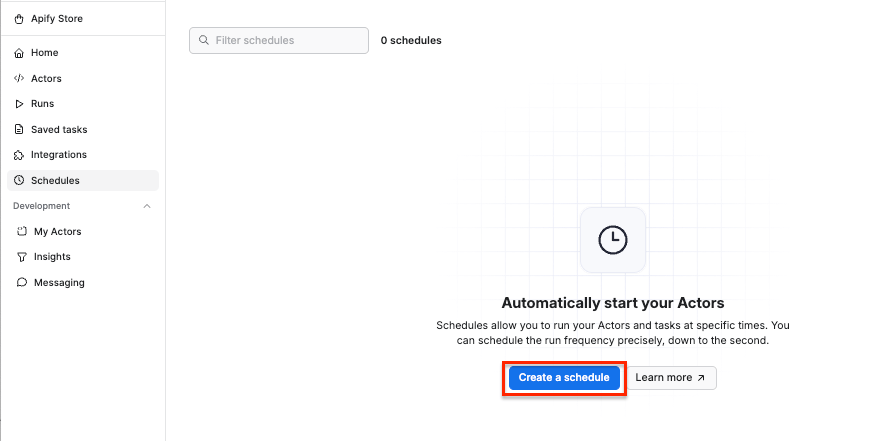
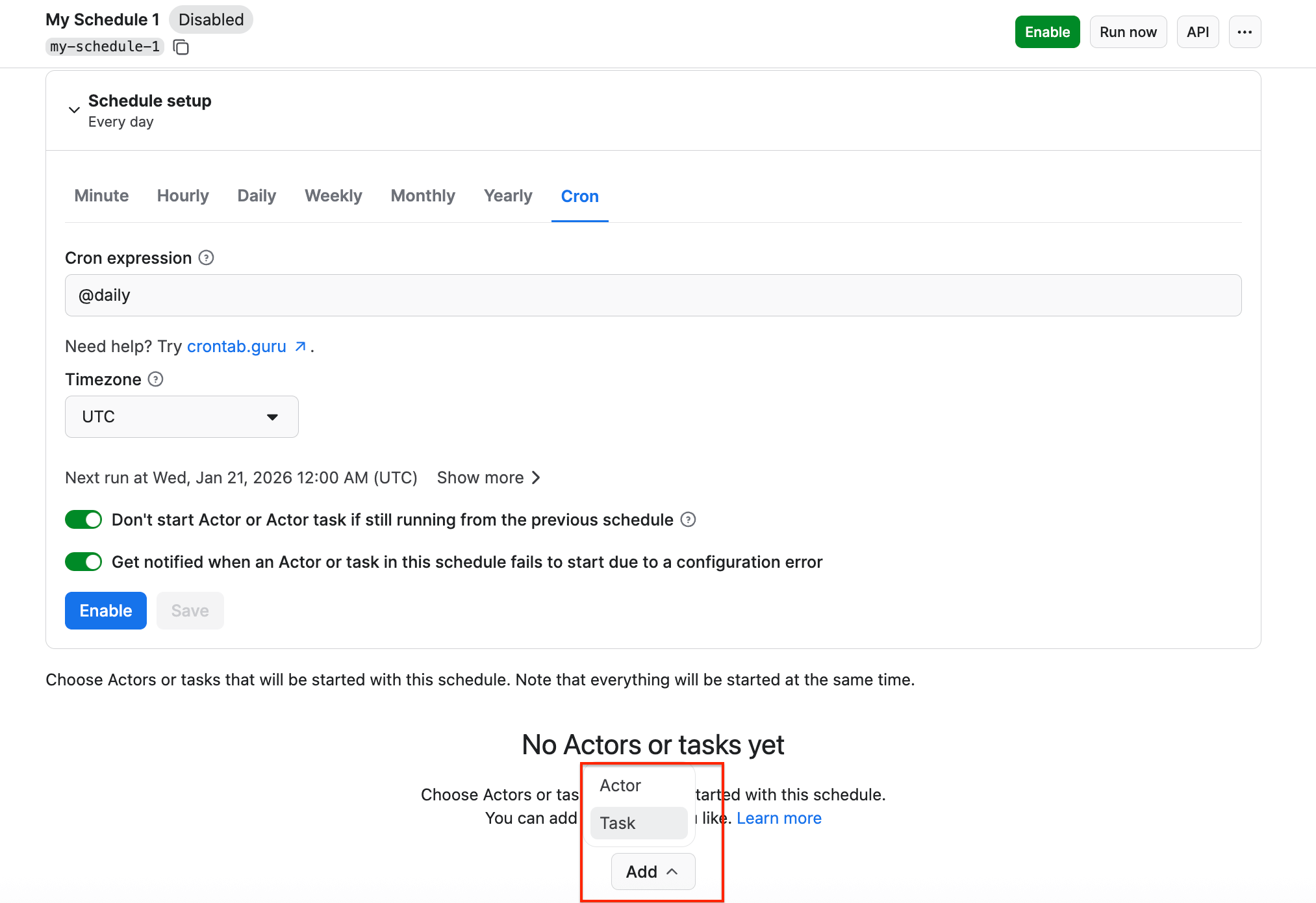
We’ve already saved our task, so now it’s time to add it to the schedule. Click Add task at the bottom to customize your schedule, select a task, and choose how often you want the scraper to run - weekly, monthly, or on any day that works best for you.
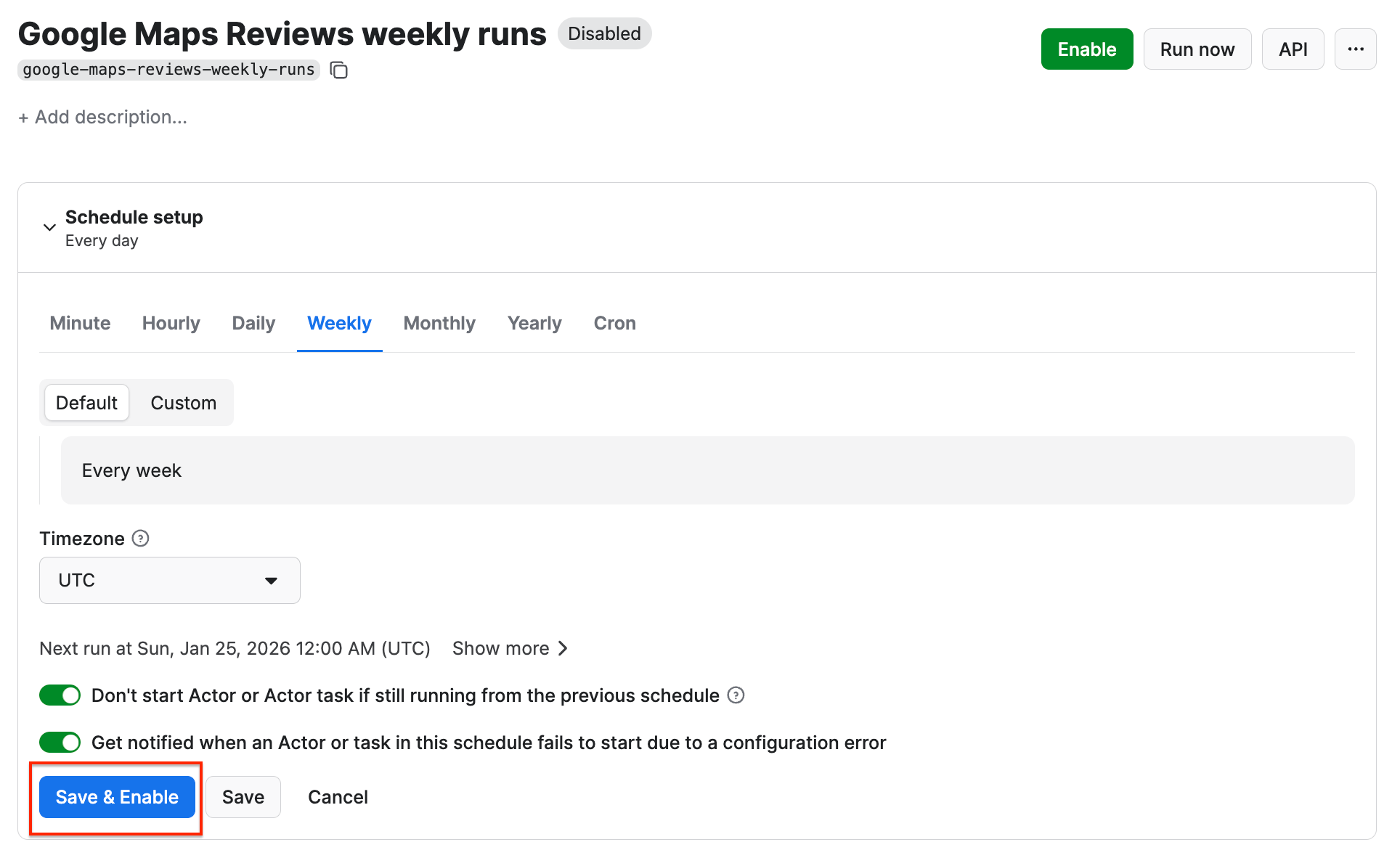
Click Save & Enable, and your schedule will be up and running. It will automatically start the scraper at your chosen time and send the results to Google Drive, thanks to the integration we set up earlier.
Perform sentiment analysis with collected data
Now that we have all three integrations set up and our files ready, we can move on to perform the sentiment analysis.
AI tools can help you summarize your findings, create charts, classify the star ratings, analyze the reviewers’ activity, review volumes, and average rating by location. We’ll cover two ways to analyze the data:
- Using the LLM with the Google Sheets
- Using the LLM Dataset Processor Actor on the Apify platform
Option 1: Sentiment analysis in Google Sheets
You can connect AI tools to your Google Drive or simply send data directly to an LLM of your choosing. Most generative AI tools connect with third-party apps with ready-made integrations or connectors.
Example: ChatGPT can connect to your Google Drive to read files, or you can load files directly by sharing the file URLs in the conversation.
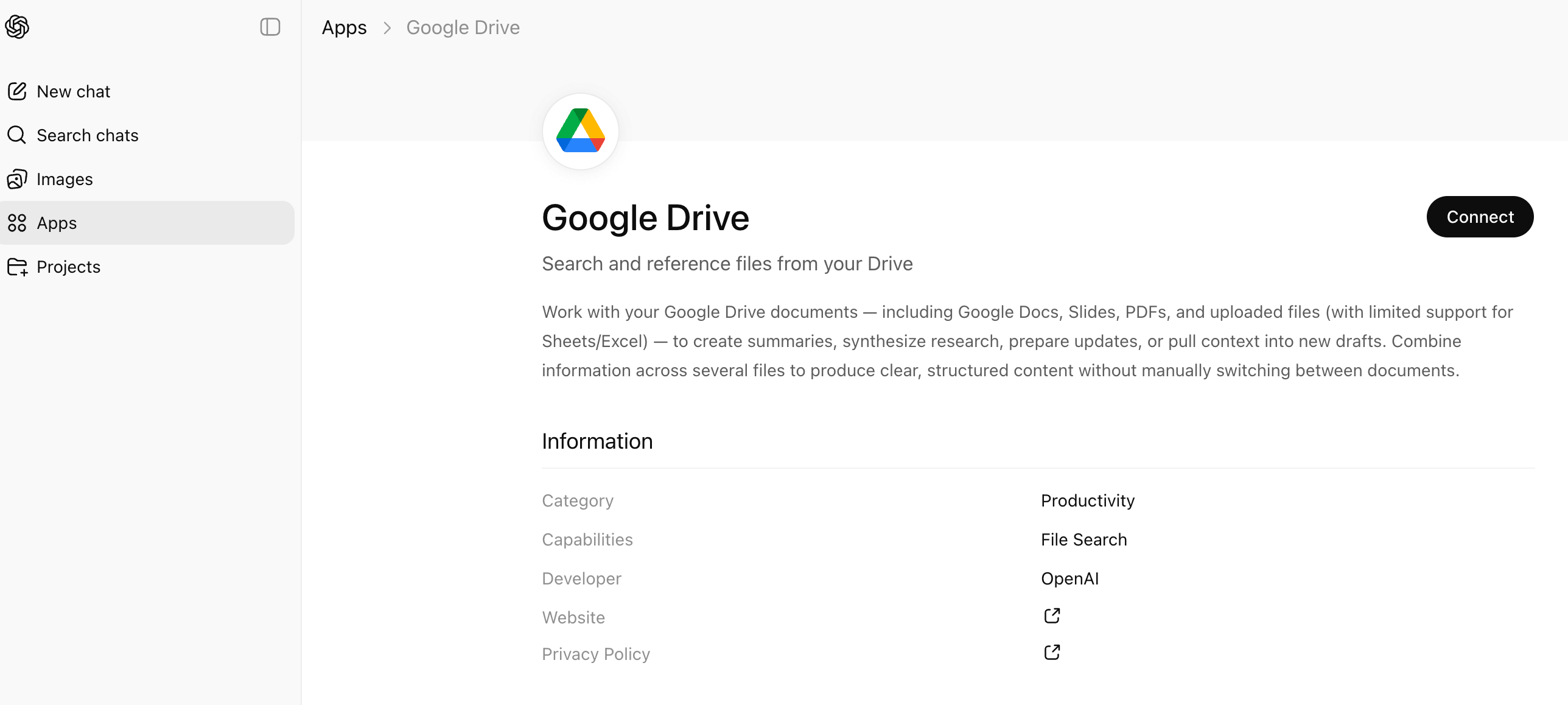
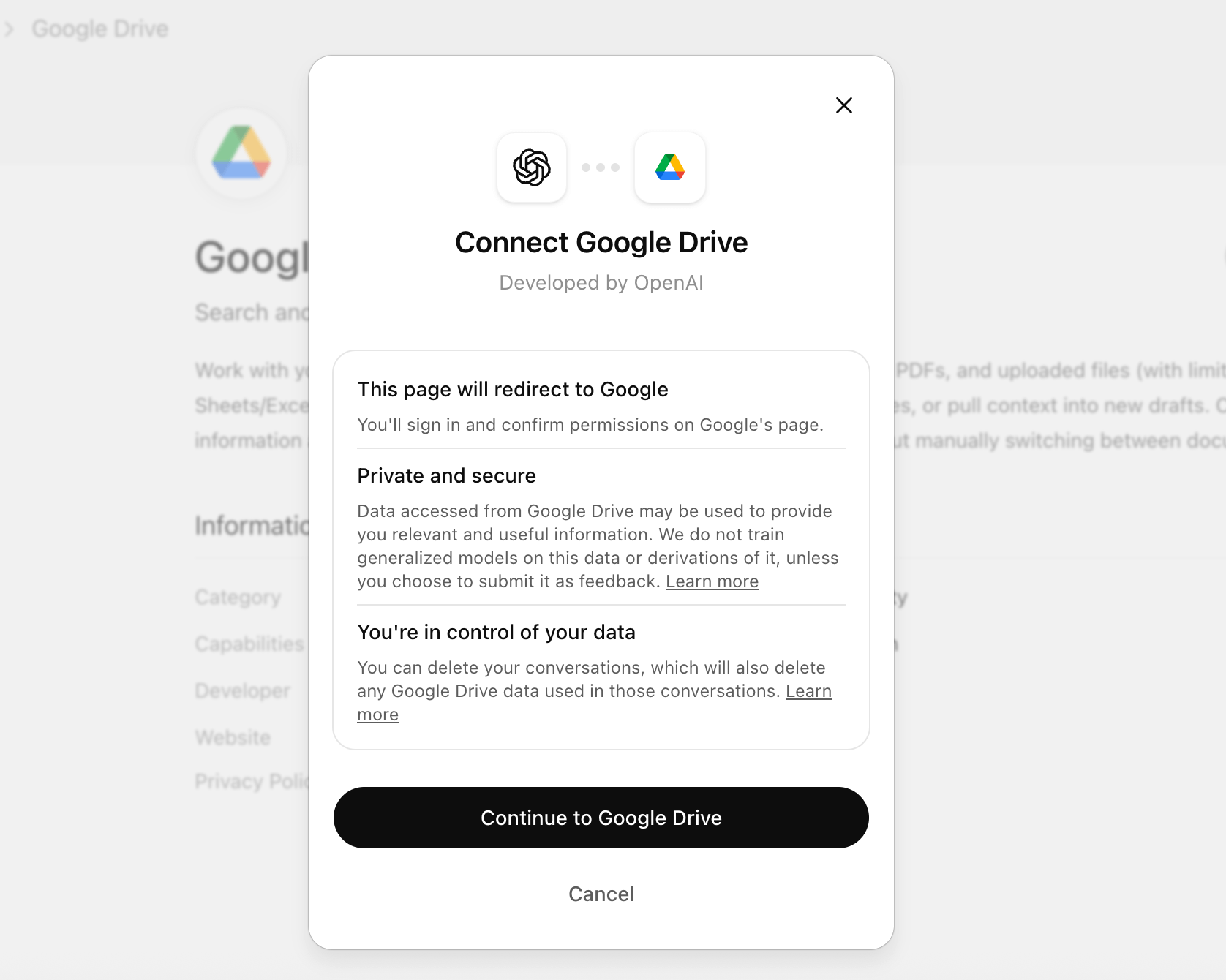
Connecting Open AI and Google Drive
If you’re a Google Workspace user, you can use Gemini inside your Google Sheets and perform data analysis directly within your dataset. To do that, open the spreadsheet and click on the Analyze this data button.
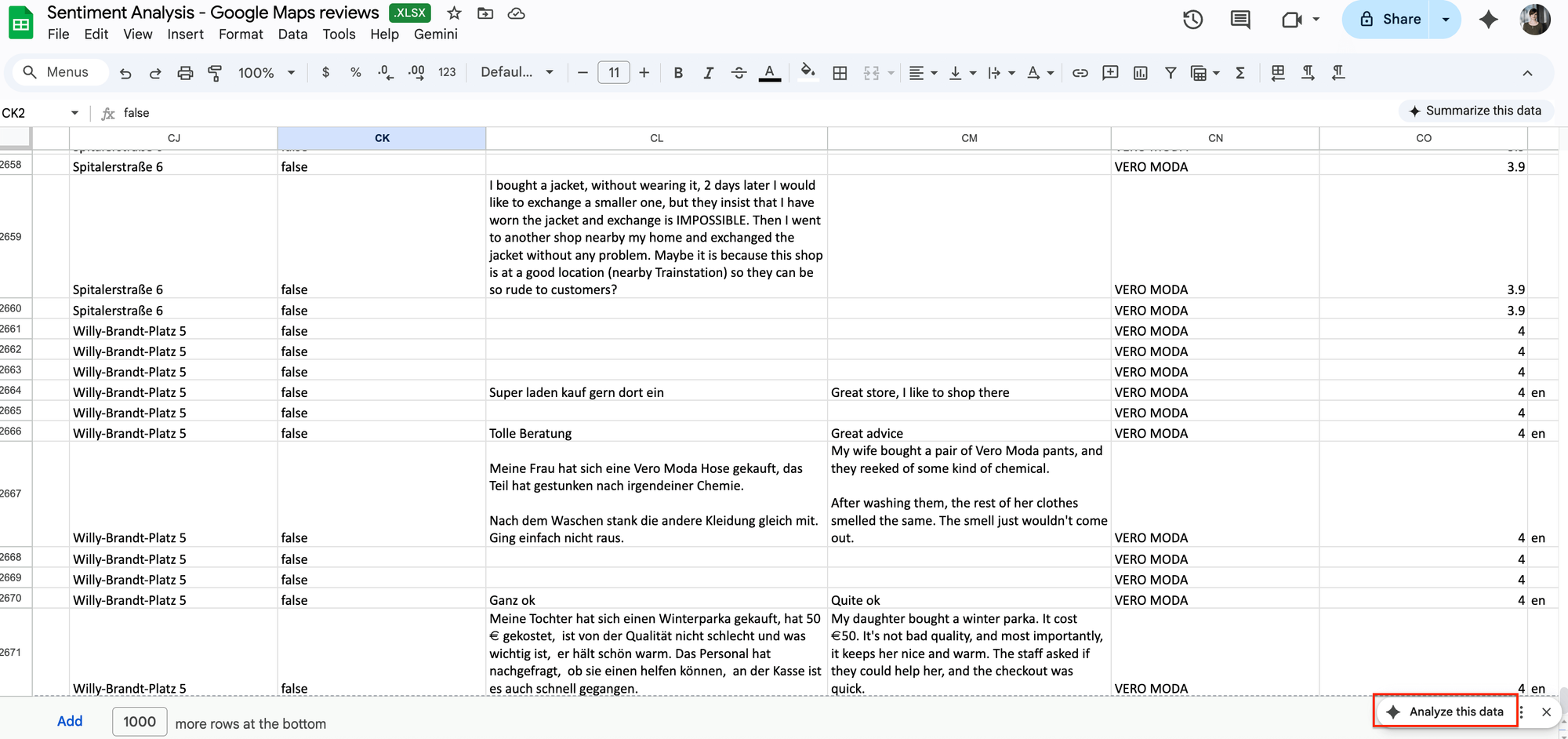
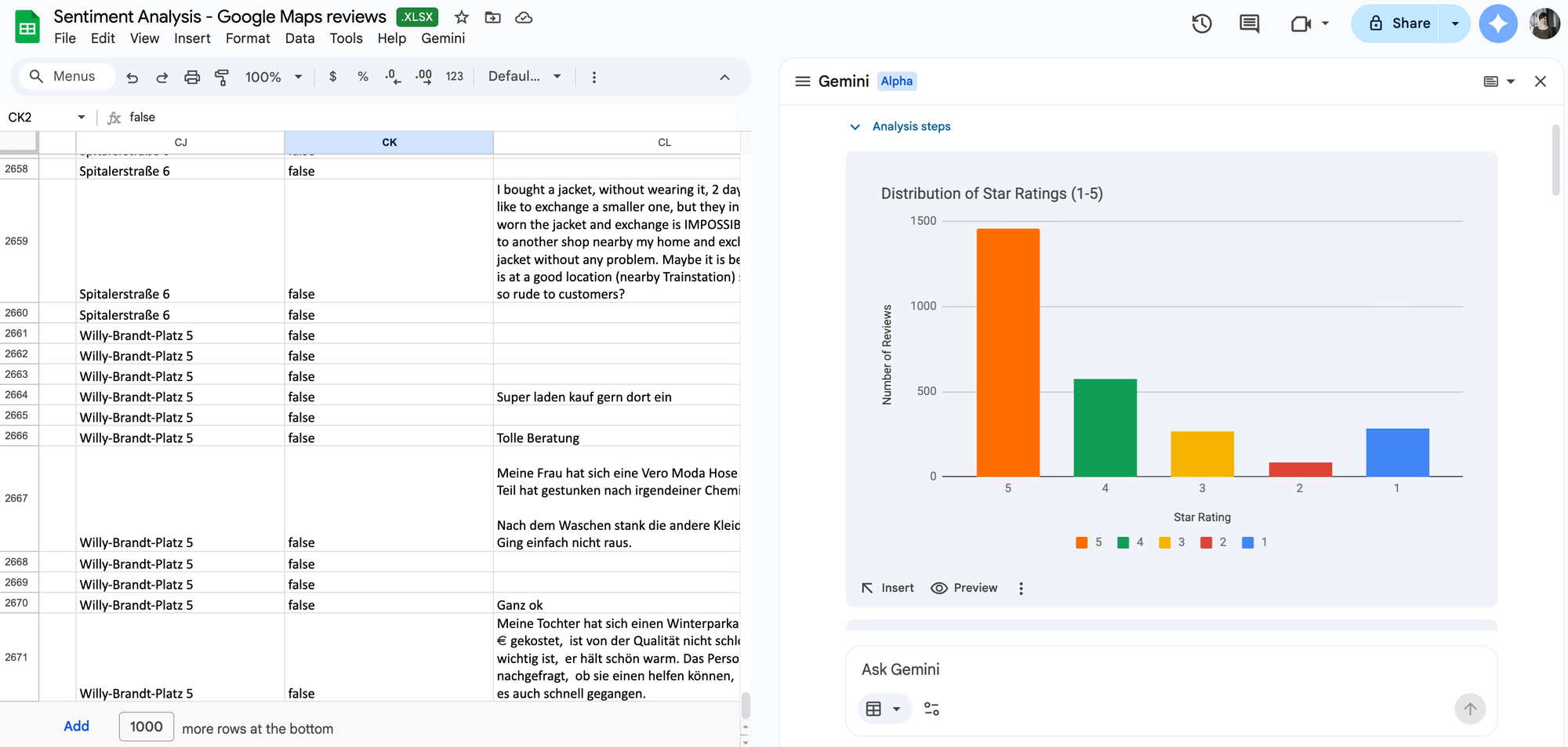
Now you can interact with Gemini inside your spreadsheet. With a simple prompt (we’ve used Perform sentiment analysis as an example), Gemini can provide you with a detailed analysis, including charts, average ratings, and more.
Here are a couple of tips for writing prompts that work well inside Google Sheets (using Gemini, ChatGPT-connected tools, or API-based add-ons):
- Be explicit about the job - LLMs default to summaries unless you tell them what output you want per row
- Anchor the prompt to specific columns - name the columns the AI should use
- Define the sentiment scale - ask to return specific labels (such as positive/negative)
- Tell the model what not to do - LLMs will over-interpret unless you set boundaries
- Teach it to handle mixed reviews - many real reviews are not purely positive or negative
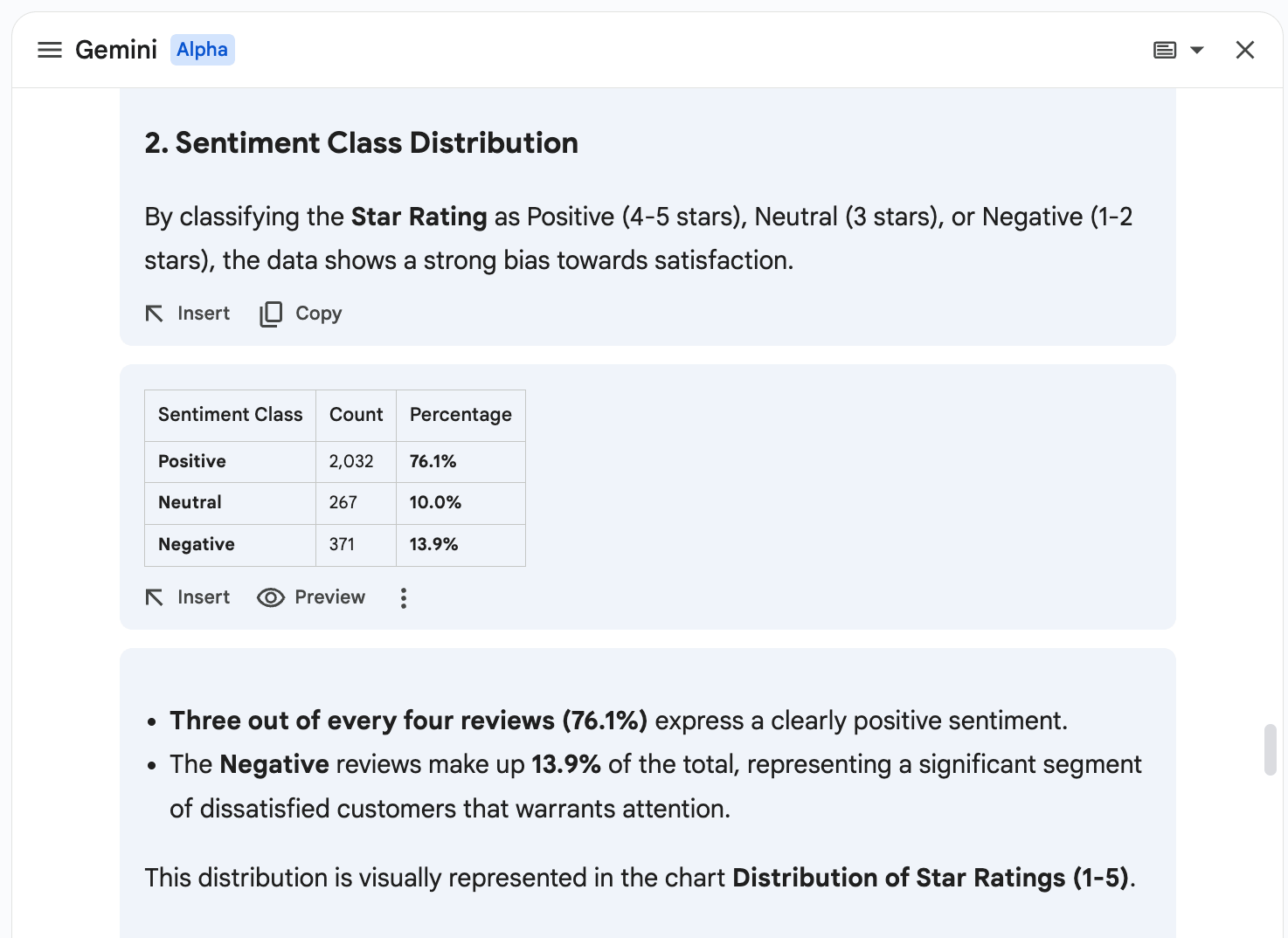
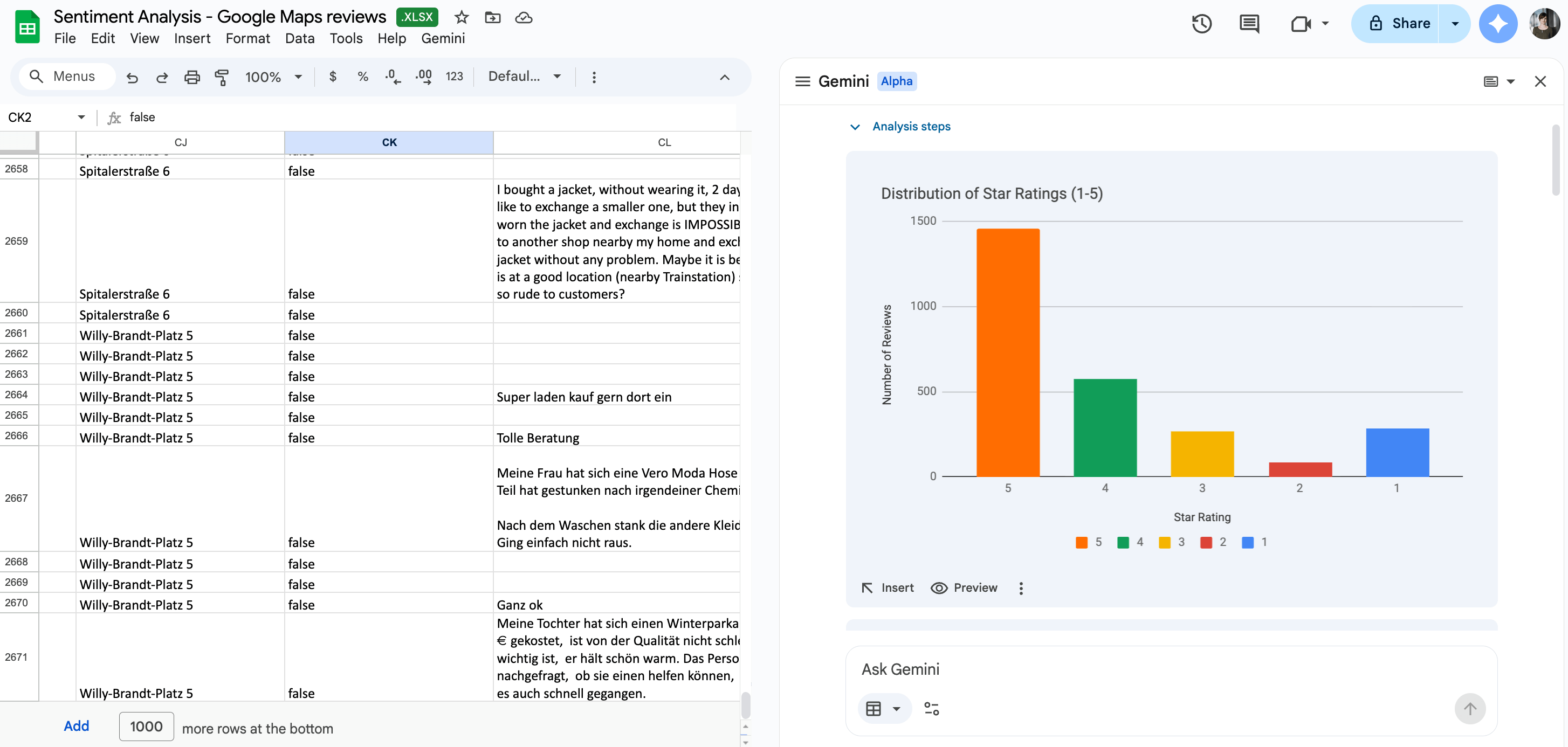
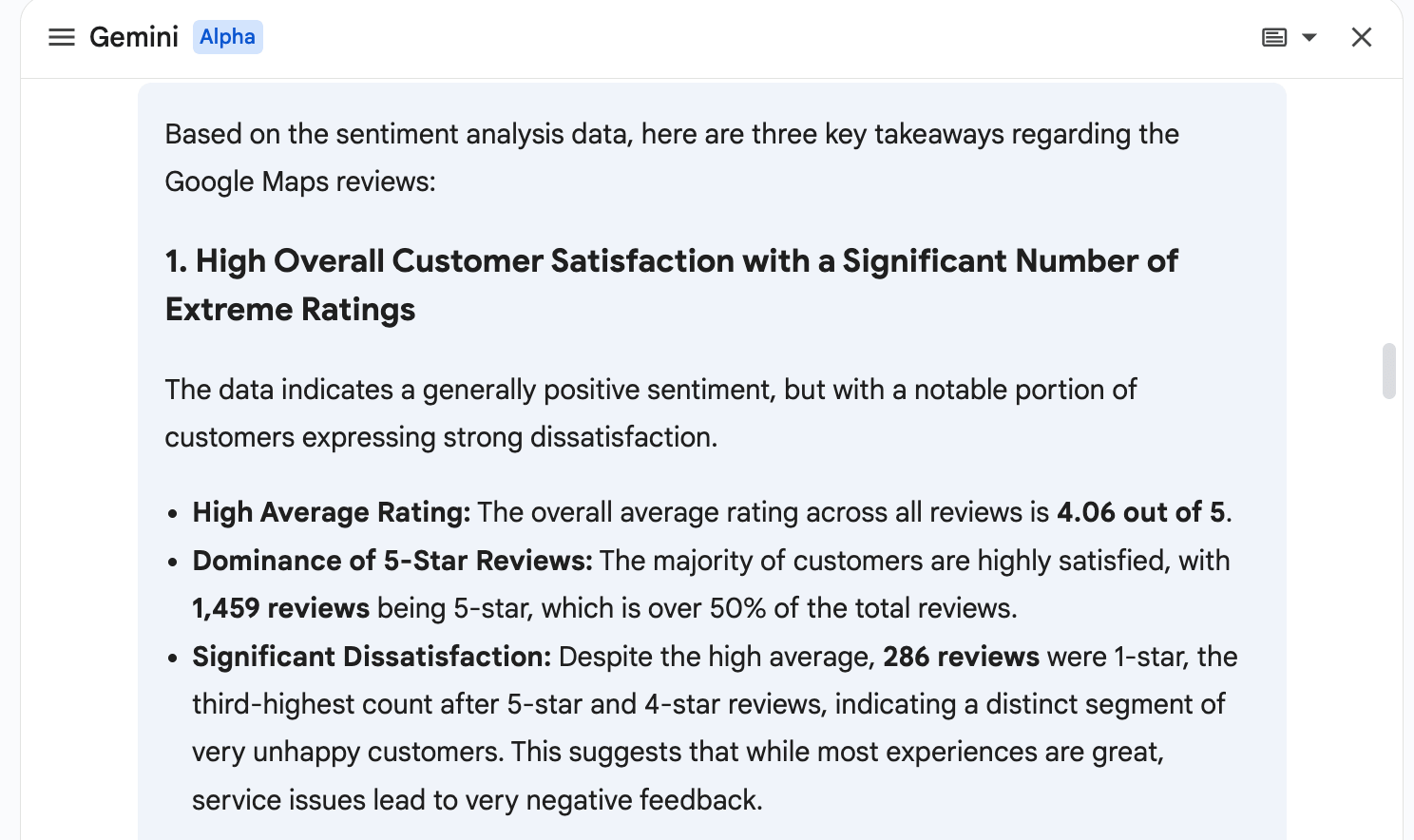
Sentiment analysis created within Google Sheets using Gemini.
Option 2: Analyze data with LLM Dataset Processor
If you need a quick custom analysis and don’t want to leave Apify Console, you can use another Apify Actor - LLM Dataset Processor. It allows you to process the output of other Actors or stored datasets with a single LLM prompt, using AI tools from various providers: OpenAI, Anthropic, and Google.
LLM Dataset Processor uses previously scraped results as input. You’ll also need an LLM account, as the Actor requires an LLM API key to work.
Examples: Gemini’s API keys are available in the Google AI Studio, while ChatGPT’s API keys can be found on the API key page.
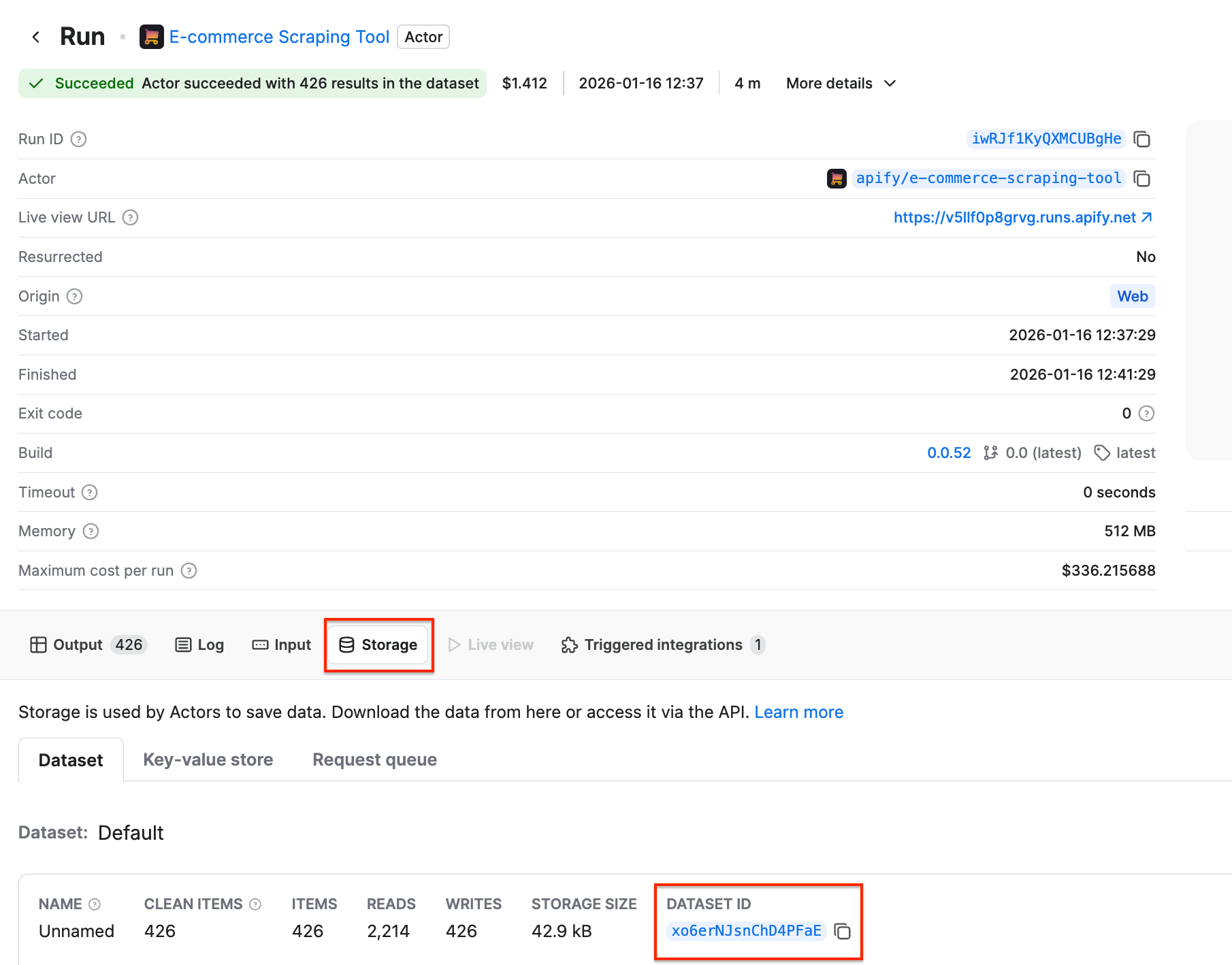
Let’s say we want to analyze Amazon reviews extracted by E-commerce Scraping Tool. Go to the Actor’s completed run, navigate to Storage, and copy the dataset ID:
Now go back to the LLM Dataset Processor and paste the ID in the Input Dataset ID field. Get your API Key from your LLM provider and paste it in the LLM Provider API Key field.
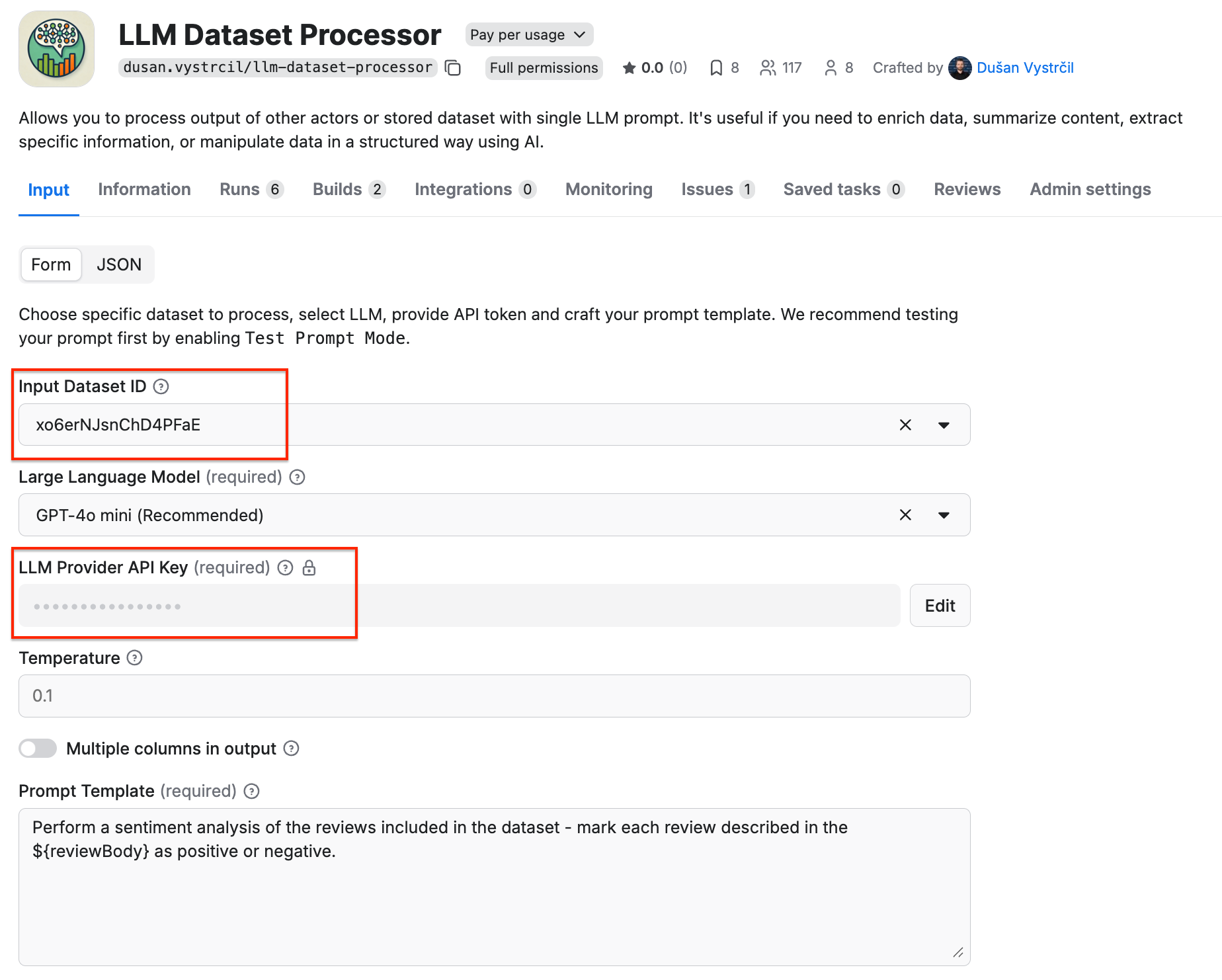
Next, you need to provide a prompt with instructions for the LLM. You can specify columns of the input dataset in your prompt. For example, if you have a dataset with a column reviewBody , you can use a placeholder ${reviewBody} to access the column values in the prompt.
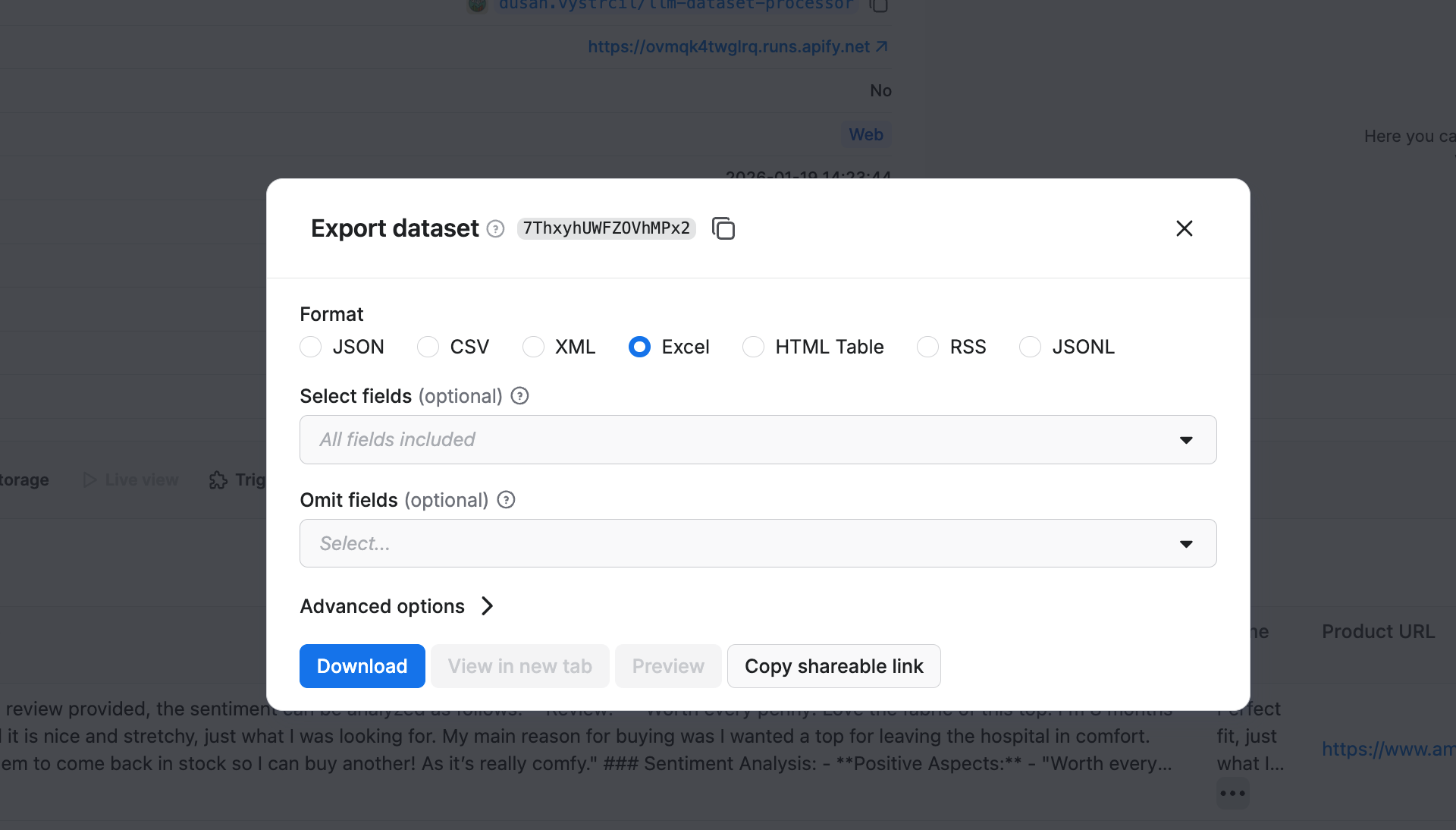
Once the Actor finishes running, you can download your results. Click the Export button, choose your desired format, and download your dataset.
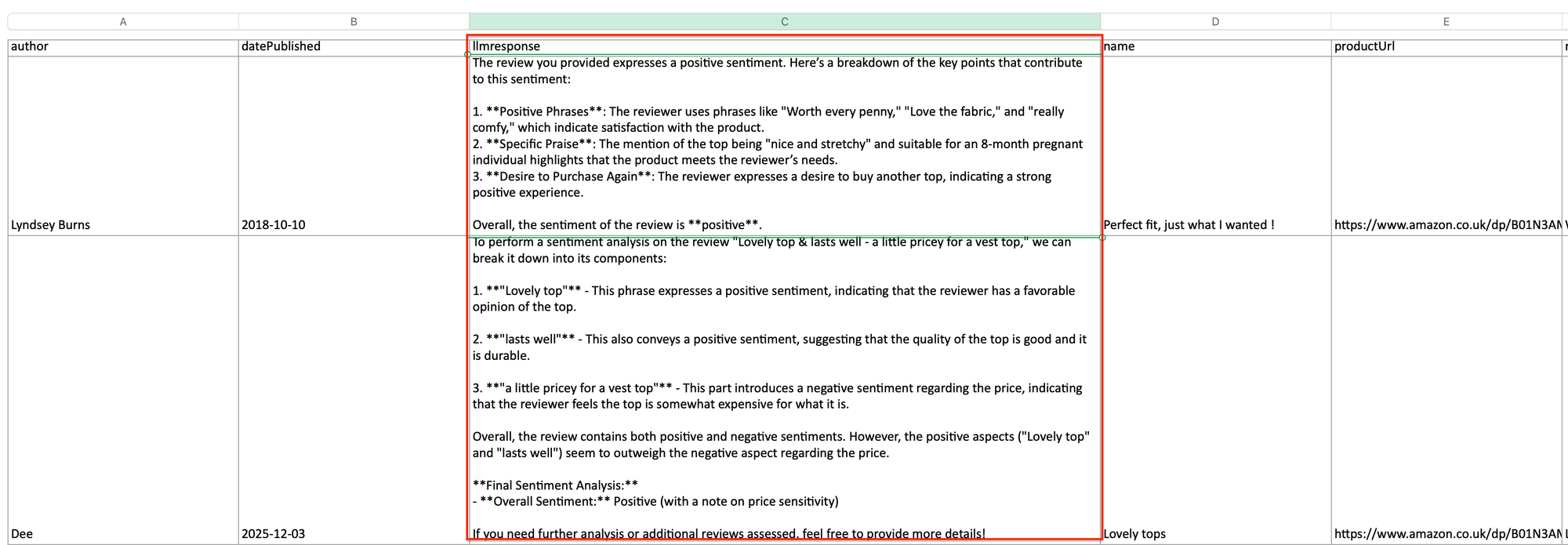
You’ll find an llmresponse column in your dataset, where the Actor performed the analysis based on your prompt:
How can sentiment analysis be used to improve customer experience?
Sentiment analysis can improve customer experience across the entire customer journey. With the right workflow, you can:
- Spot frustrated customers early (and act fast)
Strongly negative or one-star reviews and emotionally charged language (“angry”, “never again”, “scam”) can be routed to support immediately. - Understand feedback at scale (without reading everything)
Instead of drowning in feedback from product reviews, location reviews, support tickets, or surveys, you’re able to quantify how customers feel, not just what they say, and track sentiment trends over time across channels. - Identify what actually drives dissatisfaction
By clustering negative sentiment around topics like shipping, staff behavior, or pricing, you can answer what issues are hurting customer experience the most. That way, you see exactly where the customer journey breaks down and make sure your improvements target the weakest link. - Measure the impact of changes and campaigns
Sentiment analysis lets you trace before/after product launches or post-campaign customer reactions. You’ll know whether changes improved the experience or made it worse. - Detect emerging reputation risks
Sharp sentiment shifts often precede support backlogs, service outages, or PR issues. By monitoring sentiment in near-real time, you can catch issues early and coordinate actions with support and comms teams.
Conclusion
Sentiment analysis becomes truly useful when it’s part of an ongoing workflow. What you can build with Apify is a repeatable system: data flows in automatically, insights are generated regularly, and results can be compared over time.
With Apify Actors handling data collection and LLMs handling interpretation, teams can move faster - from feedback to decisions - without bottlenecks. As your volume grows, the workflow scales with you, making sentiment analysis something you can rely on continuously, not just when problems occur.

FAQ
What are the benefits of sentiment analysis?
Sentiment analysis helps teams understand how customers feel at scale, detect dissatisfaction early, and prioritize improvements. It turns unstructured feedback into measurable signals that support faster decisions, better customer experience, and reduced reputational risk.
How do you analyse customer feedback?
Customer feedback is analyzed by collecting reviews from multiple sources, structuring the data, and applying sentiment and theme classification. This reveals patterns in customer emotions, highlights recurring issues, and shows how sentiment changes over time.
Can you do sentiment analysis in Excel?
Yes. Sentiment analysis can be done in Excel by connecting AI tools or APIs to analyze text in cells, but it’s usually a poor fit beyond small, one-off experiments. Excel wasn’t designed to handle large volumes of unstructured text, automate API-based analysis reliably, or support repeatable workflows. Google Sheets has native and third-party AI integrations that work directly on cloud-hosted data, making it easier to analyze text at scale. It handles large text datasets more reliably, supports real-time collaboration, and makes it easier to rerun or update analyses as new data arrives.