If you want to extract ad data from Instagram or other Meta platforms, you’ve probably tried the usual options:
- Manual extraction: Searching the Meta Ads Library, opening ads one by one, and copy-pasting creatives, copy, and metadata into spreadsheets. It’s slow, error-prone, and impossible to scale.
- Meta’s official API: Sounds promising until you discover it doesn't provide competitor ad data, creative changes, or historical coverage in a usable format. The API is primarily designed for political and social-issue ads, and for regulatory compliance in the EU and UK.
A purpose-built Meta ads scraper solves these problems. It automatically collects ads from Instagram and exports results directly to Google Sheets, JSON, or CSV.
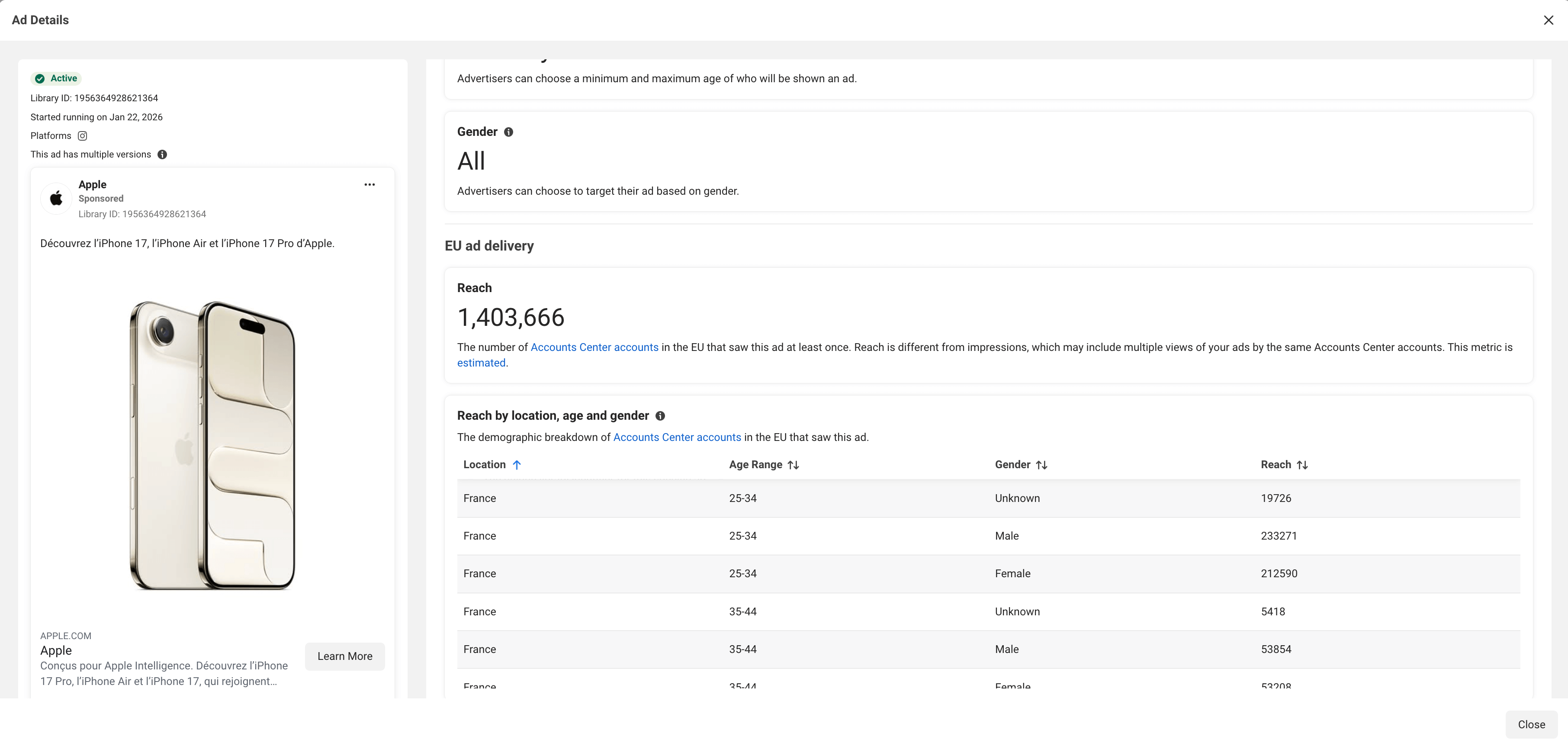
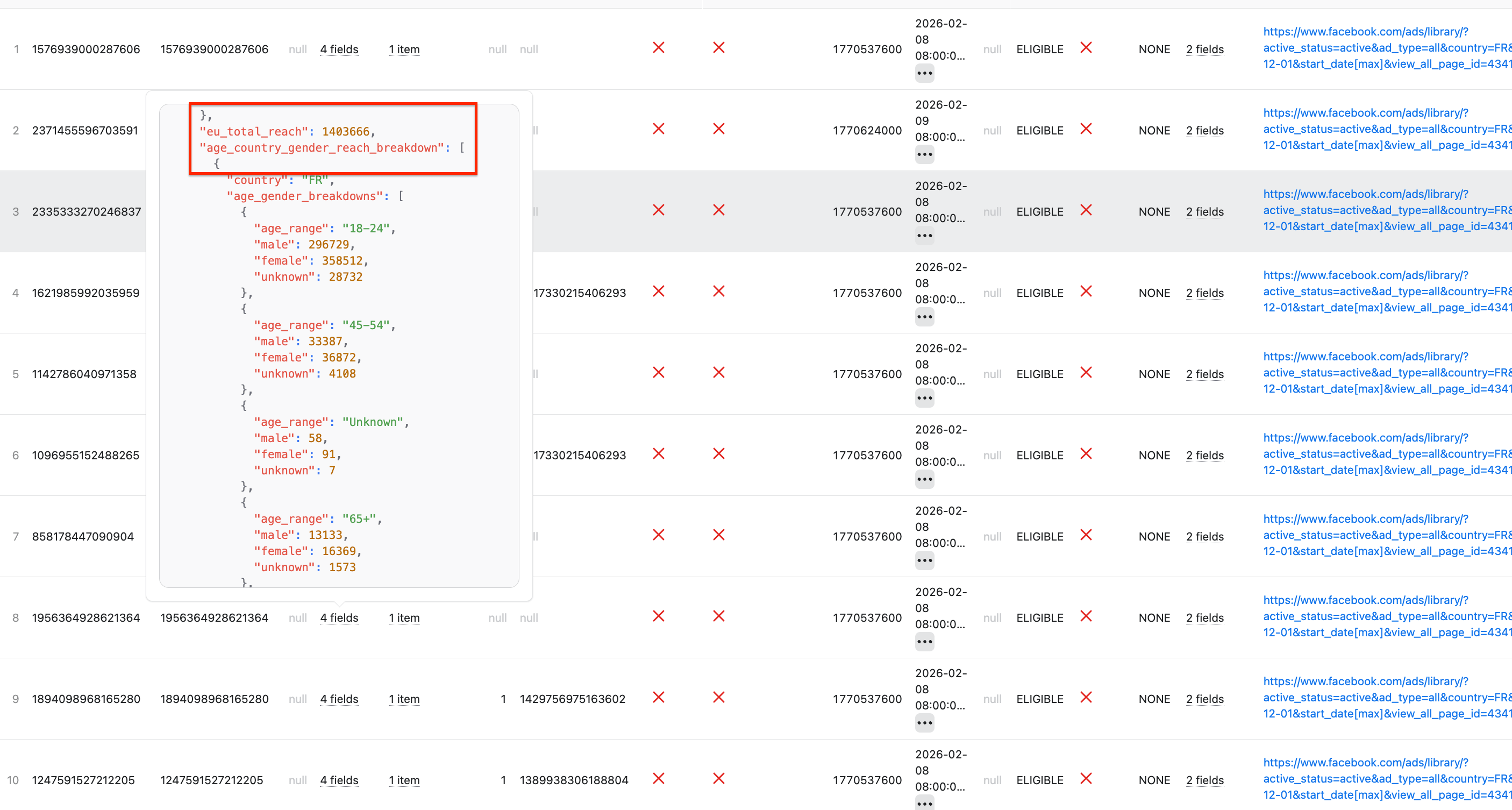
An ad in the Meta Ads Library vs. scraped data in Apify Console.
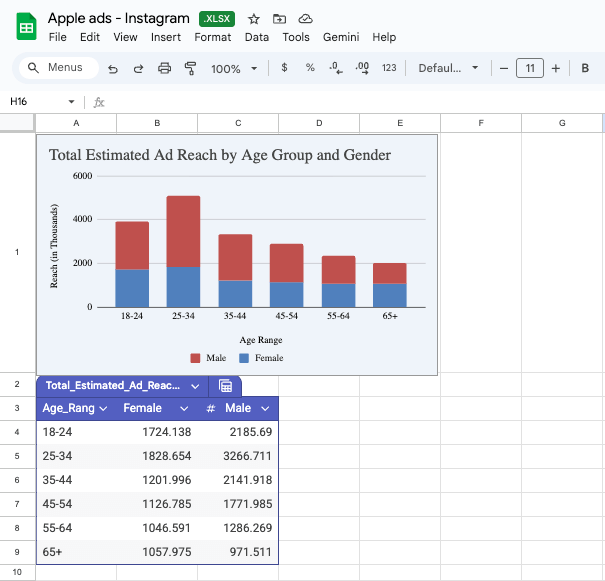
Once you extract the ads, you can easily process and analyze your data directly in Google Sheets, using AI or native functions (FILTER, QUERY, pivot tables, charts, etc.).
We’ll show you how to build the entire data collection workflow in three easy steps. You can follow along with this guide on the free Apify plan, meaning you can test the entire setup and get your first dataset at no cost.
Step-by-step guide to scraping Instagram Ads
To automatically send fresh ad data into a spreadsheet, we’ll create a simple workflow using an Apify Actor - Facebook Ads Library Scraper.

- Built-in proxy management
- Anti-bot evasion support
- Integrated storage with structured exports in CSV/Excel/JSON
- Standardized input parameters (URLs, keywords, limits, etc.)
- Easy integration with third-party apps or other Actors
Every Apify Actor can also be triggered programmatically via the Apify API, opening up lots of ways to integrate it into your workflows.
This Actor extracts data from the Meta Ad Library across multiple Meta platforms, including Facebook, Instagram, WhatsApp, Threads, Messenger, and Audience Network. You can filter ads by brand, keyword, country, language, media type, and more. The entire setup takes just a couple of minutes and consists of three steps:
- Set up the integration between Facebook Ads Library Scraper and Google Drive
- Scrape ads from Instagram (or any other Meta platform)
- Create a schedule for the scraper to run automatically
Let’s start.
Step 1: Integration with GDrive
First, let’s make sure our data flow is configured. Go to Facebook Ads Library Scraper. If you don’t have an Apify account yet, you’ll be prompted to create one for free. You’ll access Apify Console, a workspace for running and building web automation tools.
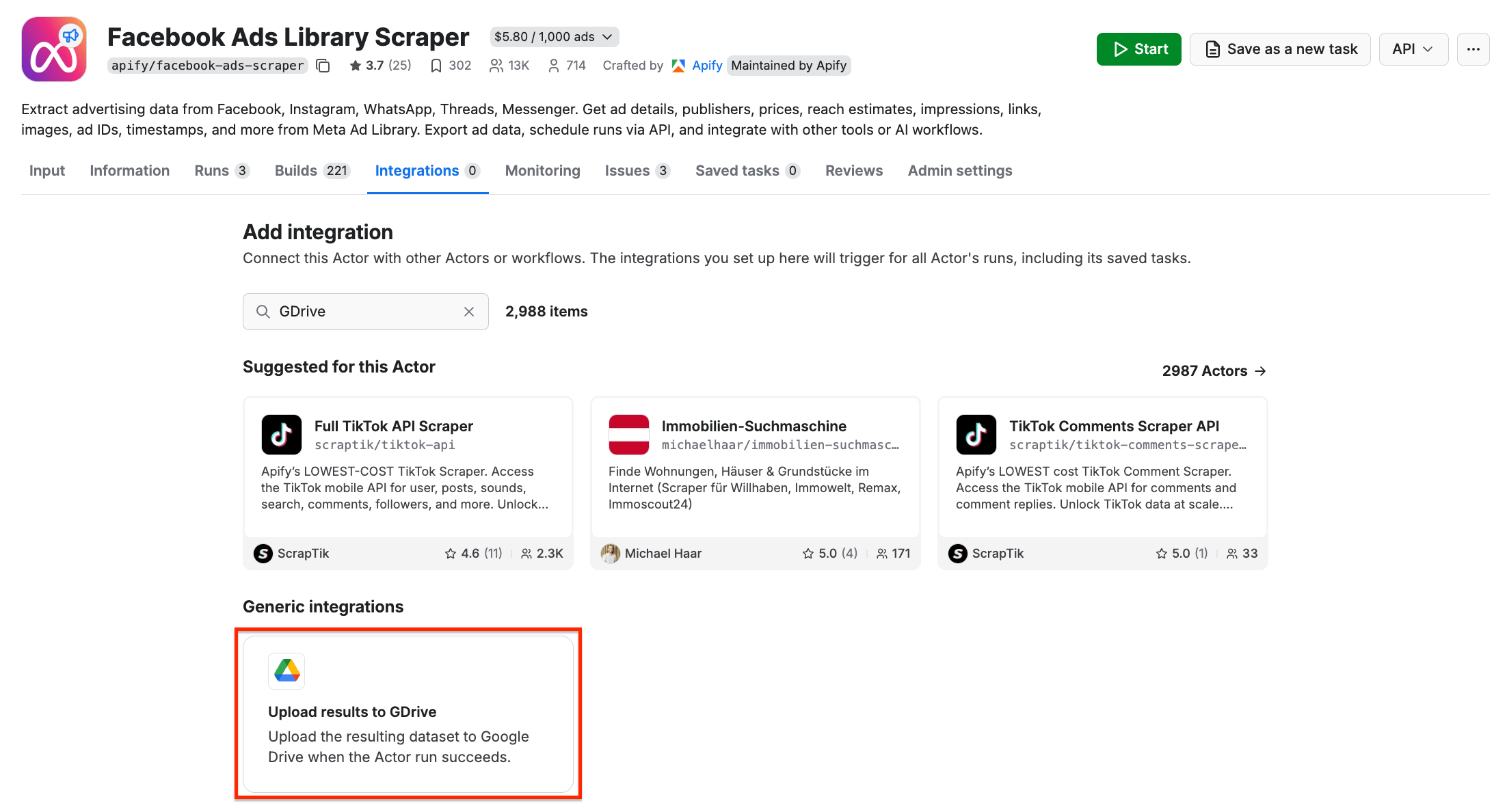
Once you open the Actor page, select the Integrations tab. Start typing “GDrive” in the search bar, and select the Upload results to GDrive integration.
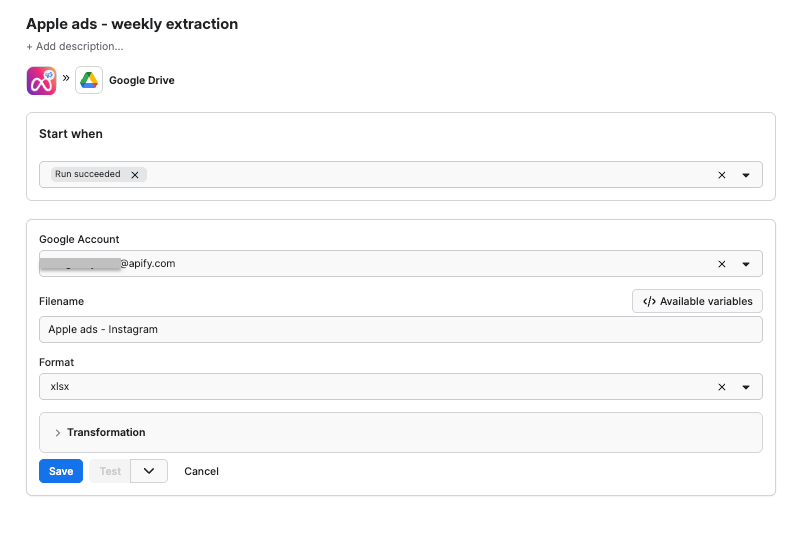
Give the integration a unique name. In our example, we’ll extract ad data for the Apple brand from Instagram, so we’ll use Apple ads - Instagram. Click Save to continue and connect your Google account. If you’re using your Google account with Apify Console, your email address might already be on the list of accounts to select.
Since we want the data to be sent to the spreadsheet once the scraper finishes running, we’ll select Run succeeded as our starting point. Select a format of the Google Drive file that the Apify integration will create (we’ll go with the XLSX). Remember to name your file - in this scenario, we want to compare the data across different regions on a weekly basis. Click Save.
Step 2: Configure the scraper and run it
Time to set up the scraper. Head to the Actor page and make sure the Input tab is selected.
Now we need a Meta Ad Library URL to extract information from. Head to the Meta Ad Library and narrow down your search - pick a region (we chose France), type of ads, and a platform you’re interested in. You can also select media type or activity status.
Facebook Ads Library Scraper can get ads from multiple platforms at once, but for the sake of this tutorial, we’ll select Instagram only:

Once you’re done selecting options, copy the Meta Ads Library page URL:
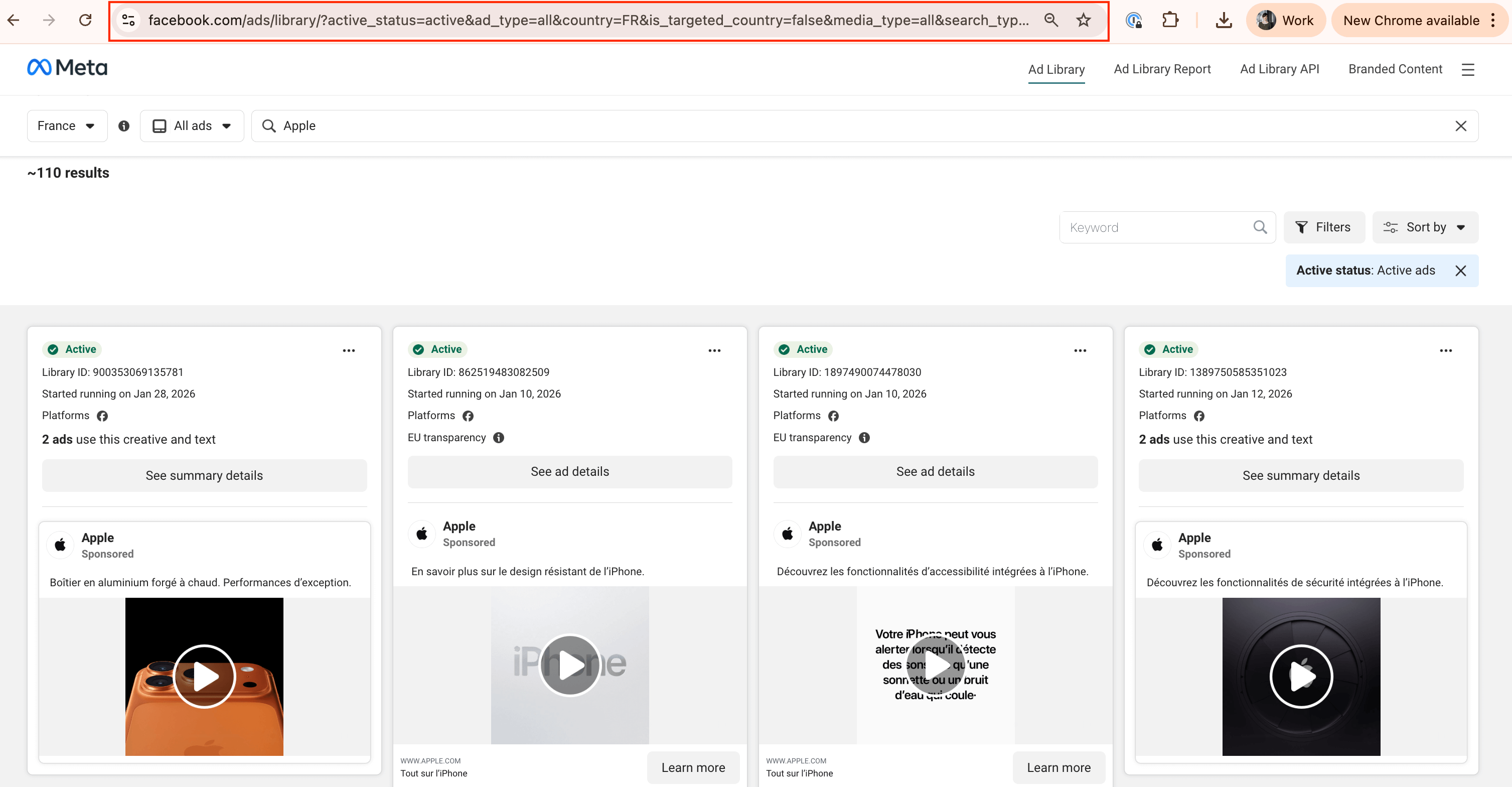
https://www.facebook.com/ads/library/?active_status=active&ad_type=all&country=FR&is_targeted_country=false&media_type=all&publisher_platforms[0]=instagram&search_type=page&sort_data[mode]=total_impressions&sort_data[direction]=desc&view_all_page_id=434174436675167
…and paste it into the 🔗 Meta Ad Library URL or Facebook Page URL field in the Input tab. Use the toggles to include additional information, such as audience details.
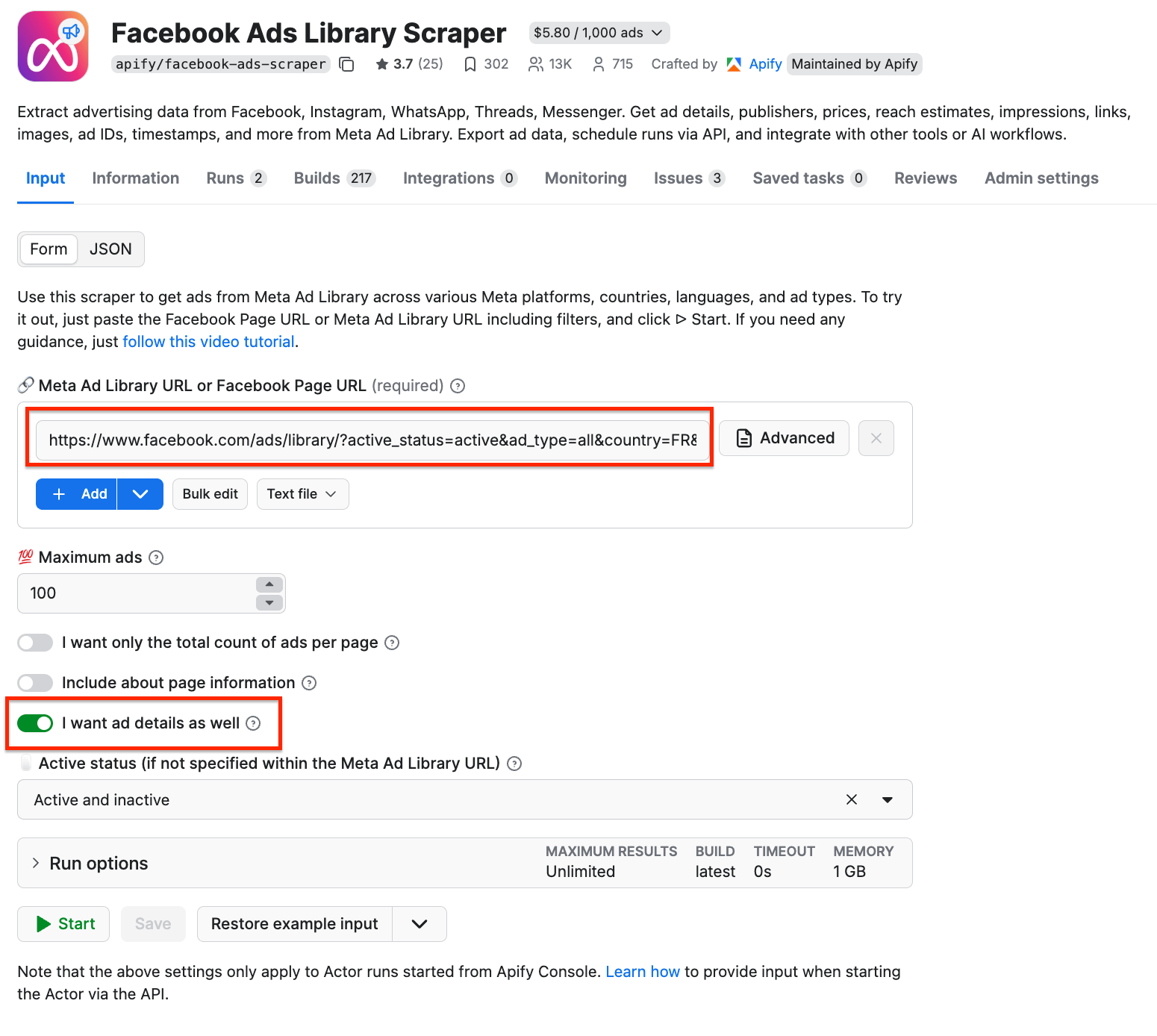
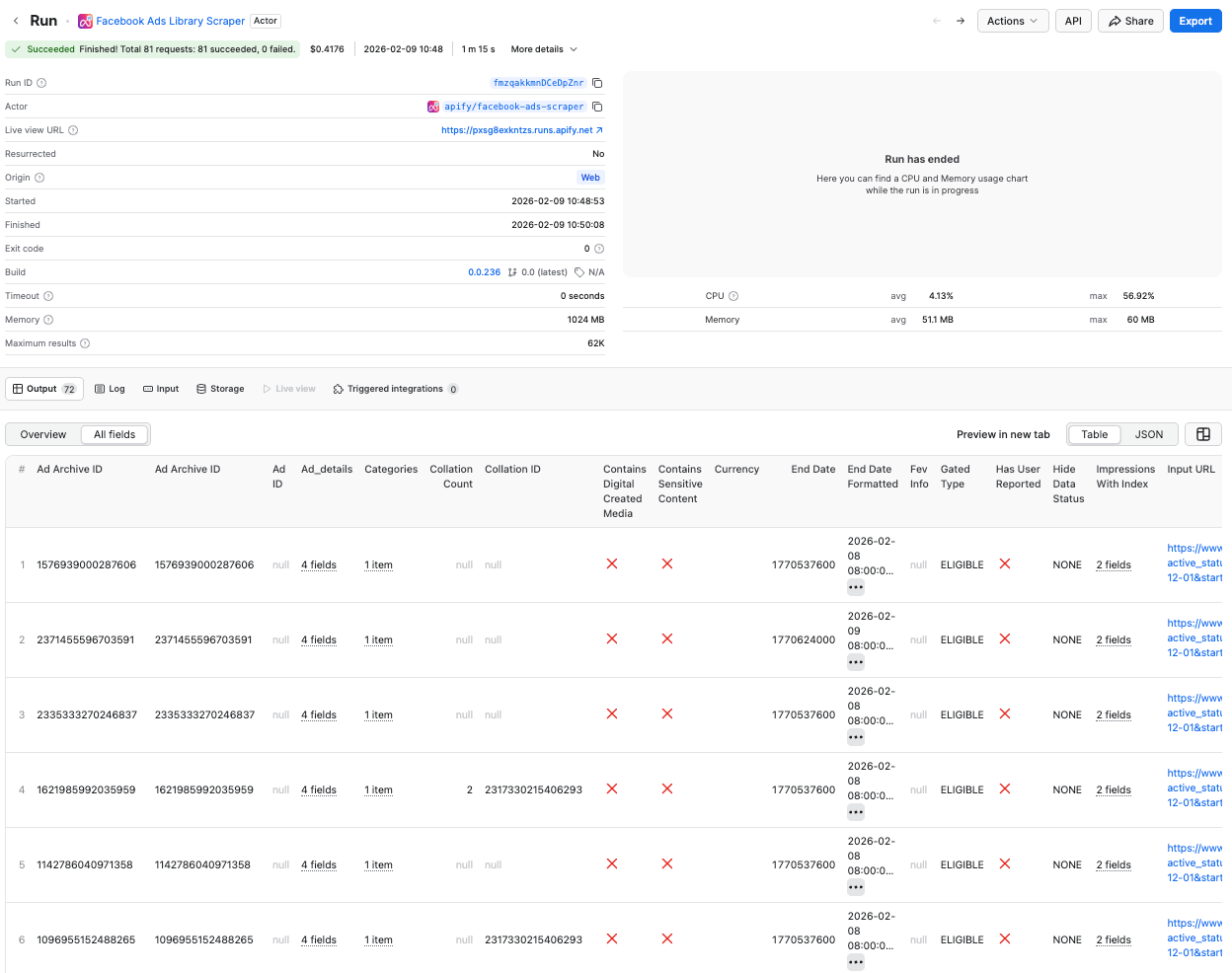
Click Start to run the scraper. After a couple of minutes, the run will finish, and you’ll be able to check the results in the preview table.
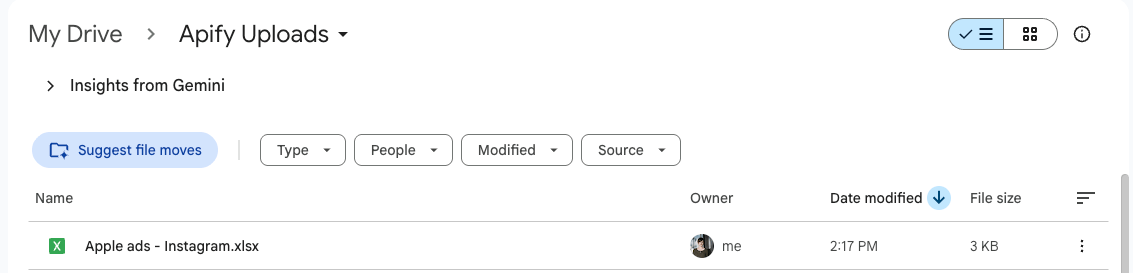
Now you can also check your Google Drive for a newly created spreadsheet. Each time you execute the scraper, it will automatically generate a new file with fresh data, ready for analysis.
If you want to download your results in another format, simply click the Export button. You can also select specific fields to include or omit.
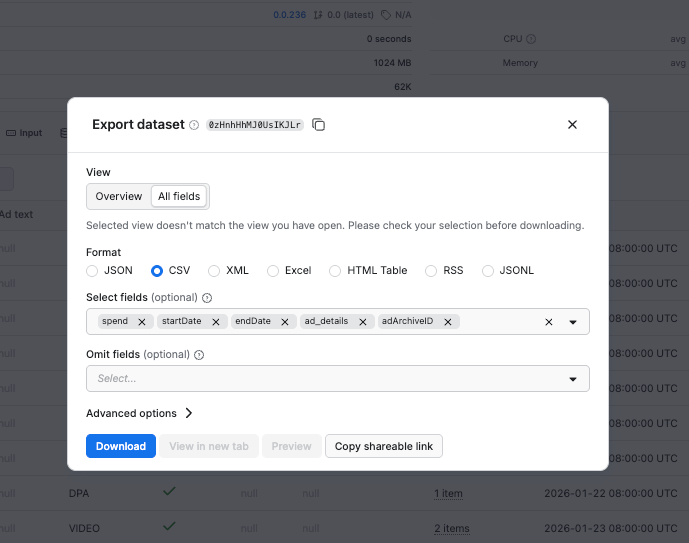
Step 3: Schedule automated runs
If you want to scrape ads regularly, you can schedule each scraper to run automatically and collect data without manual input.
First, make sure your scraper is properly configured, then click the Save as a new task button in the top-right corner.
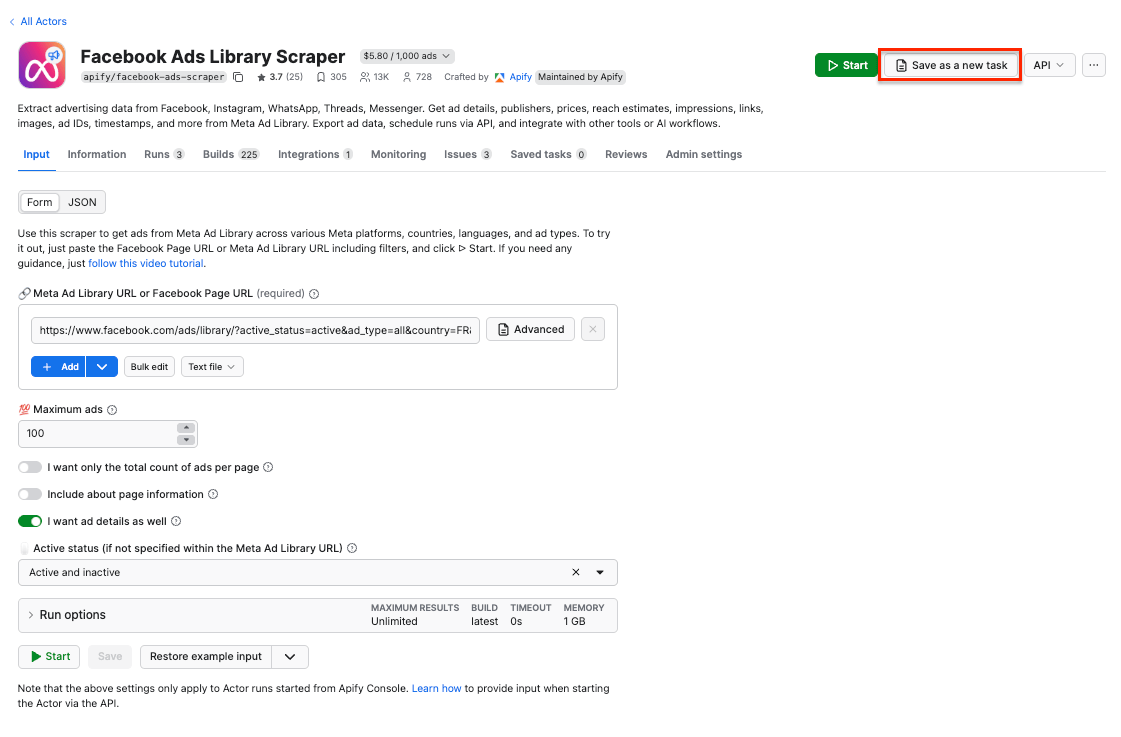
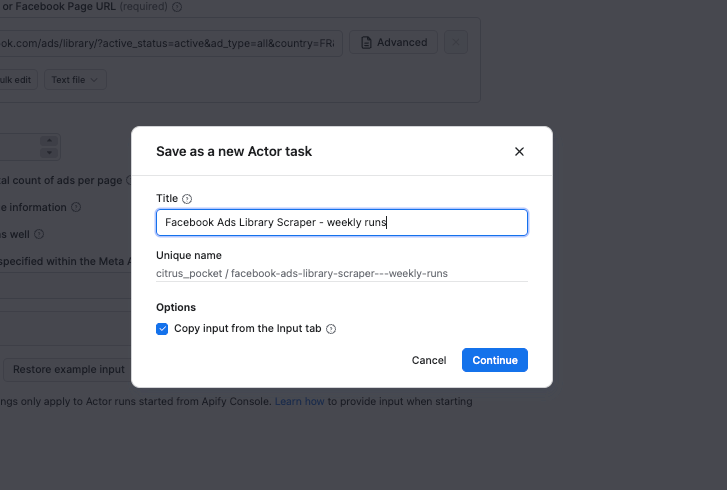
Give your task a name and save it.
Now, you can easily schedule the task by accessing Schedules in the left-hand navigation and clicking the Create a schedule button:
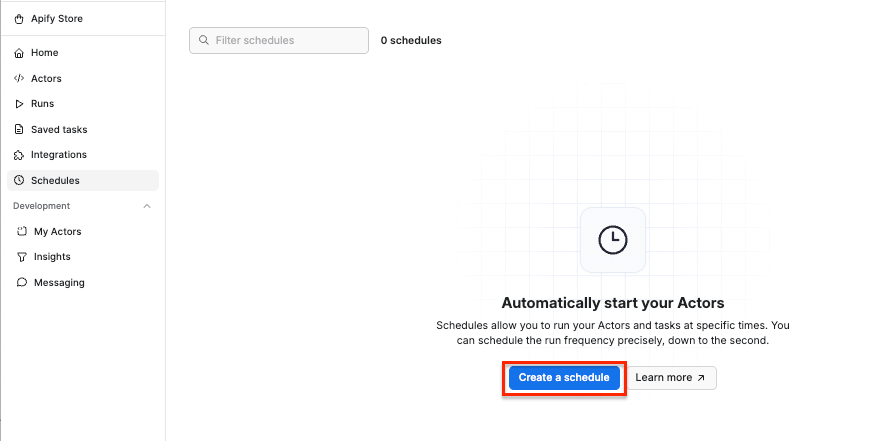
We’ve already saved our task, so now it’s time to add it to the schedule. Click Add task at the bottom to customize your schedule, select a task, and choose how often you want the scraper to run - weekly, monthly, or on any day that works best for you.
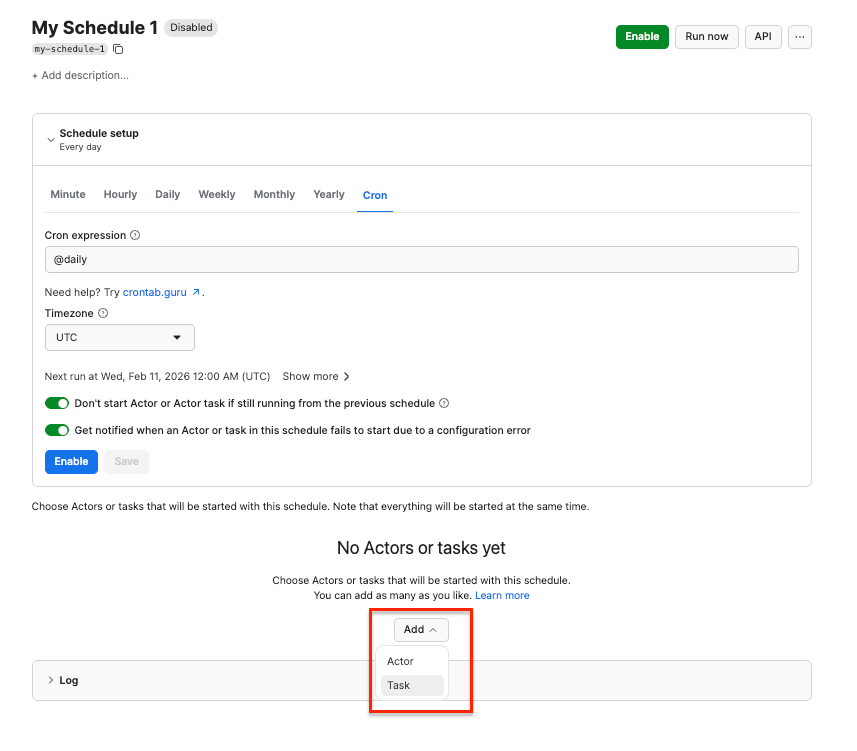
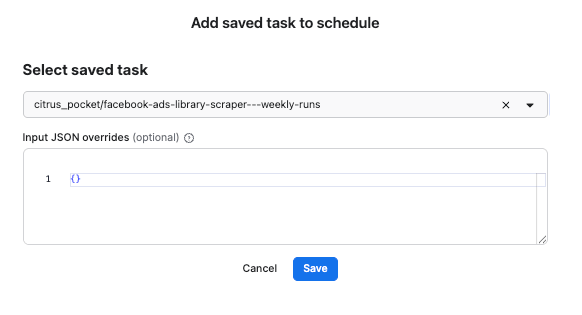
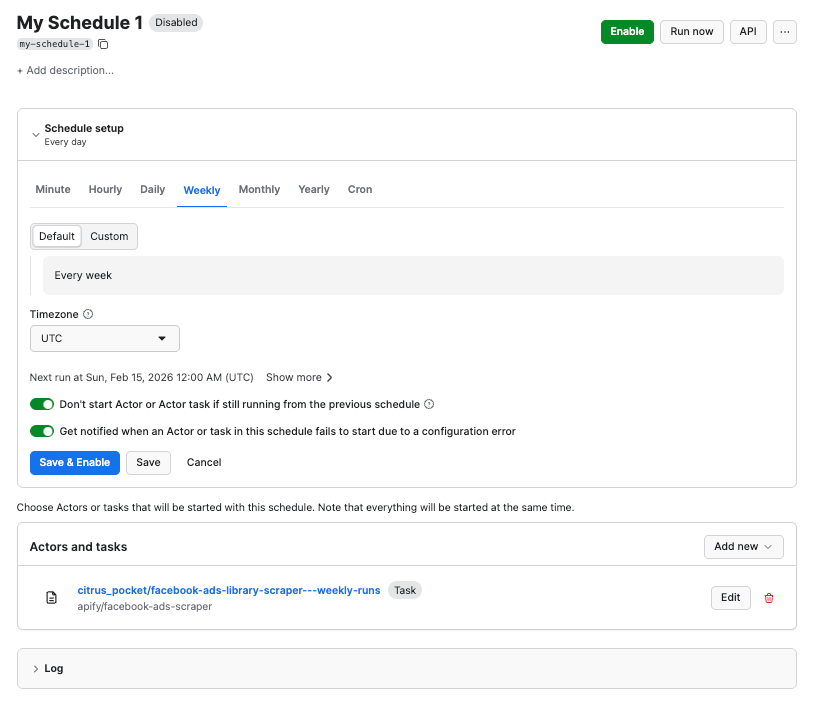
Customizing the schedule
Click Enable, and your schedule will be up and running. It will automatically start the scraper at your chosen time and send the results to Google Drive, thanks to the integration we set up earlier.
That’s it - you’ve built a workflow for extracting Meta ads that runs without manual effort, so you can spend your time analyzing the results instead.
Next steps: analyze scraped Meta ads
Google Sheets is more powerful than most people realize, especially once you add a layer of AI on top.
With pivot tables alone, you can build lightweight dashboards to compare brands, regions, formats, and platforms. You'll quickly spot which advertisers are scaling aggressively versus just testing, or how messaging shifts by geography.
With Gemini or any other AI model connected to Google Sheets, you can take your analysis a step further and use natural language prompts to:
- Analyze messaging strategy - Identify each ad's core value proposition, detect problem → solution framing, and classify campaigns by funnel stage (awareness, consideration, conversion).
- Spot patterns - Find recurring hooks, compare high-volume versus experimental advertisers, and find regional tone differences (formal vs. casual, emotional vs. rational).
- Generate creative intelligence - Group ads into themes, and produce creative briefs based on what's actually working.
When your scraper runs on a schedule, tracking new ads, paused ads, and refresh cycles over time becomes straightforward, giving you early signals of campaign launches or strategic shifts.
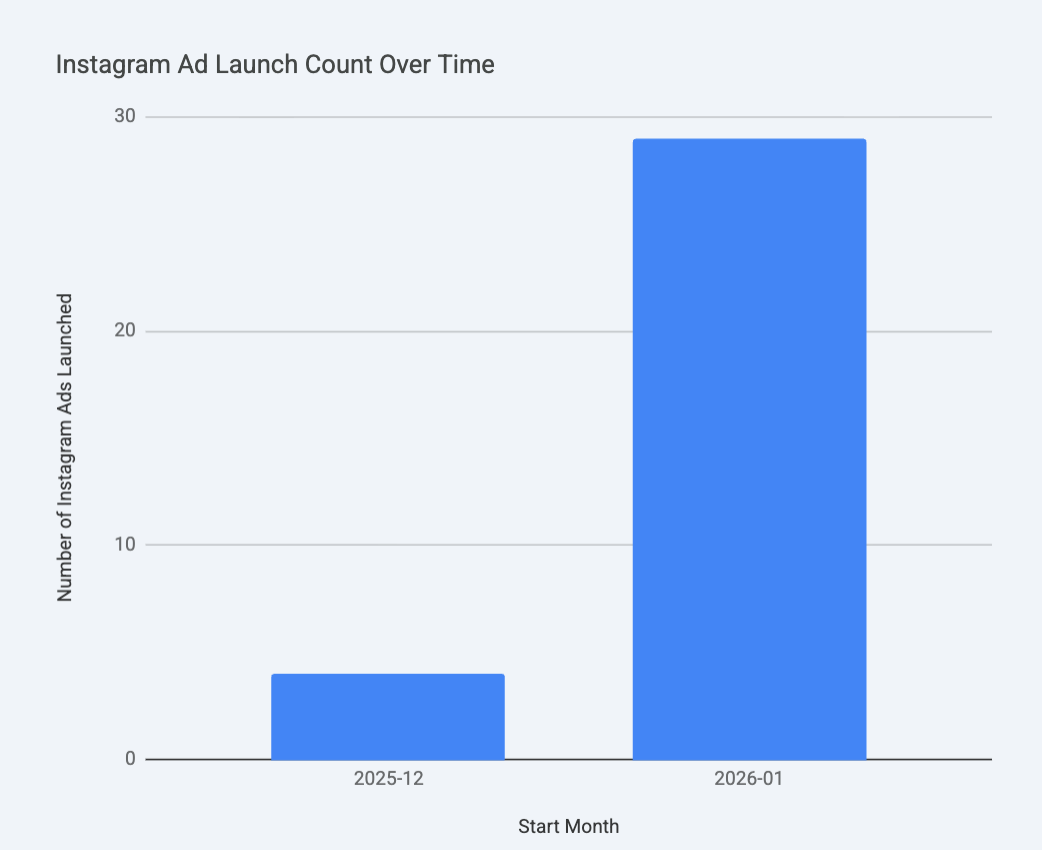
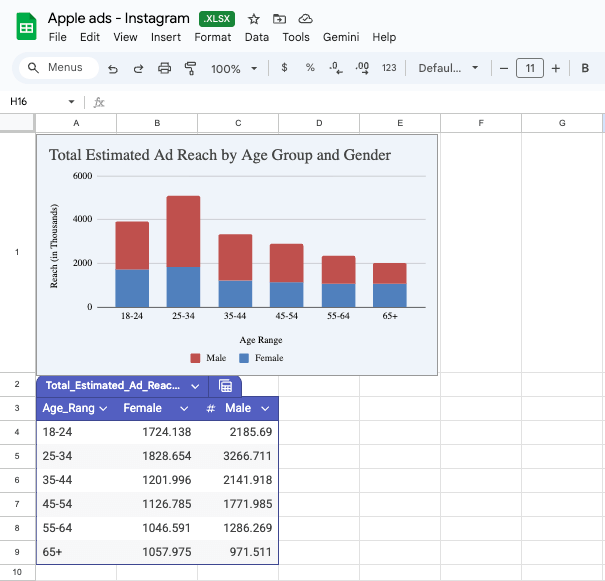
Ads analyzed in Google Sheets with Gemini - ad count over time and reach by age range and gender.
One tool for Meta ad research, monitoring, and analysis
Facebook Ads Library Scraper captures creatives and advertiser transparency signals, such as business locations, admin country distribution, and page history events, including name changes or merges. This makes it easy to compare ad strategies across regions and languages, and track how brands localize and evolve their messaging over time.
All extracted data can be exported in multiple formats or accessed programmatically via SDKs, APIs, and webhooks - supporting workflows ranging from competitor monitoring and content optimization to benchmarking, performance analysis, and regulatory reporting.

FAQ
Is it hard to scrape Instagram?
It depends on how you do it. Scraping Instagram directly is technically complex and fragile - rate limits, login requirements, frequent UI changes, and anti-bot measures make it hard to maintain reliably. That’s why most marketers avoid scraping Instagram itself and scrape ads via the Meta Ads Library. The Ads Library is a public, transparency-focused database, and tools like Facebook Ads Library Scraper are built specifically to extract structured ad data from it at scale. In practice, setting up a scraper takes a few minutes, and once scheduled, it runs automatically without ongoing effort.
What kind of data can I get from Facebook Ads Library Scraper?
Facebook Ads Scraper extracts data from the Meta Ad Library across multiple Meta platforms beyond what official APIs provide. With this scraper, you can:
- Scrape ads published across Meta platforms, including Facebook, Instagram, WhatsApp, Threads, Messenger, and Audience Network
- Filter ads by brand, keyword, country, language, media type, status (active or inactive), ad type (product, political, housing), and creative format
- Get advertiser transparency signals from the Meta Ad Library about page, including business address, admin countries and counts, and page creation/merging or name change history
- Track ad performance across countries, languages, and brands to compare regional strategies and localization efforts