If you're using LinkedIn for sales lead generation, you're probably stuck in one of two modes. You’re either doing it manually:
- Searching for prospects
- Reviewing profiles
- Collecting data one by one
Or you're paying a lead-gen agency for activity (such as sent messages), not results, while handing over control of your targeting and brand voice. On top of that, you don’t have full visibility into what’s actually working.
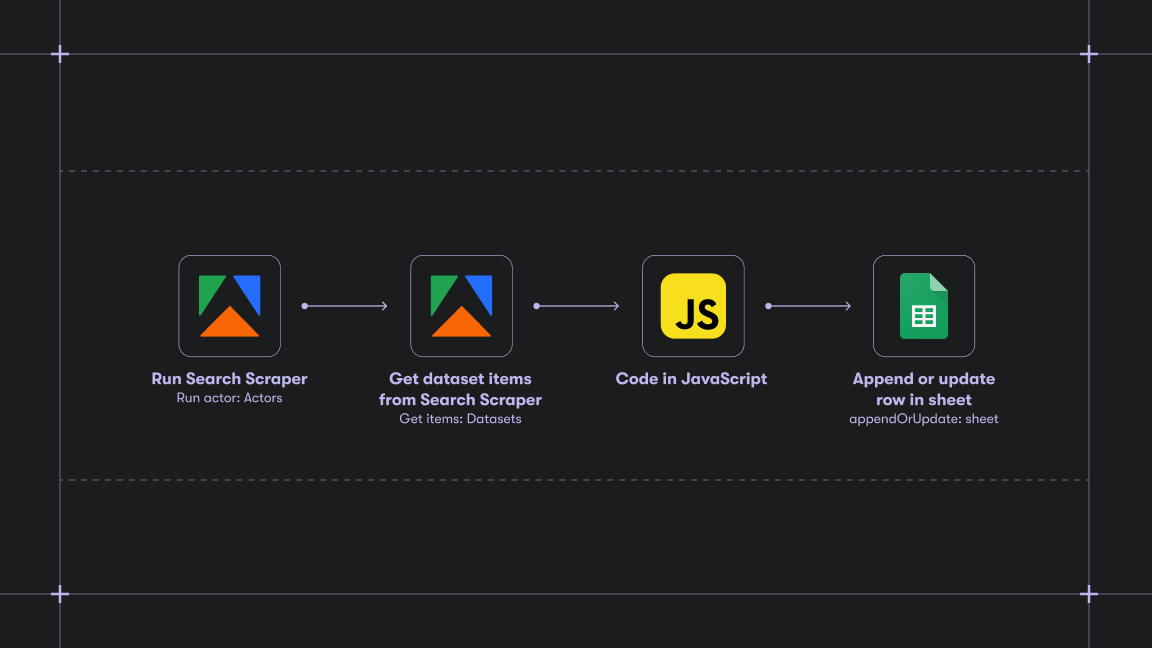
There's a third, more efficient option: automate your lead generation pipeline end-to-end. By combining Apify scrapers for LinkedIn data extraction with n8n for workflow orchestration, you can programmatically search for prospects, enrich their profiles with contact details, and push structured results straight into Google Sheets.
How to scrape leads from LinkedIn with Apify
We’ll create a full lead generation workflow using two Apify scrapers:
- LinkedIn Profile Search Scraper No Cookies Find all people to discover relevant LinkedIn profiles using a search term
- Mass Linkedin Profile Scraper with Email (No Cookies)to scrape contact details from the previously discovered profiles
Actors have access to platform features such as built-in proxy management, anti-bot evasion support, integrated storage with structured CSV/Excel/JSON exports, and standardized input parameters (URLs, keywords, limits, etc.). Actors also integrate easily with third-party apps and can be configured via tools such as n8n using Apify nodes.
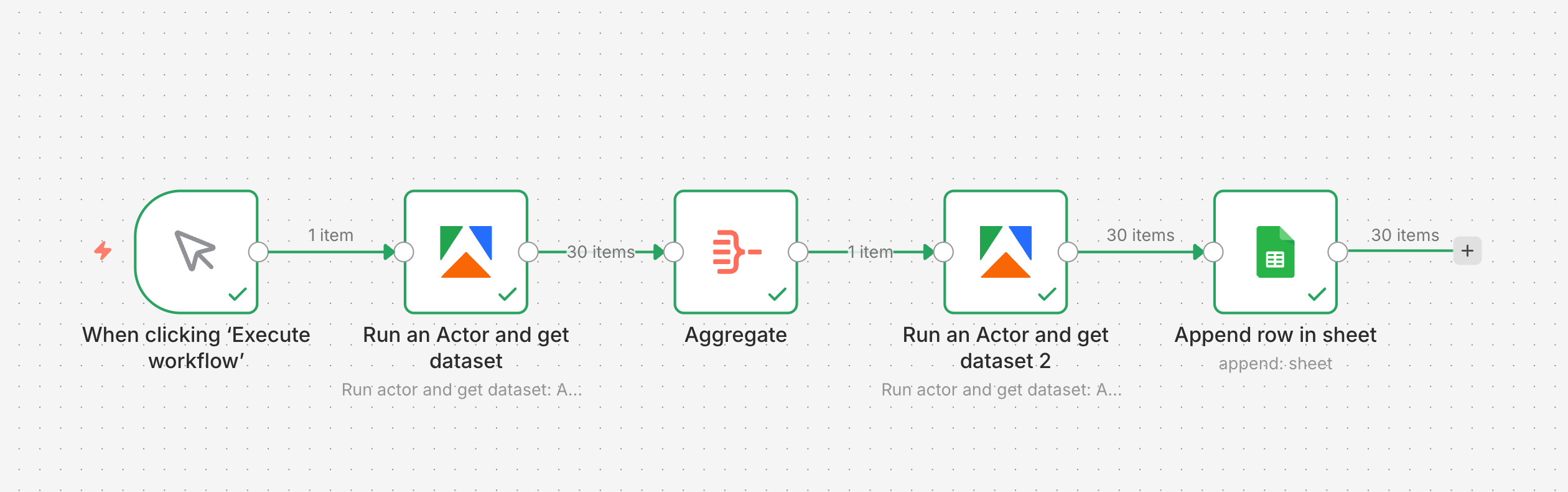
Our n8n workflow will contain the following steps:
- Running the first Actor to fetch profiles
- Adjusting the results with the Aggregate node to feed the second Actor
- Running the second Actor to extract contact details
- Sending results to Google Sheets
By the end of this tutorial, you’ll have a clean list of prospects ready for sharing or qualification.
Let’s start.
Step 1: Set up the Apify node to discover LinkedIn profiles
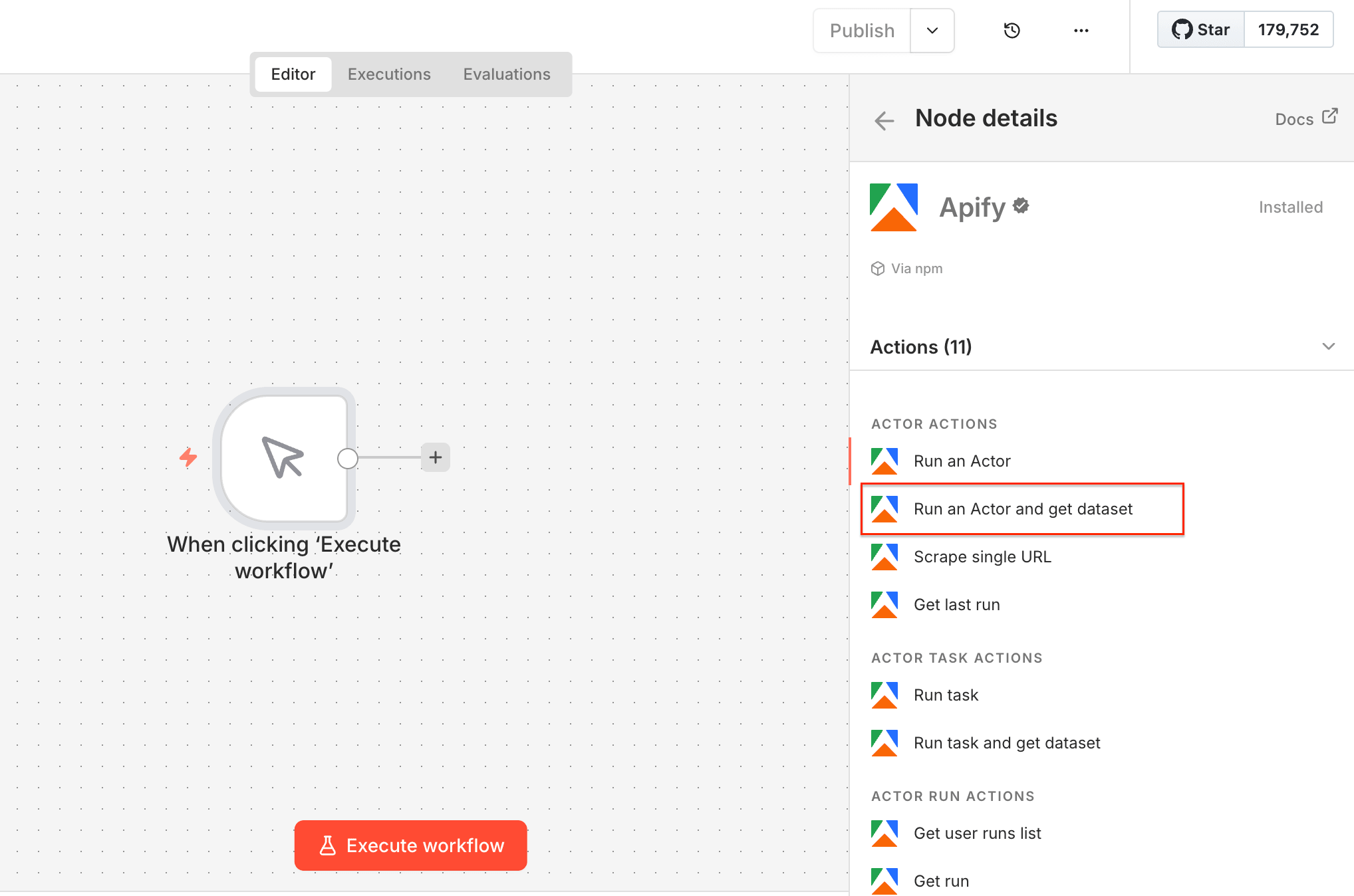
Open n8n to create a new workflow and choose a manual trigger as the first step. Next, search for the Apify node in your canvas (and install it if you haven’t already).
Select the Run an Actor and get dataset operation as the second workflow step.
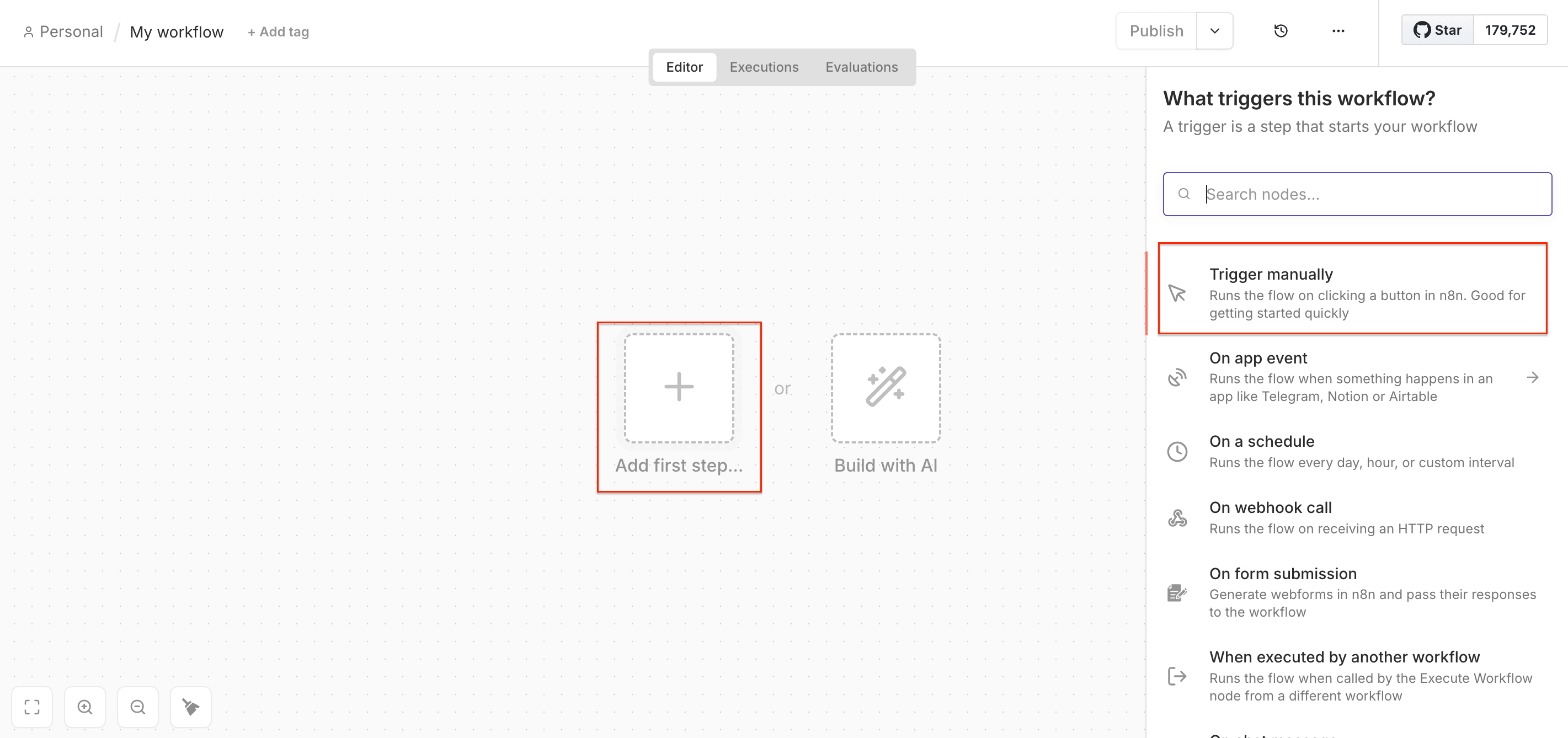
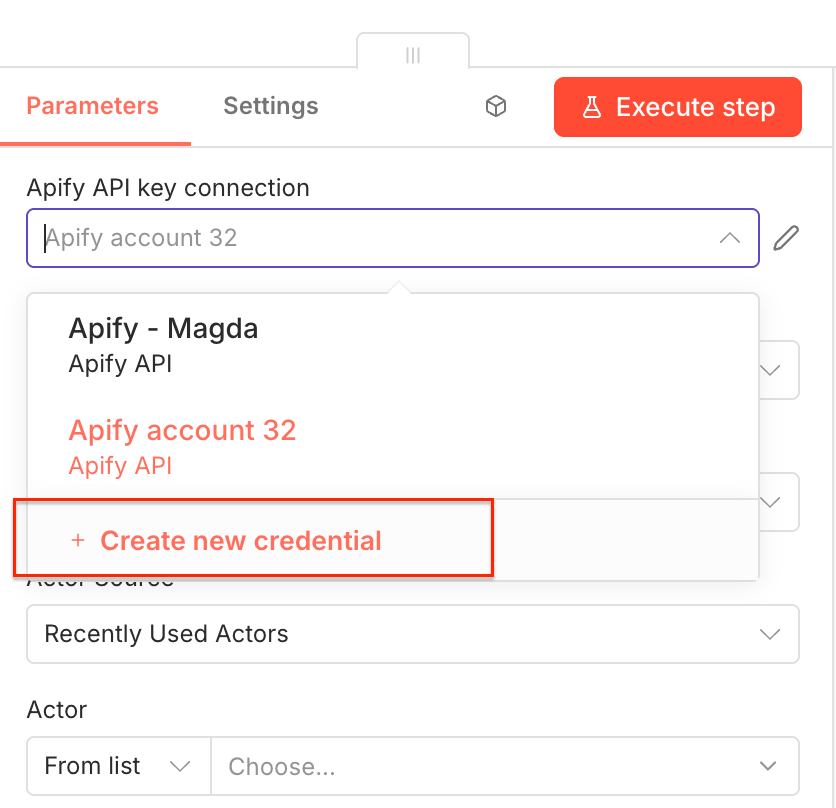
Once you open the node, you can connect n8n to your Apify account. Click on Create new credential to get started.
Next, you’ll be asked for your Apify API key. You can find it in Apify Console under Settings → API & Integrations, where you can copy your API token.
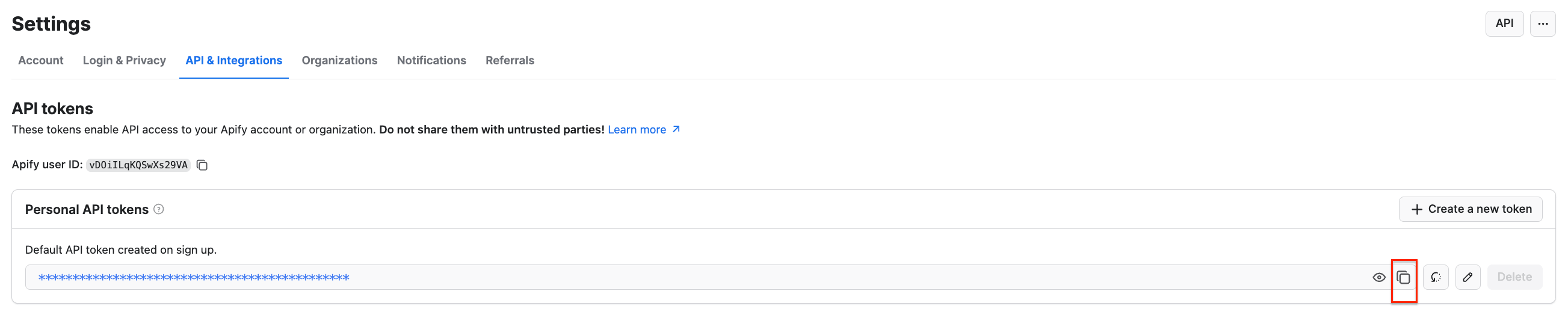
Paste the token into n8n and save the credential. Your Apify connection is ready to use.
Next, you’ll select the Actor you want to run from Apify Store and grab its JSON input so n8n can run it. Go to LinkedIn Profile Search Scraper No Cookies Find all people and adjust the scraping session to your needs using the UI.
The scraper uses search terms as input - we’ll go with digital bank to find leads in the banking industry. You can also filter your results further - add location, company, or experience level, as well as limit the number of profiles to scrape. Once you’re happy with your choices, switch to the JSON view and copy the JSON input.
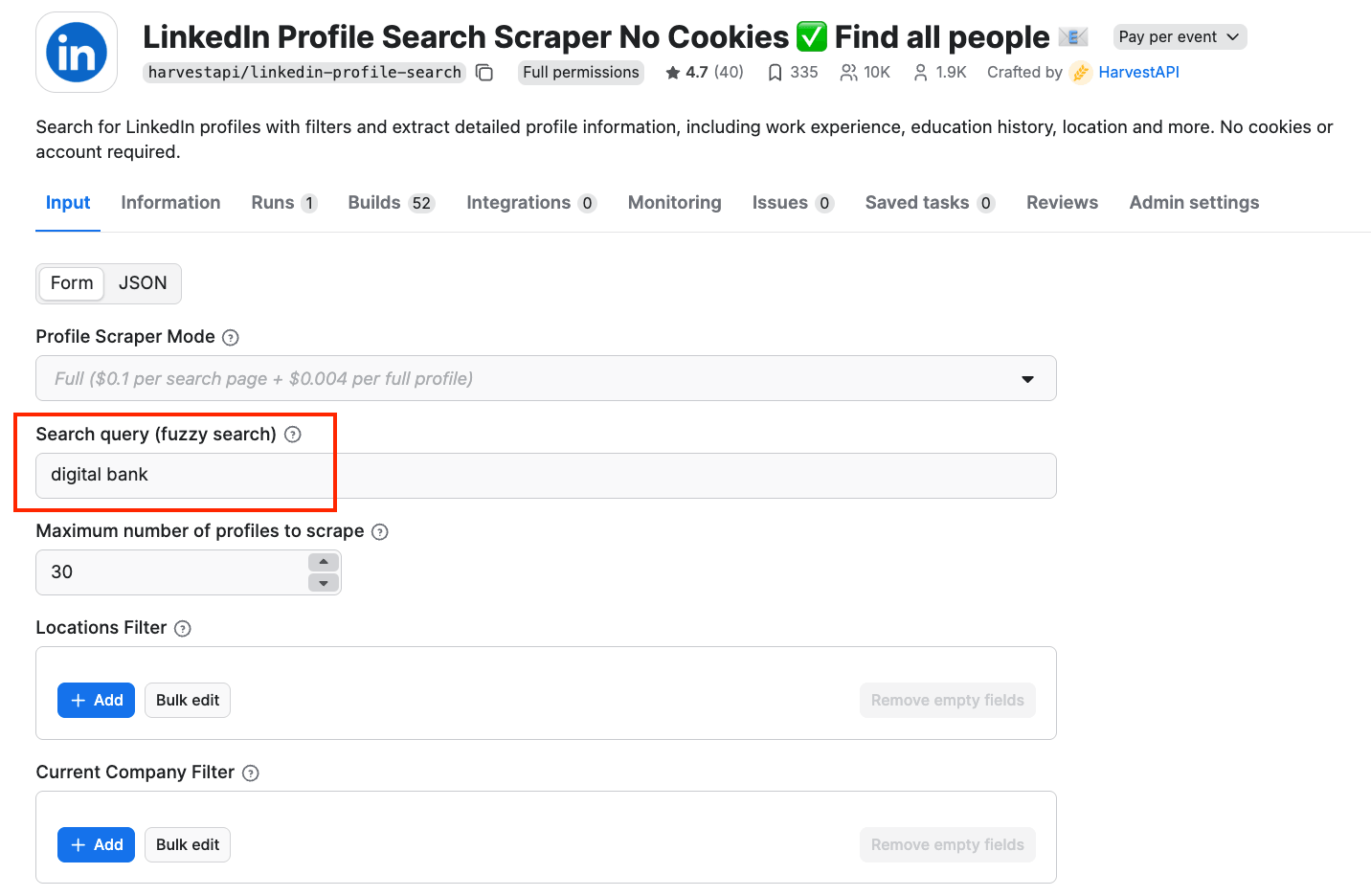
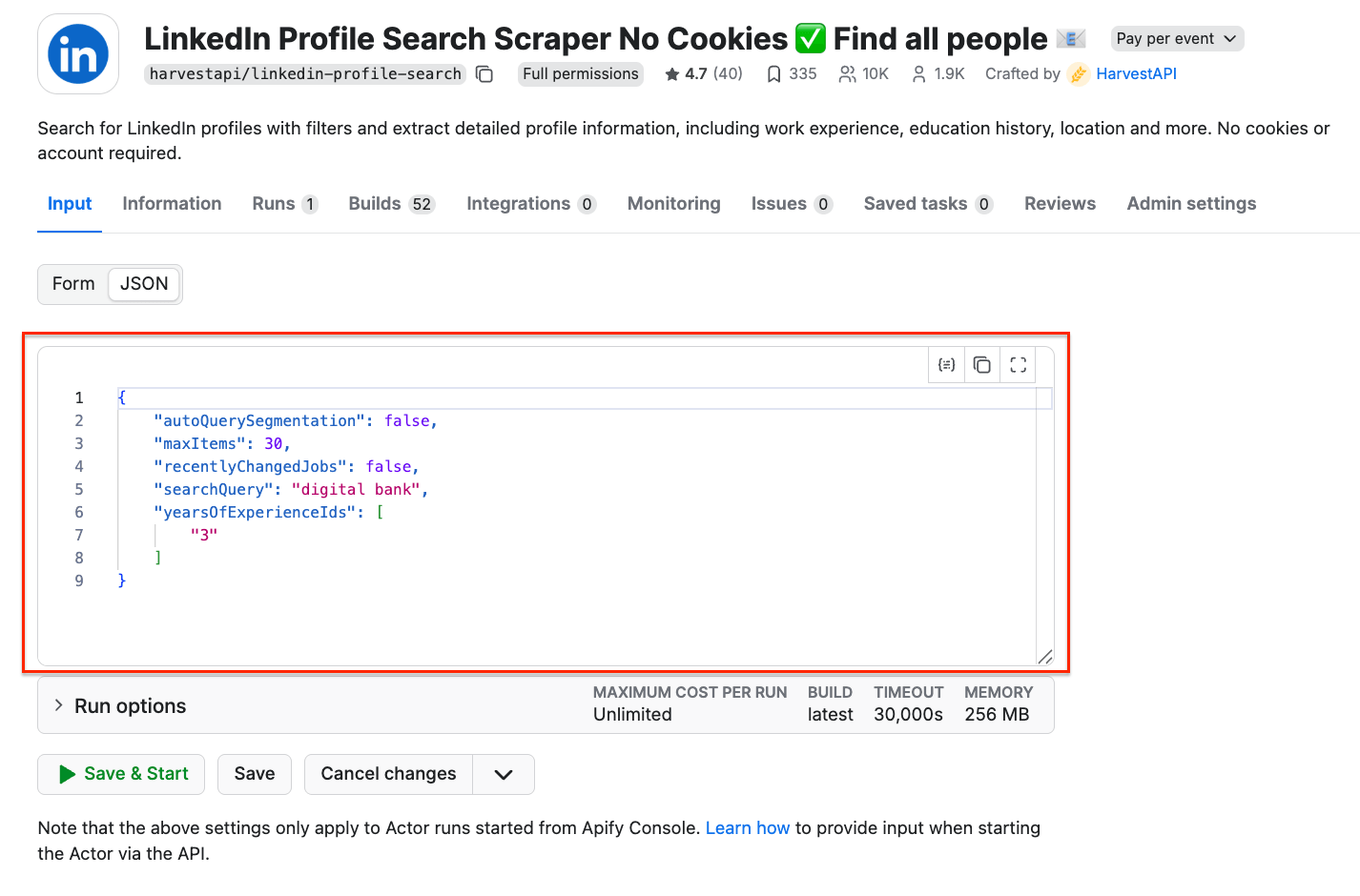
Input in the UI and JSON format
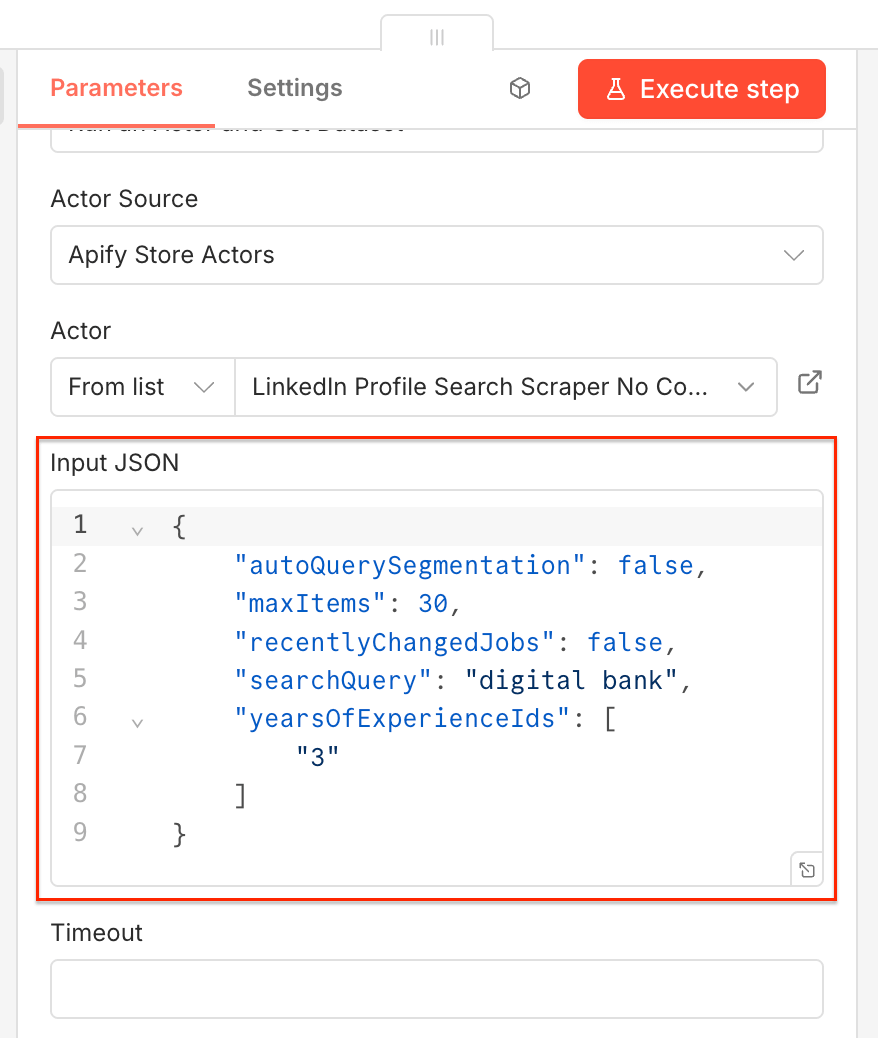
Go back to the n8n node, select the source for the Actor (Apify Store Actors), choose LinkedIn Profile Search Scraper No Cookies Find all people from the list, and paste the JSON input into the Apify node:
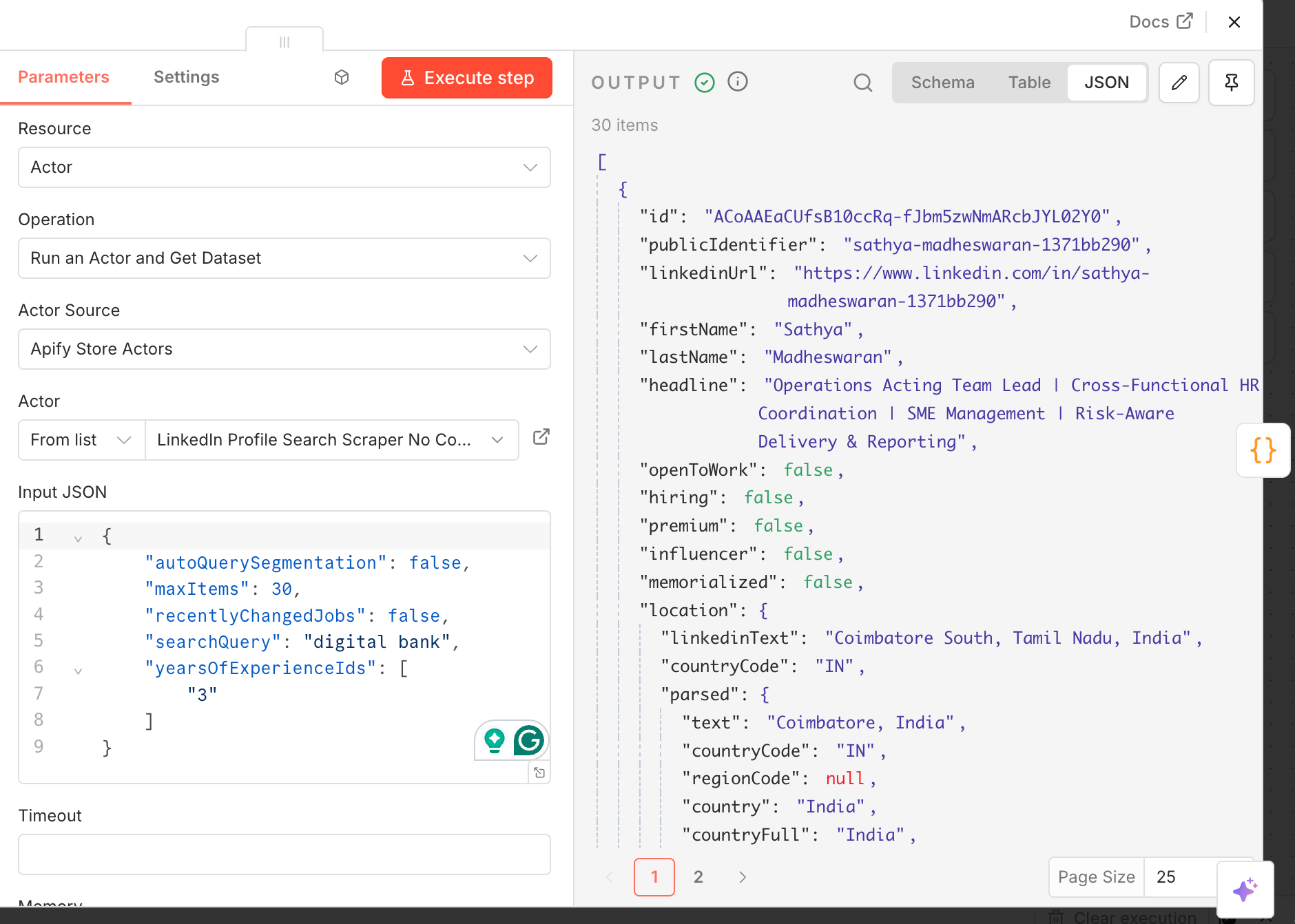
Now you can test it by clicking Execute step at the top. Once the Actor finishes running, you’ll see its output displayed as JSON next to the node:
Step 2: Adjust results to feed another Apify Actor
Now it’s time to use scraped LinkedIn profiles as input for another Actor - Mass Linkedin Profile Scraper with Email (No Cookies)- which will enrich scraped profiles with contact details.
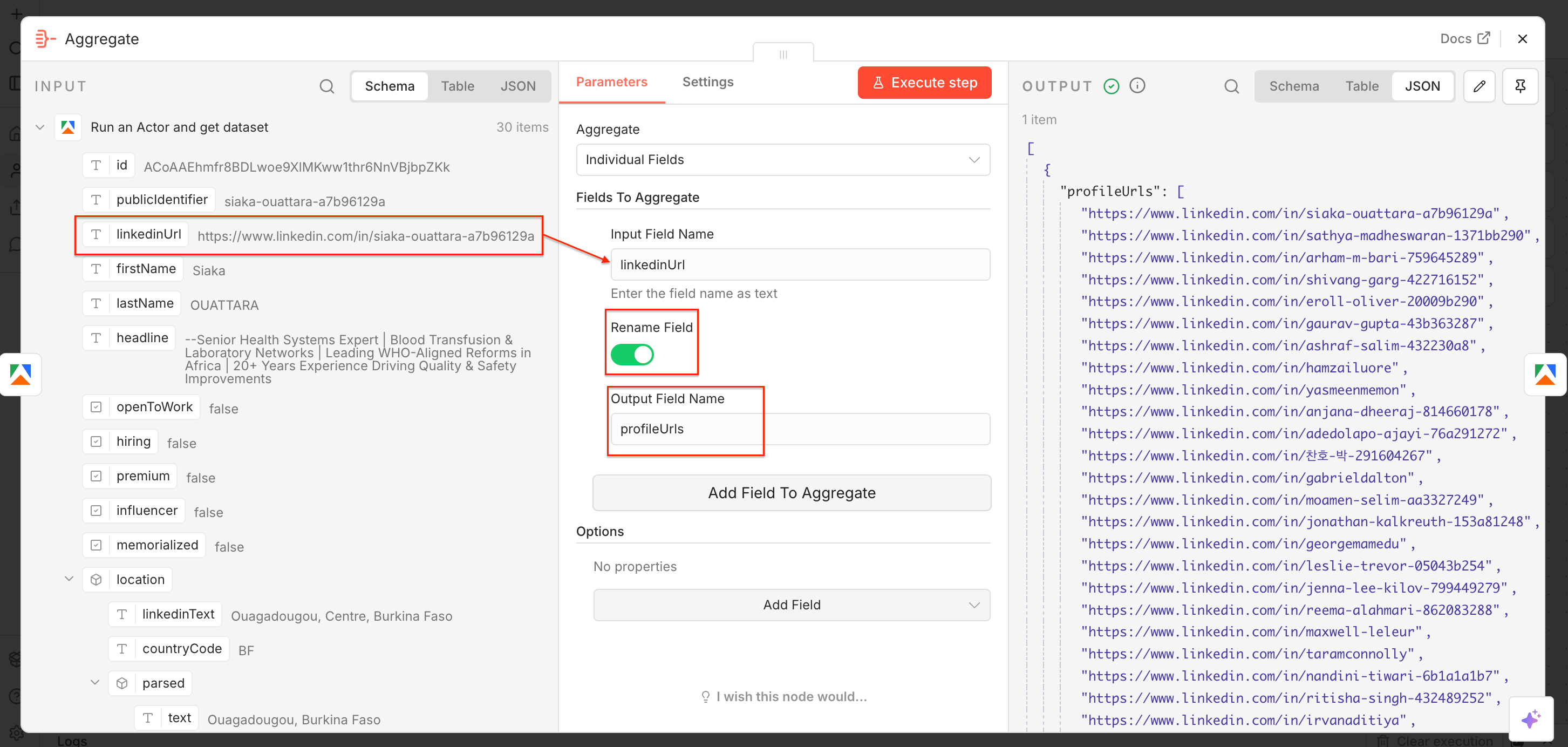
Mass LinkedIn Profile Scraper with Email (No Cookies) uses LinkedIn profile URLs as input. In n8n, you can convert the output from one Actor into an input for another with the Aggregate node. Let’s add it to the workflow.
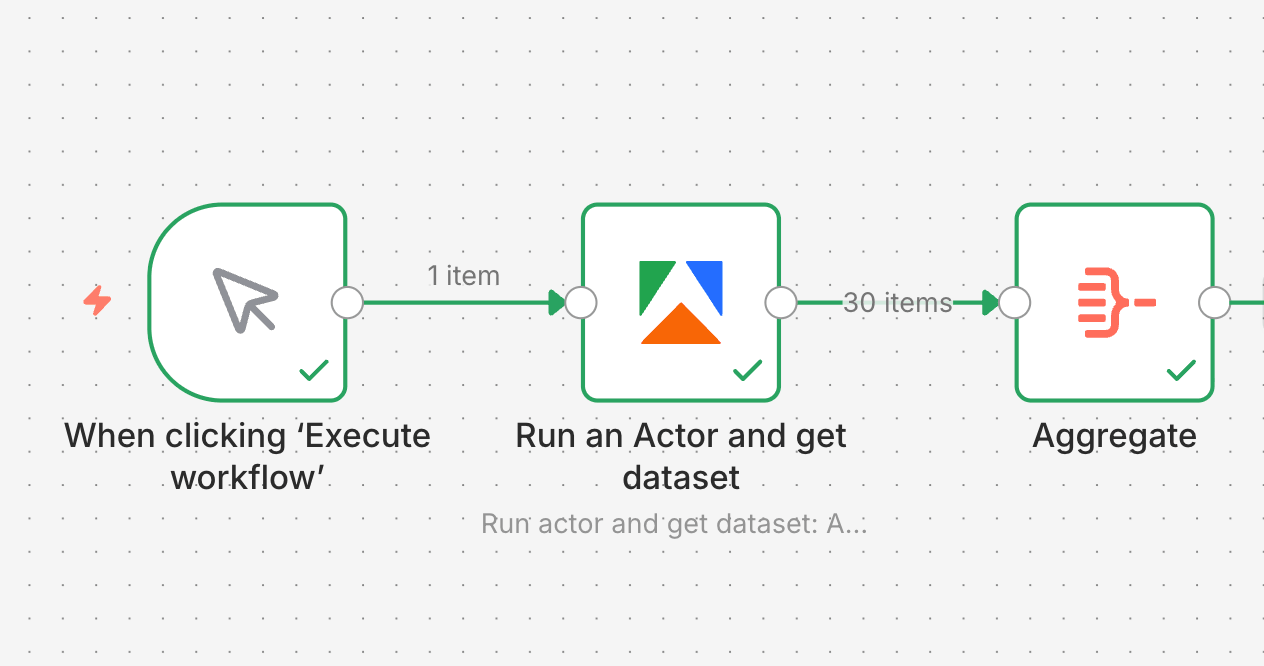
The LinkedIn URLs need to feed the profileUrls input field, used by the second scraper. In the node, drag and drop the linkedinUrl field to the Input Field Name, switch on the Rename Field toggle, and type in the Output Field Name - profileUrls . Once you execute the step, you’ll notice the JSON output is already correctly renamed.
Step 3: Enrich LinkedIn profile data with contact details
Time to add another Apify Actor node to the workflow, and collect contact information, such as emails or phone numbers (if publicly available). Select the Run an Actor and get dataset step and set it up as before: Make sure your Apify account is connected, and choose a relevant scraper - this time, Mass Linkedin Profile Scraper with Email (No Cookies).
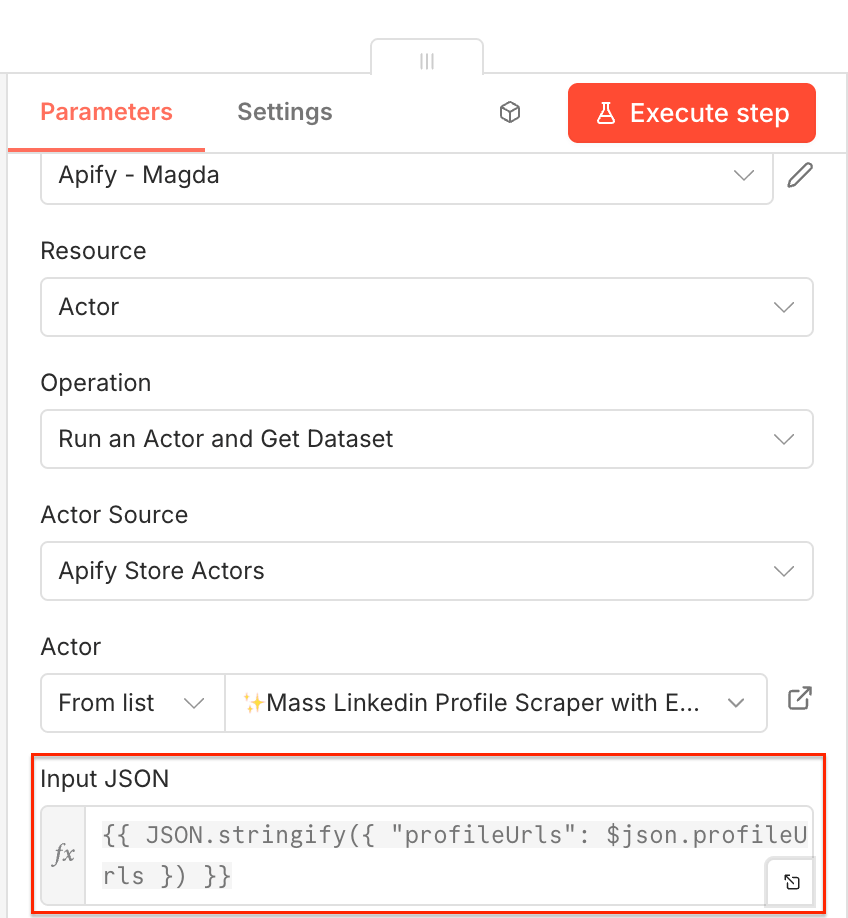
As the second Actor expects an array called profileUrls, in the Input JSON select Expression and use the following:
{{ JSON.stringify({ "profileUrls": $json.profileUrls }) }}
Again, you can test the workflow by executing it.
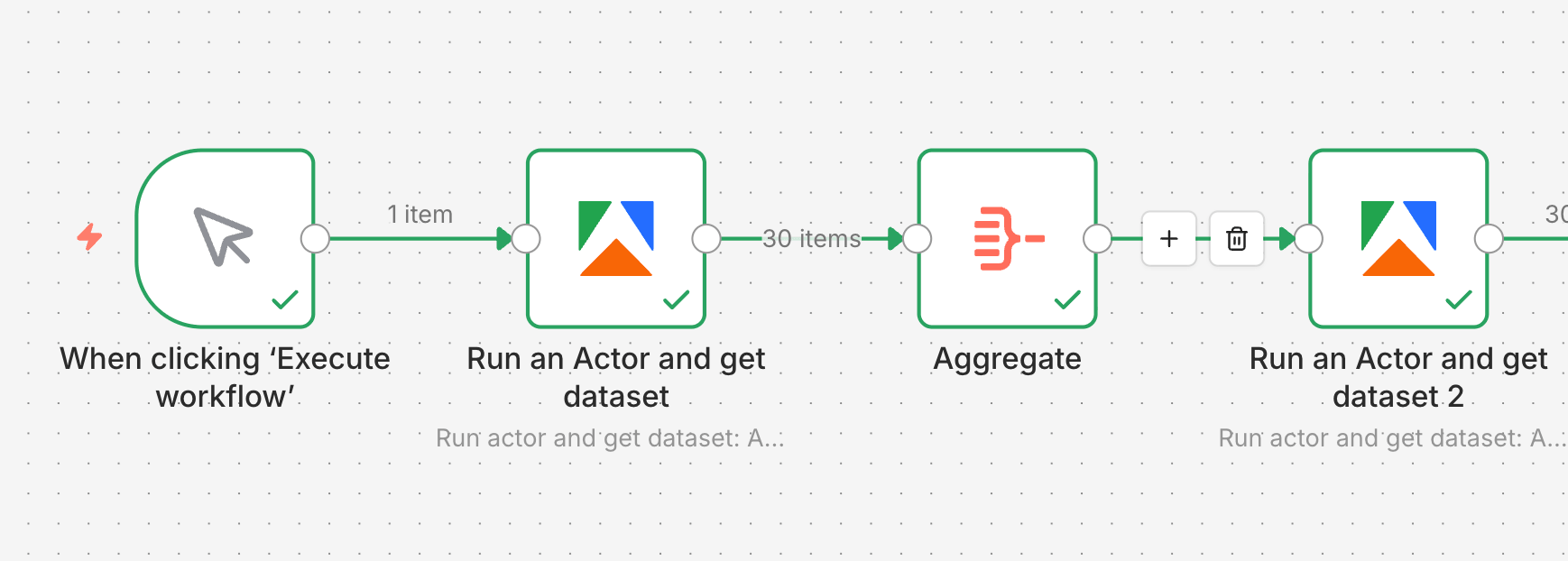
Next, we’ll create a database for the newly created leads. n8n offers many options, and in this tutorial, we’ll demo a Google Sheets connection.
Step 4: Send data to Google Sheets
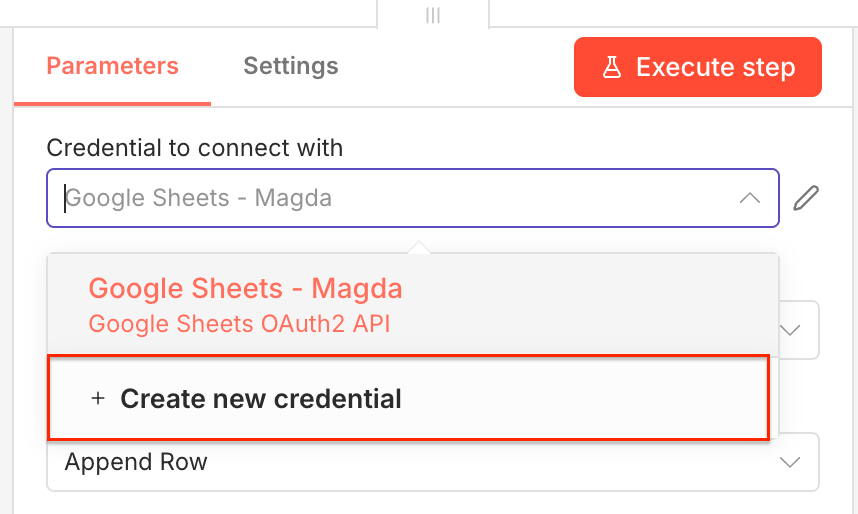
To send LinkedIn leads directly to Google Sheets, create one more (and final) n8n node. Find the Google Sheets node and select it. Create a new credential to connect your Google account.
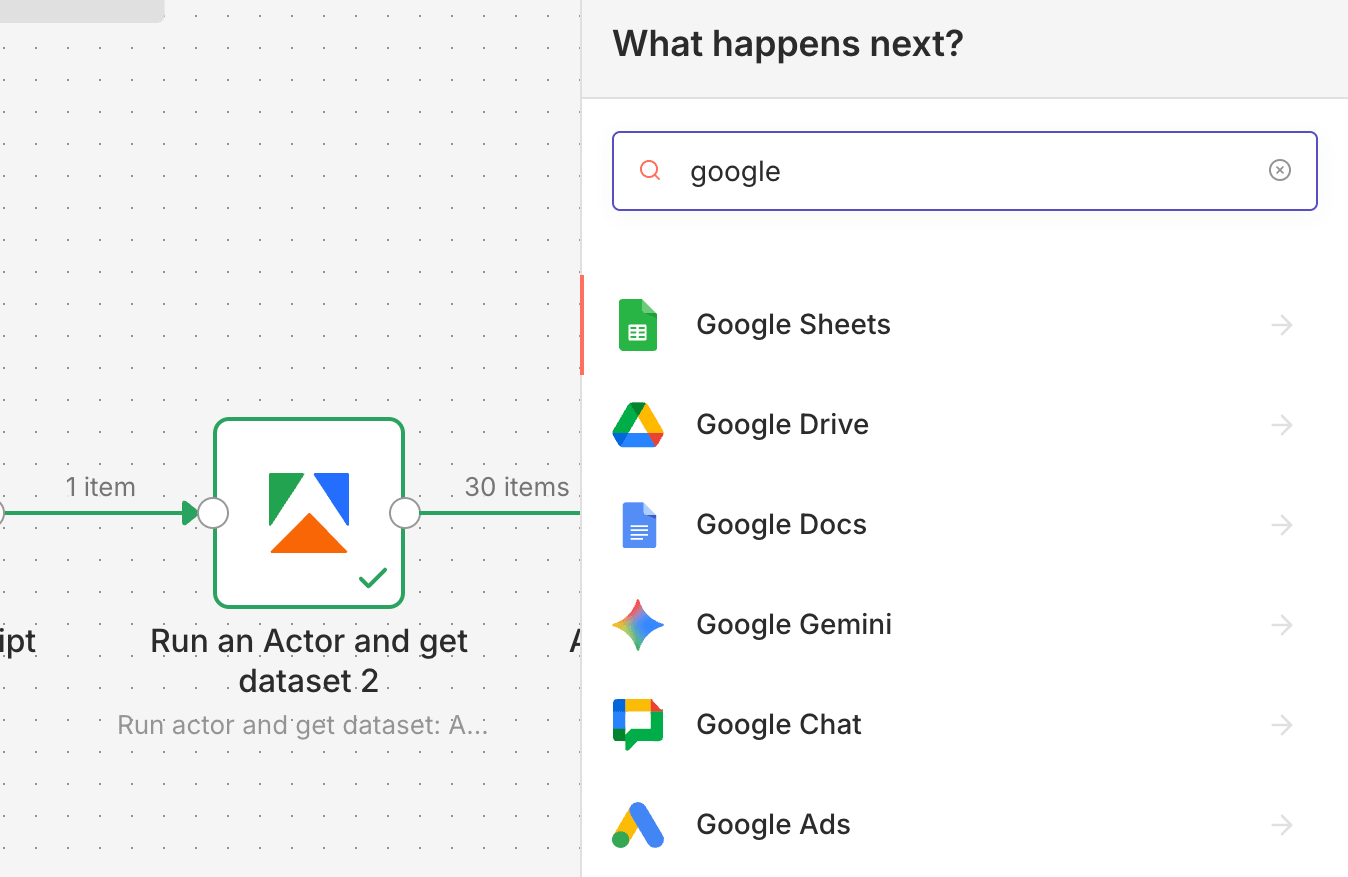
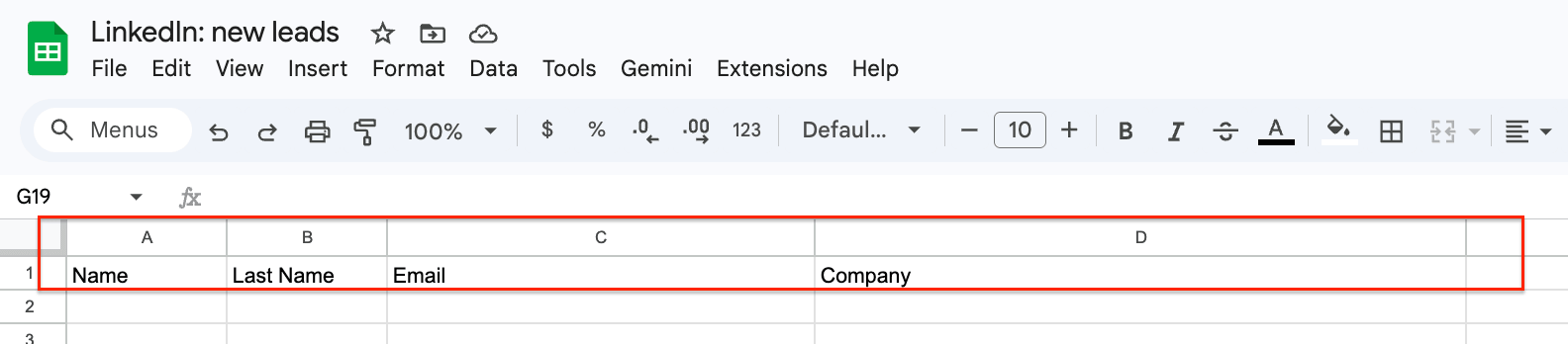
Next, create a Google Sheets file in your Google Drive and prepare columns for your data. To make things easier, we created a simple spreadsheet with name, last name, email, and company data.
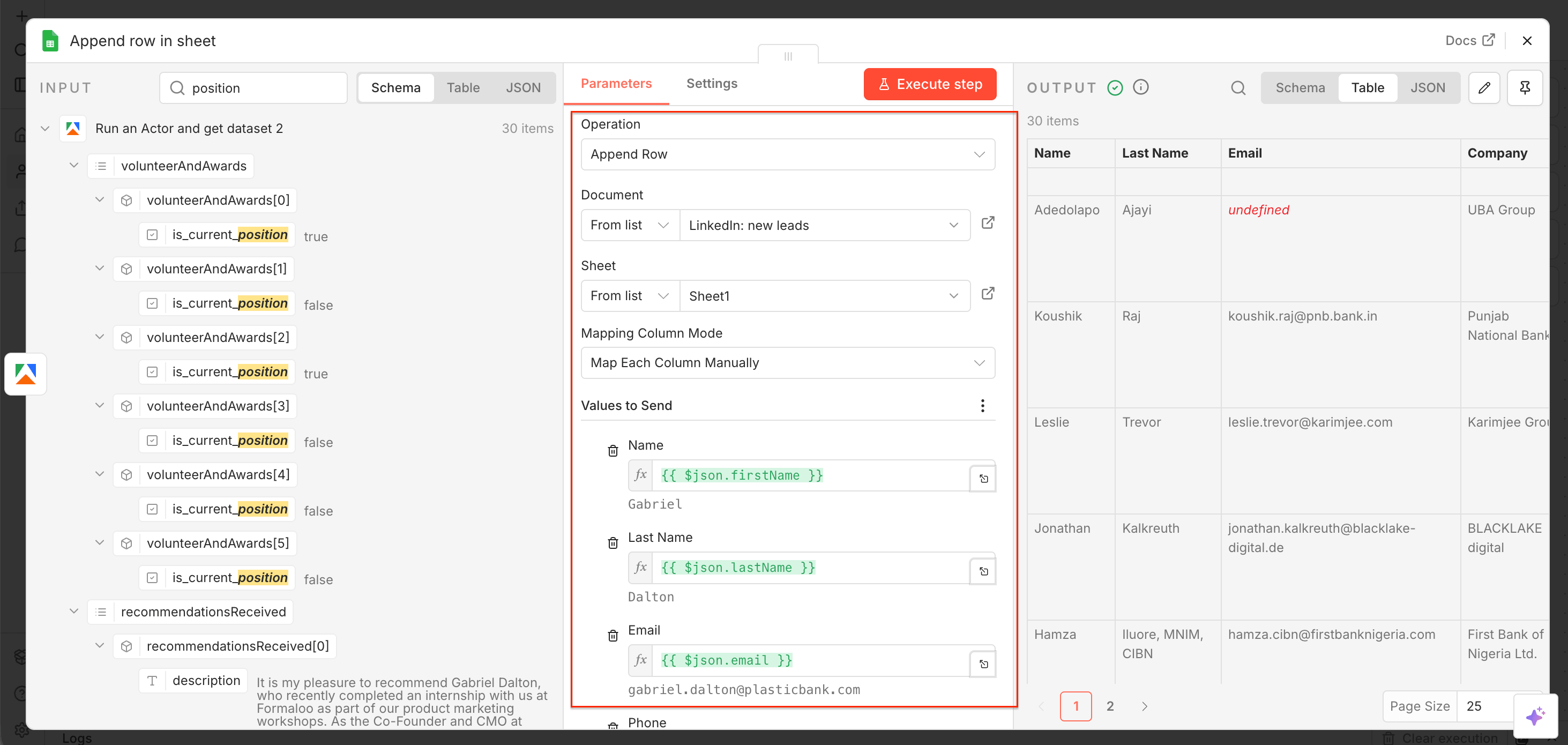
Now let’s configure the data flow. Choose the operation type as Append row, select your spreadsheet from Google Drive, pick the sheet the data will flow into, and select mapping mode as Map Each Column Manually.
Thanks to the manual mapping, you can choose individual values from the dataset and map them to your columns - e.g. firstName → Name, email → Email.
Once you map your columns, you can test the entire workflow - execute it and watch the clean output flow directly into Google Sheets.
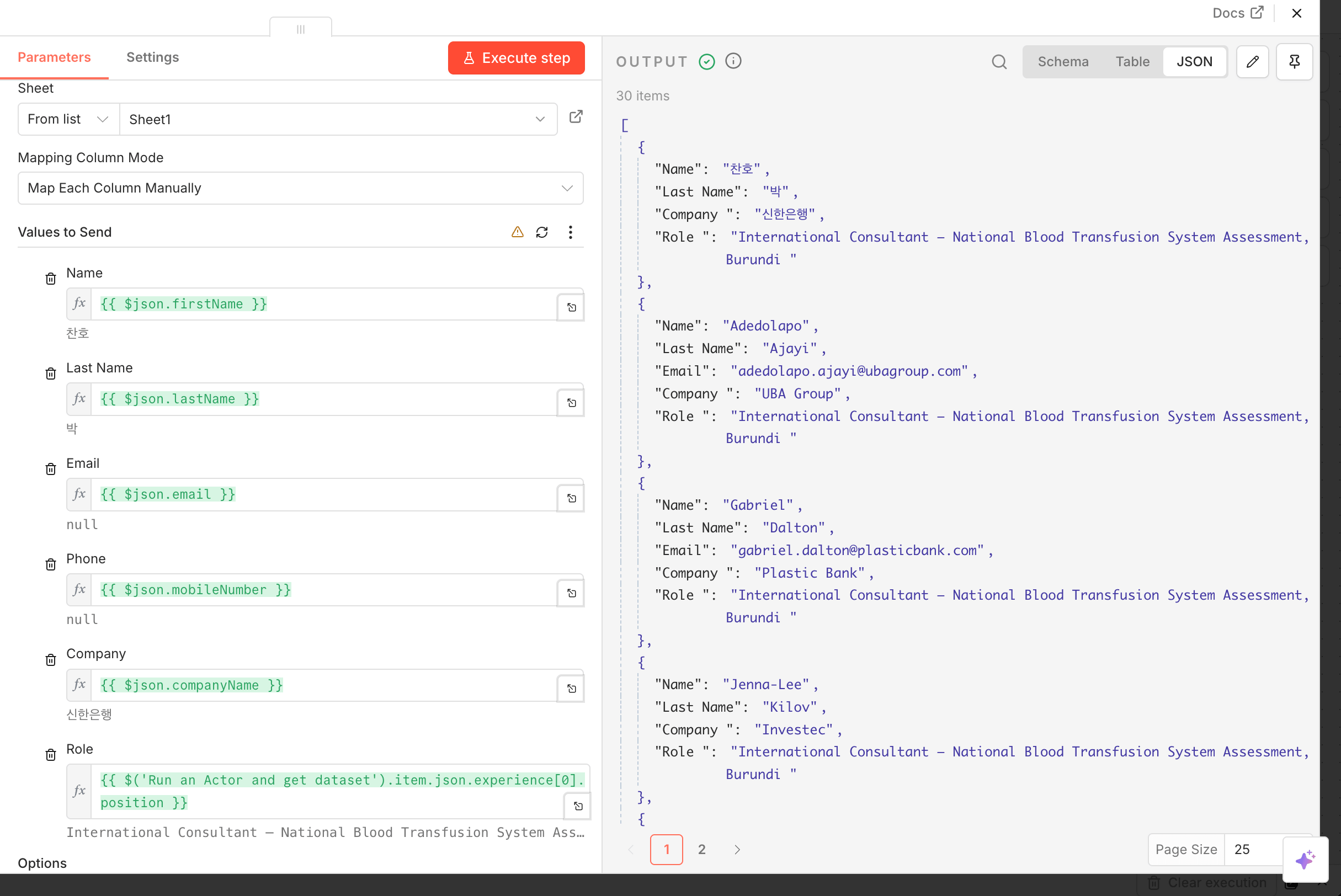
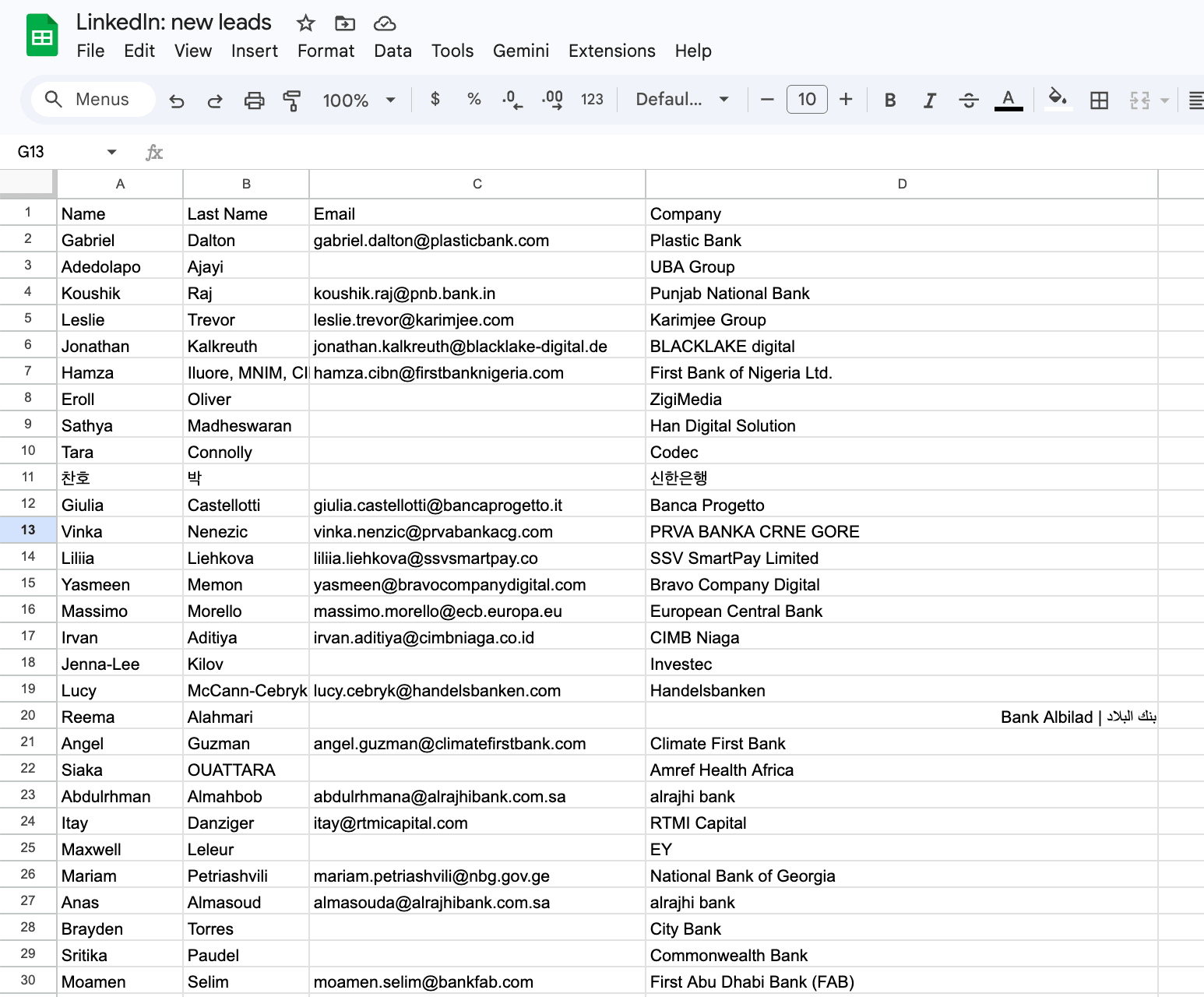
Results in JSON shown in the n8n node and in Google Sheets
That’s it. You’ve built a workflow that can automatically scrape LinkedIn in search of relevant profiles and then enrich them with contact information. It works with a single click, can run as often as you need, and can be adjusted to match your sales goals.
Conclusion
This workflow turns LinkedIn lead generation from a manual, repetitive process into a structured pipeline you can rerun and adjust as needed. You can refine your search criteria and expand into new segments whenever your strategy shifts - without rebuilding the workflow from scratch.