Manual lead generation usually involves scrolling through Instagram, checking profiles, searching for email addresses, and copy-pasting data into a spreadsheet. This slow process defeats the purpose of trend-responsive marketing.
In 2026 this ought to change - you can use an automated workflow to build lead lists without manual effort.
This guide provides a programmatic, automated workflow for building high-quality lists of leads from Instagram. Unlike buying (potentially outdated) databases or hiring expensive agencies, this approach gives you full control over the data; you can decide the niche, define the quality, and most importantly - you own the data.
You don’t need to be a developer to build this workflow. You can set this up in less than 10 minutes, and with Apify’s $5 in monthly usage, you can generate a significant number of leads without spending a dime.
How to generate leads from Instagram
This section covers the exact step-by-step workflow.
- Signing up for Apify
- Defining your target keywords
- Setting up the Instagram Hashtag Scraper
- Preparing the Google Sheet
- Building the n8n workflow
- Connecting Apify to n8n
- Scraping the relevant profiles
- Filtering the results
- Exporting data to Google Sheets
- Publishing the workflow
1. Sign up for Apify
First, you’ll need an Apify account. You can sign up for free on Apify, and you'll automatically receive $5 of monthly usage, which is more than enough to get started.
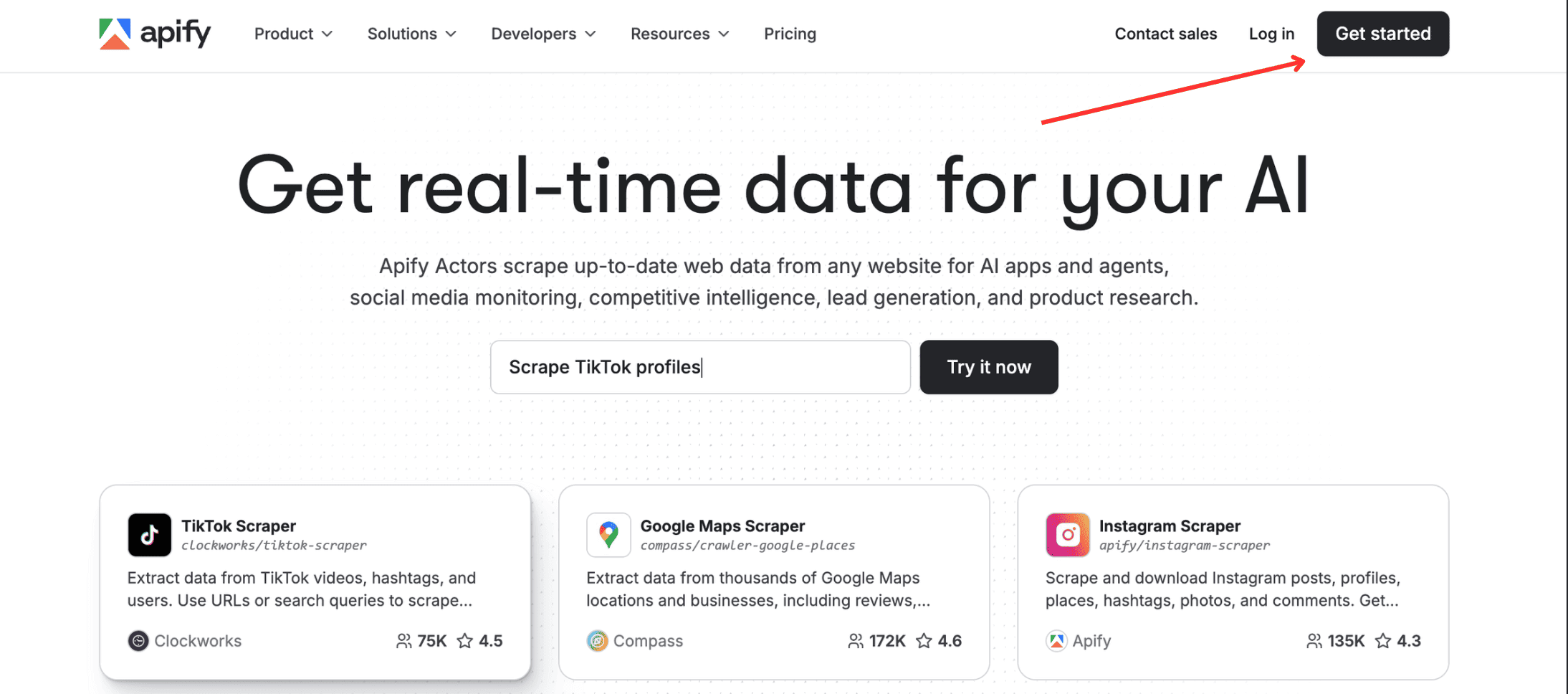
Once you’re signed in, you’ll be directed to Apify Console. This is where all your data collection tools, runs, tasks, schedules, and all other details can be found.
2. Defining your target niche and search queries
If your search terms are too broad, your leads will be of low quality. You need to think like your customer - what would they search for, should they need to find what you’re promoting?
Here’s an example: If you are selling chalk or gear to rock climbers, searching for #sports is useless. It’s too broad. Instead, you would target:
- Hashtags:
#rockclimbing,#bouldering,#climberlife - Bio Keywords: "Climbing Coach", "Route Setter", "Bouldering Gym"
The more specific your niche, the higher your conversion rate will be. Note that Instagram Hashtag Scraper we're using in this tutorial will also let you search by keywords instead of hashtags (i.e., Climbing Coach instead of #climbingcoach), so that you can choose what measure you would need to follow.
Once you are clear about which search terms or hashtags to search for, you can proceed to the scraping part on Apify Console.
3. Run and schedule Instagram Hashtag Scraper
To scrape related posts on Instagram based on the search terms and keywords clarified in the previous section, you can simply use Instagram Hashtag Scraper on Apify store. It would cost no more than $1.50 to scrape over 500 posts using this scraper.
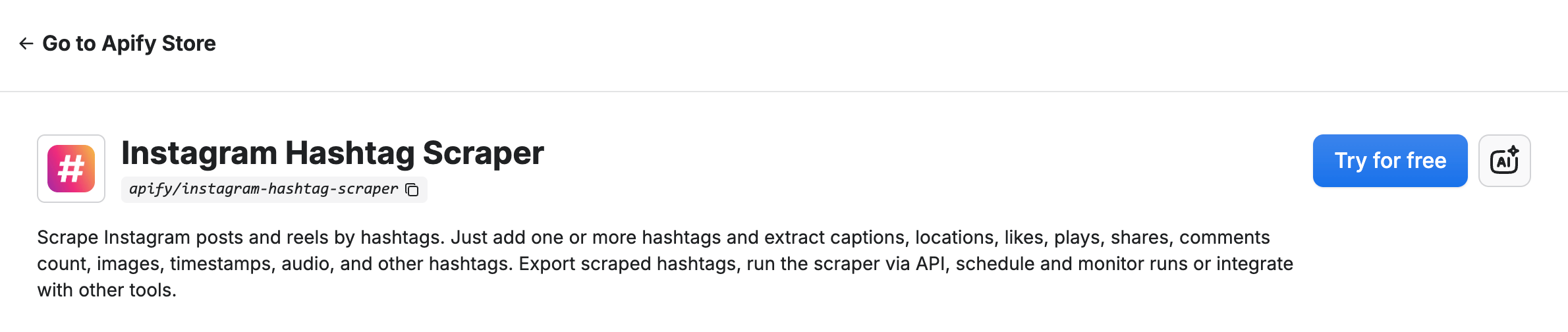
Click the “Try for free” button, and it will take you to Apify Console, where you will be required to fill out fields that define the scraping criteria.
- In the Hashtags field, include the hashtags you want to scrape posts on.
#rockclimbing, for example. Alternatively, you can toggle the “Scrape with a keyword instead of hashtag” option in the scraper and include keywords in the Hashtags field instead ( eg:rock climbing). - Select the Content type to “Scrape Posts” and set a maximum number of posts per hashtag/keyword you’d like to scrape - 30, for this tutorial.
- You can also customize the Run Options to set limits on cost and results, which is up to you.
While you can run the Actor now for a test run (using the Start button), it's recommended that you schedule the Actor so that every day, new results can be scraped. To do so, click the three dots (•••) next to the Actor information and select ”Schedule Actor”.

In the Schedule Actor pop-up that opens, enter the details of your schedule. For this tutorial, we’ll go with a schedule that runs every day at 09:00 AM. Once done, click the Create button.
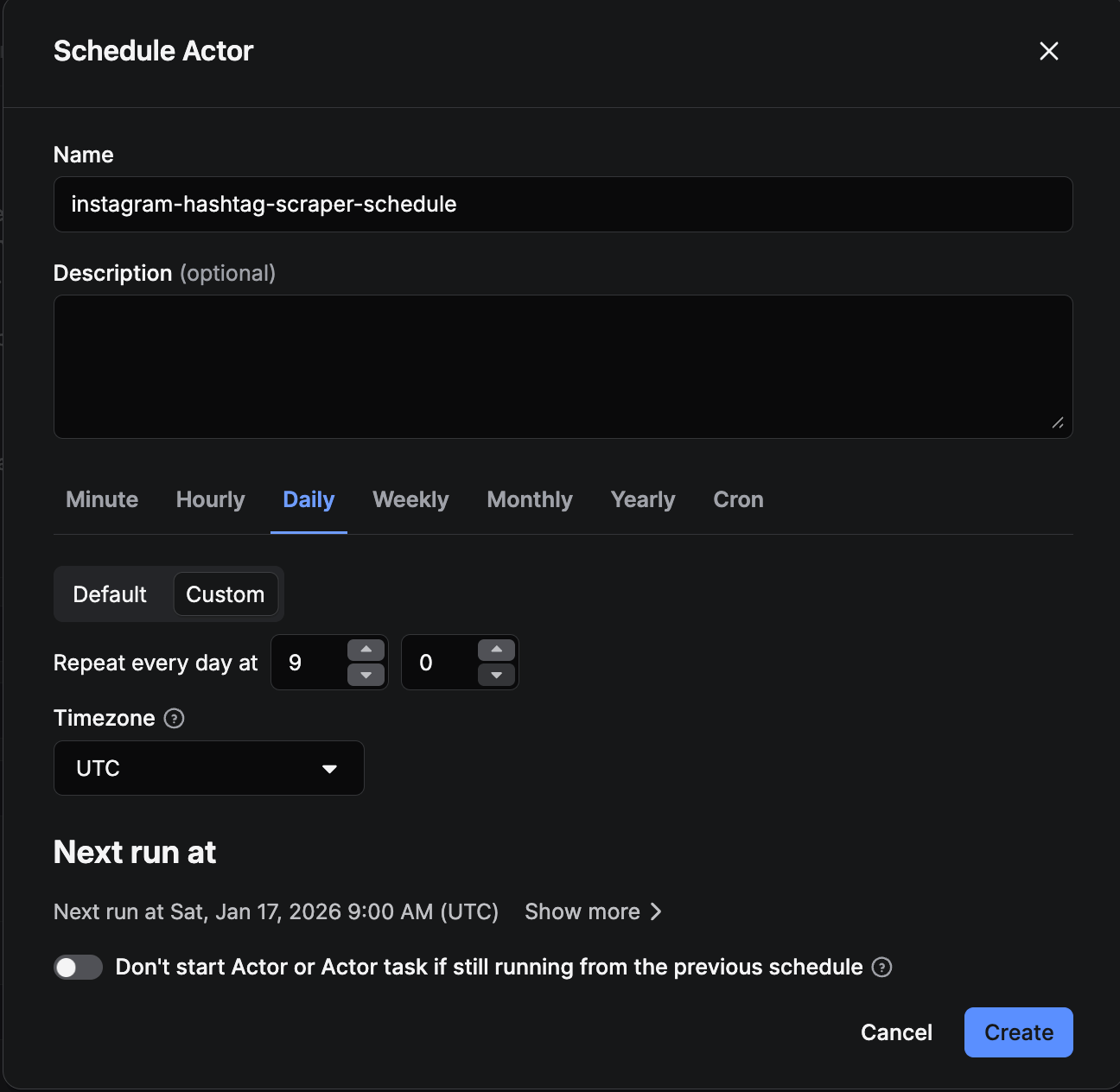
It’s done - Instagram Hashtag Scraper is set up and scheduled. This scraper extracts posts that match your keywords and hashtags. Each time the scraper runs, it acts as the trigger that starts the rest of the workflow described below.
5. Prepare your Google Sheet
Before we connect everything, we need a place to send all this data:
- Go to sheets.google.com and create a new spreadsheet. Name it as “Instagram data” or whatever your choice is.
- In the very first row (Row 1), type these exact headers. It is important to type them exactly as written below so our automation tool can recognize them later:
UsernameProfileURLFollowersTierBioEmailExternalURLisPrivate
And that’s it, you may save and close the spreadsheet for now.
6. Automate filtering and storage with n8n
This is where the real automation happens. We'll use n8n - a workflow automation tool - to act as the "brain" of your operation. It will wait for your Apify scrapers to finish, filter out the bad leads (like private accounts), and save the good ones to your Google Sheet.
This could be your very first automation workflow in n8n, and it’s quite all right - we will guide you through every step of the process, in detail. You don't need prior experience in automation or coding to automate Instagram lead generation in this tutorial.
For this workflow, we'll use a "Discovery → Enrichment" approach. We'll take the raw posts found by the Hashtag Scraper (the “discovery”), remove duplicates, and then feed those usernames into the Search Scraper to get full details on the user profiles (the “enrichment” of the results). This ensures your Google Sheet only contains enriched, high-quality leads, rather than a mix of random posts and profiles that provide no value as leads.
Does it cost you anything? Not really! While a cloud subscription of n8n costs money, you don’t have to use n8n Cloud. You can run n8n locally, self-host it, or deploy it on another platform.
Part A: Connect Apify to n8n
The first step of the workflow is to connect Apify to n8n as a node. A node in n8n is a single step in your automation workflow that performs a specific task - like a building block that receives, processes, or sends data. This part will guide you on how to use these nodes to connect the workflow to Apify.
- Create an account on n8n (n8n provides a 14-day free trial on its cloud, which you can use to build the workflow quickly, or you can self-host it for free)
- On the n8n dashboard, select Create workflow.
- In the n8n canvas editor, click on “Add first step”.
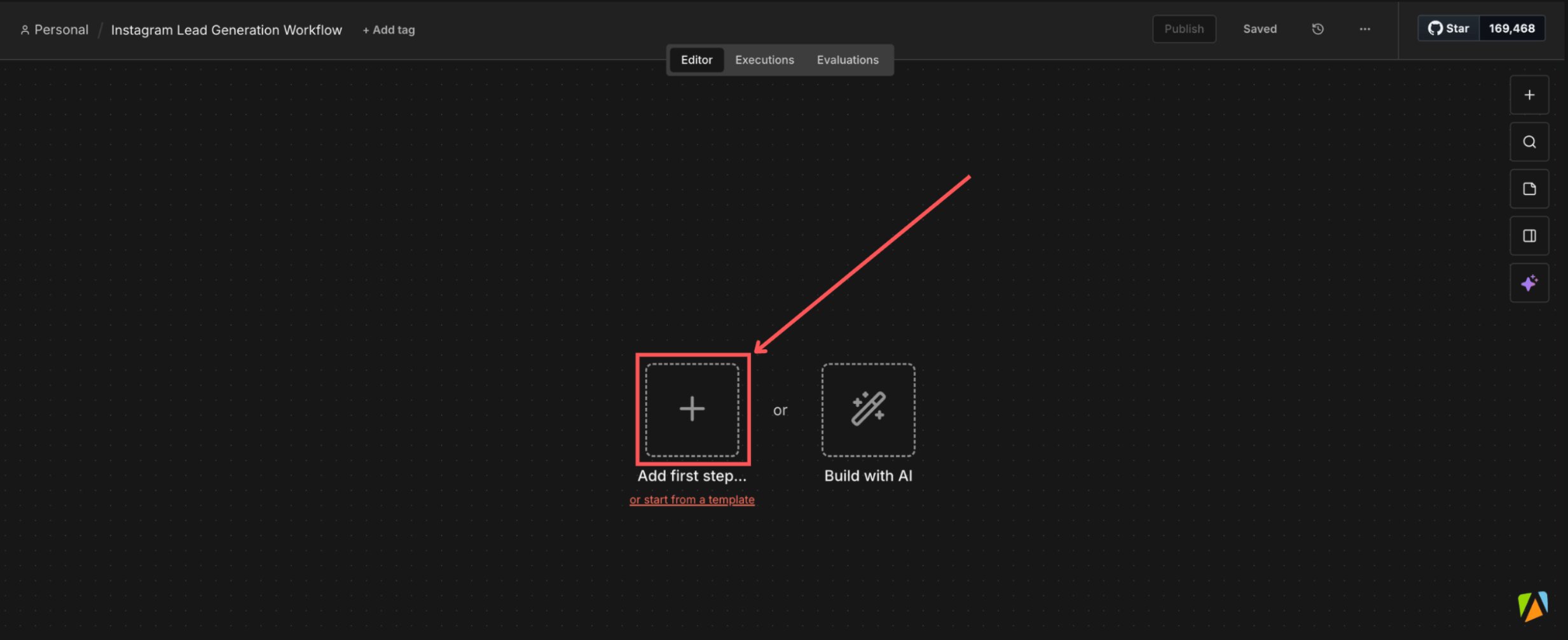
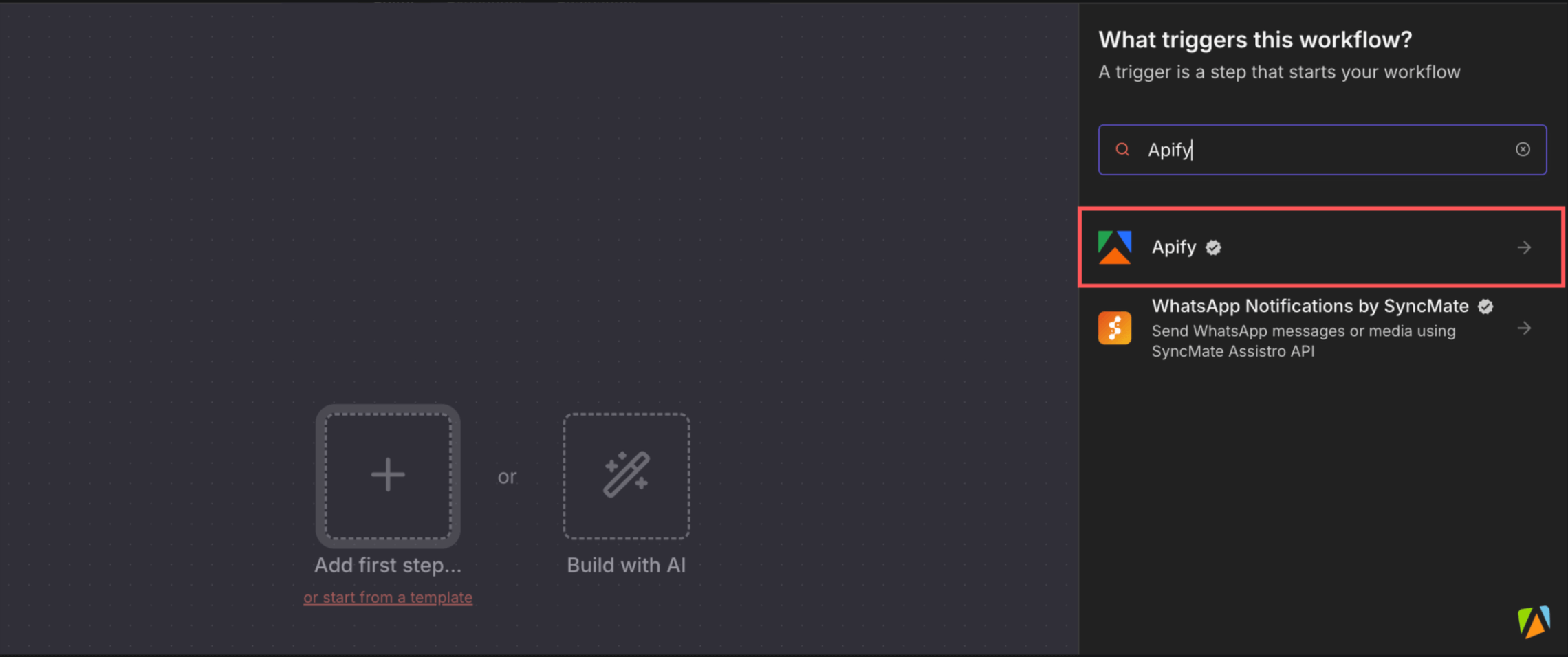
- In the sidebar that opened, search for “Apify” and select the official Apify node.
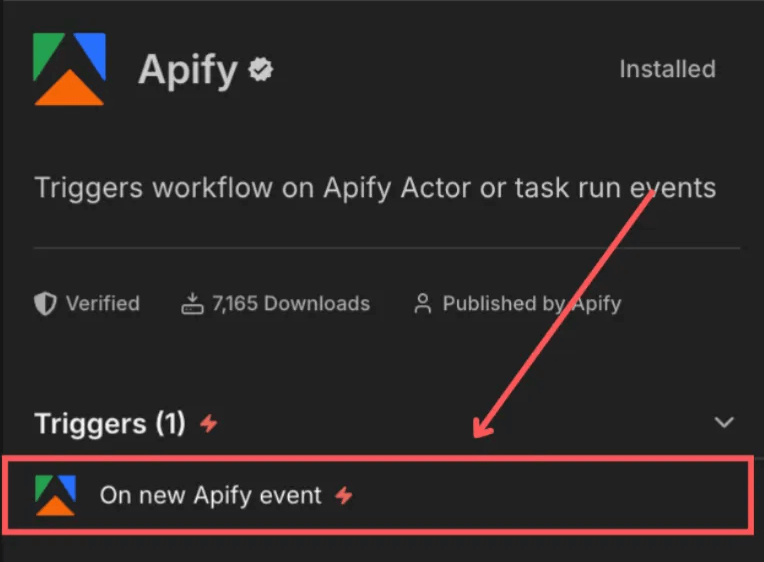
- Select the trigger “On new Apify event” by clicking on it. This will open a pop-up.
- In the pop-up, you will be required to create a credential to authenticate your Apify account to n8n. Once the credential is set up, you will be able to access actor details in the pop-up.
- Select the Resource to watch as “Actor.”
- Set Actor Source as recently used actors.
- Select the specific Actor from the Actor list. For the first trigger, this will be the Instagram Hashtag Scraper.
- Keep the Event type as “Succeeded”.
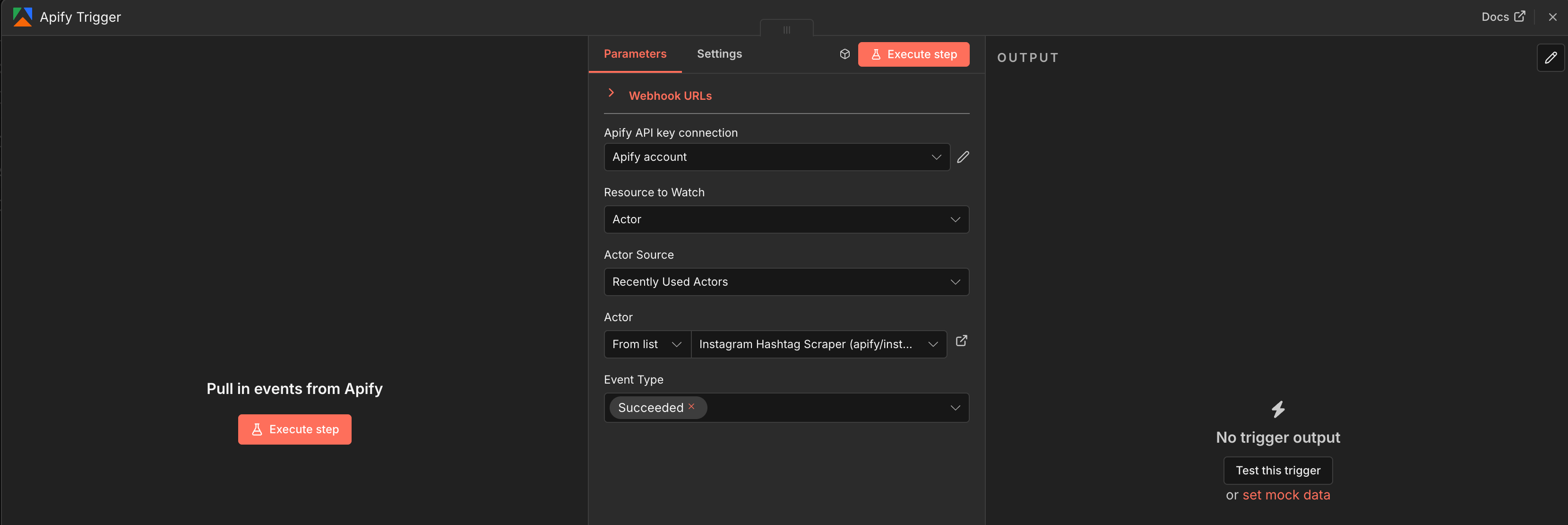
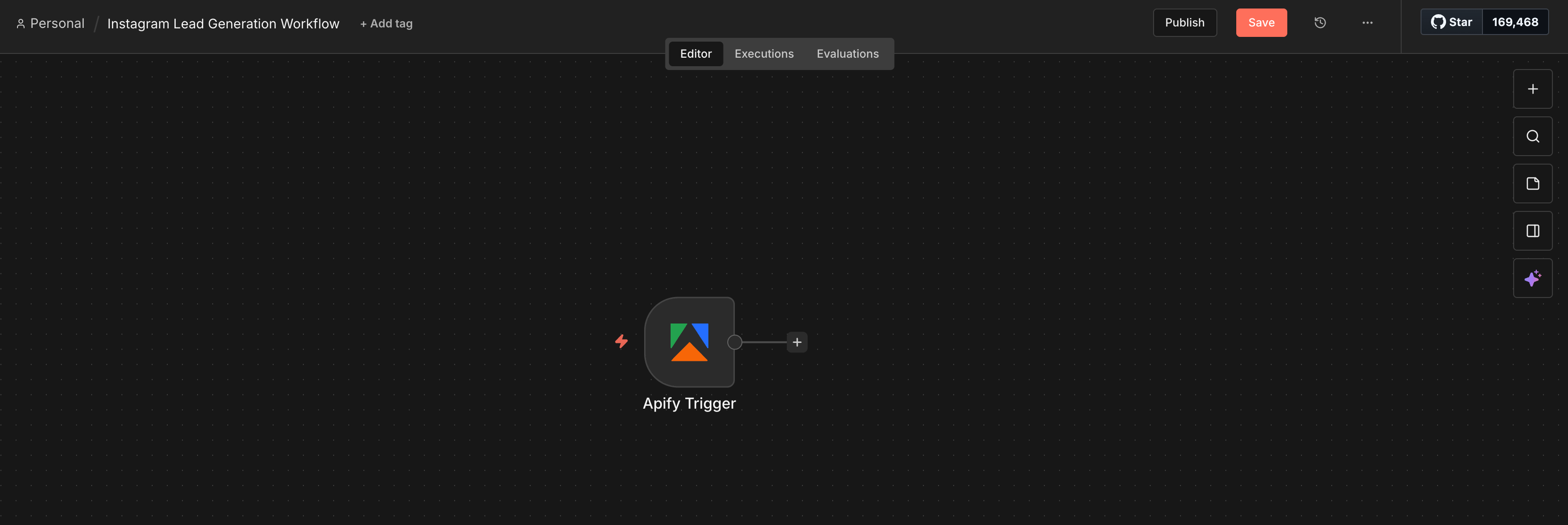
- Close the pop-up. You’ll be back in the n8n editor canvas, and you'll see that one of the triggers is ready.
Now, let's fetch the data and remove duplicate users:
1. Click on the + icon of the trigger. Search for “Apify” and select the Apify node.
2. Select the Action named “Get dataset items”. This node actually collects the data once the initial trigger of running the scraper is completed.

3. In the pop-up window, configure the node as follows:
- Resource: Dataset
- Operation: Get items
- Dataset ID (Set to
Expressionmode, notfixed): - Limit: As desired.
Close the pop-up, and in the editor canvas, you’ll now see two nodes - the trigger and the action, set up and ready.
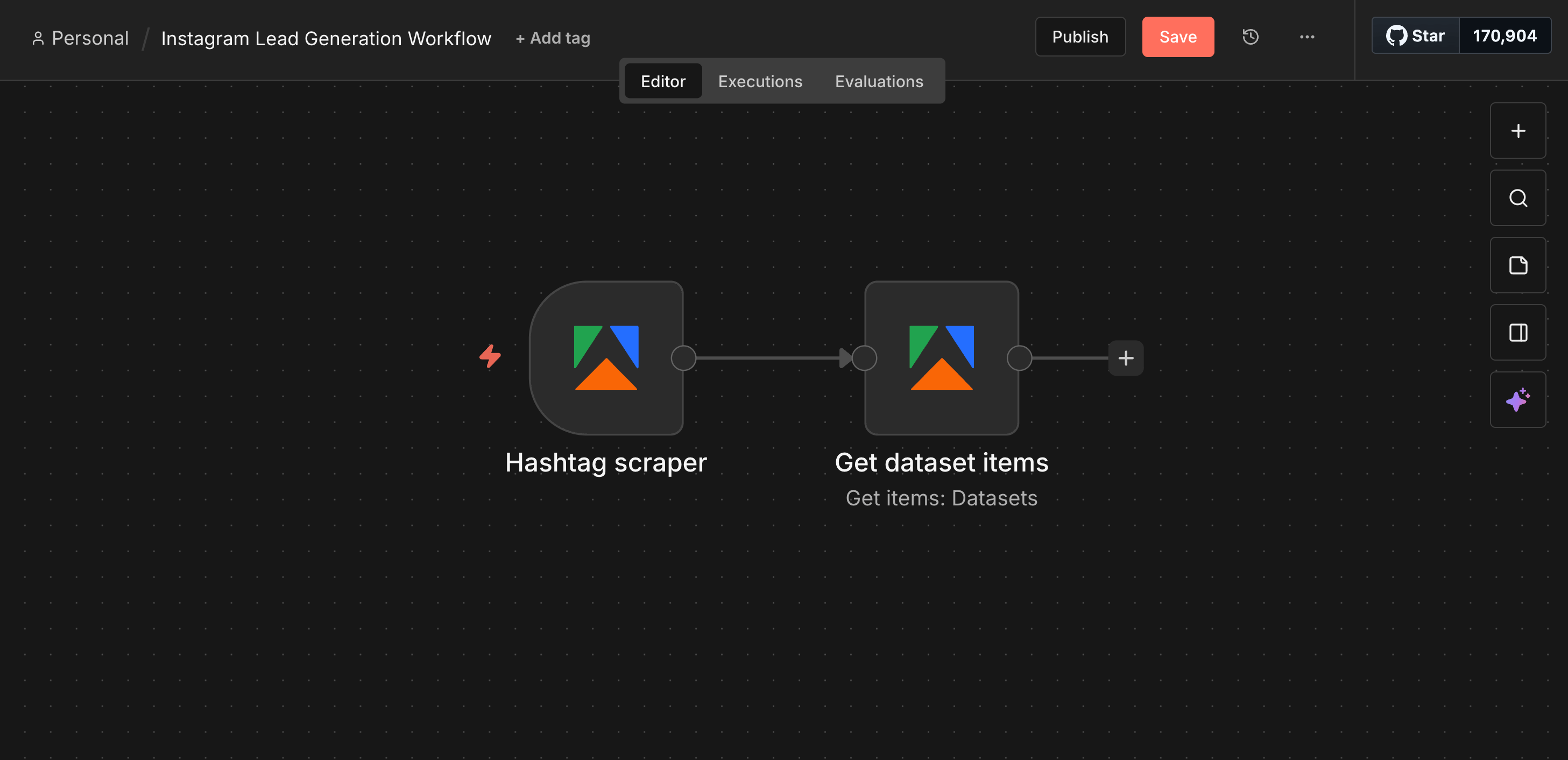
4. Click the + icon again and select Core > Code > Code in JavaScript.
5. Paste the following JavaScript to extract and deduplicate the usernames. It'll then be used to scrape profiles in the next part.
// This logic now extracts unique usernames from posts, ensuring we don't process the same person twice
const items = $input.all();
const uniqueUsers = [...new Set(items.map(item => item.json.ownerUsername))];

return uniqueUsers.map(username => {
  return { json: { username: username } };
});
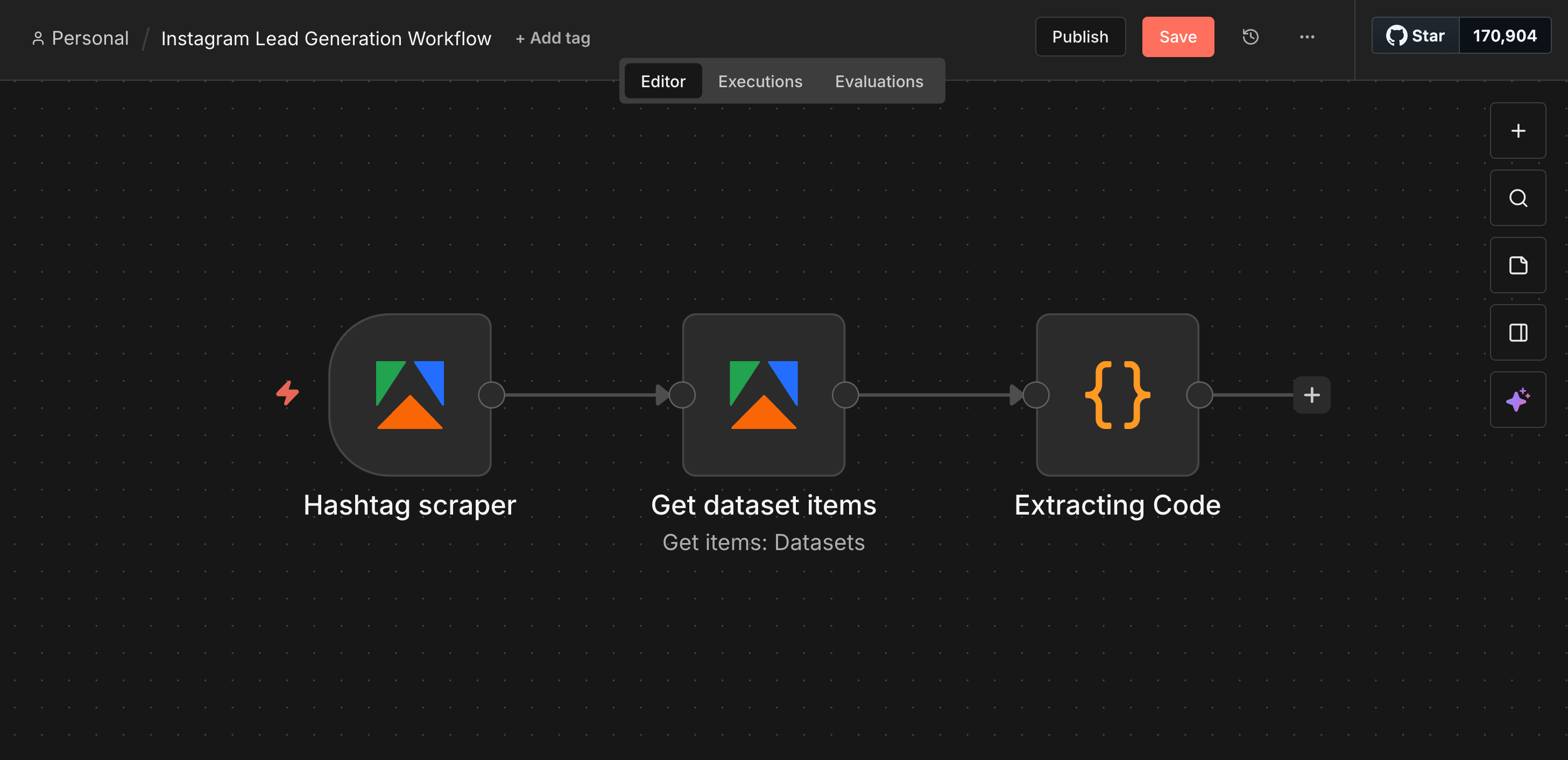
At this point, the workflow will have 3 nodes.
Part B: Scraping the profiles
Now that we have a clean list of usernames extracted from the results of the Instagram Hashtag scraper, we need to get their full details (followers, bio, external URLs, etc.).
To do so, we'll feed these usernames into Instagram Search Scraper and use it to scrape the profiles extracted in the previous part.
- Click the
+icon after the Code node and add another Apify node. - Select “Run Actor”.
- Configure the node as follows:
- Resource: Actor
- Operation: Run an Actor
- Actor source: Apify Store Actors
- By URL (copy/paste this): https://console.apify.com/actors/DrF9mzPPEuVizVF4l
- Input JSON (copy/paste this):
{
    "enhanceUserSearchWithFacebookPage": false,
    "search": "{{ $json.searchQuery }}",
    "searchLimit": 1,
    "searchType": "user"
}
4. Next to the “Run Actor” node, click the + icon and add another “Get Dataset Items” node.
5. Configure it as follows (same as the previous part):
- Resource: Dataset
- Operation: Get items
- Dataset ID (Set to
Expressionmode, notfixed):{{ $json.resource.defaultDatasetId }} - Limit: As desired.
By now, the workflow has scraped posts relevant to your niche, used those to find user profiles, and scraped them as well.
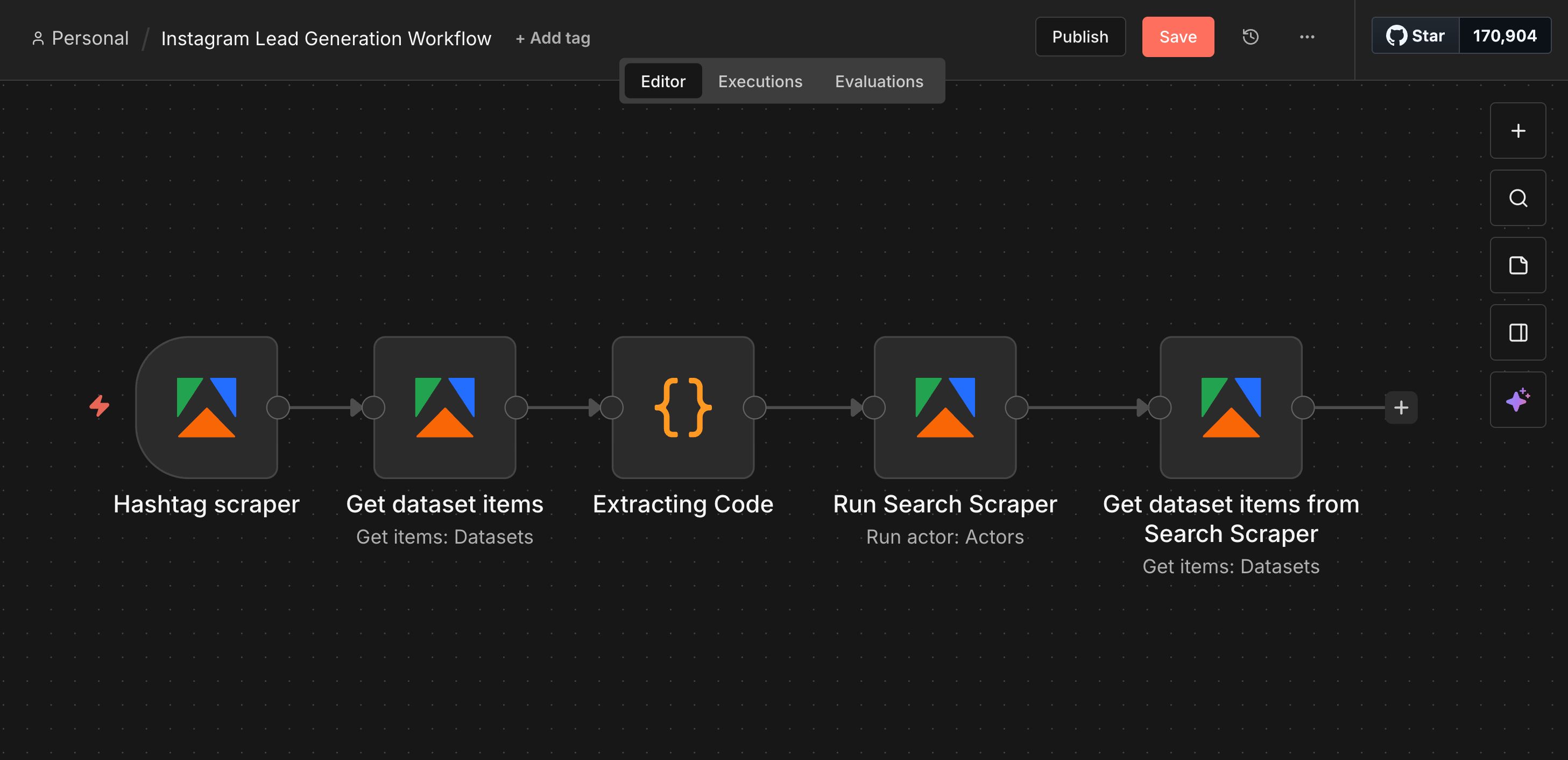
Part C: Filtering the results
We don't want every single result scraped from the scrapers - we only want high-quality leads. This means that we need to filter out private accounts and people with no contact info, as they give us no benefits as leads.
Doing so is fairly simple:
- Click the
+icon and select Core > Code > Code in JavaScript. - Paste this code as it is to extract elements (such as bio and follower count) and filter the list:
const items = $input.all();

const results = items.map(item => {
    const data = item.json;

    // Extract email from bio using Regex, if available.
    // Apify Instagram Scrapers do not scrape emails directly
    const bio = data.biography || "";
    const emailRegex = /([a-zA-Z0-9._-]+@[a-zA-Z0-9._-]+\\.[a-zA-Z0-9_-]+)/;
    const extractedEmail = bio ? (bio.match(emailRegex) || [])[0] : "N/A";

    // Define Tier
    let tier = "Nano";
    if (data.followersCount >= 100000) tier = "Macro";
    else if (data.followersCount >= 10000) tier = "Mid-Tier";
    else if (data.followersCount >= 1000) tier = "Micro";

    return {
        json: {
            Username: data.username,
            ProfileURL: `https://www.instagram.com/${data.username}`,
            Followers: data.followersCount || 0,
            Tier: tier,
            Bio: bio,
            Email: extractedEmail || "N/A",
            ExternalURL: data.externalUrl || "N/A",
            IsPrivate: data.isPrivate || false
        }
    };
});

// Strict Filter: Only keep Public profiles with Contact Info
return results.filter(item => {
    const u = item.json;
    if (u.IsPrivate) return false;
    if (u.Followers < 1000) return false;
    if (!u.Bio) return false;
    return (u.ExternalURL !== "N/A") || (u.Email !== "N/A");
});
At a glance, this code (and node) extracts essential information that is needed for a list of high-quality Instagram leads: biography (with an email address if present), follower count, and external URLs (such as websites).
If it can't find an external URL or an email address mentioned in the biography in a certain profile - which means you can't contact the leads in any way - it omits the profile from the list.
With this addition, the workflow has 6 nodes in total. Don’t worry - we have only one more to go!
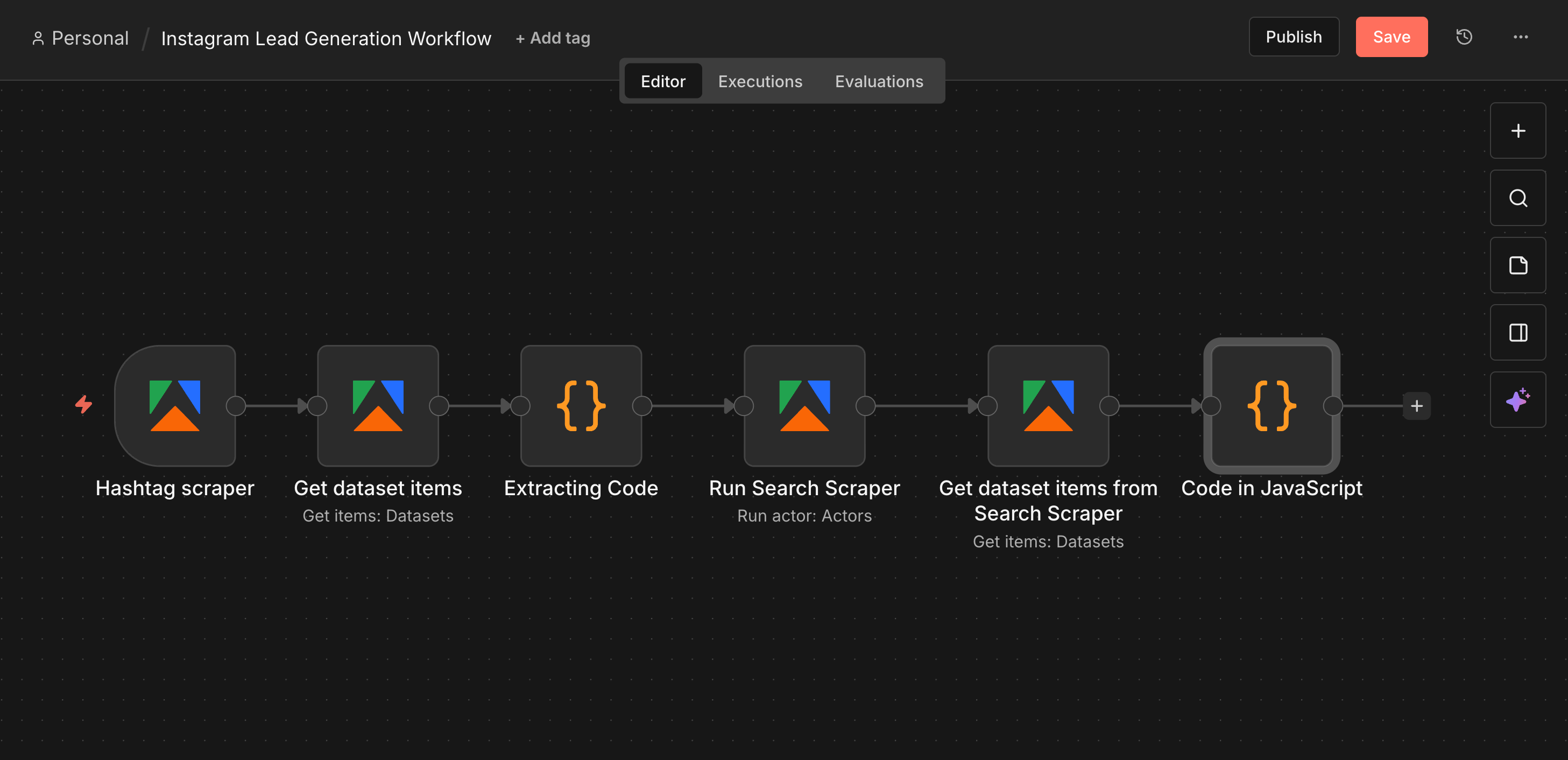
Part D: Exporting to Google Sheets
Once the data is filtered through the Code node, the final step is to export it to Google Sheets.
- Click the
+icon next to the Code in JavaScript node. Search for and select the Google Sheets node. - Select the Action named “Append or update row in a sheet”. This makes sure no duplicate data is present.
- Authenticate the Google Sheets by creating a new credential. You may have to allow access to Google Sheets.
- Once authenticated, configure the node as follows:
- Resource: Sheet within document
- Operation: Append or update row
- Document: From the list, select the sheet you created earlier in this tutorial.
- Sheet: Choose the sheet in which pre-defined columns are present.
- Mapping Column Mode: Map automatically (the Code node outputs data clearly for this purpose).
- Column to match on: Username - this makes sure no duplicate leads (profiles) are present.
- Close the pop-up.
And that’s it! You have successfully built a workflow that scrapes posts based on your keywords/hashtags, extracts user profiles, and provides a high-quality, no-nonsense list of Instagram leads your marketing team needs.
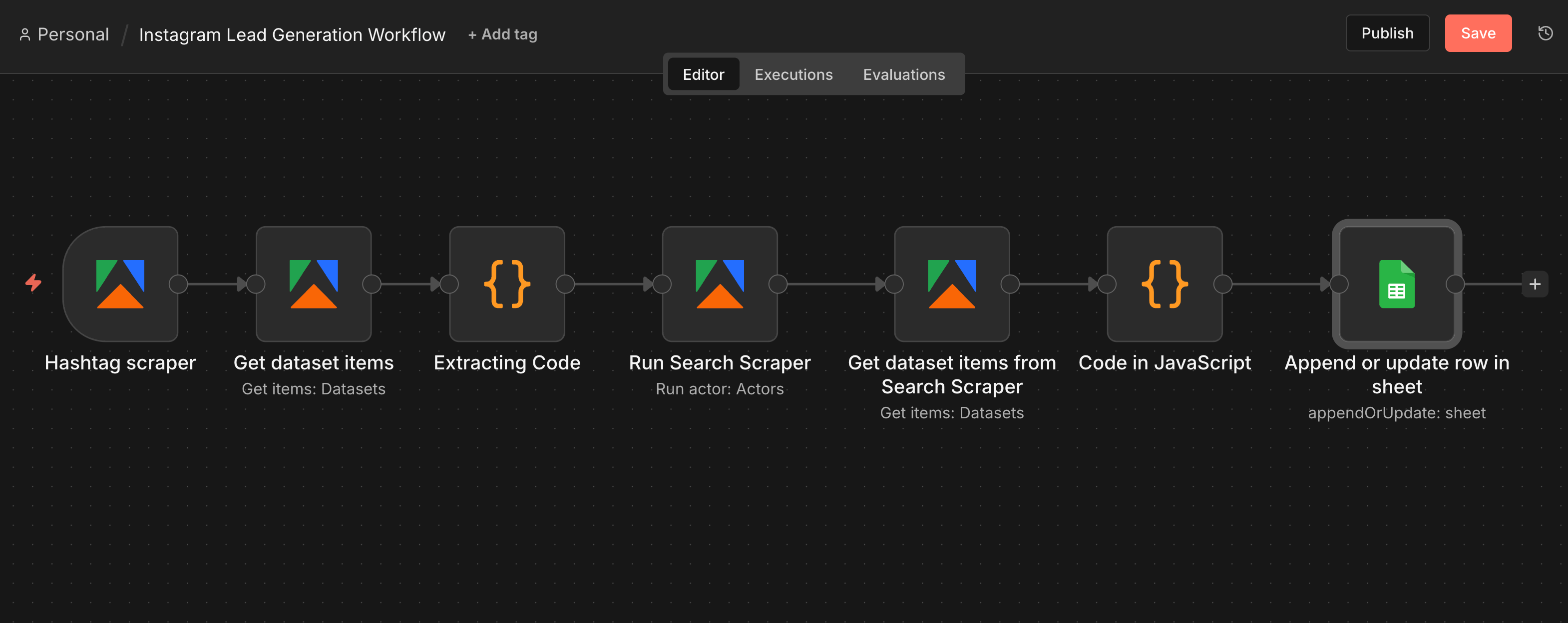
Part E: Publish the workflow.
The workflow is built, but it currently only runs when you manually click "Execute." You need to activate it so it runs automatically in the background whenever Apify sends data through the Hashtag scraper.
To do so, simply click the "Publish" button at the top of the editor. Give your workflow a name and hit "Publish".
It will now run automatically whenever data is sent from Apify, and your Google Sheet will be automatically updated with the most up-to-date lists of leads from Instagram that fit your niche!

Why scraping beats manual Instagram lead generation
A human can realistically analyze and gather a list of about 50 profiles a day before fatigue sets in. This workflow, however, can gather and analyze thousands of such profiles in minutes - it gathers the data, filters out the “bad” leads, and stores the “good” ones in a Google Sheet in seconds.
If you think about the data sets you can buy from vendors, they are often months old. People change jobs, change bios, or go inactive. Scraping data, on the other hand, provides live data, showing you the state of the market exactly as it is right now. The alternative option of lead generation agencies also charges hefty monthly retainers, whereas Apify’s pay-as-you-go model and $5 free monthly credit help you build your own lead generation machine for a fraction of the cost - or often for free if your volume is low.
Tips for better quality Instagram leads
What you use as inputs for the scrapers determines the quality of what you get as outputs. Here are some tips to ensure you get high-quality Instagram leads from scraping:
- Be Specific: Avoid generic hashtags like
#fitnessor#love. You will drown in irrelevant results. Use niche tags like#marathontrainingor#veganbodybuildingto find highly targeted prospects. - Combine Methods: Don't rely on just one scraper. Combining "Hashtag Search" (to find active content creators) with "User Search" (to find professionals via bio keywords) ensures you cover the entire market.
- Consistency is Key: The power of this workflow isn't in running it once; it's in the cumulative value of gathering an X number of new, qualified leads every single day automatically, so that you are not left with too few leads or outdated ones.
Conclusion
Instagram is a goldmine for leads, but manual mining is inefficient and outdated. With Apify and n8n, you can build a fully automated lead generation workflow that scrapes, filters, and organizes high-quality leads directly into your Google Sheets.
Plus, you can get this entire workflow running in minutes with Apify’s $5 monthly free usage - enough to generate hundreds of leads for free!
FAQ
Can I scrape leads from specific industries?
Yes. The quality of your leads depends entirely on the keywords and hashtags you chose in Step 2. You can target anything from "SaaS Founders" to "Interior Designers" simply by changing the input text in the scrapers.
How do I contact these leads?
Use the data responsibly. Look for the "External URL" (their website) or the email address extracted by the workflow. Do not spam comments or DMs - personalized outreach via preferred channels always yields the best results.
Can I export to platforms other than Google Sheets?
Of course! Since we're using n8n, you can swap the "Google Sheets" node for almost anything else. You can send leads directly to HubSpot, Salesforce, Airtable, or even send them to a Slack channel.
Is scraping Instagram leads legal?
Yes, generally speaking, collecting publicly available data (data you can see without logging in) is legal. Apify scrapers respect these boundaries and do not “hack” into private accounts to access hidden data.