In e-commerce, customer feedback is scattered across shops and marketplaces. Different buyer expectations and pricing contexts naturally attract different types of customers, which means sentiment can vary significantly from one site to another, even for the same product.
Manually bringing this feedback together is where things can fall apart. Copy-pasting reviews into a spreadsheet might work for a one-off check, but it quickly becomes unmanageable once review volume grows or you need to track sentiment over time.
Third-party sentiment analysis tools might seem like an obvious solution, but they typically support only a fixed set of data sources and limit you to rigid dashboards. You might get the numbers, but not the flexibility to ask new questions, combine platforms freely, or adapt the analysis as your product or market evolves.
Building your own sentiment monitoring pipeline solves these problems. In this tutorial, we’ll show you how to create a repeatable workflow that collects and analyzes customer reviews from multiple e-commerce sites. With Apify’s E-commerce Scraping Tool, you’ll extract reviews in a structured format on a schedule and send the data directly into Google Sheets. From there, you can use AI to analyze sentiment on your own terms.
You can follow along with this guide on the free Apify plan, meaning you can test the entire setup at no cost.
Sentiment monitoring with E-commerce Scraping Tool
Before we jump to data extraction, sign up for a free Apify account. You’ll enter Apify Console, a workspace to run or build scrapers and automation tools.
- Built-in proxy management
- Anti-bot evasion support
- Integrated storage with structured exports in CSV/Excel/JSON
- Standardized input parameters (URLs, keywords, limits, etc.)
- Easy integration with third-party apps or other Actors
Every Apify Actor can also be triggered programmatically via the Apify API, opening up lots of ways to integrate it into your workflows.
E-commerce Scraping Tool is an Actor able to extract reviews from any e-commerce site - major platforms, such as Amazon, Walmart, IKEA, or eBay, as well as regional and niche retailers.
We’ll create the following workflow:
- Setting up the integration between our Actor and Google Drive
- Scraping reviews from multiple e-commerce sites
- Creating a schedule for the scraper to run automatically
- Analyzing data with AI
Step 1: Integration with GDrive
First, let’s make sure our data flow is configured. Go to E-commerce Scraping Tool and select the Integrations tab. Start typing “GDrive” in the search bar, and select the Upload results to GDrive integration.
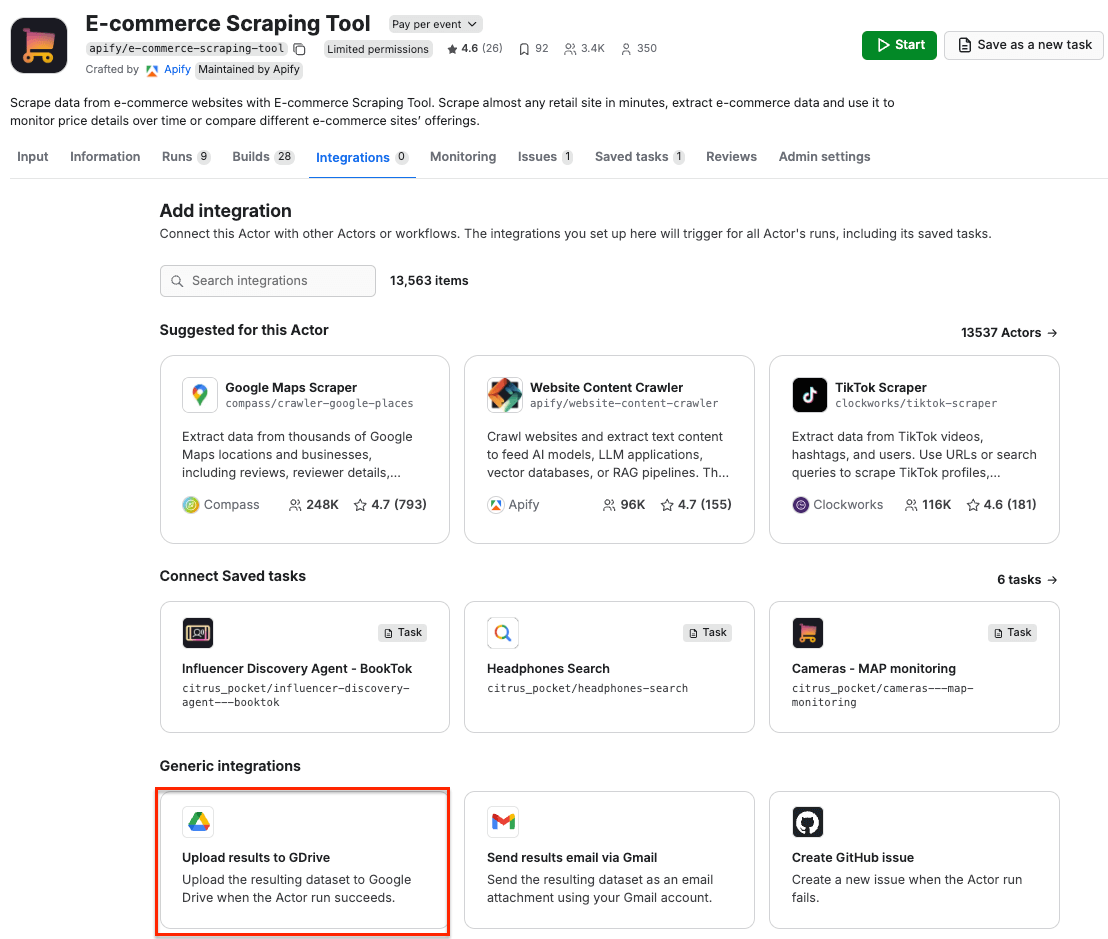
Give the integration a unique name. In our example, we want to extract reviews from Amazon, Walmart, and Best Buy, so we’ll use Sentiment analysis - e-commerce reviews. Click Save to continue and connect your Google account. If you’re using your Google account with Apify Console, your email address might already be on the list of accounts to select.
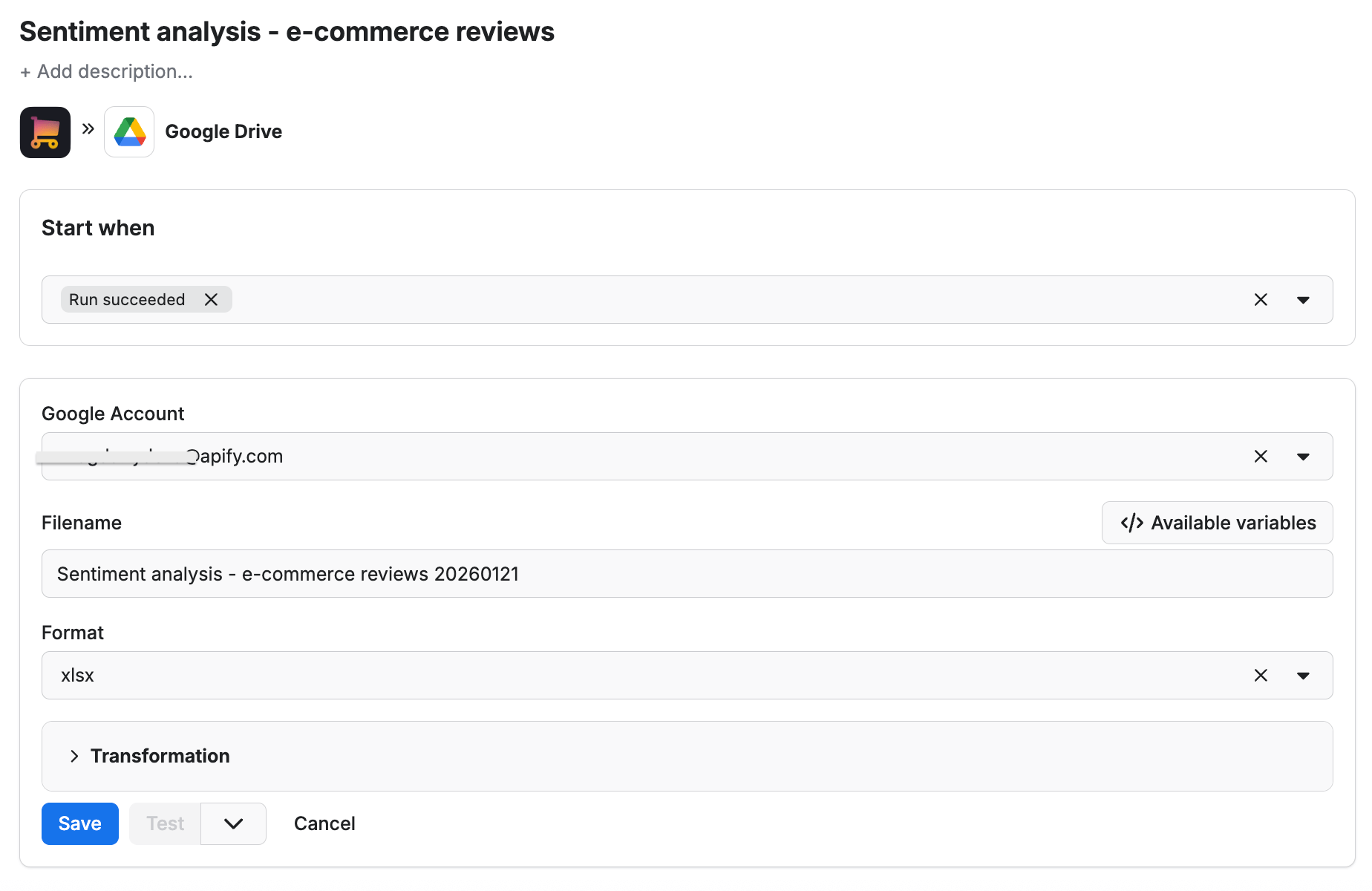
Since we want the data to be sent to the spreadsheet once the scraper finishes running, we’ll select Run succeeded as our starting point. Select a format of the Google Drive file that the Apify integration will create (we’ll go with the XLSX), name your file, and click Save.
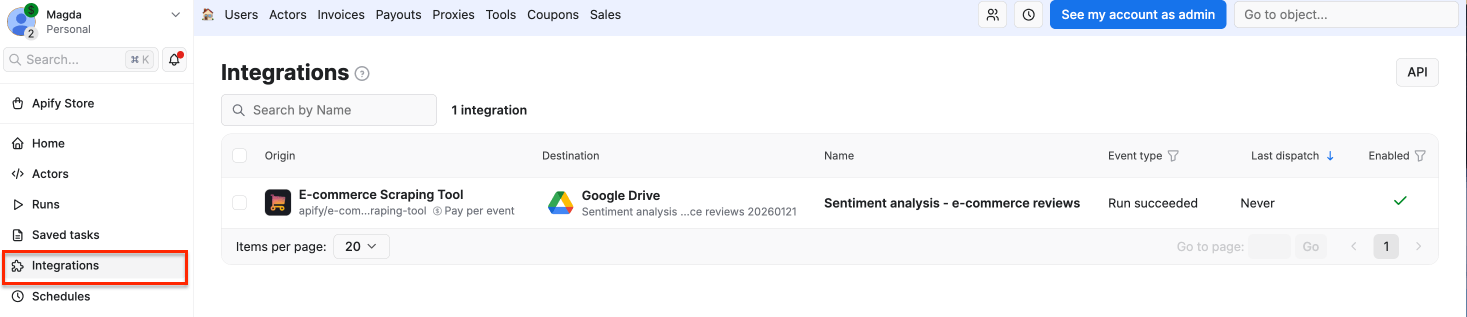
The workflow is ready - from now on, every time you run a scraping session, a new file with scraped results will be created in your Google Drive automatically, ready to analyze and compare over time. You can always check if the integration is set up correctly by selecting the Integrations section from the left side navigation panel.
Step 2: Configure the scraper and run it
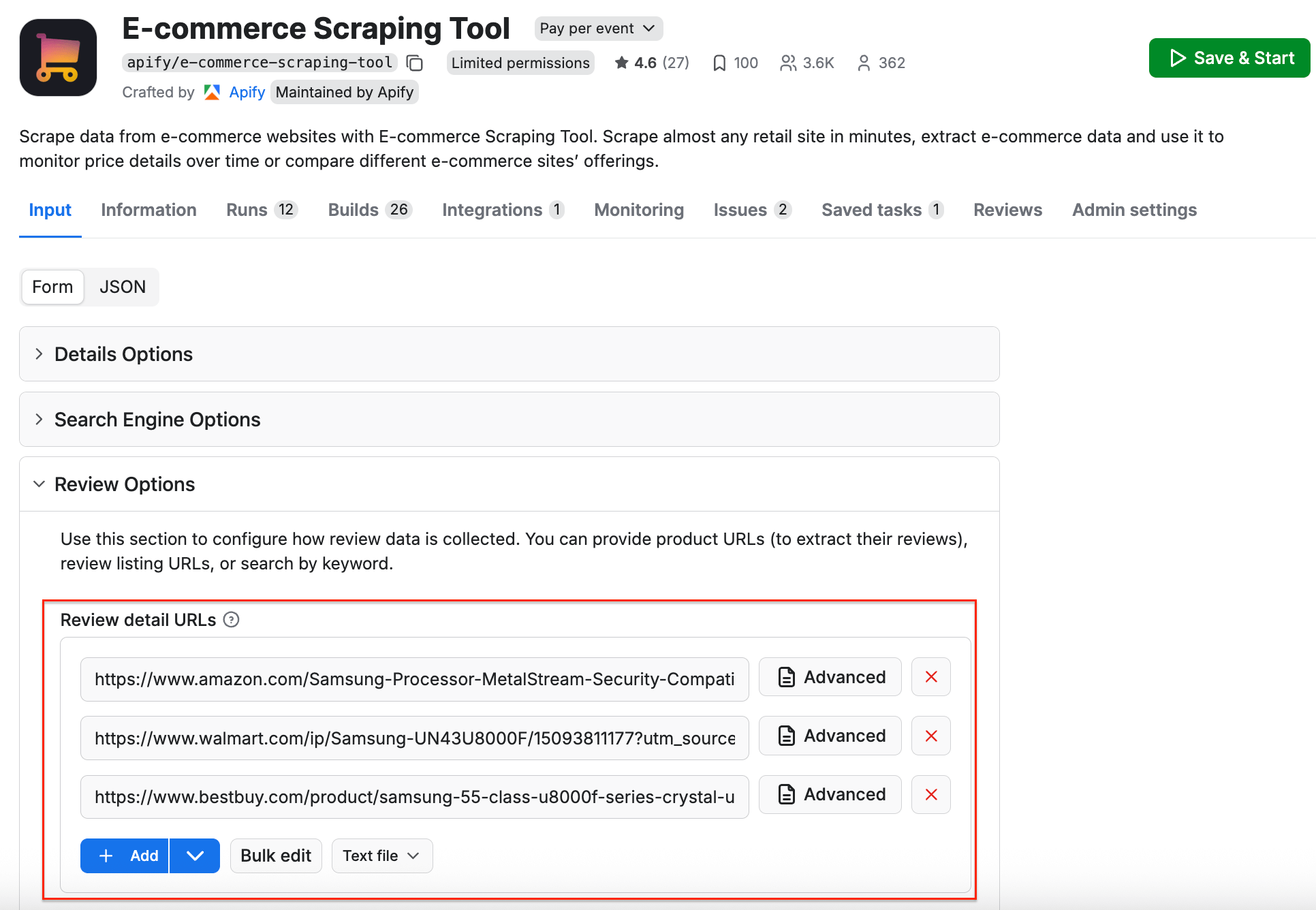
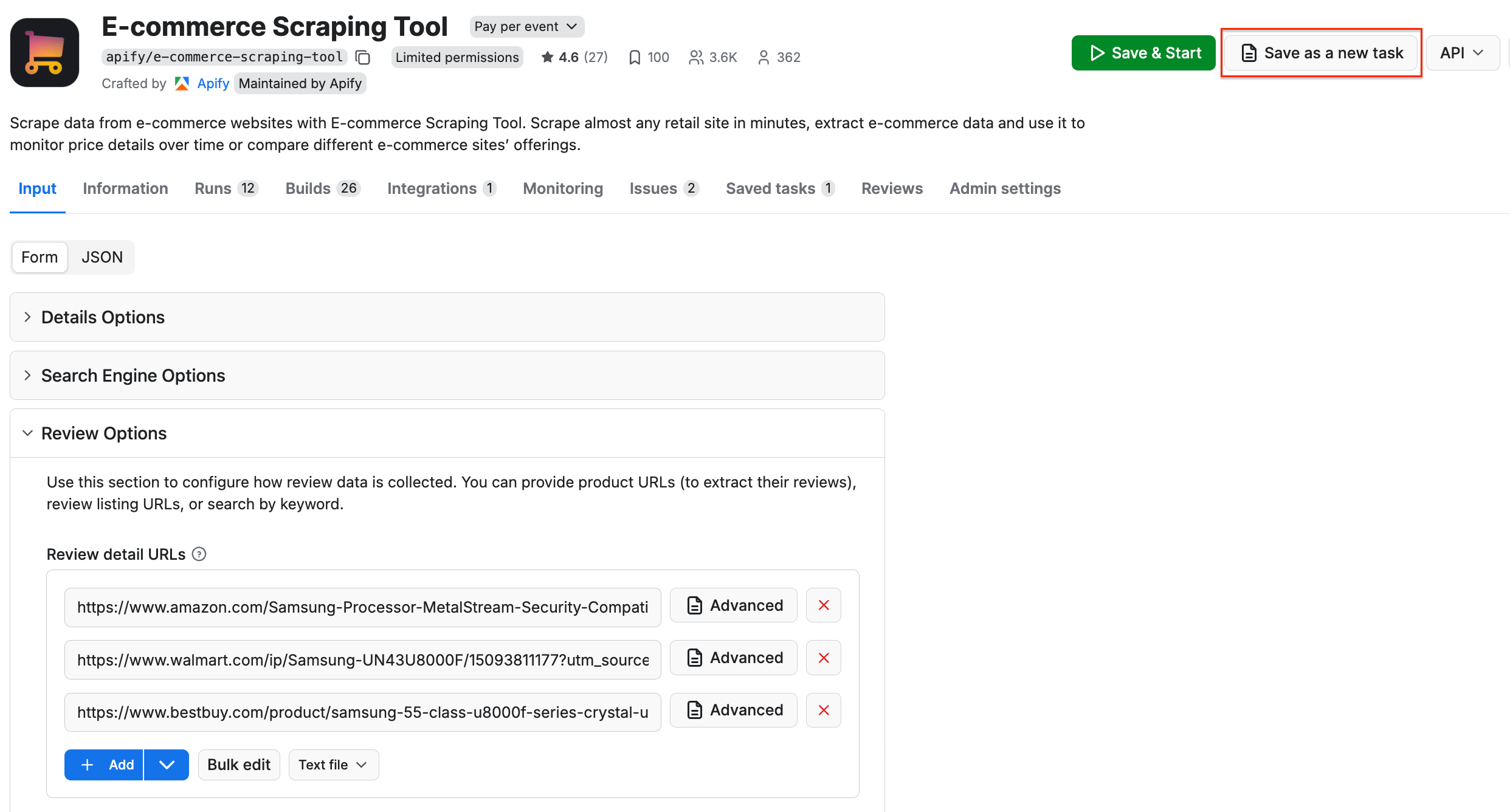
Time to set up E-commerce Scraping Tool. Head to the Actor page and make sure the Input tab is selected. To extract reviews, navigate to the Review Options section. Make sure none of the other input categories are filled.
You can provide product URLs, review listing URLs, or search by keyword. In this example, we’ll use multiple review detail URLs to compare sentiment across platforms.
https://www.amazon.com/Samsung-Processor-MetalStream-Security-Compatible/dp/B0DXMW74JZ?utm_source=chatgpt.com&th=1
https://www.walmart.com/ip/Samsung-UN43U8000F/15093811177?utm_source=chatgpt.com
https://www.bestbuy.com/product/samsung-55-class-u8000f-series-crystal-uhd-4k-smart-tizen-tv-2025/J3ZYG2VW8S?utm_source=chatgpt.com
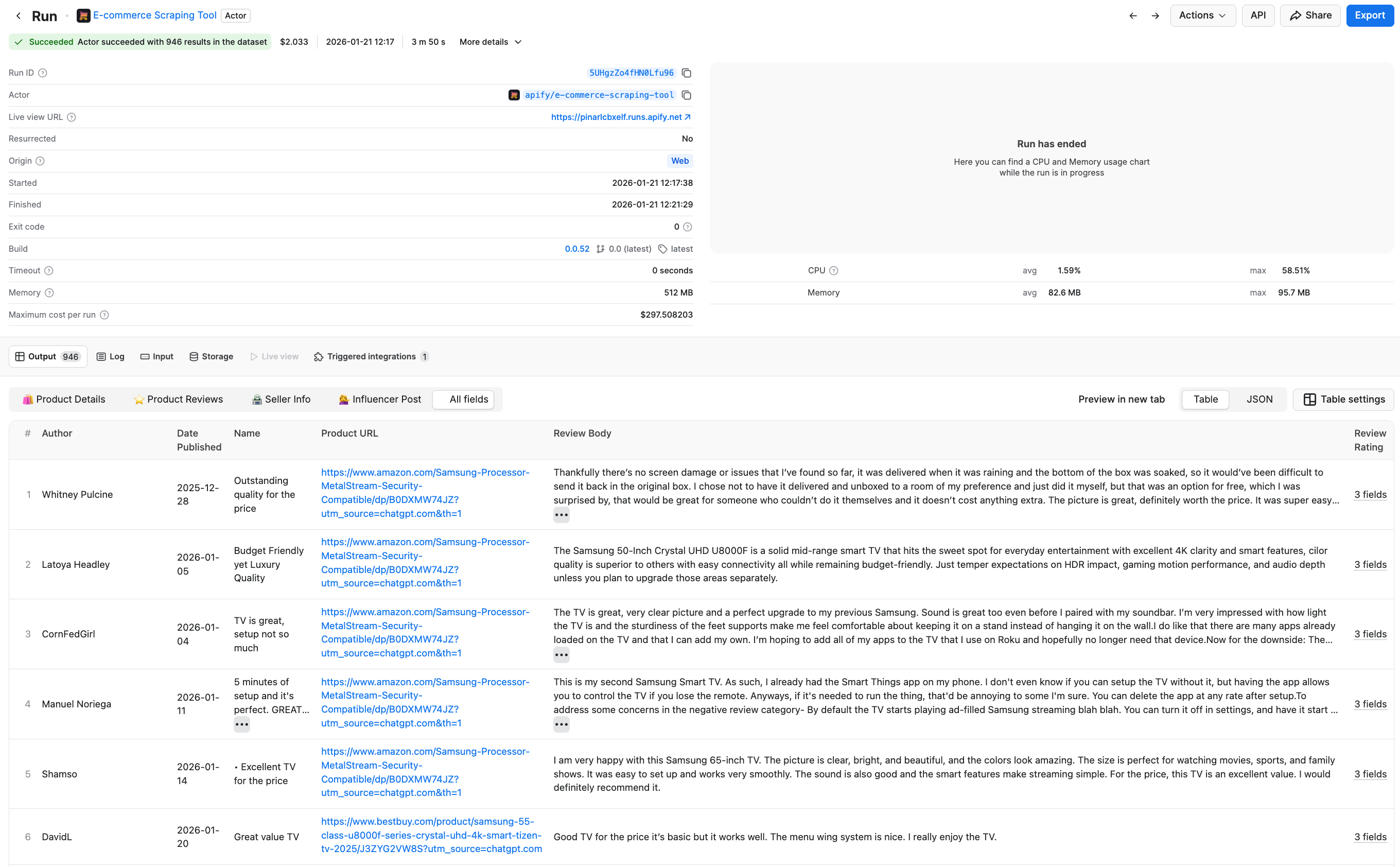
Click Start to run the scraper. After a couple of minutes, the run will finish, and you’ll be able to check the results in the preview table.
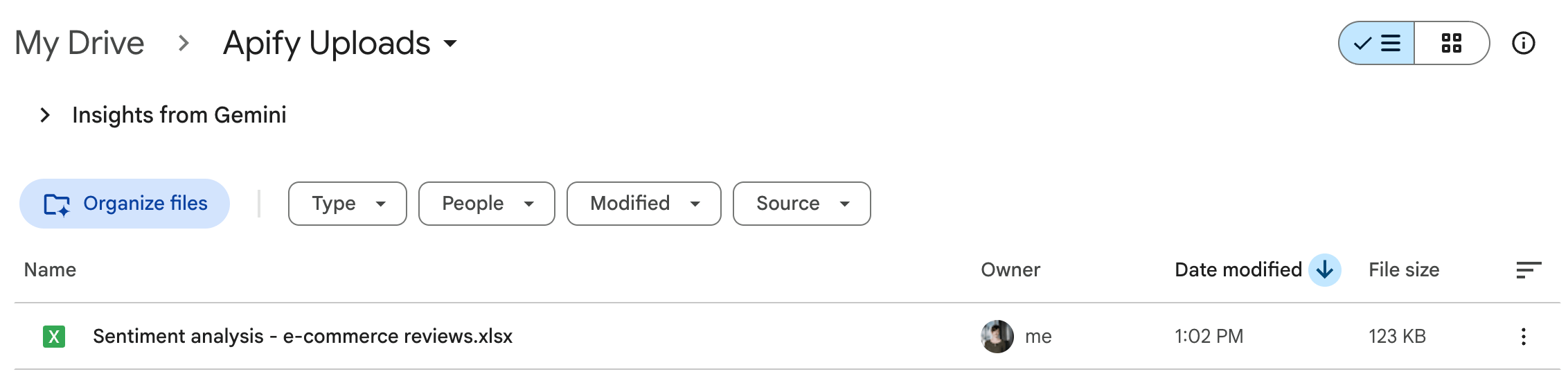
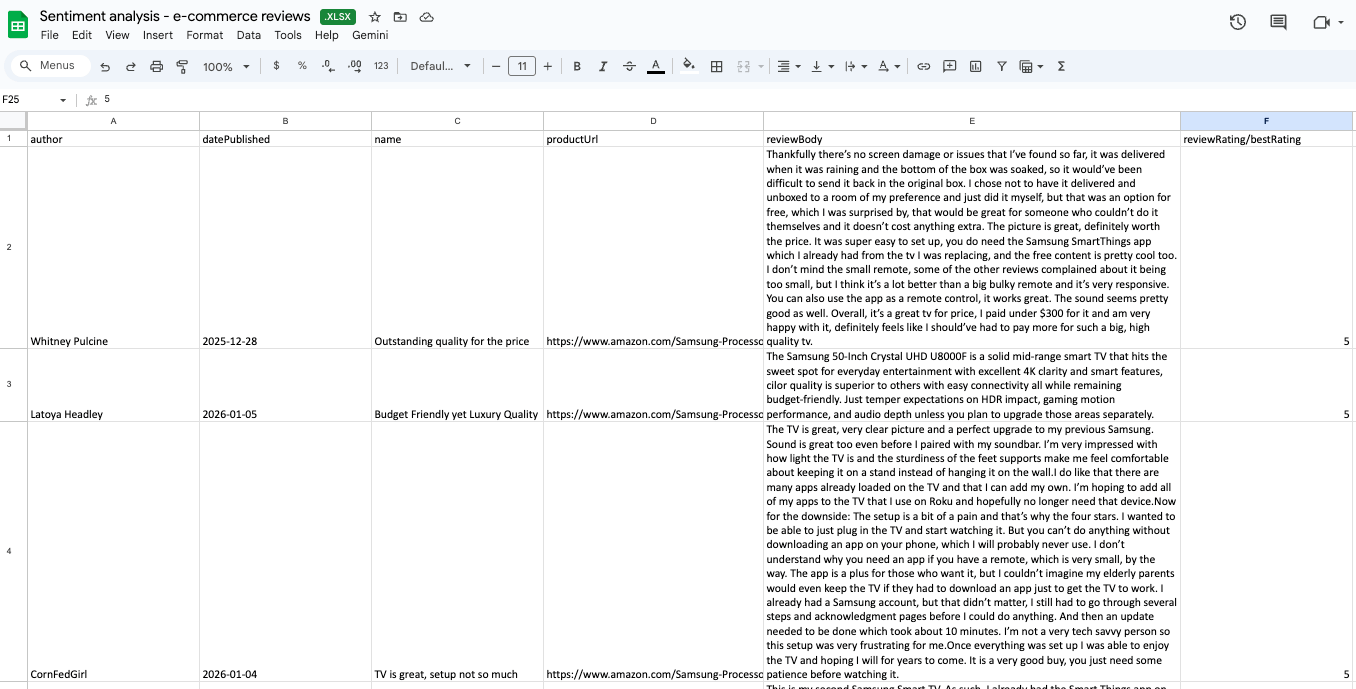
Now you can also check your Google Drive for a newly created spreadsheet with reviews. Each time you execute the scraper, it will automatically generate a new file with fresh data, ready for analysis.
Step 3: Schedule automated runs
If you want to scrape reviews regularly, you can schedule each scraper to run automatically and collect data without manual input.
First, make sure your scraper is properly configured, then click the Save as a new task button in the top-right corner.
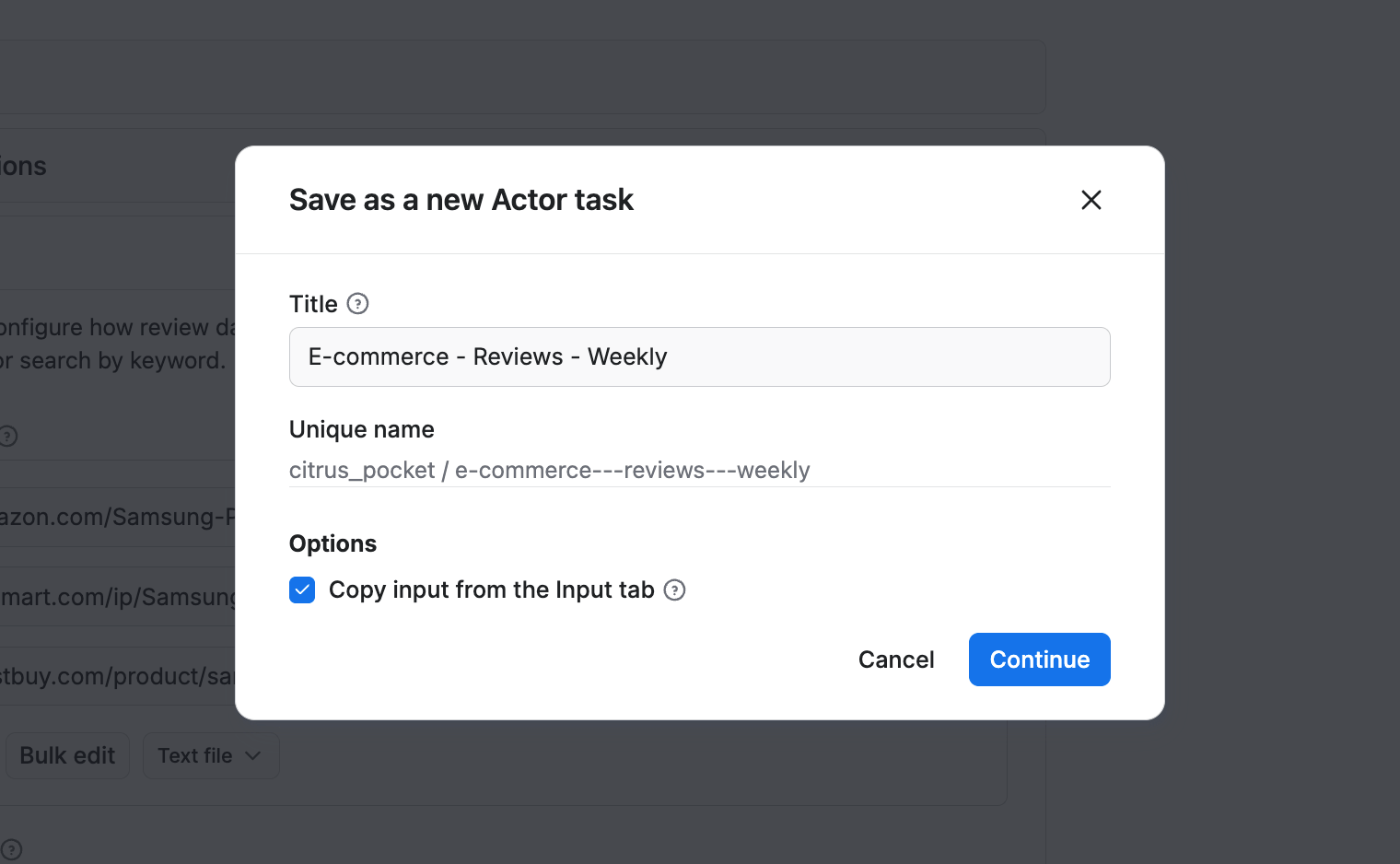
Give your task a name and save it.
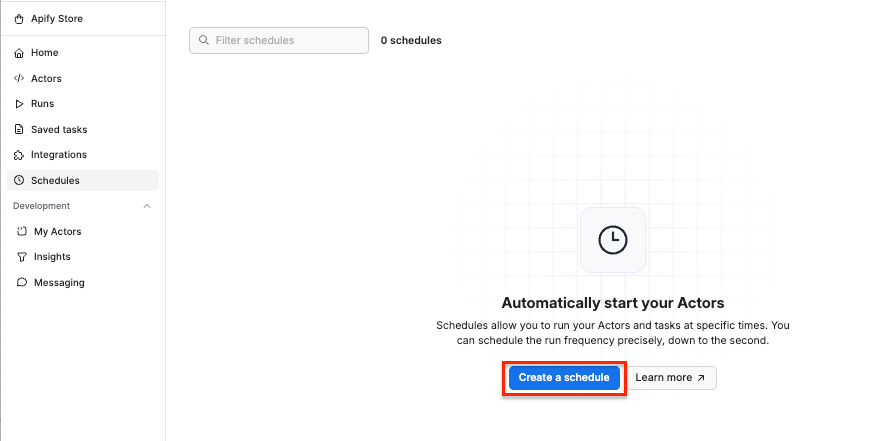
Now, you can easily schedule the task by accessing Schedules in the left-hand navigation and clicking the Create a schedule button:
We’ve already saved our task, so now it’s time to add it to the schedule. Click Add task at the bottom to customize your schedule, select a task, and choose how often you want the scraper to run - weekly, monthly, or on any day that works best for you.
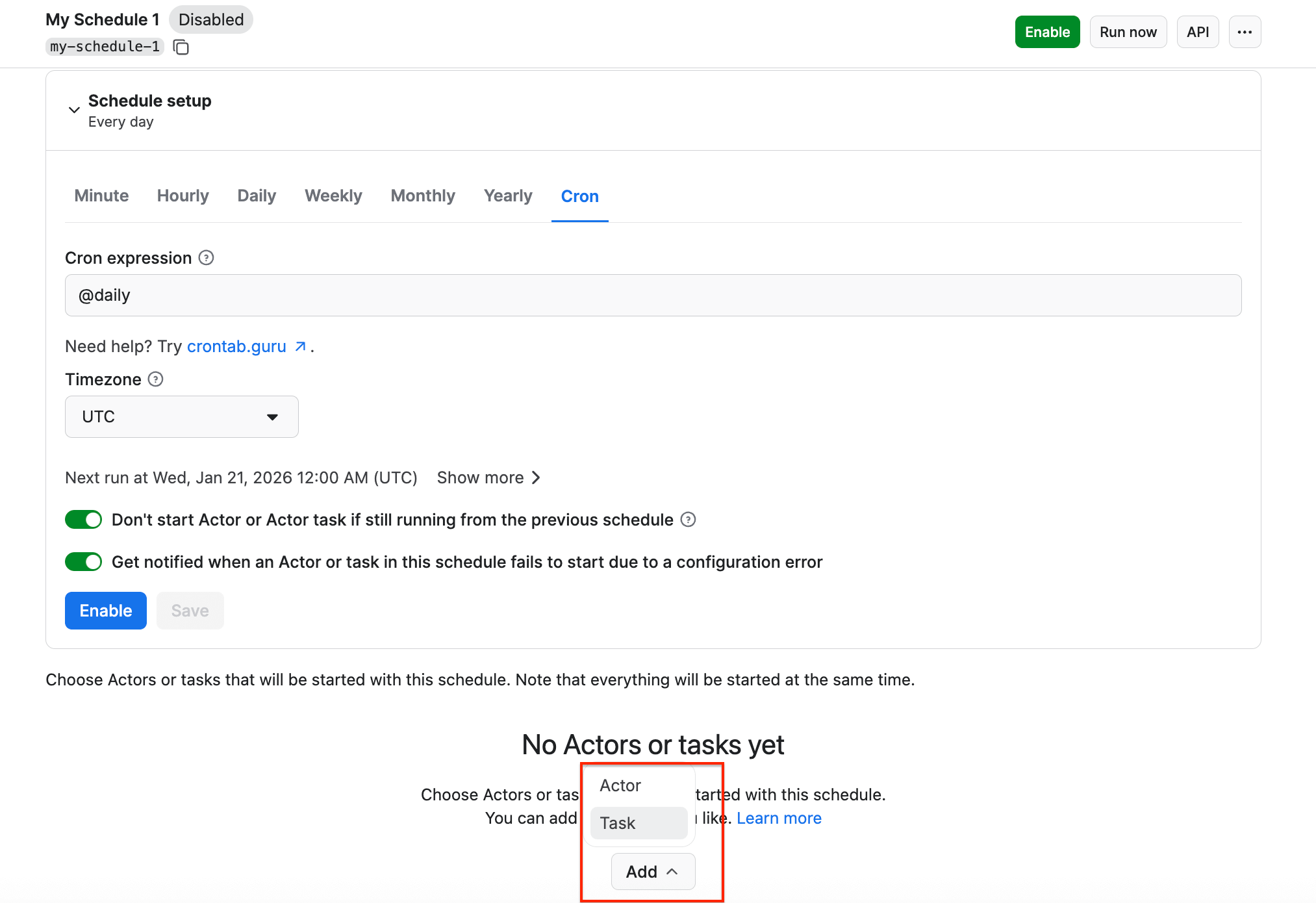
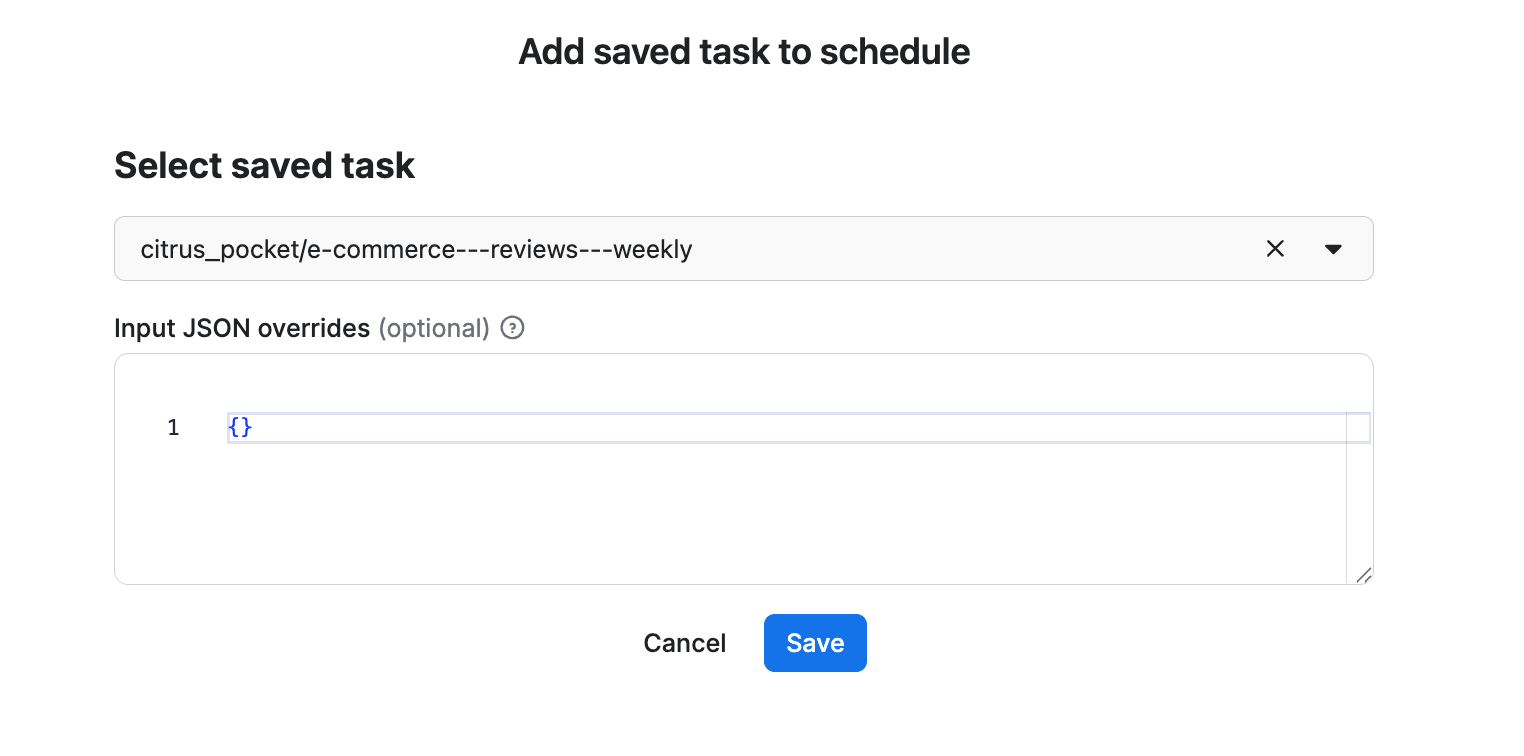
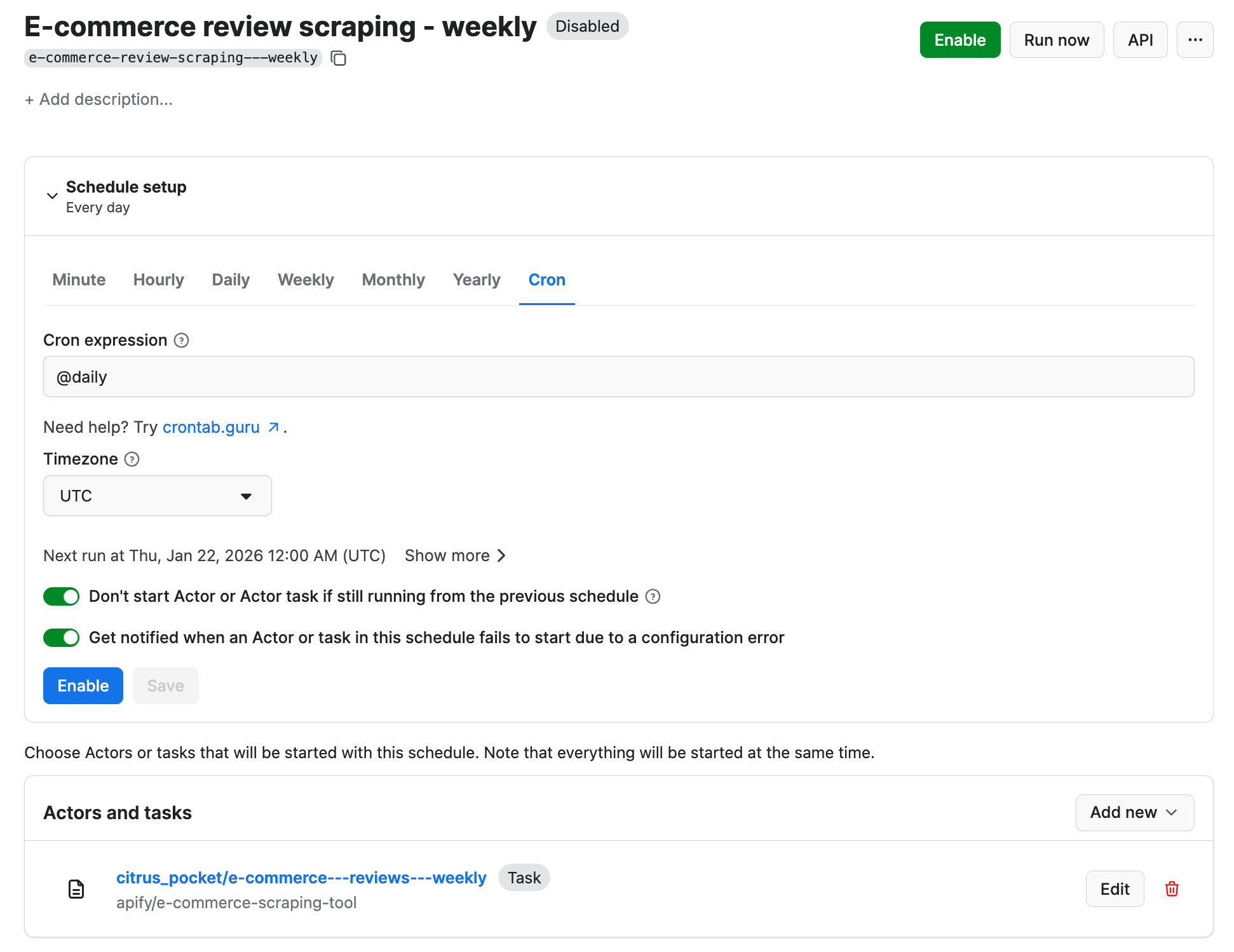
Click Enable, and your schedule will be up and running. It will automatically start the scraper at your chosen time and send the results to Google Drive, thanks to the integration we set up earlier.
Step 4: Perform sentiment analysis with collected data
Now that you have your data, you can proceed with sentiment analysis. Let’s do this directly inside Google Sheets, using AI.
AI tools can help you summarize your findings, create charts, classify the star ratings, analyze the reviewers’ activity, review volumes, and average rating by location. Thanks to the automated scraping sessions, you can compare the results over time, track week-over-week sentiment change, and rising negative or positive phrases (such as “dead pixels” or “great for gaming”).
Most generative AI tools connect with third-party apps with ready-made integrations or connectors:
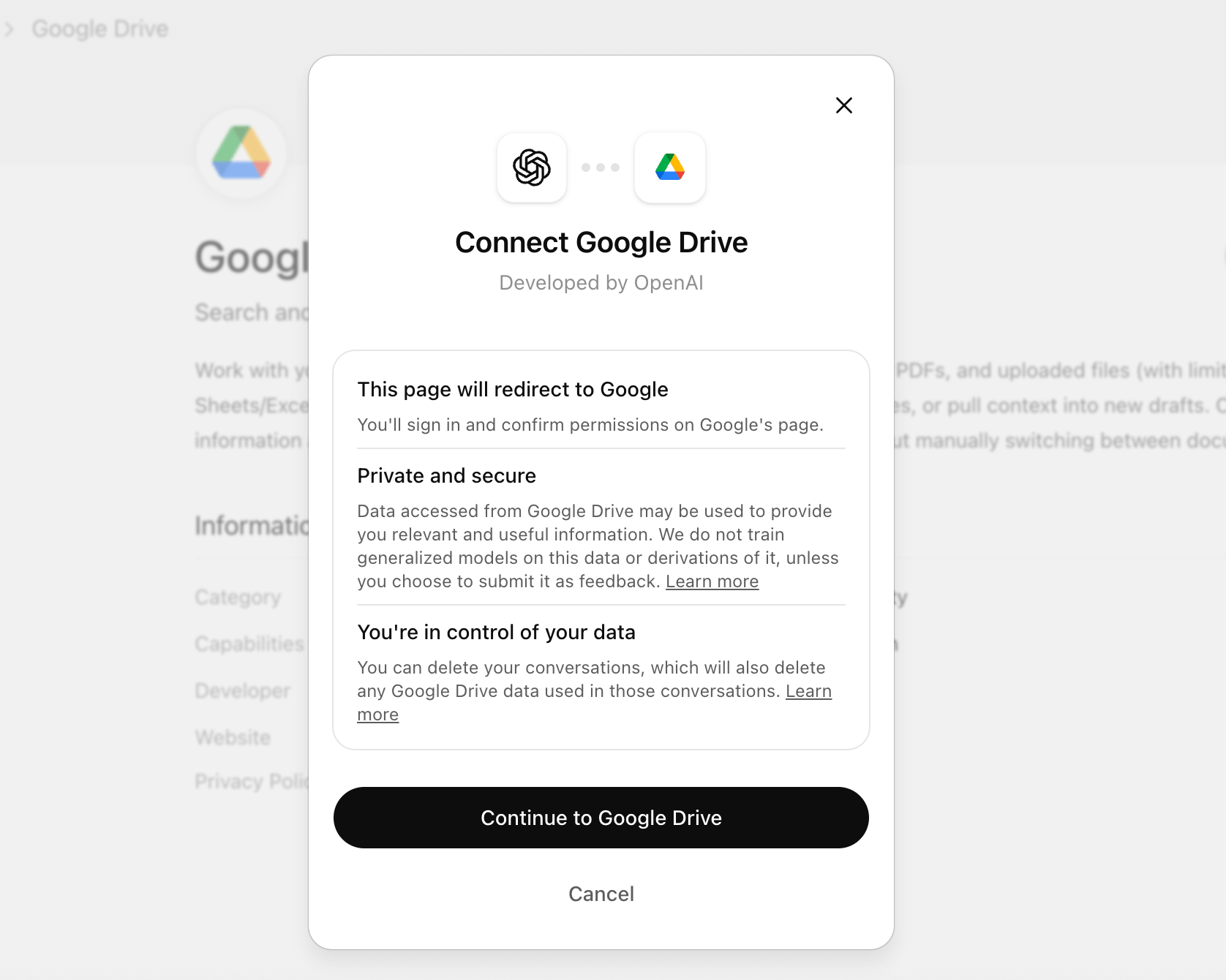
- ChatGPT can connect to your Google Drive to read files, or you can load files directly by sharing the file URLs in the conversation
- Anthropic has a special add-on you can install
- If you’re a Google Workspace user, you’ll find Gemini already integrated into Google Sheets
We’ll use Gemini to perform data analysis directly within the dataset. To do that, open the spreadsheet and click on the Ask Gemini button.
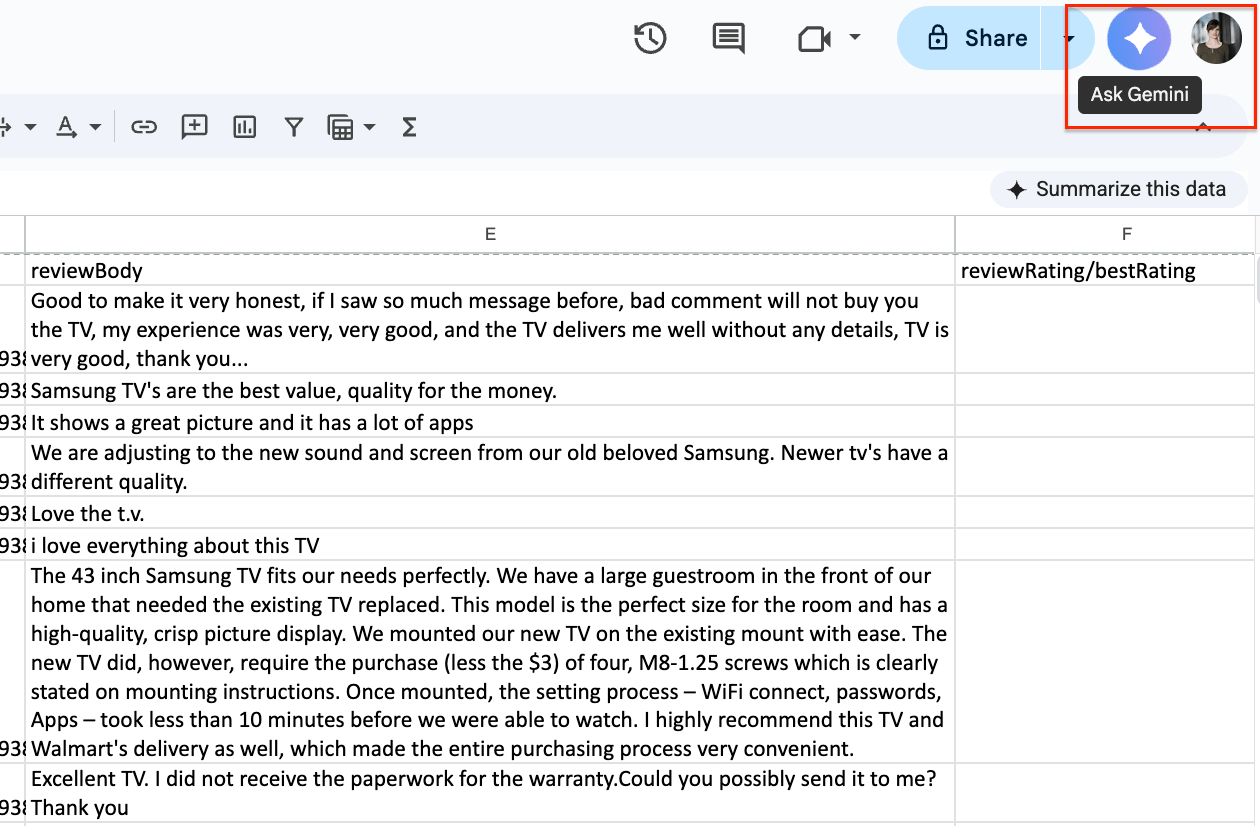
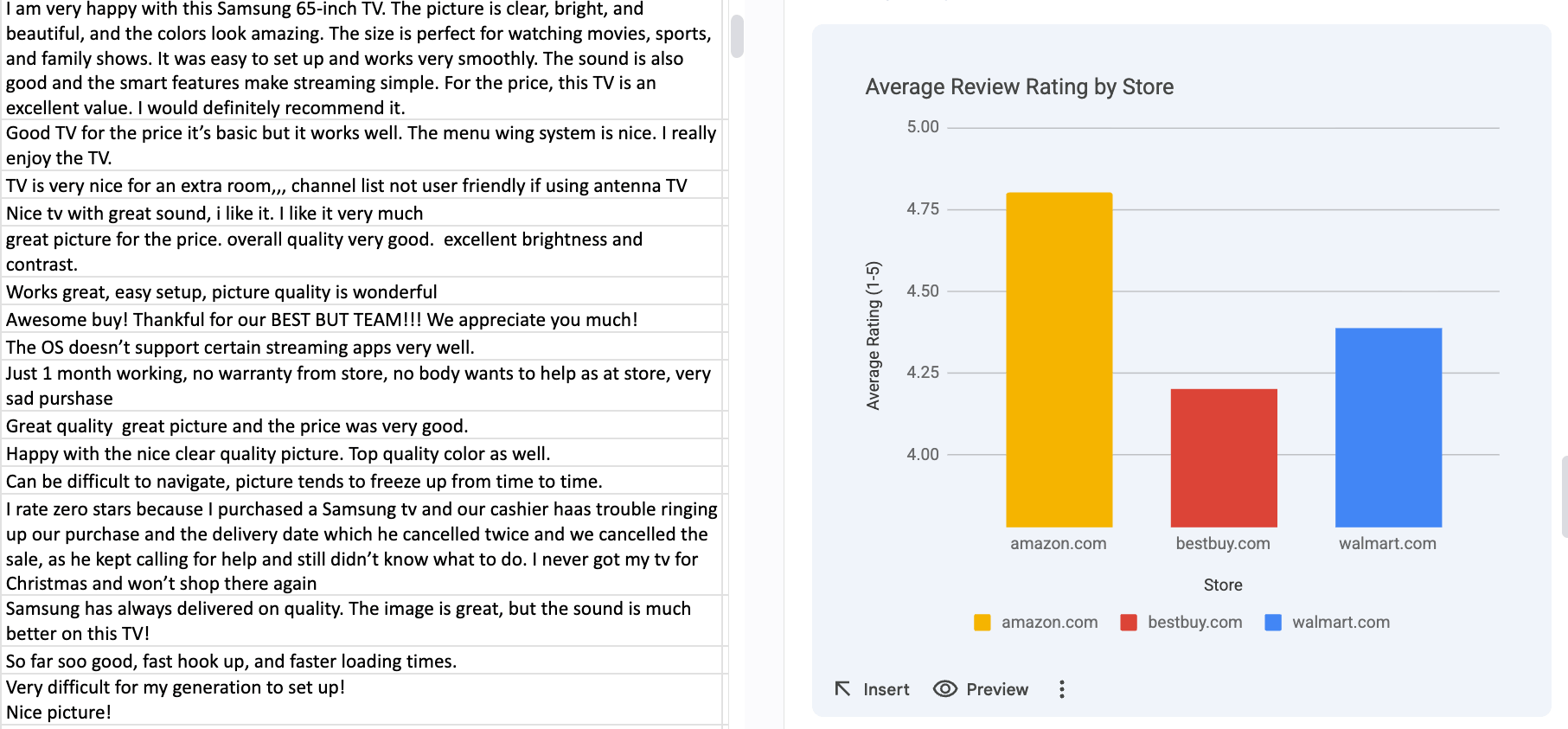
Now you can interact with Gemini inside your spreadsheet and get a detailed analysis, including charts, average ratings, and more. Here’s what we got with the Perform sentiment analysis and break down the results by store. You can identify the source store based on the URL in the productUrl column prompt:
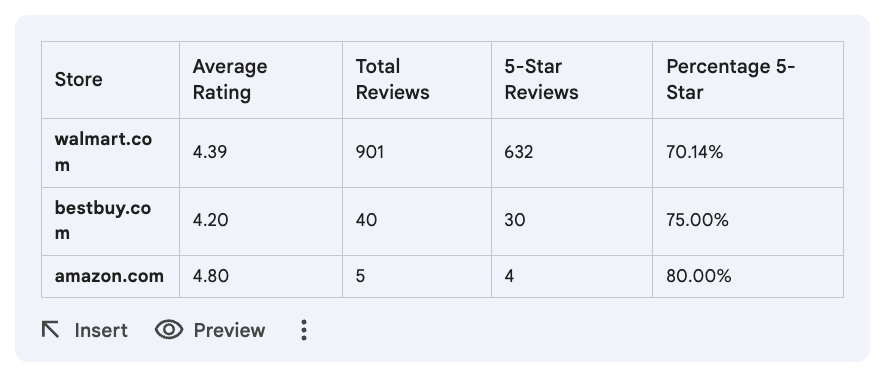
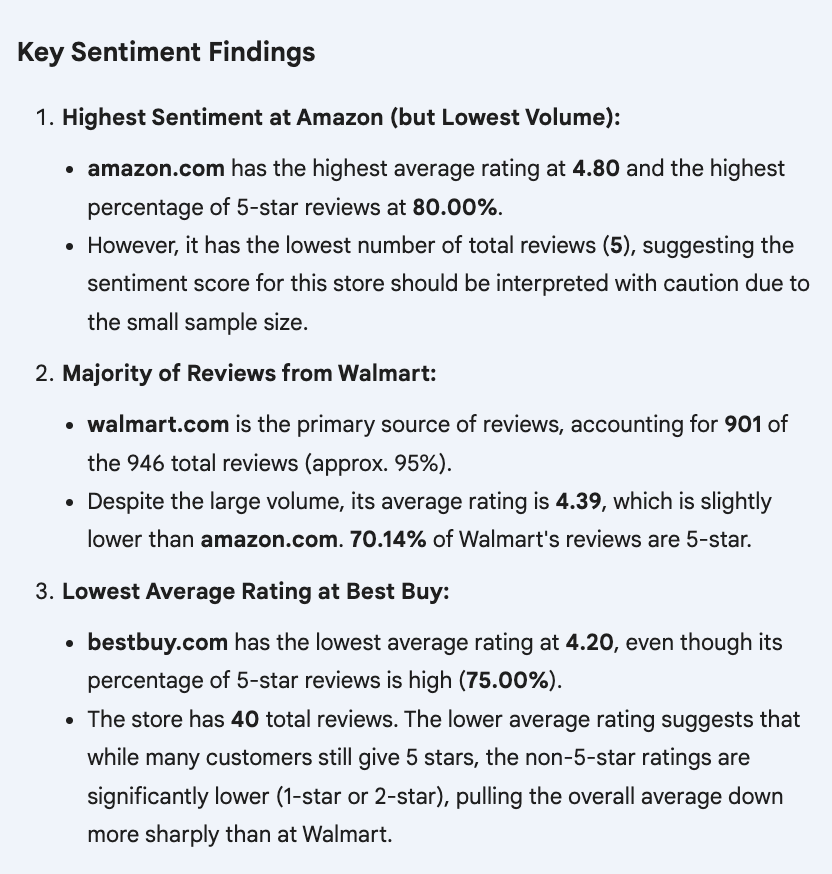
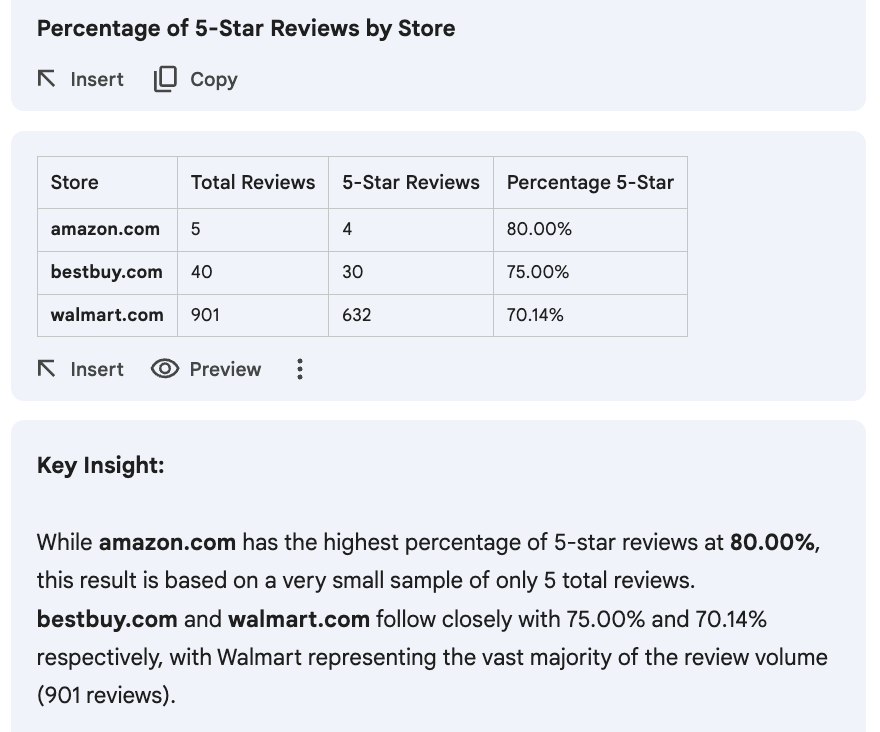
Sentiment analysis created within Google Sheets using Gemini.
Not sure which questions to ask? Here are a couple of examples you can use to get the most out of your LLM:
- Classify or score sentiment
Example: Assign a sentiment score from 0 (very negative) to 10 (very positive) for each review. - Ignore irrelevant reviews
Example: Extract only product-related sentiment and ignore delivery or seller issues. - Discover themes and cluster topics
Example: Group these reviews into 5-7 common complaint themes and name each theme. - Identify platform-specific complaints
Example: What complaints are unique to Amazon reviews vs. Walmart reviews? - Associate sentiment with phrases and detect negative language
Example: List phrases most correlated with 1-star reviews. - Consistency checks
Example: Flag reviews where text sentiment doesn’t match the star rating. - Smart data cleaning (often overlooked, but important)
Example: Remove duplicates and flag reviews that appear spammy.
Need even more context?
If you need e-commerce data beyond customer reviews, E-commerce Scraping Tool can also collect prices and detailed product information from both global marketplaces and local e-shops, scrape multiple sites at the same time, and schedule recurring runs to track price changes or monitor stock availability.
You can extract data from individual product URLs or entire category pages and export the results in structured formats such as JSON, CSV, Excel, or HTML. For automation and downstream processing, the data can also be delivered through API endpoints and webhooks or integrated directly with tools like Zapier, IFTTT, n8n, Slack, Airbyte, Make, LangChain, or GitHub.
Start monitoring customer sentiment
With Apify, you can build your own repeatable sentiment monitoring pipeline, where fresh reviews are extracted automatically, the analysis is performed regularly, and the results can be compared over time.
Now you can detect negative trends and reputation risks early, benchmark sentiment against competitors or regions, and - more importantly - reduce manual monitoring time from hours to minutes.