


Black Friday 2026 falls on November 27, and Cyber Monday follows on November 30. For pricing, e-commerce, and marketplace managers, the work that decides how those five days go starts weeks earlier.
This checklist walks through what to watch, when to start, and which Apify tool does each job: E-commerce Scraping Tool for competitor prices and stock, Facebook Ads Library Scraper for competitors' promotions, Google Search Results Scraper for search rankings and AI answers, and the Apify MCP server for agents that need live prices during the week itself.
Most steps take a few minutes in Apify Console, with no code.
Why Black Friday preparation is a data problem
US shoppers spent $257.8 billion online over the 2025 holiday season, according to Adobe Analytics. $44.2 billion of that came during Cyber Week, the five days from Thanksgiving to Cyber Monday, and Cyber Monday alone hit $14.25 billion.
Deals start weeks early. Retailers now run "early Black Friday" promotions from October, so by the time the event starts, competitors have already tested their offers. Prices move every day, sometimes several times a day. If you're still using a spreadsheet of competitor prices from last month, you're working off a market that no longer exists.
Another issue is the "was" prices displayed online. They aren't necessarily proof of a discount. Visualping tracked 2,620 products at nine retailers from October 1 to December 1, 2025, and found that about a third of Black Friday prices were higher than the lowest price the same product had in the weeks before. Apify has tracked the same trick in Europe since 2017 through Hlídač shopů (Shop Watcher), a non-profit project that charts the price history of products in major e-shops. In 2022, the European Commission used a tool built by Apify and TopMonks to check Black Friday prices in 176 e-shops across 13 European countries, and found that 43% of the stores offered discounts that breached EU consumer protection rules.
Without your own price history, you can't tell a real discount from a raised "was" price, and neither can your customers.
The Black Friday checklist
The checklist below builds three things in time for Black Friday: a "before" price for every product that matters, a fast way to see when competitors move, and data your team and your agents can check on demand. Each row shows when to start, what data to collect, and which Apify tool collects it.
| When | Step | What data you need | Apify tool |
|---|---|---|---|
| 6 weeks out (around October 16) | Build your price baseline | Your prices and competitors' prices, "was" prices, stock, and sellers on the stores that matter, plus who ranks and which pages AI Overviews cite for your product terms | E-commerce Scraping Tool on a daily schedule, Google Search Results Scraper with the AI Overview add-on |
| 4 weeks out (around October 30) | Watch competitors' promotions and ads | Which offers competitors advertise, on which products, since when | Facebook Ads Library Scraper |
| 3 weeks out (around November 6) | Check how you show up in search and AI answers | What changed in rankings and AI Overview sources since your baseline | Google Search Results Scraper with the AI Overview add-on |
| 2 weeks out (around November 13) | Set alerts | Price drops of 10% or more and stock-outs, within hours | Apify schedules and integrations (Slack, Google Sheets) |
| Black Friday week (November 23–30) | Give your team and your agents live answers | Hourly prices on priority products, plus one more search check on the same terms | E-commerce Scraping Tool hourly, Google Search Results Scraper, Apify MCP server |
| After Cyber Monday (December) | Learn from the data | Real vs. claimed discounts, who moved first, what ran out, and who gained search visibility | Your stored datasets |
6 weeks out: build your price and search baseline
Start by recording what everyone charges, and which stores shoppers find in search, before the promotions begin. Pick the products that matter most, your own and the competing products shoppers compare them with, and the stores where they're sold: Amazon, Walmart, Target, Best Buy, Costco, Home Depot, or any other online store your customers use.
E-commerce Scraping Tool takes product URLs, category URLs, or a keyword search as input, so one setup covers the products you know and new ones that appear in a category. On every run, it returns each product's name, price, currency, and store. Turn on Include additional properties, and it also returns the regular ("was") price, stock status, and seller wherever the store shows them.
To set it up in Apify Console:
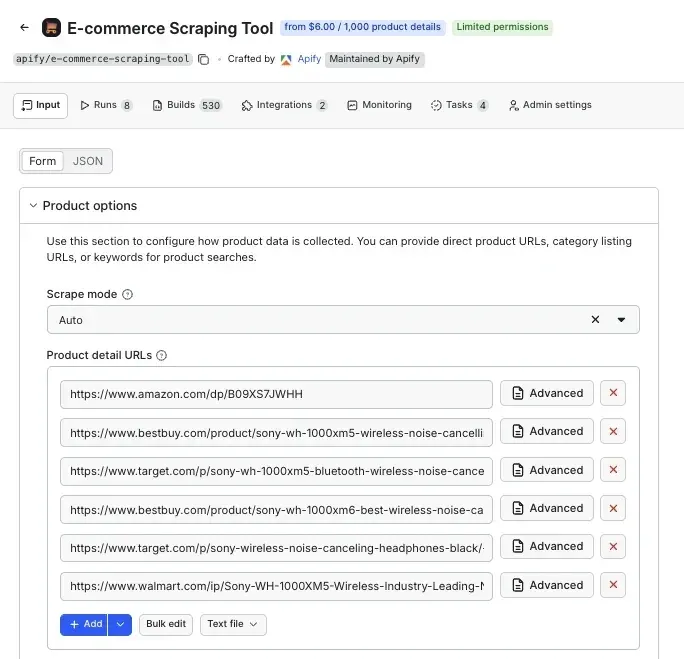
- Open E-commerce Scraping Tool, paste in your product URLs, category URLs, or a search keyword, and turn on Include additional properties.
- Save the input as a task, so you can run the same check again without setting it up from scratch.
- Add a schedule that runs the task once a day, at the same time each day. In the schedule dialog, pick Daily, or open the Cron tab and enter
0 6 * * *to run at 6:00 in the timezone you select. - Export the results to Google Sheets, CSV, or Excel, or connect your pricing tool or BI dashboard through the Apify API.
Here's the input used for the example in this section. In Console, switch the input editor from Form to JSON and paste it, or fill in the same fields in the form: Product detail URLs (detailsUrls), Include additional properties (additionalProperties), and Total maximum products (maxProductResults).
{
  "detailsUrls": [
    { "url": "https://www.amazon.com/dp/B09XS7JWHH" },
    { "url": "https://www.bestbuy.com/product/sony-wh-1000xm5-wireless-noise-cancelling-over-the-ear-headphones-black/J7XSRH5CXG" },
    { "url": "https://www.target.com/p/sony-wh-1000xm5-bluetooth-wireless-noise-canceling-headphones-black/-/A-86314264" }
  ],
  "additionalProperties": true,
  "maxProductResults": 5
}
Replace the URLs with your own products. Keep maxProductResults set: it caps how many products one run collects, so a category URL added by mistake can't pull thousands of products and charge you for all of them.
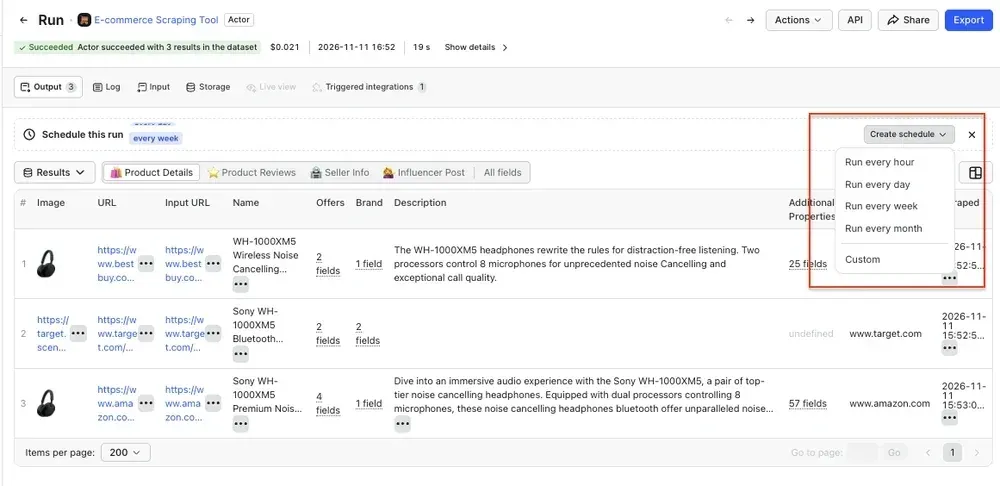
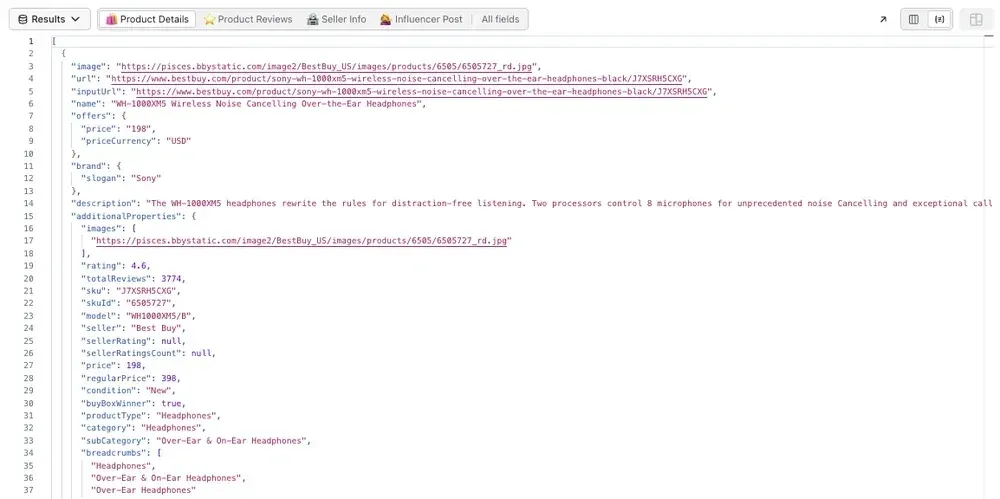
In the output, the fields to compare are offers.price, offers.priceCurrency, marketplace, and scrapedAt. With additional properties on, the regular ("was") price is in additionalProperties.regularPrice wherever the store shows one.
Every run is stored, so the price history builds itself. By Black Friday, you'll have six weeks of prices for each product, and you'll know which "was" prices were real.
Even one run shows why the baseline matters. On November 11, 2026, the same Sony WH-1000XM5 headphones in black cost $186.95 on Amazon, $198 at Best Buy (regular price $398), and $398.99 at Target.
Take a first search snapshot
While you set up the price baseline, check where you stand in search too. Run Google Search Results Scraper once for your main product terms, with the AI Overview add-on turned on. You'll run the same check again 3 weeks out and in Black Friday week, so you can see which competitors' deal pages start ranking and which pages AI answers start citing as the sales get closer. The setup is in the 3-weeks-out section below.
4 weeks out: watch competitors' promotions and ads
A month before the event, competitors start testing their offers in paid social. Ads show you what they plan to promote before the discounts appear on the product page.
Facebook Ads Library Scraper pulls ads from Meta Ad Library, which covers Facebook, Instagram, Messenger, WhatsApp, Threads, and Audience Network. For each advertiser, you get the ad copy, images and videos, the call to action, the landing page link, the platforms the ad runs on, and when it started. You can filter by country, active status, and date.
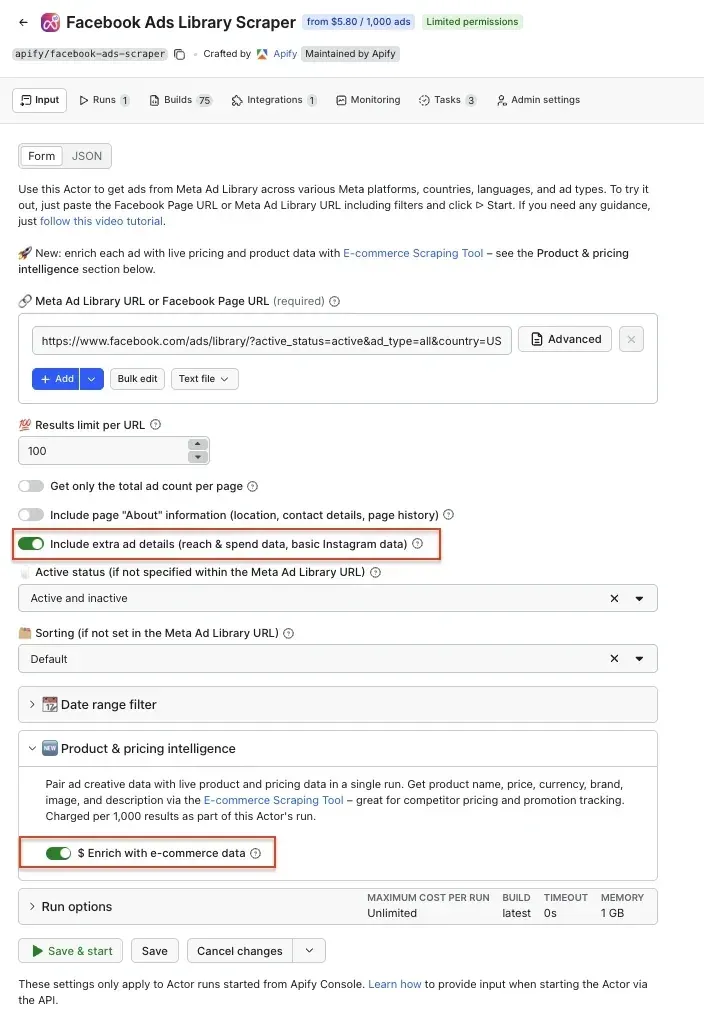
Turn on the e-commerce enrichment, and the Actor also follows each ad's link to the product page and returns the product name, price, and currency. You see both the promise in the ad and the price behind it. This works when the ad links to a product page. Ads that link to a sale or category page, such as the Black Friday deals page in most Macy's ads in our test, return the page name but no price.
An example input that collects active ads for a keyword search in the US, with enrichment turned on:
{
  "startUrls": [
    { "url": "https://www.facebook.com/ads/library/?active_status=active&ad_type=all&country=US&q=black%20friday%20headphones&search_type=keyword_unordered" }
  ],
  "resultsLimit": 20,
  "enrichWithEcommerceData": true
}
In the form, these are Meta Ad Library URL or Facebook Page URL (startUrls), Results limit per URL (resultsLimit), and Enrich with e-commerce data under Product & pricing intelligence (enrichWithEcommerceData). To watch one competitor instead of a keyword, paste their Facebook page URL, such as https://www.facebook.com/bestbuy. Always set Results limit per URL: if you leave it empty, the Actor collects every ad it can find. In the output, snapshot.linkUrl is the ad's landing page, startDateFormatted is when it started running, and ecommerceData holds the product name and price.
What to look for:
- Which products each competitor puts in ads, and which ones they don't
- Which offers they test: a percentage off, a bundle, free shipping, or a gift with purchase
- Which ads keep running for weeks, since advertisers rarely keep paying for ads that don't work
- When "early Black Friday" ads start, so you know how early to launch your own
Run it weekly for your main competitors, then twice a week in November.
3 weeks out: check how you show up in search and AI answers
Three weeks out, run the search check from your baseline again. More shoppers now start with an AI answer instead of a list of links, and both the rankings and the AI answers change as Black Friday gets closer. Compare this run with your first snapshot to see what's already shifting, while you still have time to respond.
Google Search Results Scraper returns organic results, paid results, and product ads for any search term. With the AI Overview add-on, it also captures the AI Overview Google shows at the top of the page and the sources it cites. Other add-ons do the same for Google AI Mode, ChatGPT, Perplexity, Microsoft Copilot, and Gemini, if your customers use those.
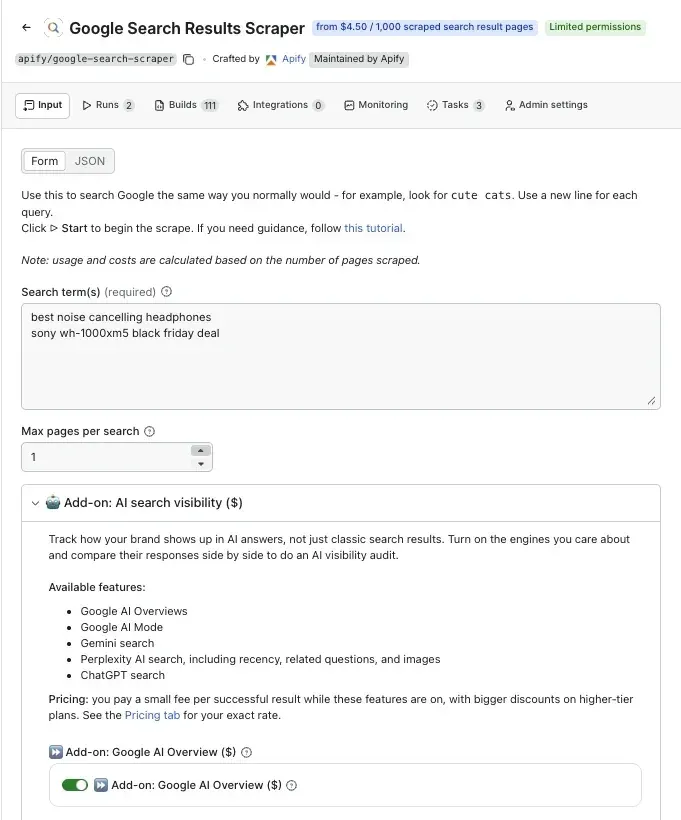
The input behind the example in this section:
{
  "queries": "best noise cancelling headphones\nsony wh-1000xm5 black friday deal",
  "maxPagesPerQuery": 1,
  "aiOverview": { "scrapeFullAiOverview": true },
  "countryCode": "us"
}
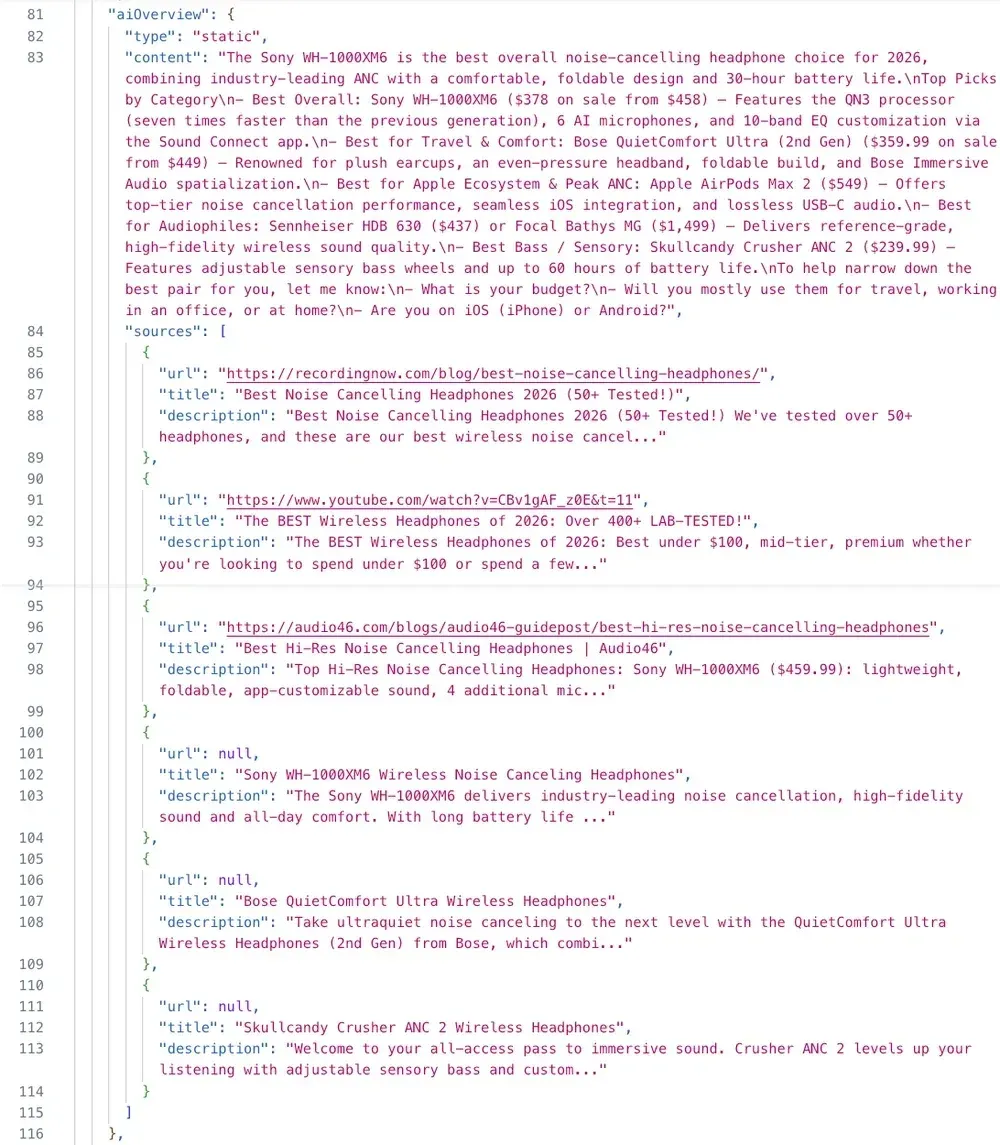
In the form, put one search term per line in Search term(s) (queries), set Max pages per search to 1 (maxPagesPerQuery, about 10 results per page), and turn on Add-on: Google AI Overview (aiOverview). In the output, organicResults lists each result with its position, title, and url, and aiOverview holds the AI Overview's content and sources.
To compare runs, keep the search terms and country the same every time. On the Free plan, one check of 20 terms costs about $0.15 with the AI Overview add-on. If you'd rather see a trend than three snapshots, save the input as a task and schedule it weekly, for example 0 6 * * 1 in the Cron tab to run every Monday at 6:00.
Run it for the terms that drive your sales, such as "best wireless earbuds", "[product name] Black Friday deal", or "[product name] vs. [competitor product]". Then check:
- Which stores rank for each term, and whether you're one of them
- Which competitors run paid ads on your product terms
- Which pages the AI Overview cites, and whether any of them are yours
- What changed since your first run: new deal pages in the top results, new competitors in the paid ads, and different sources in the AI Overview
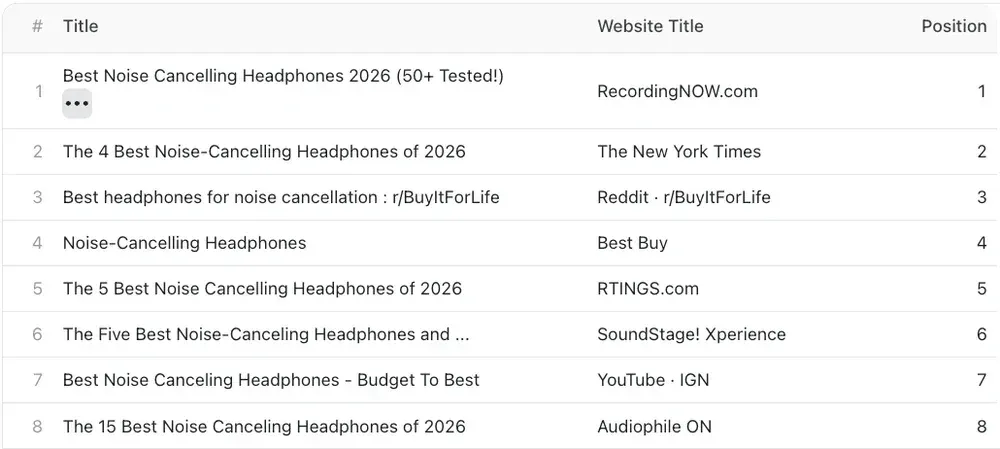
A test search for "best noise cancelling headphones" on November 11, 2026 shows what this looks like. The AI Overview recommended six models with prices, and the pages it linked to were a review blog, a YouTube review, and a buying guide from Audio46, a specialty audio store. In the organic results, Best Buy was the only big-box retailer in the top eight, at position 4, below a review blog, Wirecutter, and Reddit.
AI Overviews aren't stable. The same search can return a different answer and different sources a few hours later. Before you read a change as a trend, run each check two or three times on the same day. A change that shows up in every run is real.
If a competitor's page is cited and yours isn't, you still have three weeks to update your product and deal pages before Black Friday traffic arrives.
2 weeks out: set alerts
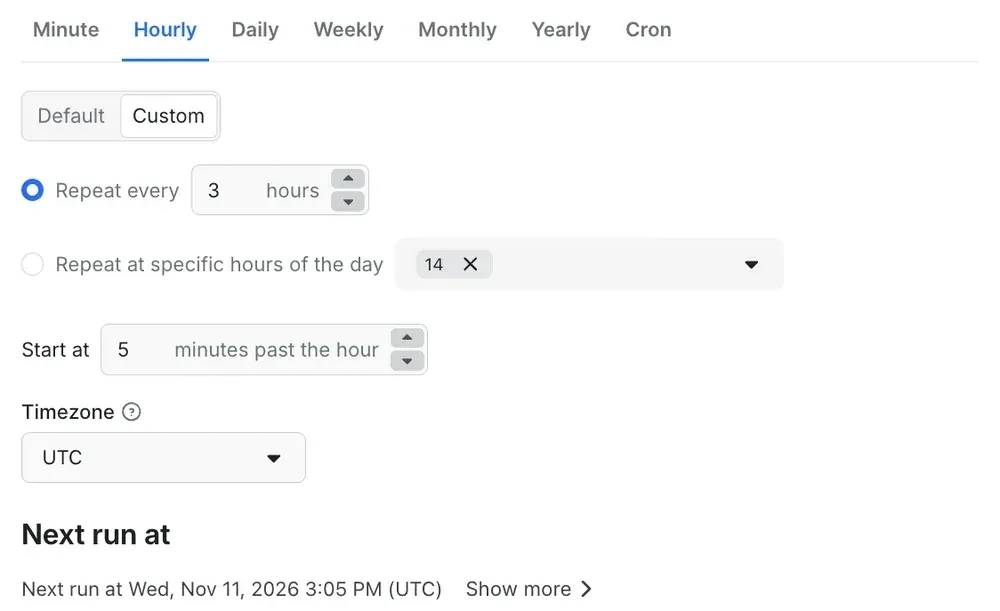
Two weeks before the event, increase the schedule and stop watching dashboards. Change the E-commerce Scraping Tool schedule from daily to every few hours, for example every 3 hours, so a competitor's move shows up the same morning, not the next day. In Console, open Schedules, click the schedule, and change the frequency, or enter 0 */3 * * * in the Cron tab.
Then send the results where your team already works. Apify integrations connect each run to Slack, Google Sheets, email, webhooks, n8n, Make, and Zapier. Two common setups:
- Google Sheets: Send each run to a sheet with Google Sheets Import & Export. Add a column that compares each product's latest price with its baseline and highlights drops of 10% or more and products that went out of stock.
- Slack: Use the Apify node in n8n to compare each run with the previous one and post to a Slack channel when a competitor drops a price by 10% or more or runs out of stock.
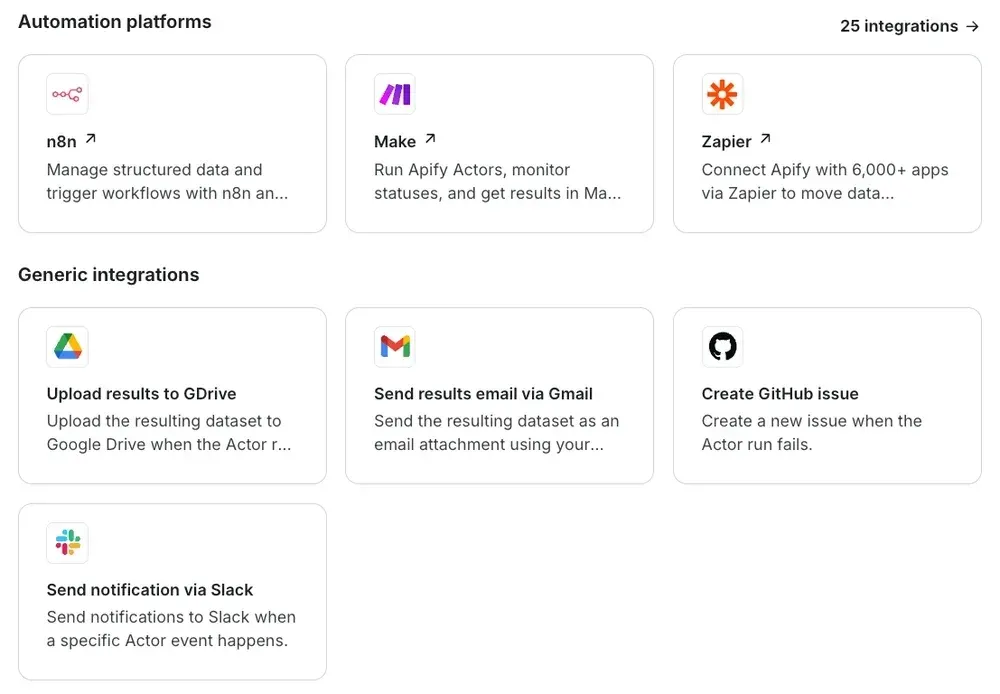
Alerts only help if someone acts on them. Decide now who owns each alert and what they'll do: match the price, hold it, or counter with a bundle or free shipping. That's a much easier decision to make two weeks out than at 7 am on Black Friday.
Black Friday week: live answers for your team and your agents
In the week of Black Friday, from November 23 to Cyber Monday on November 30, move the products that matter most to hourly checks: your best sellers, your highest-margin products, and anything a competitor has already discounted. Keep the rest of the catalog on the every-few-hours schedule. The simplest setup is two tasks with two schedules: one with your priority product URLs on an hourly schedule (0 * * * *), and one with the rest every 3 hours.
Put your three search runs side by side: 6 weeks out, 3 weeks out, and Black Friday week. They show which stores gained or lost positions for your product terms, when competitors' deal pages started ranking, and which pages AI Overviews cited as the sales got closer.
Shopping assistants, support agents, and pricing assistants get the same questions as your team this week: "Is this cheaper at Walmart right now?" or "Is this deal real?" An AI model with web search answers from snippets and pages that may be days old, and many large stores block it entirely.
The Apify MCP server lets agents in Claude, Cursor, and other MCP clients run E-commerce Scraping Tool and check the price on the store's own page before they answer. In an Apify test, Claude on its own returned 0 of 100 requested products. With Apify MCP, it returned all 100 from five stores in about three minutes.
After Cyber Monday: learn from the data
Once the sales end, you'll have something most teams don't: a complete record of what every competitor charged, from mid-October through Cyber Monday. Use it while the details are fresh.
- Compare each Black Friday price with the lowest price in your baseline, not with the "was" price on the page. This shows which competitors offered real discounts and which ones raised prices first.
- Every run has a timestamp, so you can see which competitor cut prices first on each product and how fast the others followed.
- Stock status over time shows which products sold out, at which stores, and when. That's useful for next year's inventory planning.
- Line up the ads you collected with the prices that followed, to see which promotions competitors ran the longest.
Keep the dataset. It's next year's baseline, and it's a starting point for the holiday season and January sales. Give it a name in Apify Console or export it, since named datasets are kept until you delete them, while unnamed ones are deleted after your plan's data retention period.
Common problems and fixes
- A product is missing from the results. The store blocked the request or changed its page. Open the run's Storage tab: the errors dataset lists the URLs that failed. Run those URLs again, and if they still fail, set Scrape mode to Browser (
"scrapeMode": "BROWSER"). - Prices don't line up in your spreadsheet. Stores report currency differently. In our test, Amazon returned
"$"and Best Buy and Target returned"USD"inoffers.priceCurrency, so normalize the currency before you compare prices. - There's no "was" price.
additionalProperties.regularPriceonly appears when the store shows a regular price on the page. That's another reason to keep your own baseline. - Ads come back without a price. E-commerce enrichment needs the ad to link to a product page. Ads that link to a sale or category page return no price.
- The AI Overview is missing. Google doesn't show one for every search. Results without one have no
aiOverviewfield, and the add-on only charges for AI Overviews it captures. - A run cost more than expected. Check the limits: Total maximum products in E-commerce Scraping Tool, Results limit per URL in Facebook Ads Library Scraper, and Max pages per search in Google Search Results Scraper. An empty limit means no limit.
See it running: the Live pricing room
To see this setup in action, open the Live pricing room. It tracks 200 products across six US stores, and it has been running since October 20, 2026. You can see the baseline it built in October and how prices move as Black Friday gets closer.
Start your Black Friday checklist
You don't need all six steps to get value. Start with the baseline: open E-commerce Scraping Tool, paste in your product URLs, and schedule a daily run. Run a first search check the same day, then add ad tracking and alerts as the date gets closer.

FAQ
When should I start preparing for Black Friday?
About six weeks before. That gives you a price and search baseline from before the early promotions start. If you're starting in November, set up the price tracking and alerts first, since they matter most in the final weeks.
Which stores can E-commerce Scraping Tool check?
Most online stores, including Amazon, Walmart, Target, Best Buy, Costco, and Home Depot. One setup can cover several stores, so you can compare the same product across them.
How often should I check competitor prices before Black Friday?
Daily for the baseline, every few hours from two weeks out, and hourly on priority products during Black Friday week. Checking the whole catalog hourly for six weeks costs more and rarely tells you more.
Can AI agents use this price data?
Yes. Through the Apify MCP server, agents in Claude, Cursor, and other MCP clients can run E-commerce Scraping Tool and get the current price, stock, and seller from the store's own page before they answer. The setup guide shows how.