
For hotel owners and tour operators, tracking reviews across platforms like Tripadvisor, Google Maps, and Booking.com is essential to improving guest experience and increasing revenue. But doing it manually takes time - especially if you manage multiple properties generating hundreds or thousands of reviews per week.
Enterprise reputation management tools, on the other hand, offer centralized dashboards but lock you out of raw data and typically cost $100+ per user per month.
If you need clean review data with full control, you can create your own review monitoring system, using Apify scrapers. With regular data scraping, you can:
- Detect recurring complaints
- Analyze rating trends
- Access new reviews instantly and track deleted reviews
- Easily share results across team members
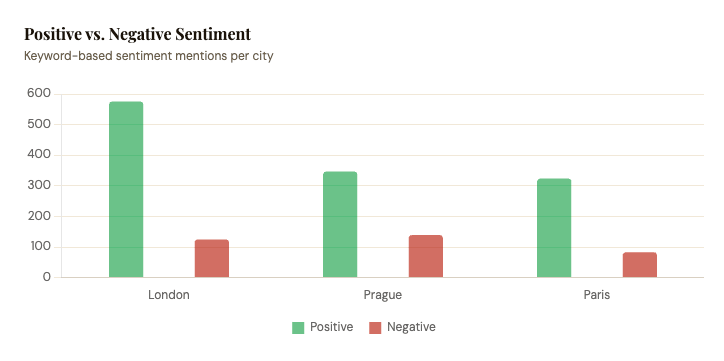
How review monitoring with Apify works
We’ll show you how to build your own automated data collection workflow - scrape reviews, send data to Google Sheets, and analyze your findings further. You can follow along with this guide on the free Apify plan, meaning you can test the entire setup and get your first dataset at no cost.
- Built-in proxy management
- Anti-bot evasion support
- Integrated storage with structured exports in CSV/Excel/JSON
- Standardized input parameters (URLs, keywords, limits, etc.)
- Easy integration with third-party apps or other Actors
Every Apify Actor can also be triggered programmatically via the Apify API, opening up lots of ways to integrate it into your workflows.
The entire workflow setup takes just a couple of minutes and consists of the following steps:
- Set up the integration between scrapers and Google Drive
- Scrape data from all three platforms:
- Create a schedule for the scrapers to run automatically
- Analyze your data
Let’s start.
How to scrape reviews from Tripadvisor
Before we jump to data extraction, sign up for a free Apify account. You’ll enter Apify Console, a workspace to run or build scrapers and automation tools.
Tripadvisor Reviews Scraper can extract reviews from any Tripadvisor place, including the review text, URL, rating, date of travel, published date, basic reviewer info, owner's response, helpful votes, images, and review language.
Step 1: Integration with Google Drive
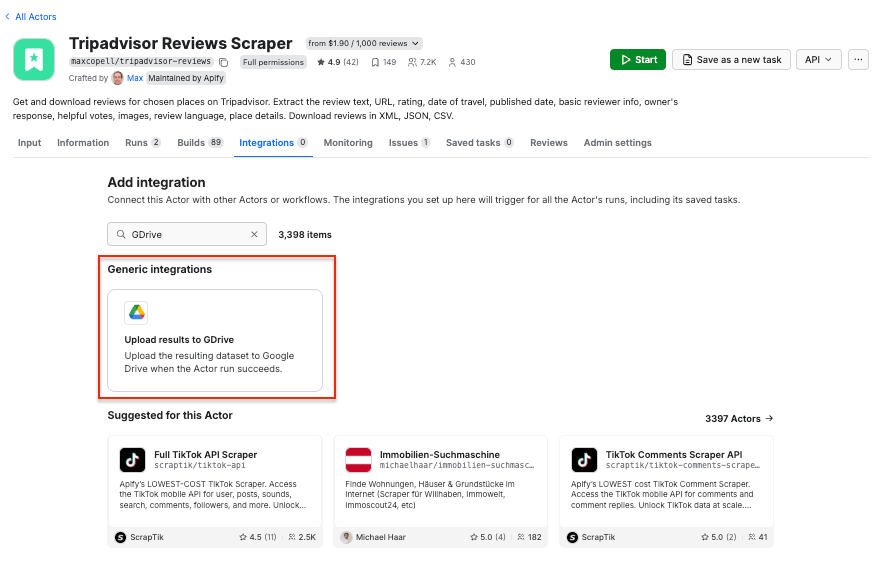
First, let’s make sure our data flow is configured. Go to Tripadvisor Reviews Scraper and select the Integrations tab. Start typing “GDrive” in the search bar, and select the Upload results to GDrive integration.
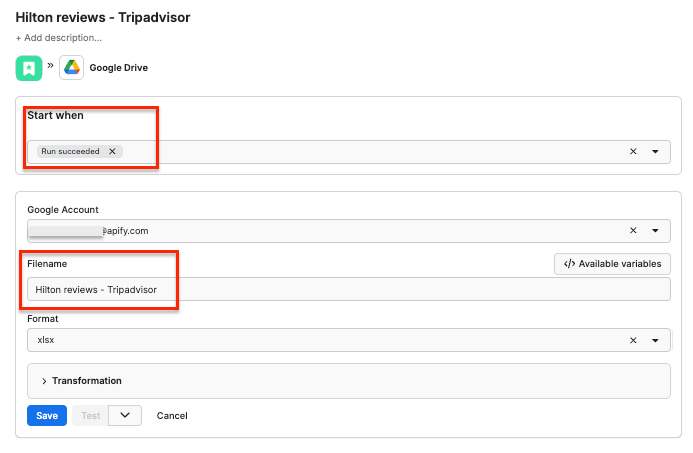
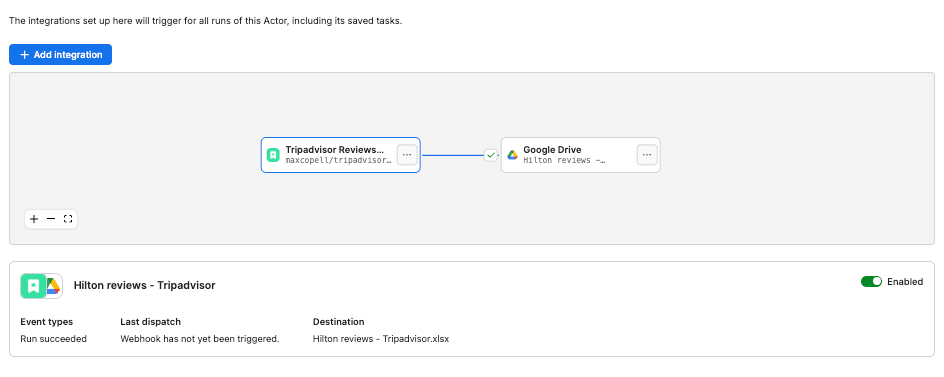
Give the integration a unique name. In our example, we want to extract reviews about three Hilton hotels, so we’ll use Hilton reviews - Tripadvisor. Click Save to continue and connect your Google account. If you’re using your Google account with Apify Console, your email address might already be on the list of accounts to select.
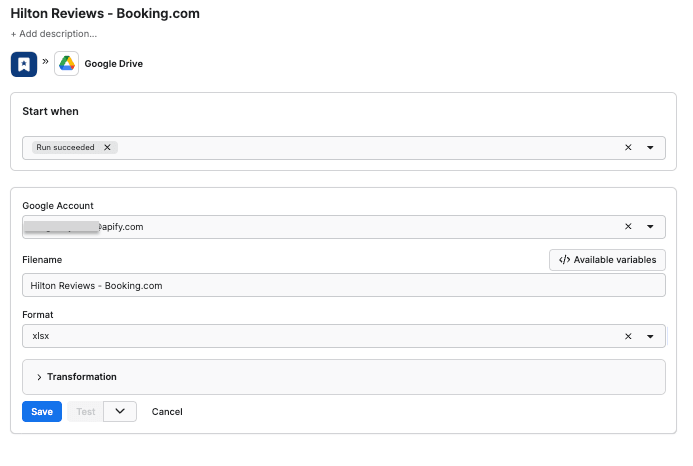
Since we want the data to be sent to the spreadsheet once the scraper finishes running, we’ll select Run succeeded as our starting point. Select a format of the Google Drive file that the Apify integration will create (we’ll go with the XLSX) and click Save.
The workflow is ready - from now on, every time you run a scraping session, a new file with scraped results will be created in your Google Drive automatically, ready to analyze and compare over time.
You can check if the integration is set up correctly by refreshing the Integrations tab.
Step 2: Configure the scraper and run it
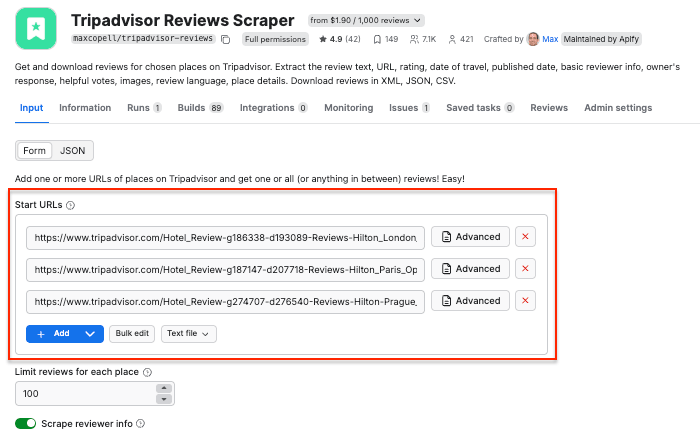
Time to set up the scraper. We’ll use Tripadvisor Reviews Scraper to extract reviews from three Hilton hotels - located in London, Paris, and Prague. The Actor uses the Tripadvisor URLs as input, and you can use as many as you need.
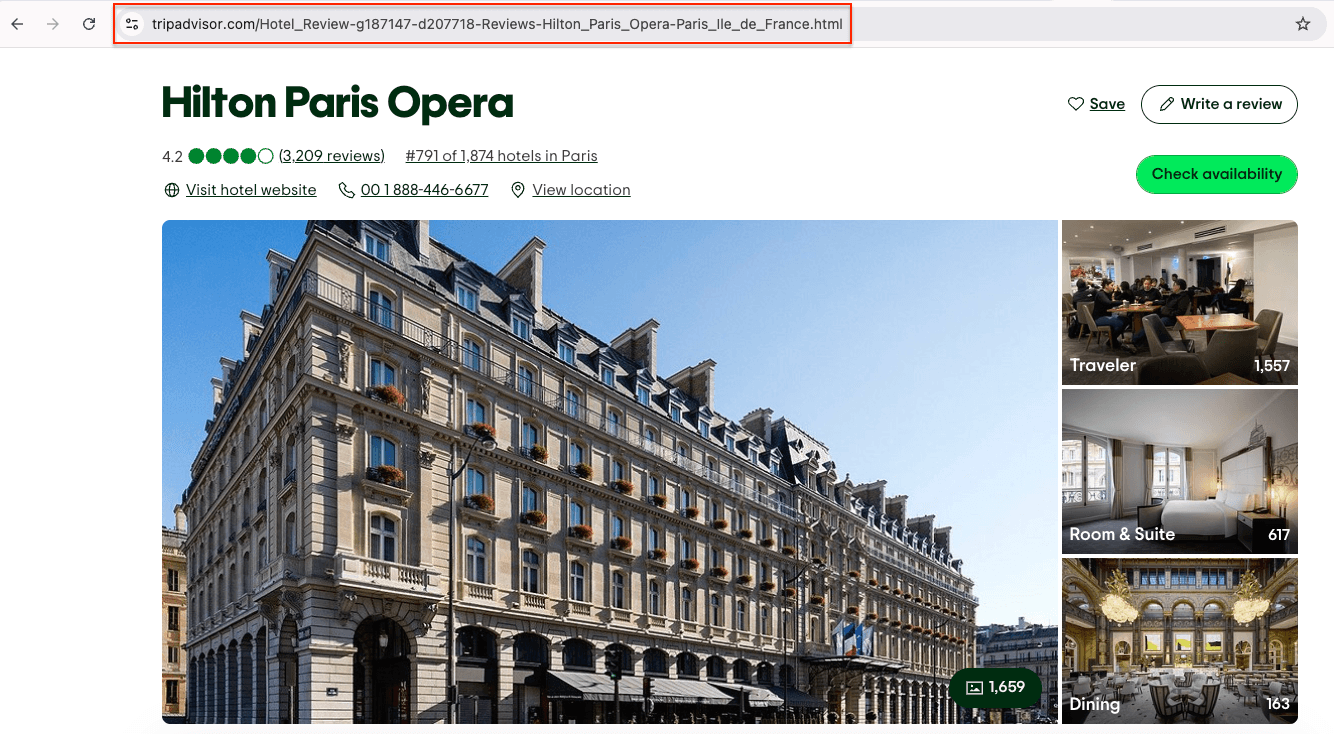
Paste the Tripadvisor URLs in the Start URLs field:
You can also scrape reviewer details (name, profile picture, location, etc.), but make sure you have a legit reason to do so.
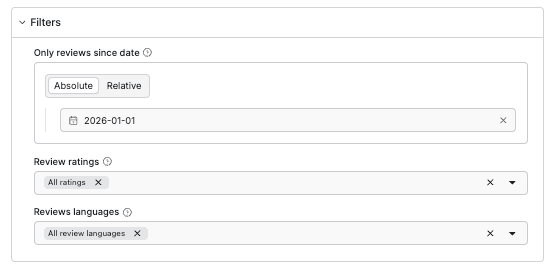
If you want to scrape reviews regularly, you can add a time range filter:
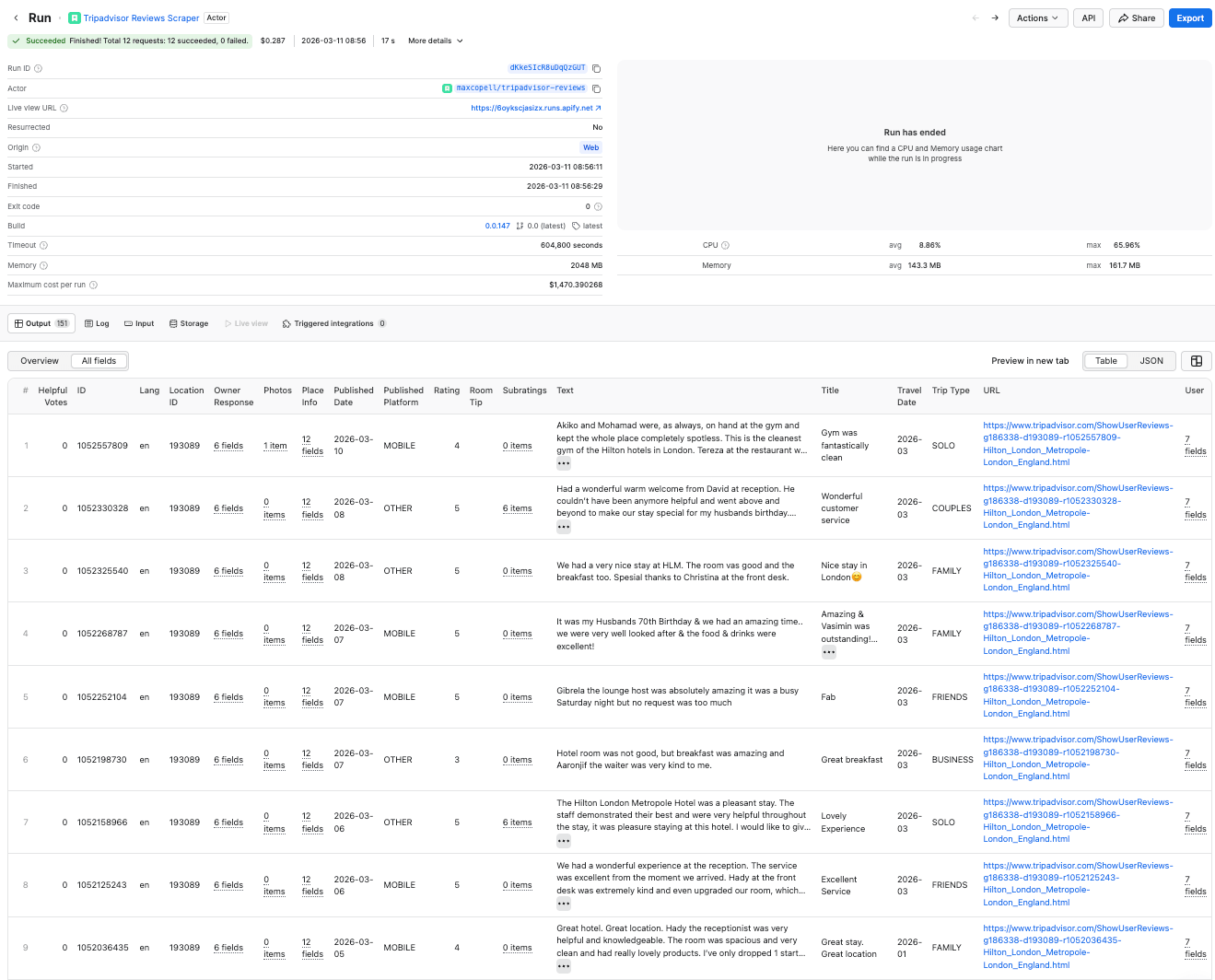
Click Save & Start to run the scraper. After a couple of minutes, the run will finish, and you’ll be able to check the results in the preview table.
Note that it only took 17 seconds to scrape over 150 reviews. The scraper also allows you to narrow down your results to a specific rating or language.
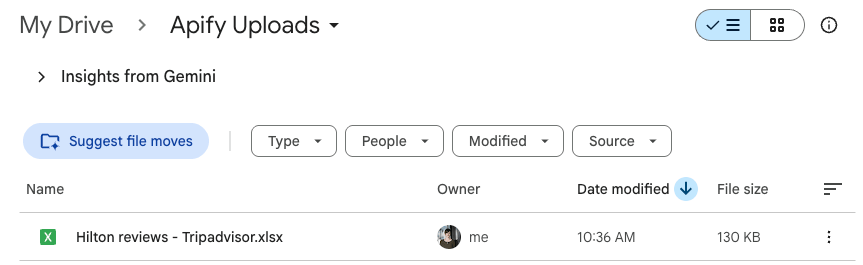
Now you can also check your Google Drive for a newly created spreadsheet with reviews. Each time you execute the scraper, it will automatically generate a new file with fresh data, ready for analysis.
How to scrape reviews from Google Maps
To extract reviews from Google Maps, we’ll use a similar workflow to the one used with Tripadvisor Reviews Scraper.
Step 1: Integration with Google Drive
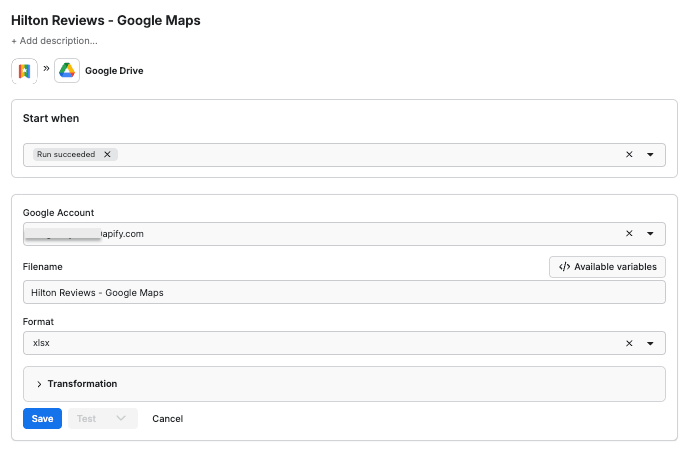
Go to Google Maps Reviews Scraper and, as before, head to the Integrations tab and set up the Upload results to GDrive integration. Give it a unique name - Hilton Reviews - Google Maps - add your Google account, name your future file, set the starting point, and format.
Step 2: Configure the scraper and run it
Google Maps Reviews Scraper can extract review text, ratings, URLs, authors, and even responses from the place’s owner. All you need as input is a place URL or place ID for the location you want reviews from.
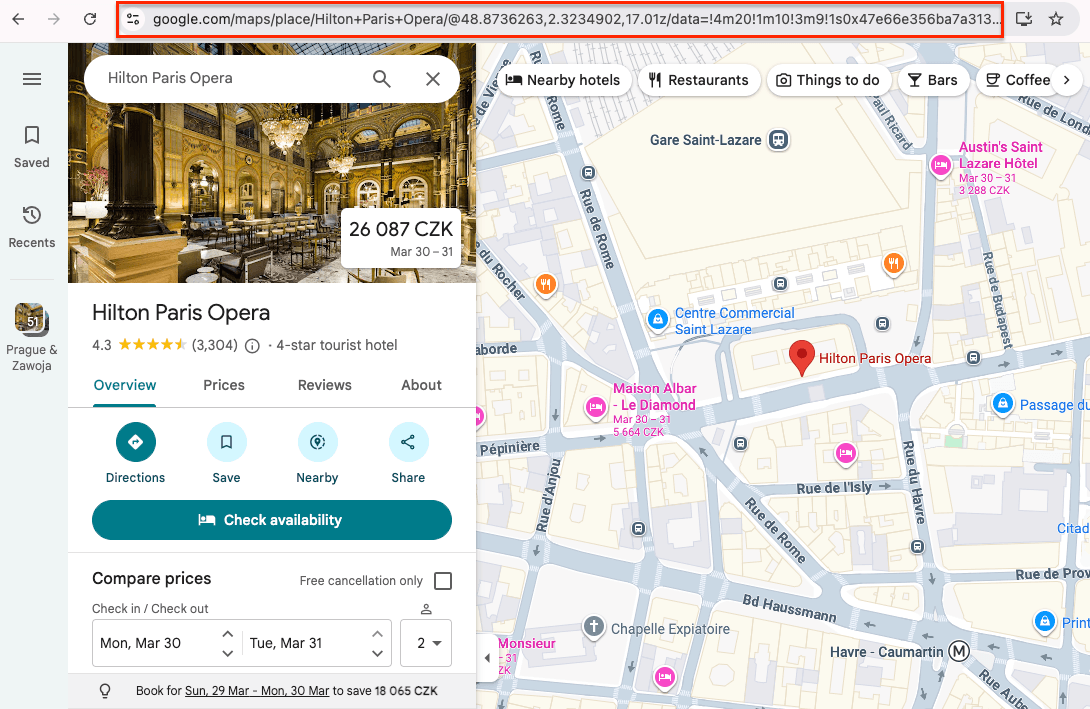
In our case, we’ll use the URLs of the same three Hilton hotels - in Paris, London, and Prague. To do that, find the places on Google Maps, copy the URLs, and paste them in the Google Maps place URLs field.
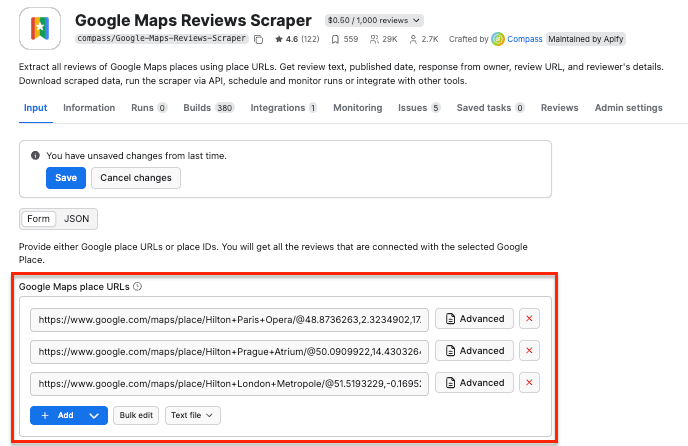
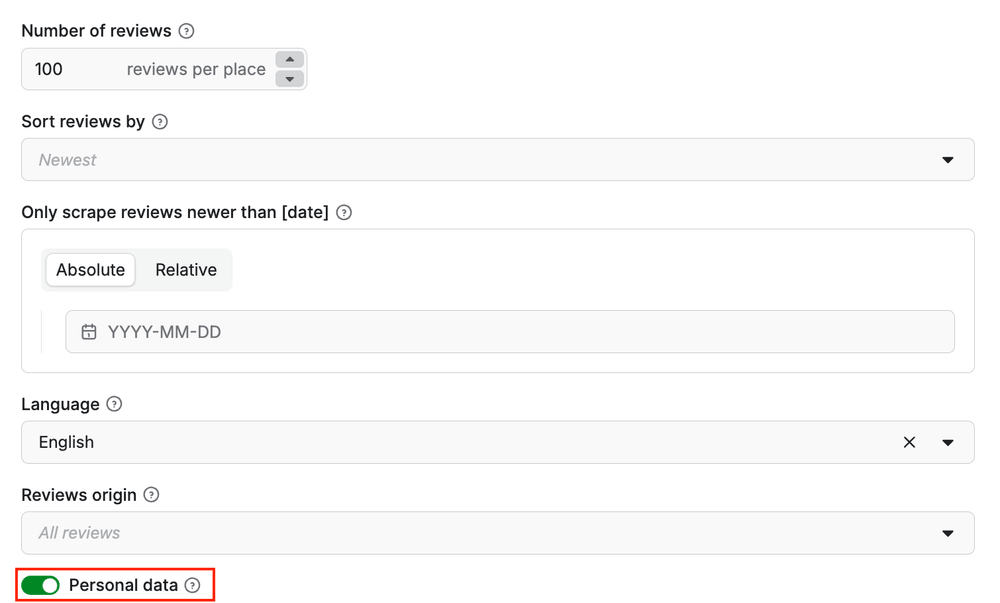
You can also limit the number of reviews per place, choose the language of the result details, and decide whether to include personal data about reviewers.
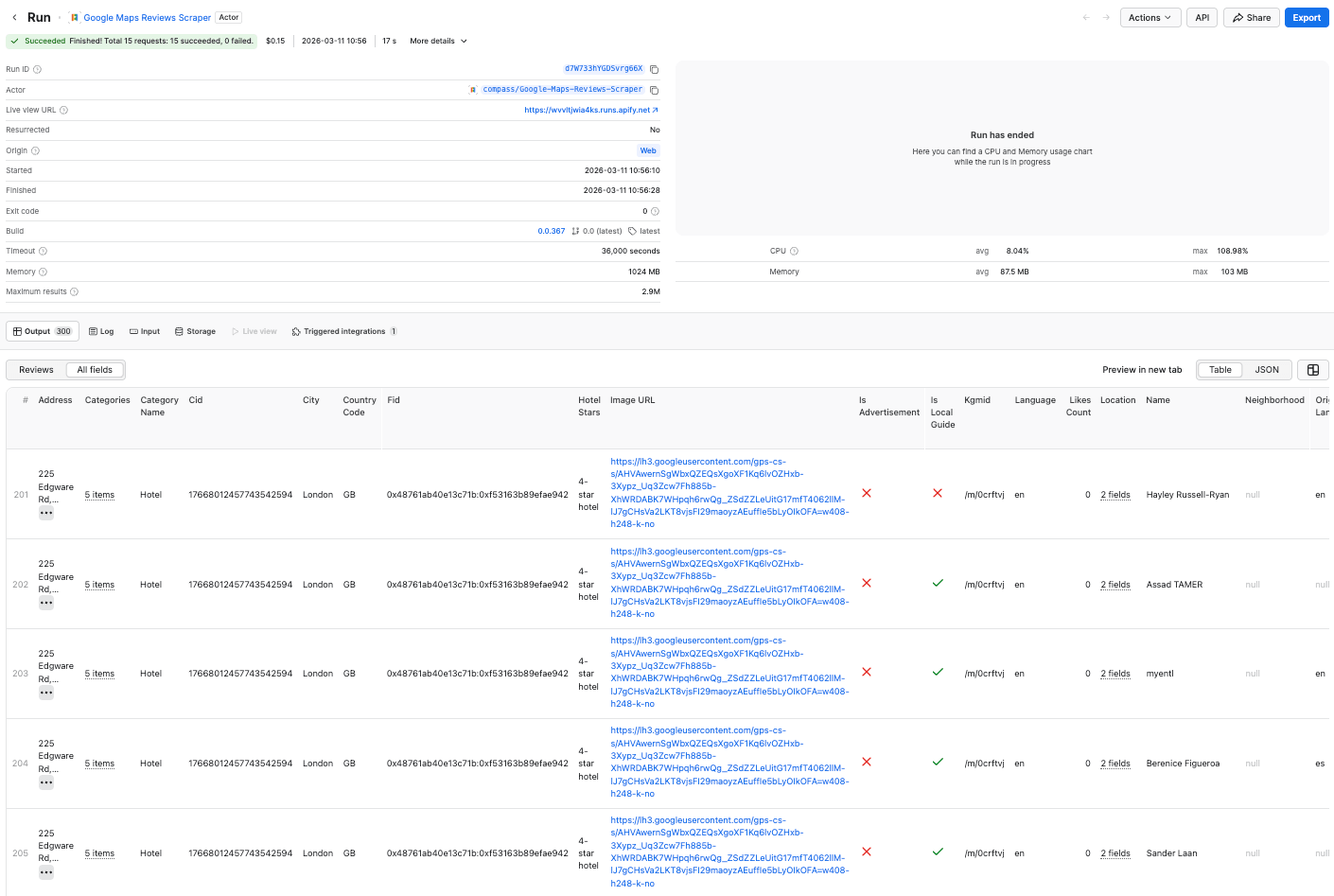
Now click Start and wait for the scraper to finish running. Just like before, you can preview your results in a table:
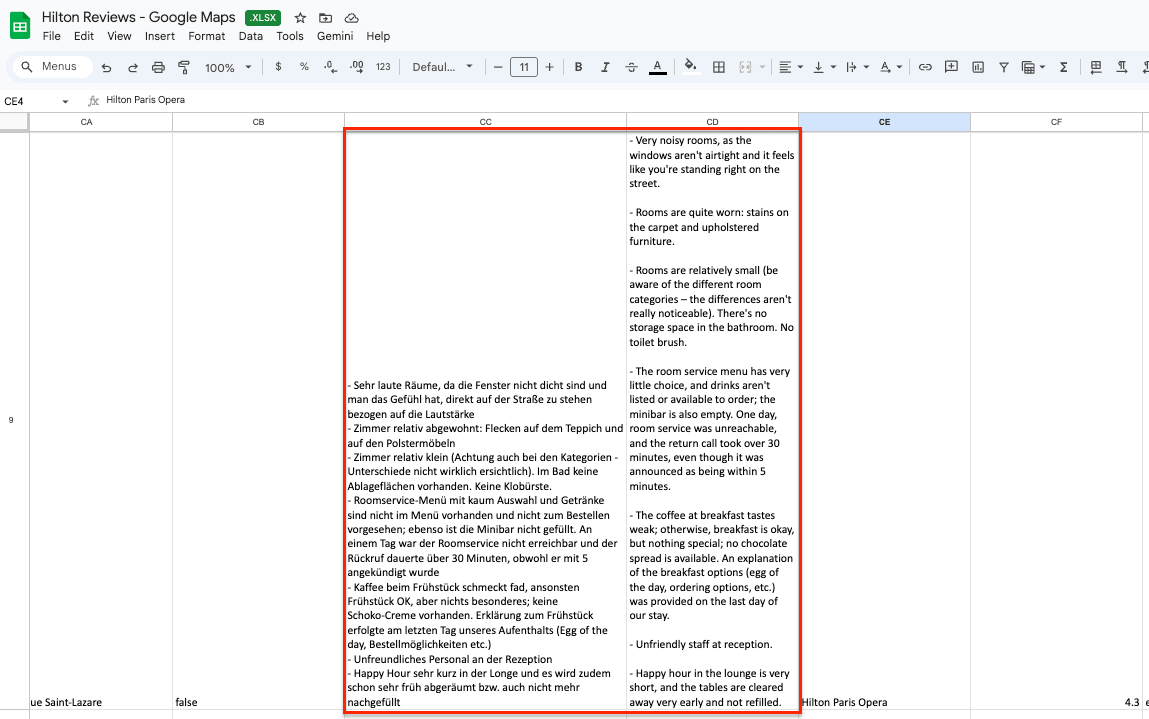
When you open your Google spreadsheet, you’ll find that the scraped reviews are available in both the original language and the English translation:
How to scrape reviews from Booking.com
Booking Reviews Scraper can extract reviews from hotels, apartments, and other accommodations listed on the Booking.com portal. It fetches review text, ratings, stars, basic reviewer info, length of stay, liked/disliked parts, room info, date of stay, and more.
Step 1: Integration with Google Drive
Go to Booking Reviews Scraper and set up the integration, exactly as before - don’t forget to add the file name.
Step 2: Configure the scraper and run it
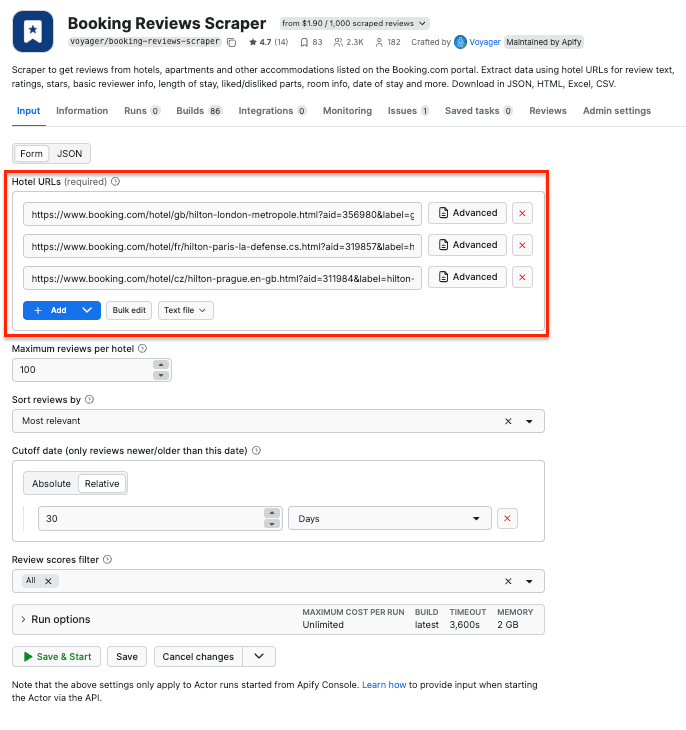
To scrape hotel reviews with Booking Reviews Scraper, add the Booking.com URLs as input. You can also customize your scrape - limit the number of reviews, sort the results, or add a cutoff date.
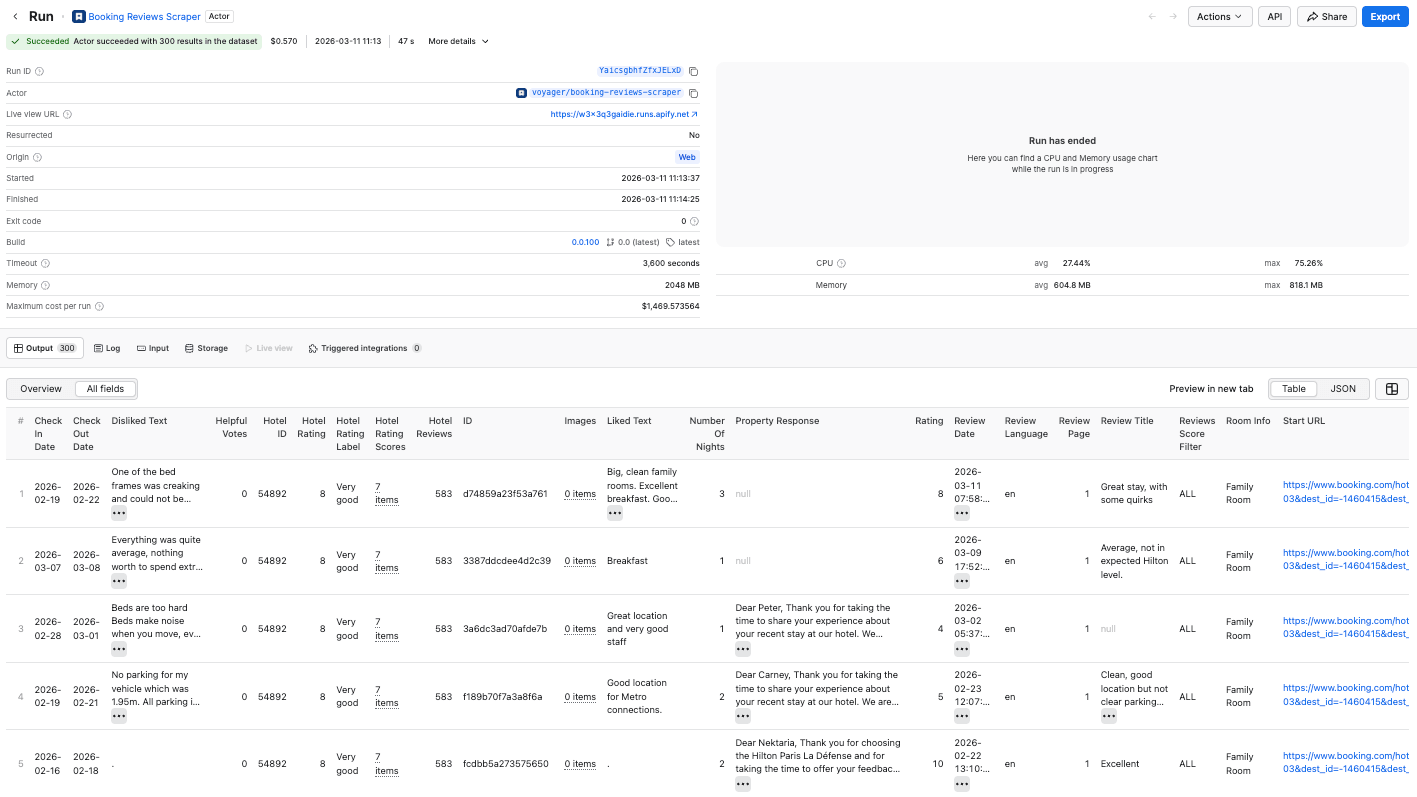
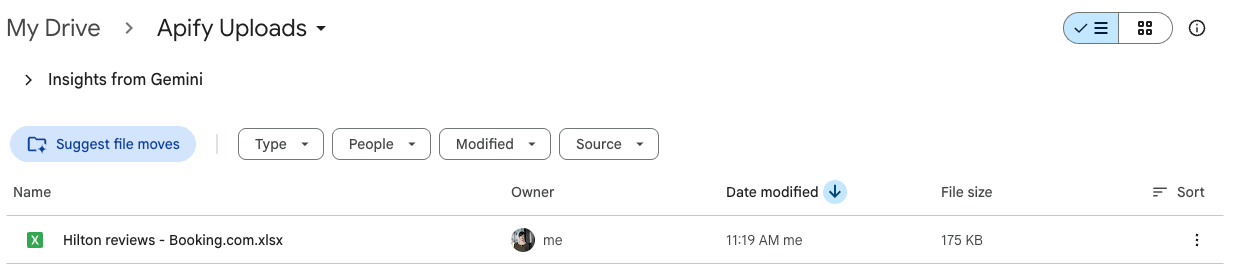
Click Save & Start to run the scraper. As usual, you can preview your results in the Output table and check all relevant data in the newly created Google Sheet file.
Schedule automated runs to monitor deleted reviews
If you want to scrape reviews regularly, you can schedule each scraper to run automatically and collect data without manual input. Scheduled runs are particularly helpful when you want to monitor deleted reviews. They give you a historical record of which reviews existed at a specific point in time.
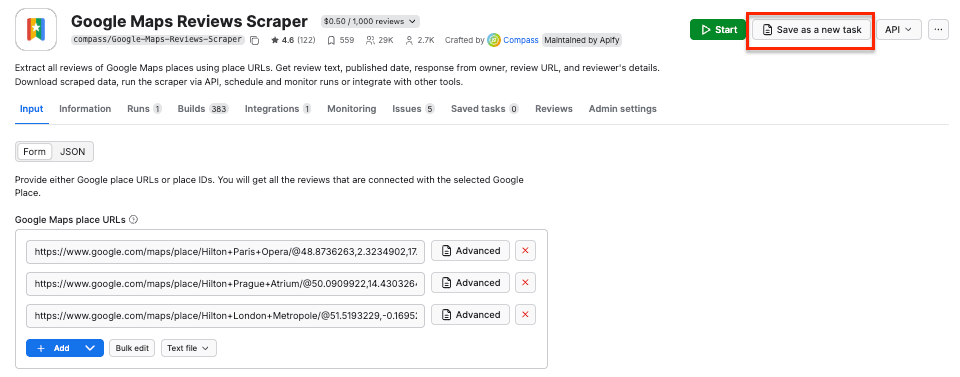
First, make sure your scraper is properly configured, then click the Save as a new task button in the top-right corner.
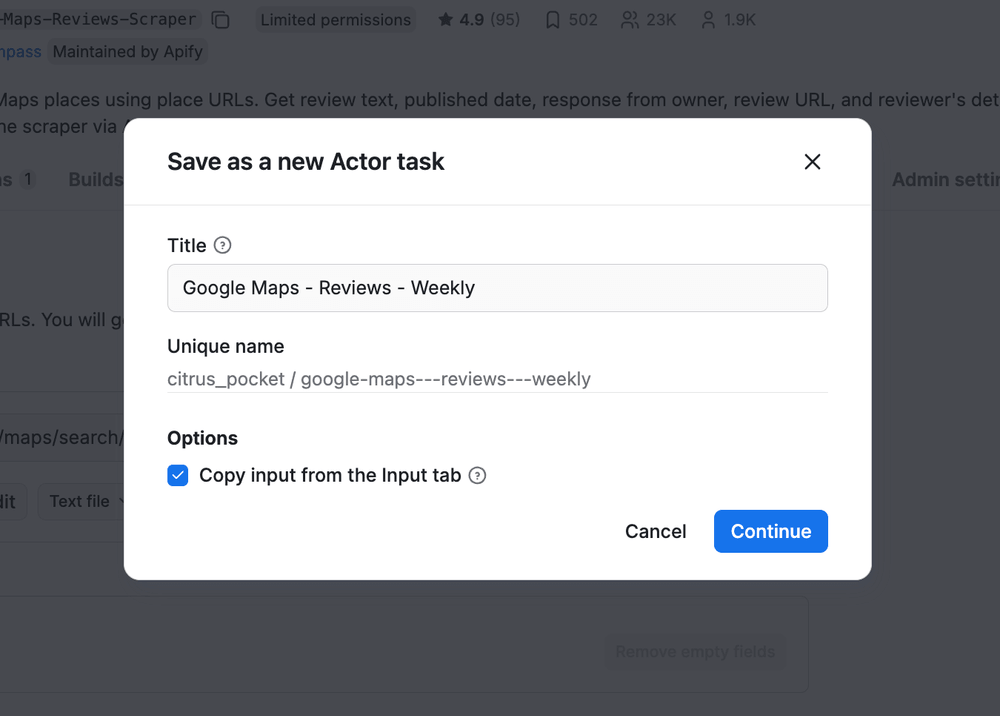
Give your task a name and save it.
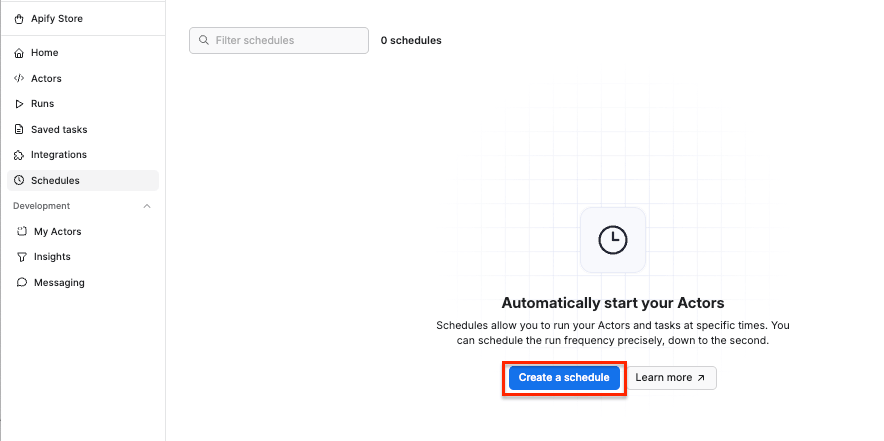
Now, you can easily schedule the task by accessing Schedules in the left-hand navigation and clicking the Create a schedule button:
We’ve already saved our task, so now it’s time to add it to the schedule. Click Add task at the bottom to customize your schedule, select a task, and choose how often you want the scraper to run - daily, weekly, monthly, or on any day that works best for you.
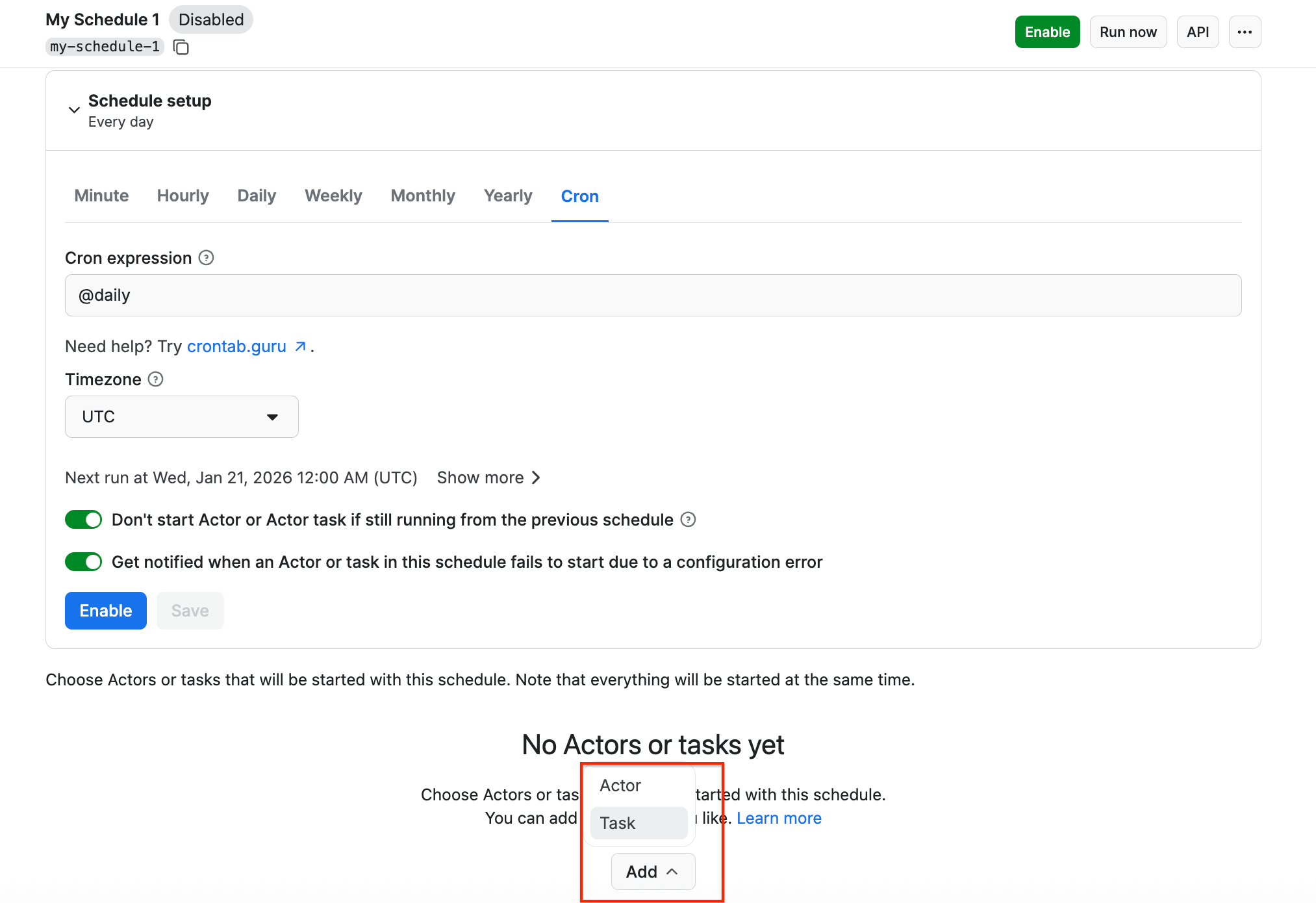
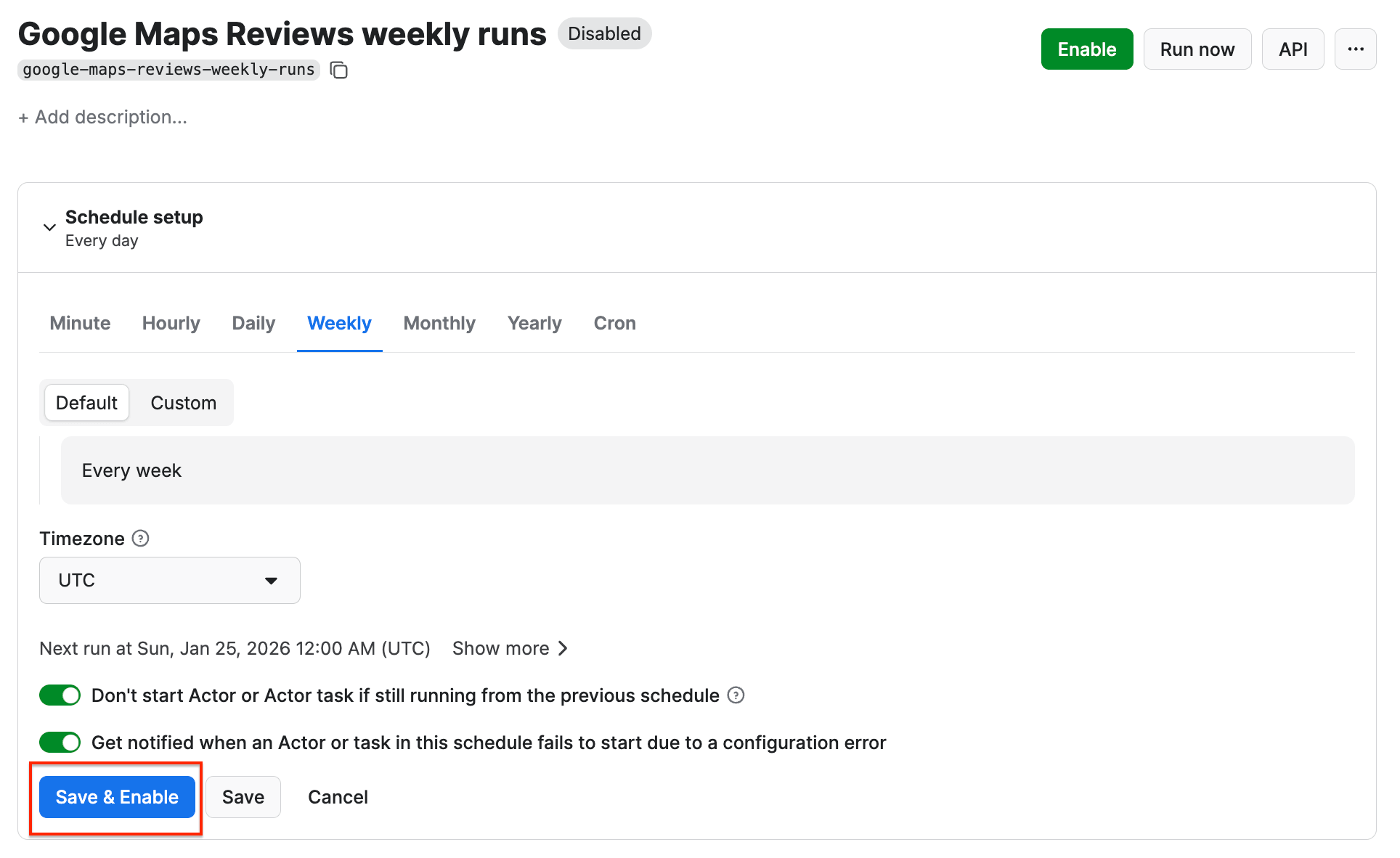
Click Save & Enable, and your schedule will be up and running. It will automatically start the scraper at your chosen time and send the results to Google Drive, thanks to the integration we set up earlier.
Analyze the results with AI
Once you have all your data in place, you can divide the work between team members, plug the results into your data pipelines, or analyze the data with the help of LLMs.
Here are some prompt examples you can use with your AI tool to get the most out of your datasets:
- What are the most common complaints and praise points by hotel? Extract the top positive/negative phrases and build a ranked list.
- How do ratings trend over time?
- Which traveler types leave the lowest/highest ratings? E.g. do solo travelers rate Paris lower than couples?
- Show me every review that mentions [specific problem] across all platforms and cities.
- Identify which issues mentioned on Tripadvisor and Google Maps got owner responses vs. which went unanswered
- Export a filtered spreadsheet all 1- and 2-star reviews with their text, city, platform, and date, ready for a team to work through
- Pull all reviews that mention specific staff interactions (positive and negative)
- How consistent is the Hilton brand experience across cities?
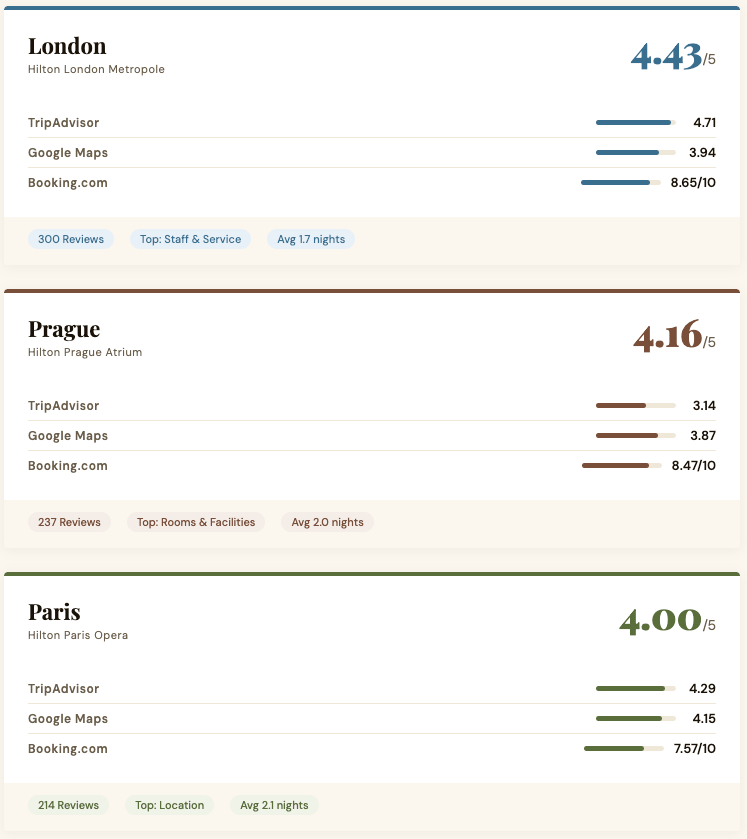
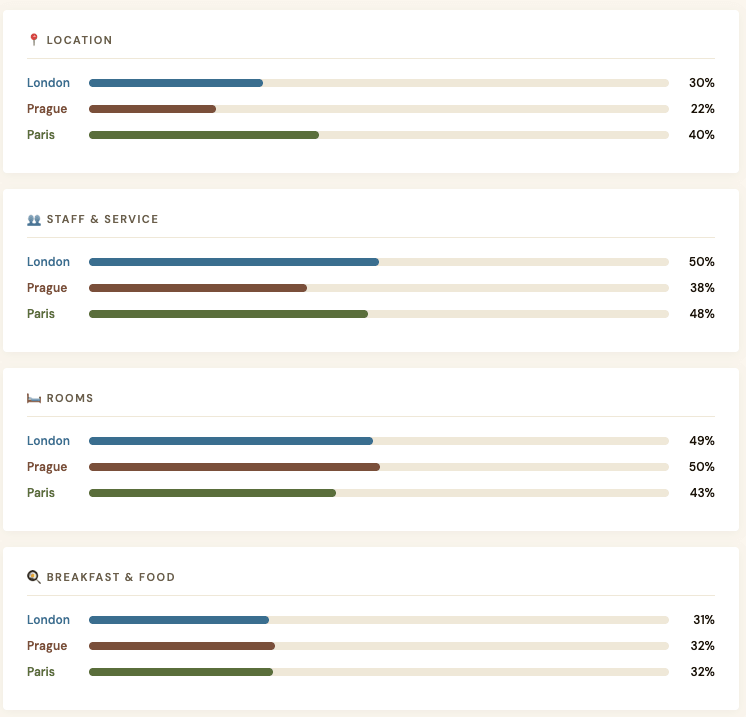
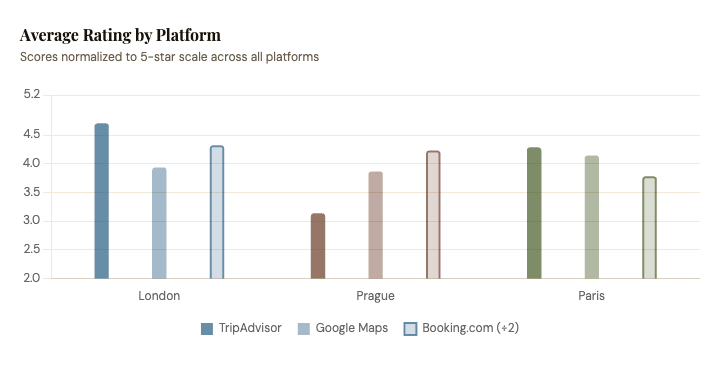
Review analysis example using Claude
Conclusion
By automating review collection, hospitality teams can move from manual monitoring to proactive reputation management. Instead of checking multiple platforms every day, you’ll have a structured stream of review data flowing into your spreadsheets, dashboards, or internal tools. With scheduled runs capturing changes over time, you gain continuous visibility into guest feedback across platforms - without adding extra work to your team’s workflow.