If your brand doesn’t sell directly to consumers but instead relies on distributors and online marketplaces, you’re likely spending a significant amount of time enforcing your Minimum Advertised Price (MAP) policy - especially as your business expands across more channels.
With rapid price changes and unauthorized listings, manual MAP monitoring of hundreds of SKUs can quickly become unmanageable. You might have considered dedicated MAP monitoring software, but out-of-the-box platforms often:
- Don’t monitor smaller retailers
- Are expensive for brands with large SKU counts but limited budgets
- Offer little flexibility - you can’t pick your own targets or control how data is extracted
- Come with rigid long-term contracts.
You can, however, take a different approach and use web scraping - a flexible, DIY alternative to MAP monitoring tools, at a much lower cost. With the right setup, you can monitor any retailer on any website while maintaining full control over the extracted data.
At Apify, we help retailers, brands, and pricing teams solve problems in large-scale e-commerce price monitoring. If you need a custom, reliable data extraction workflow tailored to your competitors, products, and platforms, our Professional Services team can build it for you. Request a demo or discuss your project with our team.
Scraper-based MAP monitoring with Apify
You can perform minimum advertised price monitoring yourself using Apify’s E-commerce Scraping Tool - a specialized scraper available on Apify Store, home to 10,000+ automation solutions.
- Built-in proxy management
- Anti-bot evasion support
- Integrated storage with structured exports in CSV/Excel/JSON
- Input configuration schema with standardized parameters (URLs, keywords, limits, etc.).
- REST API endpoint for start, stop, and data retrieval
In this guide, we’ll show you how to build your own tracking system by integrating the scraped results with Google Sheets, where you can use a simple function to compare offers with your MAPs. With the correct setup, you’ll have a reliable, structured dataset that highlights MAP compliance, ready for further business intelligence processing in minutes. Plus, you can run scrapes as frequently as your pricing strategy requires.
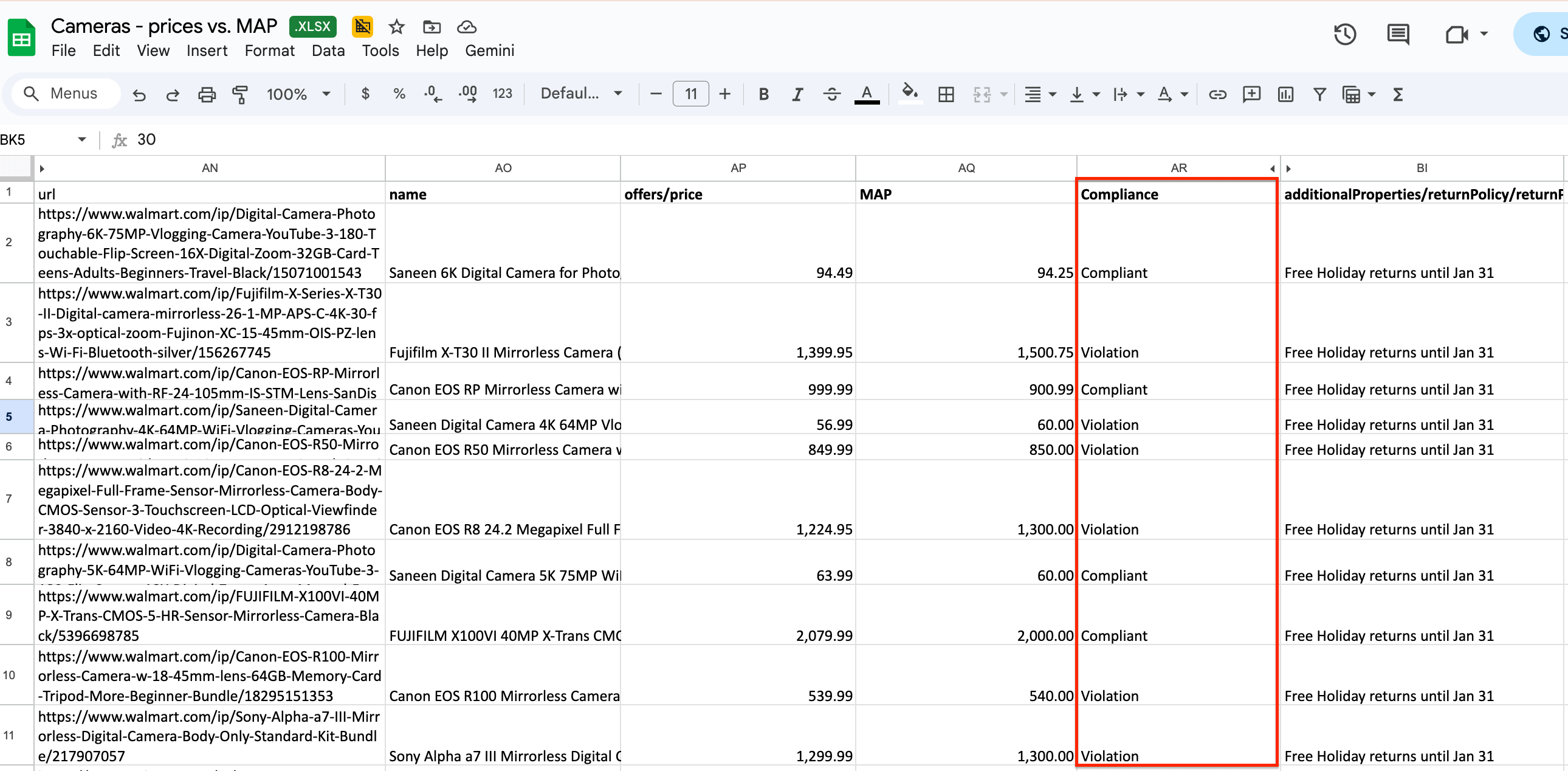
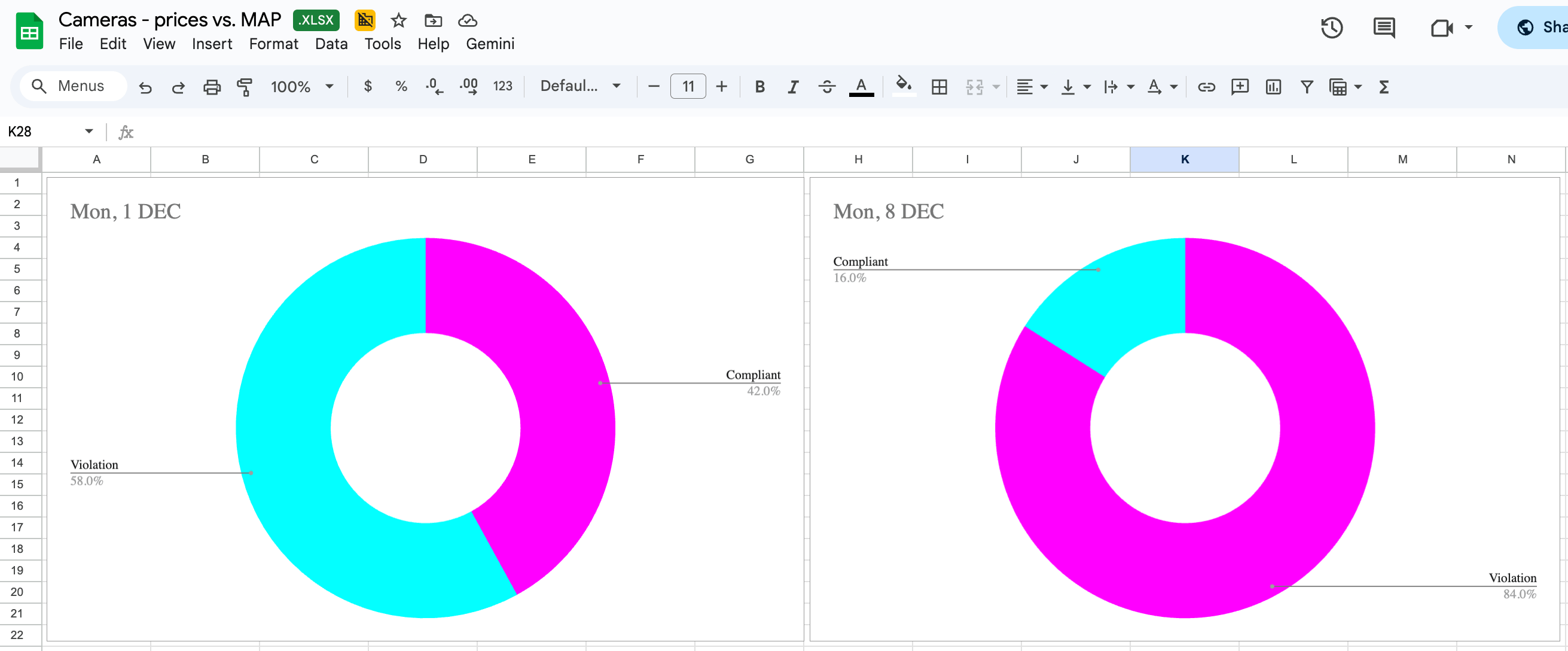
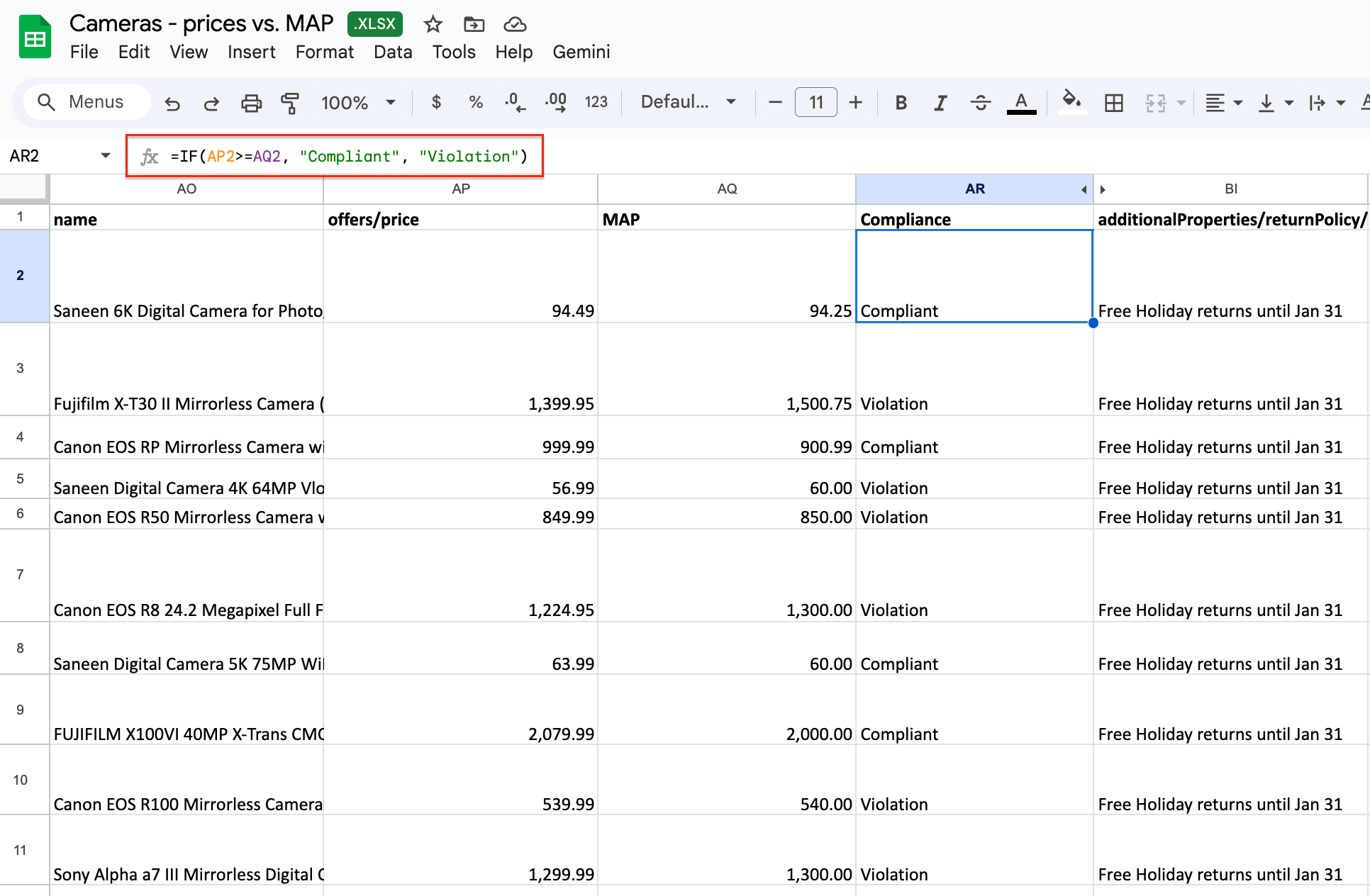
By the end of this guide, you'll know how to get something like the output below:
How to set up MAP monitoring with E-commerce Scraping Tool
Make sure you have a list of URLs with your product listings - they will serve as our input for the scraper. We’ll send our data directly into Google Drive, but if you prefer, you can skip the integration and head directly to the scraping run. You can then download an Excel spreadsheet to your machine and work with your data locally.
To start, sign up for a free Apify account.
Step 1: Integration with GDrive
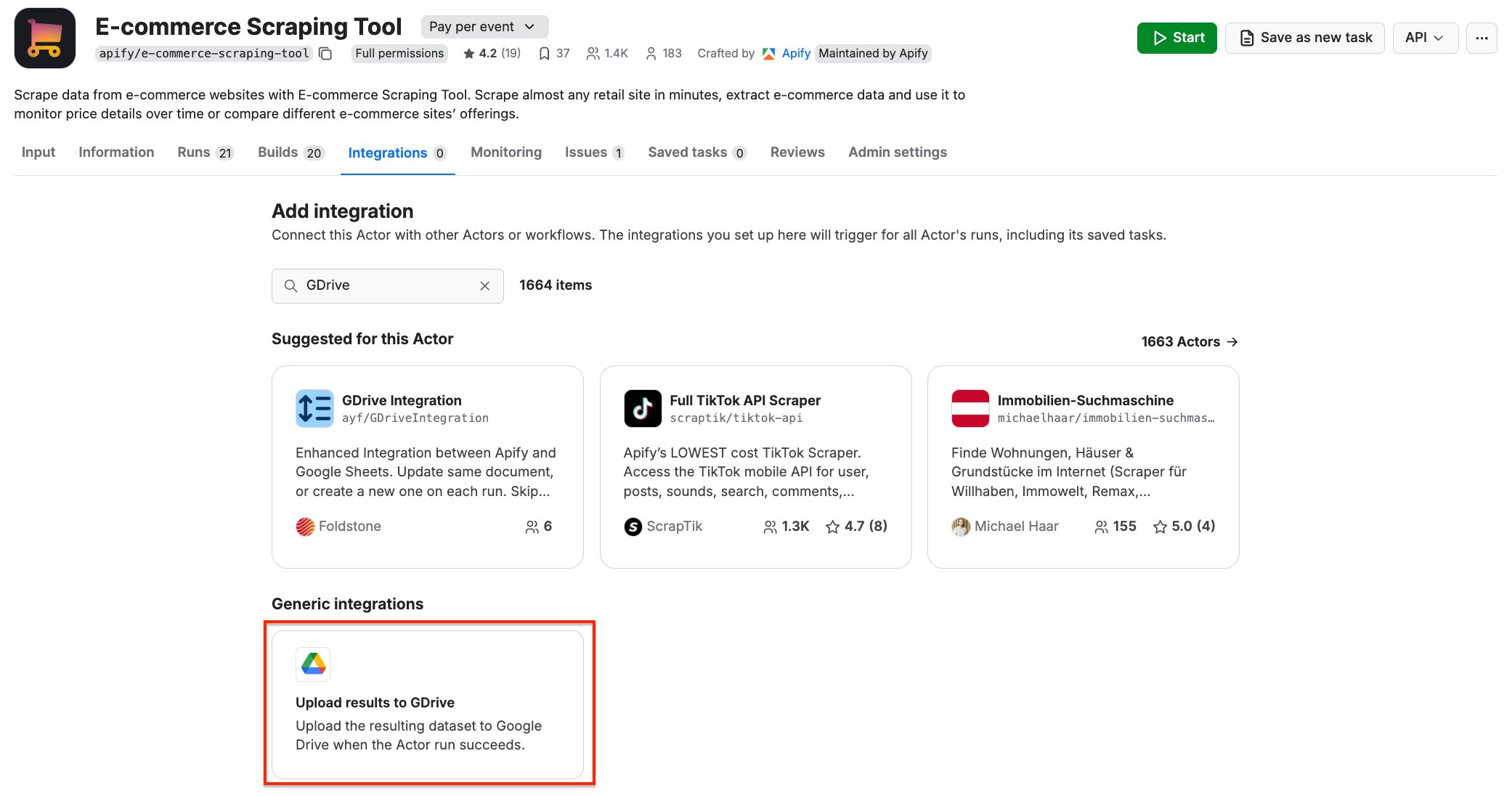
Before we start extracting prices from various marketplaces, let’s make sure our data flow is configured. Go to E-commerce Scraping Tool and select the Integrations tab. Start typing “GDrive” in the search bar, and select the Upload results to GDrive integration.
Give the integration a unique name. In our example, we’ll use Cameras - prices vs. MAP. Click Save to continue and connect your Google account. If you’re using your Google account with Apify Console, your email address might already be on the list of accounts to select.
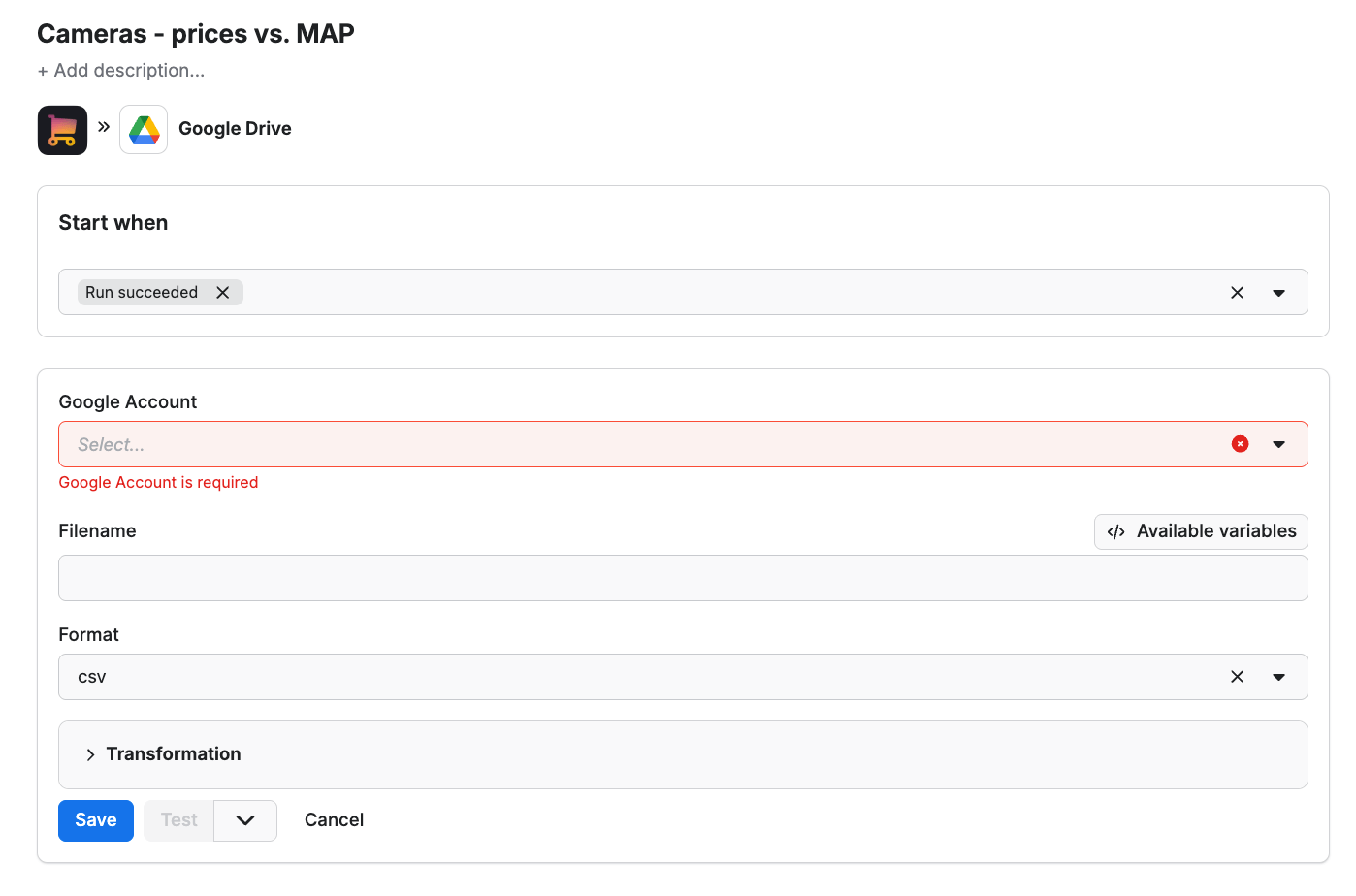
Since we want the data to be sent to the spreadsheet once the scraper finishes running, we’ll select Run succeeded as our starting point.
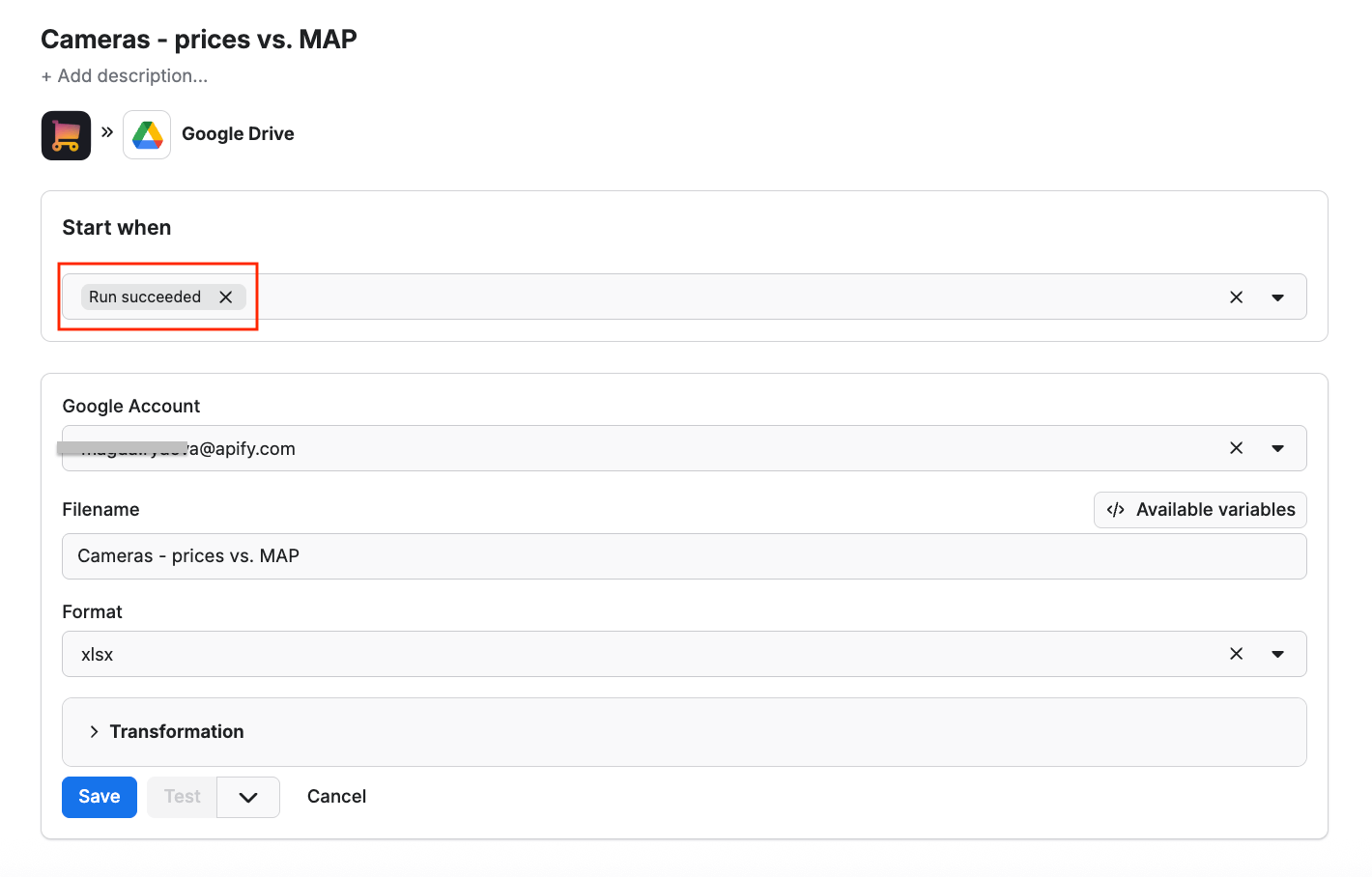
Select a format of the Google Drive file that the Apify integration will create (we’ll go with the XLSX) and click Save. The workflow is ready - from now on, every time you run a scraping session, a new file with scraped results will be created in your Google Drive automatically, ready to analyze and compare over time.
Step 2: Configure the scraper and run it
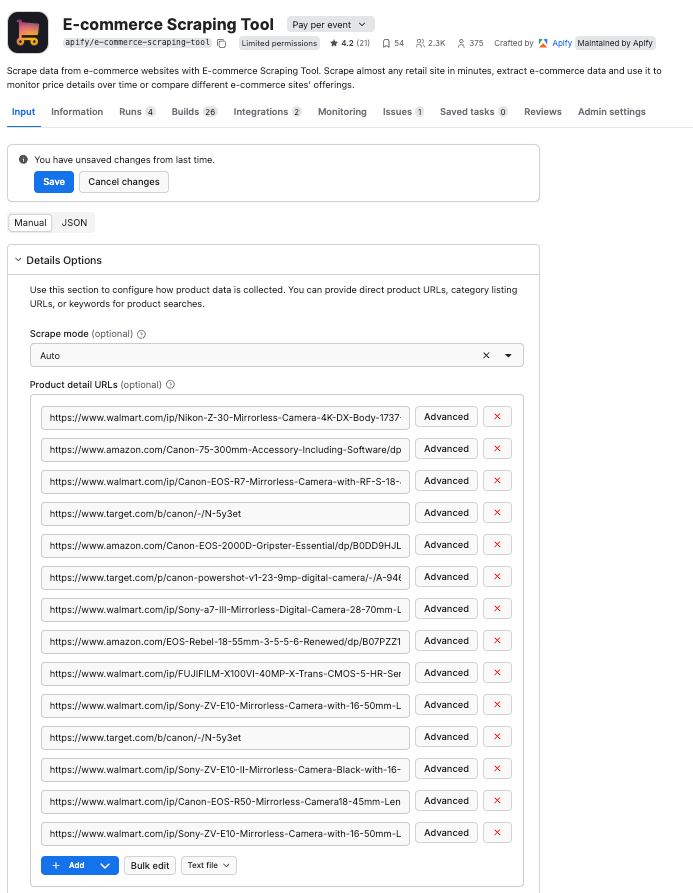
Time to set up the scraper. Collect the URLs of all the products you want to monitor prices of, across all e-shops and marketplaces. We’re using URLs from Amazon, Walmart, and Target in our example. The scraper can get all the pricing data in a single run. You can use the bulk edit option to paste multiple URLs as input.
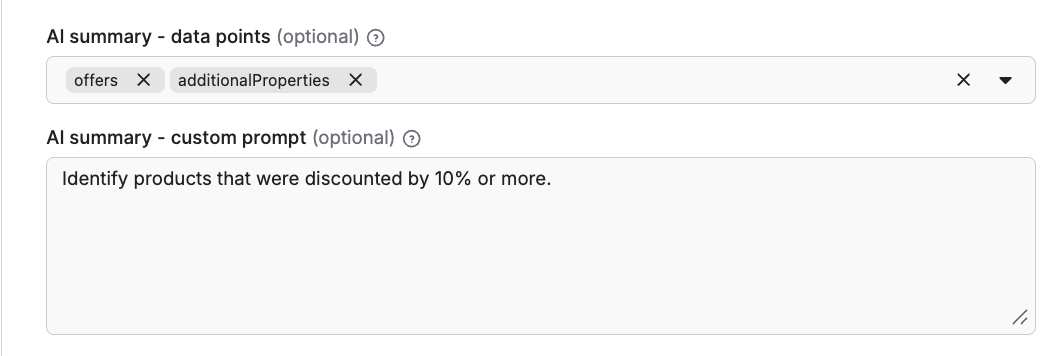
The tool also includes an AI analysis feature. Use any prompt that will make your scraping session even more informative - such as summarizing key features, or marking discounted products. If you want to get additional insight with your scrape, feel free to use a prompt of your choosing and test it out.
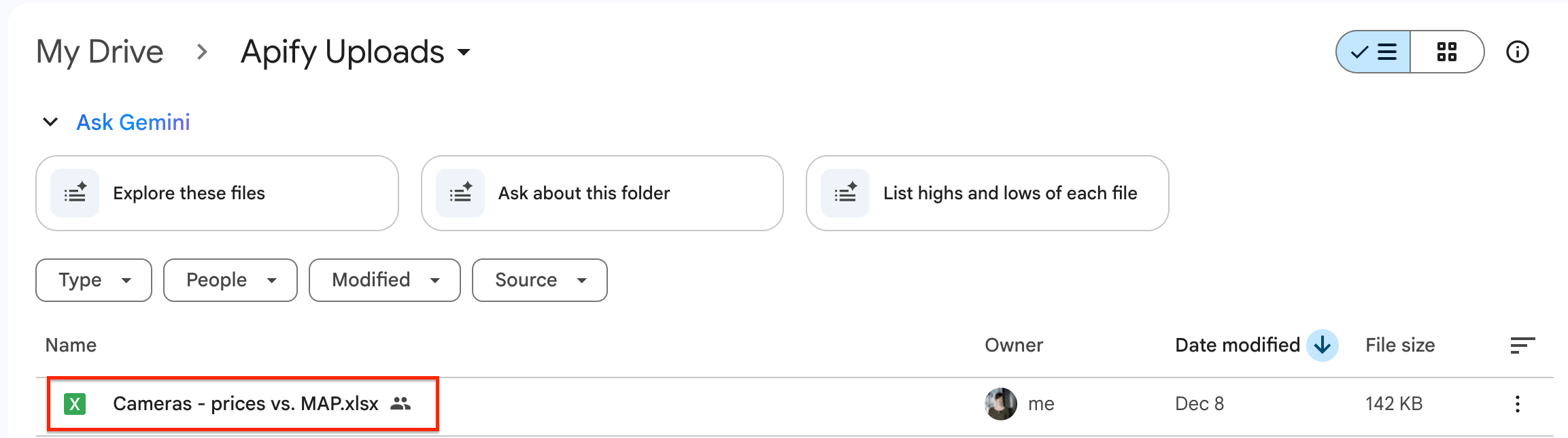
Now you can check your Google Drive for a newly created spreadsheet with pricing data. Each time you execute the scraper, it will automatically generate a new file with fresh data, ready for analysis.
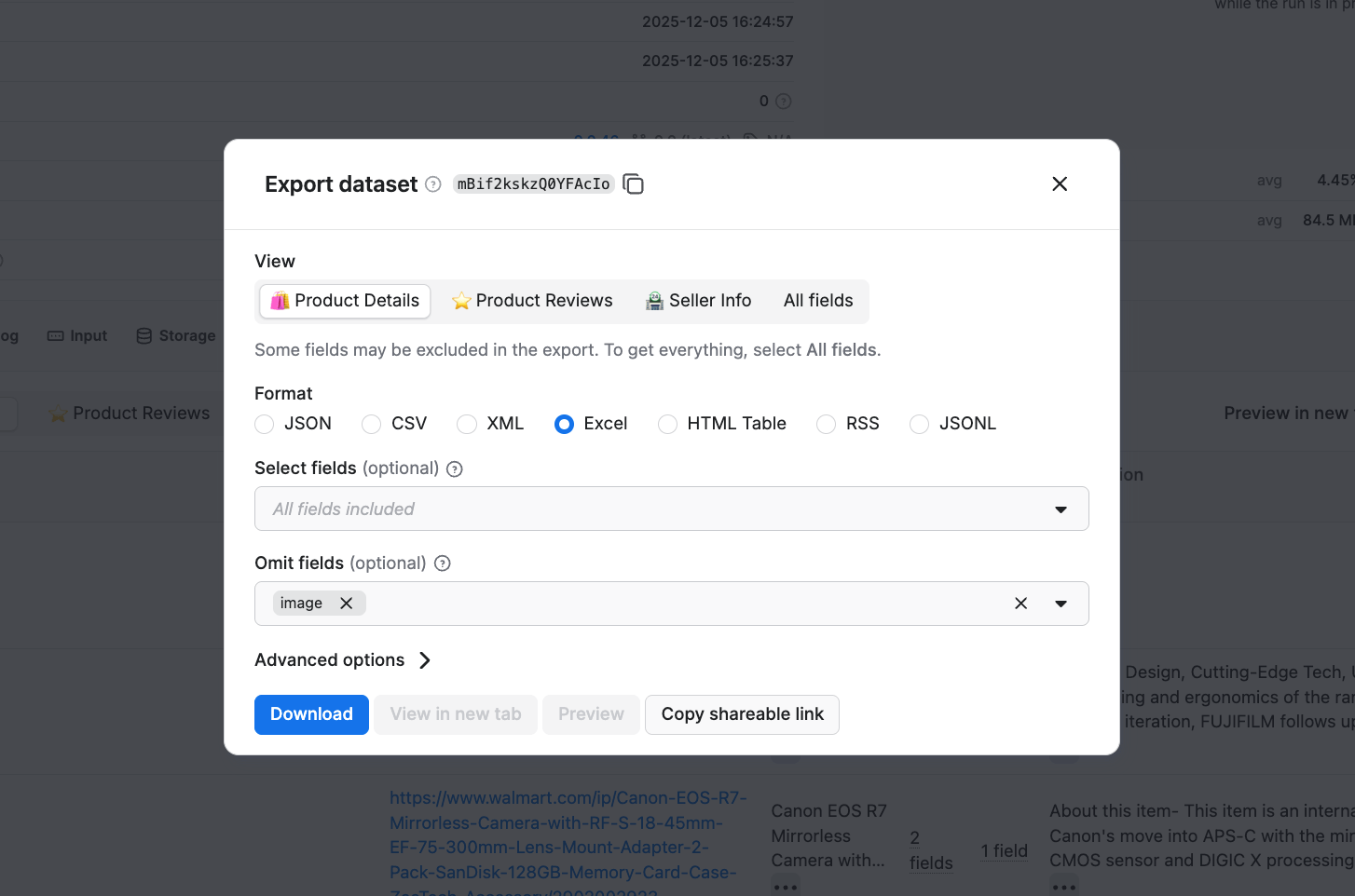
If you choose not to integrate the scraper with Google Drive, you can simply export your data in Excel format after the scraper finishes running and continue with the data cleanup in step 3. Click the Export button in the top right corner to download your dataset.
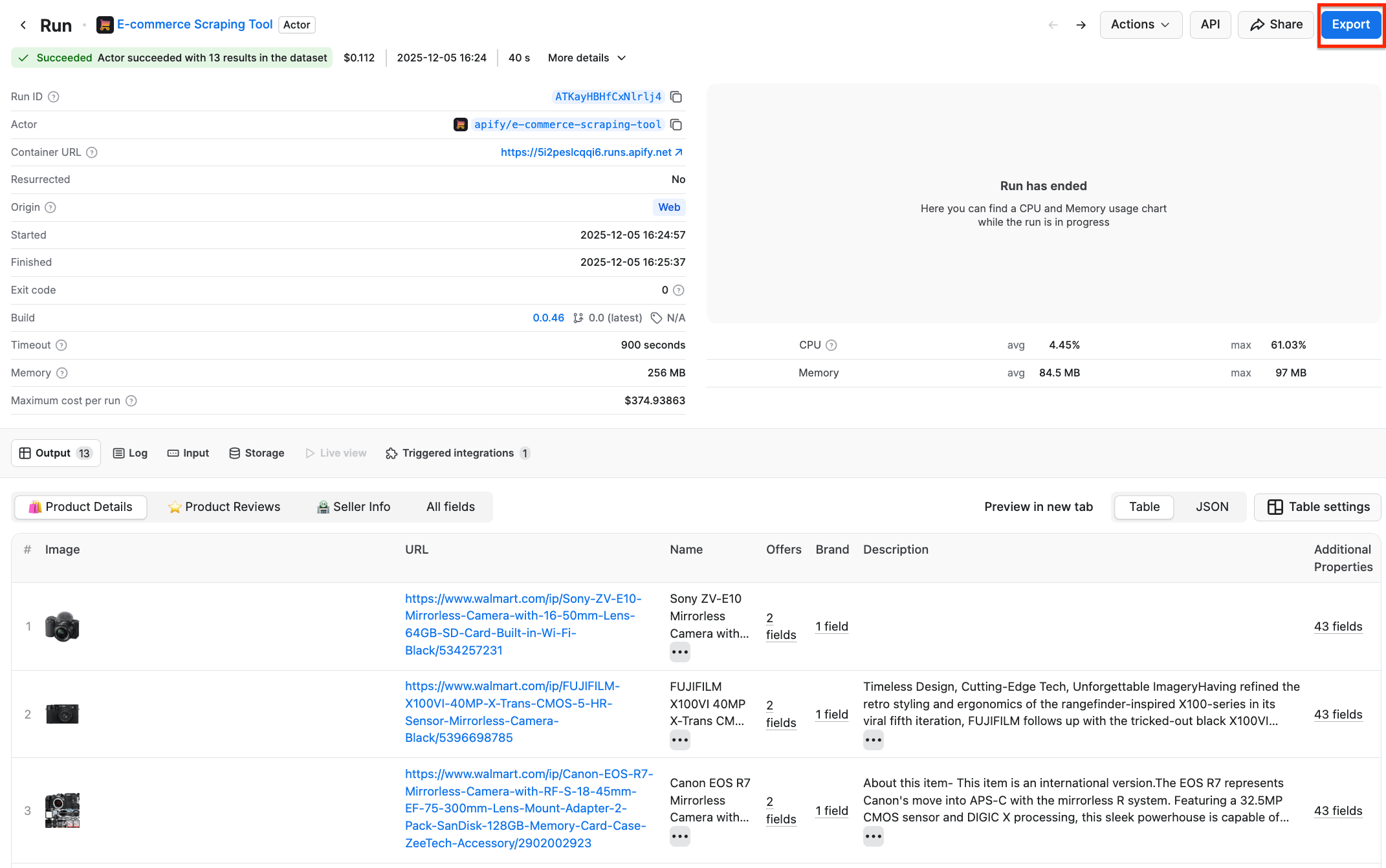
You can also omit fields you’re not interested in during download, to avoid information noise.
Step 3 - Data cleanup and MAP monitoring
Go to your newly created pricing spreadsheet. E-commerce Scraping Tool extracts a lot of data, and you might want to organize the dataset before diving into MAP tracking.
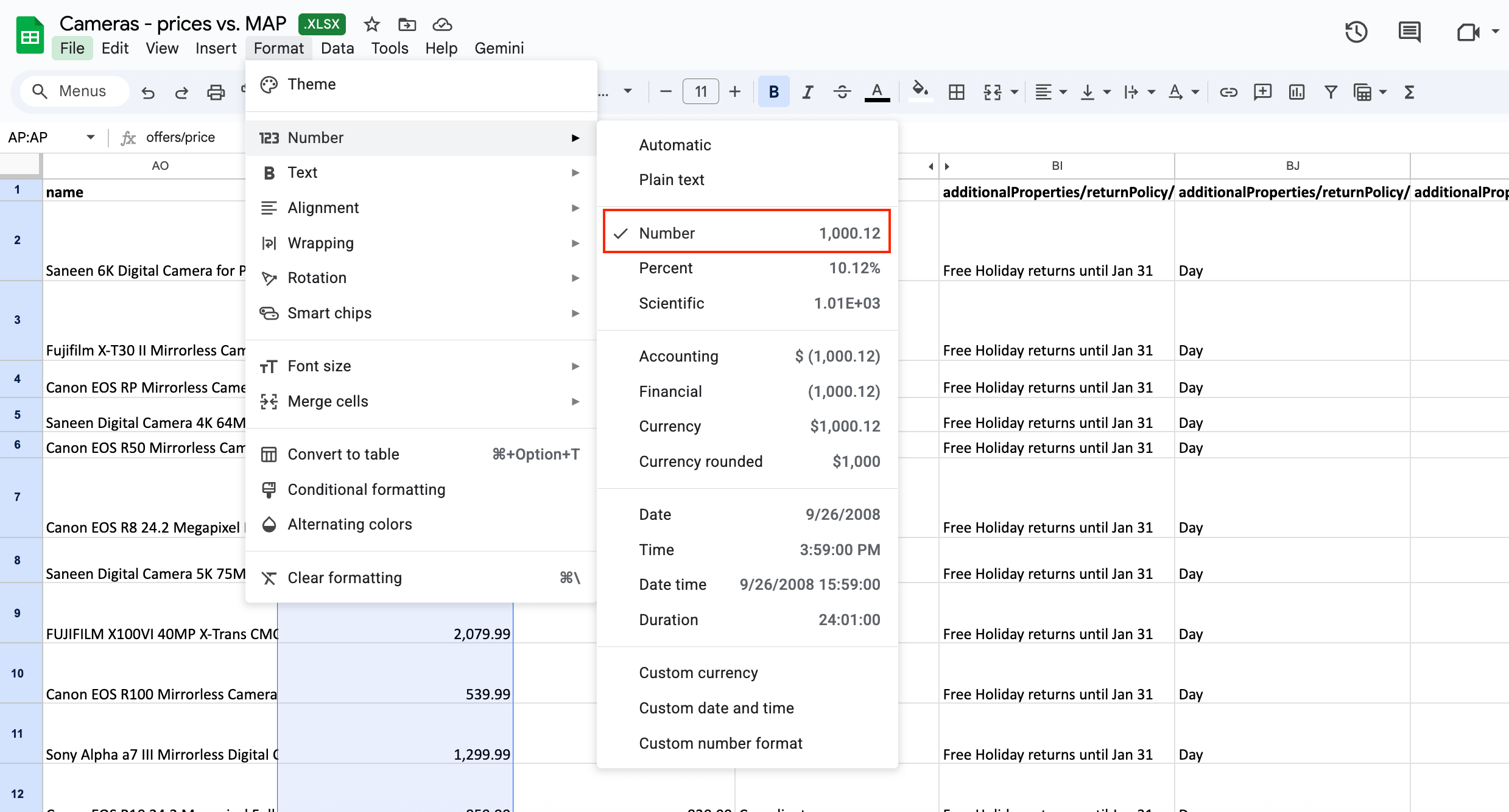
Find the price column you’re interested in (depending on the type of your scrape, it could be offers/price, additionalProperties/priceInfo/priceDisplay , or additionalProperties/priceInfo/wasPrice/price if you’re also analyzing discounts) and make sure the formatting of the column is set to Number. You can do so by selecting Format → Number → Number.
Now, create two additional columns in the spreadsheet, preferably right next to your extracted prices:
- One for the minimum advertised price for each product (we’ll name it MAP)
- One for the monitoring (we’ll name it Compliance)
In the MAP column, add all your minimum advertised prices. In our case, it’s the AQ column.
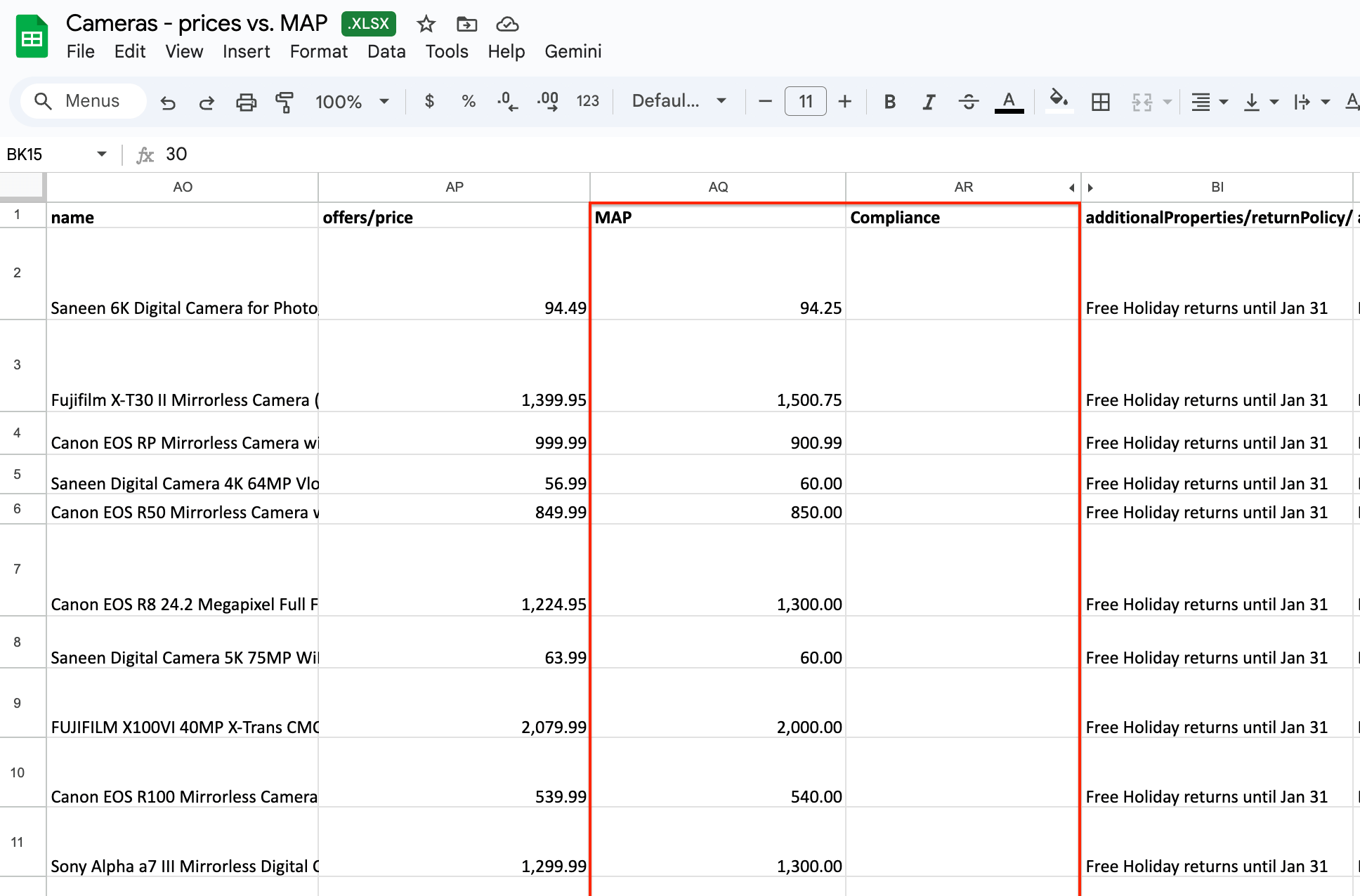
Once you have all your minimum advertised prices ready, it’s time to create a function that will check whether the scraped price is compliant or not. We’ll use an IF function in the AR column, where the values in the AP column have to be greater than or equal to the values in the AQ column.
Our logical function looks like this: =IF(AP2>=AQ2, "Compliant", "Violation") .
Condition: The
AP2 cell value (our scraped price) has to be greater than or equal to the AQ2 cell value (our MAP price)If TRUE → return one value (first component, defined as ”Compliant”)
If FALSE → return another value (second component, defined as ”Violation”)
You can use any words you want to represent the TRUE and FALSE parameters inside quotes; these are text strings that will appear in the Compliance column after calculation.
Copy the function to all the other cells in the Compliance column, and that’s it - you’ve built your own MAP monitoring system.
Step 4 (optional) - Schedule automated runs
If you want to scrape your prices regularly, you can schedule the scraper to run automatically and collect data without manual input. To do this, create a task and a schedule in Apify Console.
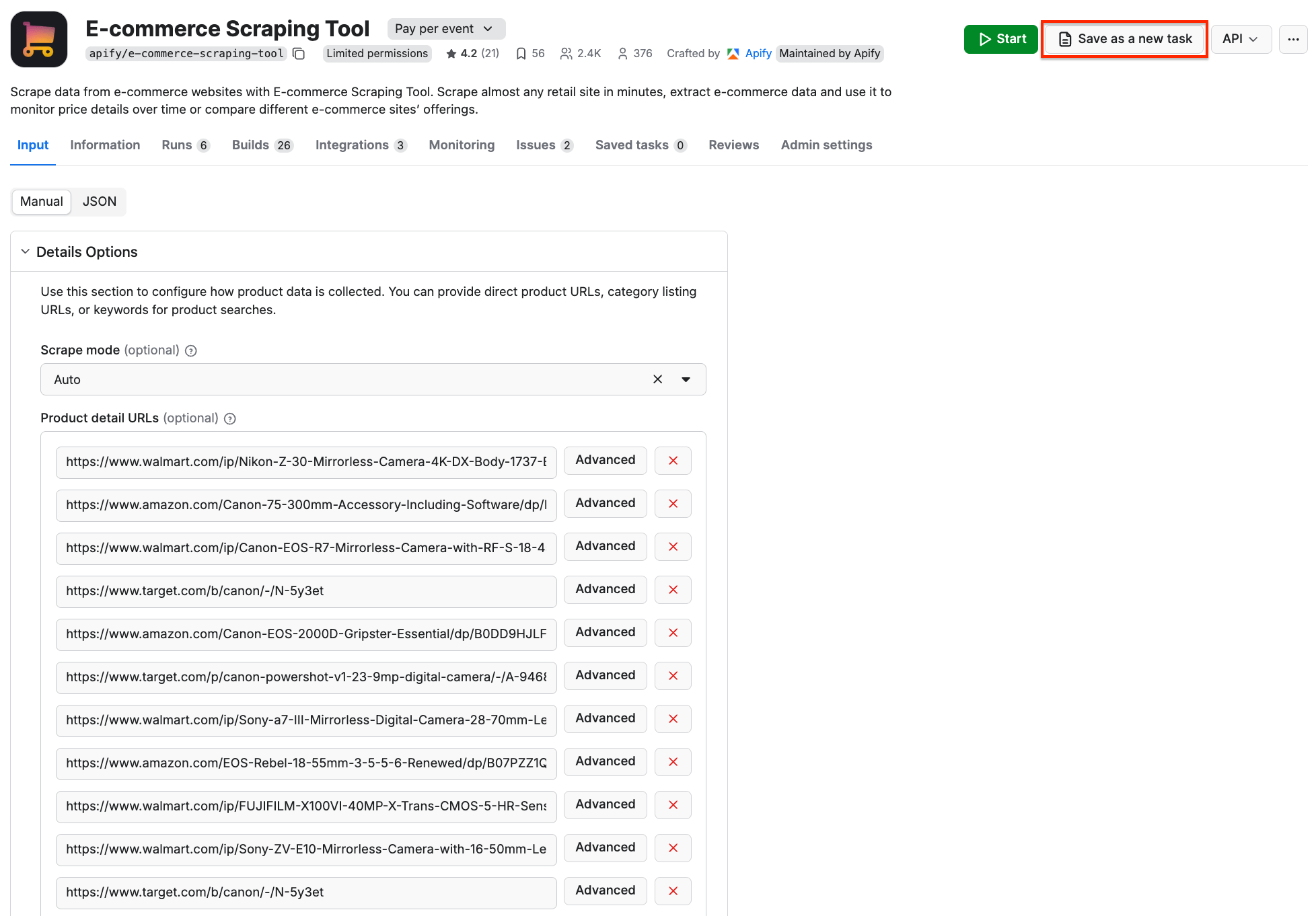
First, make sure your scraper is properly configured, then click the Save as a new task button in the top-right corner.
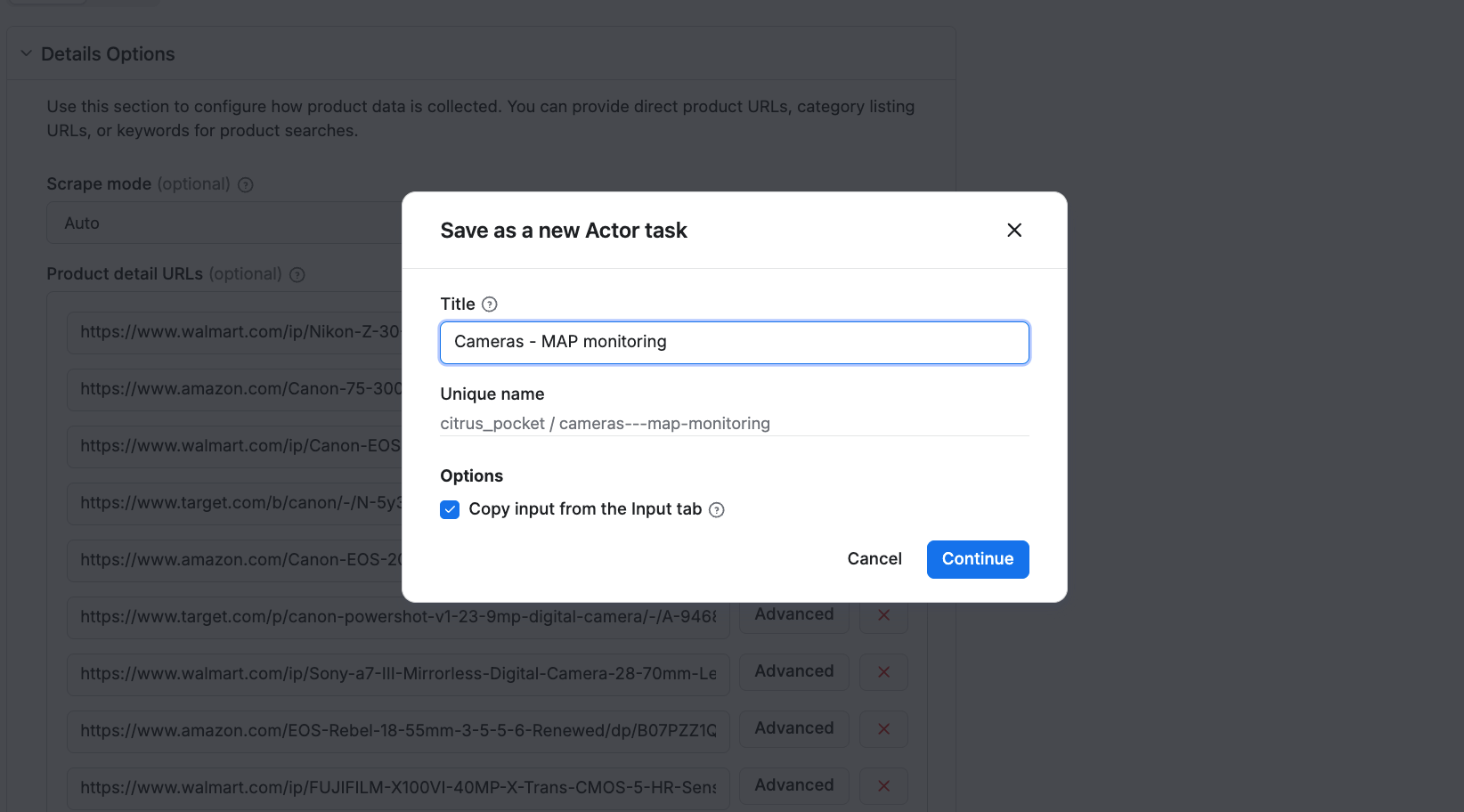
Give your task a name and save it.
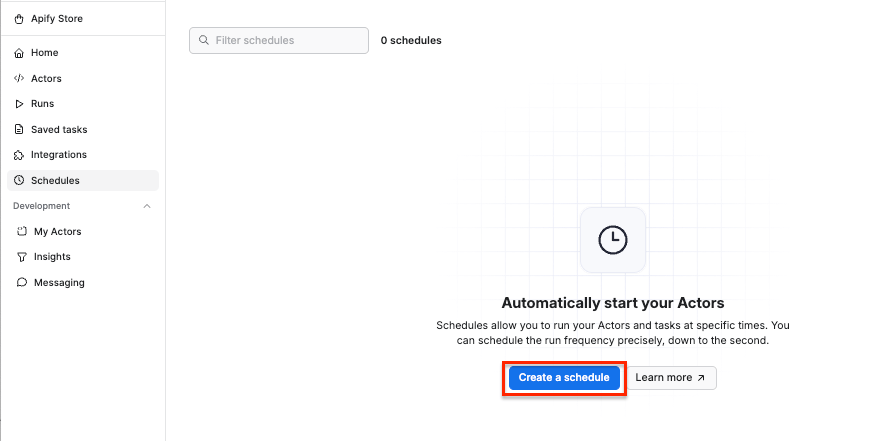
Now, you can easily schedule the task by accessing Schedules in the left-hand navigation and clicking the Create a schedule button:
We’ve already saved our task, so now it’s time to add it to the schedule. Click Add task at the bottom to customize your schedule, select a task, and choose how often you want the scraper to run - weekly, monthly, or on any day that works best for you.
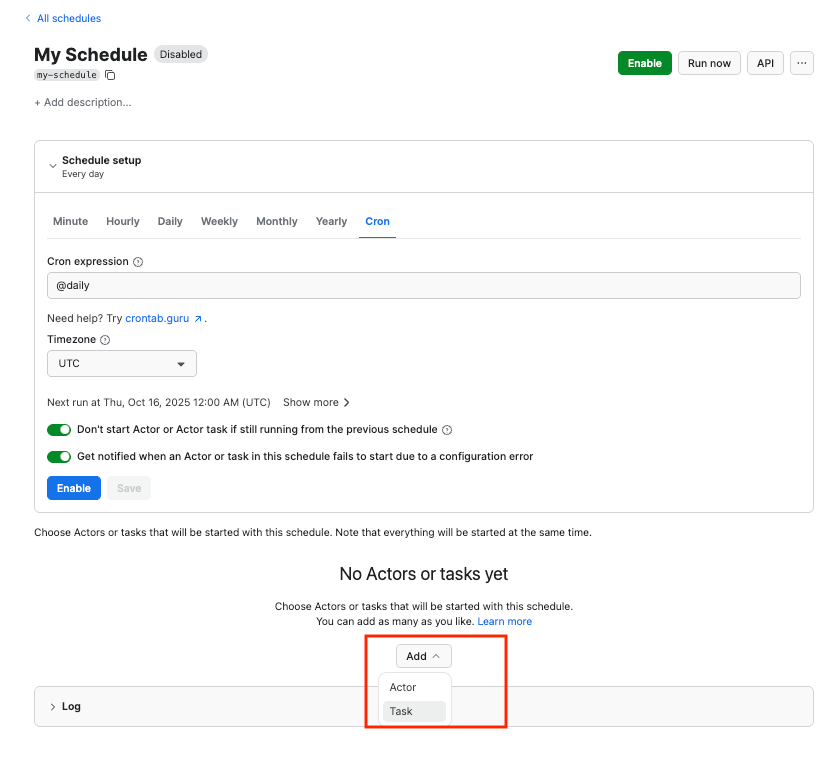
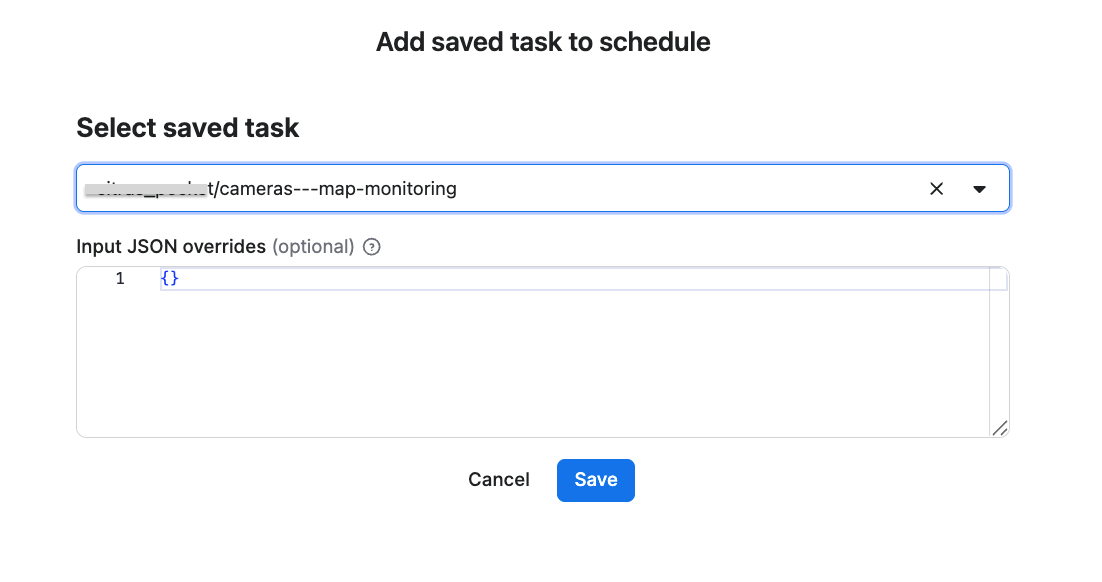
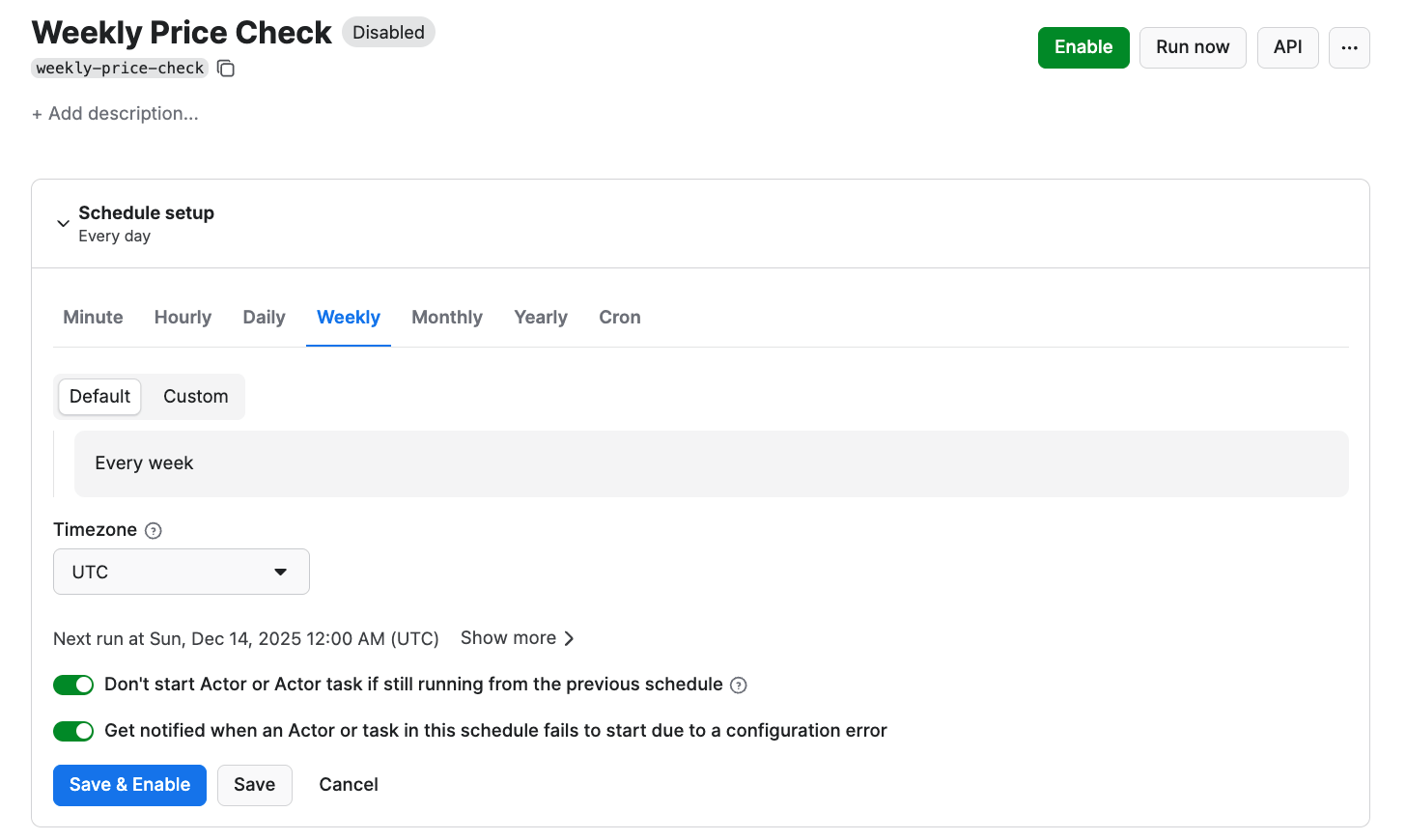
Adding saved task and creating schedule
Click Enable, and your schedule will be up and running. It will automatically start the scraper at your chosen time and send the results to Google Drive, thanks to the integration we set up earlier.
Choosing scraper-based MAP monitoring vs. dedicated MAP software
If you’re debating whether or not a scraper-based MAP tracking is for you, take a look at our quick comparison:
| Feature | MAP software | Web-scraping solutions |
|---|---|---|
| Setup | Depending on the platform’s capabilities - usually done with support teams | Requires some technical setup, but no code is needed. Can be done quickly following a tutorial |
| Flexibility | Limited to supported sites | Very flexible - you choose which channels to scrape, from global marketplaces to local e-shops |
| Speed | Depends on vendor intervals | You choose your own scraping frequency |
| Cost | Usually higher | Usually cheaper |
| Scalability | May have SKU limits | Highly scalable |
While scraper-based monitoring requires some manual effort, it’s a valid choice for growing businesses that value flexibility over ready-made solutions. Apify provides you with a forever-free account and $5 worth of usage every month, so you can test the solution for free without a time limit.
Start monitoring prices
A DIY alternative to MAP software - specifically, E-commerce Scraping Tool - enables you to build your own MAP monitoring system within your dataset spreadsheet. The tool can extract prices from any e-commerce site, automatically send the results to Google Drive, and run on a scheduled basis.

FAQ
Can I use any scraper to extract prices for MAP monitoring?
Generic scrapers might not get the data you need. Global platforms, such as Amazon and Walmart, actively defend their data from automated scraping by using behavioral analysis, device fingerprinting, rotating layout identifiers, and frequent CAPTCHA challenges. A ready-made e-commerce scraper designed to work with complex platforms can help you collect pricing data automatically and on schedule, while handling pagination, mimicking browser behavior, and using proxy rotation to avoid triggering bot detection systems.
Are platform-specific scrapers better at extracting prices?
While dedicated scrapers can pull pricing data efficiently from various platforms, you would end up with several datasets that differ in format and values, and comparing prices with MAPs would require extensive data cleanup. You would also have to perform several scraping runs to get all the data you need. Plus, if you’re using niche or local e-shops as your distributors, you probably won’t find a dedicated scraper for these. E-commerce Scraping Tool covers all e-shops in a single run.